Skip to content
OnlyTG Icon
  • ProductsExpand
    • Echo
    • Recorder
  • ResourcesExpand
    • Help
    • Blog
  • EnglishExpand
    • 中文 (中国)
    • Русский
    • English
Contact us

OnlyTG Echo

  • Introduction
  • How to start
  • Chatbots
    • Message Receive and Reply
    • Set Start Message
    • Set Auto-reply and keywords-based reply
    • Set Quick Reply
    • Create Broadcast Task
    • Tracking Links
  • Channels
    • Channel Management
    • Channel Post
    • Channel Post Edit
    • Pro Communities – Channel
    • Loop Post on Telegram Channels
  • Groups
    • Group Management
    • Group CAPTCHA
    • Group Greeting
  • Others
    • Change to Topic Mode
    • Multimedia Messages
    • Set and use content module
    • Edit bot infomation
    • View my bot’s statistics

OnlyTG Recorder

  • Introduction
  • Record Message and Foward
  • Save Record
  • Lock Record
  • Edit Record Title
  • Timezone
View Categories
  • Home
  • Docs
  • Pro Communities – Channel

Pro Communities – Channel

1 min read

OnlyTG Echo provides the function to upgrade your channel to Pro Channel. This will consume your Pro Communities slots and unlock more advanced features.

Video Tutorial

step 1

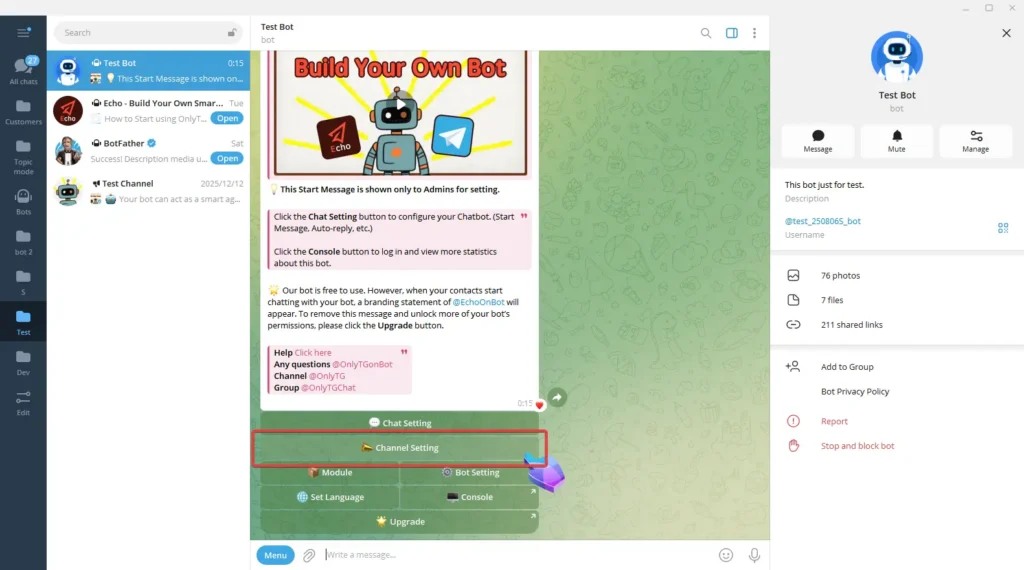
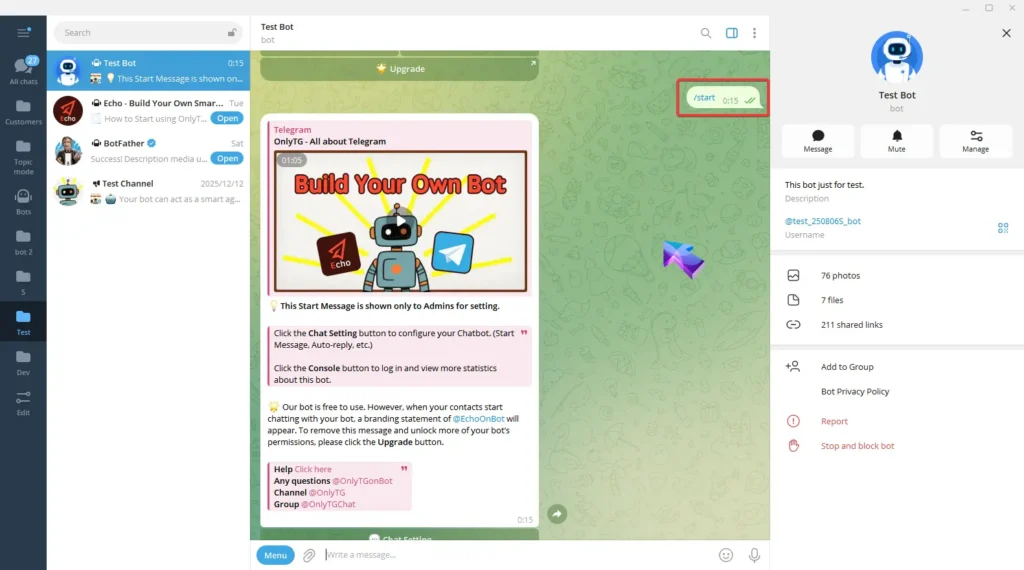
Send the /start command to your Bot, then click Channel Setting.
Pro Communities – Channel

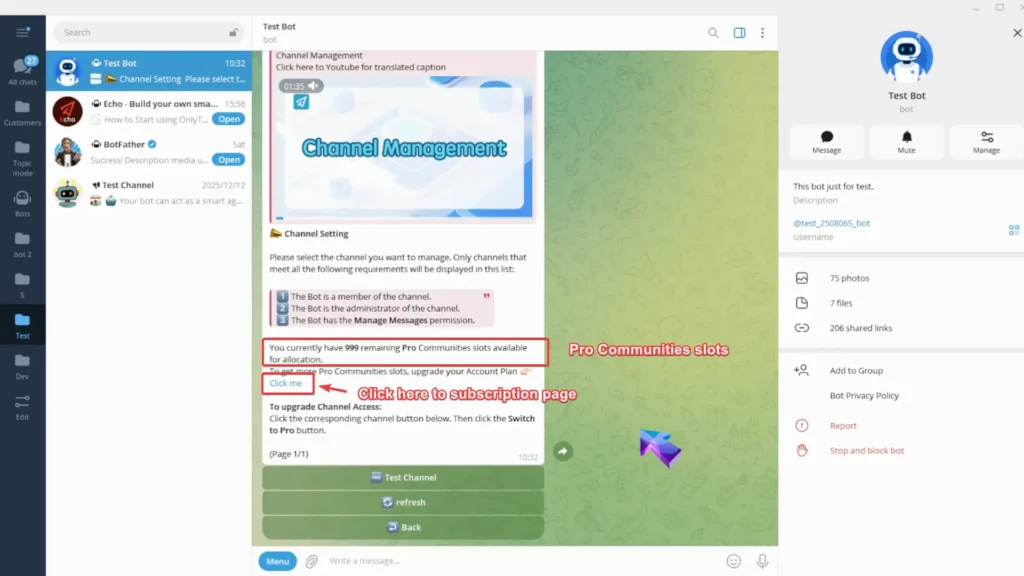
Here you can see how many Pro Communities slots you have available to allocate. If you don’t have enough slots, click here to head to the subscription page and upgrade your account plan.
Pro Communities – Channel

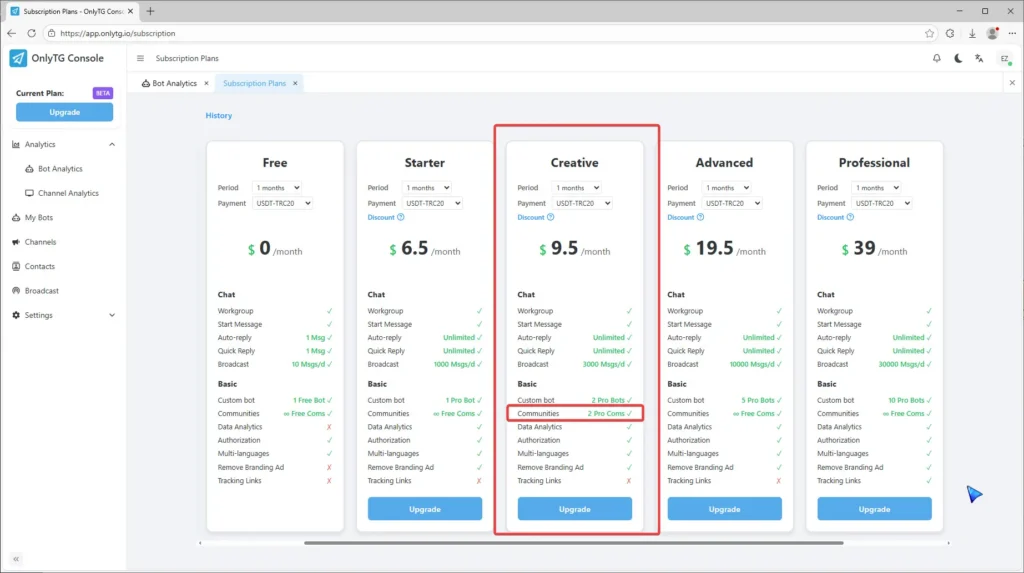
On the subscription page, any plans with Pro Com in the Communities section will increase your slot.
Pro Communities – Channel


step 2

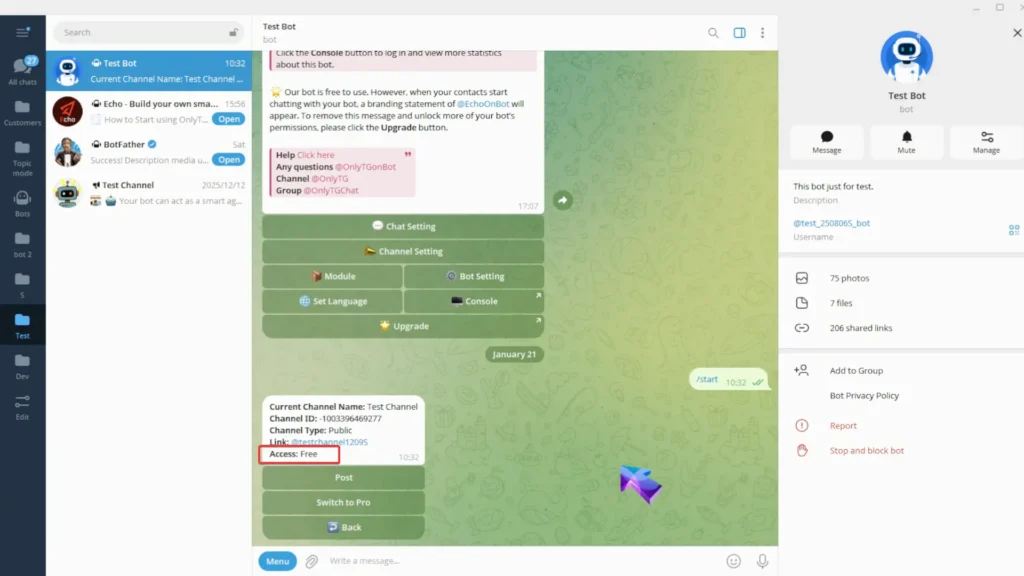
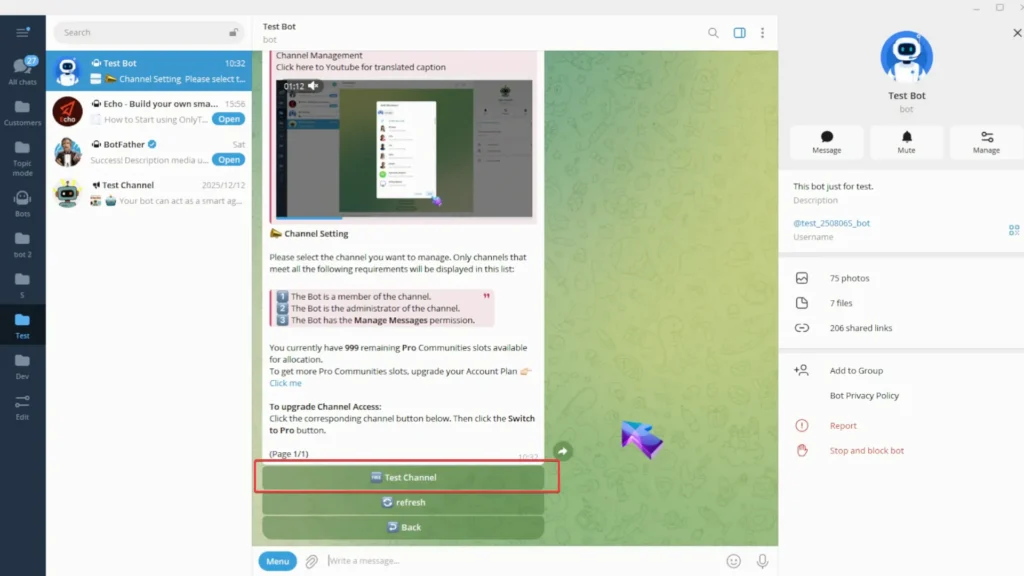
Select your channel. This channel access is Free.
Pro Communities – Channel

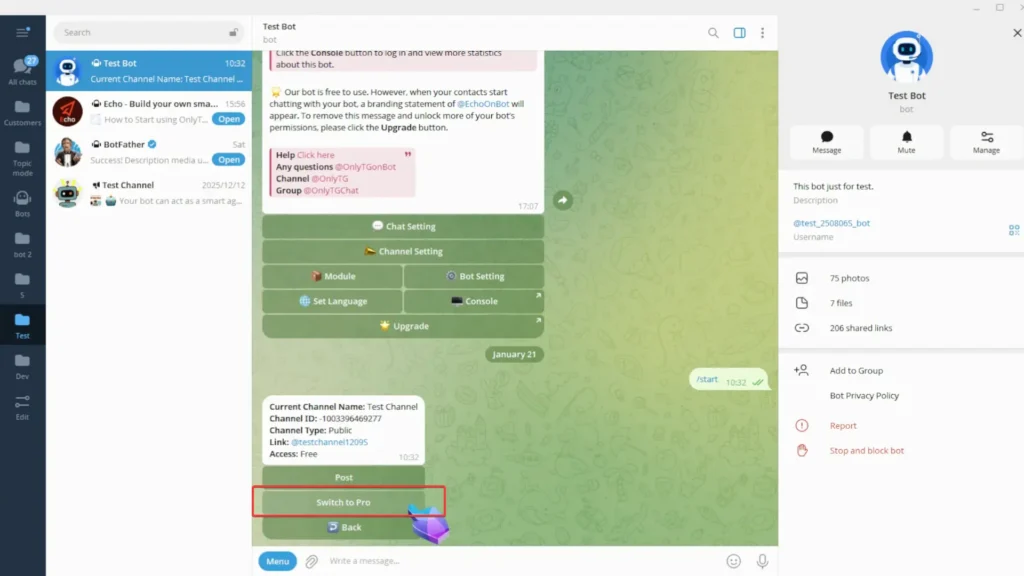
Click Switch to Pro.

Pro Communities – Channel

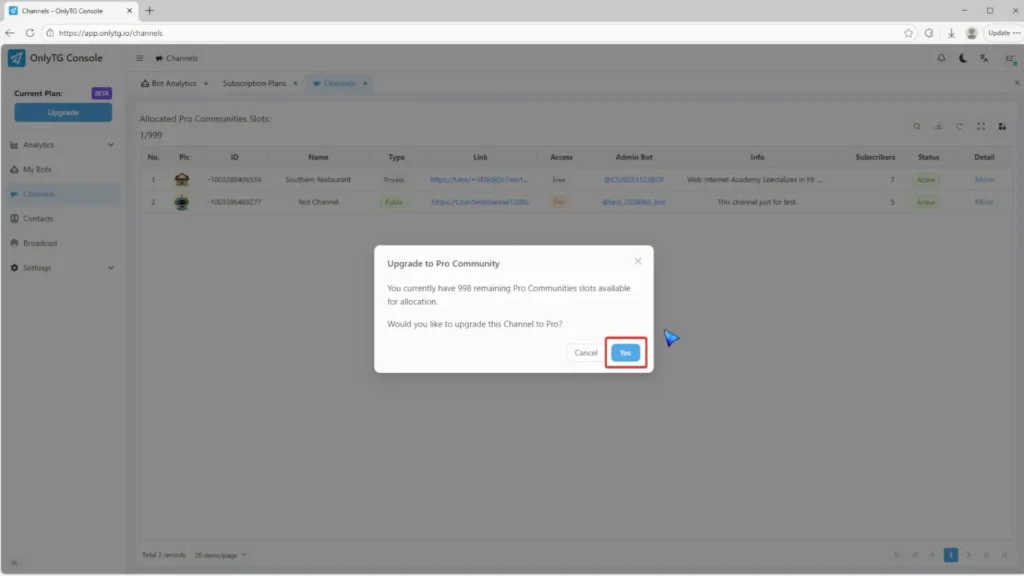
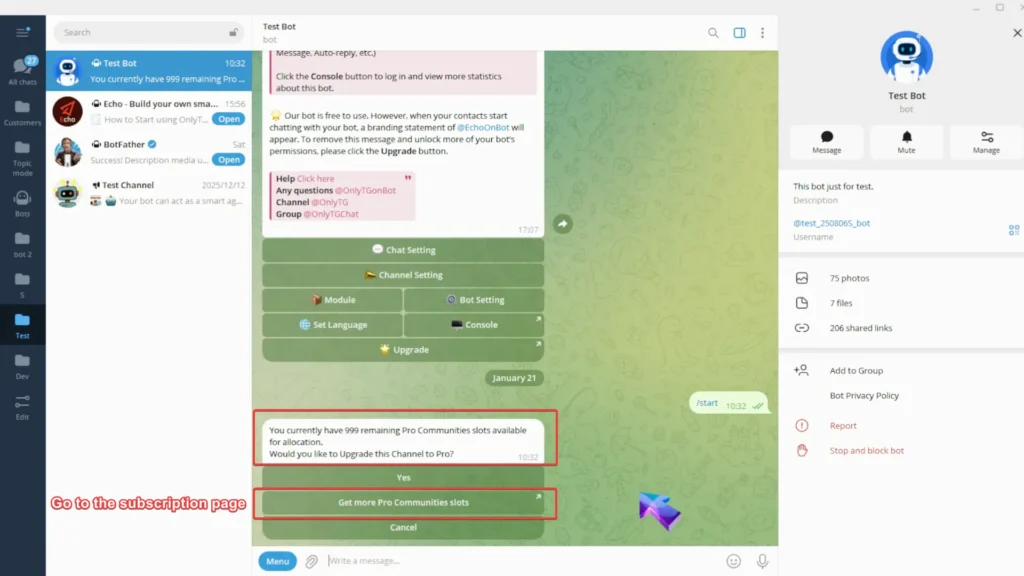
You’ll get a reminder of your remaining Pro Communities slots here, and you can also click the button to quickly go to the subscription page.
Pro Communities – Channel

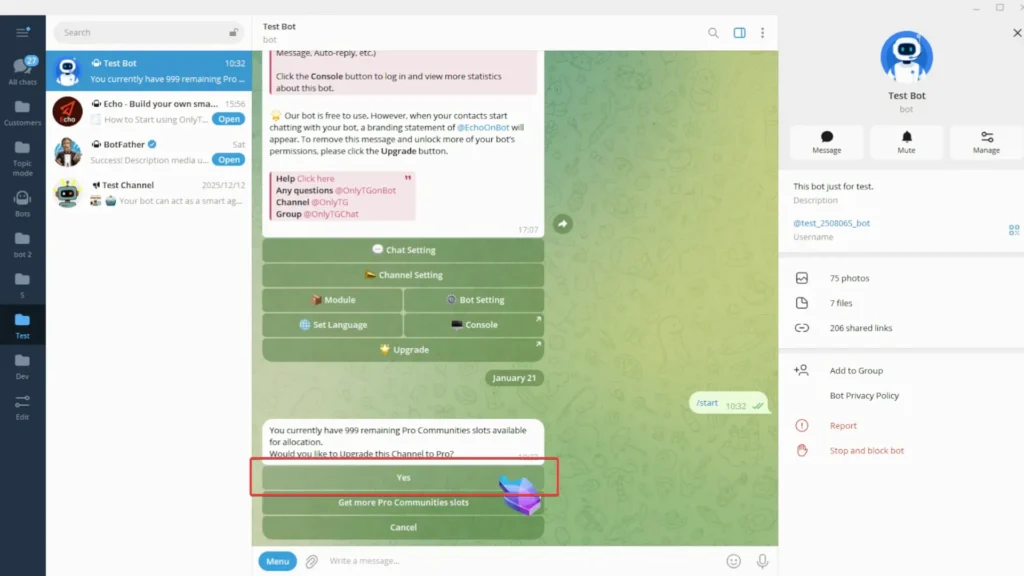
When you have enough Pro Communities slots, just click Yes.
Pro Communities – Channel

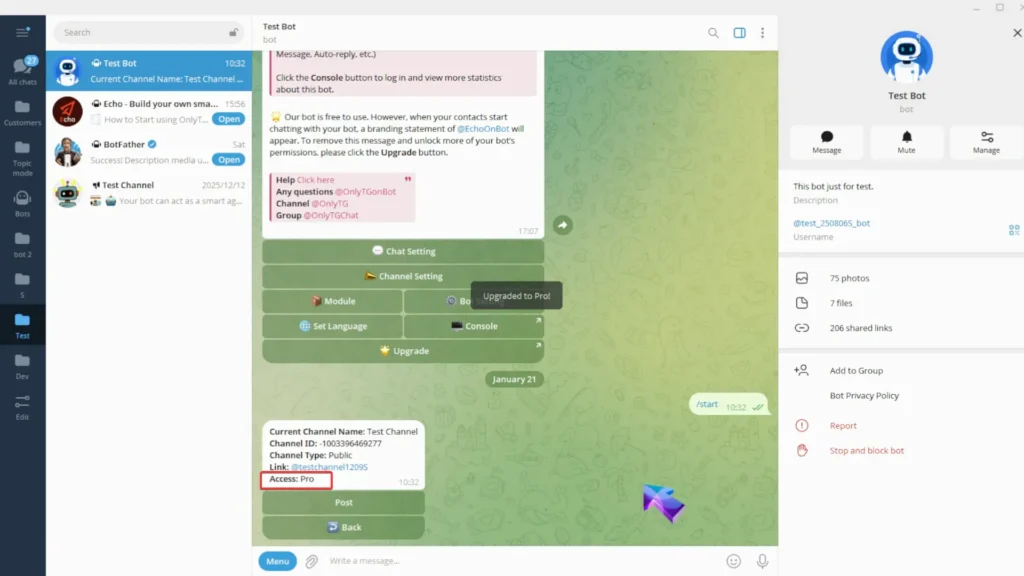
Your channel is now successfully upgraded access to Pro.
Pro Communities – Channel

Additionally, you can upgrade your channel in OnlyTG Console. (app.onlytg.io)

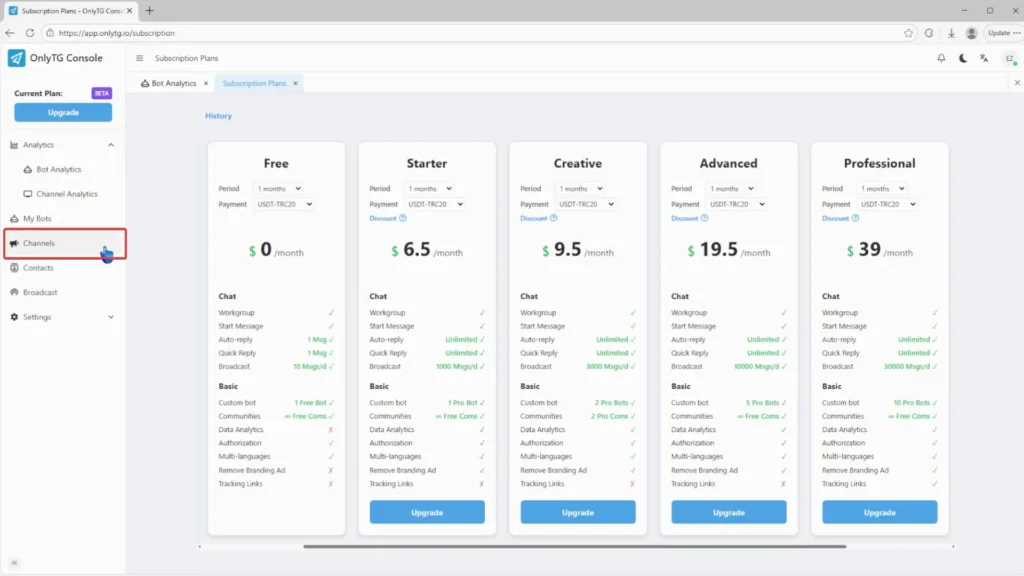
Click Channel in the OnlyTG Console.
Pro Communities – Channel

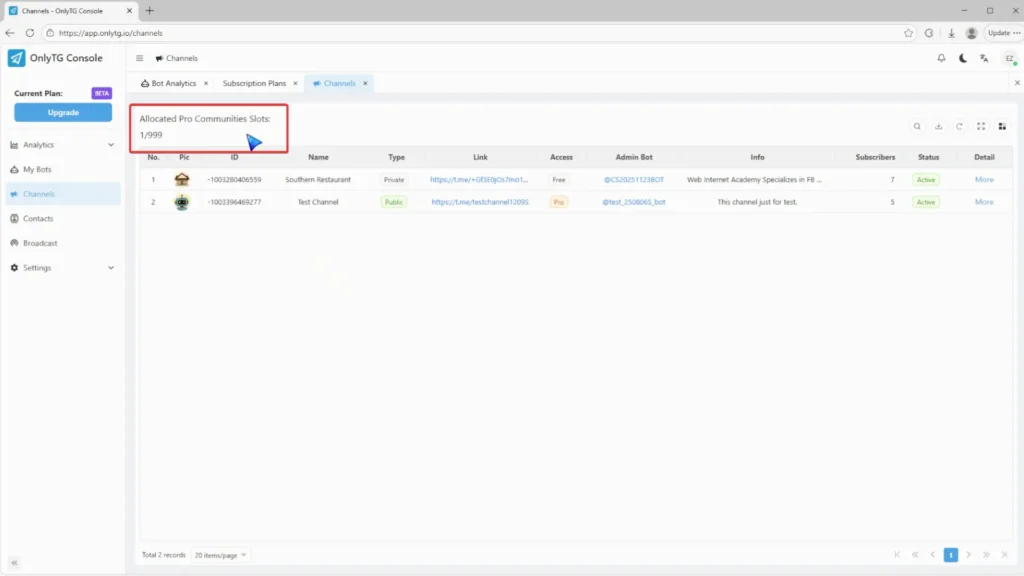
Check the Allocated Pro Community Slots.
Pro Communities – Channel

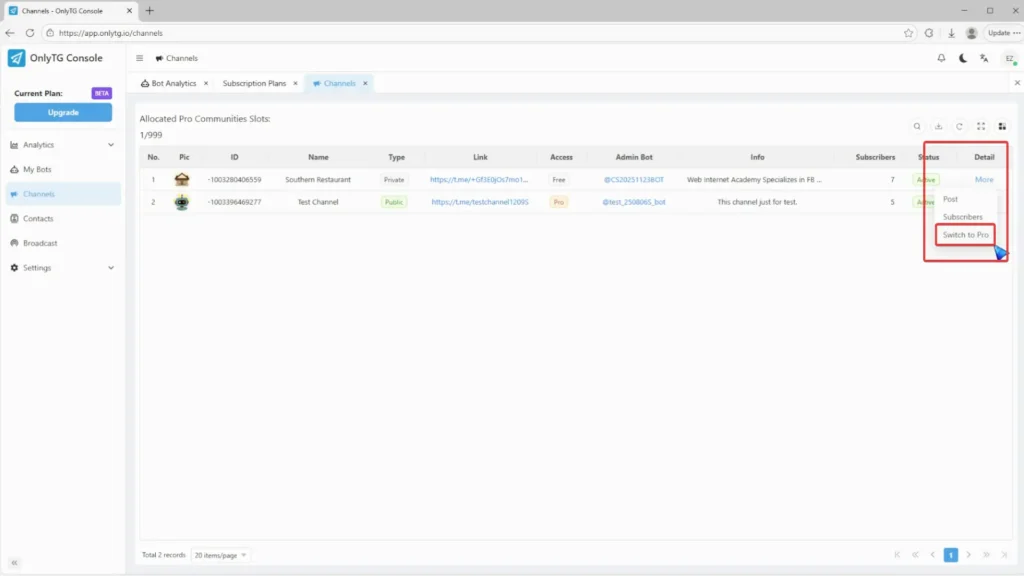
Click Switch to Pro from the More menu.
Pro Communities – Channel

Click Yes.

Pro Communities – Channel

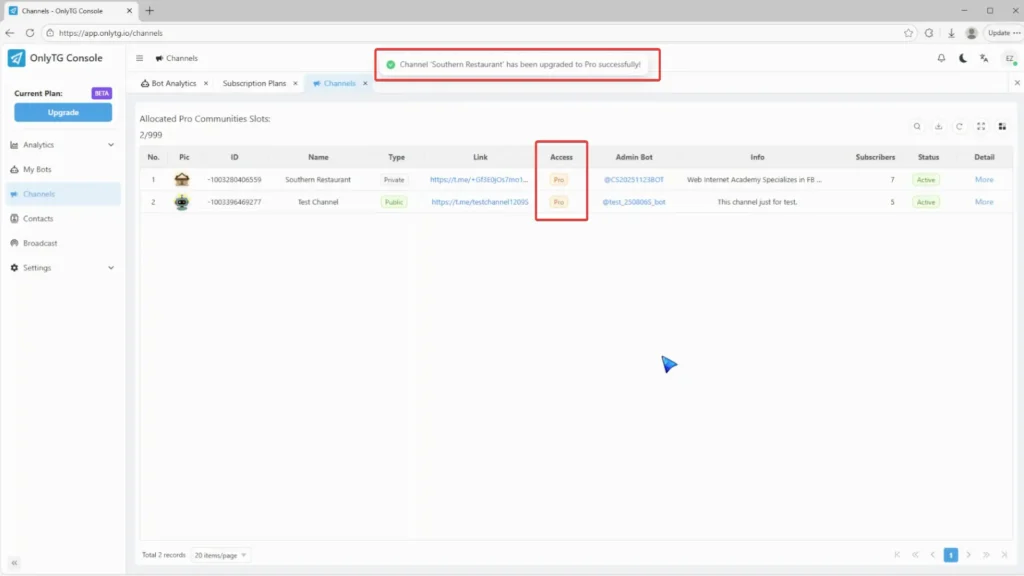
Your channel has successfully upgraded to a Pro channel.
Pro Communities – Channel

Share This Article :

  • Facebook
  • X
  • LinkedIn
Channel Post EditLoop Post on Telegram Channels
Table of Contents
  • Video Tutorial
    • step 1
    •  
    • step 2
  • OnlyTG
  • Echo
  • Recorder
  • Help
  • Blog
OnlyTG EchoTelegram VK YouTube Facebook X Email

© 2026 OnlyTG

Scroll to top
  • Products
    • Echo
    • Recorder
  • Resources
    • Help
    • Blog
Contact us