Skip to content
OnlyTG Icon
  • ProductsExpand
    • Echo
    • Recorder
  • ResourcesExpand
    • Help
    • Blog
    • Channel & Bot Finder
    • SMM Panel
  • PricingExpand
    • Echo Pricing
  • EnglishExpand
    • 中文 (中国)
    • Русский
    • English
Contact us

OnlyTG Echo

  • Introduction
  • How to start
  • Chatbots
    • Message Receive and Reply
    • Set Start Message
    • Dynamic Start Message
    • Set Auto-reply and keywords-based reply
    • Set Quick Reply
    • Create Broadcast Task
    • Tracking Links
    • Bot Menu
    • Ban Contacts
    • Recall Messages
  • Channels
    • Channel Management
    • Channel Post
    • Channel Post Edit
    • Pro Communities – Channel
    • Loop Post on Telegram Channels
  • Groups
    • Group Management
    • Group CAPTCHA
    • Group Greeting
    • Group Rules
    • Keywords Reply for Group
    • Pro Communities – Group
    • Group Post and Loop Post
  • Others
    • Multi-form Messages Builder
    • Change to Topic Mode
    • Multimedia Messages
    • Set and use content module
    • Edit bot infomation
    • View My Bot’s Statistics
    • Tag Contacts
    • Authorization

OnlyTG Recorder

  • Introduction
  • Record Message and Foward
  • Save Record
  • Lock Record
  • Edit Record Title
  • Timezone

OnlyTG SMM Panel

  • SMM Panel
View Categories
  • Home
  • Docs
  • Multimedia Messages

Multimedia Messages

2 min read

OnlyTG Echo provides the function to configure multiple media to a single message when setting Start Message/Auto Reply/Quick Reply/Broadcast and other features.

Video Tutorial

step 1

Here we take configuring a multimedia message for Auto Reply in Chat Setting as an example.

The operation is similar when setting multimedia messages for Start Message/Quick Reply/Broadcast and other features.

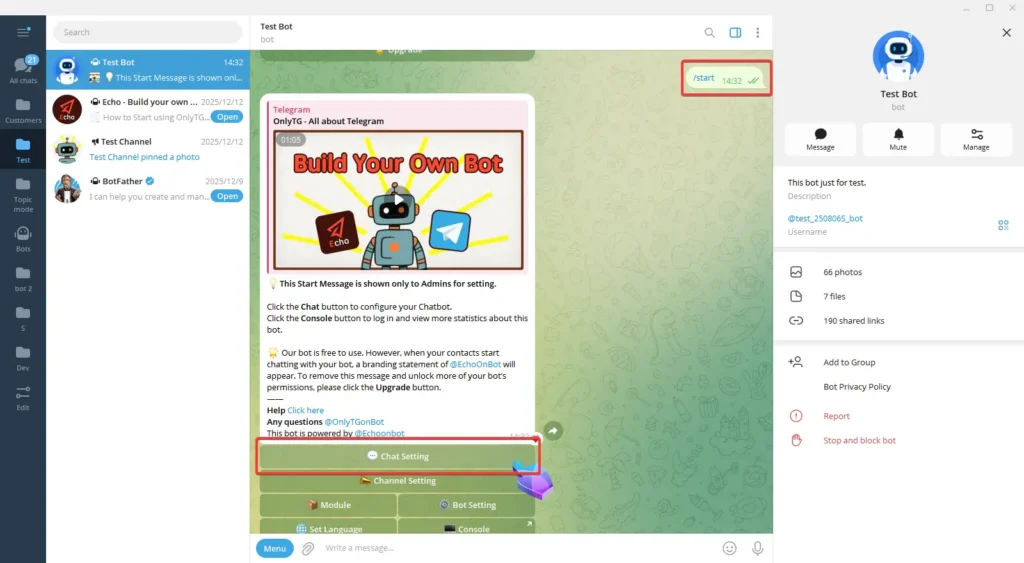
Send the /start command to your bot, click Chat Setting in the pop-up menu.
Multimedia Messages

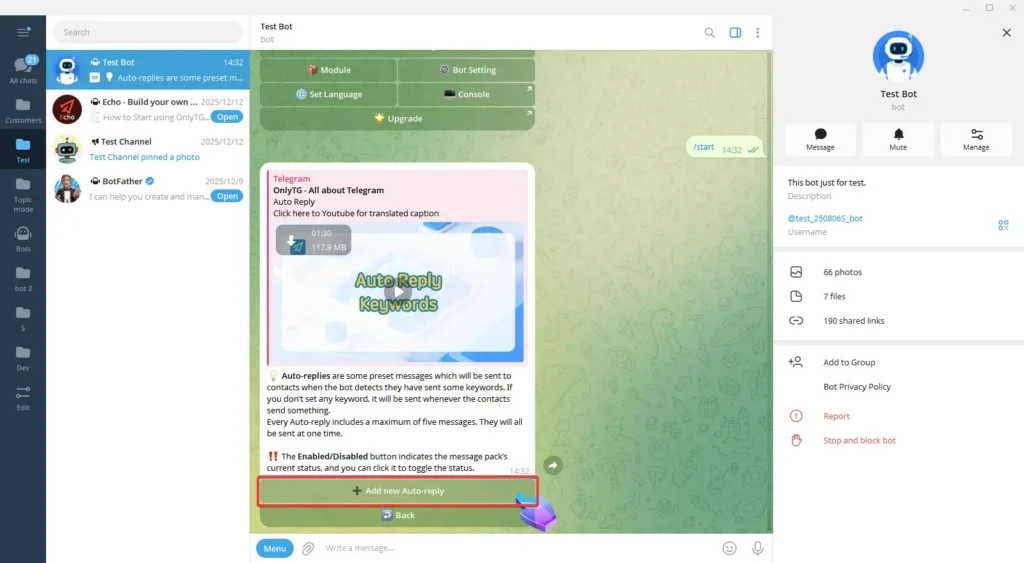
Select Auto Reply. Next, click Add New Auto Reply.

Multimedia Messages
Multimedia Messages

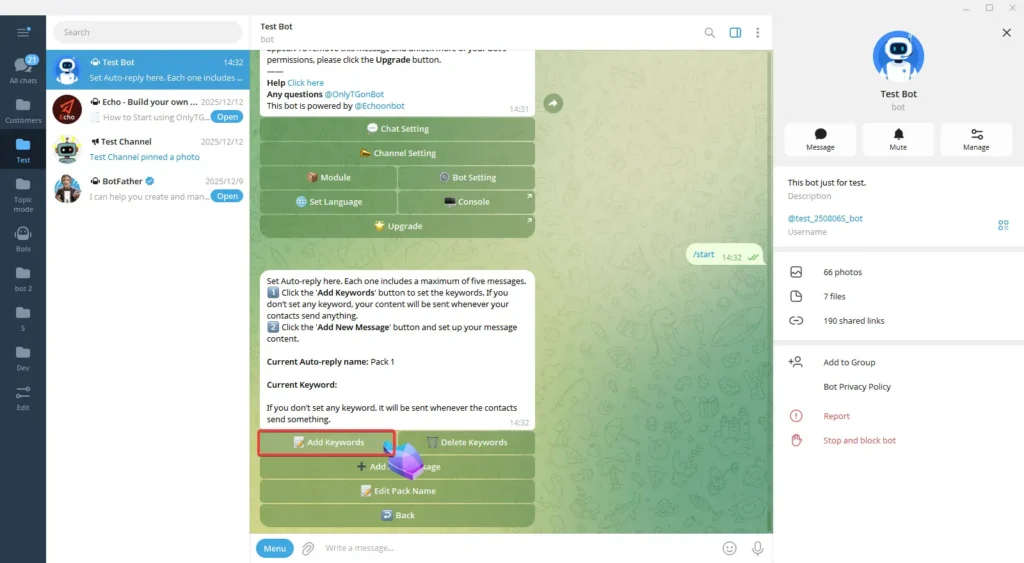
Add keywords for the Auto Reply.

Multimedia Messages
Multimedia Messages

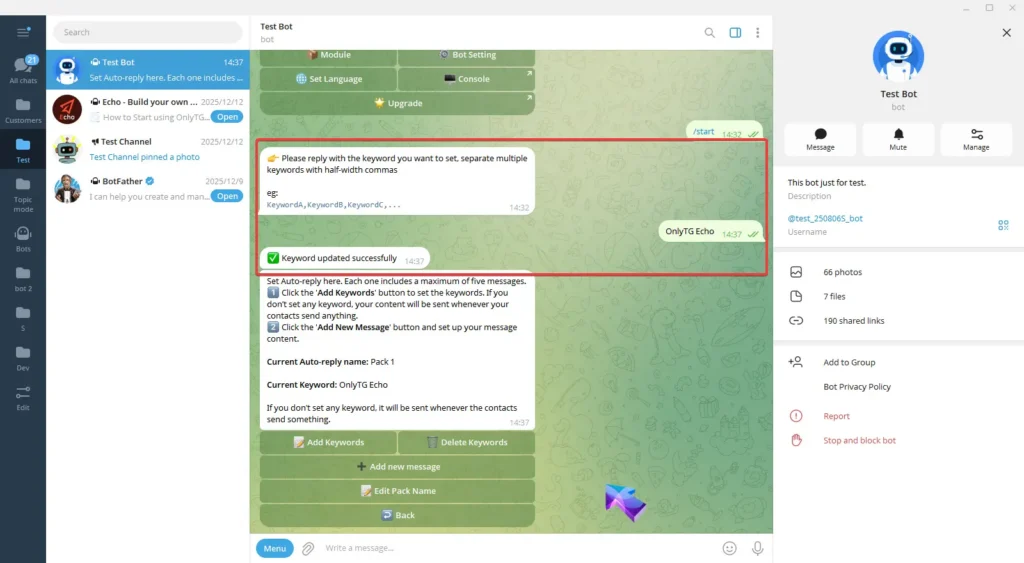
Click Add New Message and reply with the text content you want to set. Once the update success message pops up, it means the process is complete.
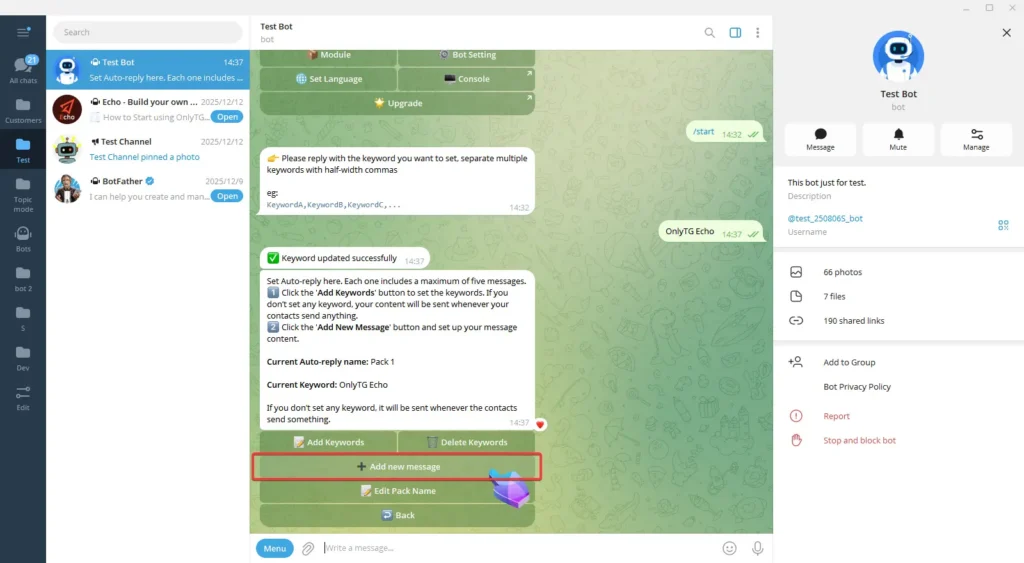
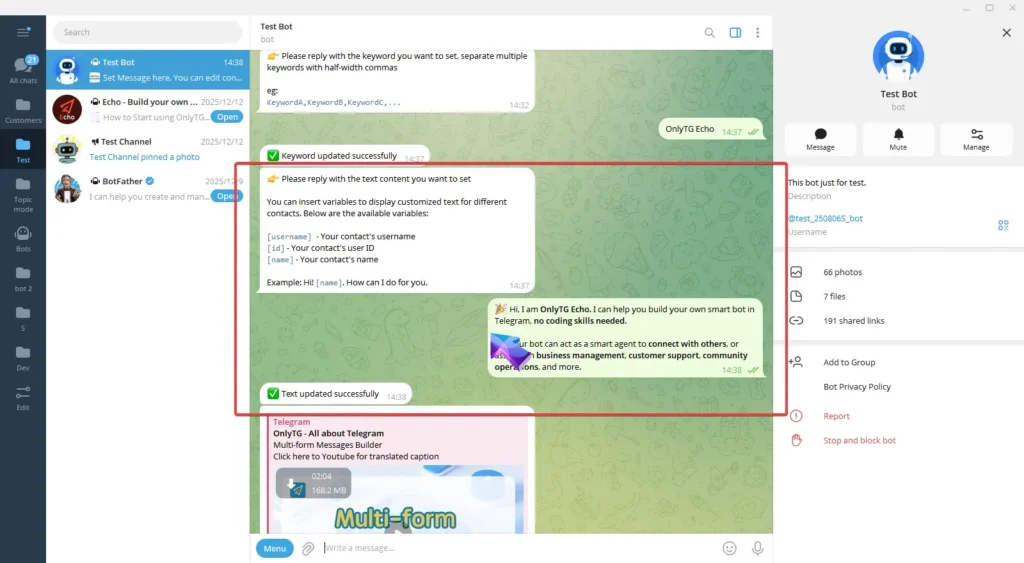
Multimedia Messages
Multimedia Messages


step 2

In normal mode, you can configure not only text/media for this message but also buttons.

Media can be images/videos/files, but the maximum number of configurable media is limited to one.
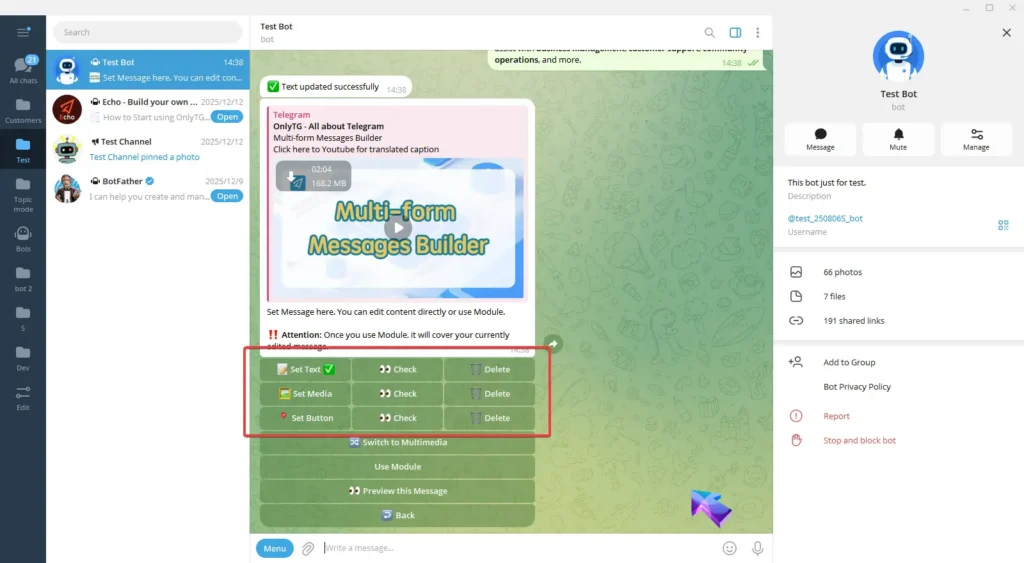
Multimedia Messages

To add multiple media, Click Switch to Multimedia to convert this message into a multimedia message. (Multimedia messages are only available for paid plans. Upgrade your plan to unlock features)
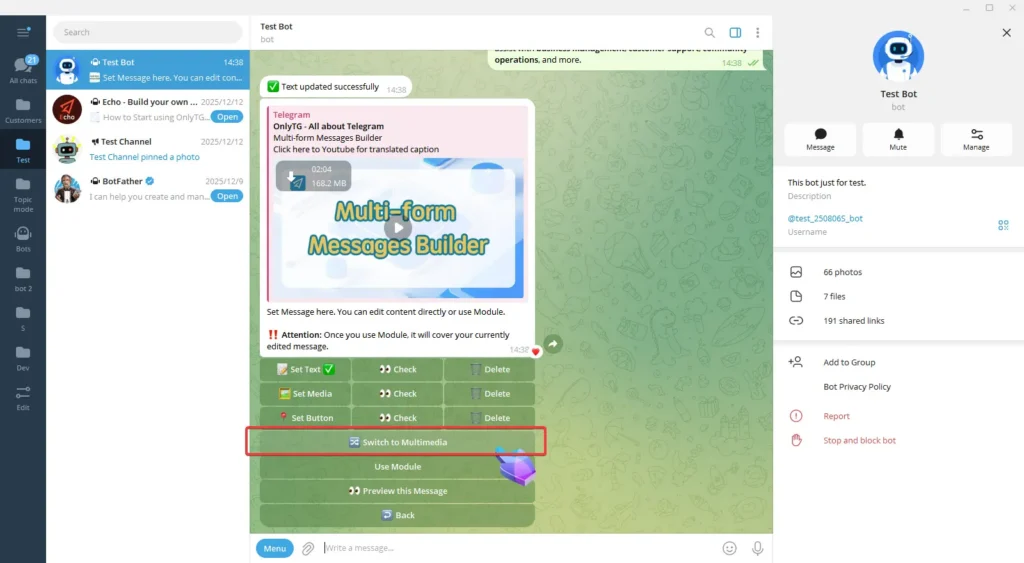
Multimedia Messages

Now, only text/media can be configured; buttons cannot be configured.

And media currently cannot be configured with files, only images or videos can be configured.

However, the maximum number of configurable media is 10.

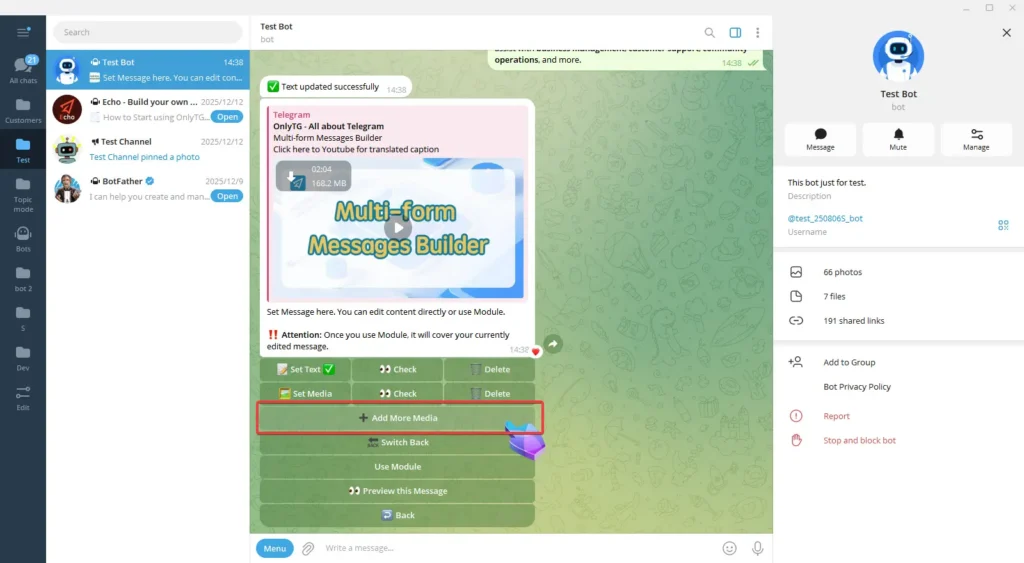
Click Add More Media to create a new Media 2.
Multimedia Messages

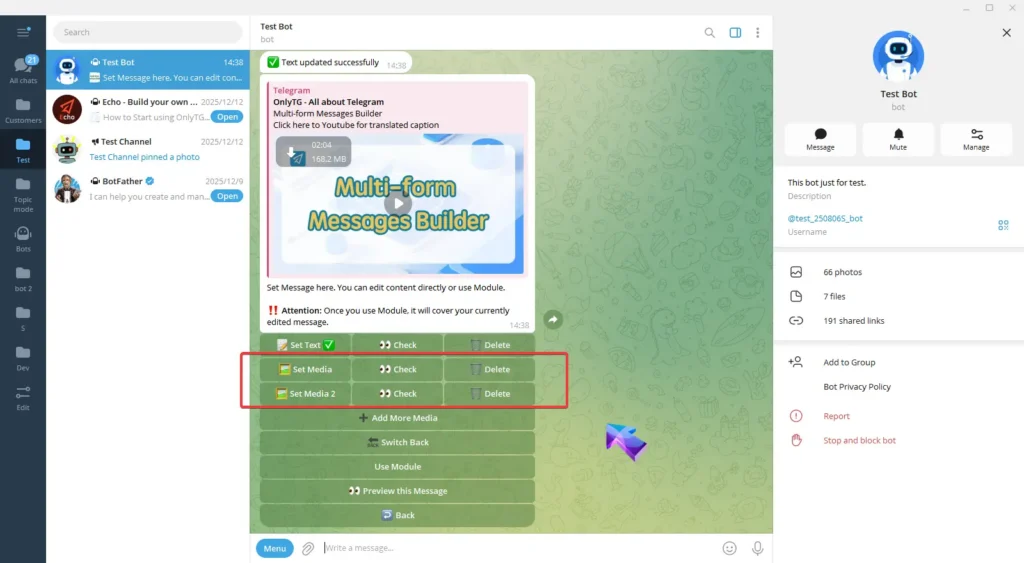
Set the Media and Media 2 one by one. Once the update success message pops up, it means the process is complete.
Multimedia Messages

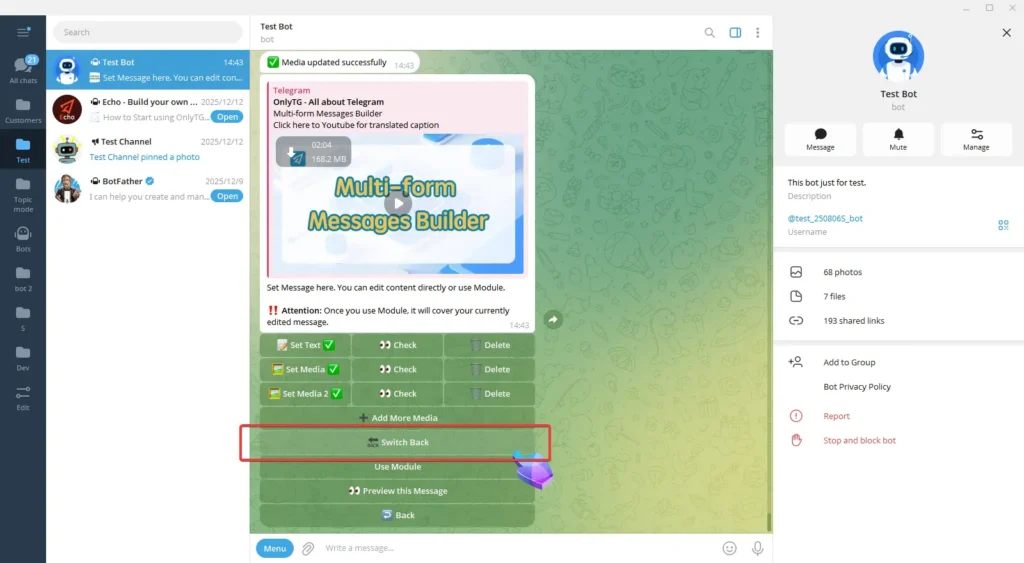
If you want to switch back to normal mode, click Switch Back.
Multimedia Messages

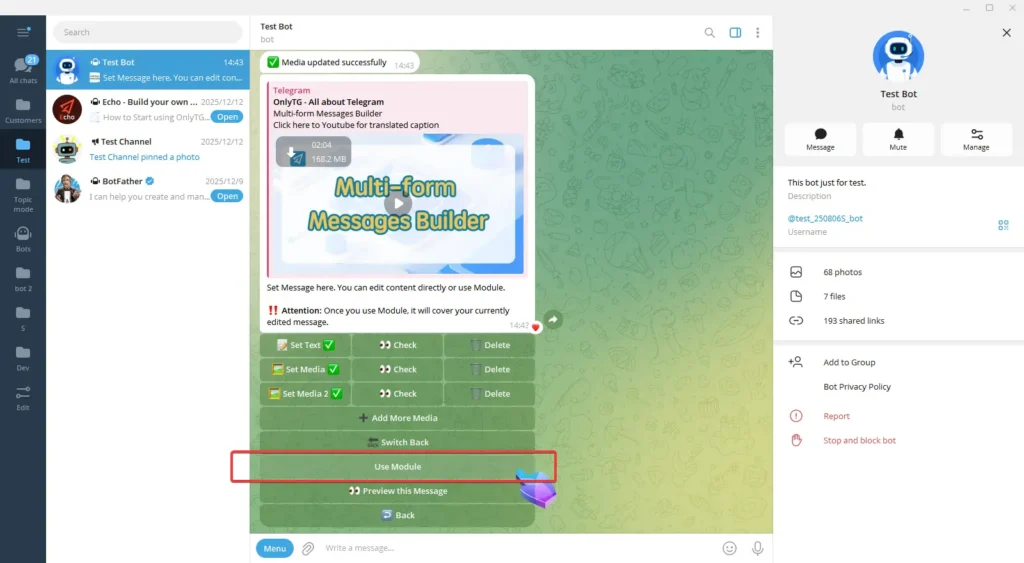
The Use Module button can help you directly use pre-configured multimedia messages, but you need to set them up in the Module of the start menu first.

(Click here to learn how set module)

We’ll skip this for now.
Multimedia Messages

Click Preview This Message to check your multimedia message.
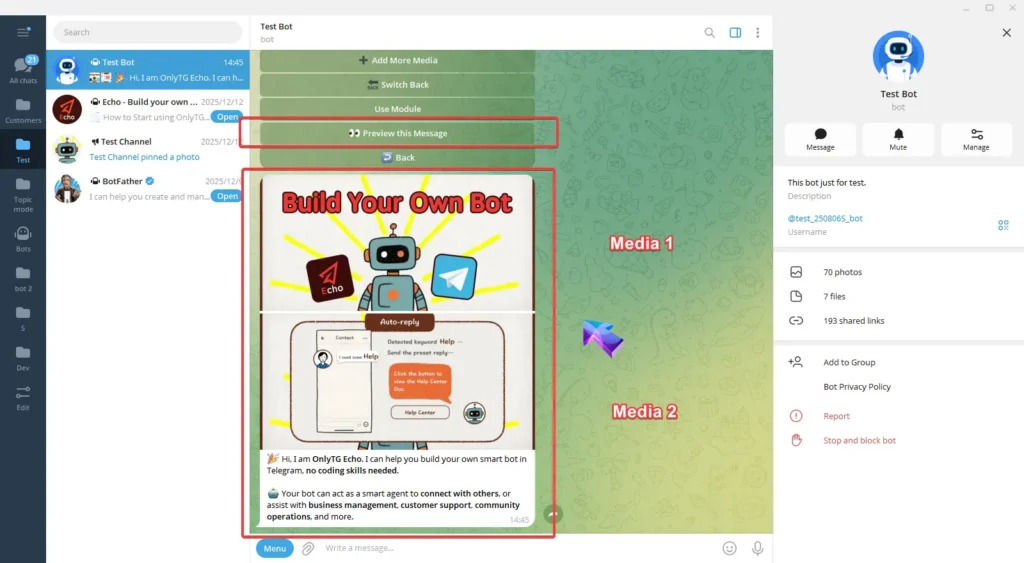
Multimedia Messages

When a contact sends a message containing the keywords to your bot, the bot will automatically reply with the multimedia message you just configured.
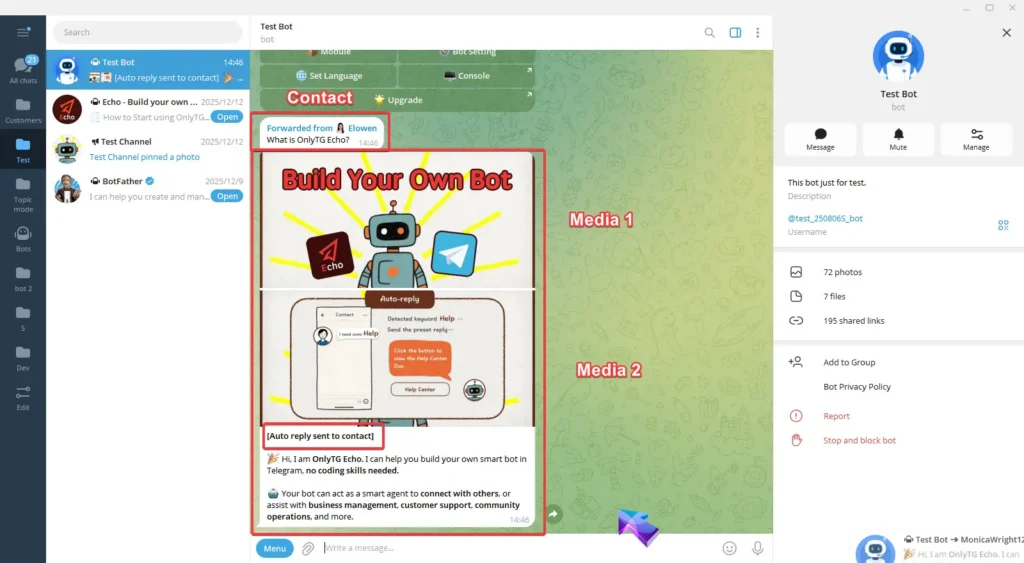
Multimedia Messages

Share This Article :

  • Facebook
  • X
  • LinkedIn
Change to Topic ModeSet and use content module
Table of Contents
  • Video Tutorial
  • step 1
  •  
  • step 2
  • Latest Post
  • Echo
  • Recorder
  • Tips
Telegram Tips

How to Manage Newly Created Telegram Group in 2026

Learn how to manage newly created Telegram group in 2026 with secure setup, admin permissions, anti-spam controls, and business growth workflows.

Telegram Tips

How to Create an Anonymous Telegram Group in 2026

Learn how to create an anonymous Telegram group in 2026 with private invites, hidden admin identity, and tighter privacy for business communities today.

Telegram Tips

How to Create Group with Bots Without Bans in 2026

Learn how to create group with bots in 2026 safely, set permissions, reduce spam, and scale Telegram communities for business growth.

Telegram Tips

How to Create a Business Telegram Group in 2026 Fast

Learn how to create a business Telegram group in 2026, set permissions, and build a safer community for sales, support, and traffic growth.

Telegram Tips

How to Create an Unlimited Members Group in 2026

Learn how to Create unlimited members group strategies in 2026 using Telegram groups, channels, invite links, moderation, and compliant growth.

Telegram Tips

How to Customize New Telegram Group Safely in 2026

Learn how to Customize new Telegram group in 2026 for business growth, safer moderation, cleaner onboarding, and lower spam risk.

Telegram Tips

How to Build a Discussion Telegram Group in 2026

Learn how to Build discussion Telegram group in 2026 for channels, communities, affiliate funnels, moderation, retention, and safer growth.

Telegram Tips

Create Multi-Admin Telegram Group in 2026: 7 Steps

Create a multi-admin Telegram group with clear roles, safe permissions, and solid setup steps.

How to Get Unbanned from Telegram in 2026: A Practical Step-by-Step Guide

If your Telegram account or phone number has been restricted, this guide explains how to confirm the ban, appeal to Telegram support, reduce spam flags, and avoid getting blocked again in 2026.

How to create telegram bot in 2026?

Learn how to create a Telegram bot in 2026 using BotFather, with step-by-step coding and no-code methods, plus tips for security, deployment, and choosing the best setup.

How to Loop Post in Channel via Telegram Bot

OnlyTG Echo provides the function to automatically loop posts in your channel. Firstly, you need to create a new bot via @botfather and…

How to Configure Multiple Media when Setting OnlyTG Echo Features

OnlyTG Echo provides the function to configure multiple media to a single message when setting Start Message/Auto Reply/Quick Reply/Broadcast and other features. Firstly, you need…

How to Upgrade Channel to Pro Channel in Telegram

OnlyTG Echo provides the function to upgrade your channel to Pro Channel. This will consume your Pro Communities slots and unlock more advanced features….

How to Edit a Published Post via Telegram Bot

OnlyTG Echo provides the function to Edit Channel Post via your bot. Firstly, you need to create a new bot via @botfather and…

How to Publish Channel Post via Telegram Bot

OnlyTG Echo provides the function to Publish Channel Post via your bot. Firstly, you need to create a new bot via @botfather and…

How to Manage Channel via Telegram Bot

OnlyTG Echo provides the function to Manage Channel via your bot. Firstly, you need to create a new bot via @botfather and send its…

How to Use OnlyTG Recorder?

Welcome to OnlyTG Recorder! Developed by our dedicated bot development team, OnlyTG Recorder is designed to serve as an assistant…

How to Manage Newly Created Telegram Group in 2026

Learn how to manage newly created Telegram group in 2026 with secure setup, admin permissions, anti-spam controls, and business growth workflows.

How to Create an Anonymous Telegram Group in 2026

Learn how to create an anonymous Telegram group in 2026 with private invites, hidden admin identity, and tighter privacy for business communities today.

How to Create Group with Bots Without Bans in 2026

Learn how to create group with bots in 2026 safely, set permissions, reduce spam, and scale Telegram communities for business growth.

How to Create a Business Telegram Group in 2026 Fast

Learn how to create a business Telegram group in 2026, set permissions, and build a safer community for sales, support, and traffic growth.

How to Create an Unlimited Members Group in 2026

Learn how to Create unlimited members group strategies in 2026 using Telegram groups, channels, invite links, moderation, and compliant growth.

How to Customize New Telegram Group Safely in 2026

Learn how to Customize new Telegram group in 2026 for business growth, safer moderation, cleaner onboarding, and lower spam risk.

How to Build a Discussion Telegram Group in 2026

Learn how to Build discussion Telegram group in 2026 for channels, communities, affiliate funnels, moderation, retention, and safer growth.

Create Multi-Admin Telegram Group in 2026: 7 Steps

Create a multi-admin Telegram group with clear roles, safe permissions, and solid setup steps.

  • OnlyTG
  • Echo
  • Recorder
  • Help
  • Blog
  • Echo Pricing
  • Channel & Bot Finder
  • SMM Panel
OnlyTG EchoTelegram VK YouTube Facebook X Email

© 2026 OnlyTG

Scroll to top
  • Products
    • Echo
    • Recorder
  • Resources
    • Help
    • Blog
    • Channel & Bot Finder
    • SMM Panel
  • Pricing
    • Echo Pricing
Contact us