

A Telegram group can start with a simple rule: no spam, unwanted promotions, or certain types of content. But once messages start arriving throughout the day, enforcing that rule manually becomes difficult. An admin may notice one prohibited phrase, delete the message, and move on—only to find several more later. A better approach is to set prohibited words for Telegram groups as part of a broader moderation workflow. Instead of asking an administrator to watch every conversation, the group can automatically identify predefined violations and apply the configured response while admins focus on situations that require human judgment.
It Starts With One Message
Imagine a business running a Telegram community for customers, members, or users.
A new member joins the group and starts participating. Most messages are normal: questions, feedback, discussions, and replies to other members. But occasionally, someone posts a promotional phrase, a suspicious offer, or wording that the community has explicitly decided not to allow.
At first, the process seems simple:
Member posts → Admin notices → Admin checks the message → Admin removes it
This can work for a small, quiet group.
The problem appears when the same situation happens repeatedly.
A group may have hundreds or thousands of messages over time. Administrators cannot realistically inspect every conversation continuously. Even when they are active, a prohibited message can appear between two legitimate conversations and remain visible long enough to distract members or encourage additional unwanted posts.
This is where predefined Telegram group rules become useful.
Instead of relying entirely on someone noticing a violation, the business can decide in advance which words or phrases should trigger a moderation rule.
What Happens When Moderation Stays Manual?
Manual moderation gives administrators control, but it also creates a repetitive operating process.
Consider a group that prohibits several types of promotional language. An administrator has to repeatedly perform the same sequence:
Message appears → Admin reads it → Admin identifies the violation → Admin decides what to do → Admin takes action
Now multiply that process across an active community.
The problem is not necessarily that each individual action takes a long time. The problem is that the same action keeps returning.
Manual moderation can create four practical issues:
- Continuous attention: Someone needs to keep an eye on the conversation.
- Repetition: The same types of violations may require the same response again and again.
- Inconsistency: Different administrators may interpret or handle the same situation differently.
- Delayed enforcement: A violation can remain visible until somebody notices it.
There is also an important operational distinction.
A rule such as “No promotional spam” is a policy. A prohibited-word configuration is an operational mechanism that helps turn part of that policy into an automated action.
That distinction is what makes a moderation workflow scalable.
Turn the Rule Into an Automated Workflow
The next step is to convert the moderation policy into a rule that the Telegram group can apply consistently.
The basic model changes from:
Member → Admin → Manual decision → Manual action
to:
Member → Message rule → Keyword detection → Configured action
The administrator still defines the policy. Automation simply handles the predictable part.
For example, suppose a community does not allow a specific promotional phrase.
Instead of waiting for an admin to discover every occurrence, the phrase can be added to the prohibited-word list. When a member sends a message containing that prohibited content, the configured group rule can respond according to the moderation settings.
This does not mean every message should be filtered aggressively.
A useful moderation workflow is selective. The objective is not to prevent normal conversation. It is to automatically handle clearly defined situations while leaving ambiguous cases for people.
Step 1: Define What Should Actually Be Prohibited
Before you set prohibited words for a Telegram group, start with the policy rather than the tool.
Ask:
What type of message are we trying to prevent?
For a business community, the answer might include:
- Repeated promotional phrases
- Specific unwanted offers
- Known spam wording
- Certain inappropriate expressions
- Phrases that violate the community’s stated rules
The important point is specificity.
A single broad word may appear in both unwanted and legitimate conversations. A more precise phrase can often identify the behavior you actually want to moderate.
For example, imagine a community discussing digital marketing. Blocking every occurrence of the word “marketing” would obviously create problems. A specific promotional phrase may be much more appropriate.
The goal is therefore not:
Block as many words as possible.
It is:
Identify the smallest useful set of words or phrases that represent a genuine moderation problem.
That approach helps reduce unnecessary interference with normal discussions.
Step 2: Set Prohibited Words for the Telegram Group
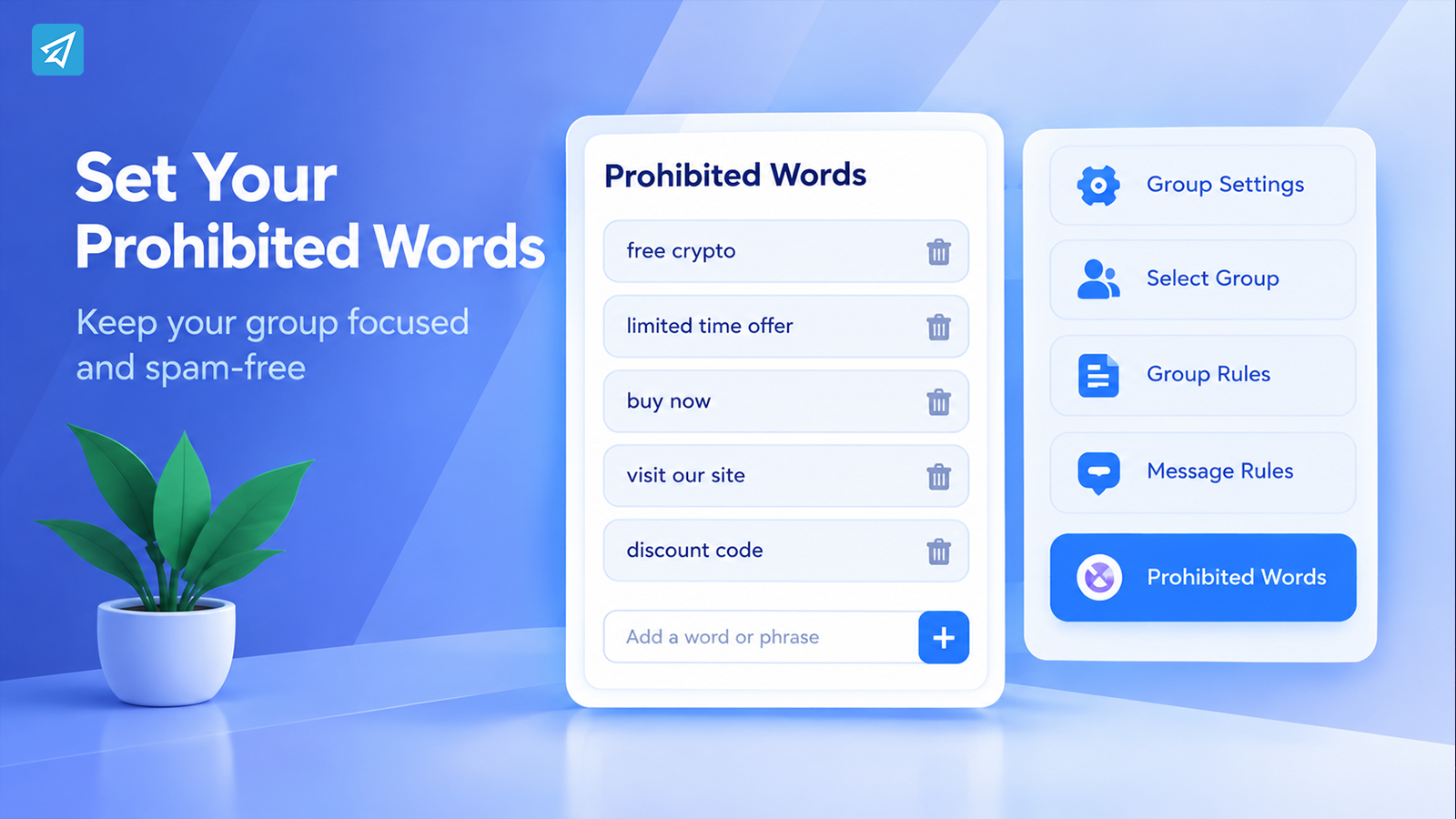
Once the moderation policy is clear, configure the relevant rule.
With OnlyTG Echo, the workflow begins by sending /start to your bot, selecting Group Setting.
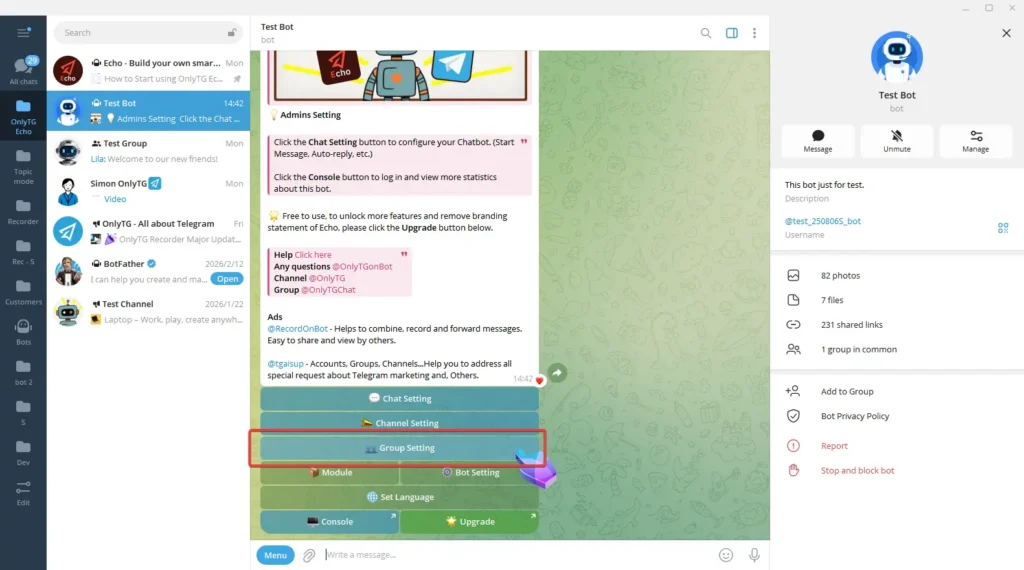
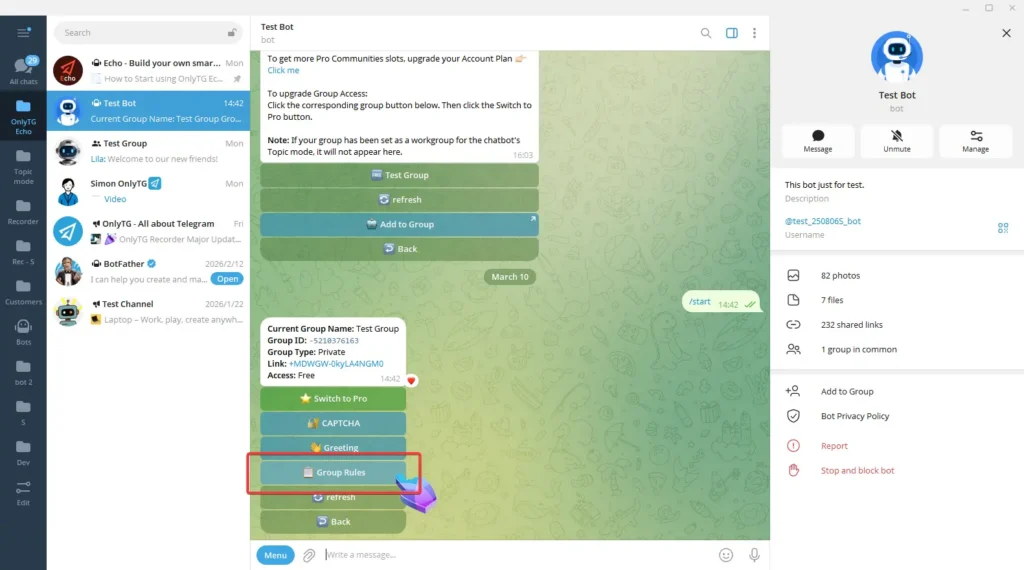
Choosing the relevant group, and opening Group Rules.
The Message Rules section includes a Prohibited Words option where administrators can add words directly and review or remove entries later.
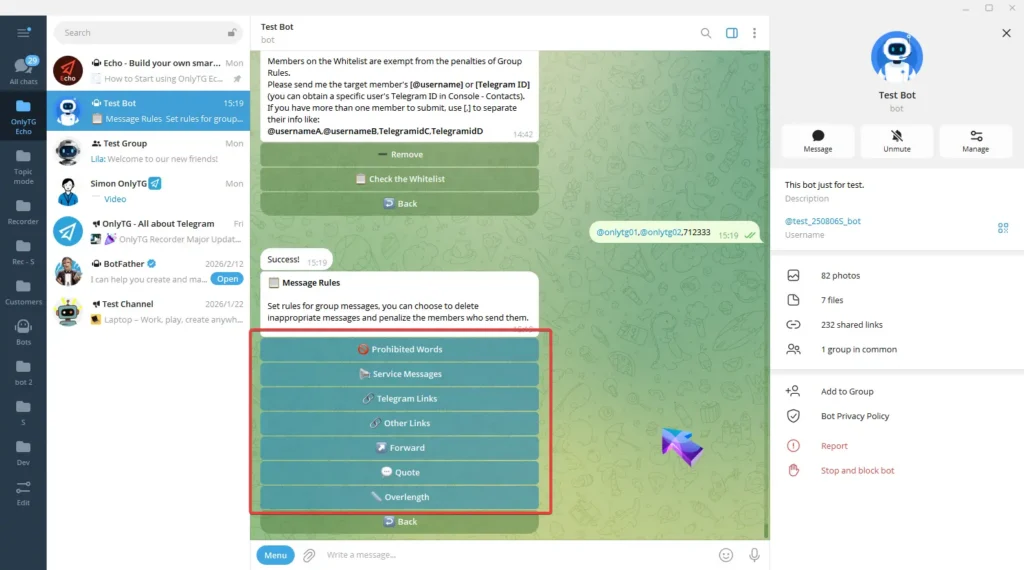
The operational flow is straightforward:
Group Setting → Select Group → Group Rules → Message Rules → Prohibited Words
The important business benefit is not simply having a list.
It is having a predefined rule that can be maintained as the community changes.
A business might discover a new recurring spam phrase this month and add it to the list. Later, the phrase may no longer be relevant and can be removed. The moderation policy therefore becomes something the team can maintain rather than a static instruction buried in a group description.
Step 3: Decide What Happens When a Rule Is Violated
A prohibited word only becomes part of a useful workflow when the business decides how violations should be handled.
Different situations may require different levels of intervention.
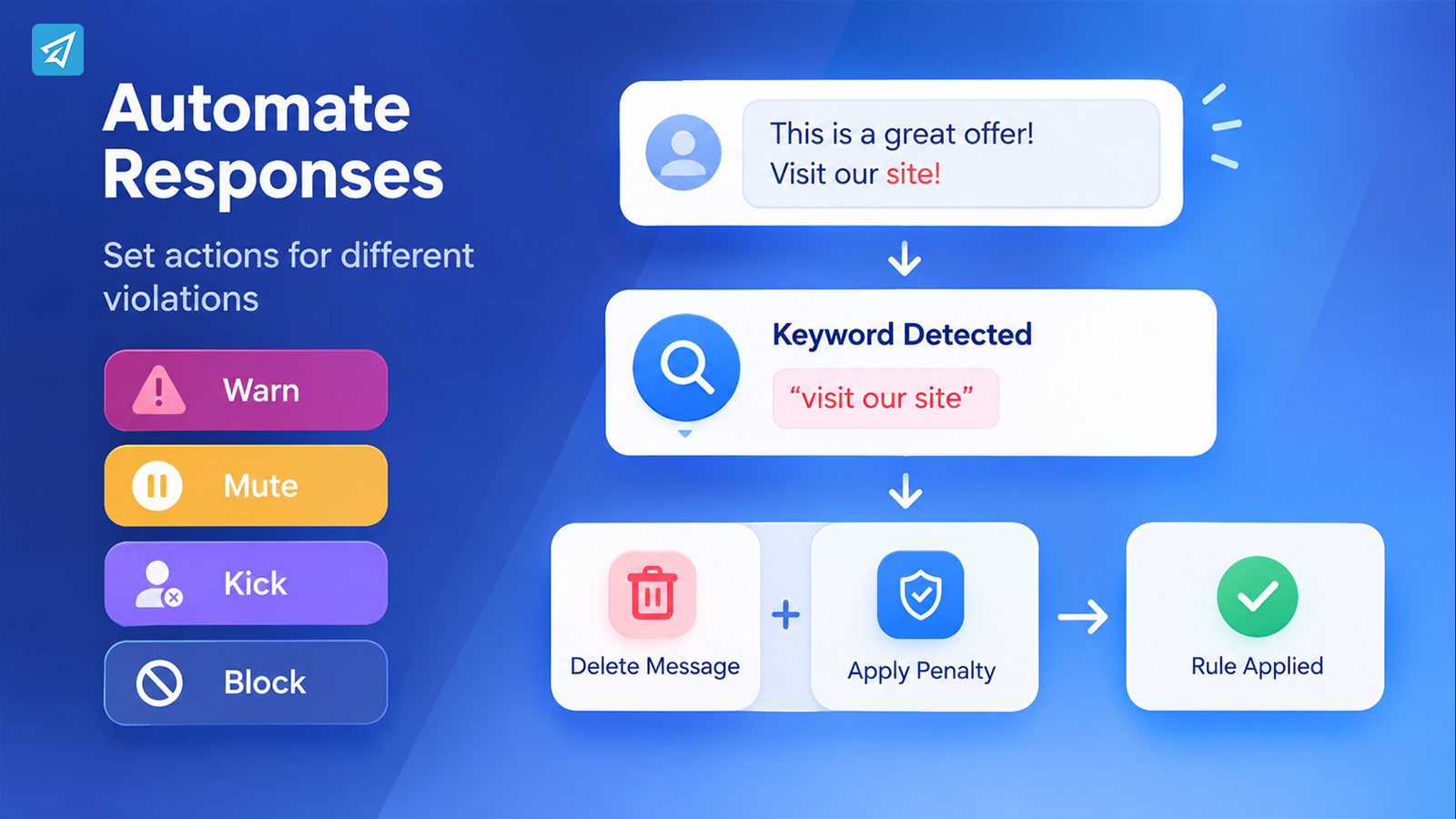
Low-risk violation → Warning
A member may simply need to be reminded of the group rules.
Repeated or disruptive violation → Mute
The business may want to temporarily stop the behavior without immediately removing the member.
Serious or persistent violation → Kick or Block
For stronger violations, removing the member may be more appropriate.
OnlyTG Echo’s Group Rules support configurable penalties for relevant message rules, including warning, kick, mute, and block options. Administrators can also configure whether violating messages should be automatically deleted.
This creates a more deliberate workflow:
Detect → Delete if configured → Apply the selected penalty → Continue monitoring
The advantage is consistency. Instead of asking an administrator to decide from scratch every time, the business establishes a response in advance.
Human judgment still matters for unusual situations. Automation simply handles the predictable cases.
Step 4: Protect the Group Before Problems Start
Prohibited words are useful, but they should not be treated as the entire moderation strategy.
Consider what happens before a member sends their first message.
A new member joins the community. If the group has no onboarding or verification process, an unwanted account can potentially begin posting immediately. By the time an administrator notices the activity, the first few messages may already have disrupted the conversation.
This is where another layer of the workflow can help.
OnlyTG Echo supports Group CAPTCHA, which can require new members to complete a configured test before they can participate normally. A Group Greeting can then provide the information new members need after joining and, when CAPTCHA is enabled, after completing the configured verification process.
The workflow becomes:
New member joins → Verification → Greeting → Normal participation → Rule enforcement
This is more useful than treating prohibited words as an isolated feature. It creates a sequence in which prevention, onboarding, and moderation work together.
Step 5: Handle Legitimate Questions Automatically
Moderation is only one part of operating a Telegram community.
Once the group has rules, members will naturally ask questions about them.
For example:
Member: “Where can I find the community rules?”
Member: “Can I share a link?”
Member: “How do I access the resources?”
If administrators answer these questions manually every time, another repetitive workload appears.
A group keyword-reply workflow can handle predictable questions without replacing human communication.
With OnlyTG Echo, administrators can configure keywords and associate them with preset messages. When the relevant keyword is detected in the group, the configured response can be sent automatically.
This creates a second operational path:
Question → Keyword detected → Preset response → Member gets the information
Now the moderation workflow and information workflow support each other.
The group rules define what should not happen, while keyword replies can help members understand what they should do instead.
Step 6: Keep Recurring Information Visible
A well-managed community also needs recurring communication.
Suppose a business regularly publishes reminders, community announcements, educational content, or other recurring information. Posting everything manually creates another predictable administrative task.
OnlyTG Echo supports group posts with scheduling and looping capabilities. This can be useful when the same type of information needs to appear at planned times or recurring intervals.
The broader workflow can therefore become:
New member joins → Verification → Greeting → Rules → Automated answers → Scheduled community content → Ongoing moderation
At this point, the value of automation is no longer limited to blocking unwanted words.
The prohibited-word rule becomes one component of a larger operating system for the community.
Step 7: Review the Rules as the Community Changes
A moderation rule should not be considered permanent simply because it has been configured.
Communities change.
New spam patterns appear. Members start discussing new topics. A phrase that was previously problematic may become part of legitimate conversation. A rule that was useful six months ago may become unnecessarily restrictive.
This is why businesses should periodically review their prohibited-word list.
A practical review can ask:
- Which prohibited words are still relevant?
- Are legitimate messages being affected?
- Have new unwanted phrases appeared?
- Are the selected penalties appropriate?
- Do members understand the community rules?
- Should another moderation layer be added?
This turns moderation into a continuous workflow rather than a one-time configuration.
One Workflow, Two Operating Models
| Workflow Stage | Manual Process | Automated Process |
|---|---|---|
| New member joins | Admin handles onboarding manually | CAPTCHA and group greeting can handle predefined onboarding steps |
| Prohibited content | Admin watches for violations | Prohibited-word rule detects configured content |
| Violation response | Admin decides and acts each time | Configured deletion and penalty rules handle predictable cases |
| Common questions | Admin repeats the same answer | Keyword replies provide predefined responses |
| Recurring content | Admin publishes manually | Scheduled or looping posts handle recurring publishing |
| Human judgment | Required for most actions | Focused on exceptions and decisions that cannot be predefined |
The point is not to remove administrators from the community. It is to reduce the number of predictable tasks that require their constant attention.
Where OnlyTG Echo Fits
OnlyTG Echo fits into this workflow as the configuration layer for routine Telegram group operations.
For the specific problem of setting prohibited words, its Group Rules feature lets administrators configure prohibited words and define how violations should be handled. The same group-management workflow can also include CAPTCHA, greetings, keyword replies, and scheduled or looping posts.
That means a business does not have to treat moderation as a single isolated task.
It can build a sequence around the member journey:
Join → Verify → Welcome → Participate → Detect violations → Apply rules → Answer recurring questions → Publish recurring information

The product is most useful when the business first decides which parts of the community process are predictable and then configures automation around those parts.
It also keeps an important boundary in place: automation should handle predefined situations, while administrators remain responsible for context, exceptions, and decisions that require human judgment.
FAQ
Can I set prohibited words for Telegram groups without monitoring every message manually?
Yes. A Telegram group can use predefined prohibited-word rules to identify configured words or phrases when members send messages. With OnlyTG Echo, administrators can configure Prohibited Words under Group Rules and define the relevant moderation response.
Should I block individual words or complete phrases?
Use the most specific wording that represents the actual moderation problem. Very broad words may appear in legitimate conversations and create unnecessary restrictions. More specific phrases can make a rule easier to control and maintain.
Are prohibited words enough to moderate a Telegram group?
Not always. Prohibited-word rules address a specific type of content, but a complete workflow may also need member verification, group greetings, responses to common questions, recurring content, and human moderation for unusual situations. The right combination depends on how the community operates.
Conclusion: Turn Telegram Rules Into a Repeatable Workflow
A Telegram group does not become easier to manage simply because administrators write more rules. The real improvement comes when predictable rules are connected to predictable actions.
Instead of:
Member posts → Admin notices → Admin responds
the workflow can become:
Member joins → Verification → Greeting → Rule detection → Automated response → Ongoing community management
If your immediate goal is to set prohibited words for Telegram groups, start with the content that genuinely needs to be restricted. Then decide what should happen when the rule is triggered, combine it with appropriate onboarding and communication workflows, and review the configuration as the community evolves.