
Telegram buttons can turn an ordinary message into a clearer path toward a website, registration page, product, or support resource. However, knowing how to set button in Telegram is not always straightforward because the process depends on where the message will appear. A channel announcement, a group post, and a chatbot greeting may require different configuration steps. Simply adding a URL to the message text does not create a separate clickable button. This guide explains the requirements, walks through the setup process with OnlyTG Echo, and shows how to use buttons to make Telegram communication more actionable.
Why Is It Difficult to Add Telegram Buttons Manually?
Creating a message with a button is only one part of the task. Maintaining useful, consistent buttons across a channel, group, or customer communication workflow can introduce several challenges.
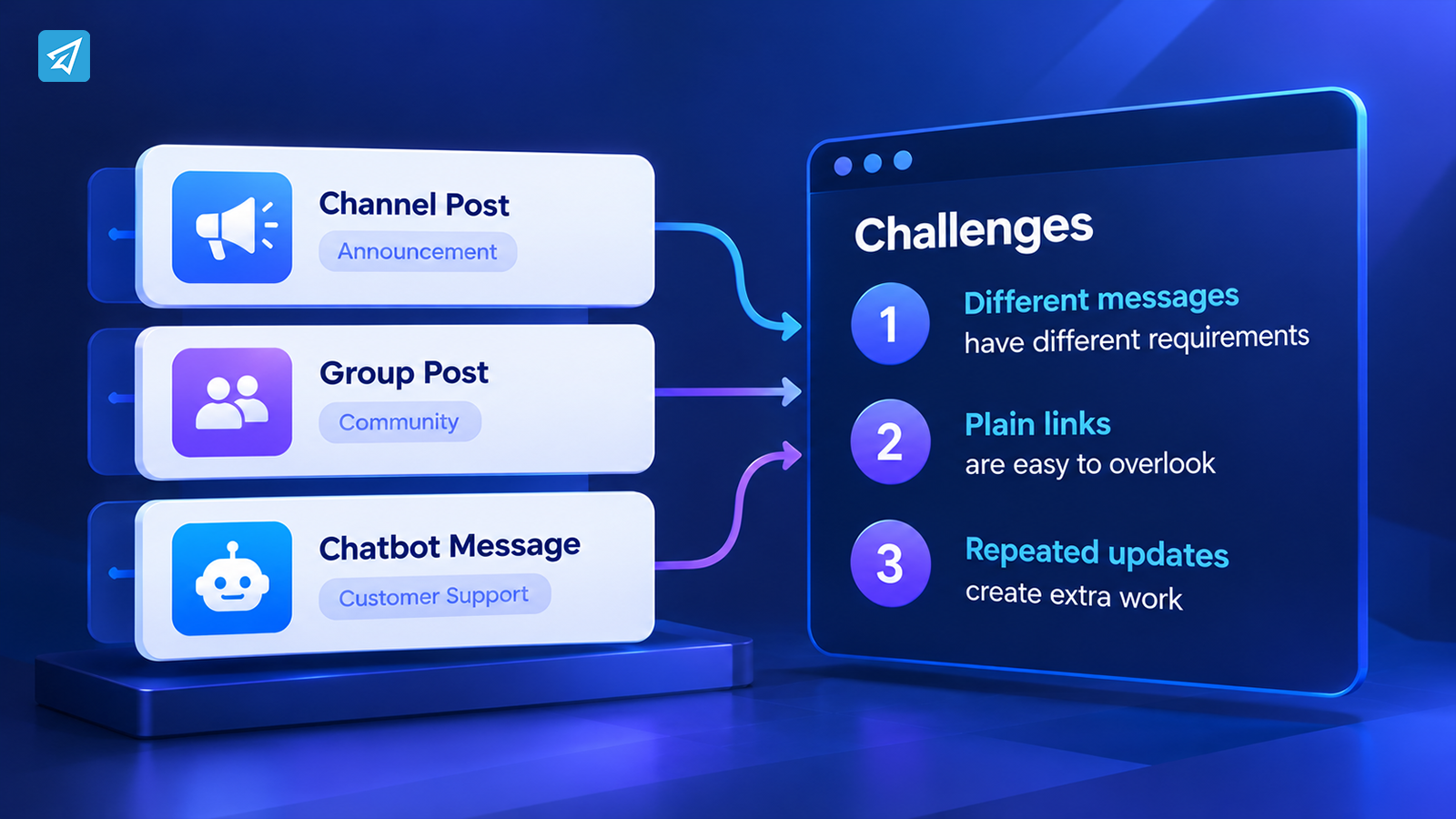
1. Different Messages Have Different Requirements
A channel owner may want a button beneath a product announcement, while a business using a chatbot may need buttons in its welcome message. These are different publishing contexts. Choosing an unsuitable workflow can lead to unnecessary setup work or a message that does not behave as intended.
2. Plain Links Do Not Always Communicate the Next Action Clearly
A URL placed inside a paragraph can be overlooked, especially when a message contains several links or a long explanation. A button labeled “View Products” or “Contact Support” makes the intended next step more obvious.
The button itself does not guarantee clicks or conversions. Its purpose is to make the available action easier to identify.
3. Repeated Updates Create Extra Administrative Work
Businesses often reuse announcements, support instructions, registration links, and promotional messages. If administrators have to recreate each message manually, they may accidentally use an outdated URL, inconsistent wording, or an incorrect destination.
A centralized bot-based workflow can make it easier to prepare, preview, publish, and update button-enabled messages.
What Do You Need Before Getting Started?
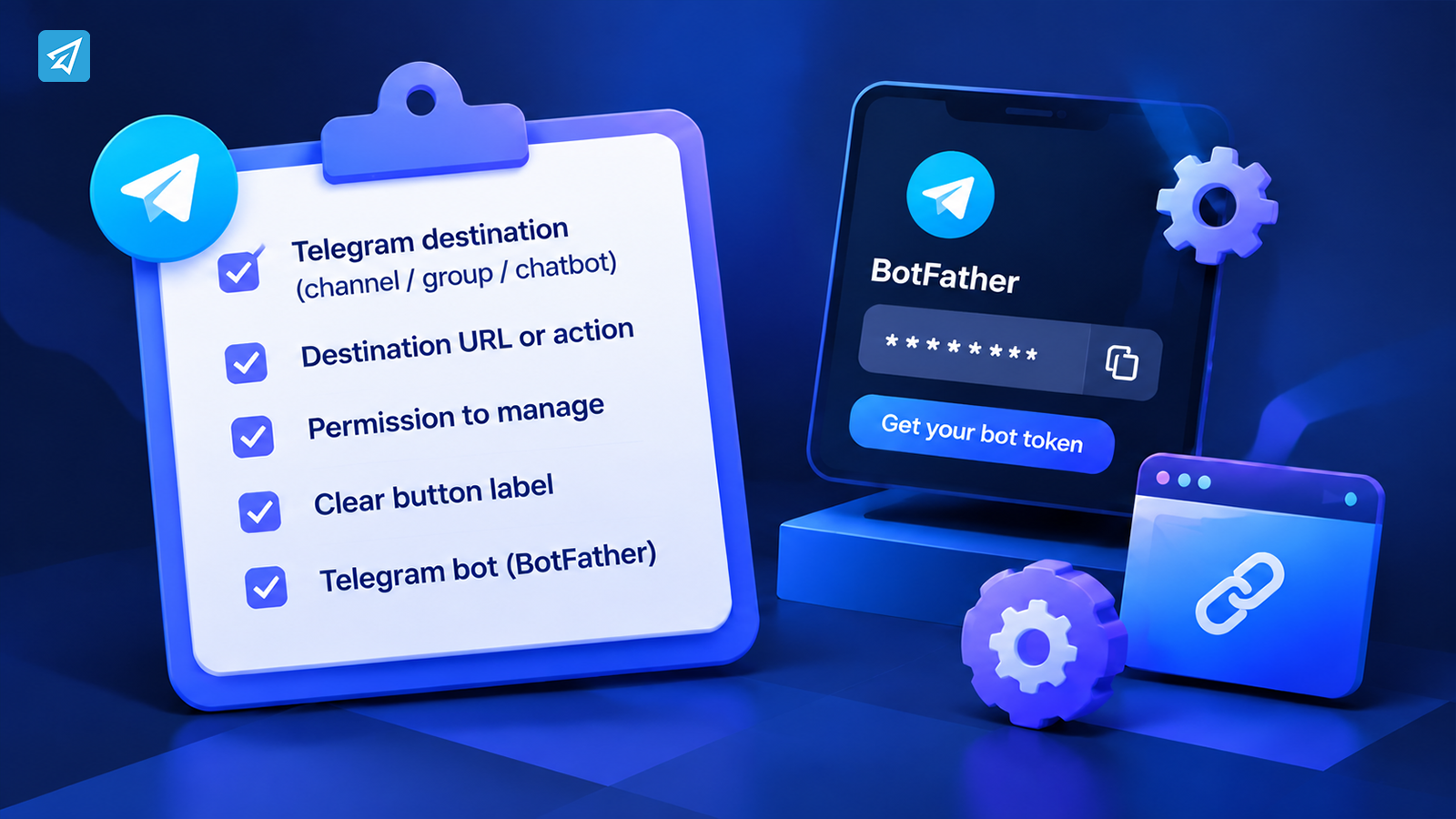
Prepare the following items before configuring your first Telegram button:
- A Telegram destination: Decide whether the button belongs in a channel post, group post, or chatbot message.
- The destination URL or action: For a link button, prepare the complete URL, beginning with
https://orhttp://. If the button should trigger a supported preset message module, prepare that module first. - Permission to manage the destination: You need the appropriate access to publish or manage posts in the relevant channel or group.
- A clear button label: Use short, descriptive wording such as “Read the Guide,” “View Products,” or “Get Support.”
- A Telegram bot for the Echo workflow: If you use OnlyTG Echo, create a bot through BotFather and keep its token available for setup.
You do not need to write code to configure messages through OnlyTG Echo’s visual bot workflow. However, the exact menu options and available features can depend on the message type and your bot or community configuration.
How to Use OnlyTG Echo
A practical implementation can be kept relatively simple.
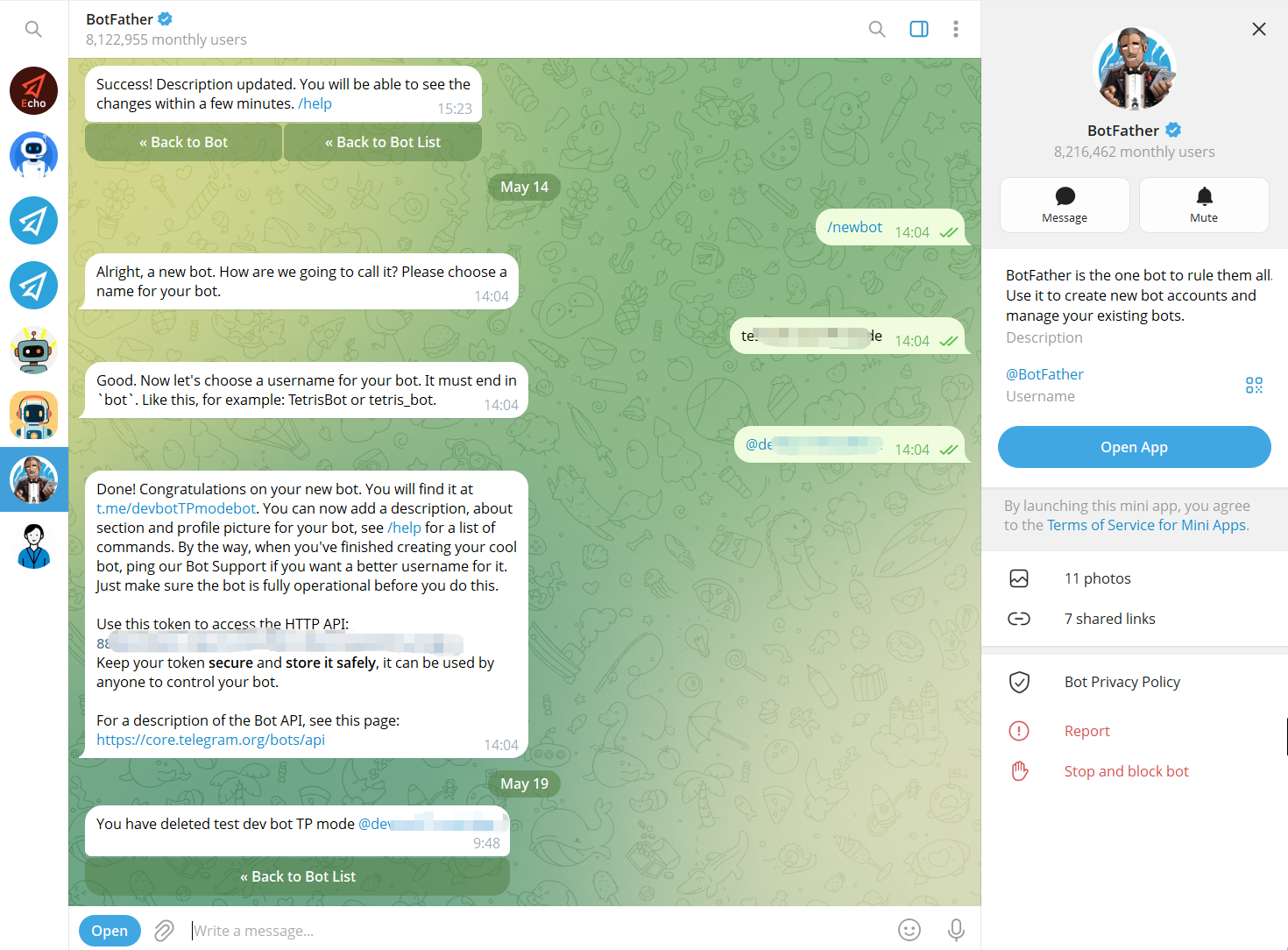
Step 1 — Create a Telegram Bot
Use Telegram’s BotFather to create a bot and obtain its bot token. The bot becomes the communication interface that users interact with.
Step 2 — Connect the Bot to OnlyTG Echo
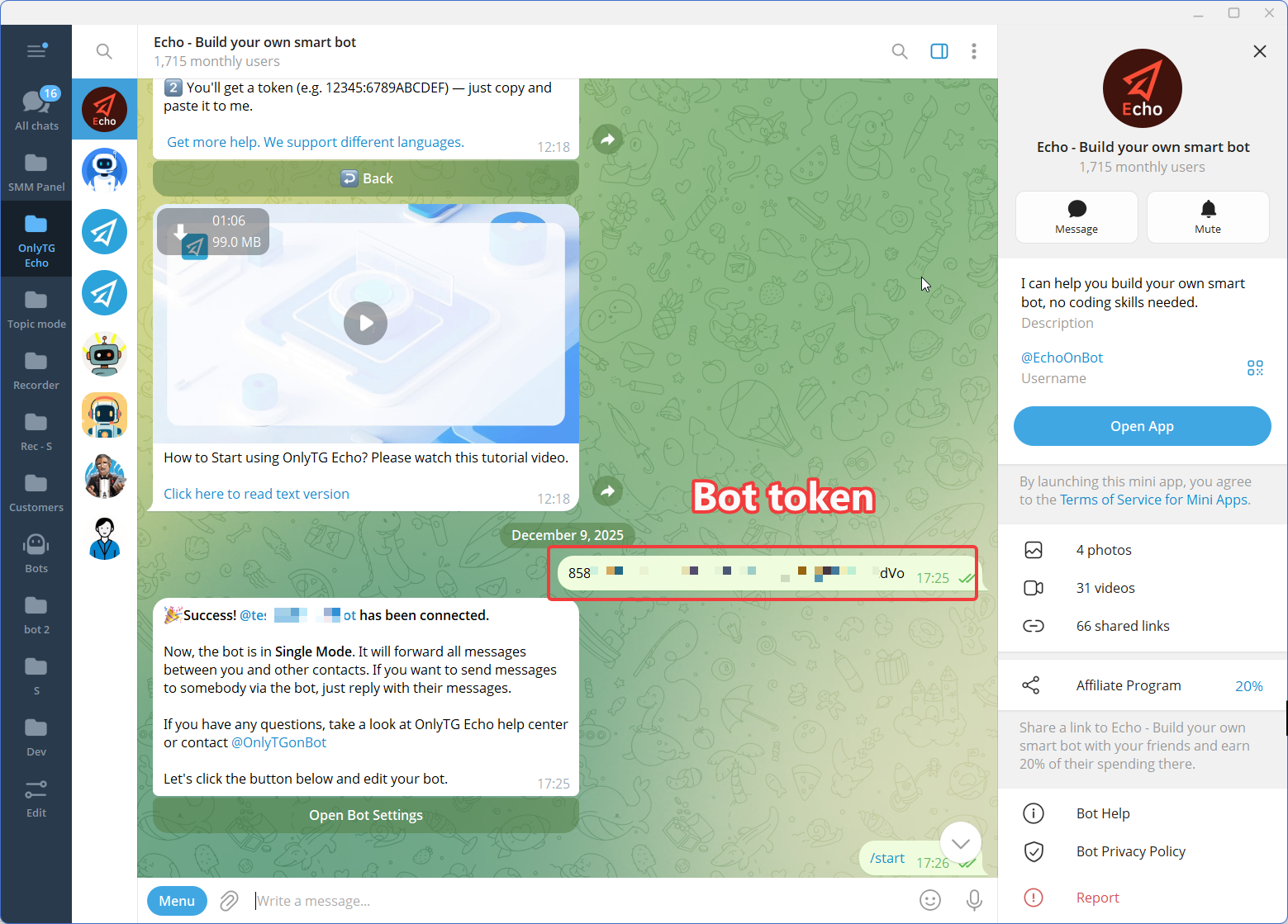
Connect the newly created Telegram bot to OnlyTG Echo using the bot token.
The purpose of this step is to give the business a no-code environment for configuring the bot’s communication behavior rather than requiring a custom automation workflow to be developed from scratch.
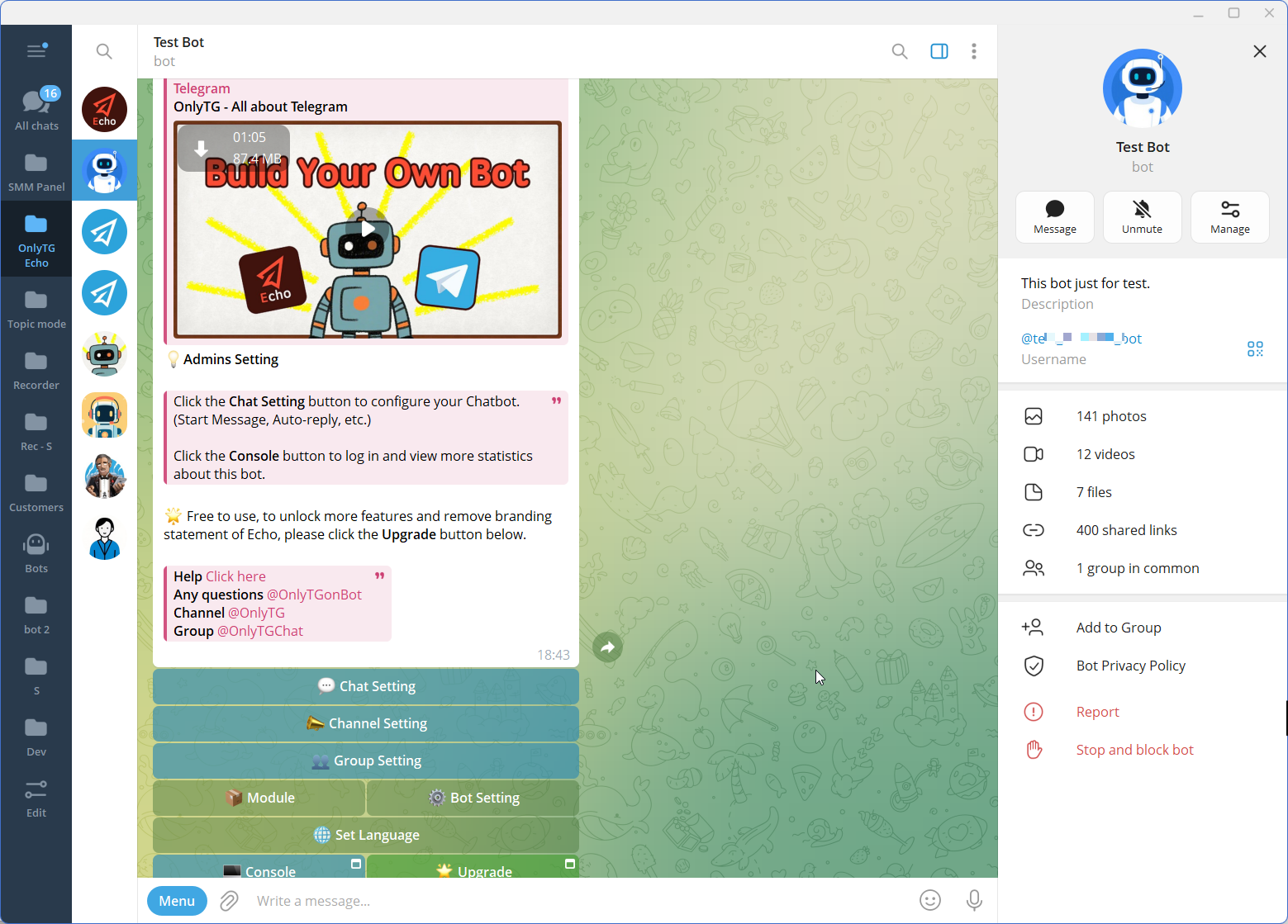
Step 3 — Configure the Features
What Can You Use Telegram Buttons For?
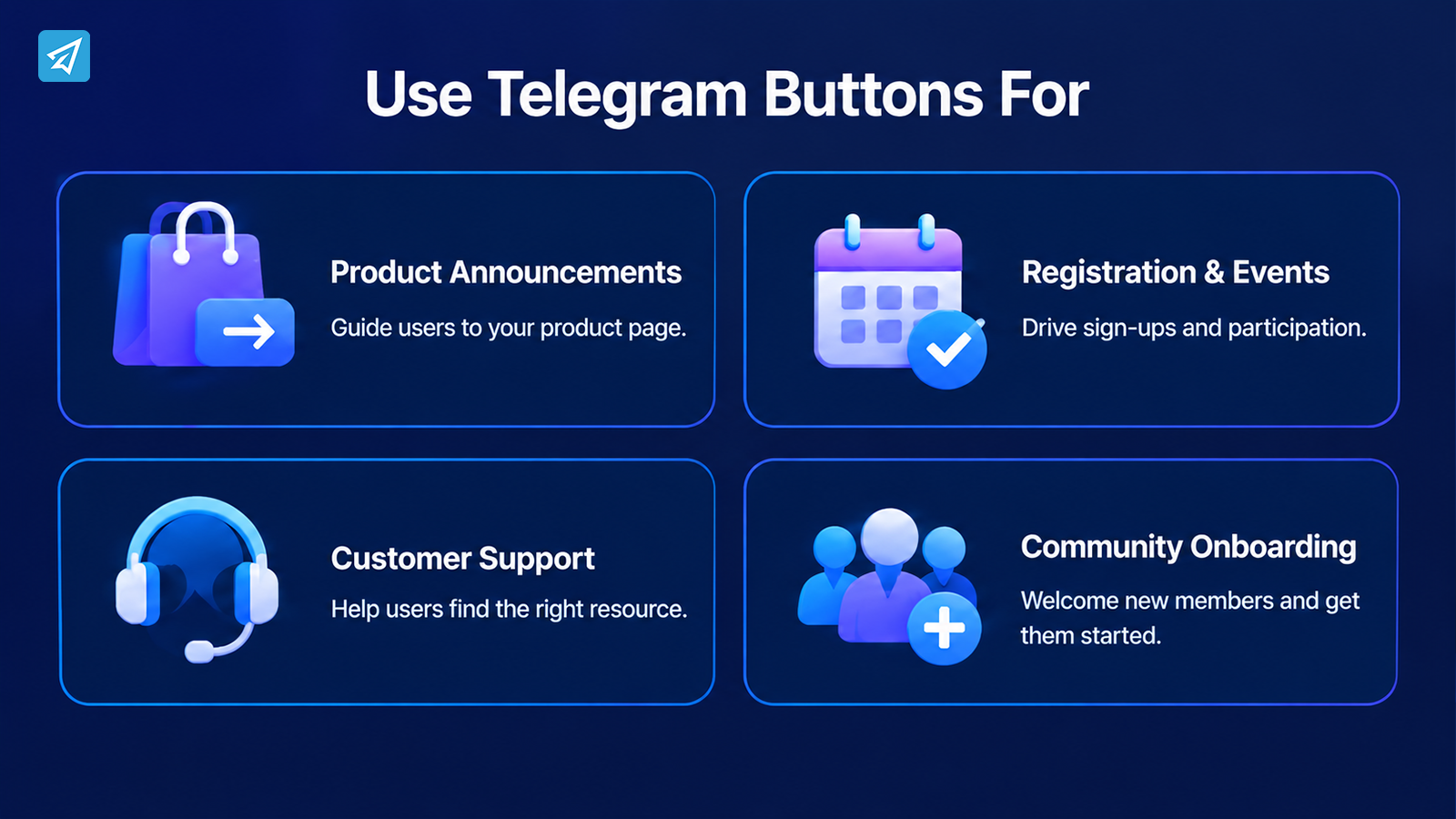
The best button setup depends on the action you want people to take. These use cases illustrate how buttons can support different business workflows.
1. Product Announcements
Task: Help subscribers explore a product after reading an update.
Button workflow: Publish a channel post with a concise explanation and a “View Product” button that links to the relevant product page.
Benefit: Readers have a clearly identified next step instead of having to locate a URL in the message text.
2. Registration and Event Promotion
Task: Direct interested members to an event registration page.
Button workflow: Create a group or channel post with the event details and a “Register Now” button pointing to the registration form.
Benefit: The message connects the announcement with the registration action. Make sure the registration page is available before publishing.
3. Customer Support
Task: Help users find the right support resource.
Button workflow: Add a “Help Center” button to an appropriate chatbot message or create a “Contact Support” link in a channel post.
Benefit: Users can reach the intended resource without searching through older messages. If you use a preset message module, prepare and test its content before linking the button to it.
4. Community Onboarding
Task: Help new members understand where to start.
Button workflow: Use a chatbot start message or a relevant group announcement with buttons leading to community guidelines, an introduction page, or another useful resource.
Benefit: New members receive a more organized entry point and can choose the information they need.
5. Recurring Channel Announcements
Task: Keep an important resource visible through recurring posts.
Button workflow: Use Echo’s supported channel post or loop-post workflow to prepare a message containing a button. Configure the recurrence only when the message is suitable for repeated publication.
Benefit: Administrators can reduce repetitive publishing work while keeping a consistent call to action. Review recurring content periodically so that dates, offers, and links do not become outdated.
Common Mistakes to Avoid
Using a URL Instead of Configuring a Button
Pasting a link into a message is not the same as adding a separate button. If a button is required, use the message’s Button configuration and check the resulting preview.
Writing Vague Button Labels
Labels such as “Click Here” provide little context. Prefer wording that describes the destination or action, such as “Read the Rules” or “Register for the Event.”
Forgetting to Test the Destination
A button can be configured correctly but still lead to a broken page, the wrong product, or a resource that requires access the reader does not have. Test the destination before and after important updates.
Adding Too Many Buttons
A message with too many competing actions can make the next step less clear. Give the message one primary objective and add secondary buttons only when they serve distinct purposes.
Manual Setup vs. a Bot-Based Workflow
Both approaches can be appropriate. The right choice depends on how often you publish messages, where the buttons are needed, and how much ongoing administration your workflow requires.
| Criterion | Manual Telegram Posting | OnlyTG Echo Workflow |
|---|---|---|
| Initial setup | Can be simple for occasional messages, depending on the method used. | Requires bot setup and configuration of the relevant channel, group, or message settings. |
| Button-enabled messages | Depends on the native posting method or another bot or tool. | Supports buttons in documented channel posts, group posts, and relevant chatbot messages. |
| Recurring content | May require repeated manual publishing. | Supports scheduled posts and applicable loop-post workflows. |
| Message updates | Handled through the available Telegram editing process. | Provides documented channel post editing for text, media, and buttons. |
| Best fit | Occasional posts with minimal ongoing administration. | Teams managing recurring posts or button-enabled messages across supported Telegram workflows. |
A bot-based approach is not automatically necessary for every channel. If you publish only occasionally, a simple workflow may be sufficient. If you manage multiple message types or repeat the same publishing tasks, Echo provides a more structured way to configure them.
Who Is This Best For?
- Telegram channel owners who publish product updates, announcements, and resource links.
- Community managers who need to direct members toward rules, onboarding resources, or event information.
- Small businesses and marketers who want clearer calls to action in Telegram communications.
- Customer support teams that want to make help resources easier to find.
- Content creators and operations teams that regularly publish messages and want a repeatable configuration process.
The value comes from matching the button to a genuine user need, not from adding buttons to every message.
FAQ
1. Can I add buttons to Telegram channel posts?
Yes. Telegram channel posts can include buttons when created through a compatible bot or publishing workflow. OnlyTG Echo documents button configuration for channel posts, including creating and editing posts.
2. How do I create a button that opens a website in Telegram?
Configure a button in a supported message editor, enter a clear label, and provide the destination URL in the format requested by the tool. With OnlyTG Echo, follow the Button configuration prompt, then preview the message and test the link before publishing.
3. Can I add buttons to Telegram bot welcome messages?
Yes. OnlyTG Echo supports buttons in Start Messages. You can configure a link or use a supported preset message module as the button’s action. Test the message by opening the bot or sending /start.
Conclusion: Make Telegram Messages Easier to Act On
Learning how to set button in Telegram starts with choosing the right message type, preparing a clear call to action, and configuring a valid destination. Manual posting can work for occasional announcements, but repeated publishing and updates can become harder to manage as your communication needs grow.
OnlyTG Echo brings button configuration into workflows for supported channel posts, group posts, and chatbot messages, with additional options for scheduling and managing content. If you want to organize your Telegram publishing process, explore OnlyTG Echo and choose the workflow that fits your channel, group, or bot.