
If you want to Create Telegram Bot workflows without writing code, OnlyTG Echo is one of the simplest ways I have tested to do it. It lets you connect your own Telegram bot, set welcome and auto-reply logic, and manage conversations, groups, or channels from a cleaner operational flow.
If your goal in 2026 is to Create Telegram Bot systems for customer support, community operations, or lead handling, this article will help you get started with a realistic, no-hype workflow.
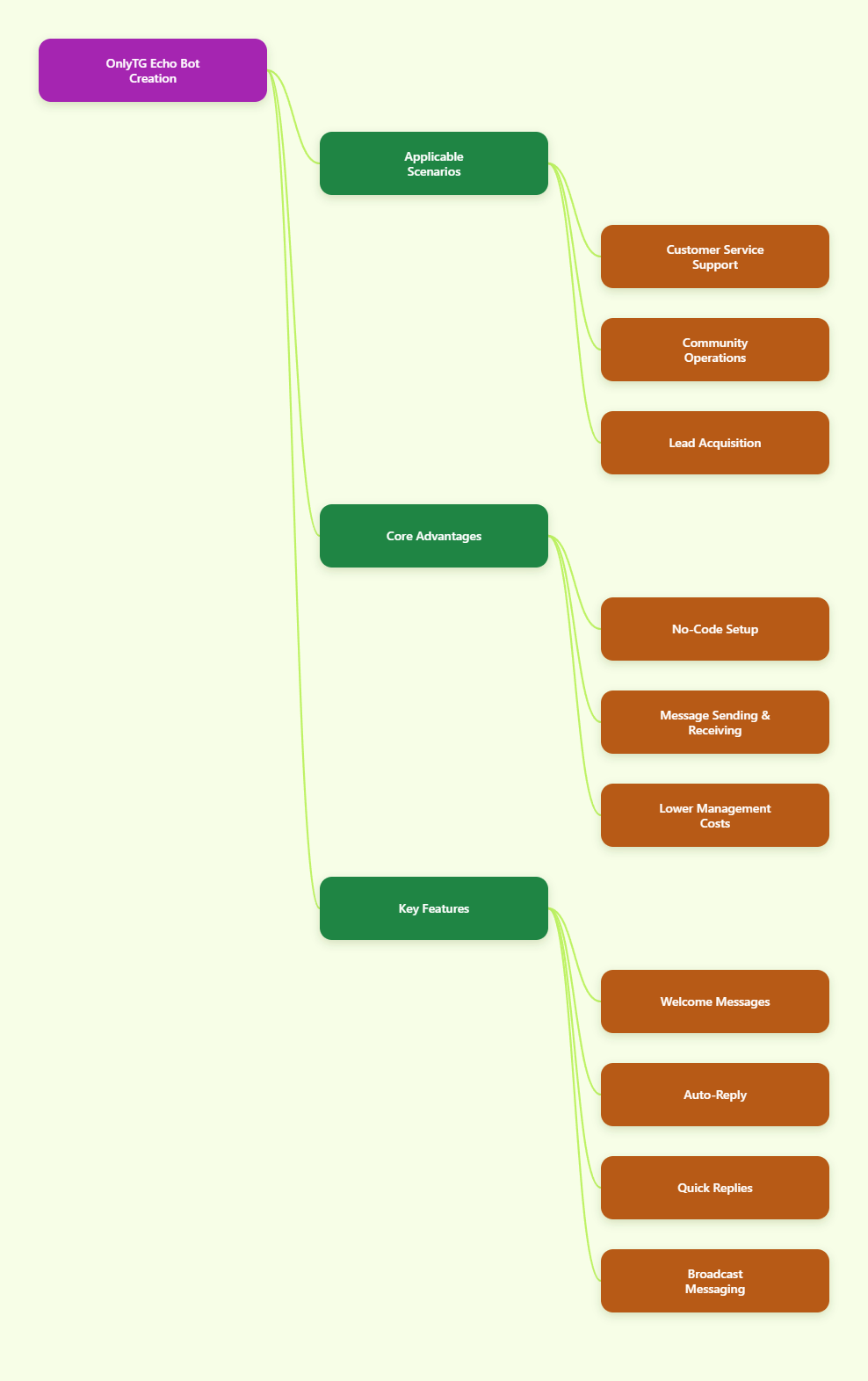
Why I Use OnlyTG Echo to Create Telegram Bot Workflows
Before jumping into the tutorial, here is the short version of why I think OnlyTG Echo is worth looking at.
- It is a no-code way to build and manage a Telegram bot.
- It supports message receive and reply through your linked bot.
- It includes practical tools like Start Messages, Auto-Reply, Quick Reply, and Broadcast.
- It can work in Single mode or Topic Mode for workgroup-based handling.
- It also extends into group and channel management, including greetings, rules, CAPTCHA, scheduling, looping posts, and some channel statistics.
That combination matters because most people do not just want to create a bot. They want the bot to actually reduce admin work.
OnlyTG Echo Step-by-Step Tutorial
This is the core setup I would follow if I were starting from zero and wanted to Create Telegram Bot operations with OnlyTG Echo.
| Stage | What you do | Why it matters |
|---|---|---|
| Bot creation | Create a bot in @BotFather and save the token | You need a Telegram bot identity before linking OnlyTG Echo |
| Binding | Paste the token into OnlyTG Echo | This connects your bot to the no-code workflow |
| Message flow | Choose Single mode or Topic Mode | This determines how inbound conversations are organized |
| Automation | Configure Start Messages, Auto-Reply, and Quick Reply | These features reduce repetitive manual work |
| Operations | Add group or channel tools if needed | You can extend the bot into moderation and publishing tasks |
Step 1: Create your Telegram bot in BotFather
Problem this solves: you need your own bot identity before OnlyTG Echo can send or receive messages on your behalf.
- Open Telegram and search for @BotFather, the official Telegram tool for bot creation.
- Send the command
/newbot. - Choose a display name for the bot.
- Choose a unique username that ends with
bot. - Copy the bot token BotFather gives you and store it safely.
This is the standard Telegram flow, and it is the first requirement because OnlyTG Echo primarily sends and receives messages through the bot it is linked with.
Step 2: Bind your bot to OnlyTG Echo
Problem this solves: it connects Telegram’s bot account to the OnlyTG Echo console so you can configure automations without coding.
- Open OnlyTG Echo.
- Add your bot by pasting in the token you copied from BotFather.
- Finish the binding process inside the console.
- Confirm the bot appears in your OnlyTG Echo workspace.
This is the handoff point where a basic Telegram bot becomes an operational tool. Instead of building logic with the Bot API yourself, you configure behavior inside the platform.
Step 3: Decide how you want to receive and manage messages
Problem this solves: inbound conversations can get chaotic fast if you do not decide on the workflow first.
- Open your Bot.
- Choose the delivery mode that fits your team.
- Use Single mode if you want to manage messages in the bot’s private chat.
- Use Topic Mode if you want message handling inside a workgroup, where each contact can be handled more structurally through topics.
I usually suggest Single mode for solo creators and Topic Mode for teams. Topic Mode is cleaner when multiple admins need to follow the same conversation queue.
Step 4: Set up your Start Message
Problem this solves: new users often message a bot and receive nothing useful, which kills momentum immediately.
- Inside your Bot, click Chat Setting, then select Start Message.
- Click to add New Message.
- Write the onboarding copy you want users to receive after they start the bot.
- Keep in mind that each Start Message pack includes up to five messages.
- Use the sequence to introduce your offer, explain the next action, and answer the most obvious first question.
I treat this like a mini landing page inside Telegram. A good start flow saves support time and makes the bot feel intentional instead of half-finished.
What I usually include in a Start Message pack
- A short welcome line that tells users what the bot is for.
- A second message with the main action, like contacting support or choosing a menu option.
- A third message that sets expectations, such as response timing or available commands.
- A fourth or fifth message only if the onboarding needs links, disclaimers, or simple next-step guidance.
Step 5: Configure auto-reply and keyword-based reply
Problem this solves: most Telegram admins waste time answering the same questions again and again.
- Click Chat Setting, then select Auto-Reply.
- Create a preset reply for common questions.
- Add specific keywords if you want the reply to trigger only when those terms appear.
- If you do not set a keyword, the reply can act as a general fallback whenever users send something.
- Test the wording from another Telegram account before going live.
This is one of the most practical features in the stack. If users constantly ask about pricing, order status, channel access, or how to speak to an admin, keyword replies can remove a huge amount of repetitive typing.
My setup tip for keyword replies
- Use one reply for broad intent like price, pricing, or cost.
- Use a separate reply for support intent like help, agent, or admin.
- Do not overbuild at the start; cover your top five repeated questions first.
Step 6: Add Quick Reply for faster manual handling
Problem this solves: not every question should be fully automated, but admins still need a faster way to answer repeat requests.
- Go to the Quick Reply.
- Create short reusable responses for routine conversations.
- Label them clearly, like Shipping, Access Issue, Refund Policy, or Join Link.
- Use them during live conversations instead of rewriting the same answers every time.
I use Quick Reply as the bridge between full automation and human support. It keeps responses consistent while still letting a real operator step in when context matters.
Step 7: Build a bot menu with buttons
Problem this solves: many users do not know what to type, so they never reach the action you want them to take.
- Open the Bot Menu in the chat settings.
- Add a button or a row of buttons.
- Name each button based on a clear user intent, such as Contact Support, View Rules, or Latest Offers.
- Assign the reaction message or linked response for each button.
- Test the navigation on mobile, since that is how most Telegram users interact.
Buttons reduce friction a lot. Instead of hoping users guess the right command, you give them a guided path.
Step 8: Configure group tools if you manage a community
Problem this solves: public or semi-public groups get messy fast without automated onboarding and protection.
- Add your bot to the Telegram group you want to manage.
- Grant the permissions needed for the bot to perform its management tasks.
- Configure Group Greeting so new members see a proper welcome.
- Set up Join CAPTCHA if you want to screen new members before they can talk.
- Configure Group Rules and moderation restrictions such as prohibited words, links, forwards, bots, or spam where relevant.
This is where OnlyTG Echo moves beyond a basic chatbot. It becomes a community operations tool.
Step 9: Configure channel management if you publish content
Problem this solves: channels need consistency, and manual posting is one of the first things that burns creators out.
- Add your bot as an admin in the Telegram channel you want to manage.
- Click Channel Setting in your bot and connect your channel.
- Check subscriber-related information where supported in the console.
- Use posting tools such as scheduling or looping posts if your publishing plan needs recurring content.
I especially like this for evergreen announcements, reminder posts, or repeating FAQs that you want visible even when you are offline.
Real-World Scenarios and Practical Cases
Here are three realistic ways I would use OnlyTG Echo after I Create Telegram Bot infrastructure. These are based on practical setups I have tested or mapped from common Telegram operations.
Case 1: Channel creator handling inbound reader questions
User: a newsletter-style Telegram channel owner.
Original problem: readers keep asking the same three questions after every post: where to find old resources, how to join a private group, and how to contact the creator directly. The creator spends too much time copy-pasting replies.
OnlyTG Echo workflow:
- Create and bind a personal bot with OnlyTG Echo.
- Set a Start Message pack that explains what the bot can help with.
- Add keyword-based replies for terms like archive, private group, and contact.
- Build menu buttons for Resources, Join, and Support.
- Use Quick Reply for edge cases that still need a human answer.
Measurable improvement: the welcome flow becomes fully automatic, the top three questions get instant first-touch replies, and manual work drops from typing the same answer every time to mostly handling exception cases only.
Case 2: Group admin cleaning up onboarding in a community
User: a Telegram group administrator running a fast-growing niche discussion group.
Original problem: new members join without reading rules, spam appears early, and moderators have to repeat the same reminders all day.
OnlyTG Echo workflow:
- Add the bot to the group with the required admin permissions.
- Enable Group Greeting so every new member receives a clear welcome.
- Set up Join CAPTCHA to reduce low-quality joins and obvious bot traffic.
- Configure Group Rules and moderation limits around spammy behavior.
- Schedule or loop reminder posts for rules, event times, or community resources.
Measurable improvement: member onboarding moves from manual to automatic, spam defense starts at the join step, and moderators no longer need to post rule reminders by hand throughout the day.
Case 3: Small cross-border seller using Telegram for customer support
User: a small e-commerce seller handling inquiries from Telegram users in different time zones.
Original problem: support messages arrive around the clock, buyers ask repeated order and pricing questions, and the seller does not want to expose a personal account everywhere.
OnlyTG Echo workflow:
- Create a dedicated support bot and bind it to OnlyTG Echo.
- Use the bot as the public contact point so inquiries route through the bot workflow.
- Set Start Messages that explain business hours, expected reply flow, and the information customers should send first.
- Add keyword replies for price, shipping, tracking, and stock.
- Use Quick Reply for common service updates.
- If a small team is involved, switch to Topic Mode so messages can be handled in a workgroup.
Measurable improvement: every incoming lead receives an immediate first response, repetitive questions are covered automatically, and the seller reduces manual copy-paste work while keeping personal contact details less exposed.
Other Useful OnlyTG Echo Features
Once the main bot flow is working, these extra features make the system more complete.
- Broadcast: useful when you need to send the same message to many contacts; my tip is to reserve this for important updates so users do not tune out.
- Multimedia message building: handy when one plain text reply is not enough; I use it for richer onboarding or product explanation flows.
- Channel statistics and subscriber data: available in channel management; I use this to understand whether my bot-assisted content workflow is staying organized.
FAQ
Do I need coding skills to create a Telegram bot with OnlyTG Echo?
No. Based on the official positioning and tutorials, OnlyTG Echo is built as a no-code tool. You still need to create the bot in BotFather, but the operational setup is done in the OnlyTG Echo console.
Do I need my own bot token first?
Yes. You create the bot in Telegram through @BotFather, then bind that bot to OnlyTG Echo using the token.
What is the difference between Single mode and Topic Mode?
In Single mode, message handling happens in the bot’s private chat flow. In Topic Mode, messages are managed in a workgroup through topics, which is better for team-based handling.
Can OnlyTG Echo manage Telegram groups and channels too?
Yes. The references show support for group features like greeting, rules, CAPTCHA, posting with buttons, scheduling, and looping posts, plus channel management features including channel data and subscriber information in the console.
Final Thoughts
If your goal is to Create Telegram Bot workflows that actually save time, OnlyTG Echo covers the basics I care about most: bot setup without code, structured message handling, onboarding automation, reusable replies, and practical tools for groups and channels.
For anyone trying to Create Telegram Bot systems in 2026 without going down a full custom development route, OnlyTG Echo is a solid place to begin. Try the workflow, test it with a second account, and then expand from there once your first automation is working smoothly.