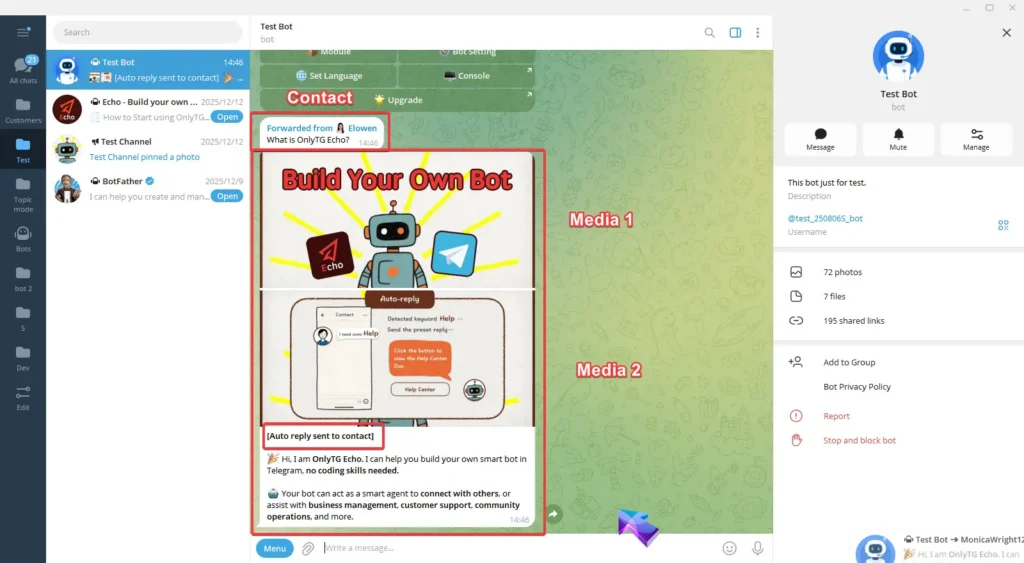
OnlyTG Echo provides the function to configure multiple media to a single message when setting Start Message/Auto Reply/Quick Reply/Broadcast and other features.
Video Tutorial
step 1
Here we take configuring a multimedia message for Auto Reply in Chat Setting as an example.
The operation is similar when setting multimedia messages for Start Message/Quick Reply/Broadcast and other features.
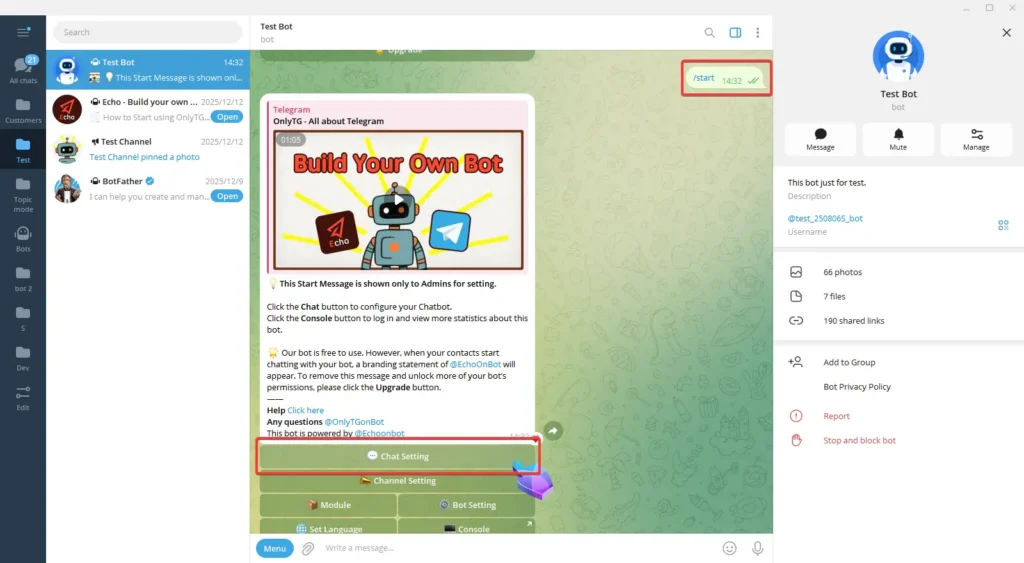
Send the /start command to your bot, click Chat Setting in the pop-up menu.
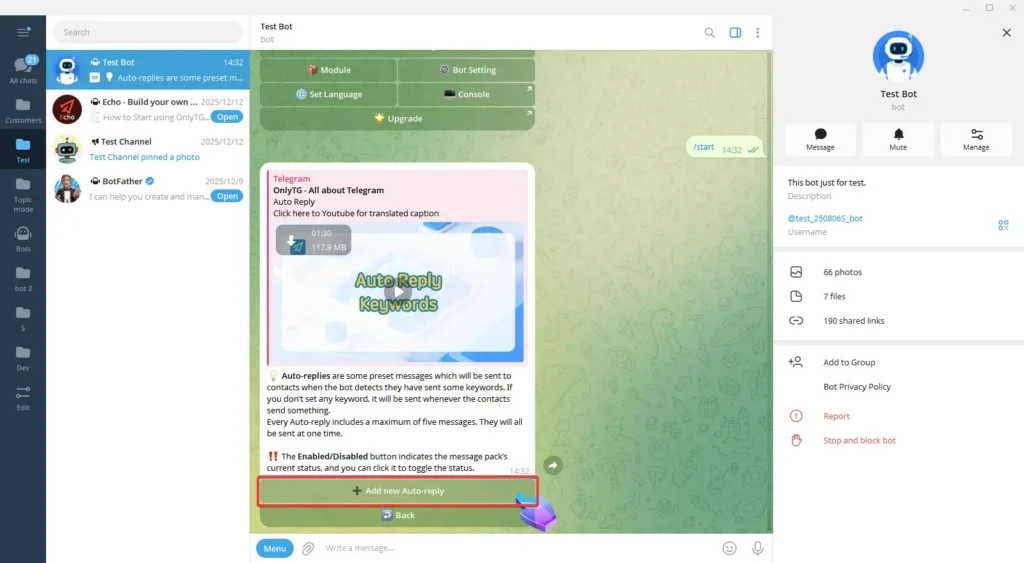
Select Auto Reply. Next, click Add New Auto Reply.

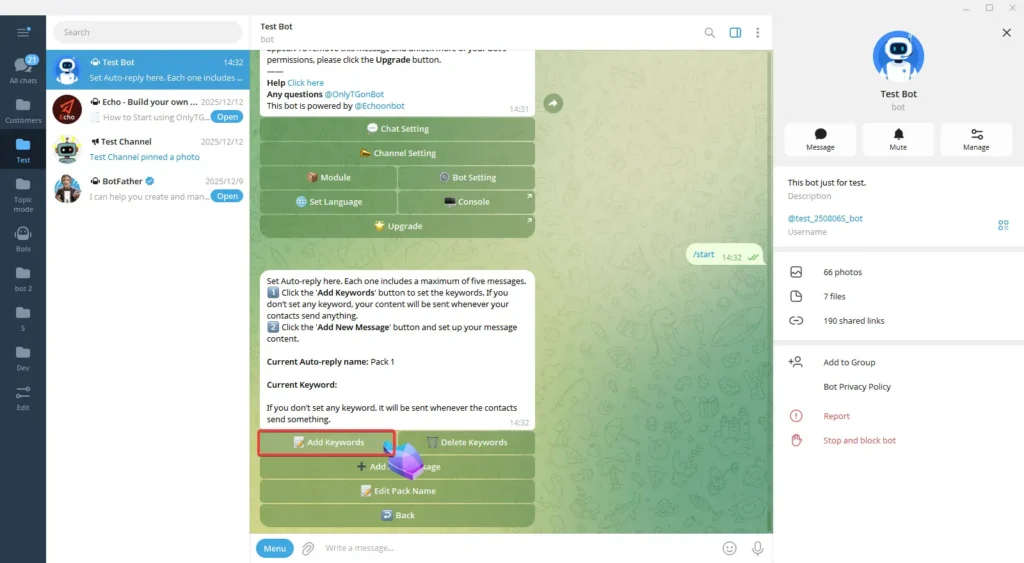
Add keywords for the Auto Reply.
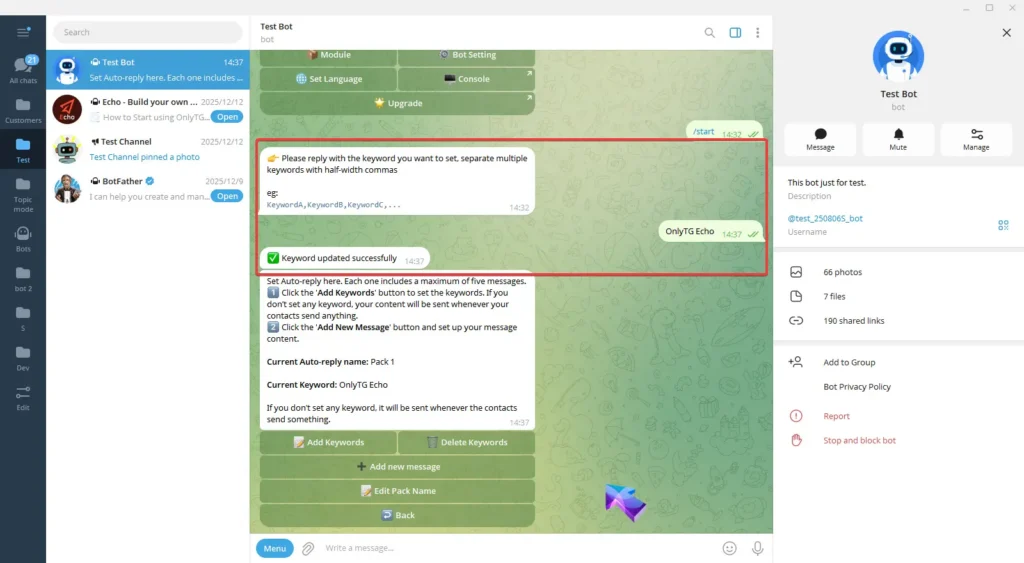
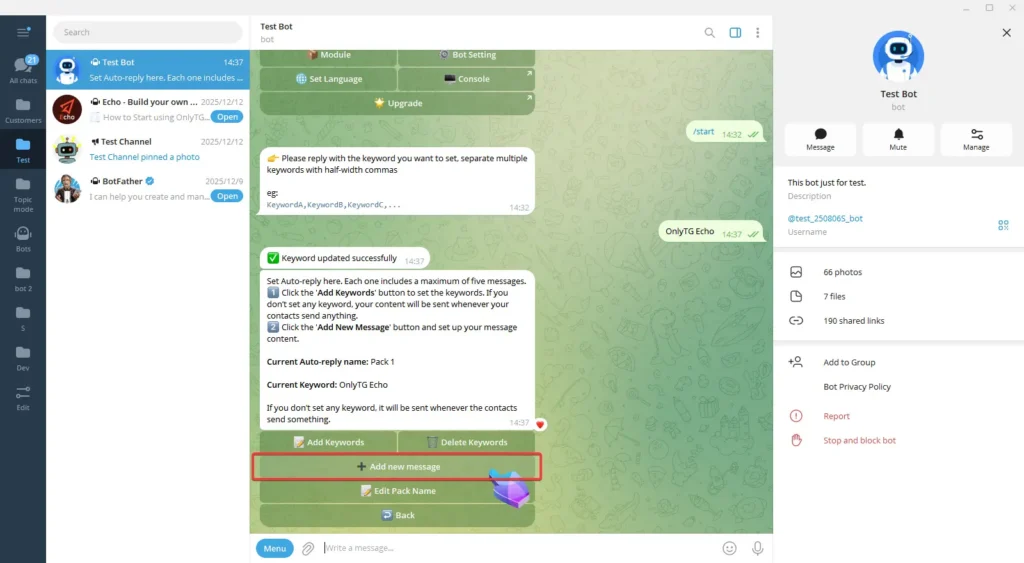
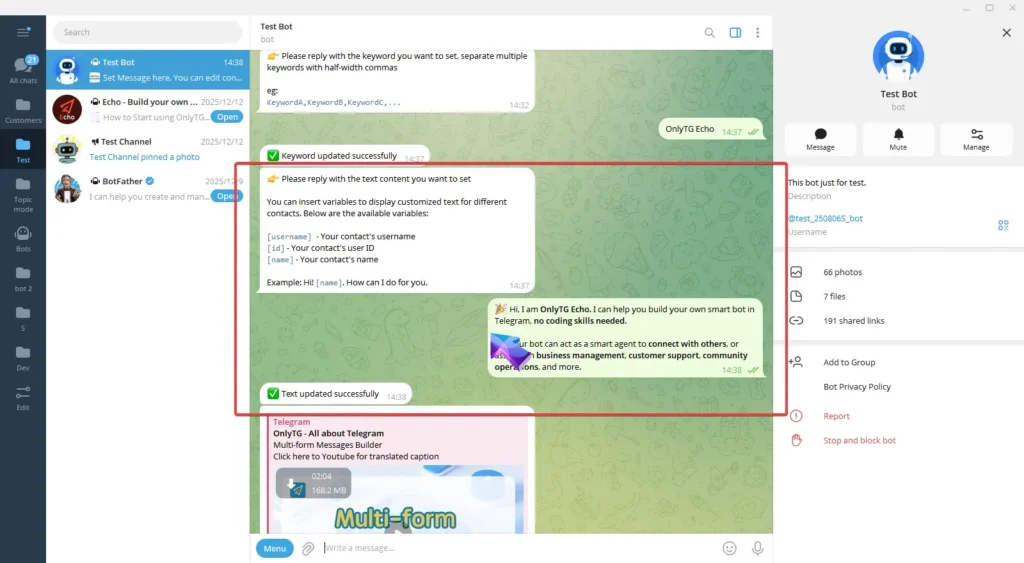
Click Add New Message and reply with the text content you want to set. Once the update success message pops up, it means the process is complete.
step 2
In normal mode, you can configure not only text/media for this message but also buttons.
Media can be images/videos/files, but the maximum number of configurable media is limited to one.
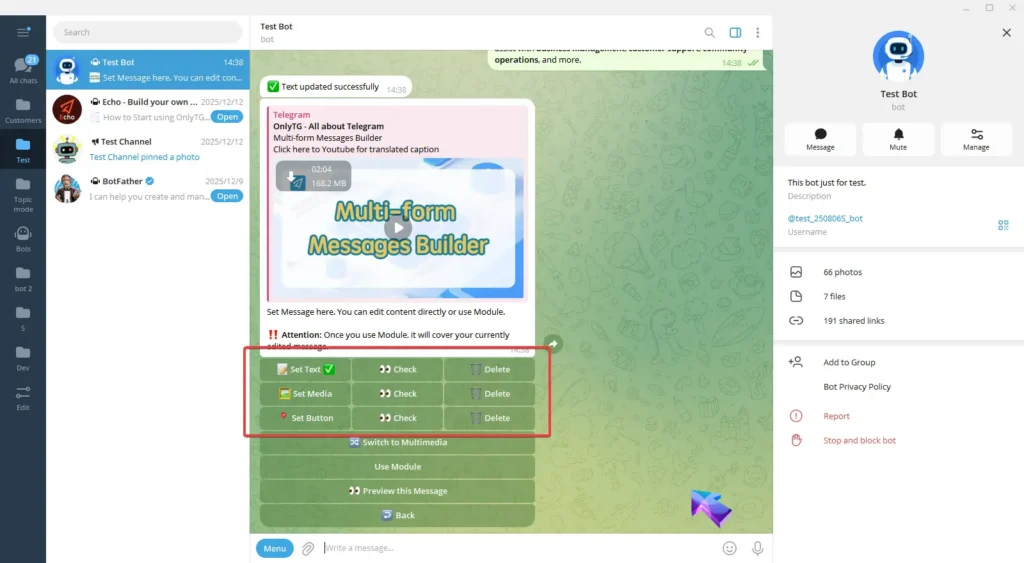
To add multiple media, Click Switch to Multimedia to convert this message into a multimedia message. (Multimedia messages are only available for paid plans. Upgrade your plan to unlock features)
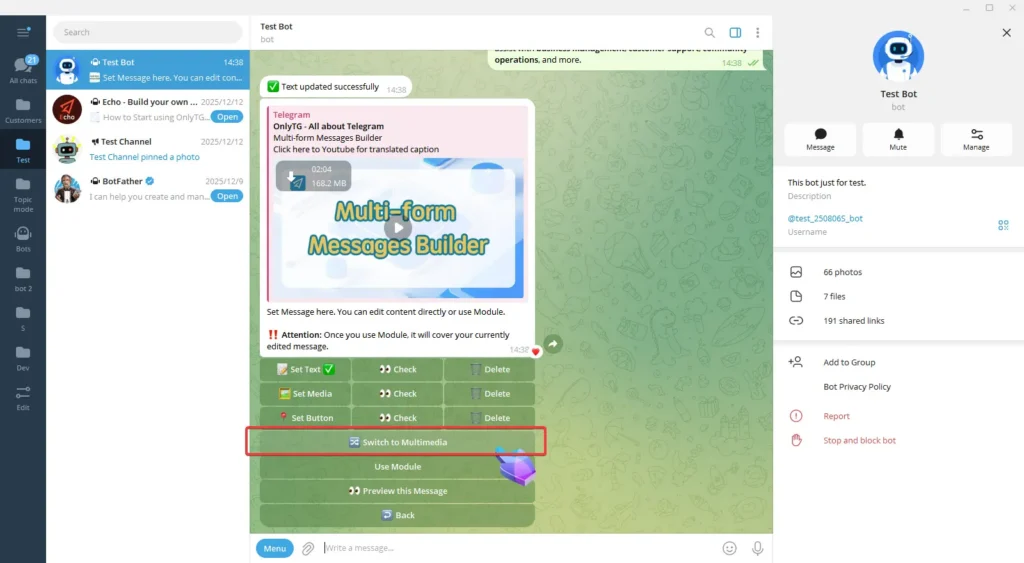
Now, only text/media can be configured; buttons cannot be configured.
And media currently cannot be configured with files, only images or videos can be configured.
However, the maximum number of configurable media is 10.
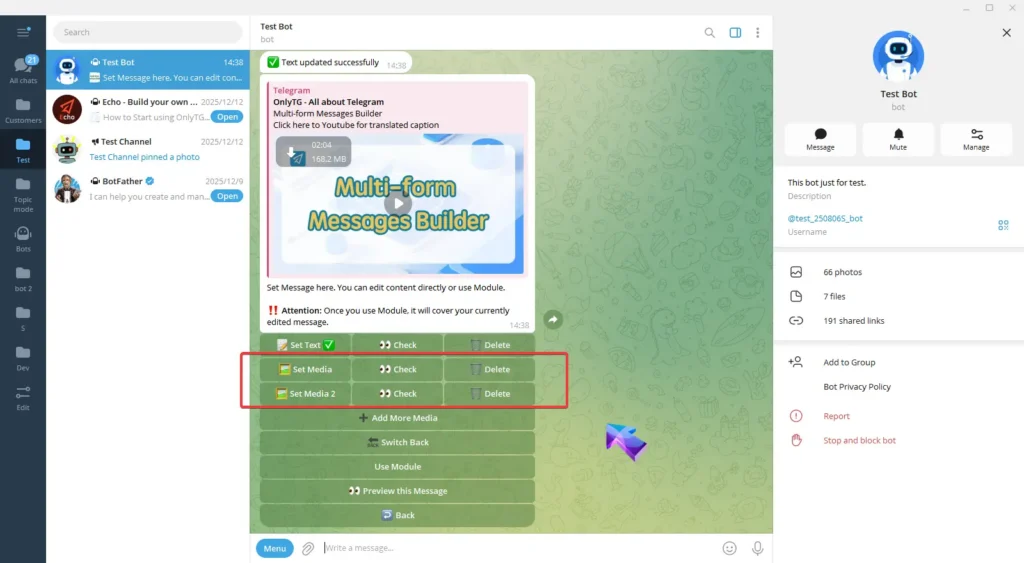
Click Add More Media to create a new Media 2.
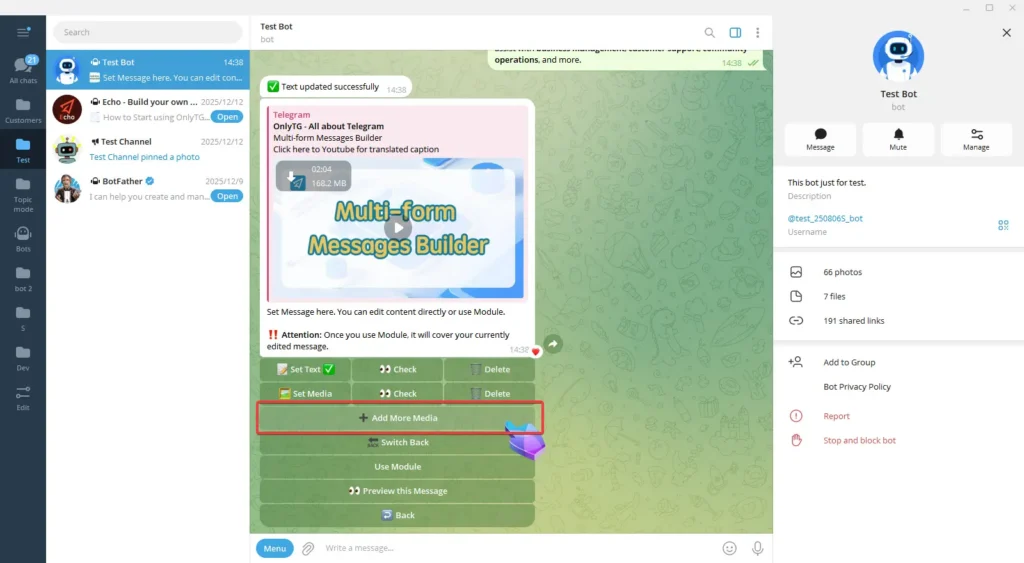
Set the Media and Media 2 one by one. Once the update success message pops up, it means the process is complete.
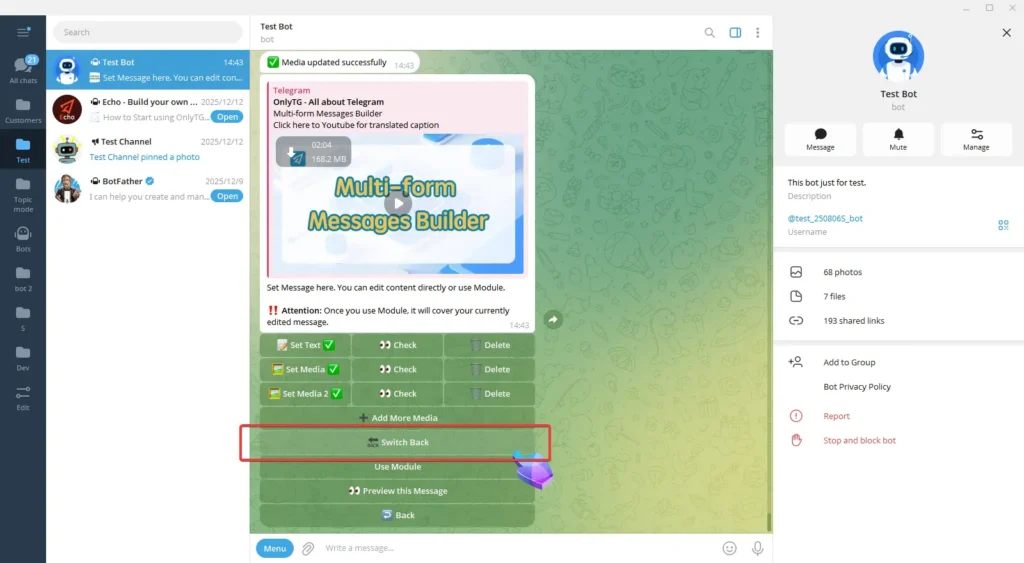
If you want to switch back to normal mode, click Switch Back.
The Use Module button can help you directly use pre-configured multimedia messages, but you need to set them up in the Module of the start menu first.
(Click here to learn how set module)
We’ll skip this for now.
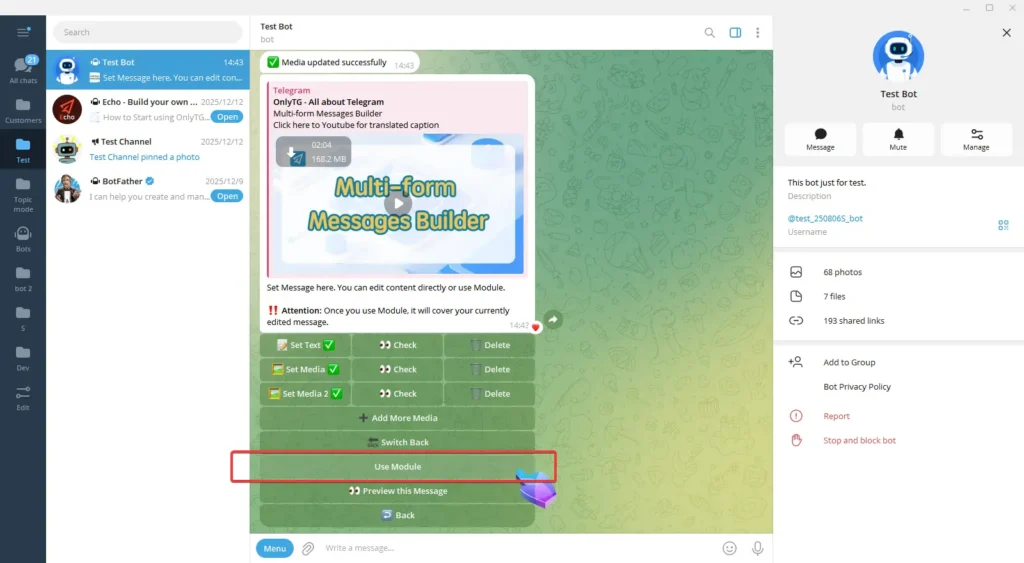
Click Preview This Message to check your multimedia message.
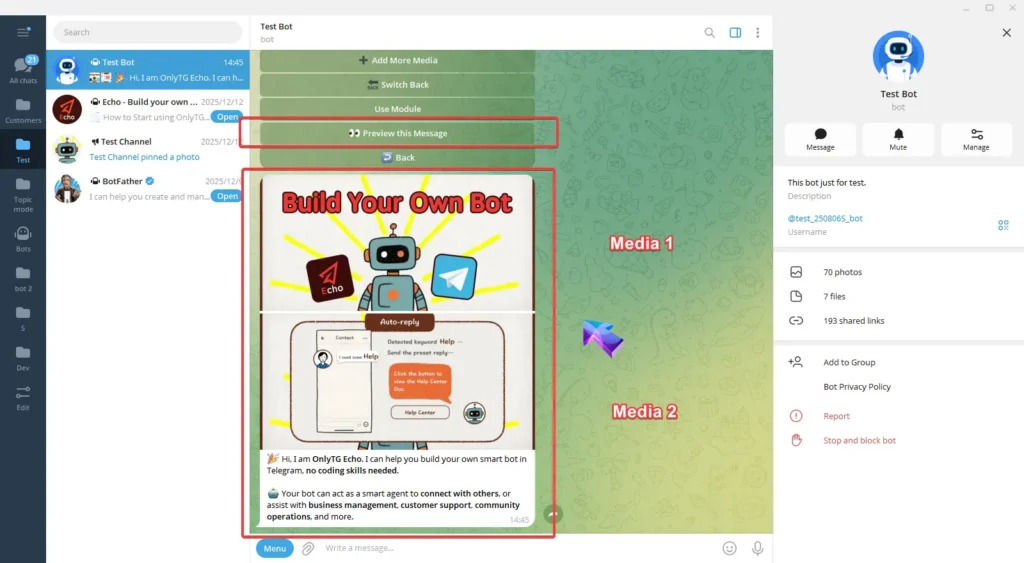
When a contact sends a message containing the keywords to your bot, the bot will automatically reply with the multimedia message you just configured.