Skip to content
OnlyTG Icon
  • ProductsExpand
    • Echo
    • Recorder
  • ResourcesExpand
    • Help
    • Blog
  • EnglishExpand
    • 中文 (中国)
    • Русский
    • English
Contact us

OnlyTG Echo

  • Introduction
  • How to start
  • Chatbots
    • Message Receive and Reply
    • Set Start Message
    • Set Auto-reply and keywords-based reply
    • Set Quick Reply
    • Create Broadcast Task
    • Tracking Links
  • Channels
    • Channel Management
    • Channel Post
    • Channel Post Edit
    • Pro Communities – Channel
    • Loop Post on Telegram Channels
  • Groups
    • Group Management
    • Group CAPTCHA
    • Group Greeting
  • Others
    • Change to Topic Mode
    • Multimedia Messages
    • Set and use content module
    • Edit bot infomation
    • View my bot’s statistics

OnlyTG Recorder

  • Introduction
  • Record Message and Foward
  • Save Record
  • Lock Record
  • Edit Record Title
  • Timezone
View Categories
  • Home
  • Docs
  • Group Management

Group Management

1 min read

OnlyTG Echo provides the function to Manage Group via your bot.  And the OnlyTG Console also tracks group statistics and member data.

Video Tutorial

step 1

Group Management

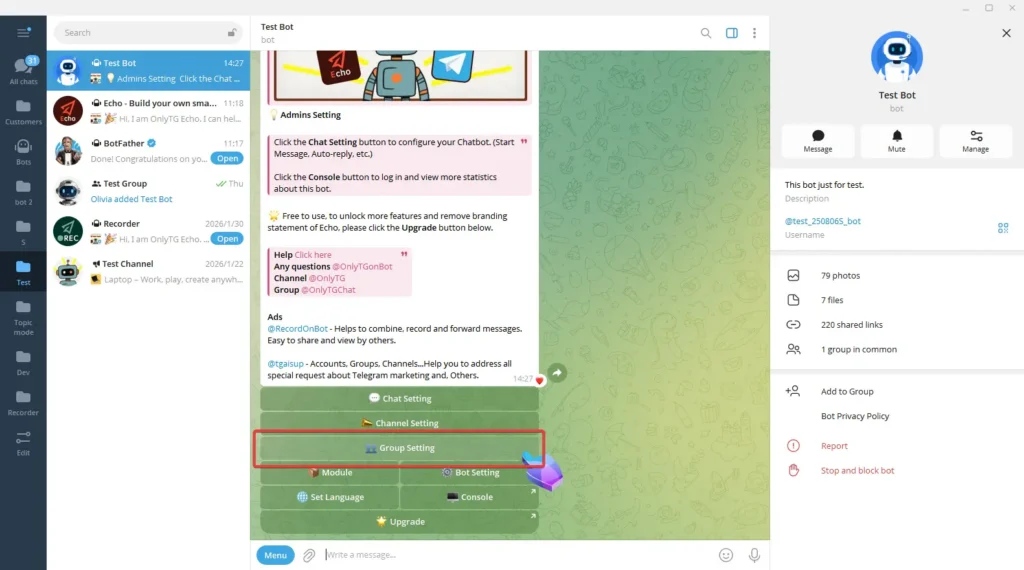
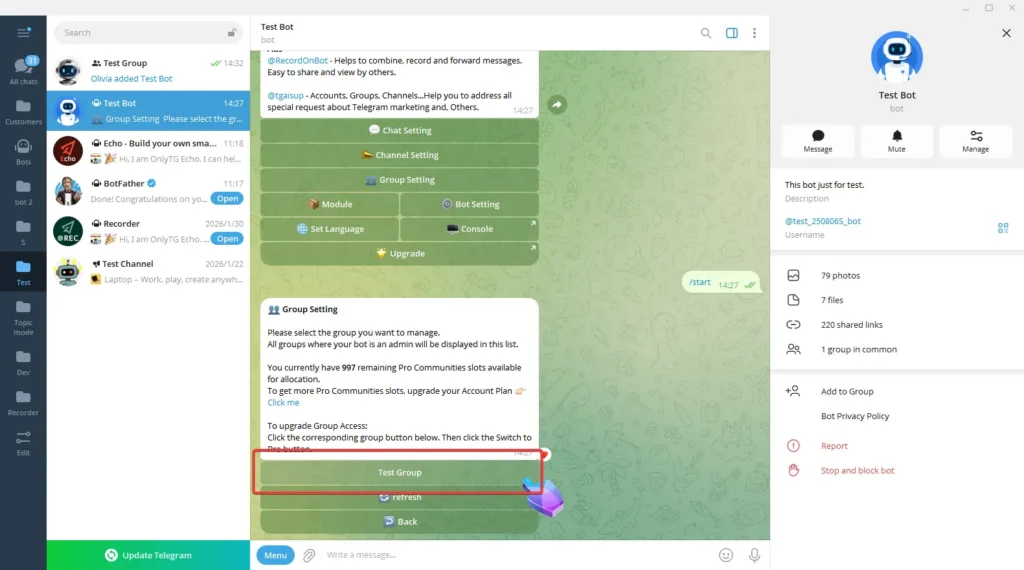
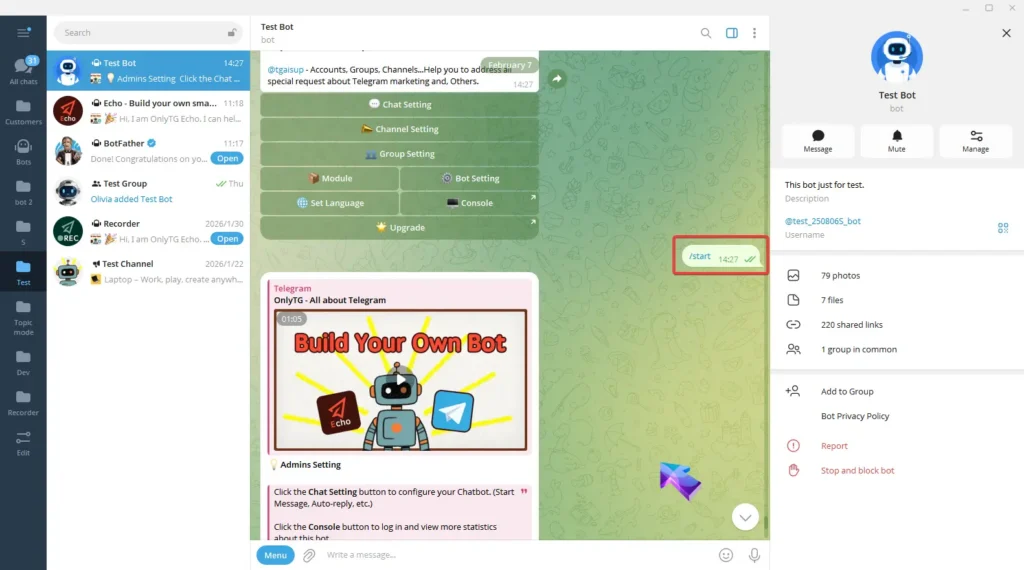
Send /start command to your bot and click Group Setting button.
Group Management
Group Management

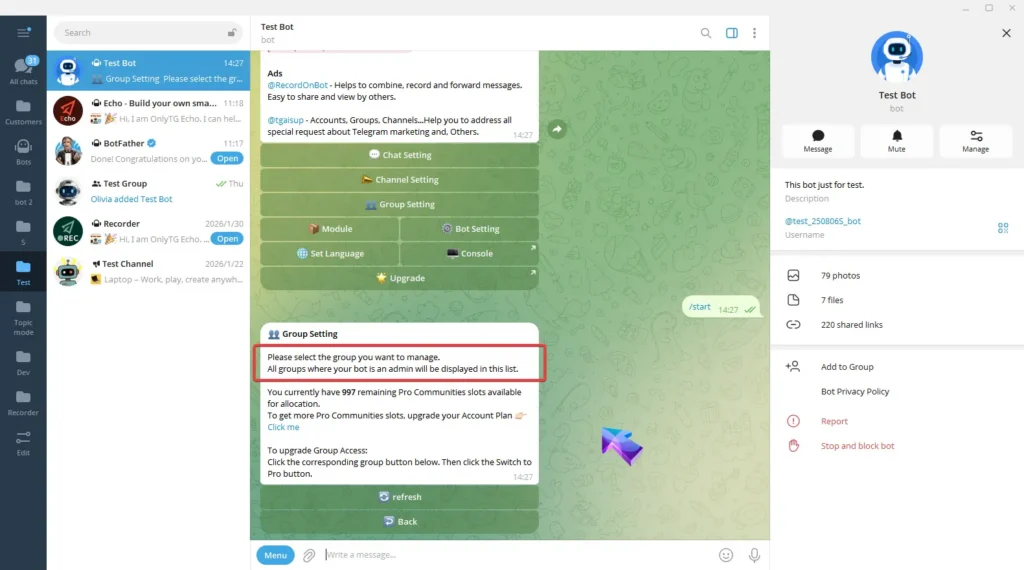
All Groups where this Bot is an admin will be displayed in this list.
Group Management

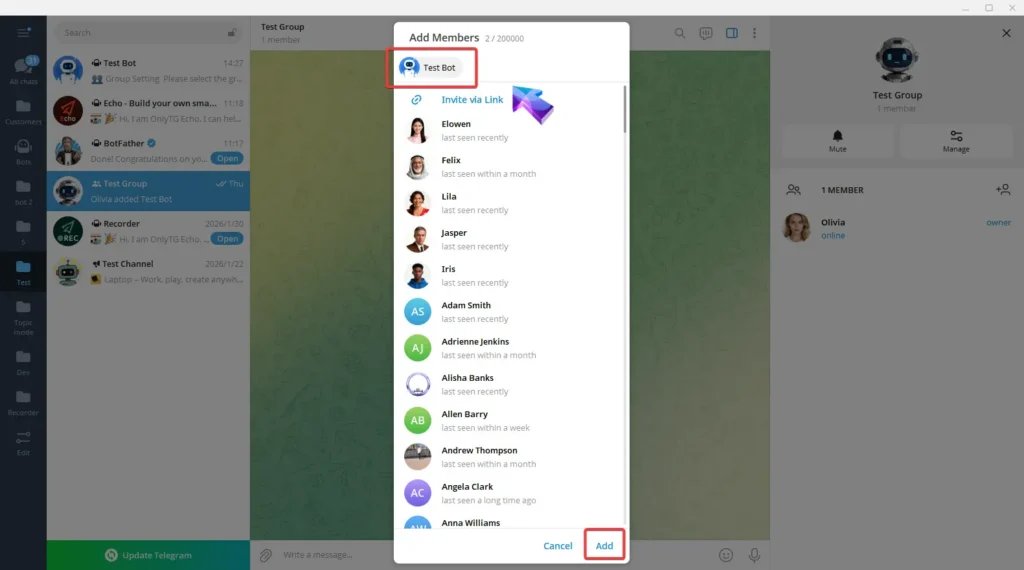
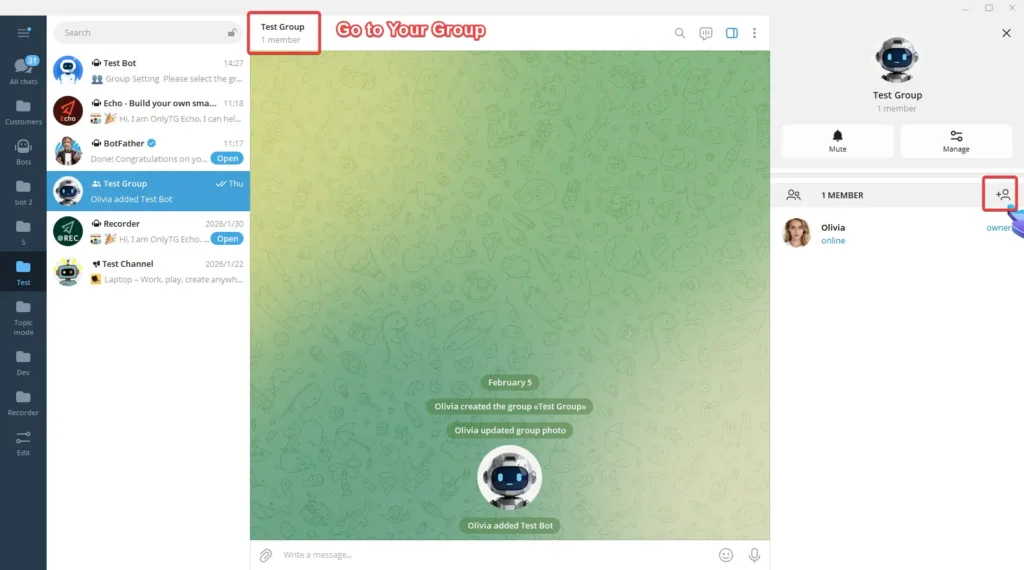
Therefore, you need to go to your group.

A. Add your bot to your Group
Group Management
Group Management

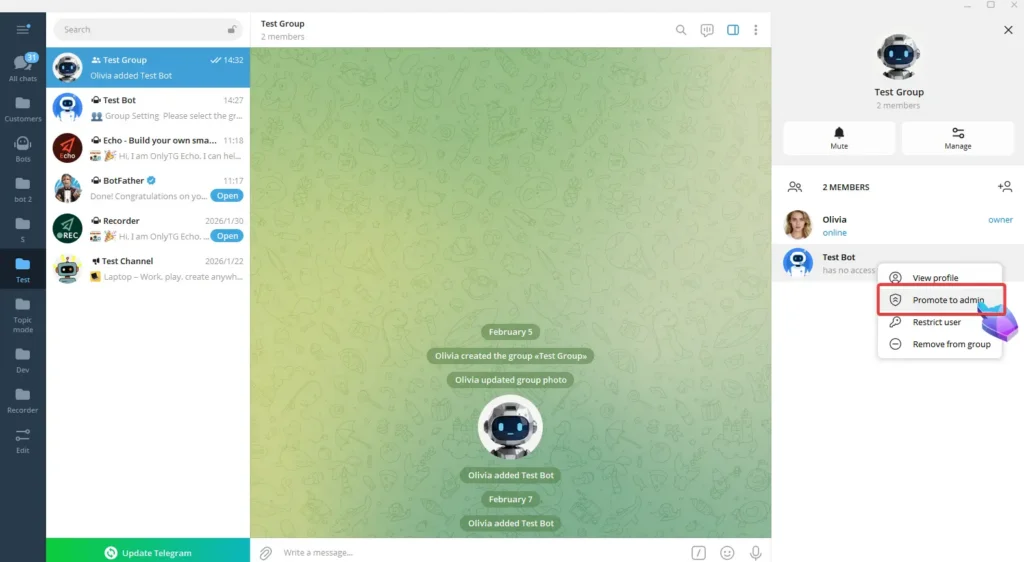
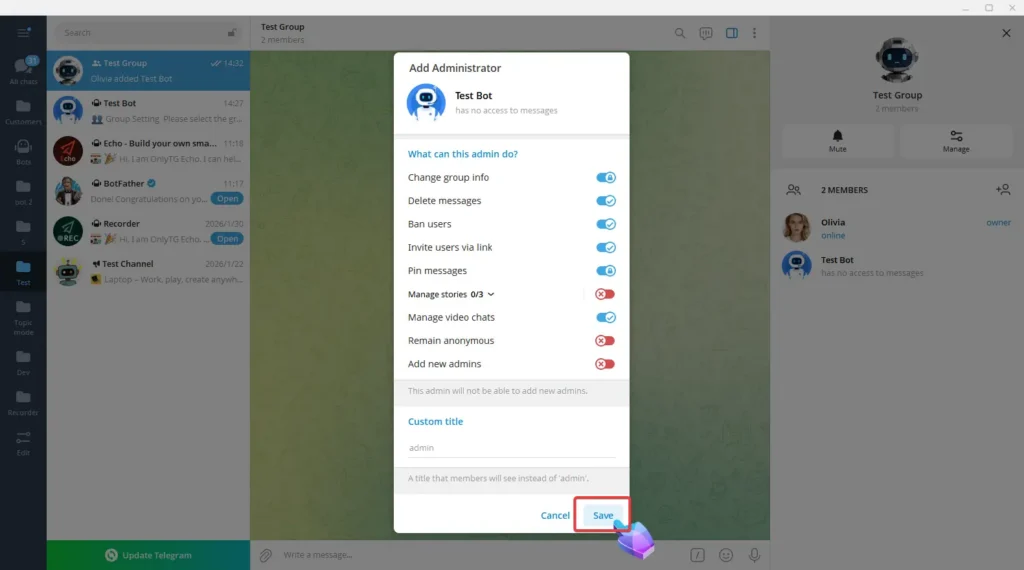
B. Promote it to admin.

Group Management
Group Management

After completing the above steps, return to your Bot, click the Refresh button, and you will see your group.
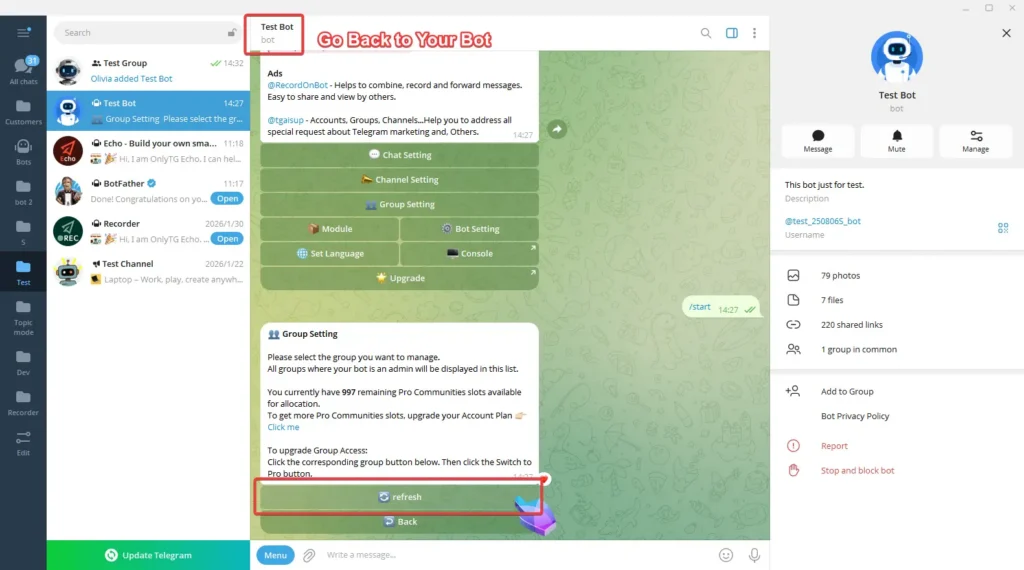
Group Management
Group Management

Select your Group, then click Yes to confirm management of the Group.
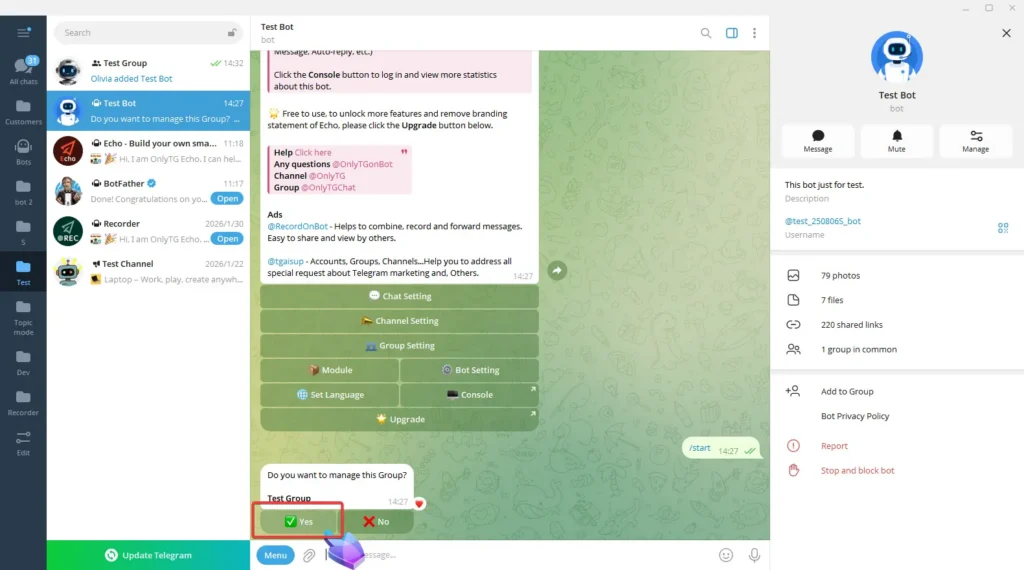
Group Management

Select your Group again, and now you can view the basic information of the Group.
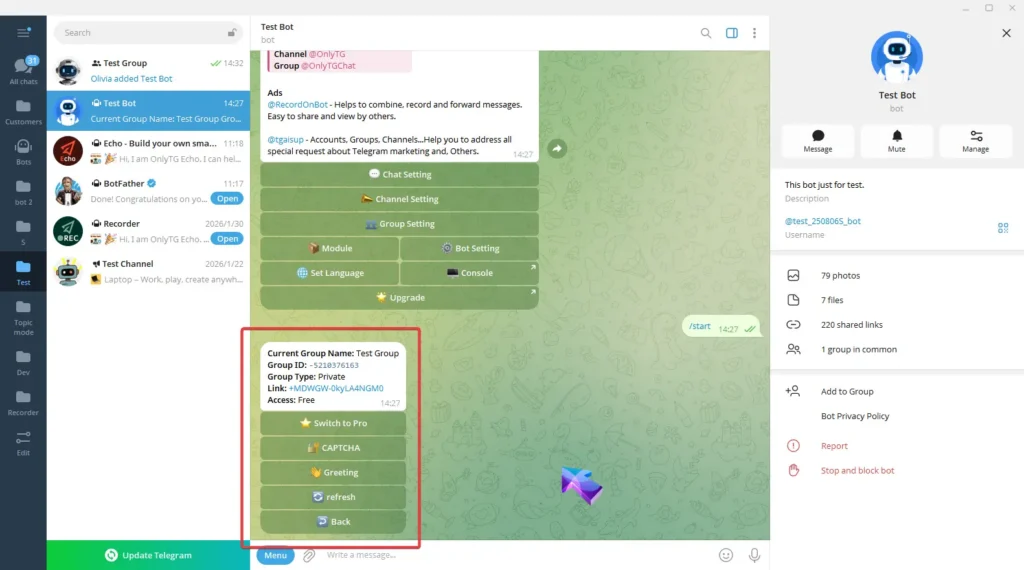
Group Management

step 2

Group Statistics

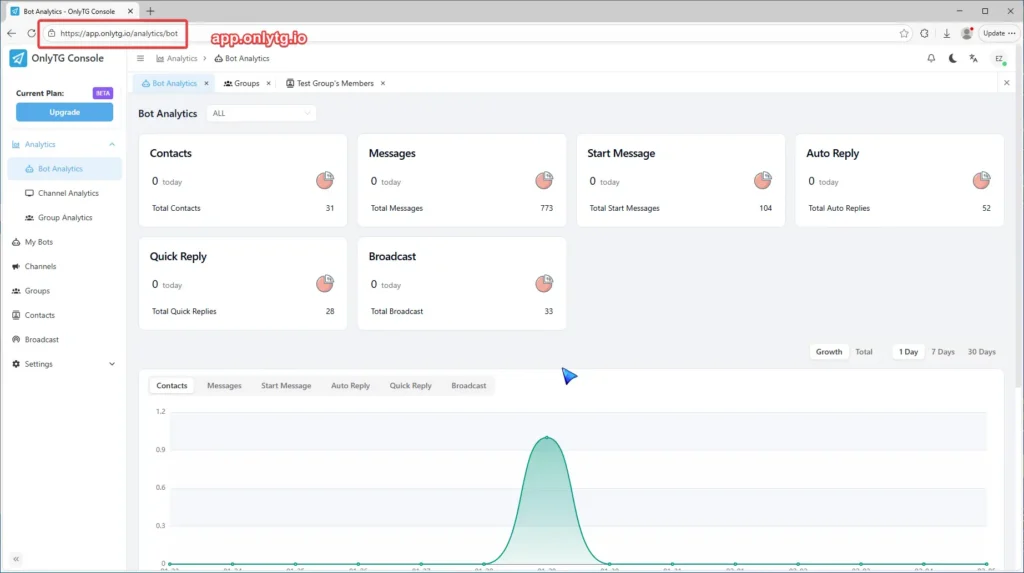
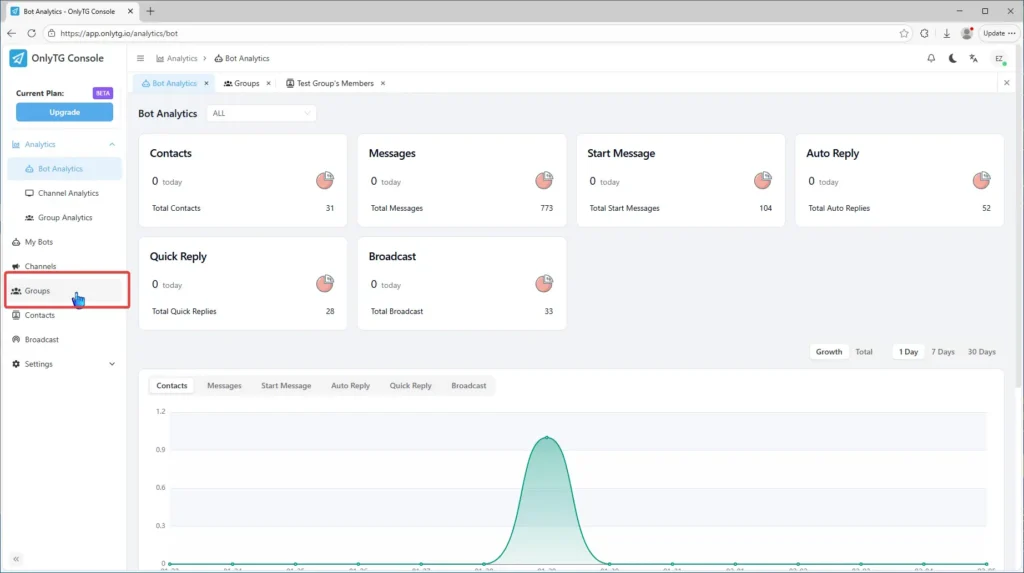
Access the console by clicking Console in the start menu of your bot, or directly enter app.onlytg.io in your browser.
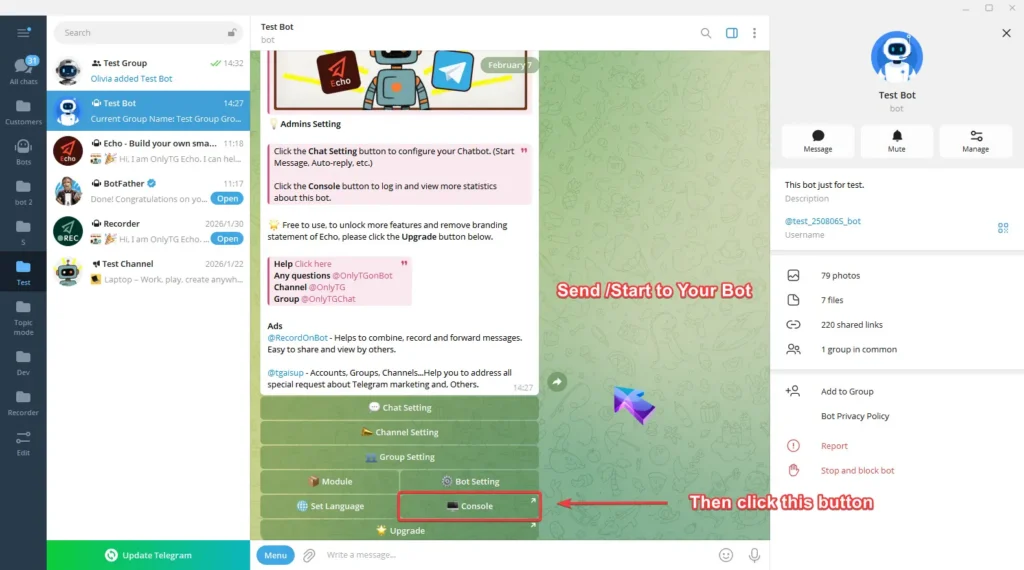
Group Management
Group Management

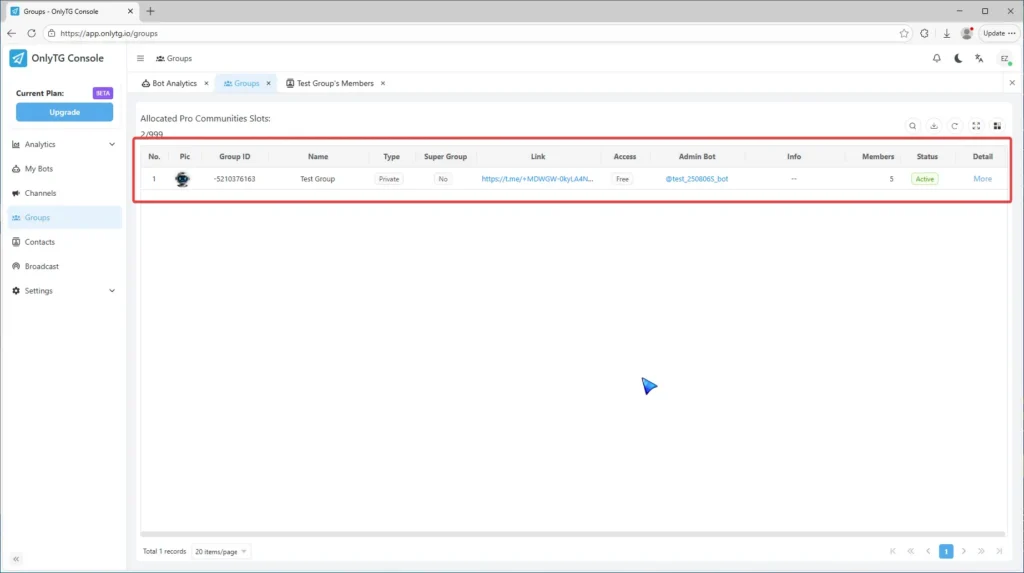
Click Groups to check the group’s relevant data.
Group Management
Group Management

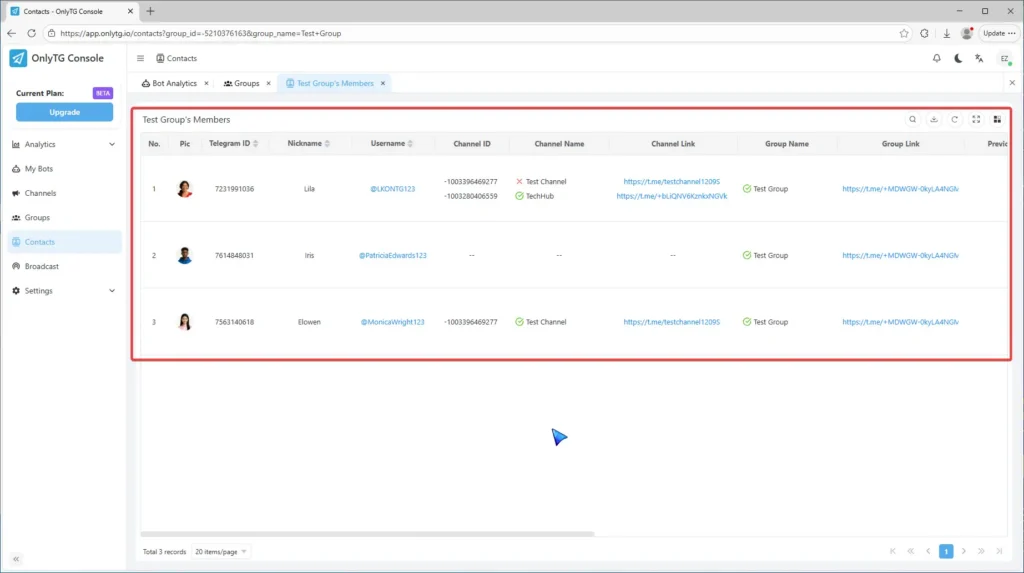
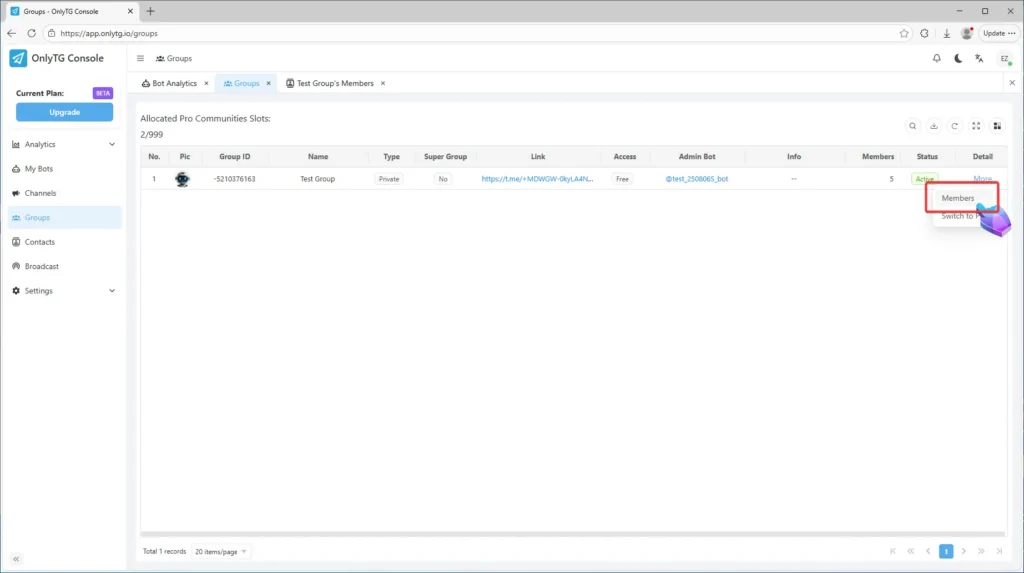
Under the More menu in the Detail column, click members to view member information, including their username/language, etc.

Note that only the information of members who join the group after the bot starts managing it will be recorded.
Group Management
Group Management

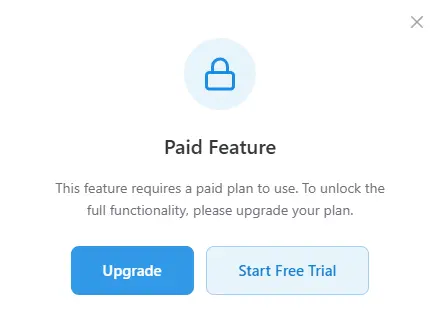
Group Statistics are currently only available to users on the Starter Plan and above.

But don’t worry—all users can get a free 3-day Starter Plan trial right now!
Group Management

Share This Article :

  • Facebook
  • X
  • LinkedIn
Group GreetingGroup CAPTCHA
Table of Contents
  • Video Tutorial
  • step 1
  • step 2
  • OnlyTG
  • Echo
  • Recorder
  • Help
  • Blog
OnlyTG EchoTelegram VK YouTube Facebook X Email

© 2026 OnlyTG

Scroll to top
  • Products
    • Echo
    • Recorder
  • Resources
    • Help
    • Blog
Contact us