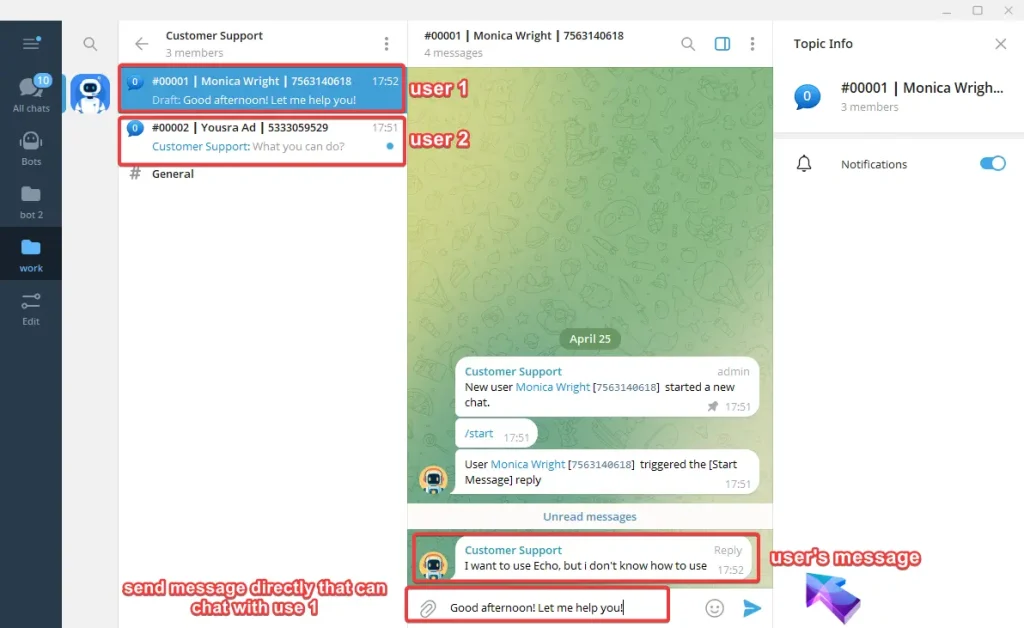
OnlyTG Echo provides the function to change to topic mode.
Video Tutorial
In Topic mode, you can manage messages in a workgroup. When a new contact sends messages to the bot, it will create a new corresponding topic in the workgroup and all that contact’s messages will be sent to this topic. And all the messages sent to this topic by group members will be sent back via the bot.
step 1
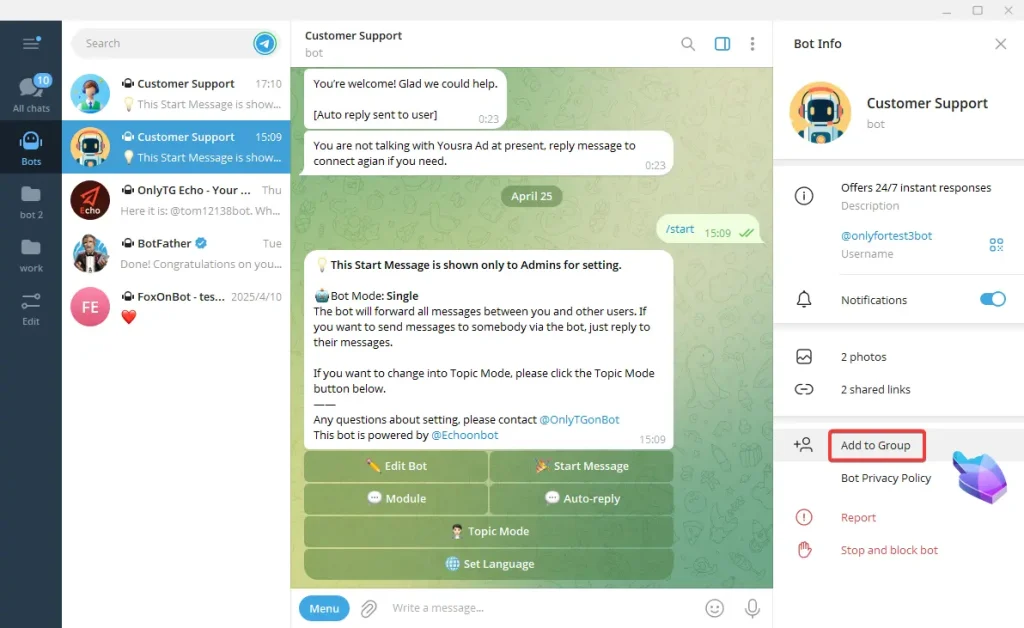
A. Add your bot to the group which you need to use for receiving messages.
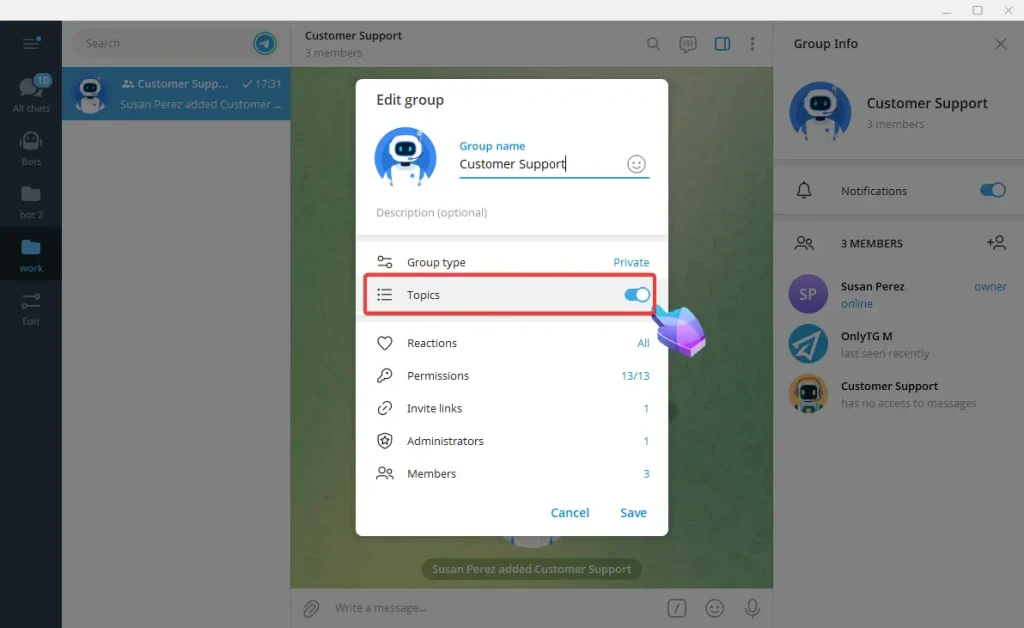
B. Enable the topics feature of the group.
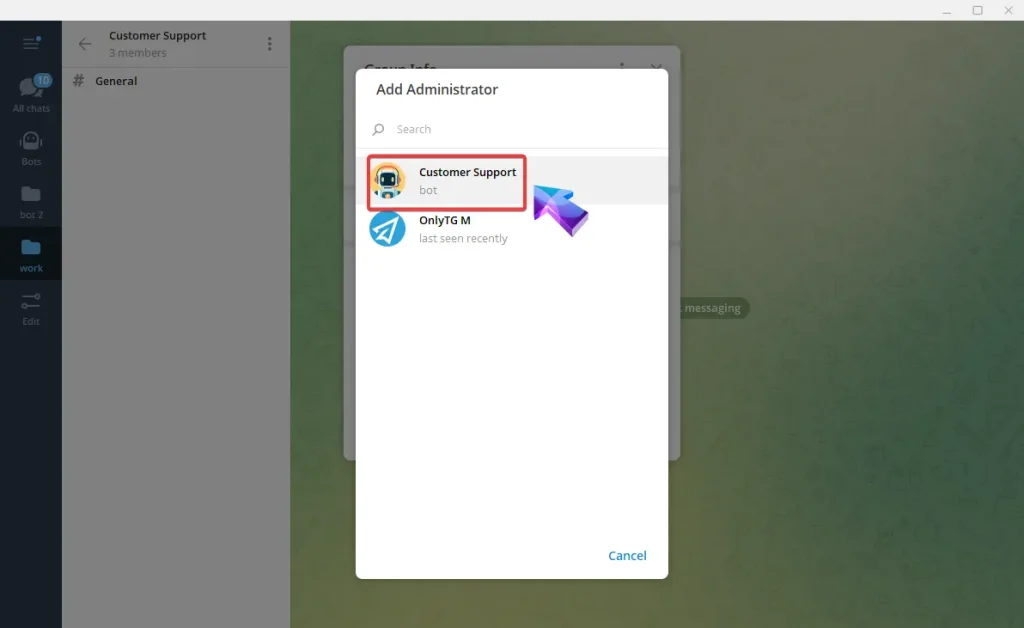
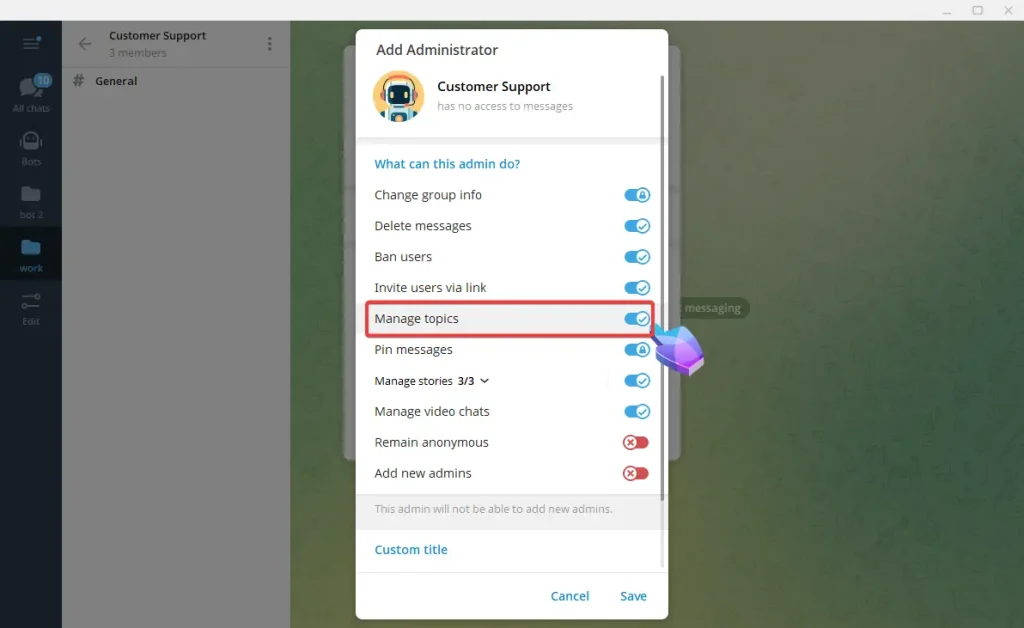
C. Set the bot as an admin and enable the permission to manage topics.
step 2
Send the /start command to your bot, We can check the current mode of the bot.
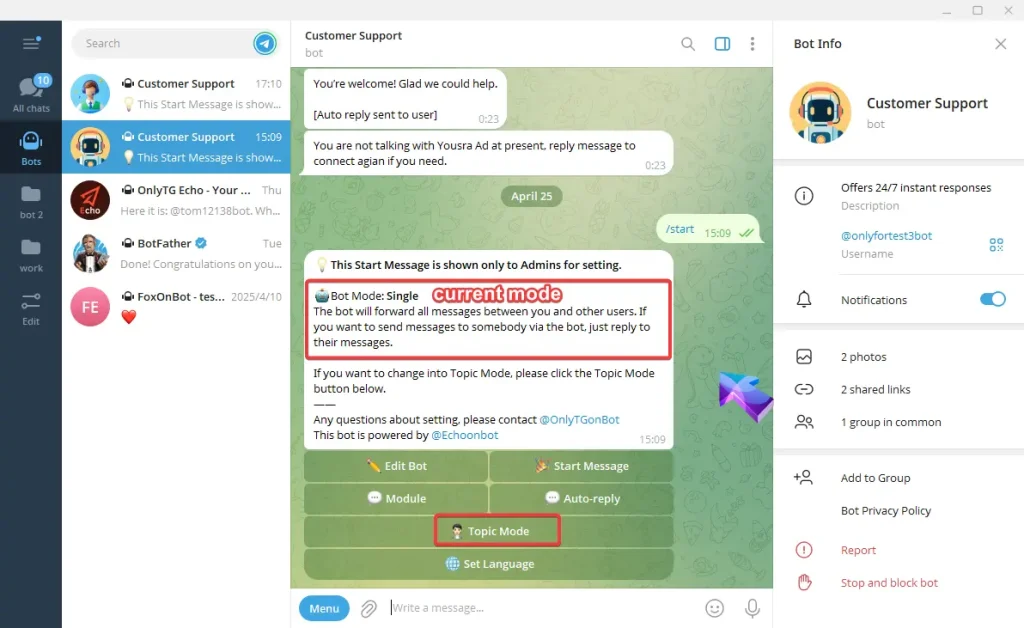
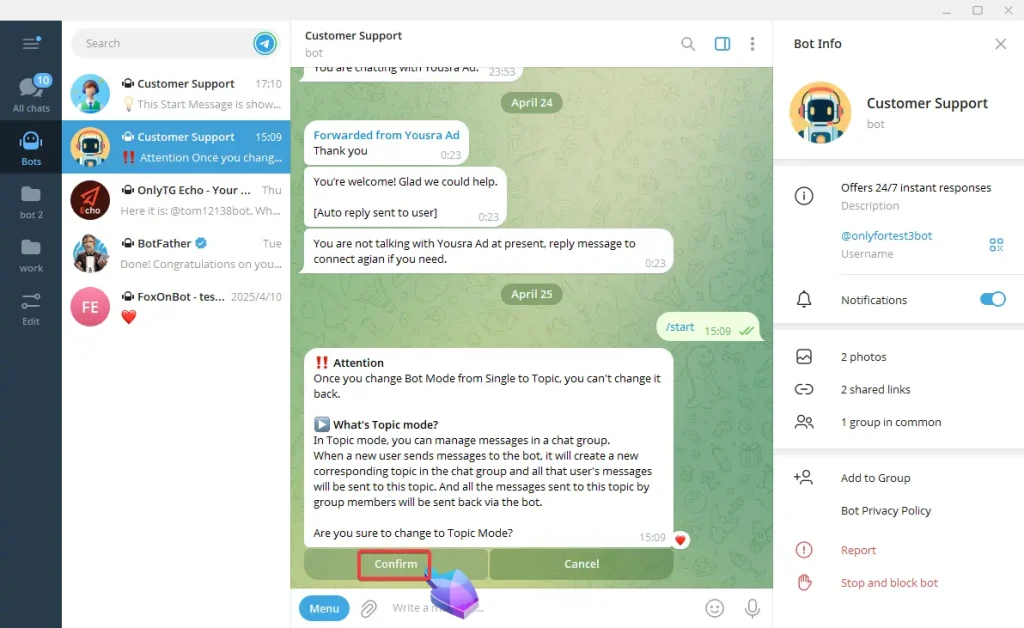
A. Click the Topic Mode button then confirm. Attention: Once you change Bot Mode from Single to Topic, you can’t change it back.
B. Click Add new Workgroup.
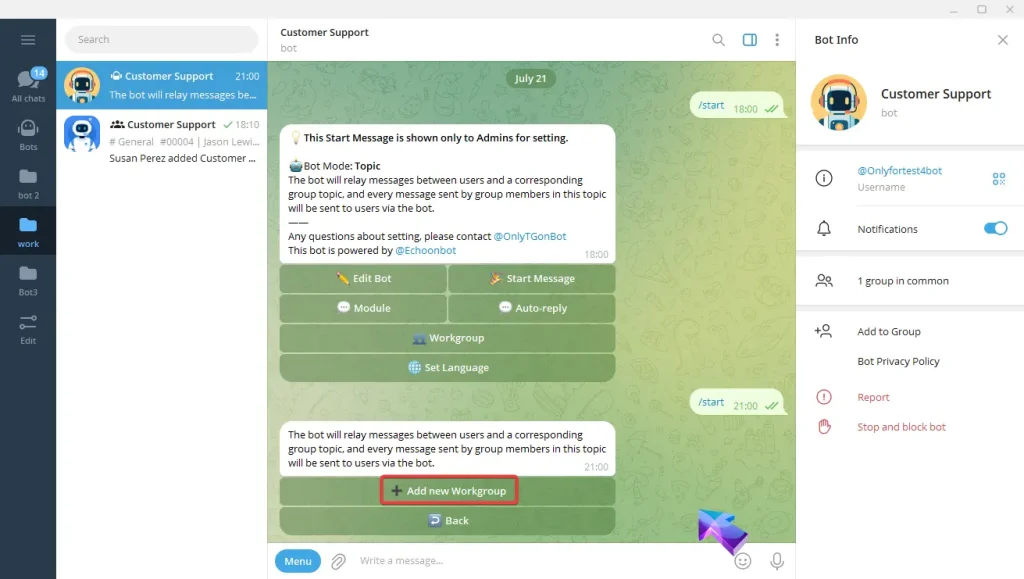
C. Choose the group and the mode change is completed. You can check and change current status of the group.
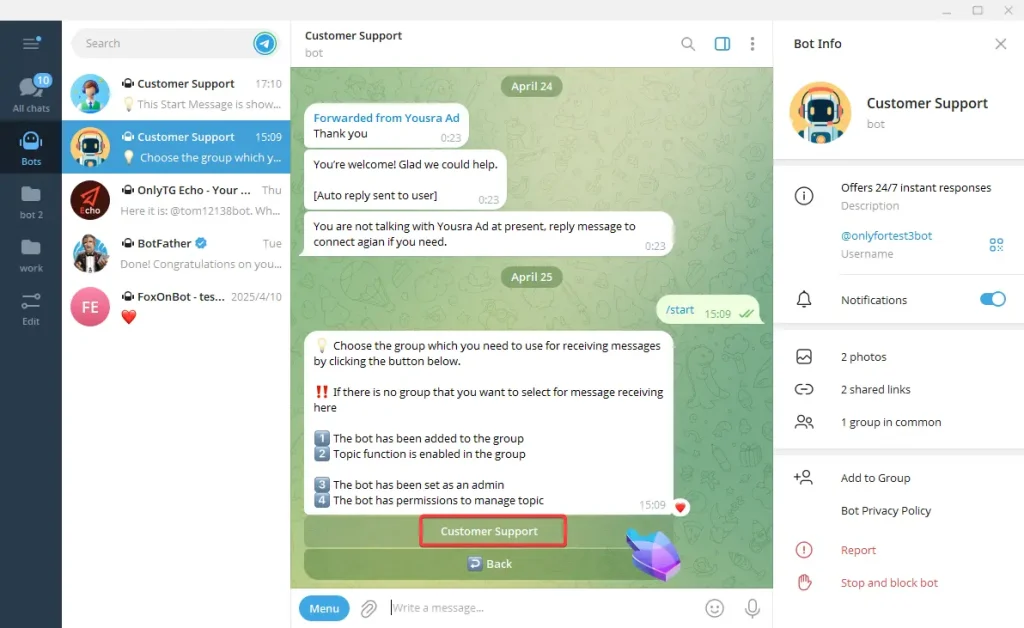
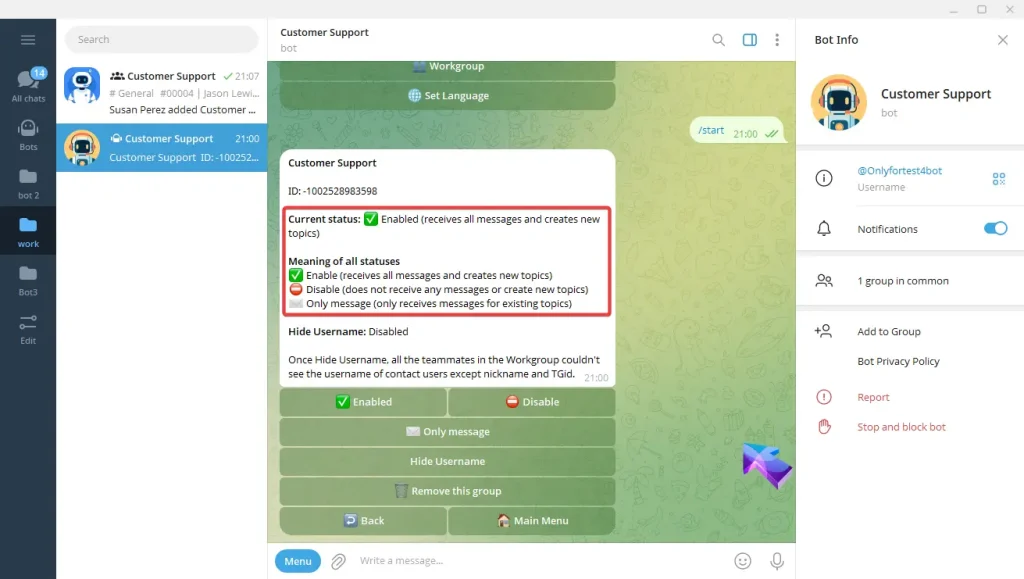
What’s the differences between both modes?
Single mode: 1. The bot will forward all messages between you and other users within the same interface. 2. Just you can send message to user and you need to reply to the message which you want to chat.
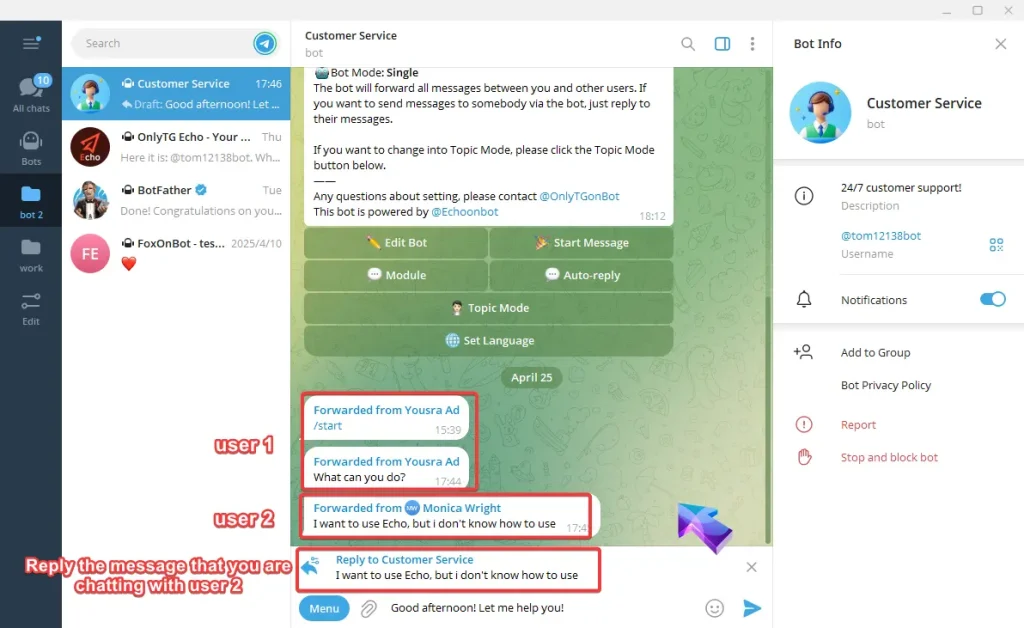
Topic mode: 1. The bot will relay messages between users and a corresponding group topic, Each topic corresponds to a user. 2. All Group members can send to user directly without needing to reply the message.