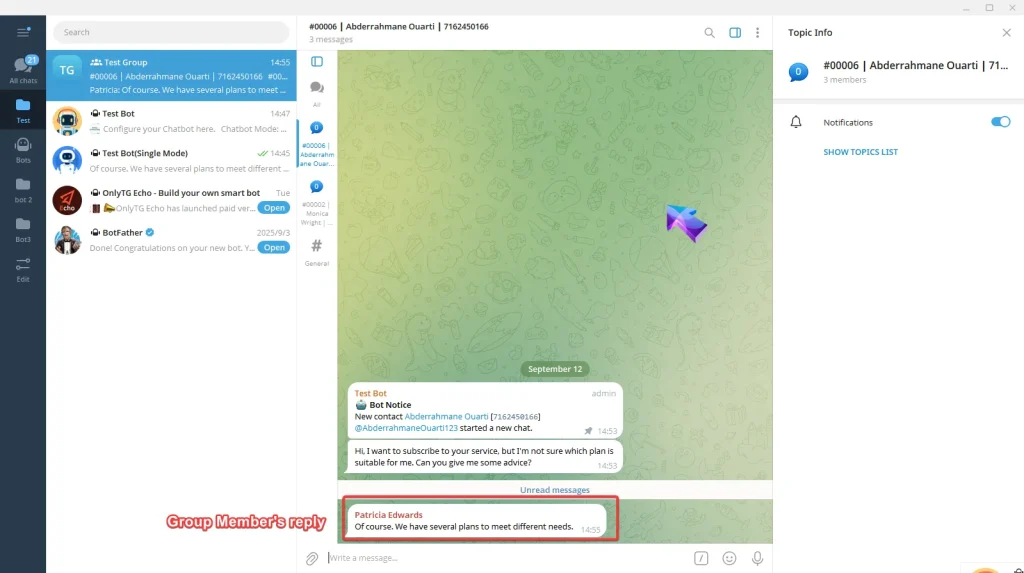
OnlyTG Echo provides the function to receive message and reply to contact via bot. Additionally, it comes with advanced assistant features like Start Messages, Auto-Reply, Quick Reply, and Broadcast, making the conversations more efficient.
Video Tutorial
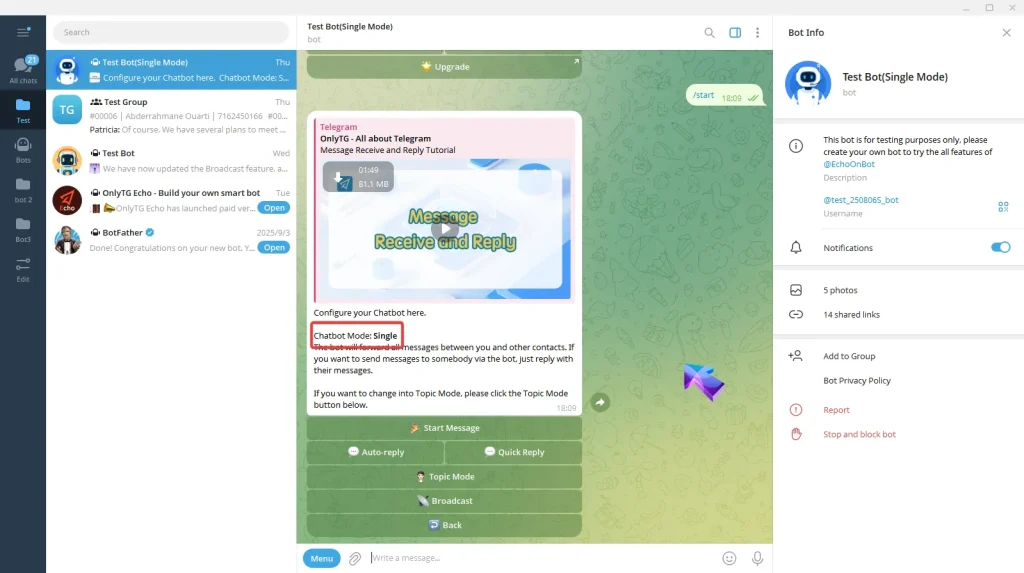
Currently, the bot supports two delivery modes: Single Mode and Topic Mode. You can send /start to your bot and click the Chat to check what mode your bot is currently in.
Single Mode
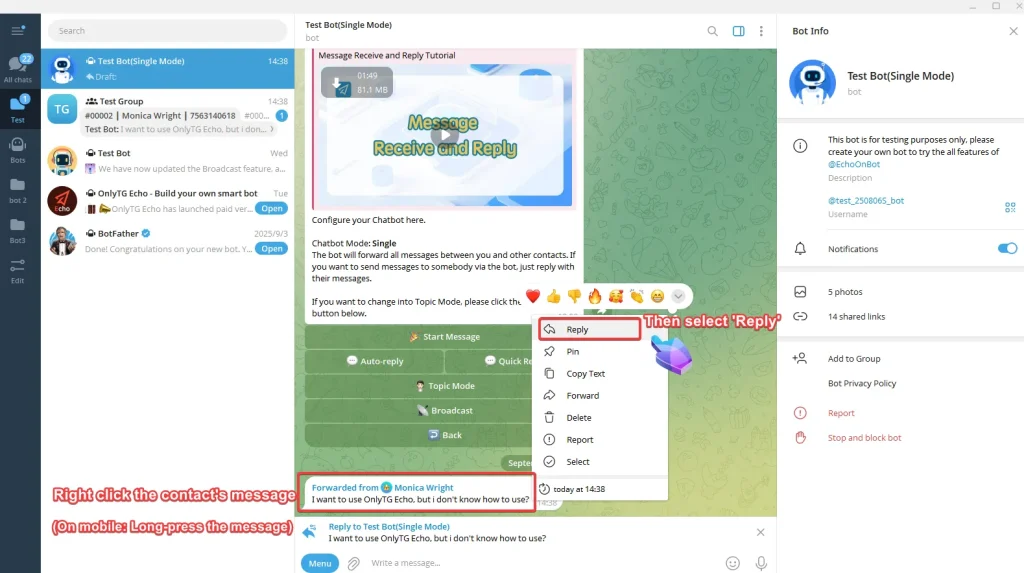
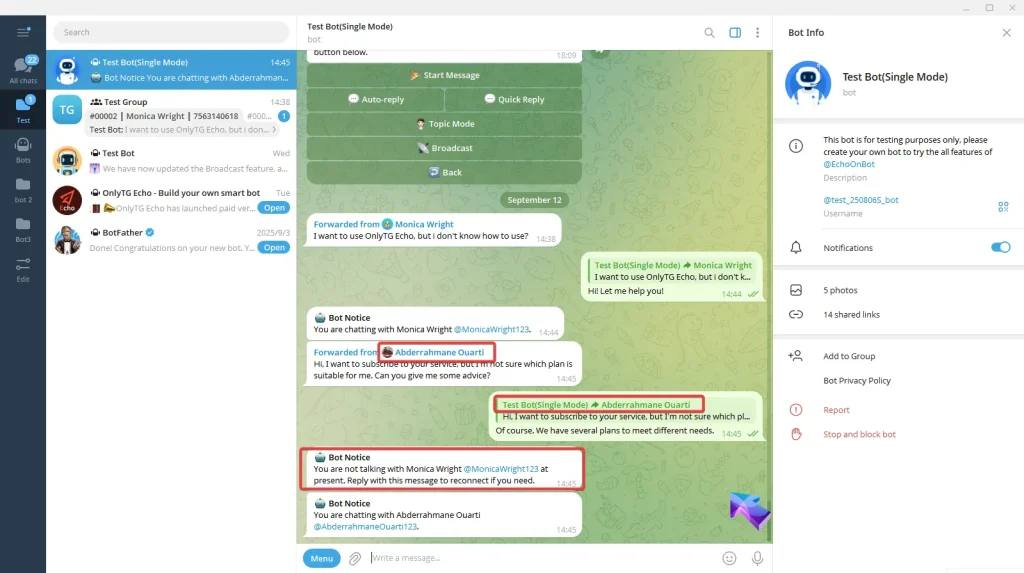
In Single Mode, when your bot receives a message from a contact, you need to right-click on the message and select Reply to start a conversation with that contact.
(On mobile, just long-press the message and choose Reply)
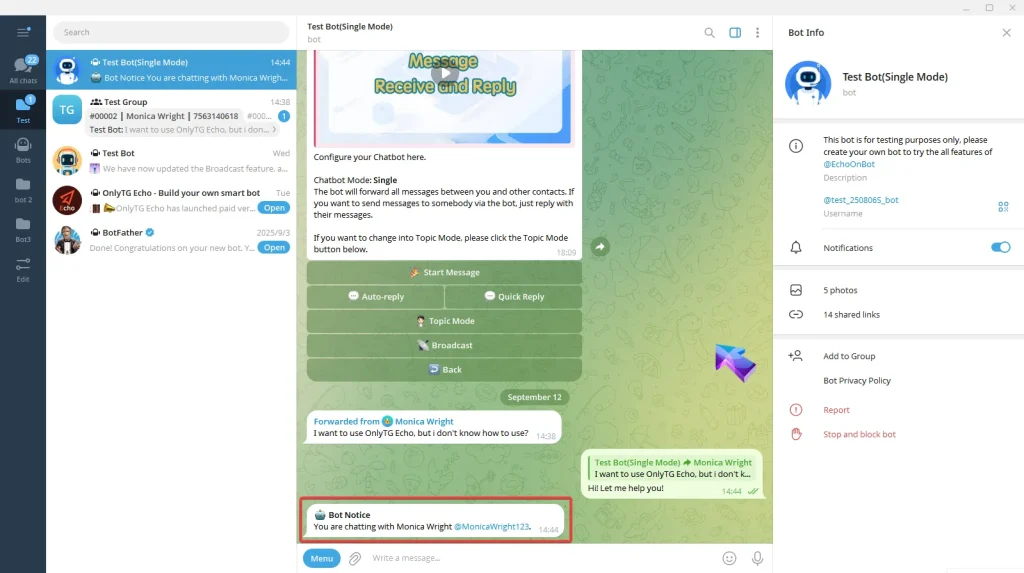
The bot notice here indicating which contact you are currently chatting with.
(Once you’ve start the conversation, you can continue chatting with the same contact for up to 30 minutes without needing to repeat the right-click and reply action. After 30 minutes, the conversation will automatically close and you need to right-click and reply again.)
If you start a new conversation with another contact, You can see the bot notice here indicating that the contact in the conversation has now changed.
(And later wish to return to the previous contact, you’ll need to right-click and Reply again to Restart that conversation.)
Topic Mode
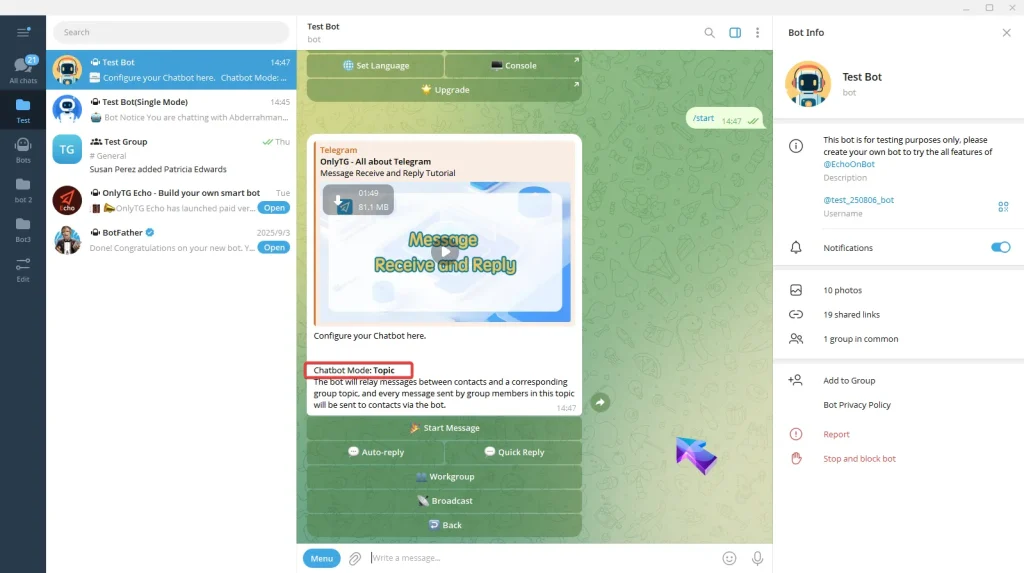
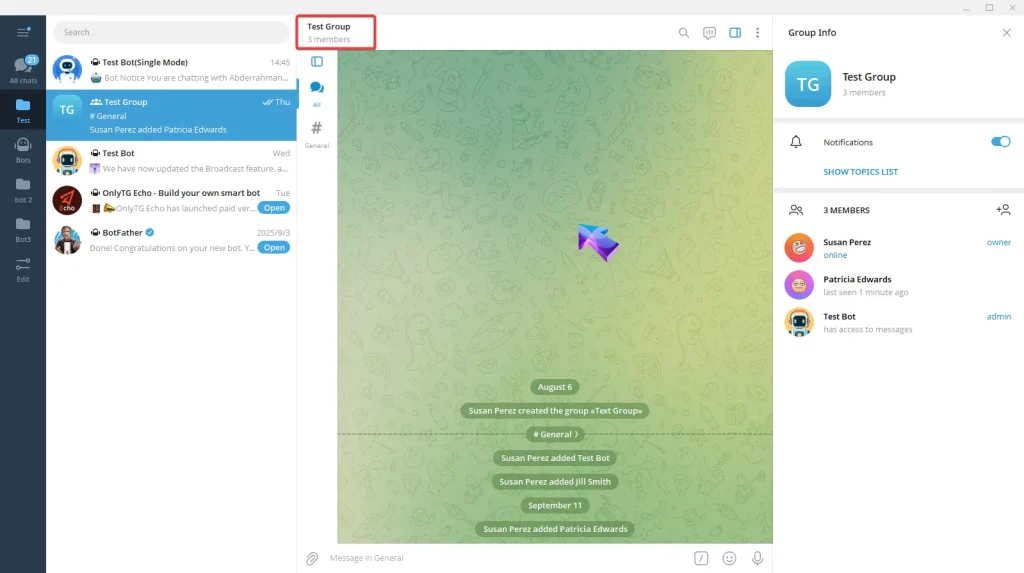
In Topic Mode, you can manage messages in the Workgroup, instead of in your bot’s private chat.
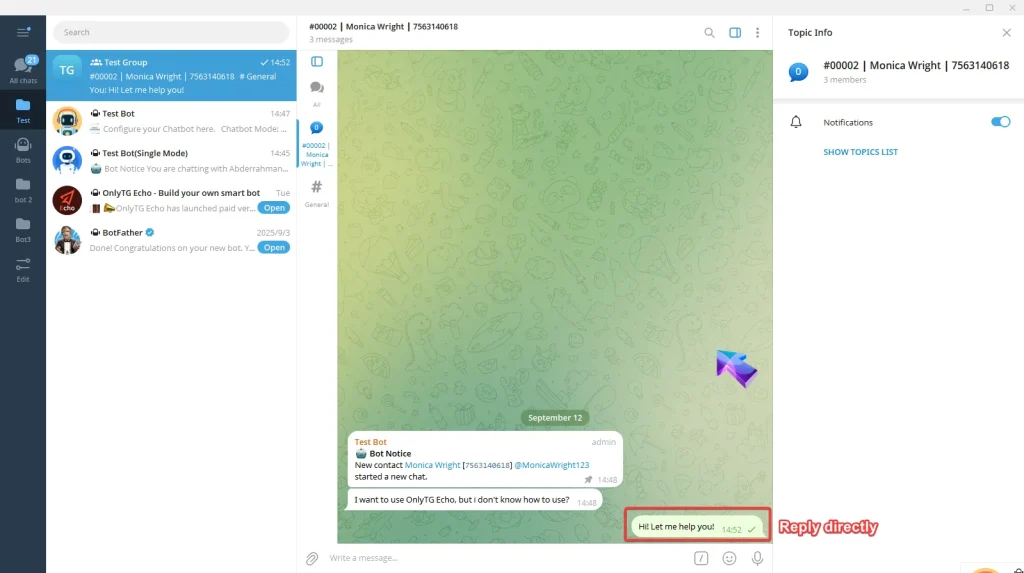
When a contact sends messages to your bot, a new topic automatically gets created in the workgroup to forward these messages.
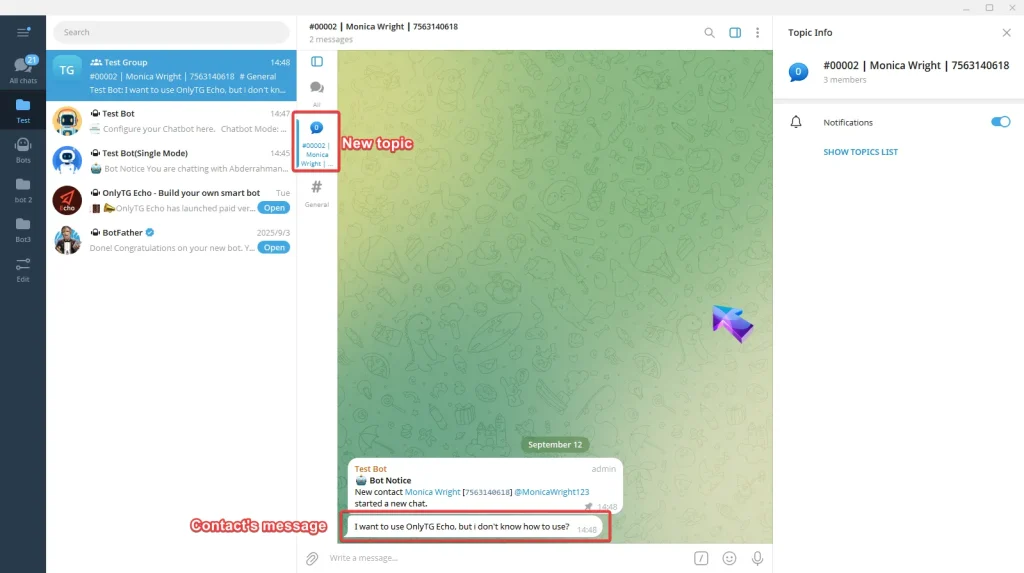
You can reply to contacts directly by sending messages, without needing to ‘right-click and reply’ as in single mode.
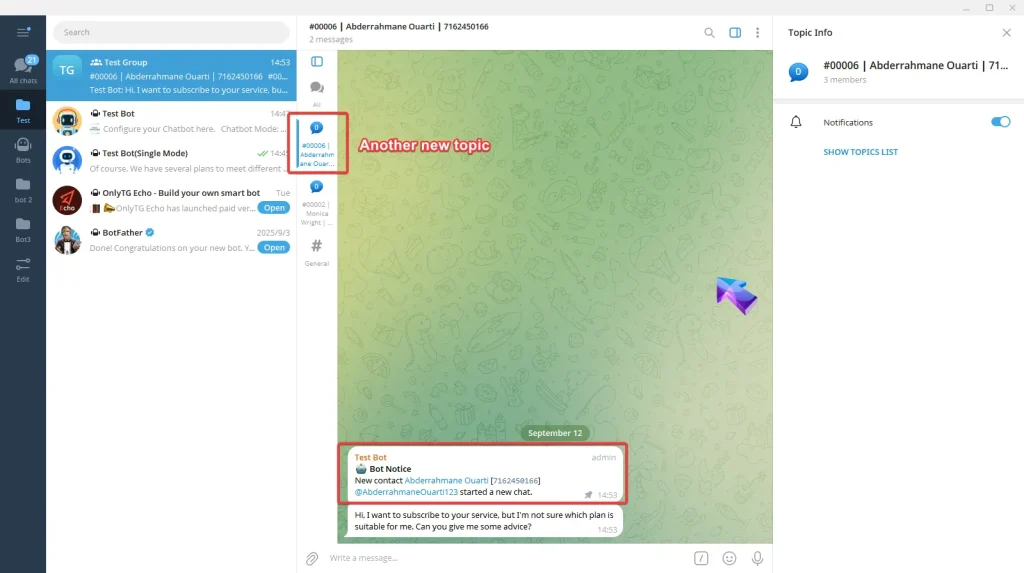
When another new contact sends messages, another new topic gets created. Click between topics to instantly respond to different contacts.
All the messages sent to this topic by group members will be sent back via the bot.