
Skip to content
OnlyTG Icon
  • ProductsExpand
    • Echo
    • Recorder
  • ResourcesExpand
    • Help
    • Blog
  • EnglishExpand
    • 中文 (中国)
    • Русский
    • English
Contact us

OnlyTG Echo

  • Introduction
  • How to start
  • Chatbots
    • Message Receive and Reply
    • Set Start Message
    • Set Auto-reply and keywords-based reply
    • Set Quick Reply
    • Create Broadcast Task
    • Tracking Links
  • Channels
    • Channel Management
    • Channel Post
    • Channel Post Edit
    • Pro Communities – Channel
    • Loop Post on Telegram Channels
  • Groups
    • Group Management
    • Group CAPTCHA
    • Group Greeting
  • Others
    • Change to Topic Mode
    • Multimedia Messages
    • Set and use content module
    • Edit bot infomation
    • View my bot’s statistics

OnlyTG Recorder

  • Introduction
  • Record Message and Foward
  • Save Record
  • Lock Record
  • Edit Record Title
  • Timezone
View Categories
  • Home
  • Docs
  • How to start

How to start

1 min read

Create my own bot firstly

OnlyTG Echo primarily sends and receives messages through the bot it is linked with. Therefore, the first step in using OnlyTG Echo is to add your personal bot.

Video Tutorial

Step 1

Creat a bot

In the Telegram search bar, type “BotFather” and select the official account.
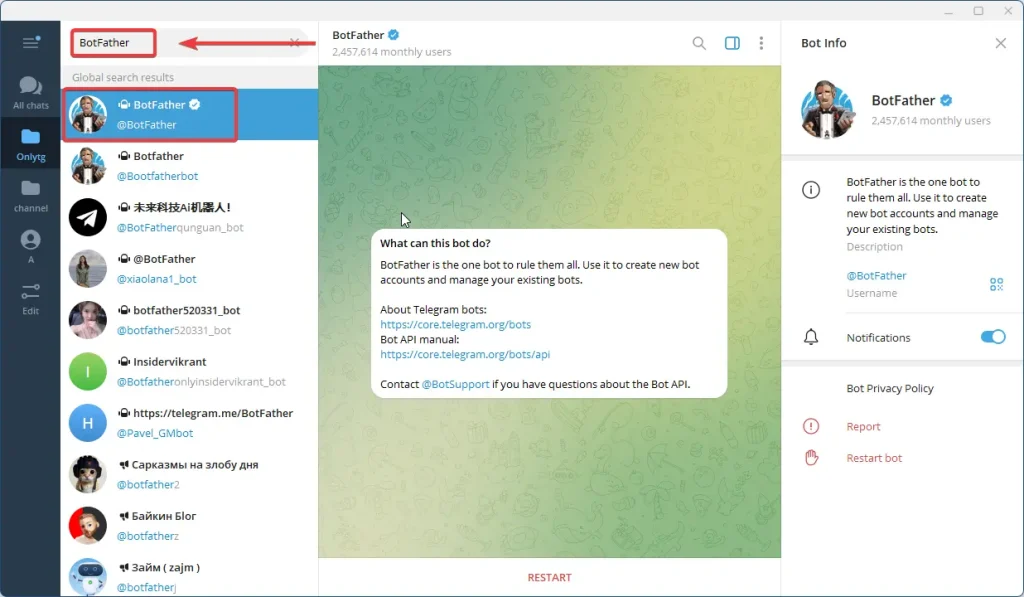
Create my own bot
  1. Send the command /newbot to BotFather.
  2. Follow the prompts to choose a display name for your bot.
  3. Next, assign a unique username that must end with “bot” (for example, MySecureBot).
  4. Once the bot is created, BotFather will provide you with an API token.
  5. Important: Save this token securely; it is required for binding your bot with Echo and must remain confidential.
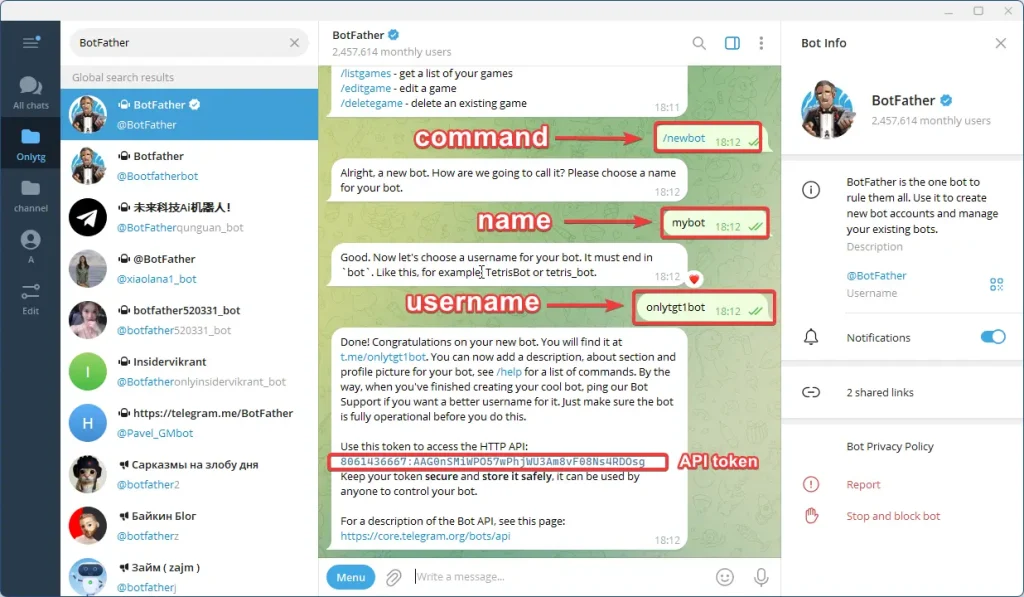
Create my own bot

Step 2

Binding Your Bot to OnlyTG Echo

After creating your bot, connect it to OnlyTG Echo to enable its full functionality:

1. In Telegram, search for @EchoOnBot and open its chat window.
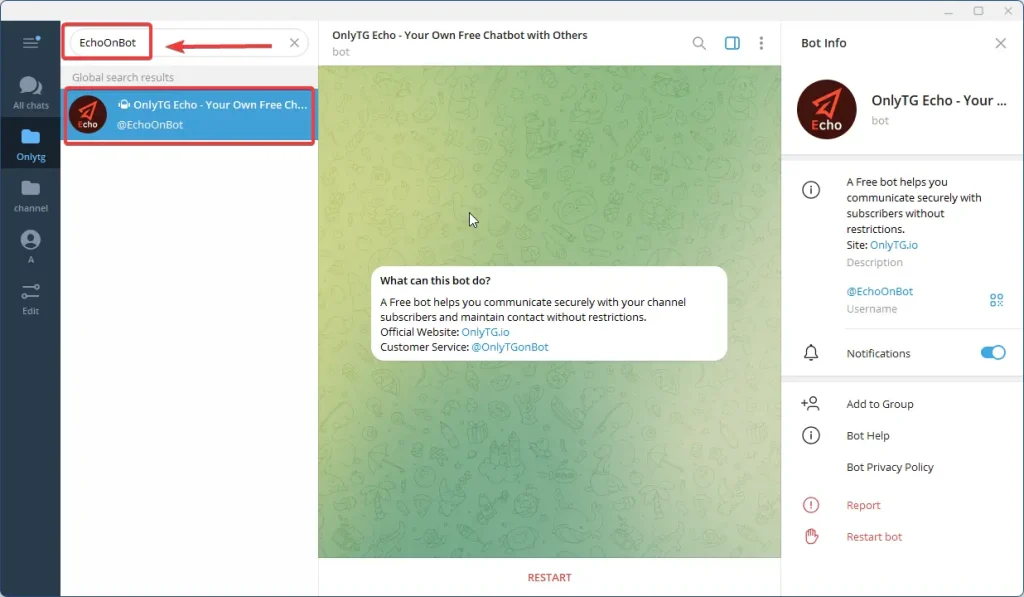
Create my own bot

2. Send the command /start to OnlyTG Echo and click Add Bot button.
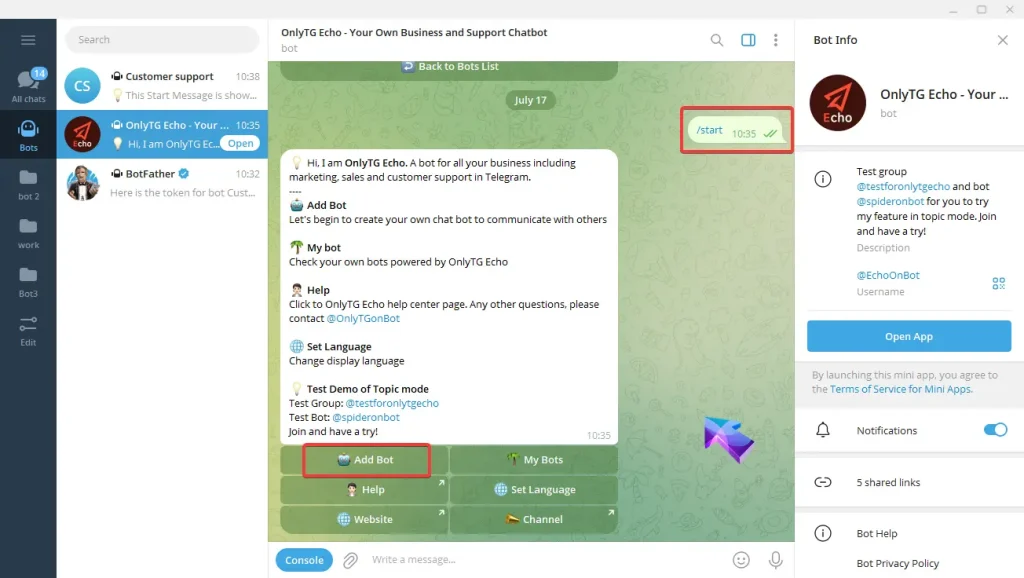
Create my own bot

3. When prompted, paste the API token you received from BotFather.
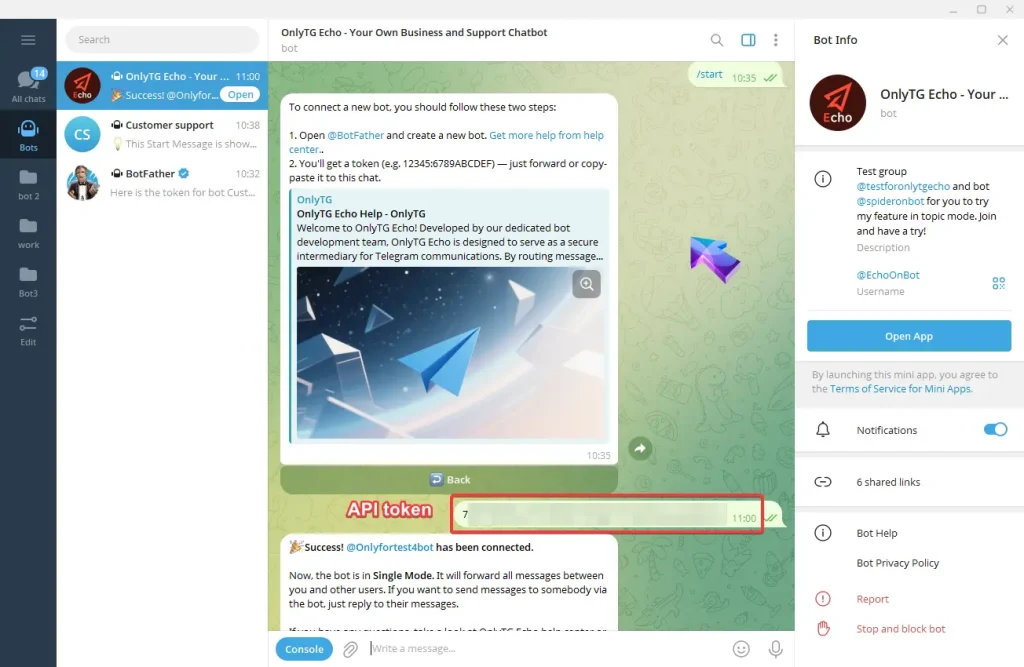
Create my own bot

Once Echo validates your token, you will receive a confirmation message indicating successful binding.

Your personal bot is now configured to receive and forward messages securely. And you can start to manage your groups and channels via this bot.

Share This Article :

  • Facebook
  • X
  • LinkedIn
IntroductionIntroduction
Table of Contents
  • Create my own bot firstly
    • Video Tutorial
    • Step 1
    • Step 2
  • OnlyTG
  • Echo
  • Recorder
  • Help
  • Blog
OnlyTG EchoTelegram VK YouTube Facebook X Email

© 2026 OnlyTG

Scroll to top
  • Products
    • Echo
    • Recorder
  • Resources
    • Help
    • Blog
Contact us