OnlyTG Echo provides the function to set rules for group via your bot.
Video Tutorial
step 1
Send /start to your Bot, select Group Setting, then choose your Group. (See previous tutorials for how to add a Group)
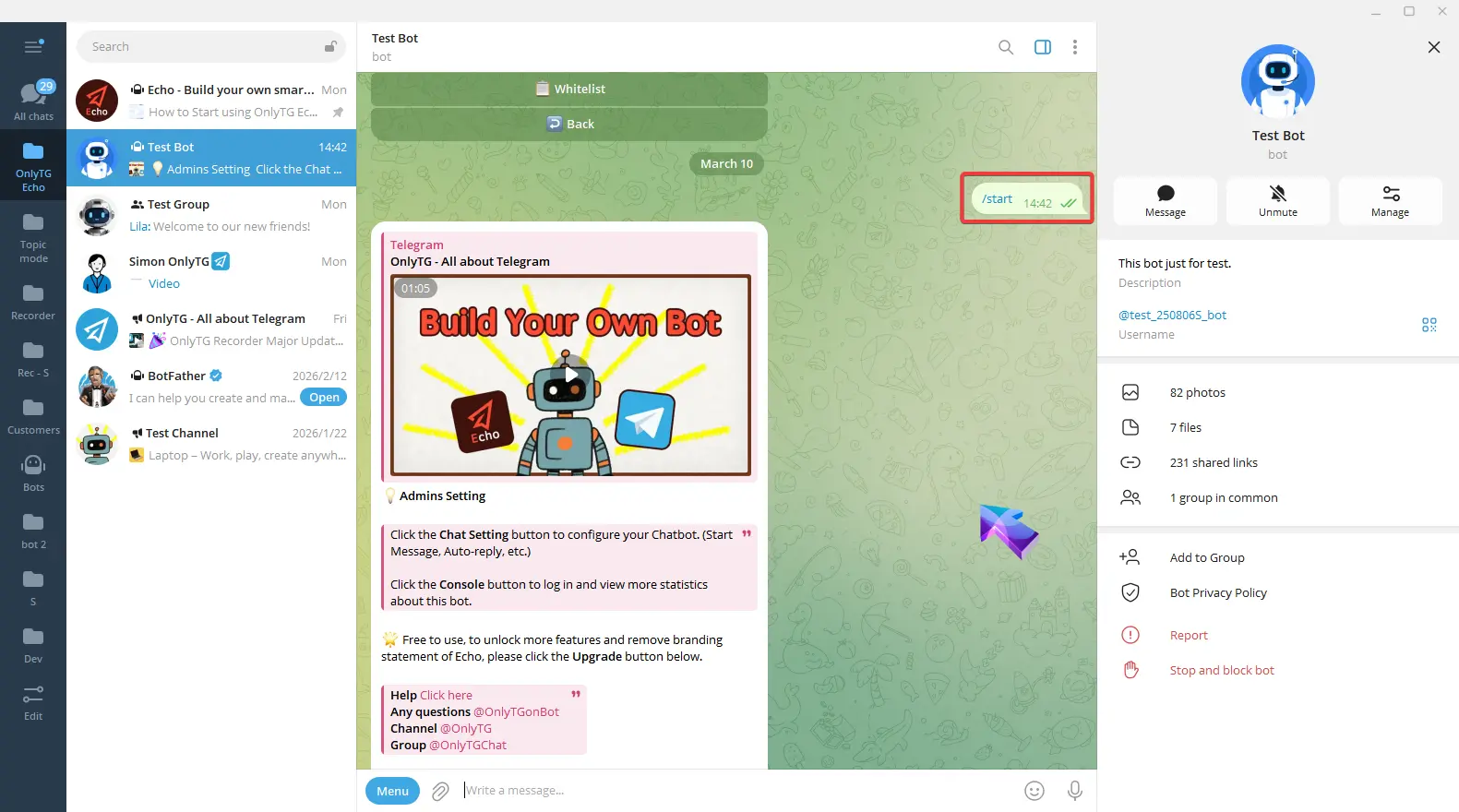
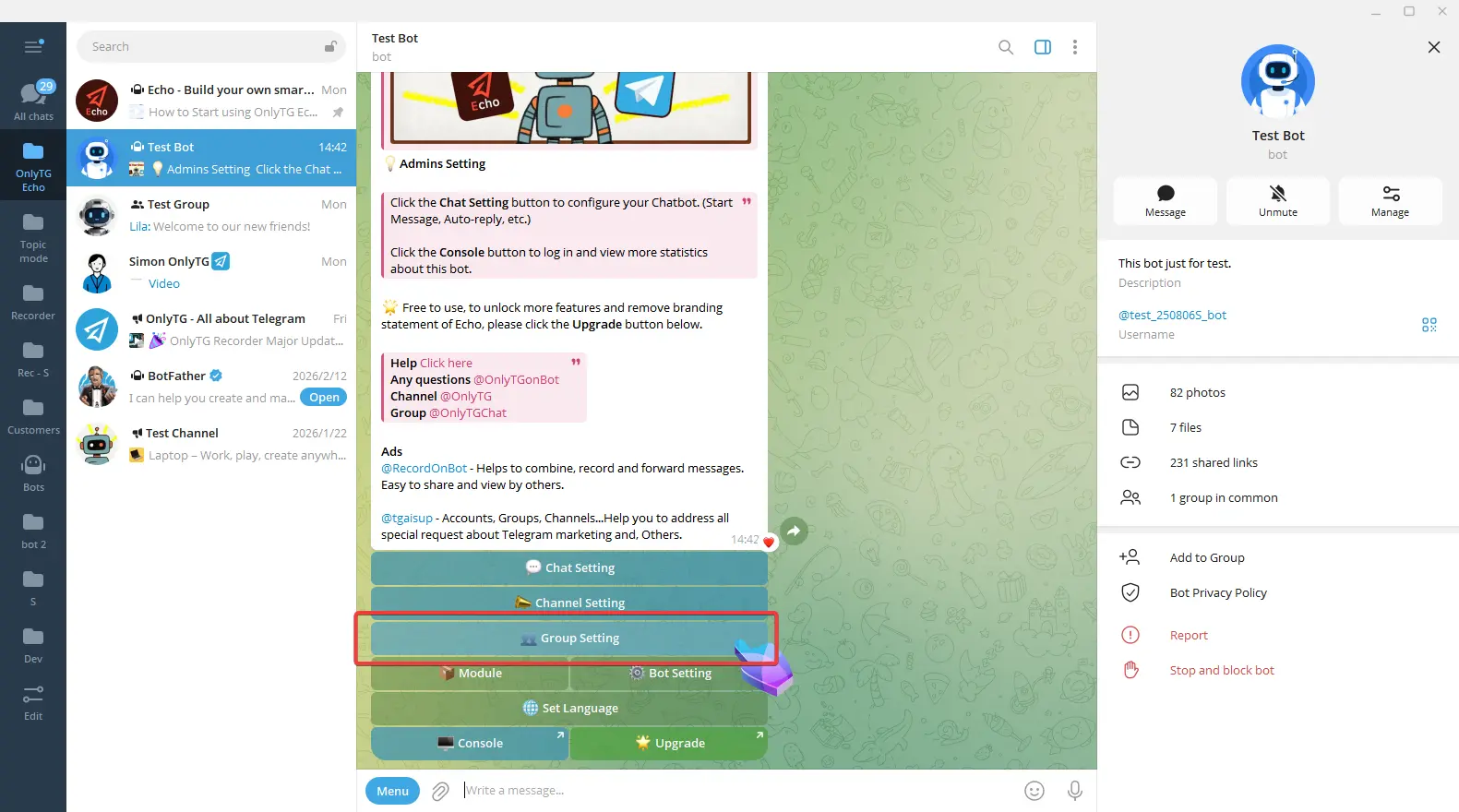
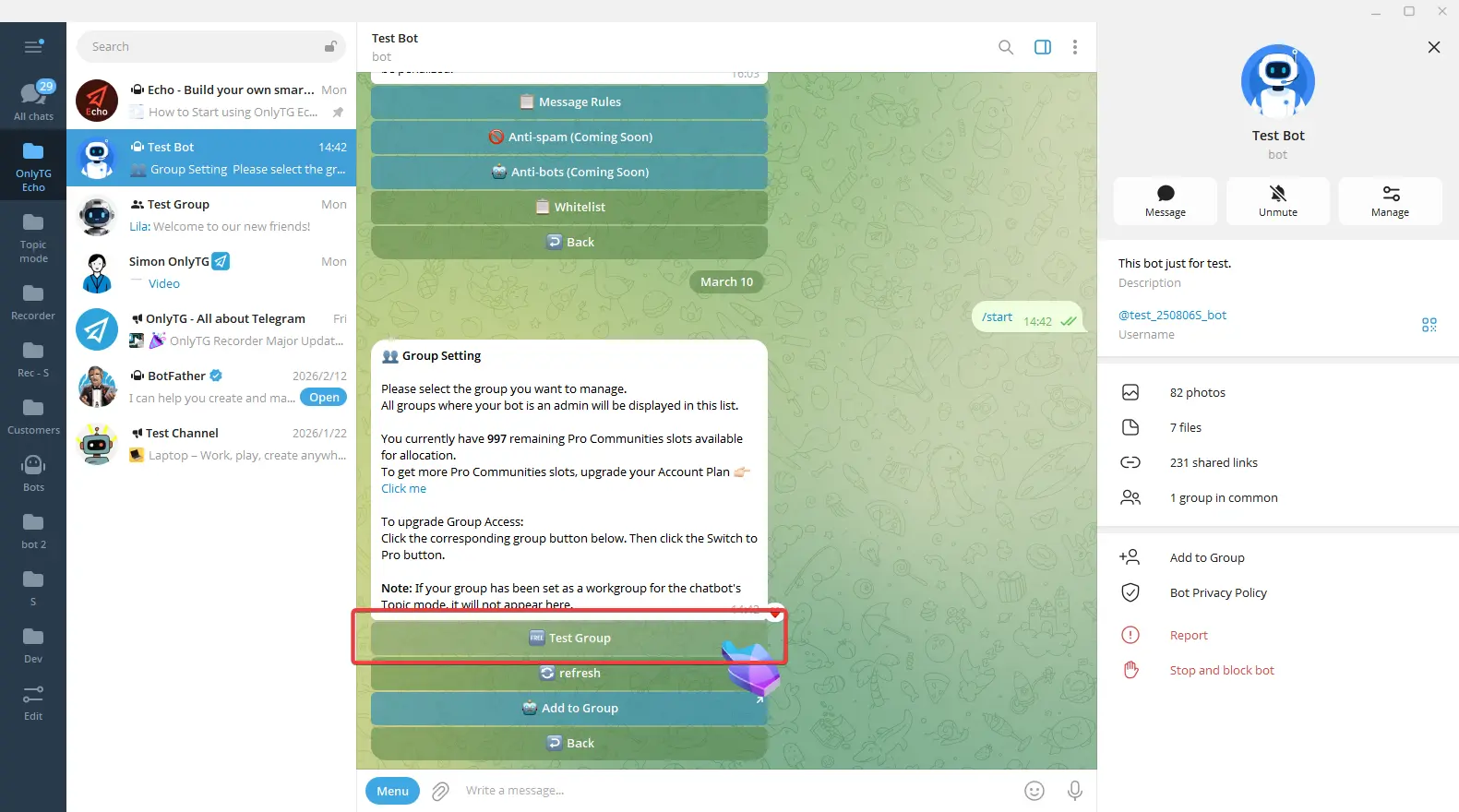
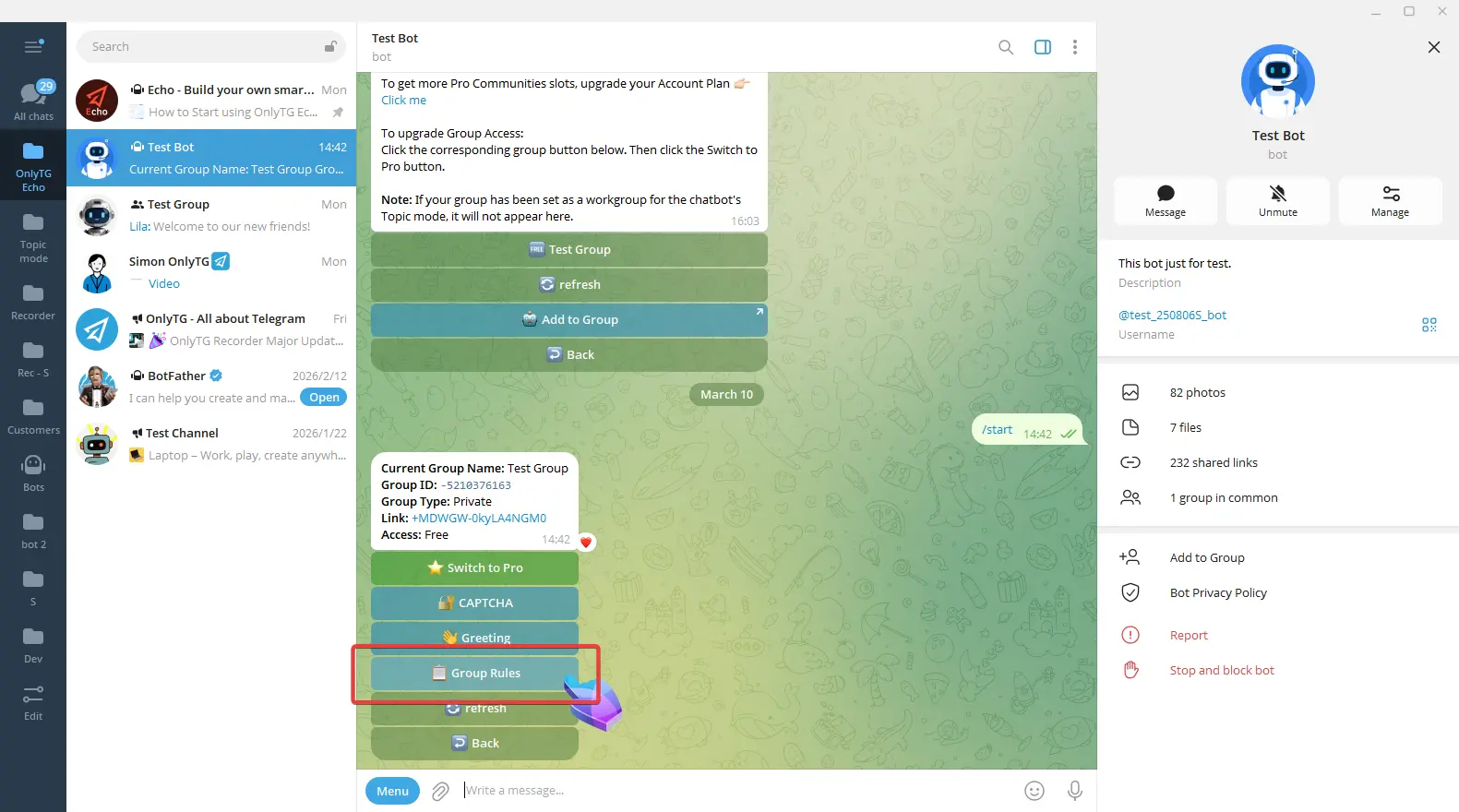
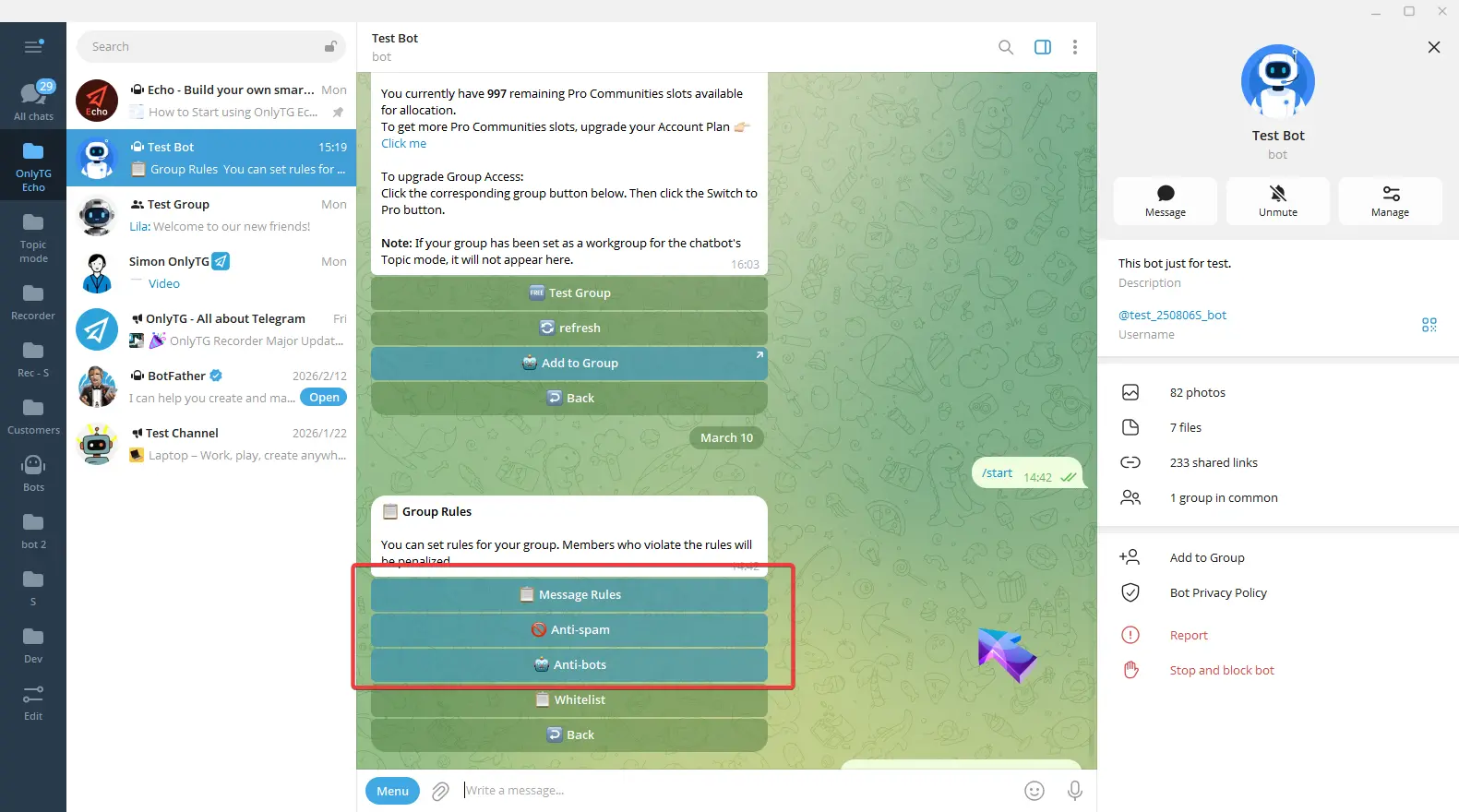
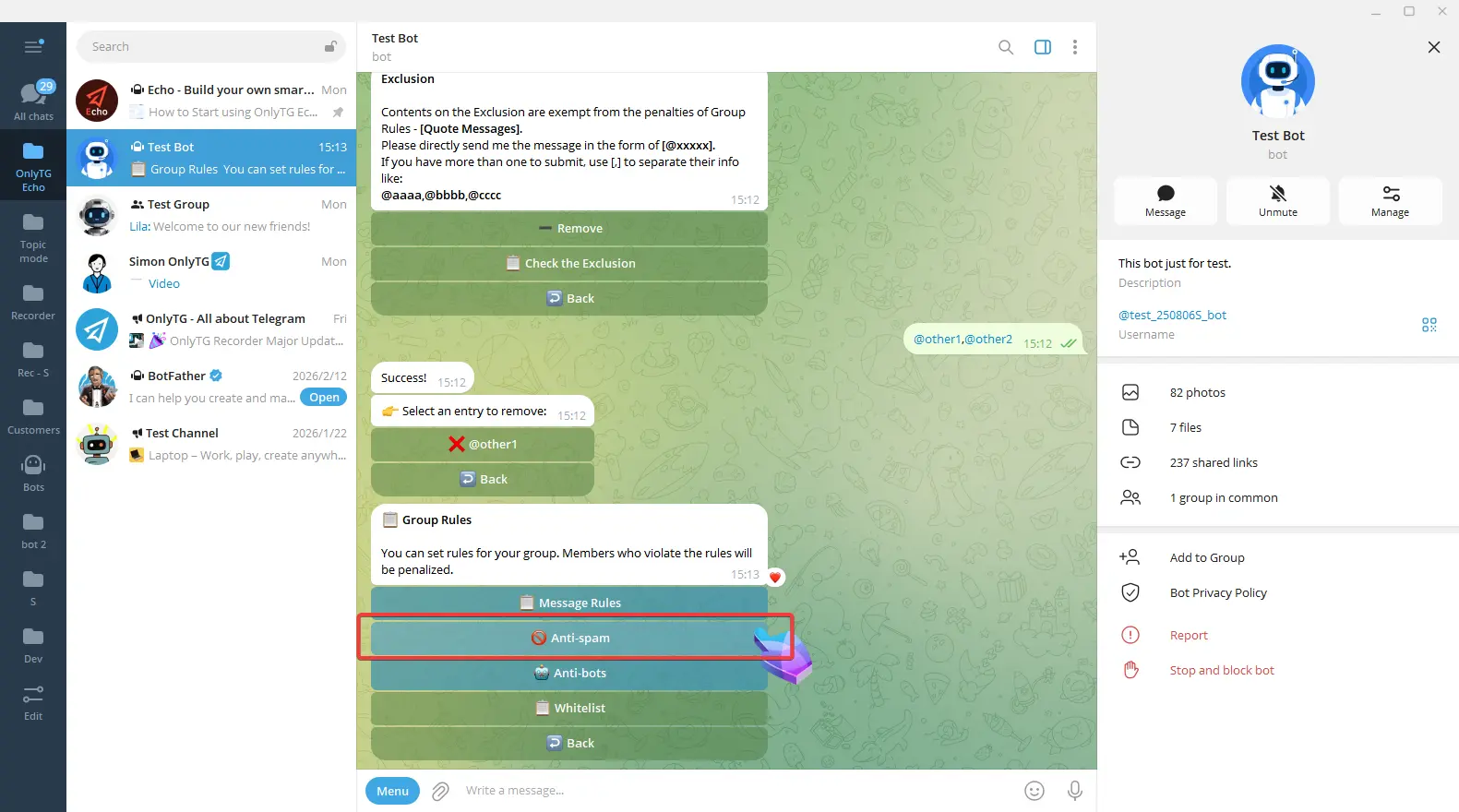
Select Group Rules. Here you can set Message Rules / Anti-spam / Anti-bots for your group.
step 2
Message Rules
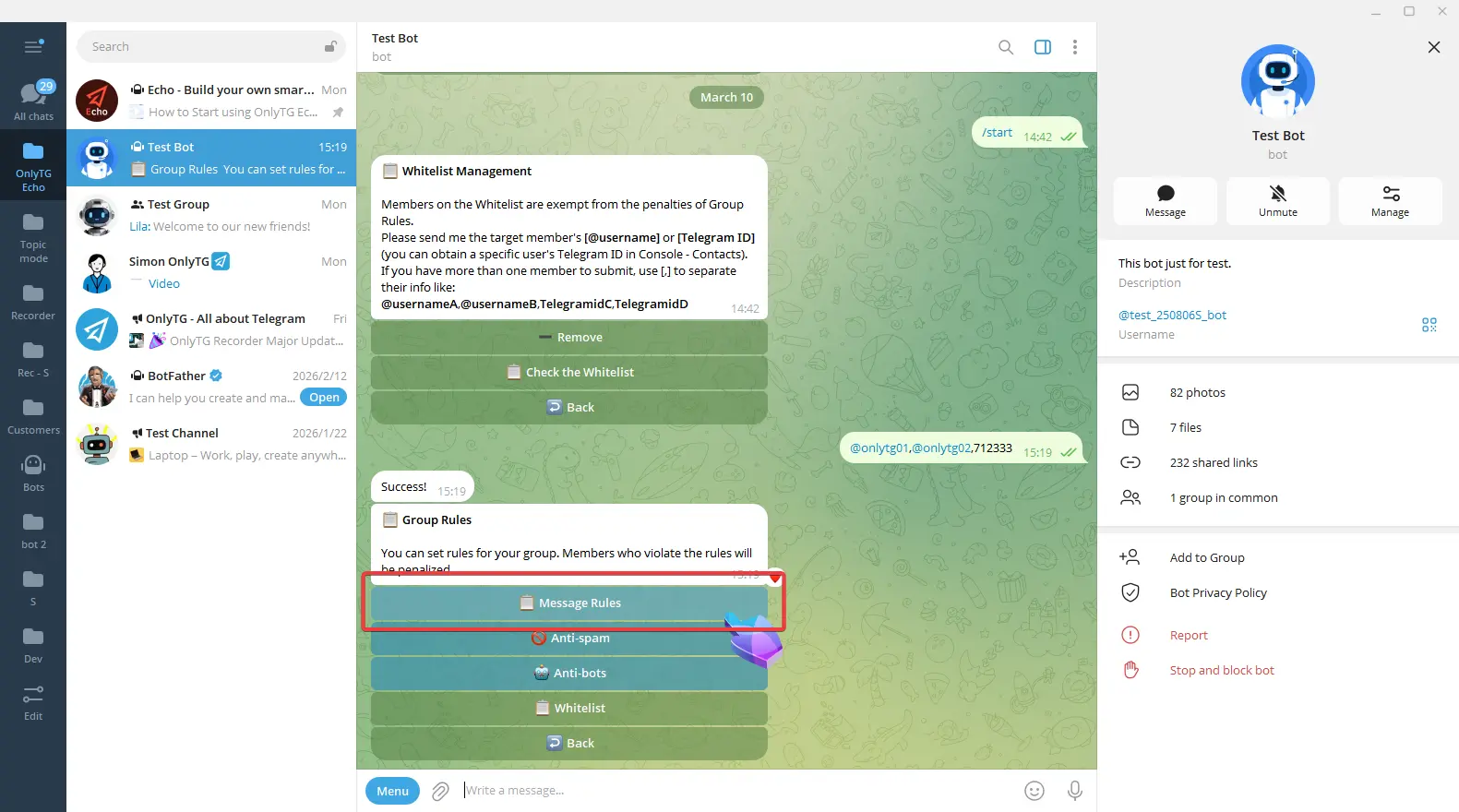
Now let’s set up Message Rules. Click Message Rules, you can set up 7 types of rules in total, and we will introduce them one by one.
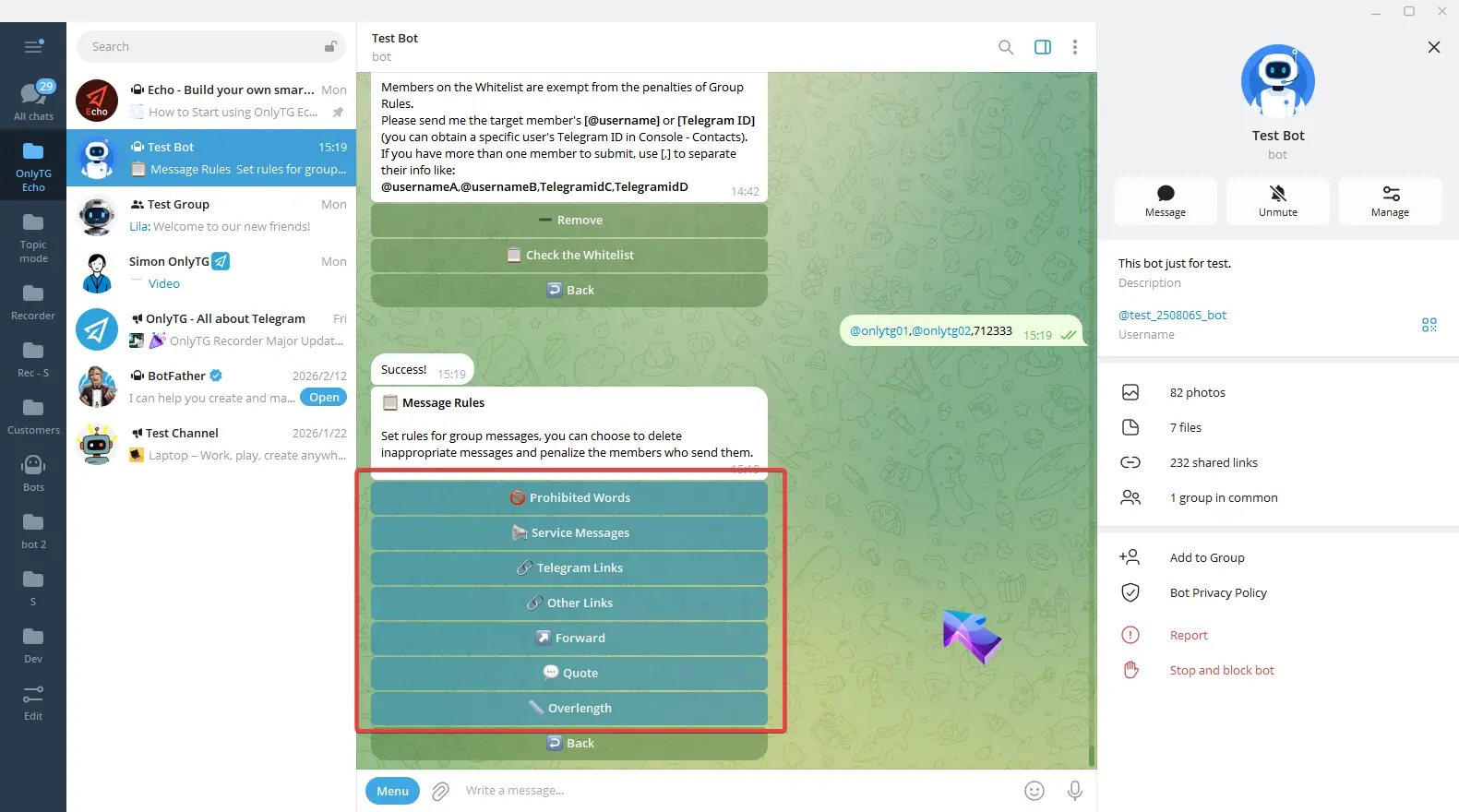
1. Prohibited Words
This rule will be triggered when members sends a message containing Prohibited Words in the group.
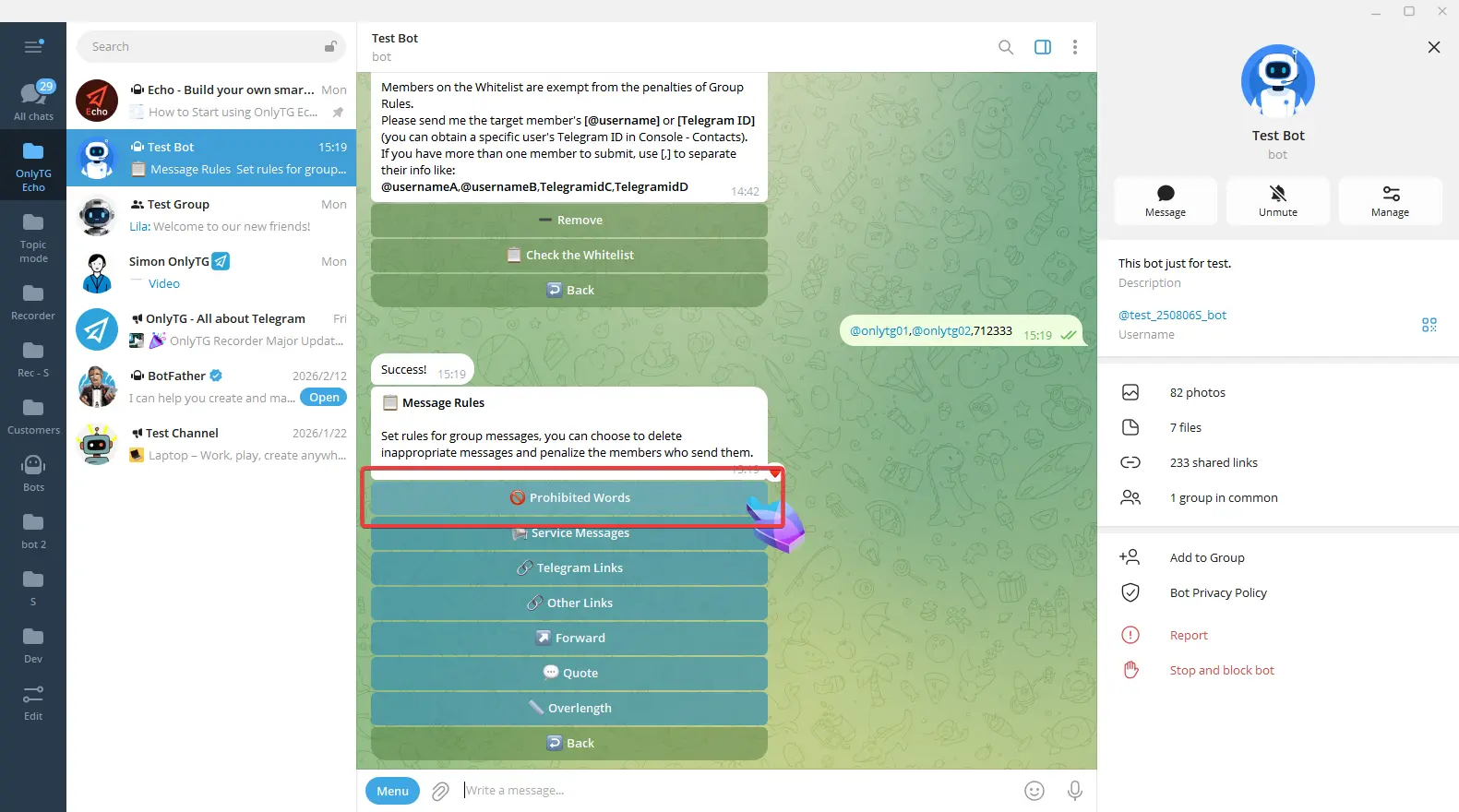
Click Allow to enable it. Click Prohibited again to disable it.
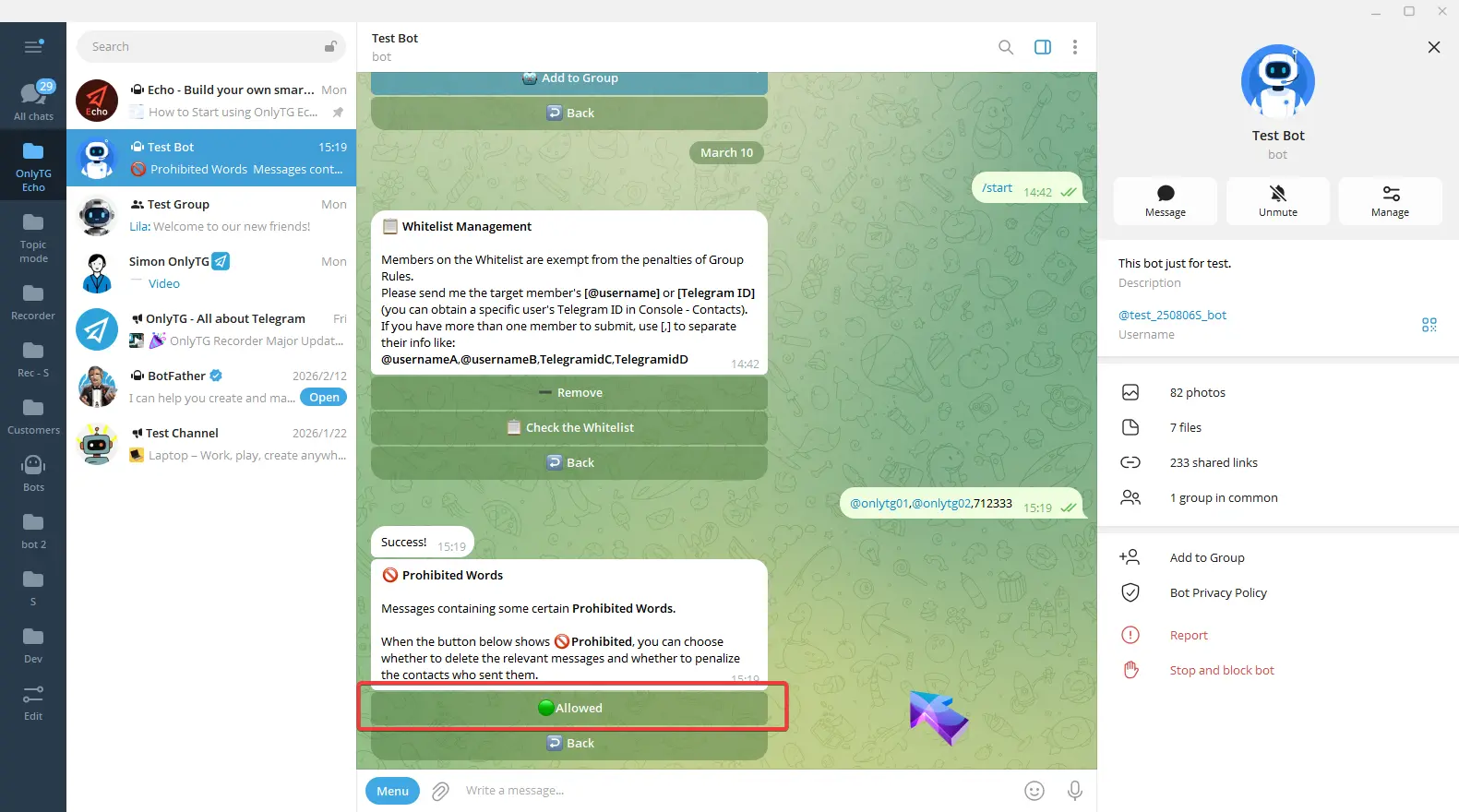
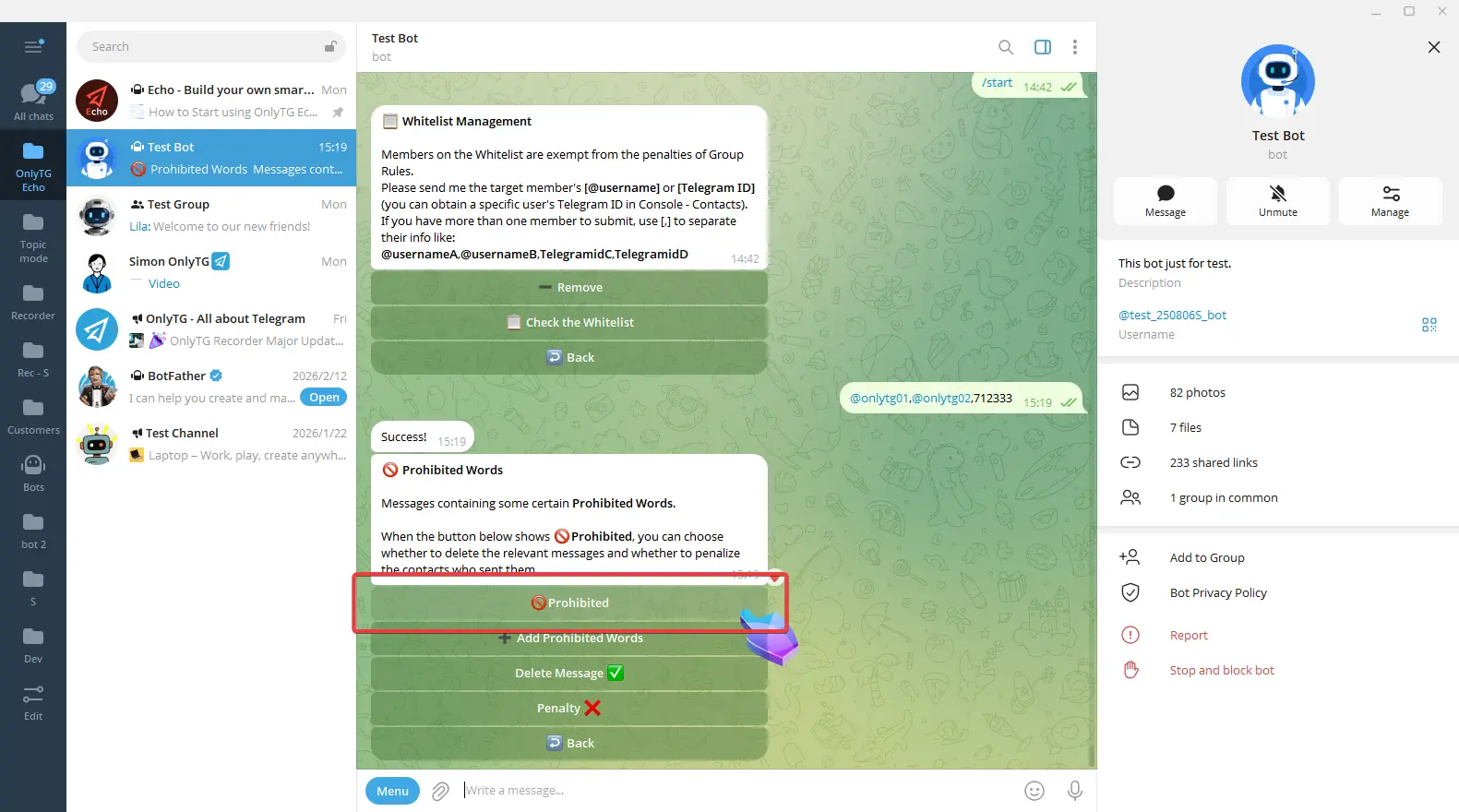
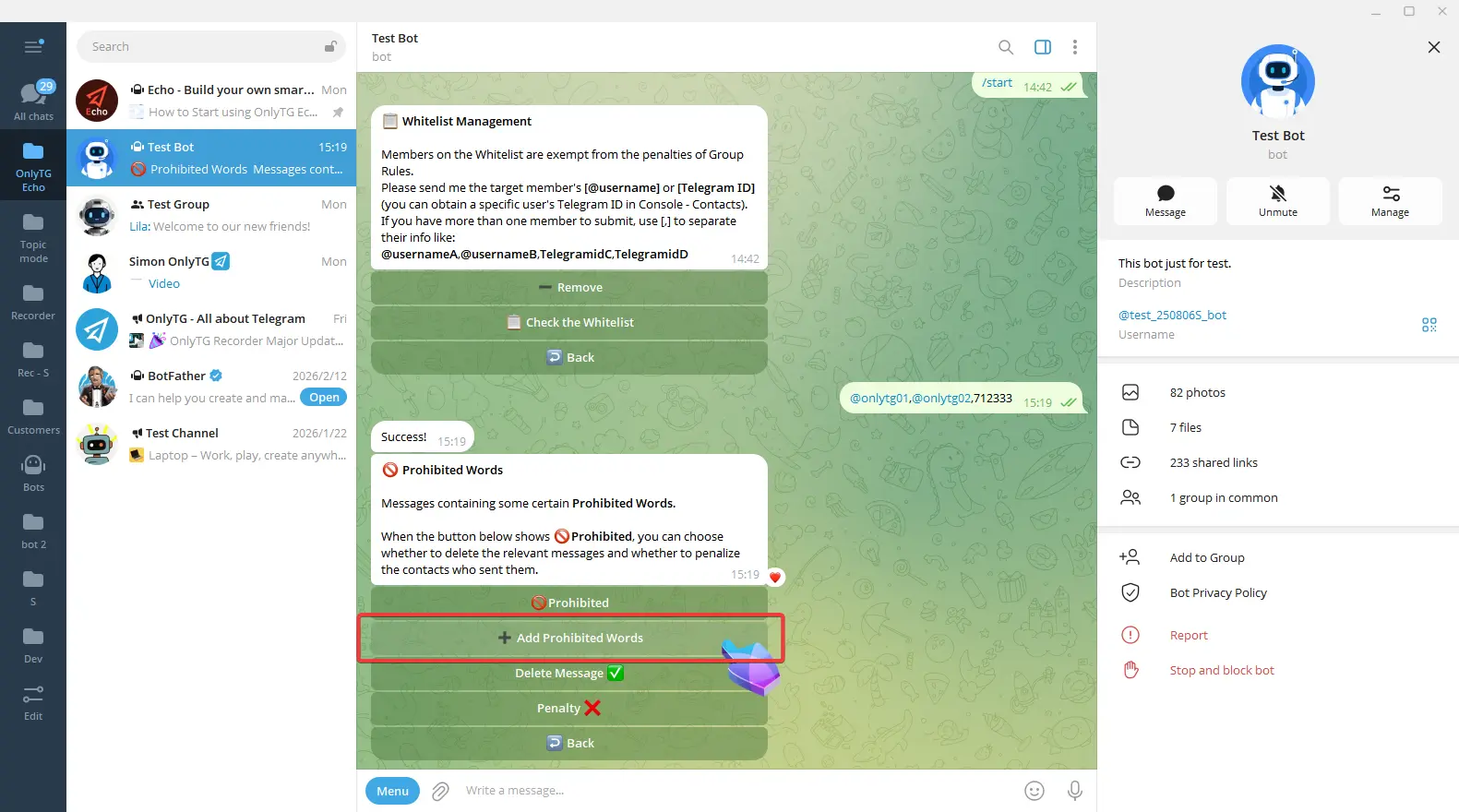
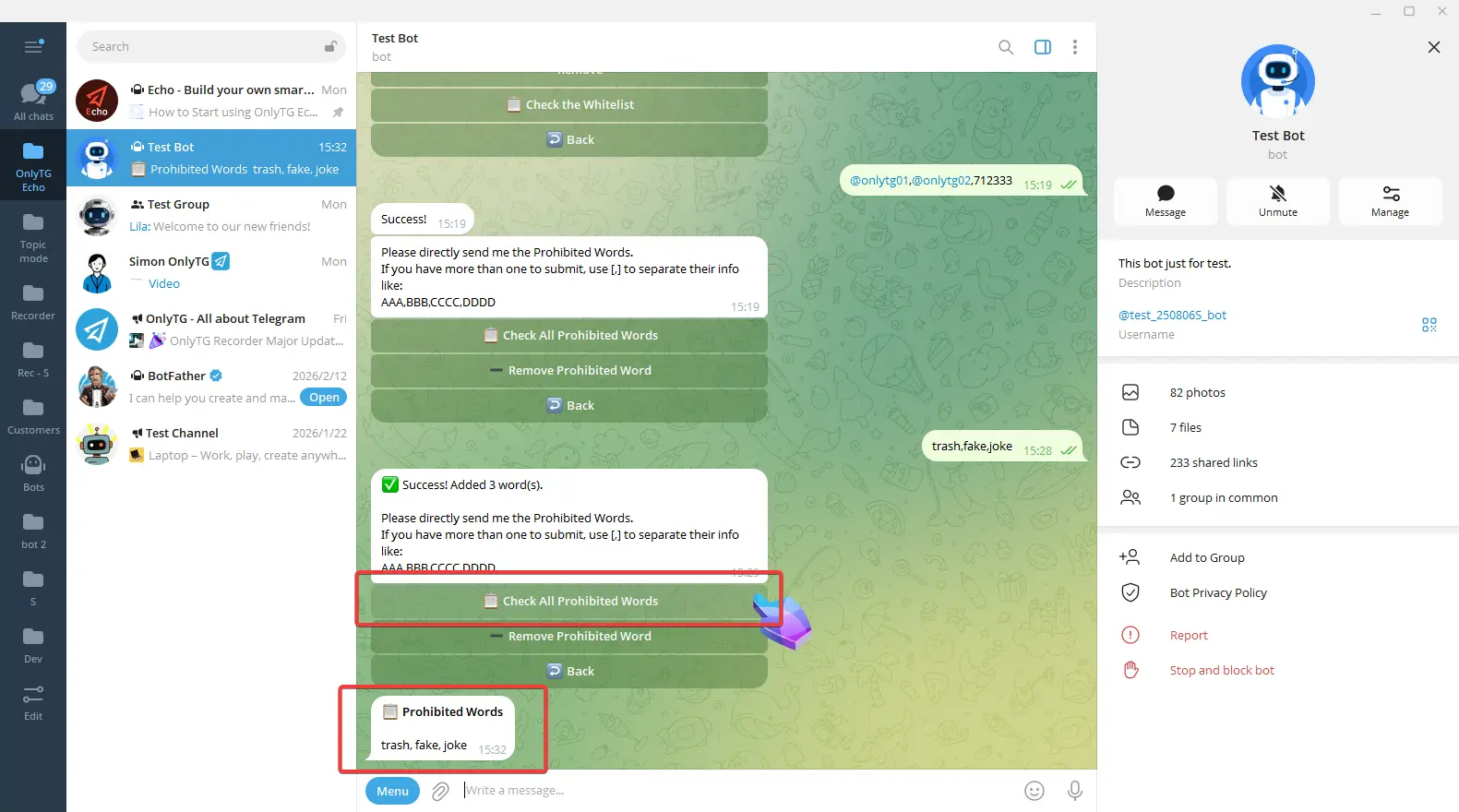
Click Add Prohibited Words, then send the prohibited words directly to add them successfully.
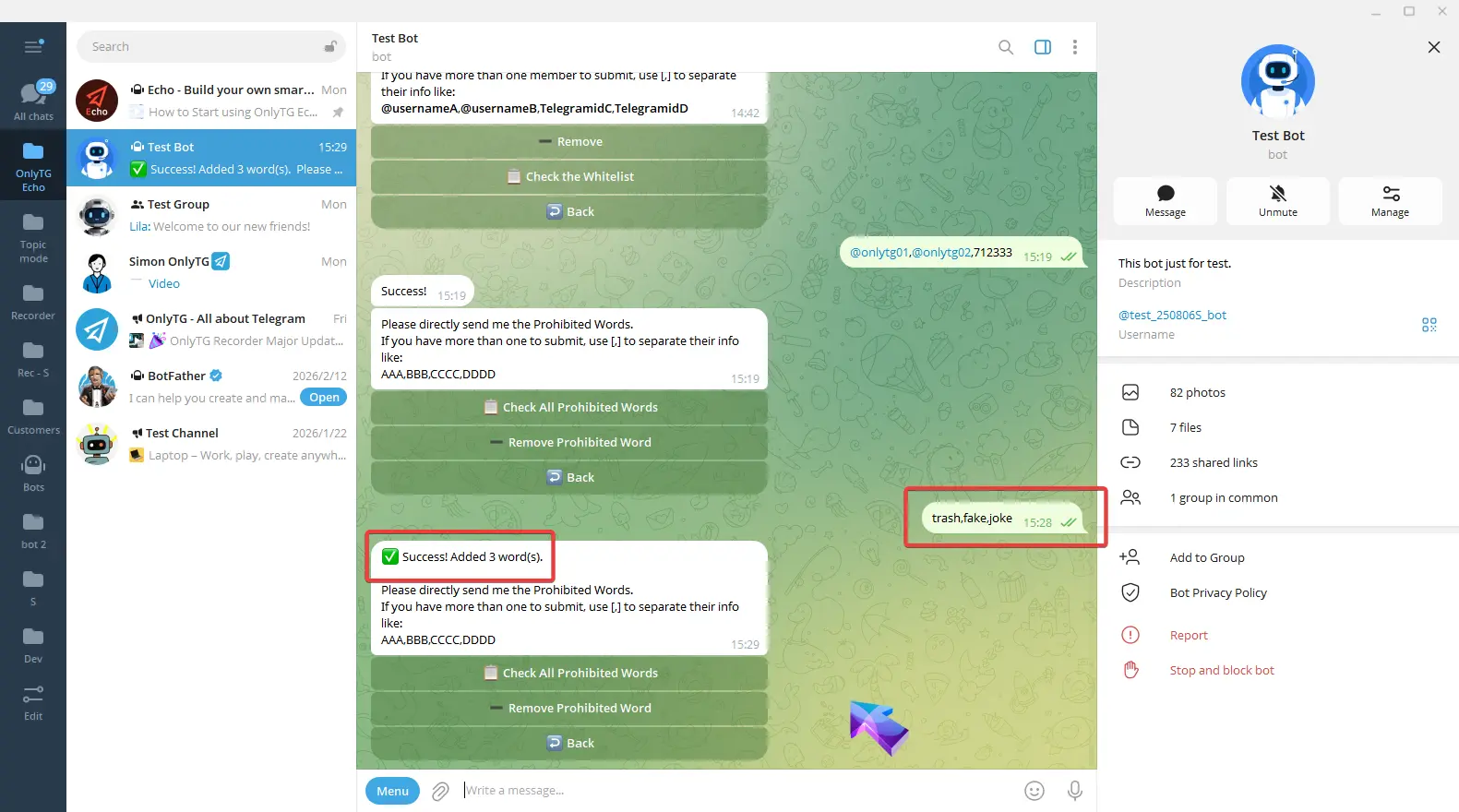
Click Check All Prohibited Words to view all added prohibited words.
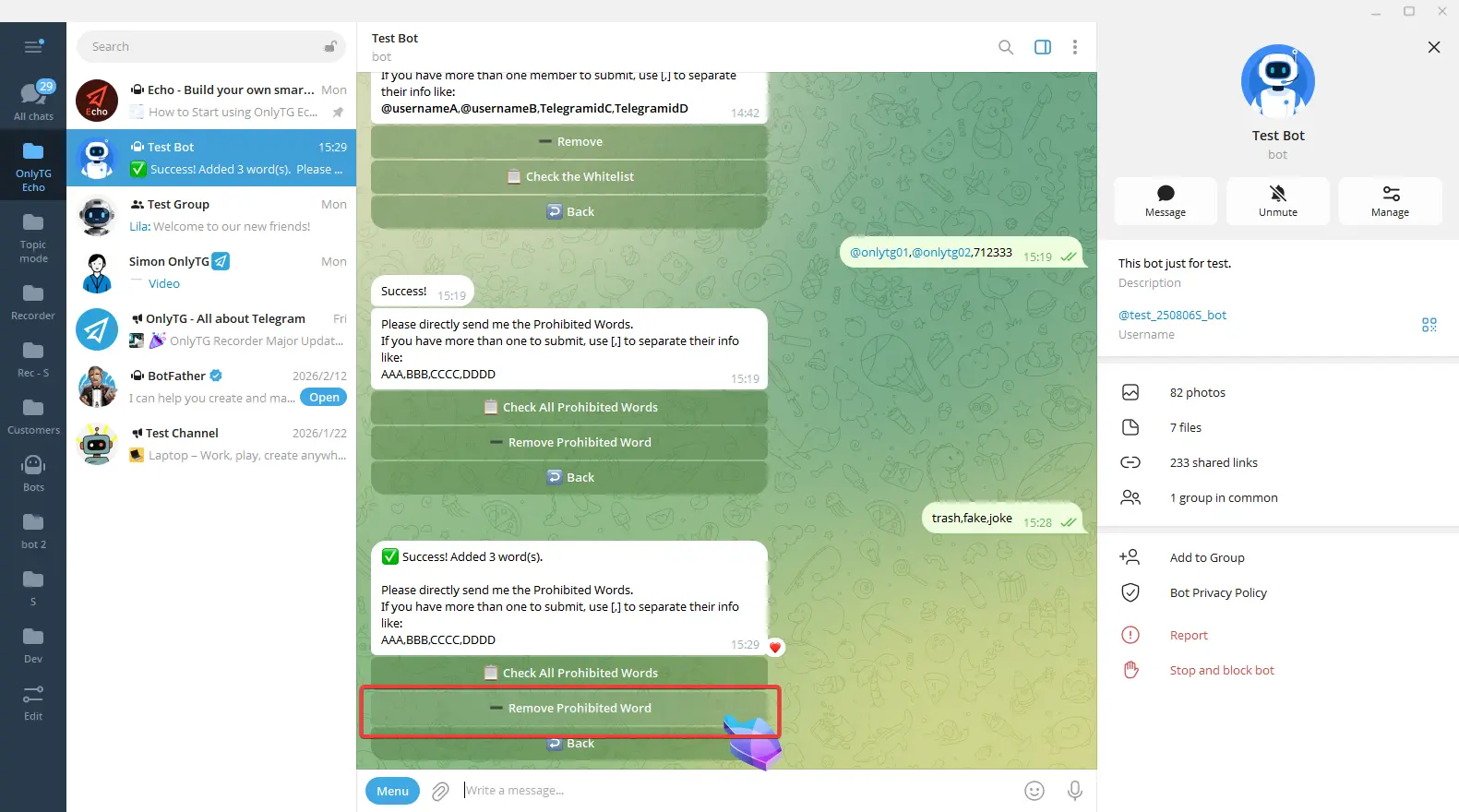
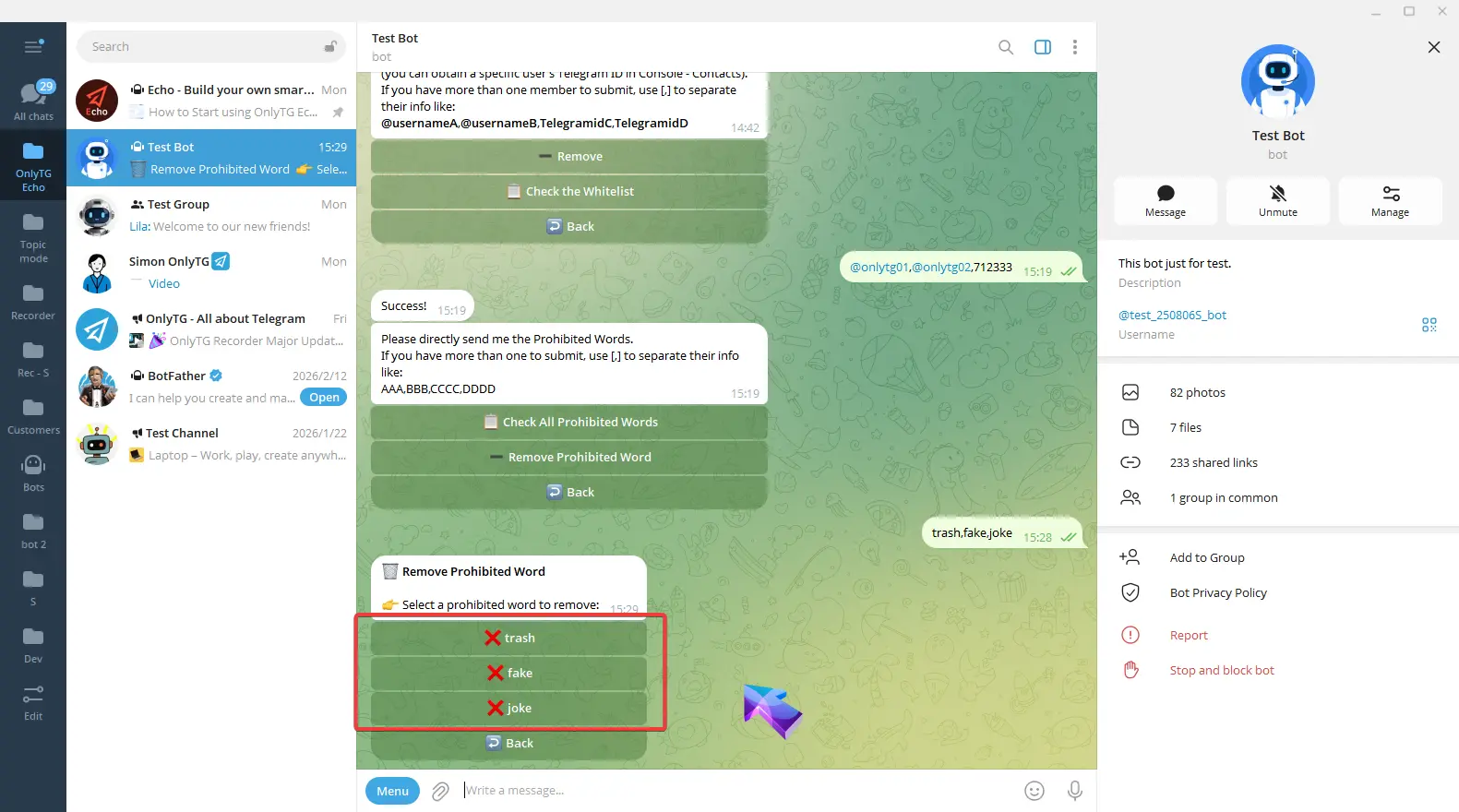
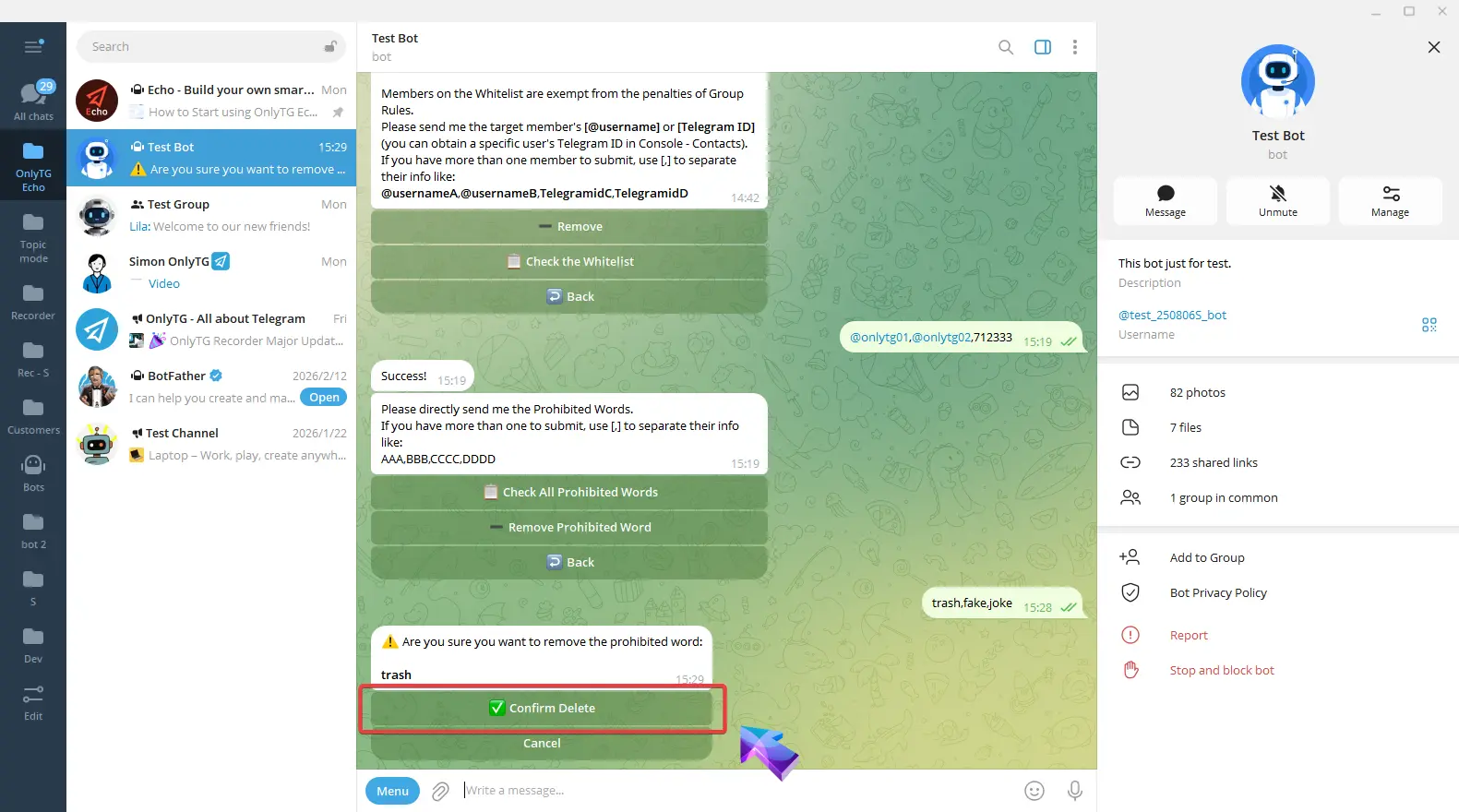
Click Remove Prohibited Words to select prohibited words, and click Confirm Delete to delete prohibited words.
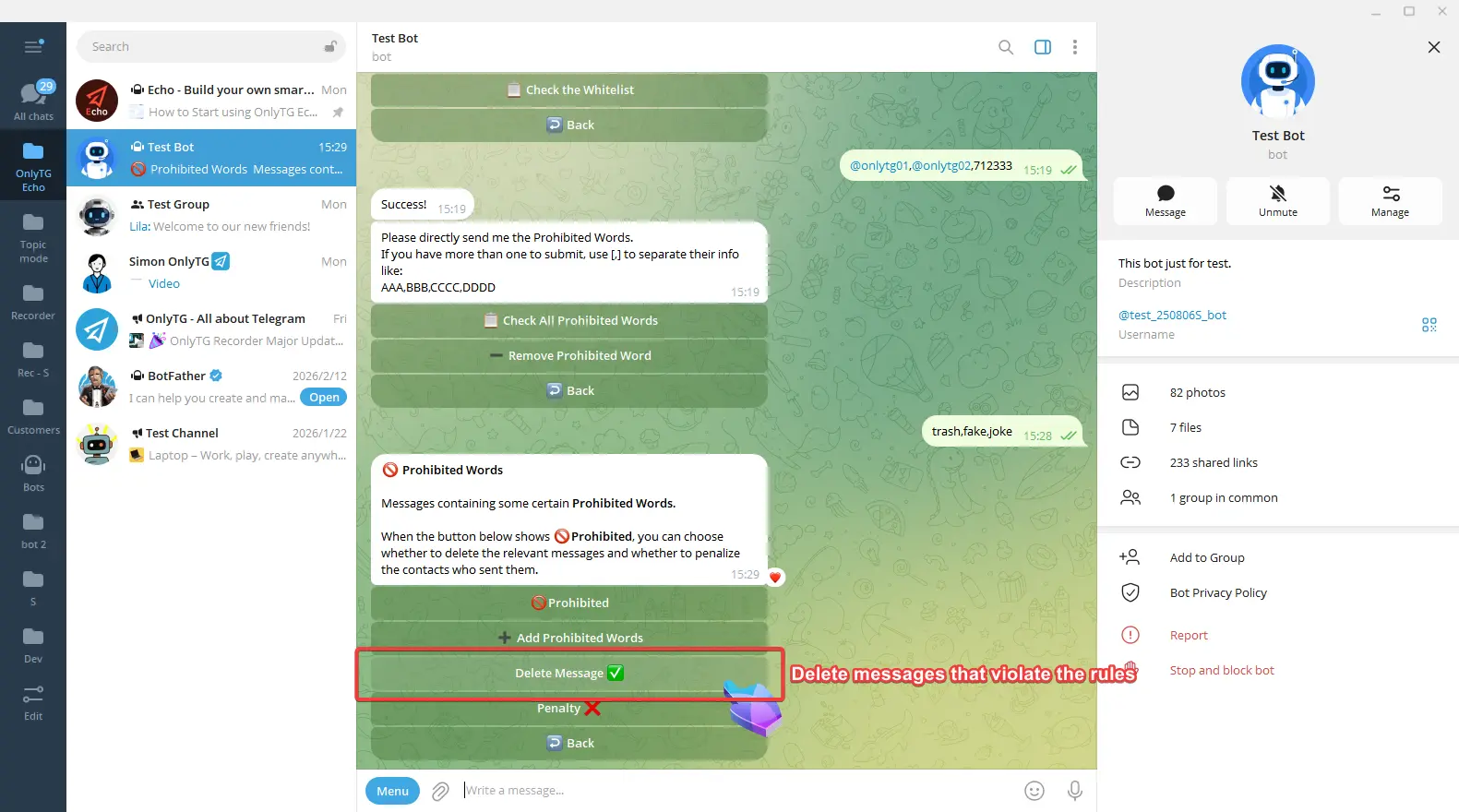
Delete Message: Automatically delete messages that violate the rules. Click to turn this function on or off.
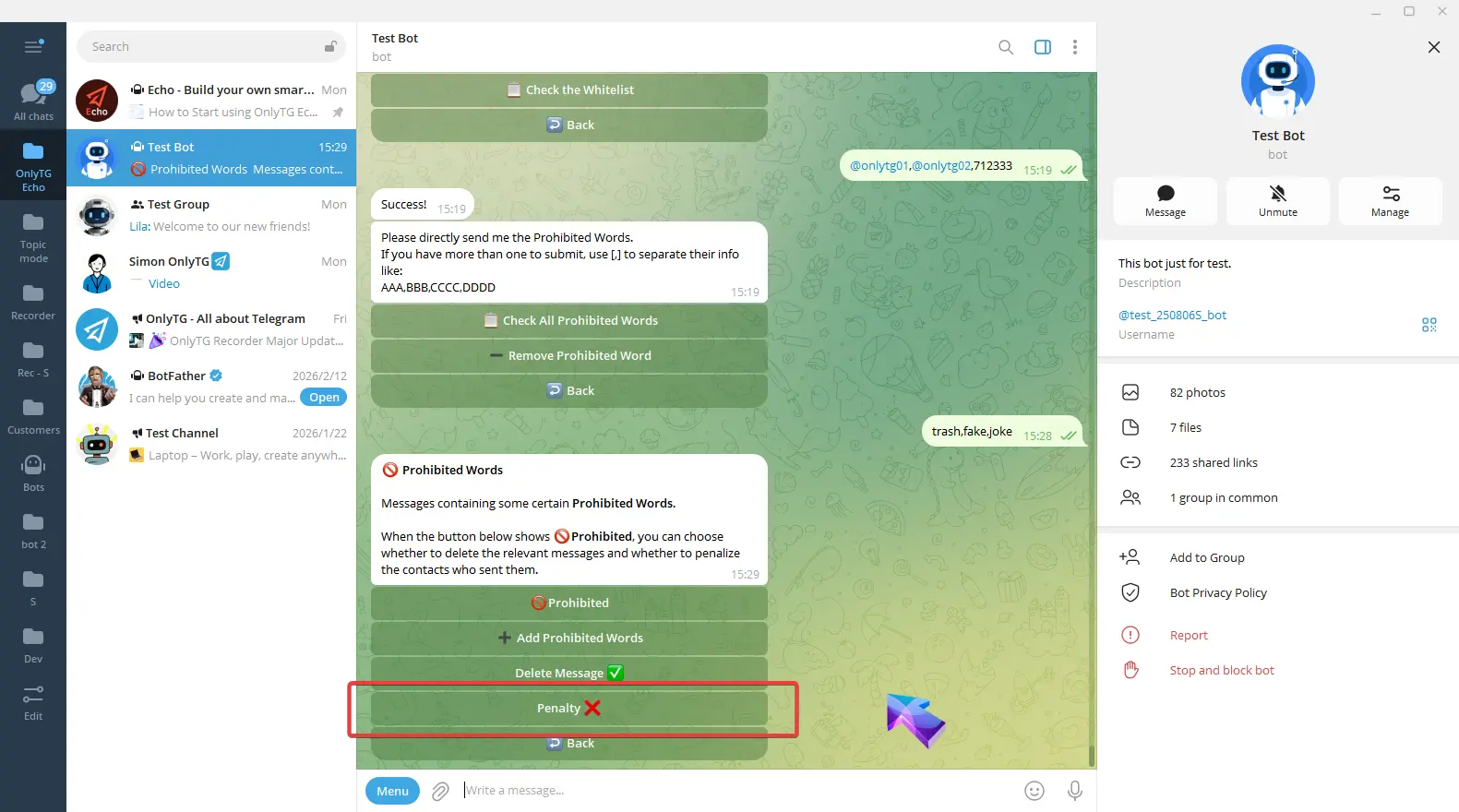
Penalty: Click to enable and select the penalty type.
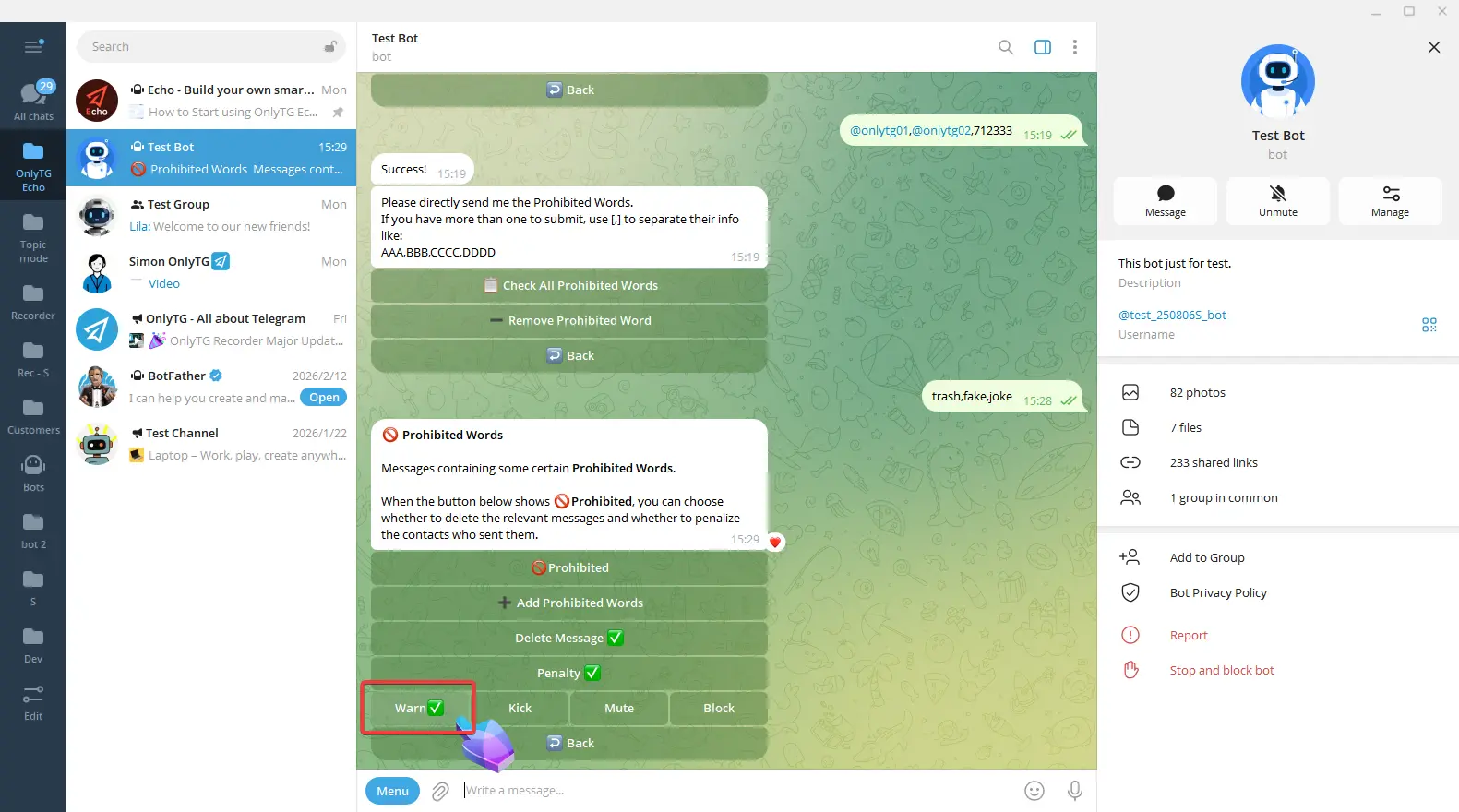
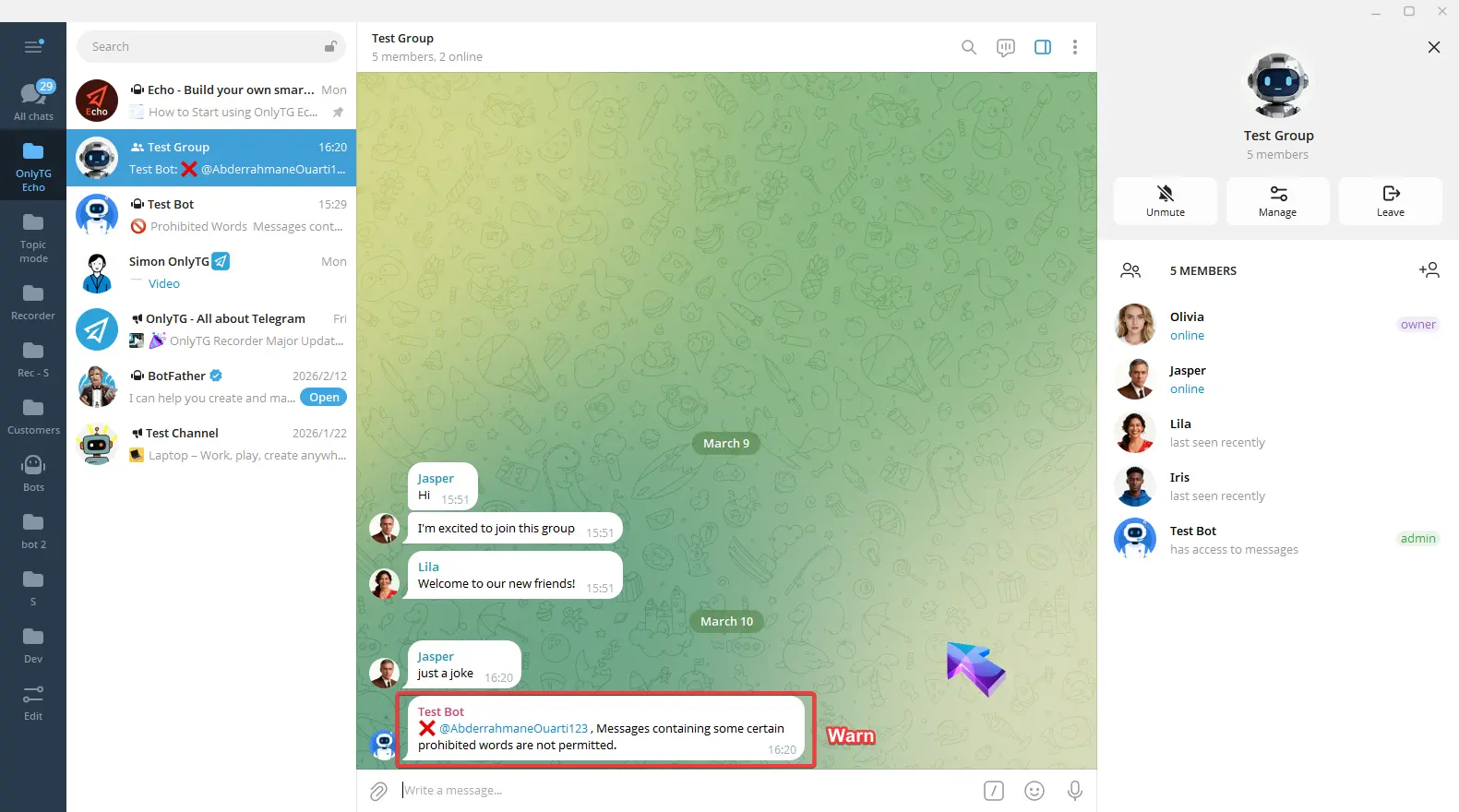
a. Warn: Warn members who violate the rules.
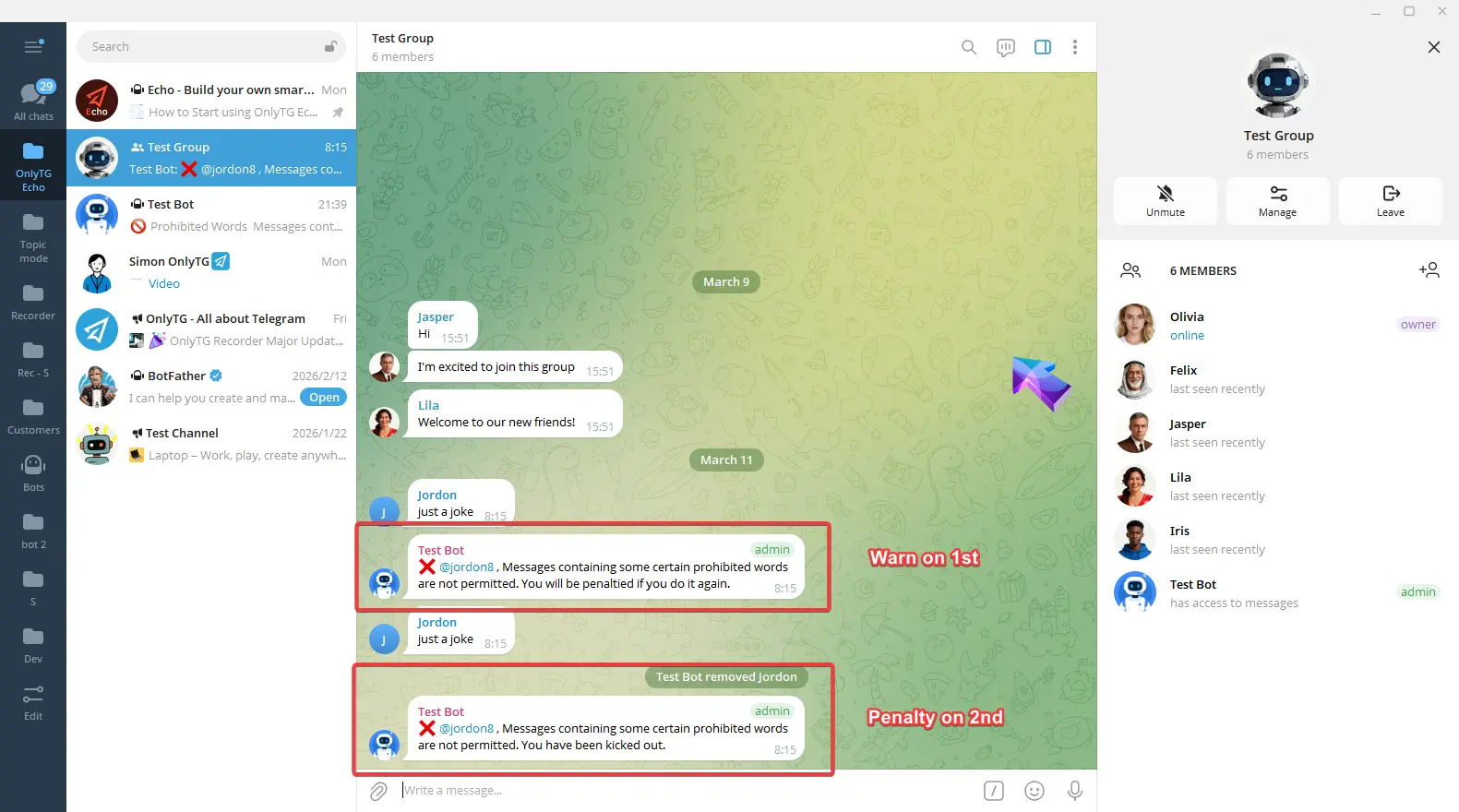
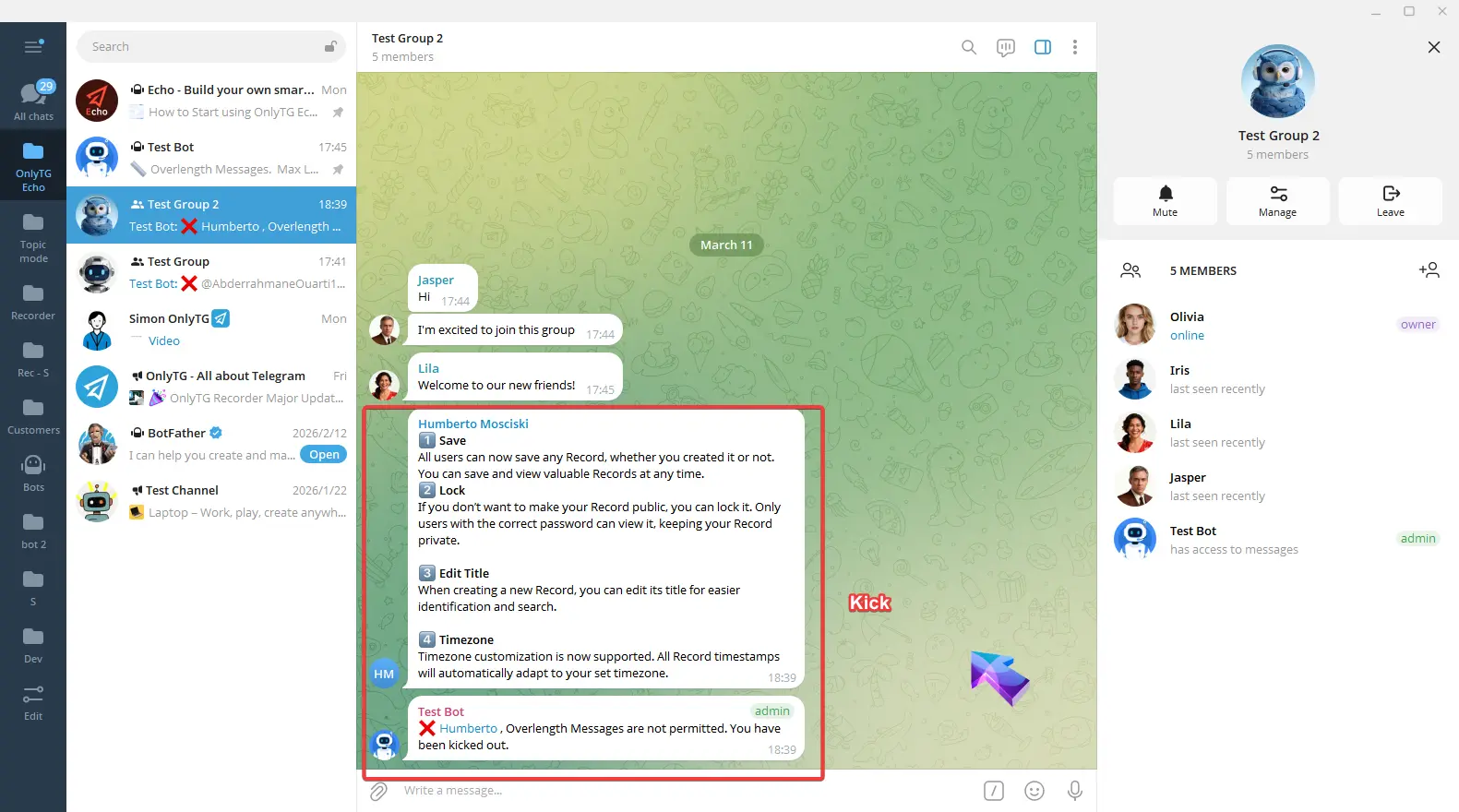
b. Kick: Kick members who violate the rules from the group. Supports the Penalty on 2nd Offense option.
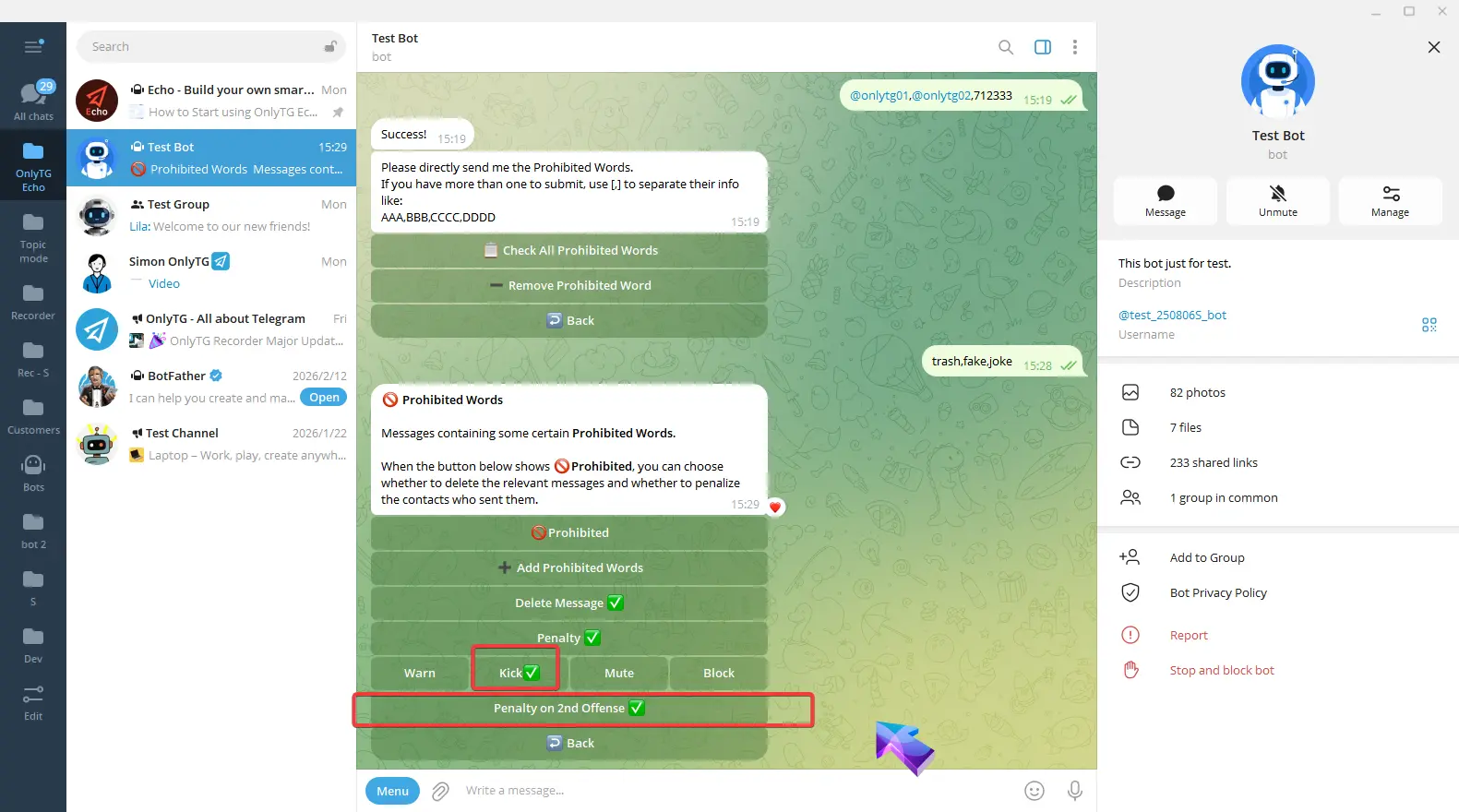
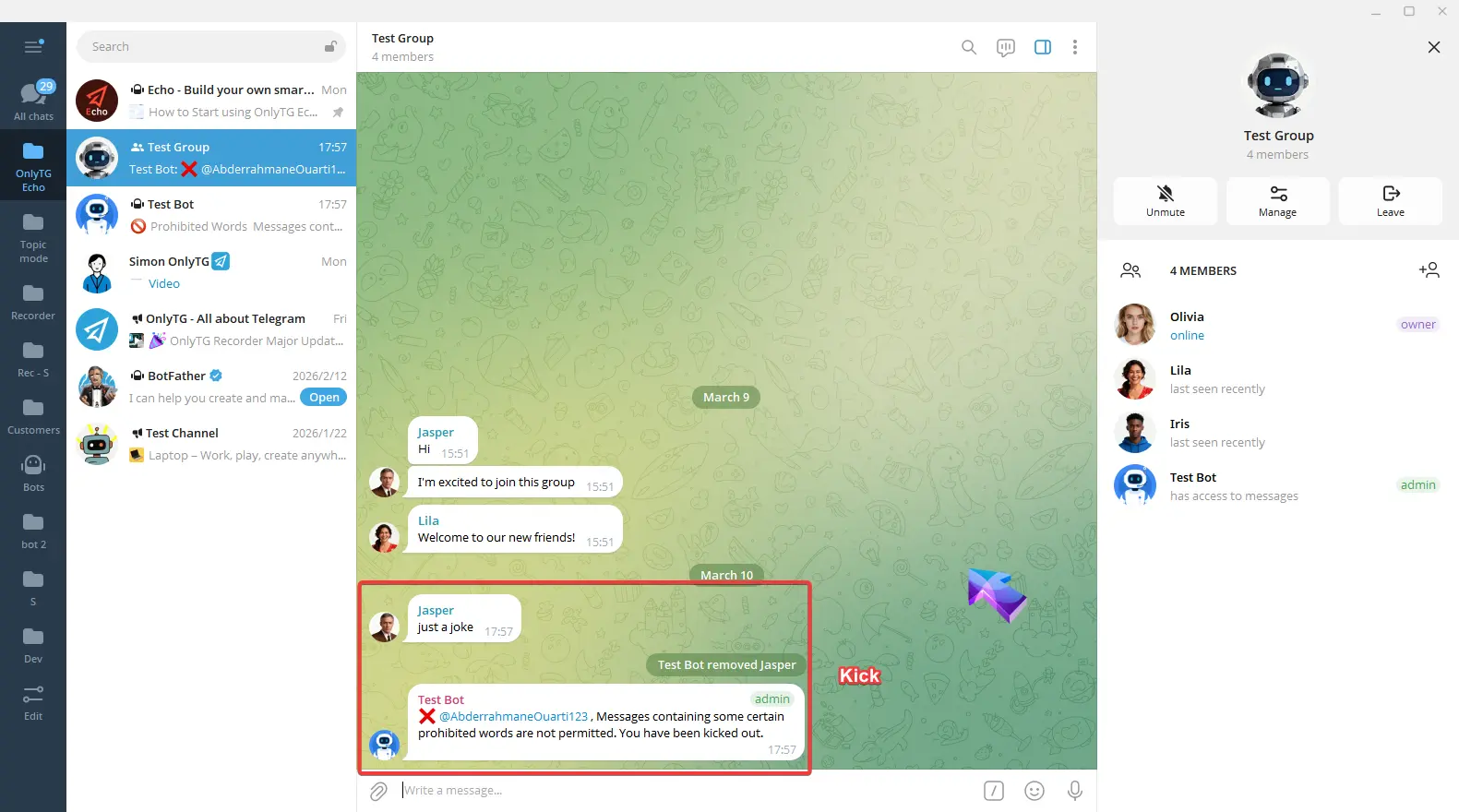
c. Mute: Mute members who violate the rules. Supports the Penalty on 2nd Offense option.
Click Mute Duration to select the mute period.
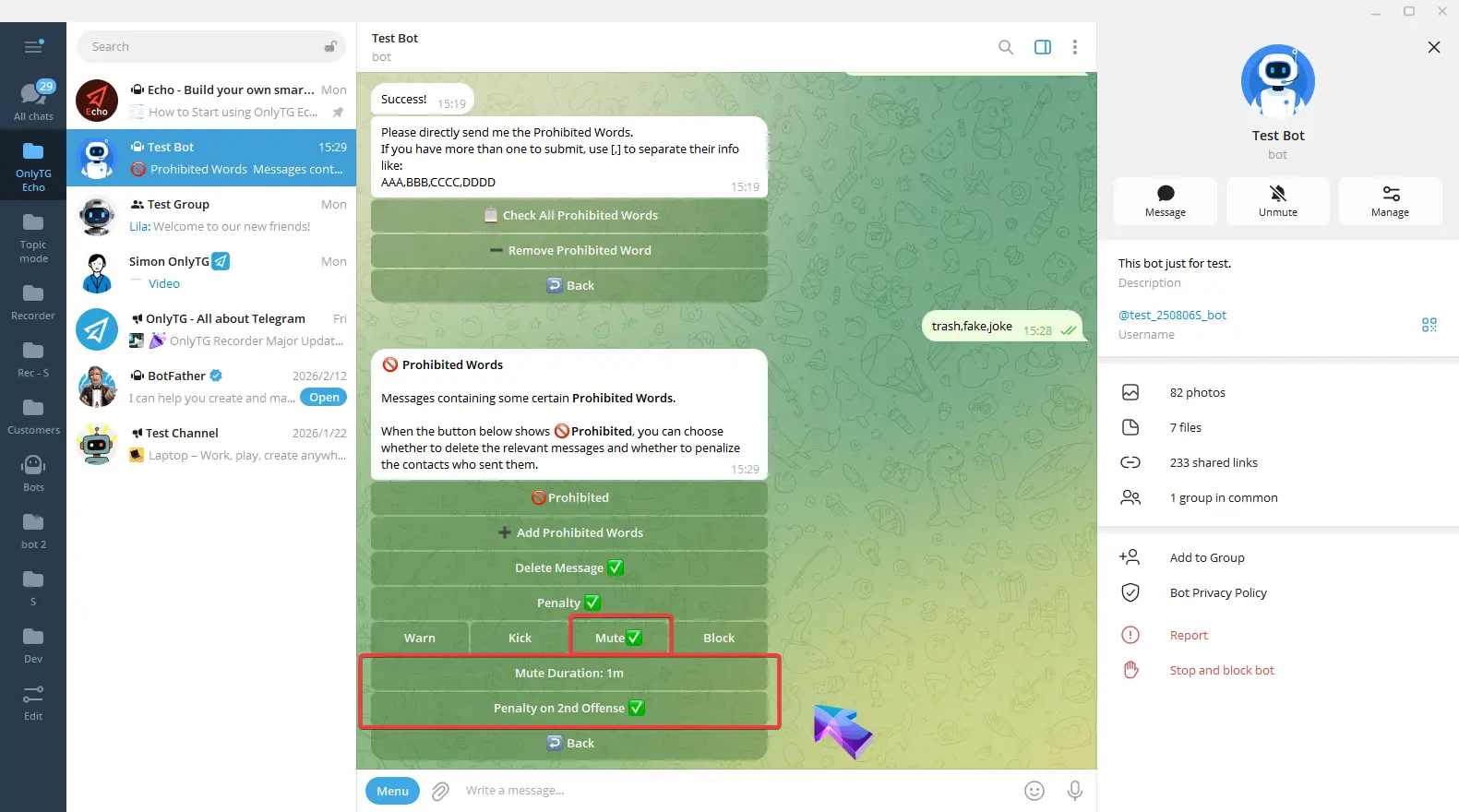
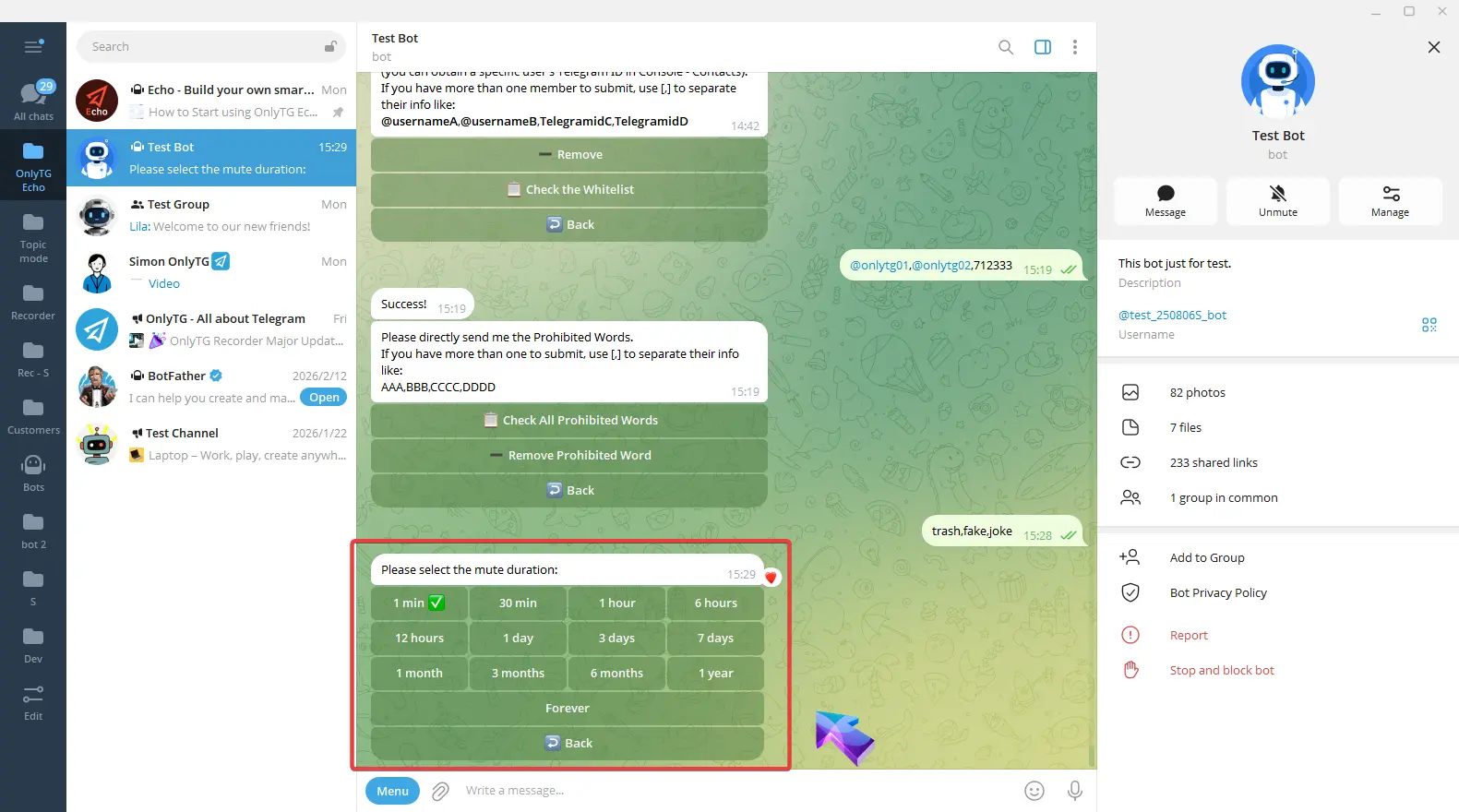
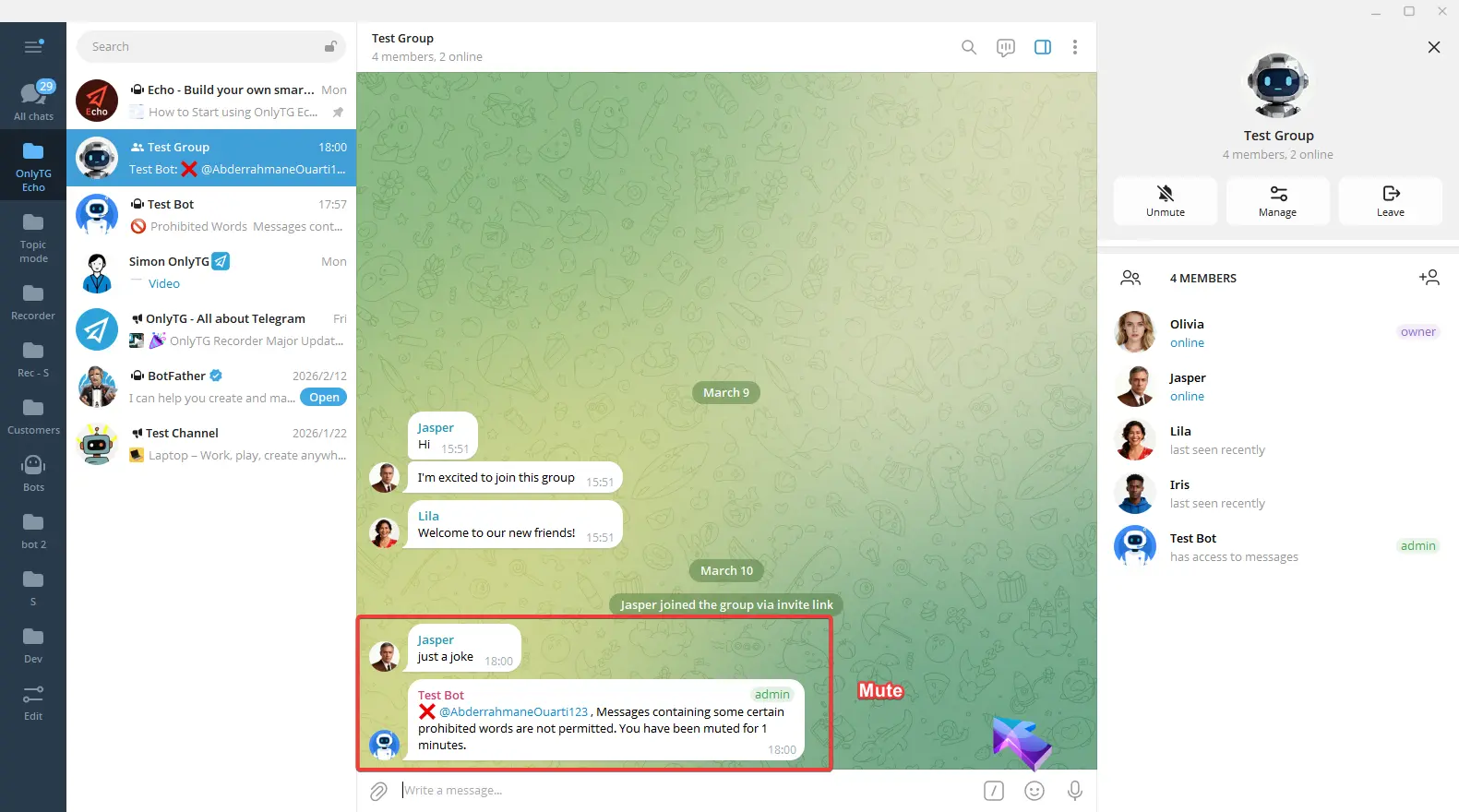
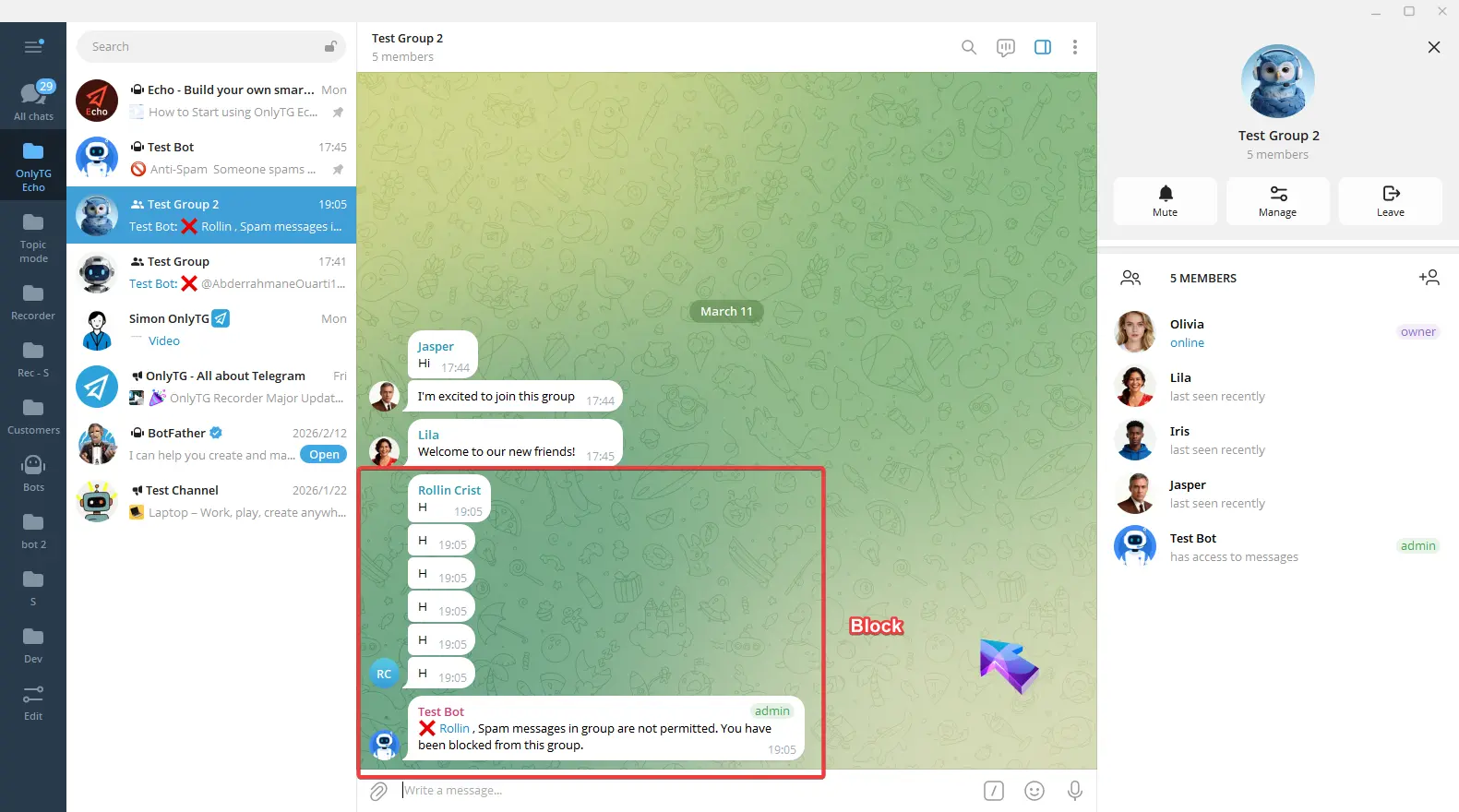
d. Block: Ban members who violate the rules, which means removing them from the group and preventing them from rejoining. Supports the Penalty on 2nd Offense option.
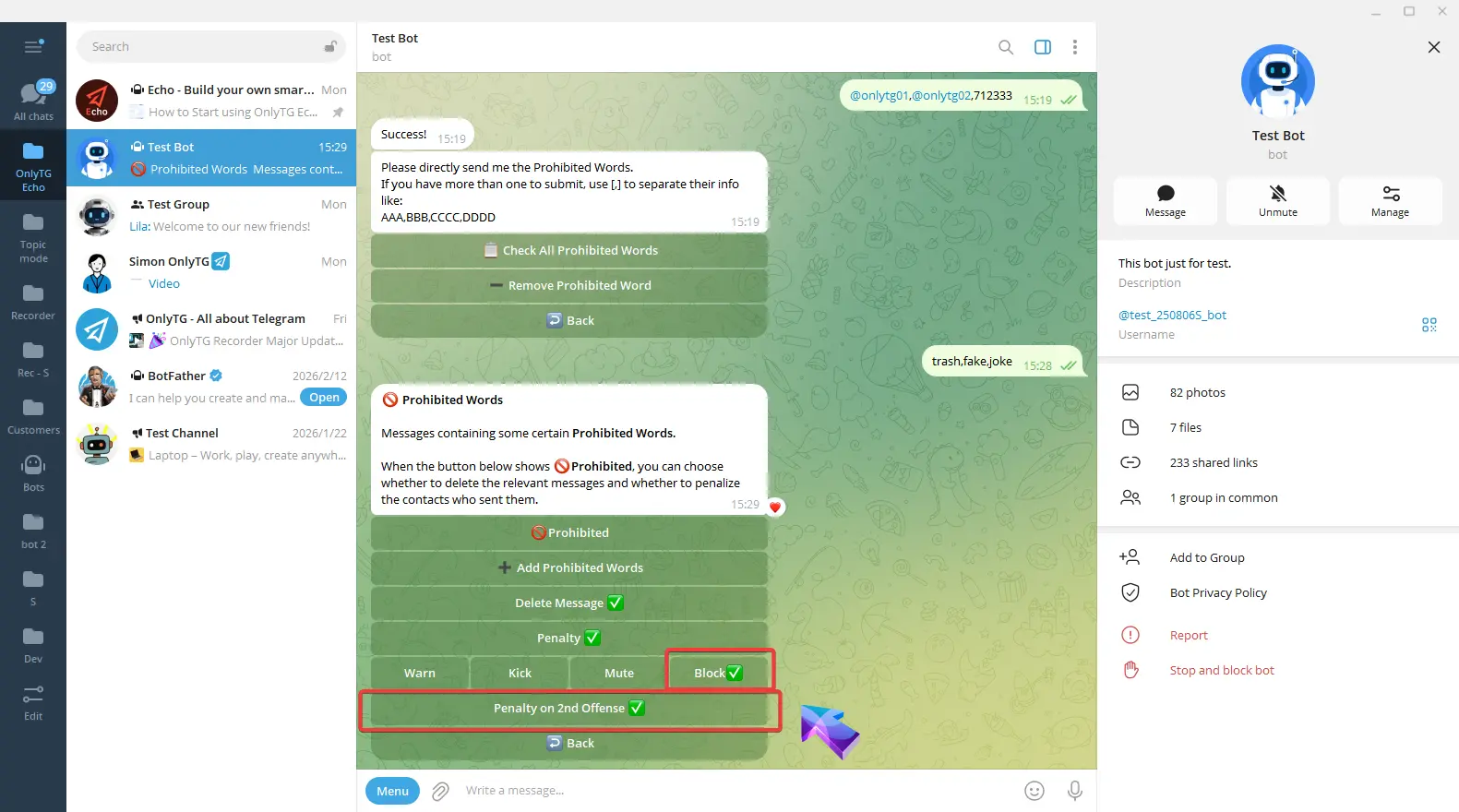
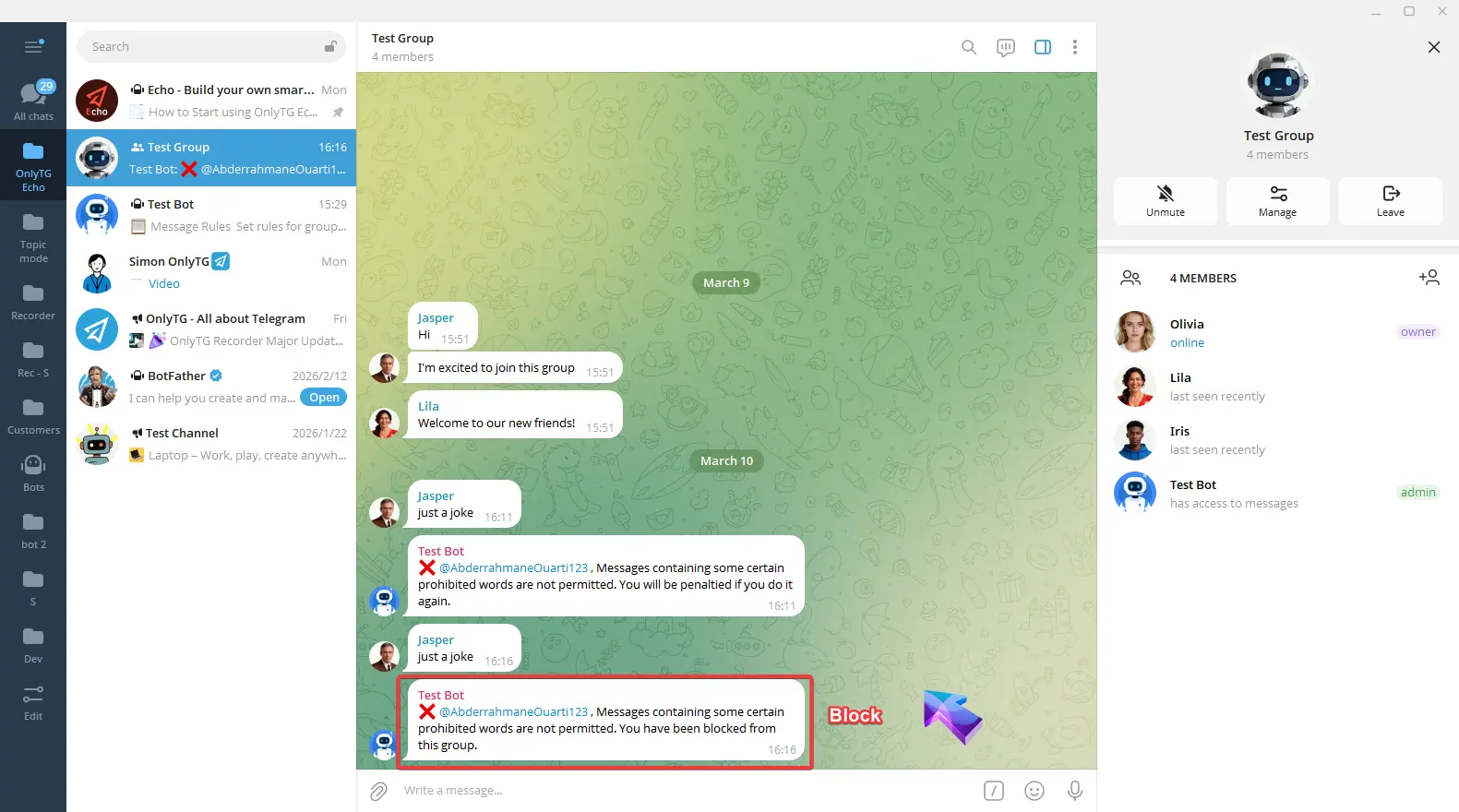
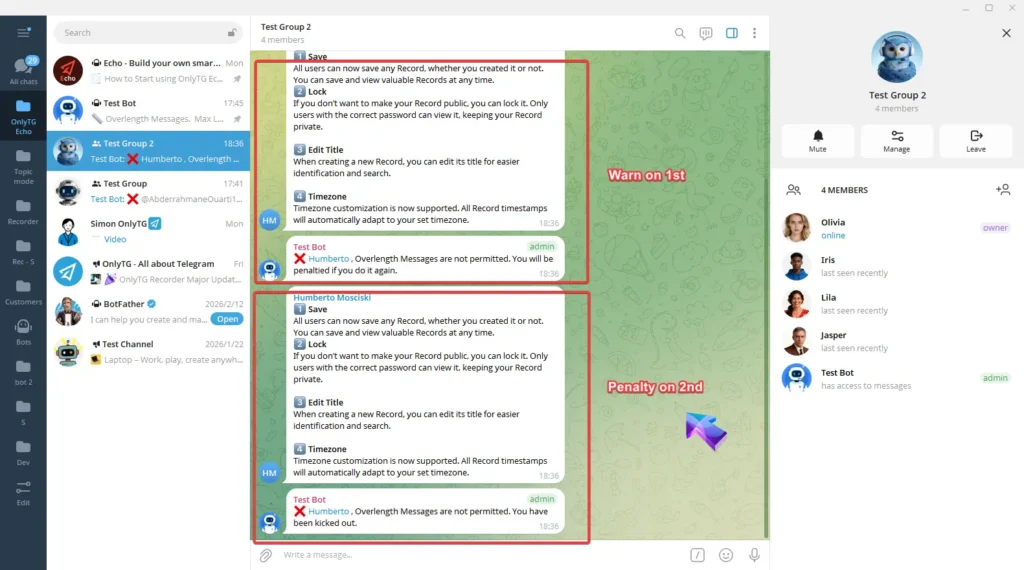
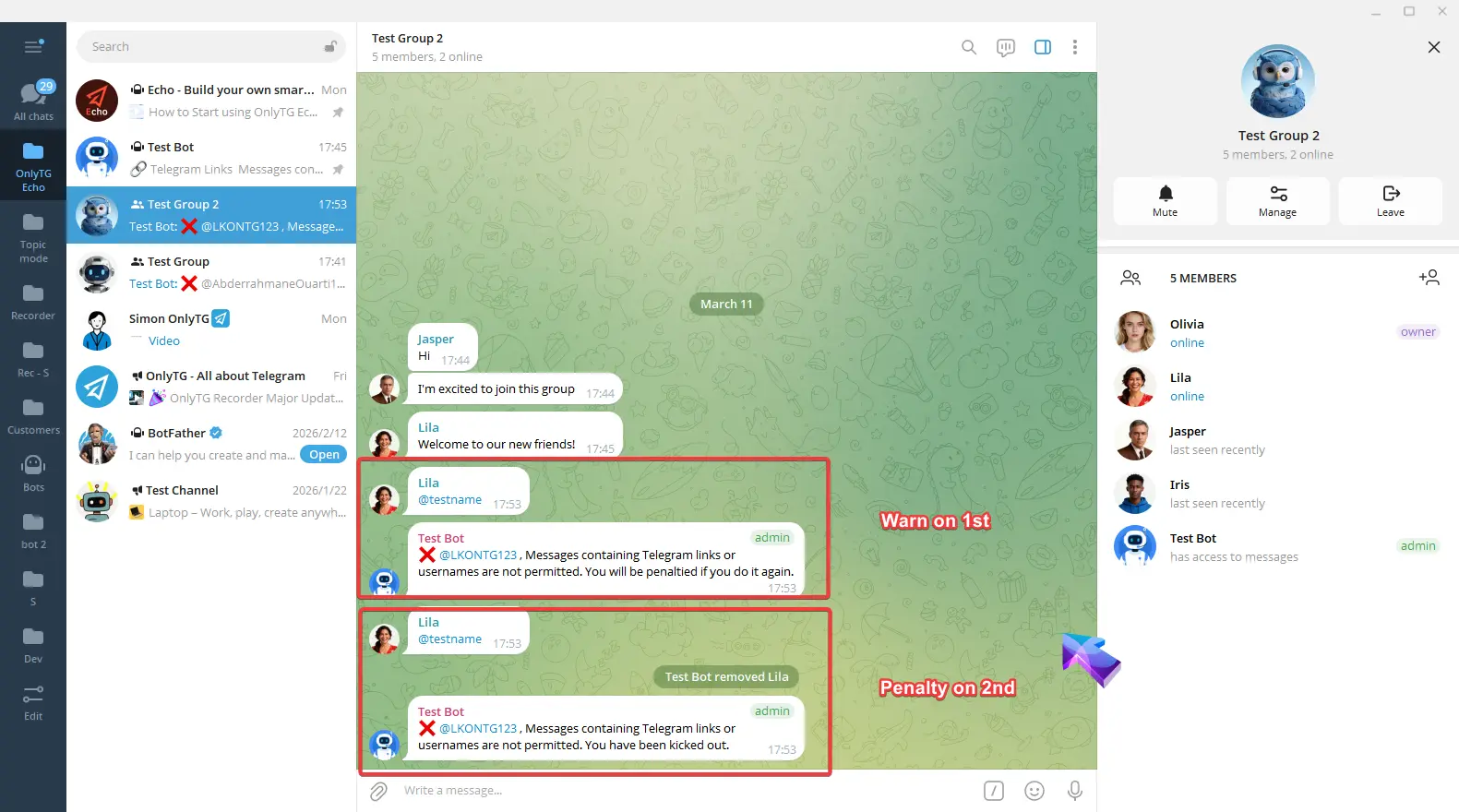
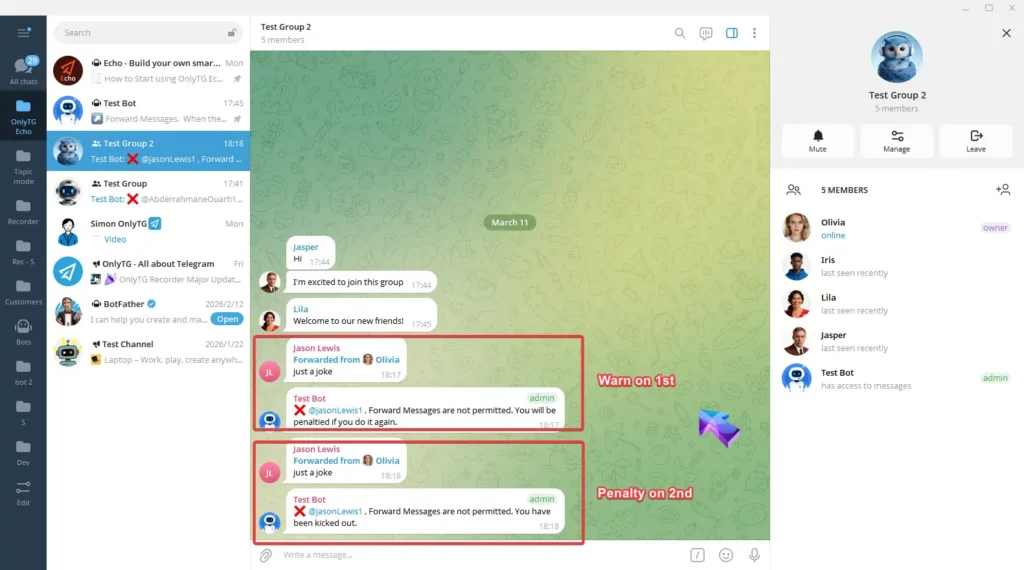
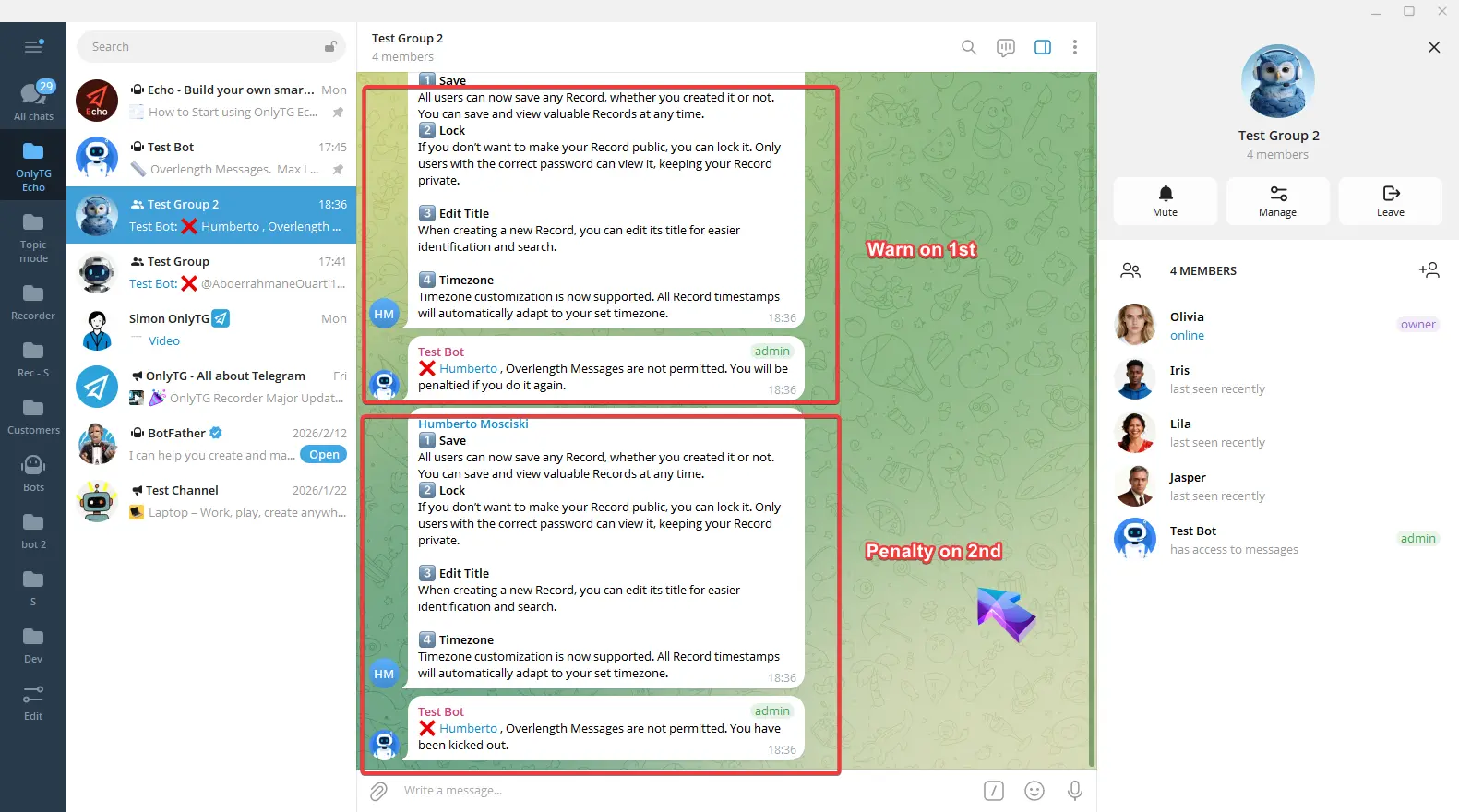
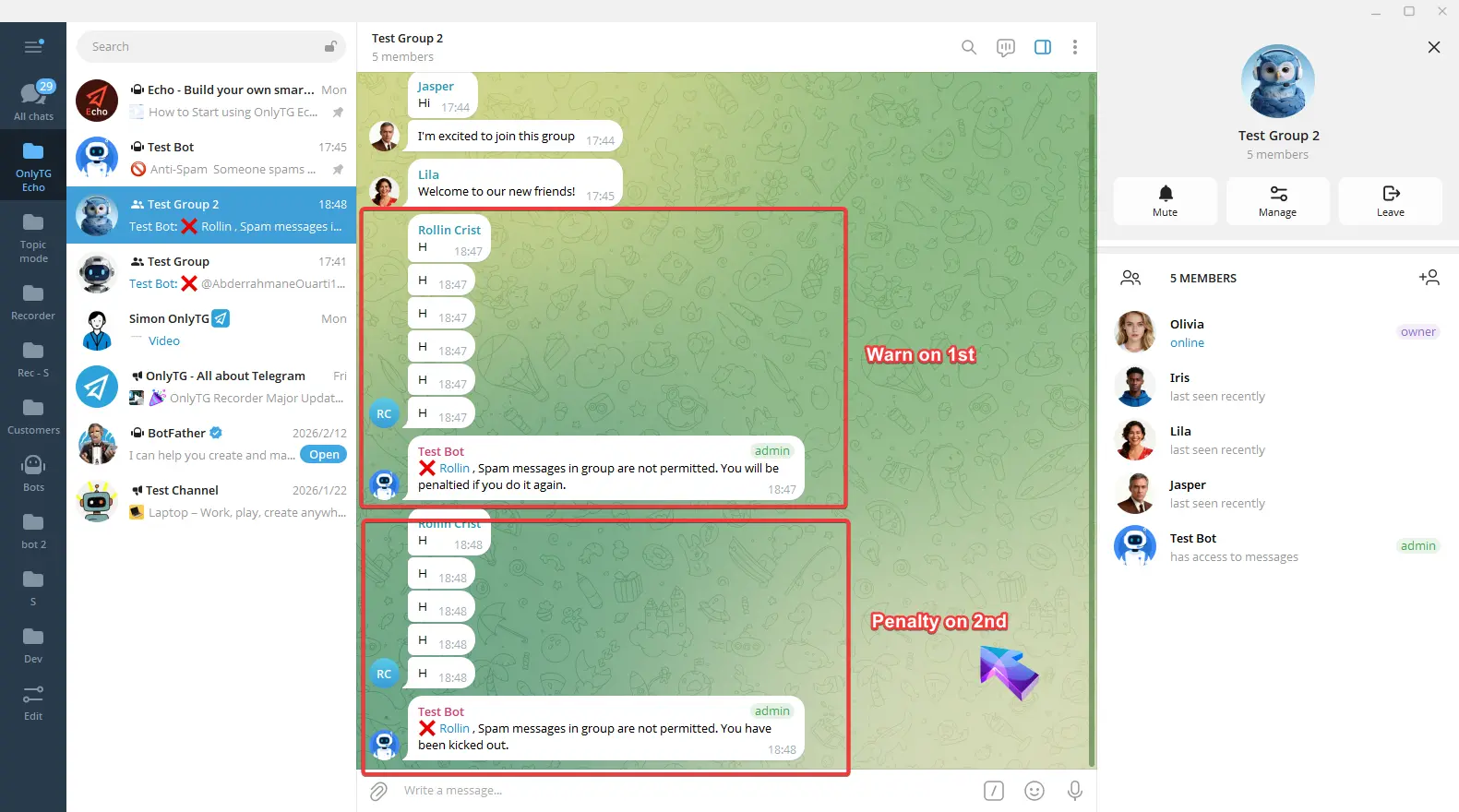
e. Penalty on 2nd: Warning for the first offense, Penalty on the second offense.
When you select Kick, Mute, or Block penalties, you can enable these options.
2. Service Messages
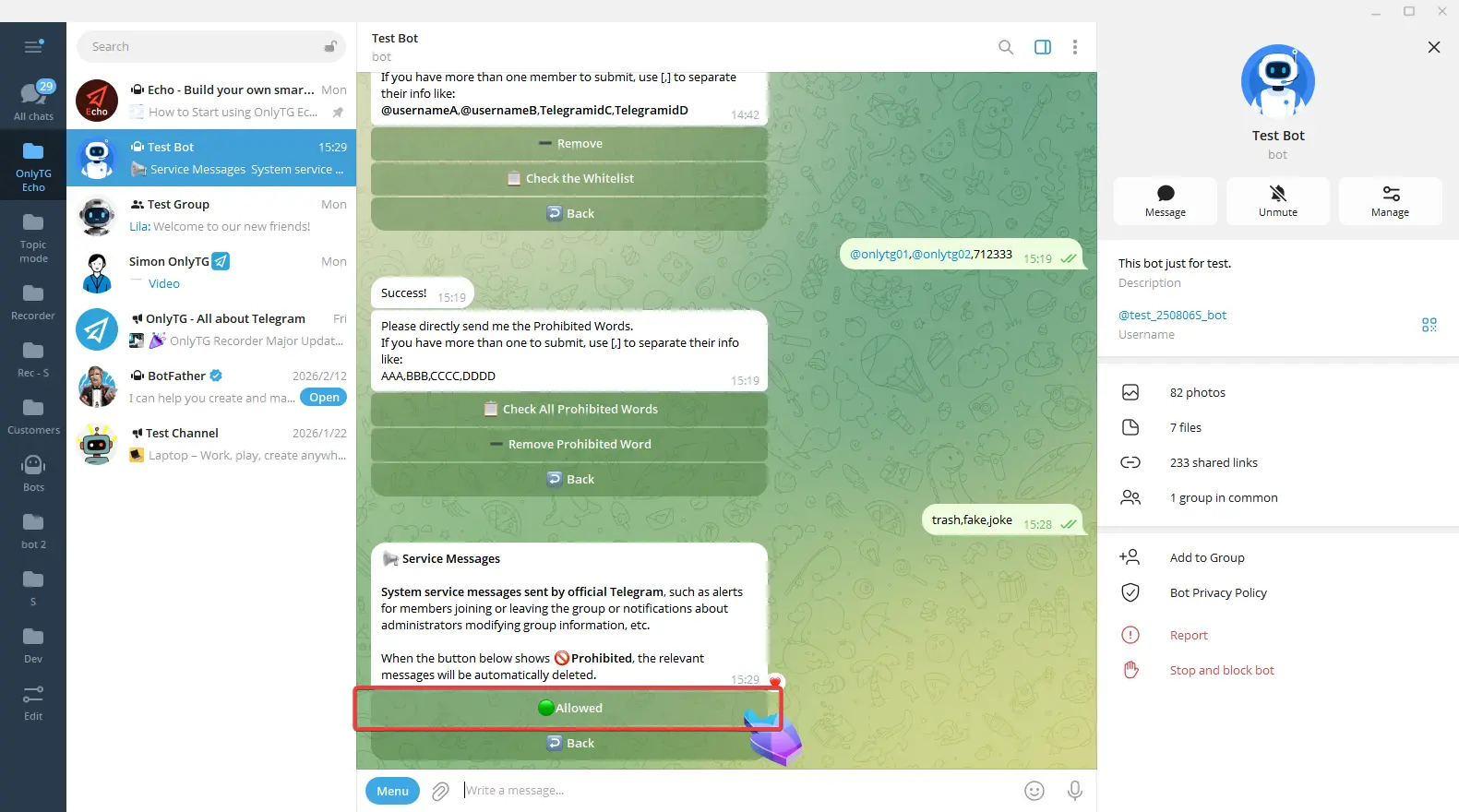
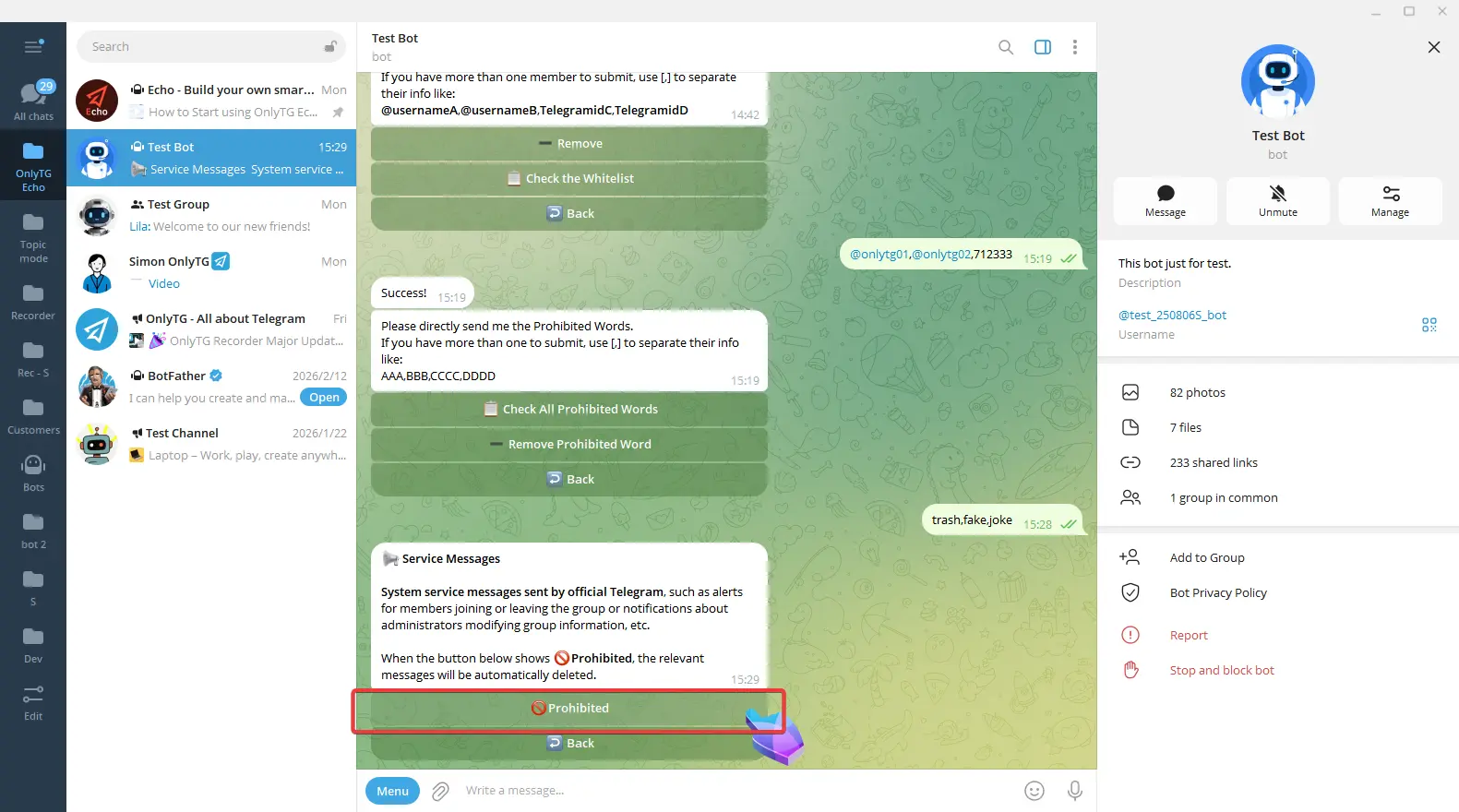
It can automatically delete system service messages sent by official Telegram, such as alerts for members joining or leaving the group.
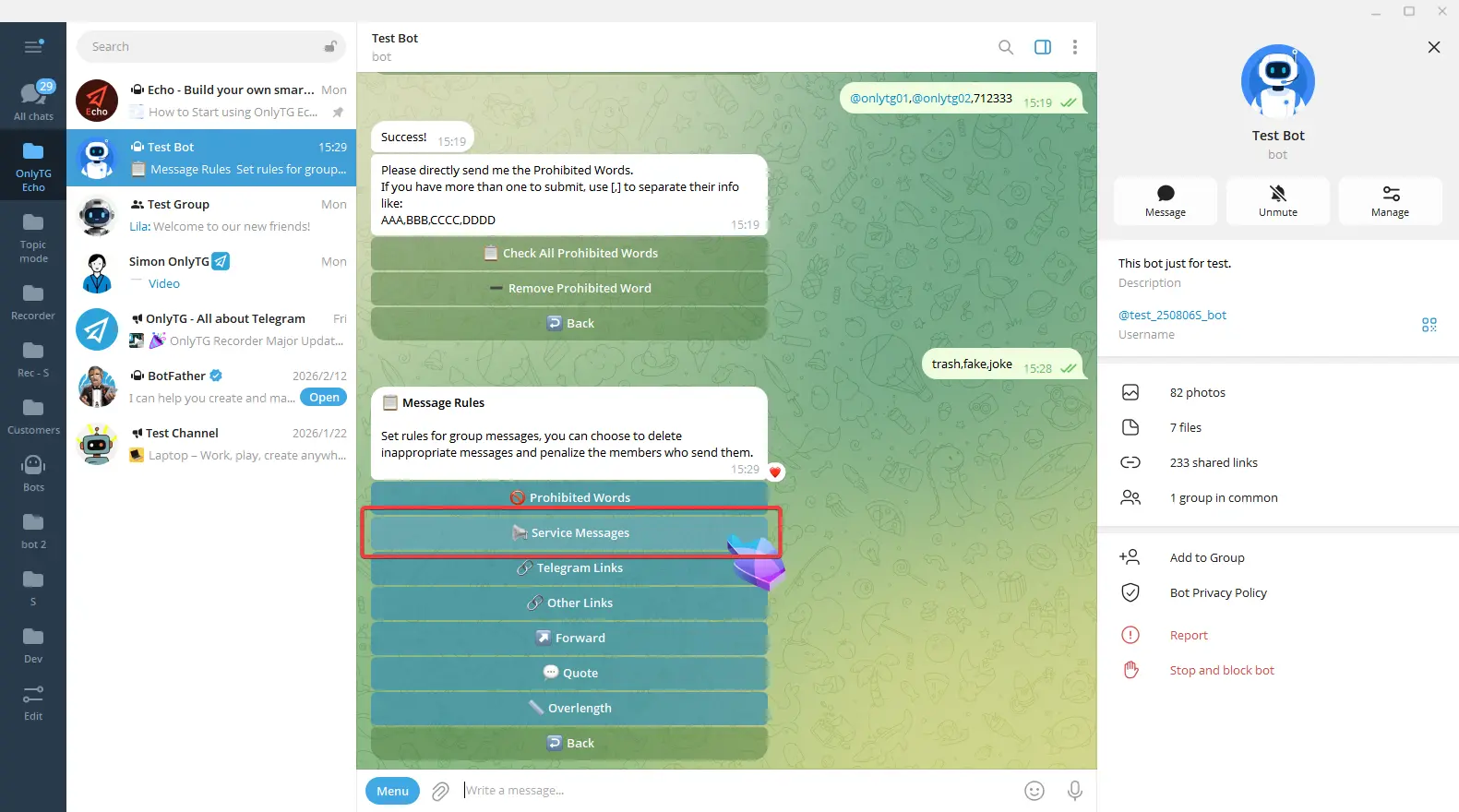
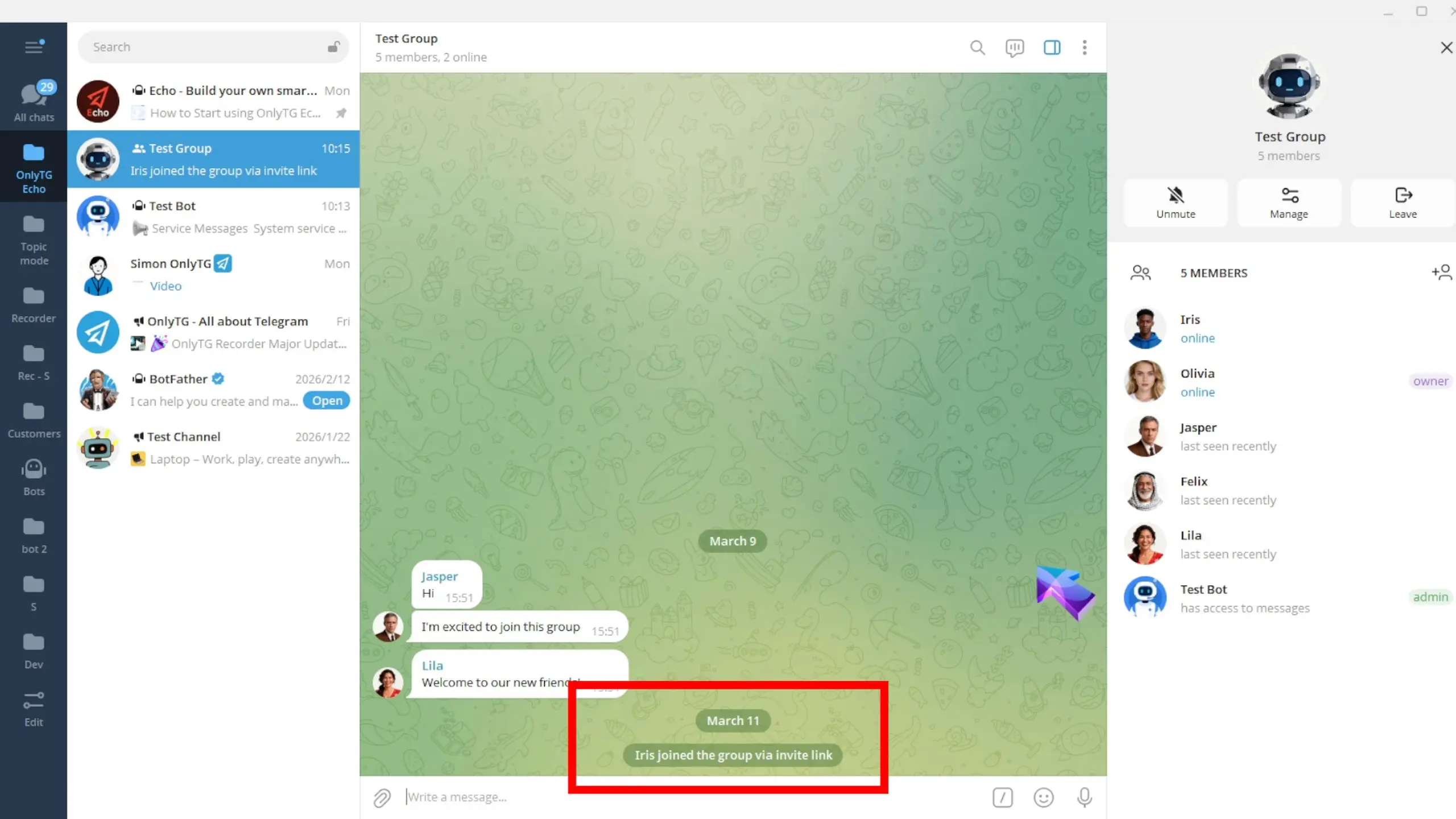
Click Allow to enable it. Click Prohibited again to disable it.
3. Telegram Links
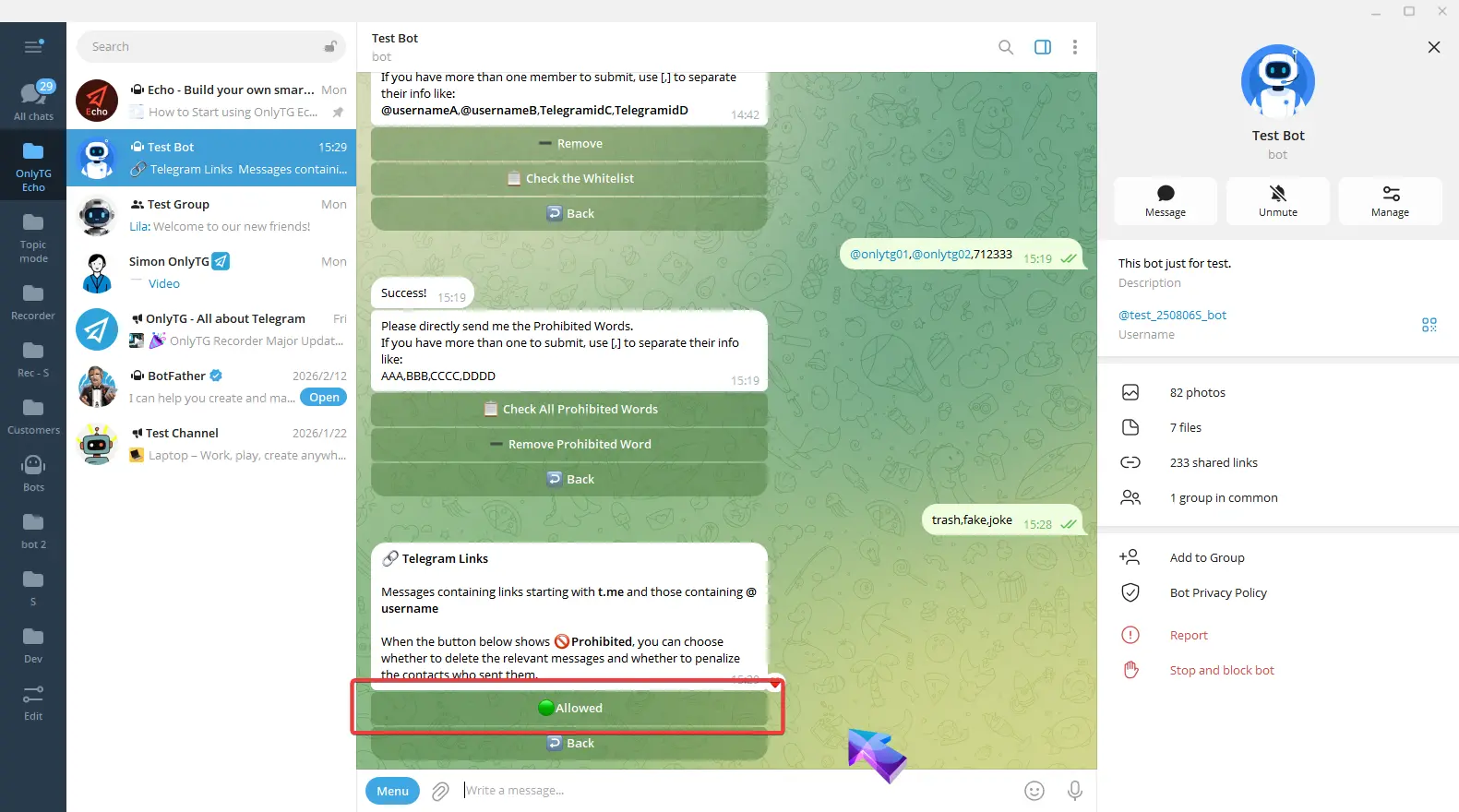
This rule will be triggered when members sends a message in the group containing links starting with t.me or @username.
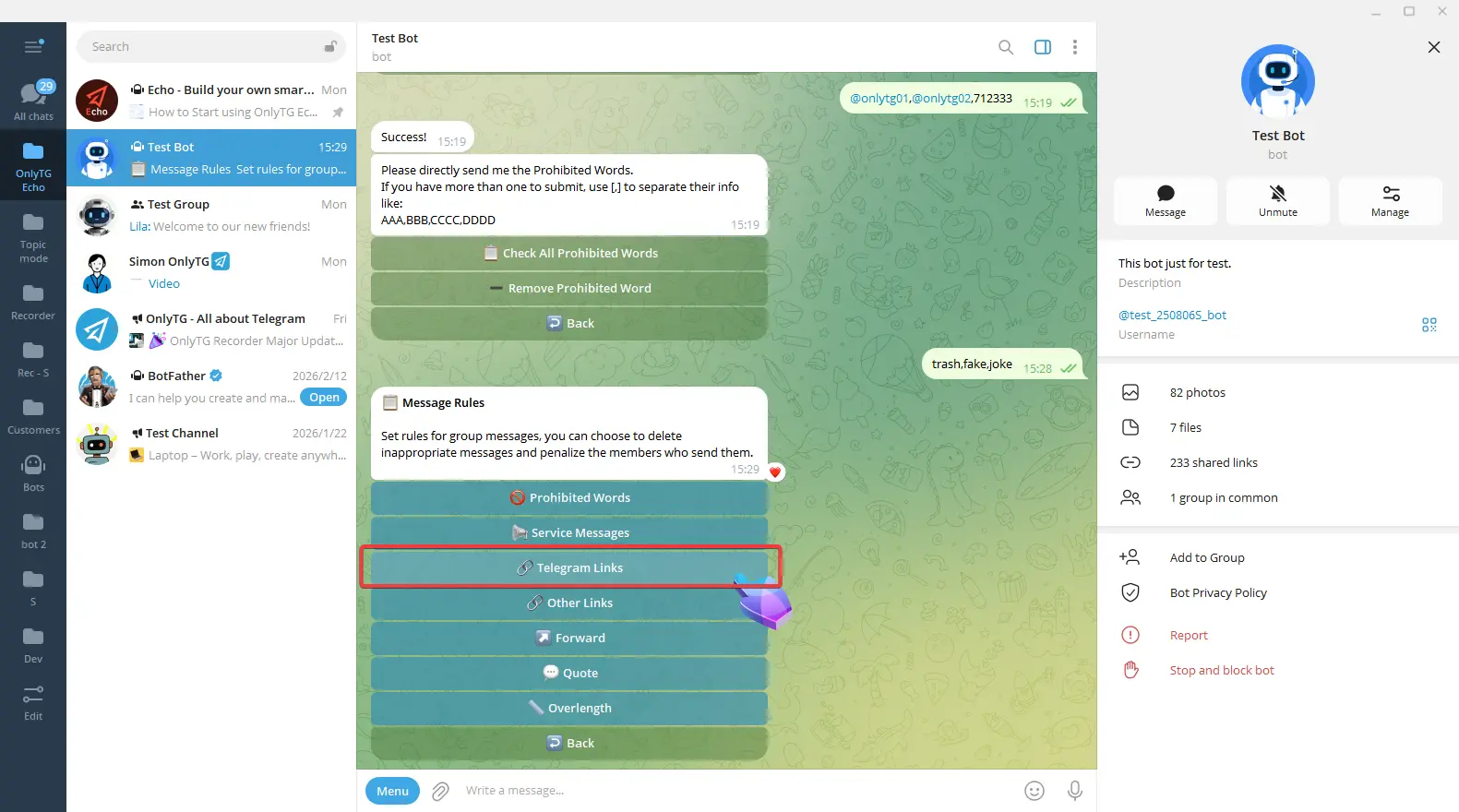
Click Allow to enable it. Click Prohibited again to disable it.
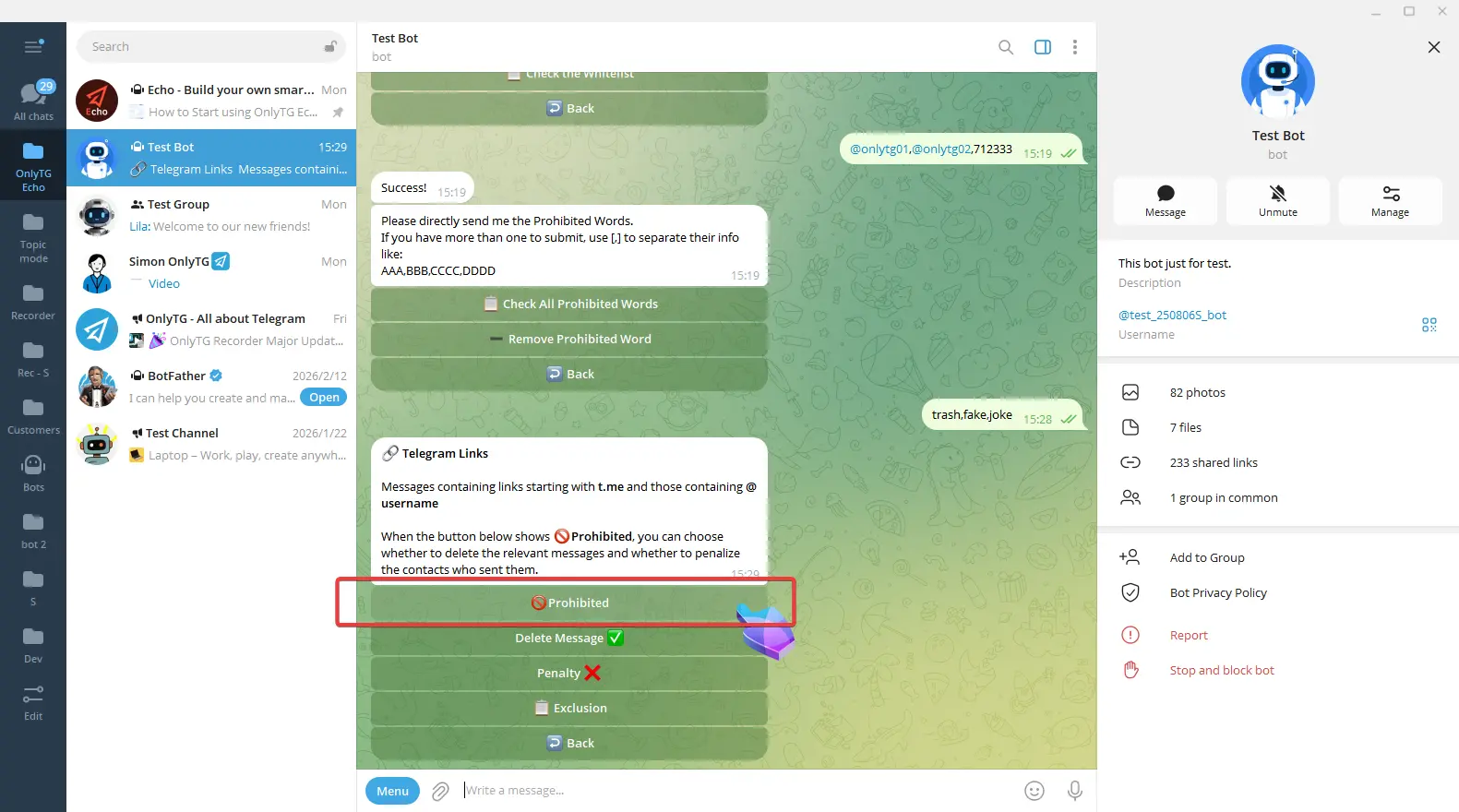
Delete Message: Automatically delete messages that violate the rules. Click to turn this function on or off.
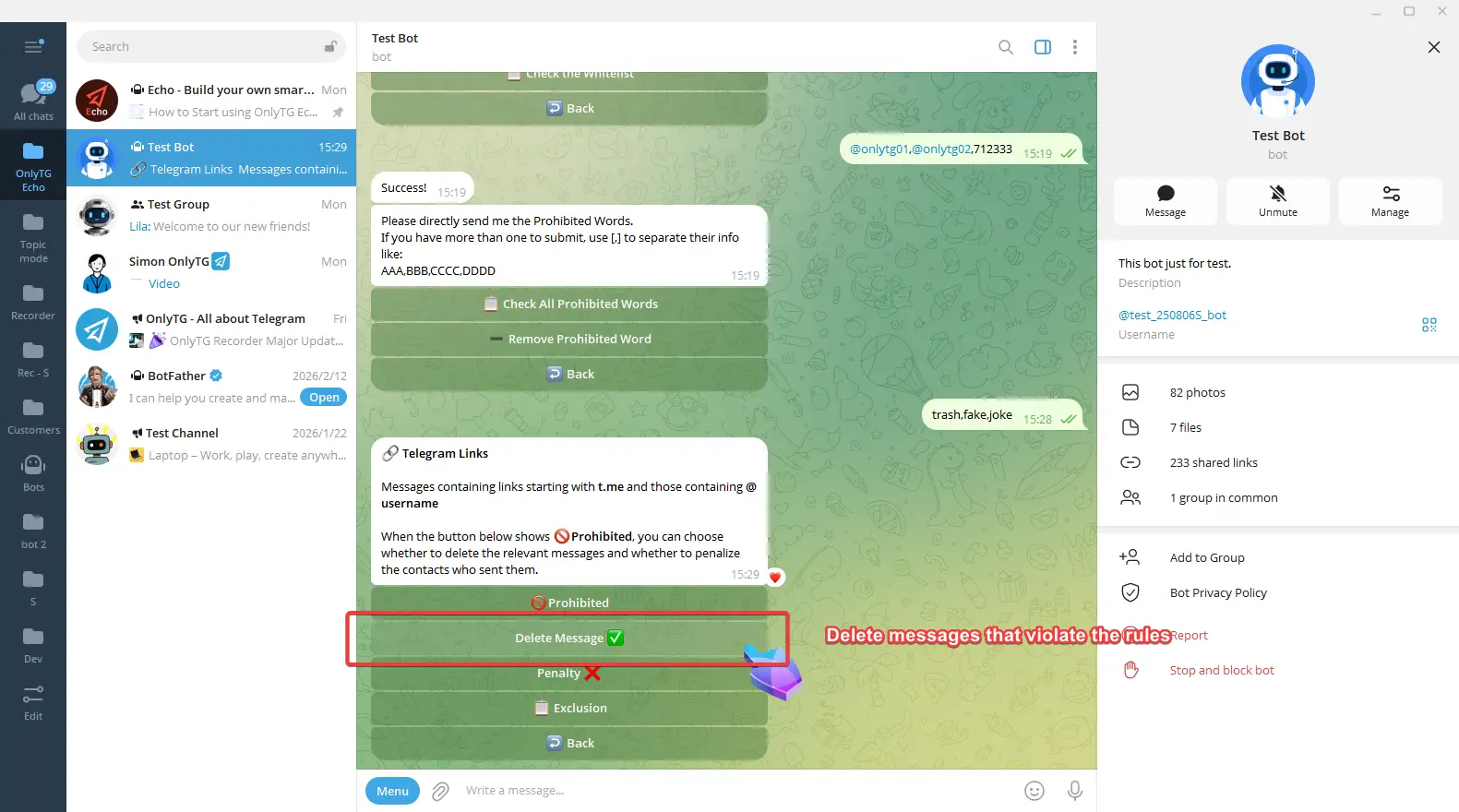
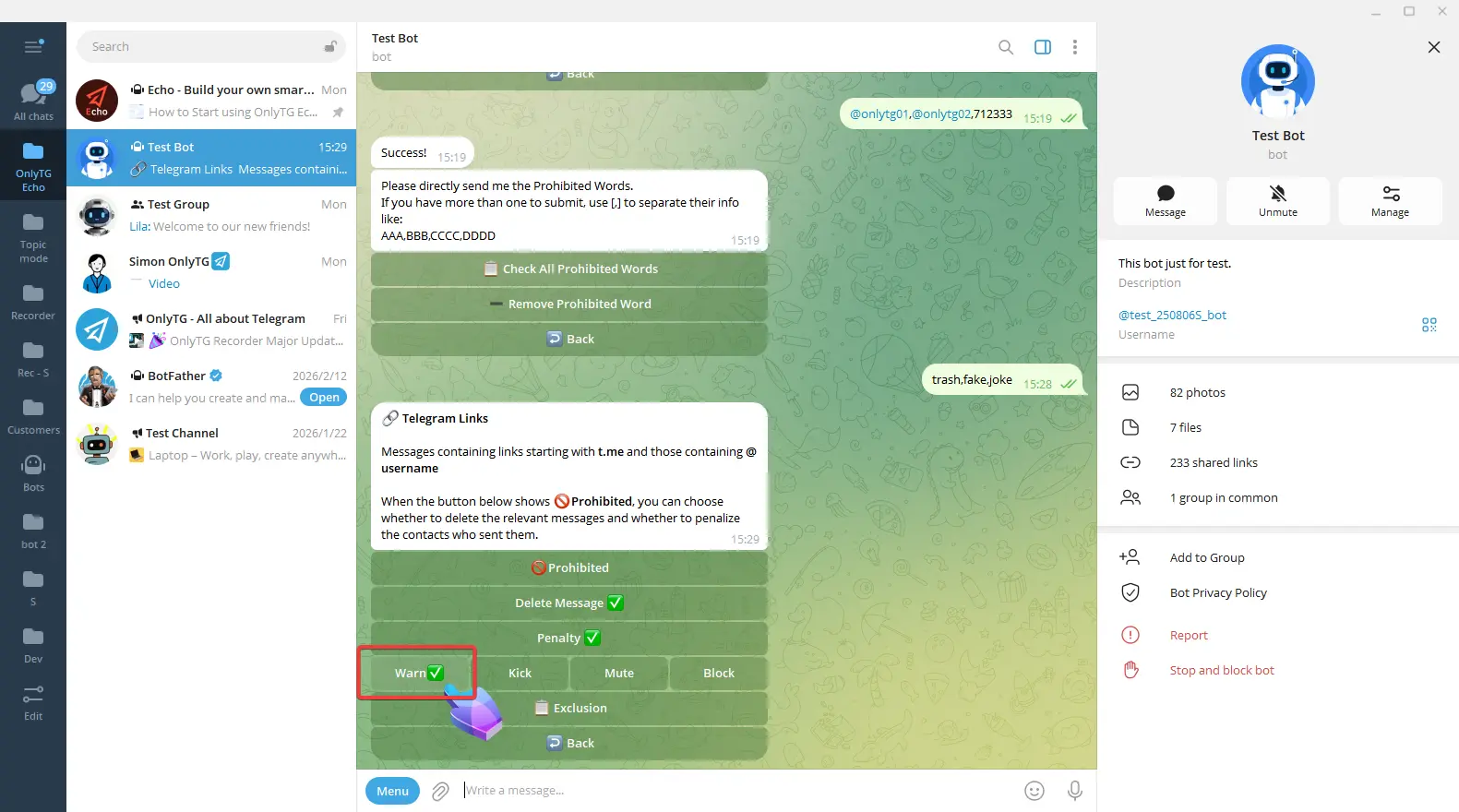
Penalty: Click to enable and select the penalty type.
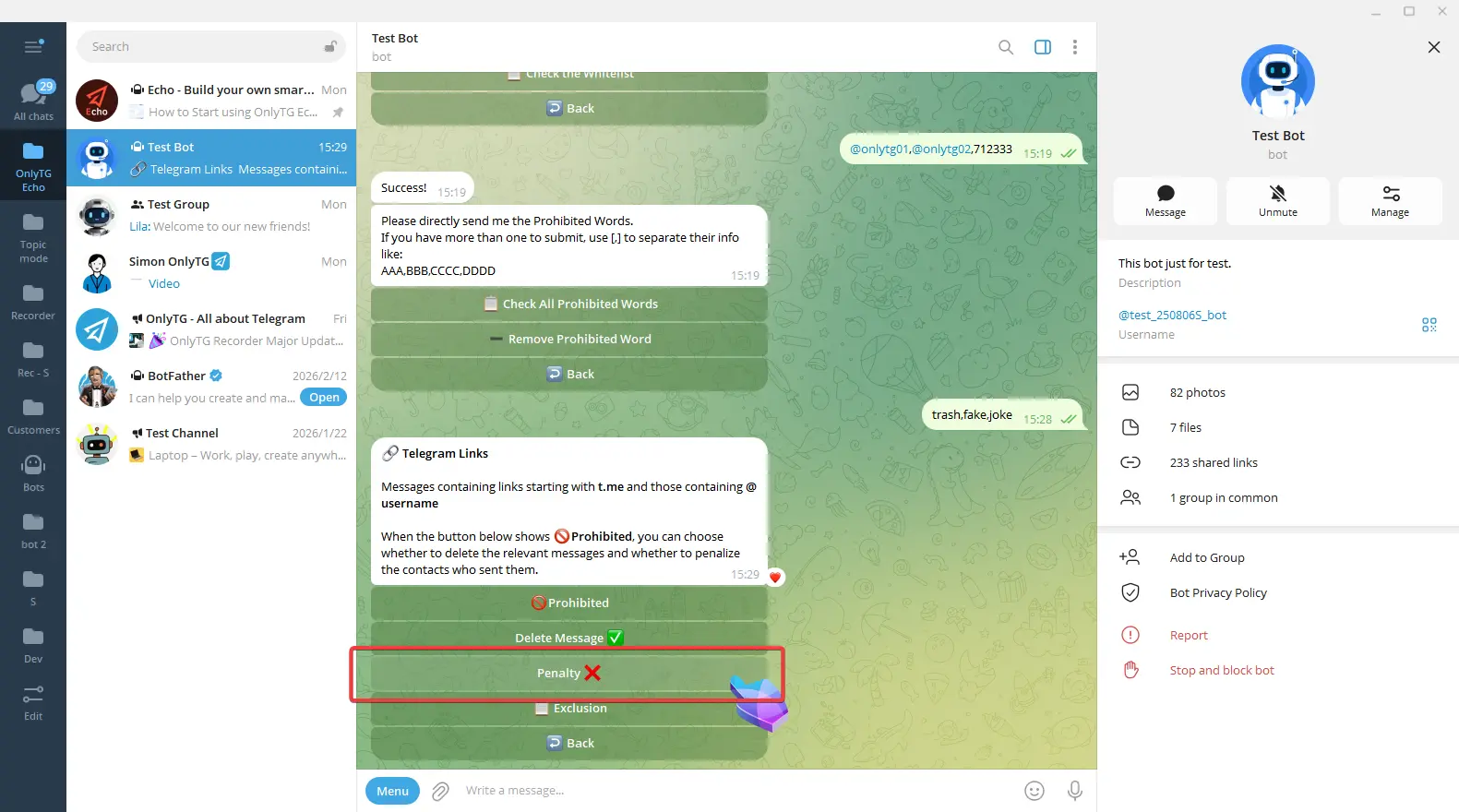
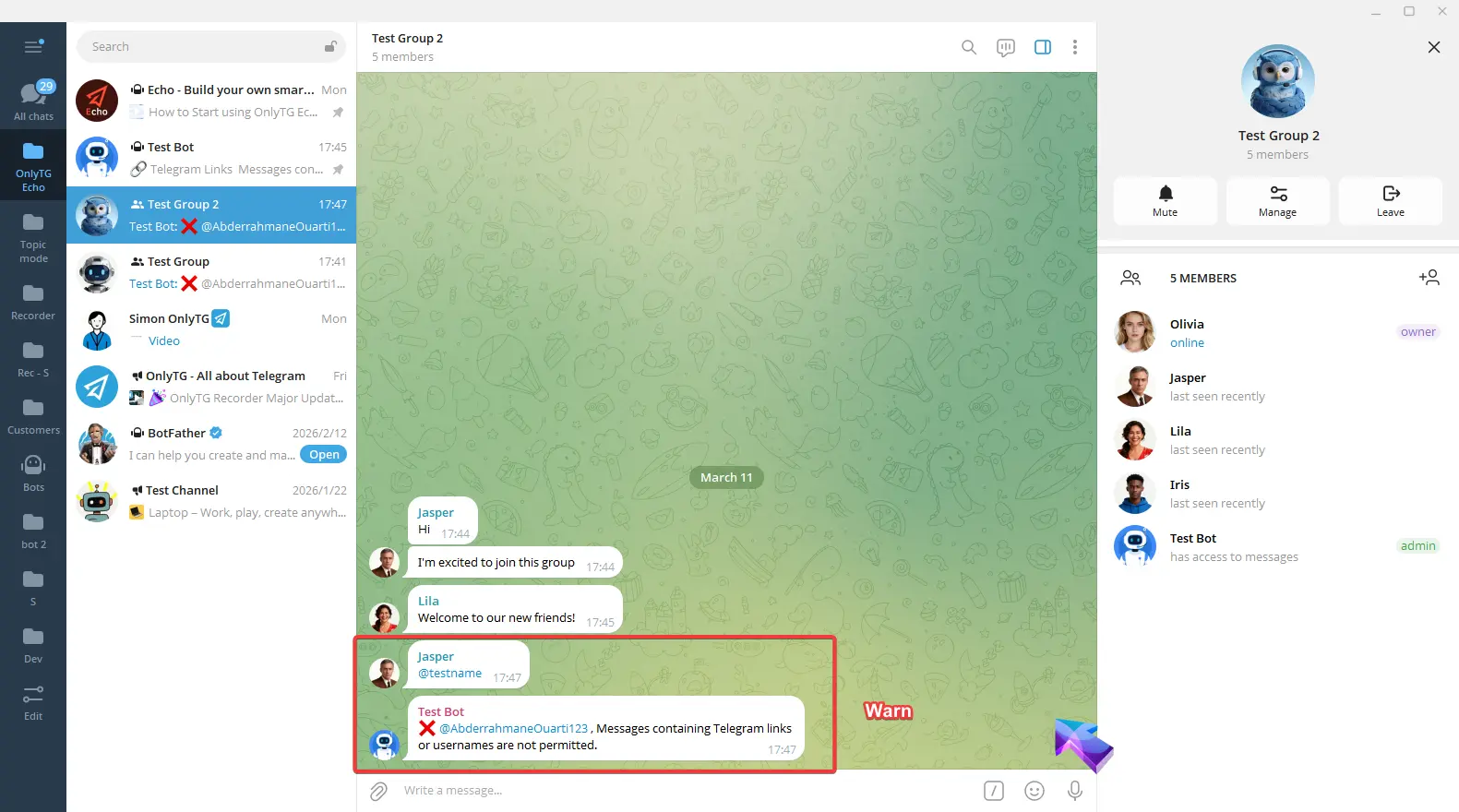
a. Warn: Warn members who violate the rules.
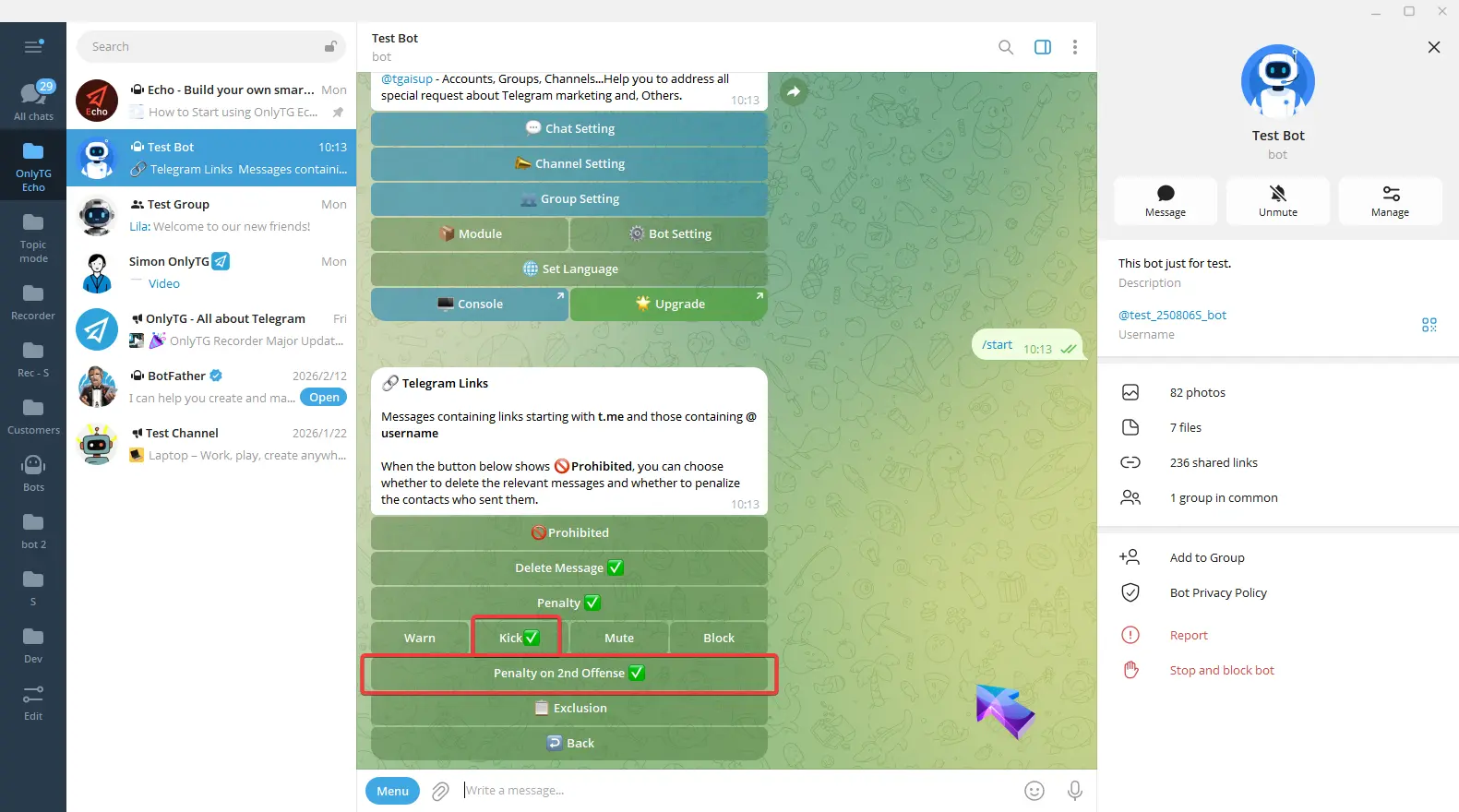
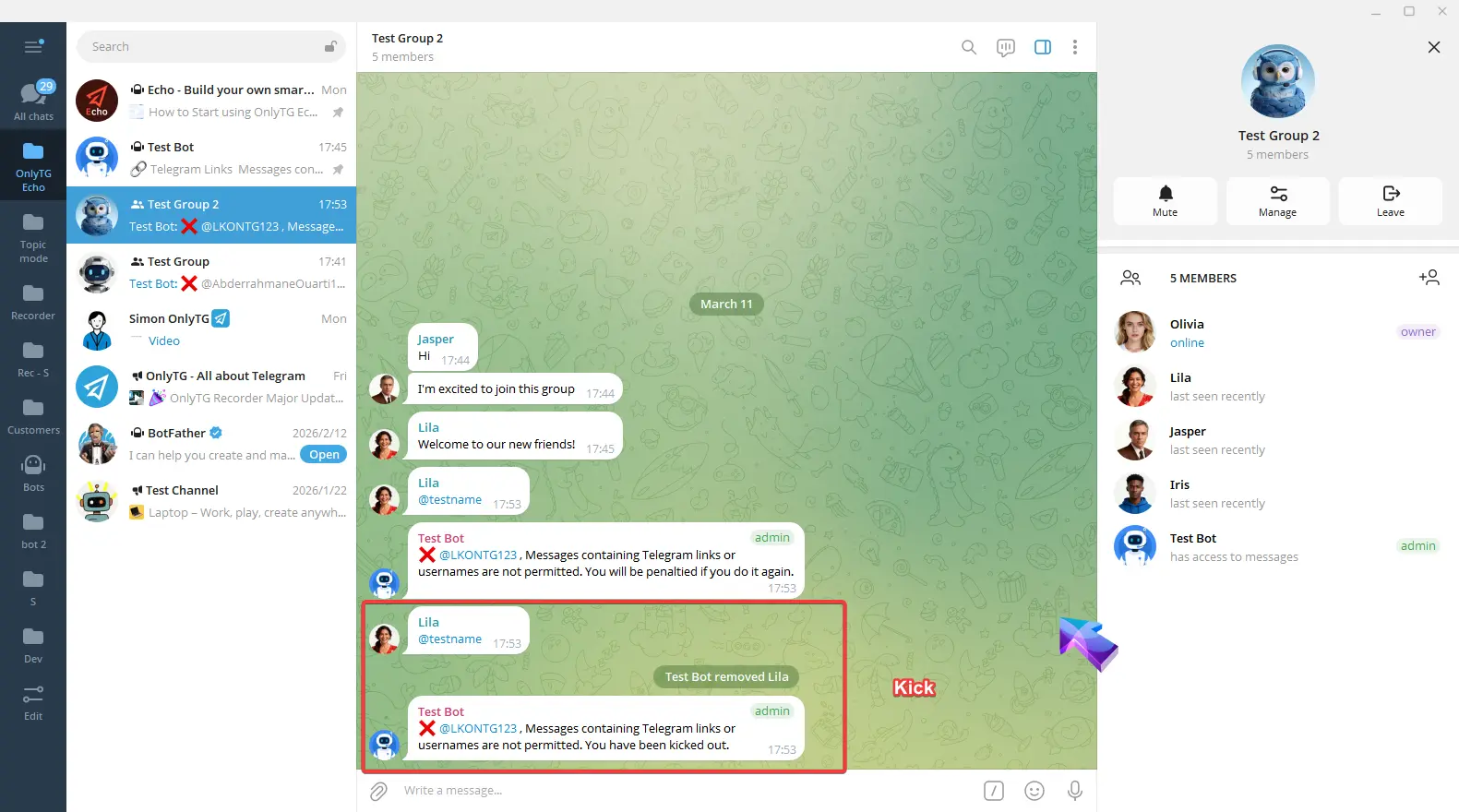
b. Kick: Kick members who violate the rules from the group. Supports the Penalty on 2nd Offense option.
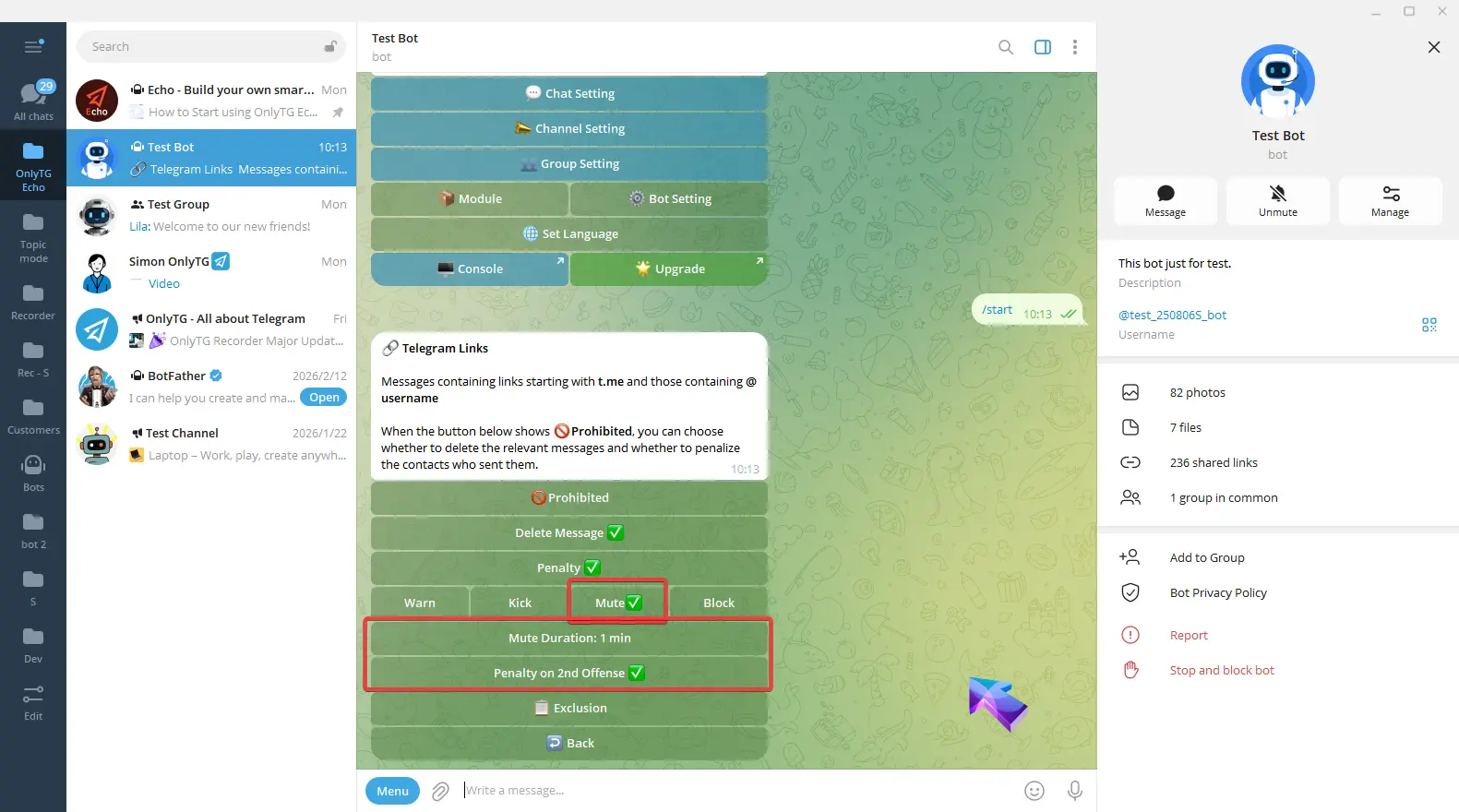
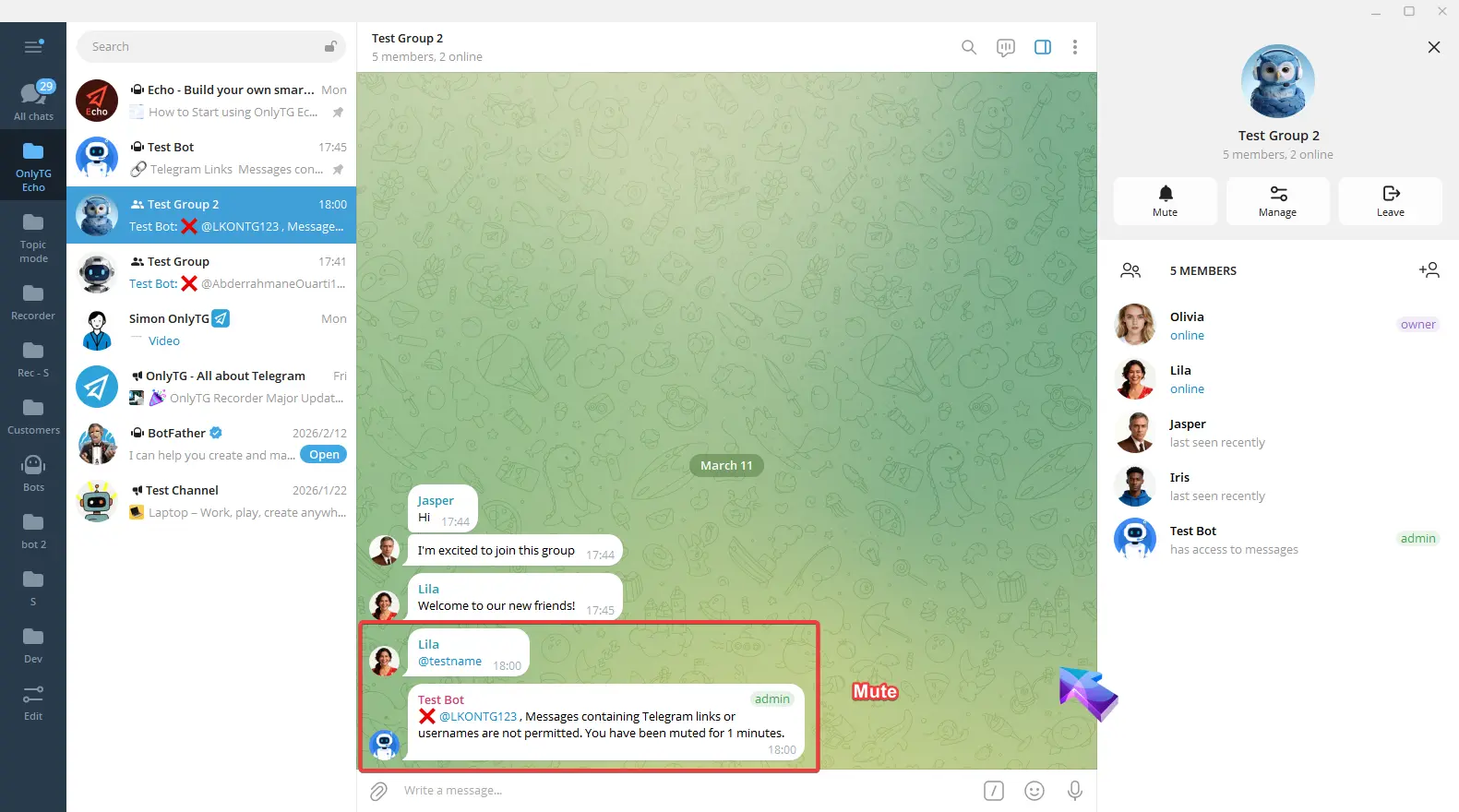
c. Mute: Mute members who violate the rules. Supports the Penalty on 2nd Offense option.
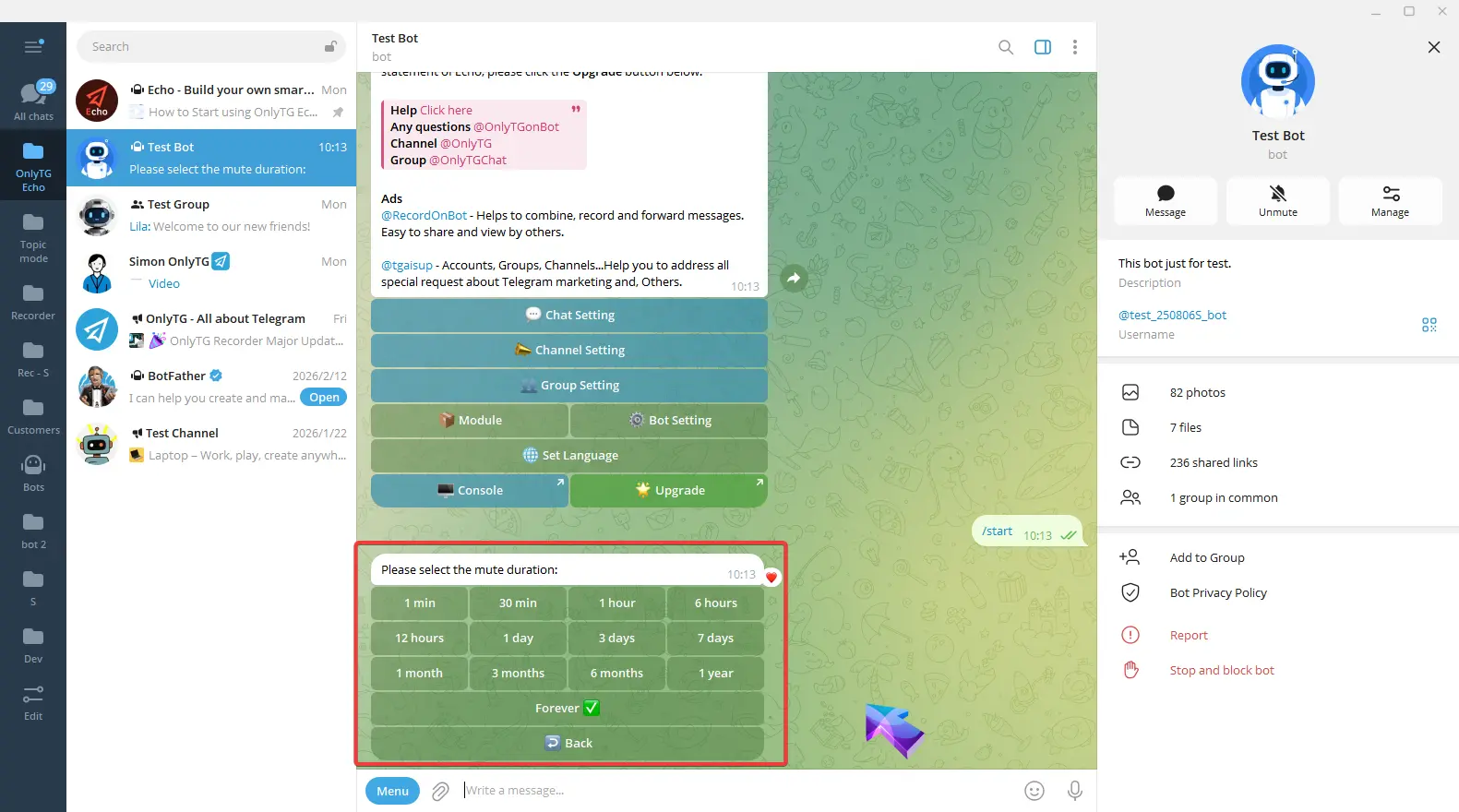
Click Mute Duration to select the mute period.
d. Block: Ban members who violate the rules, which means removing them from the group and preventing them from rejoining. Supports the Penalty on 2nd Offense option.
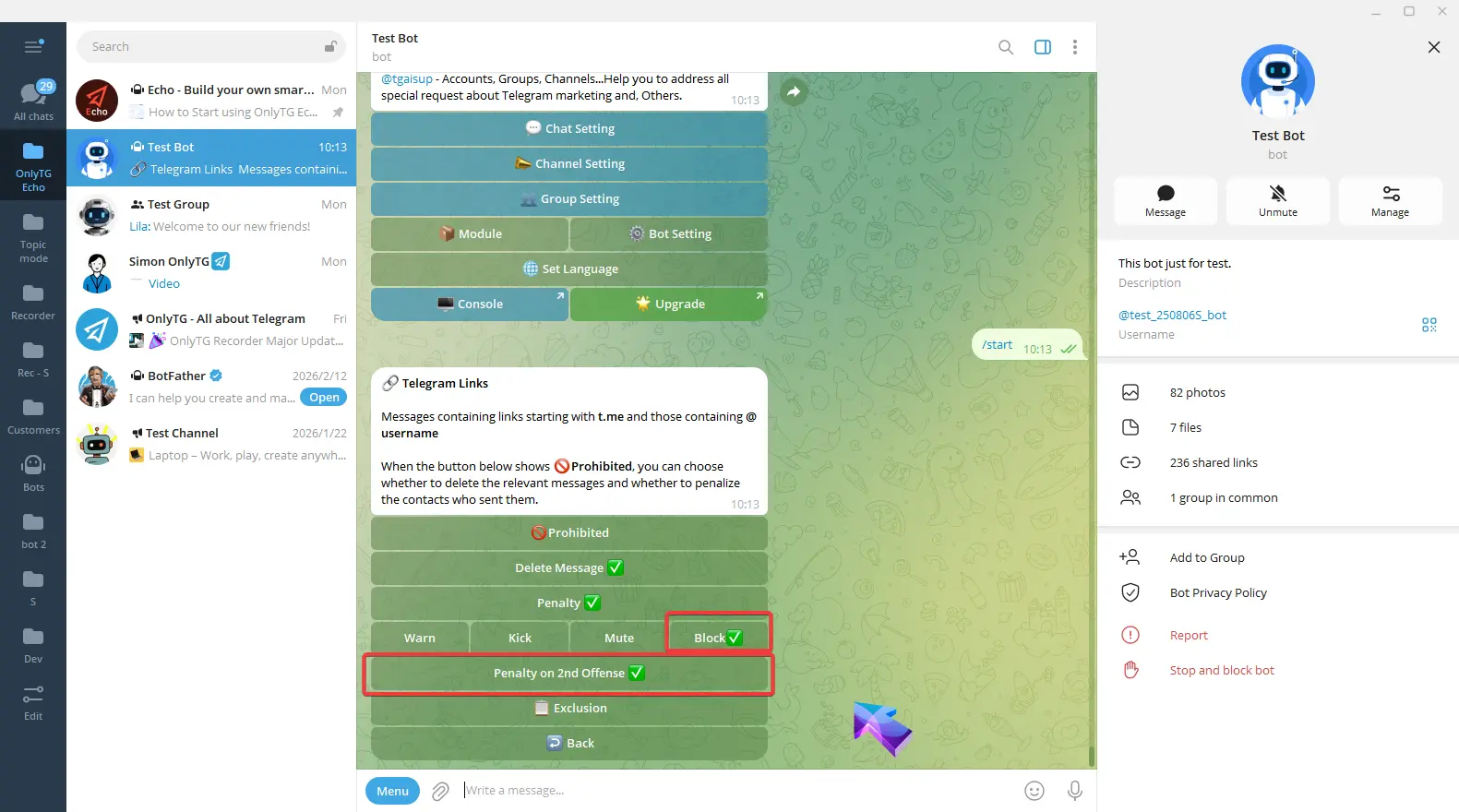
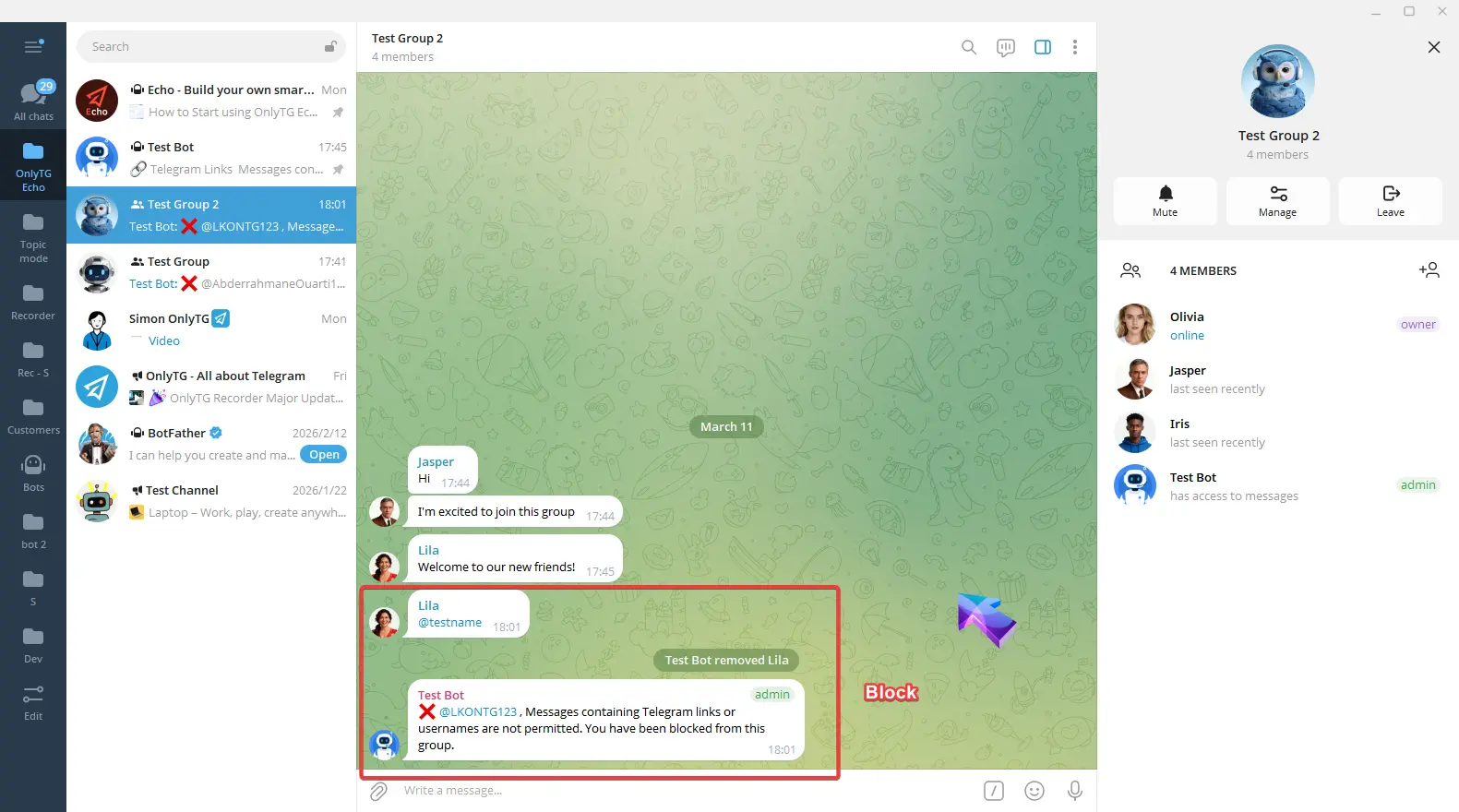
e. Penalty on 2nd: Warning for the first offense, Penalty on the second offense.
When you select Kick, Mute, or Block penalties, you can enable these options.
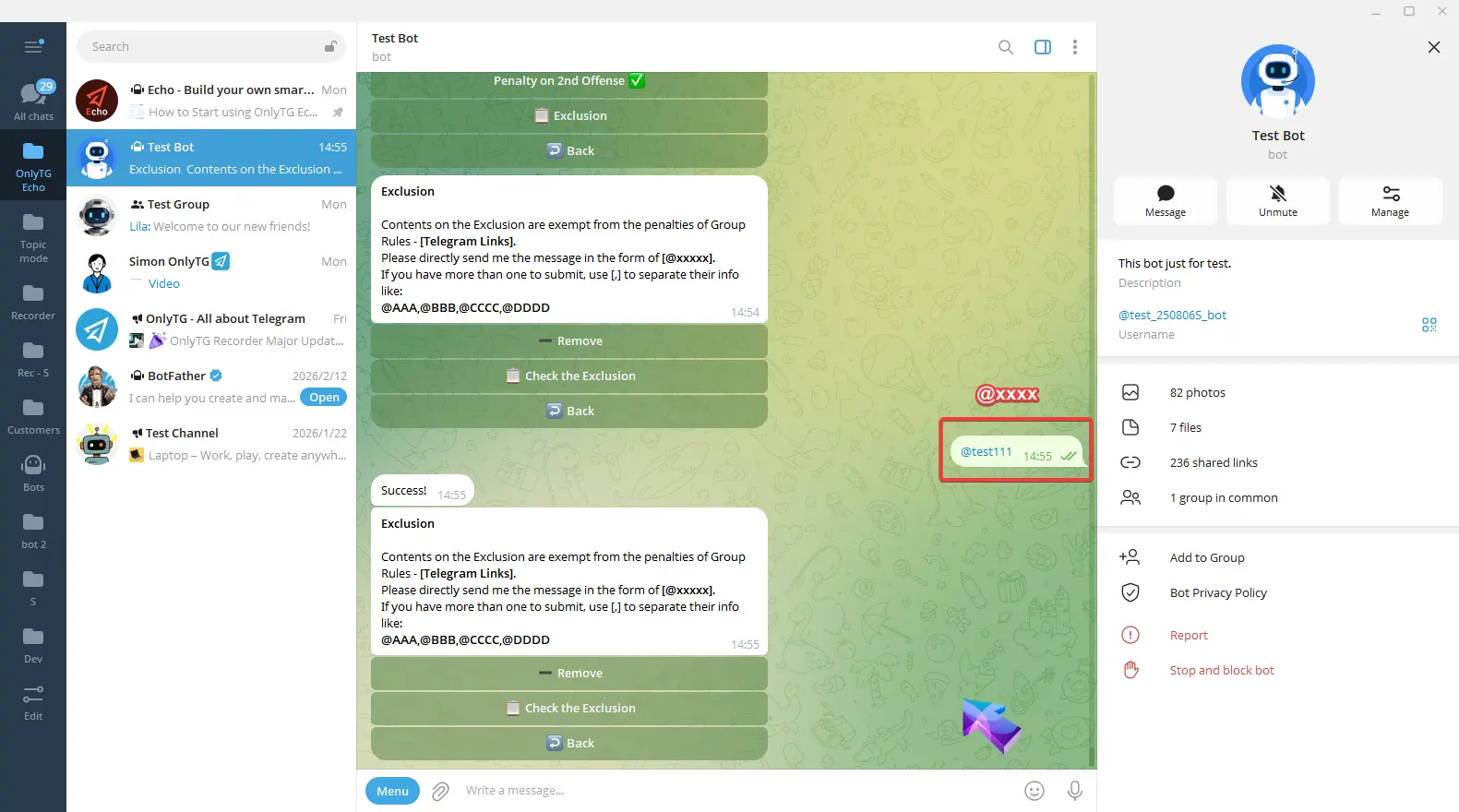
Exclusion: You can add excluded content. Excluded content will not be restricted by this rule.
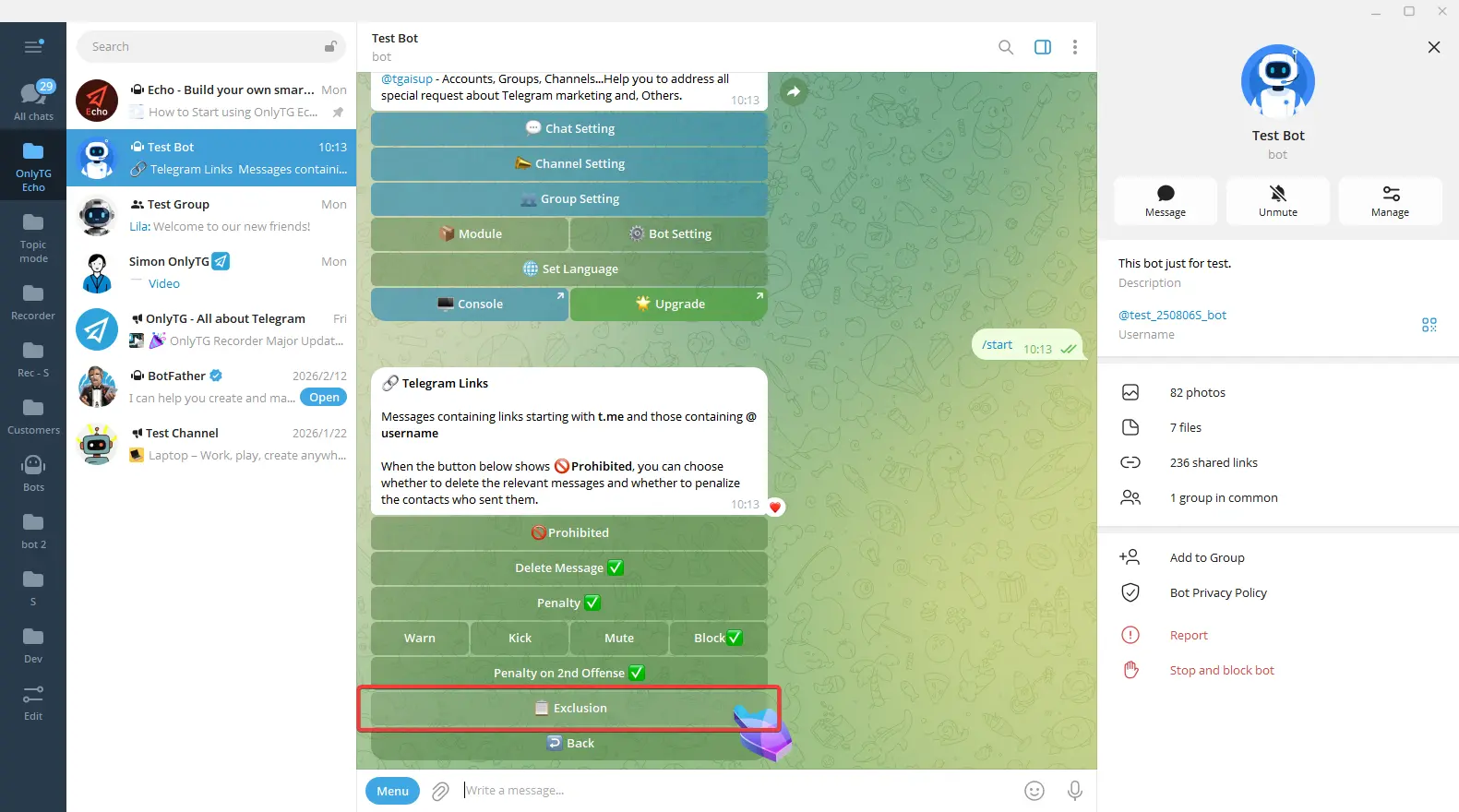
Send in the format @xxxx to add excluded content.
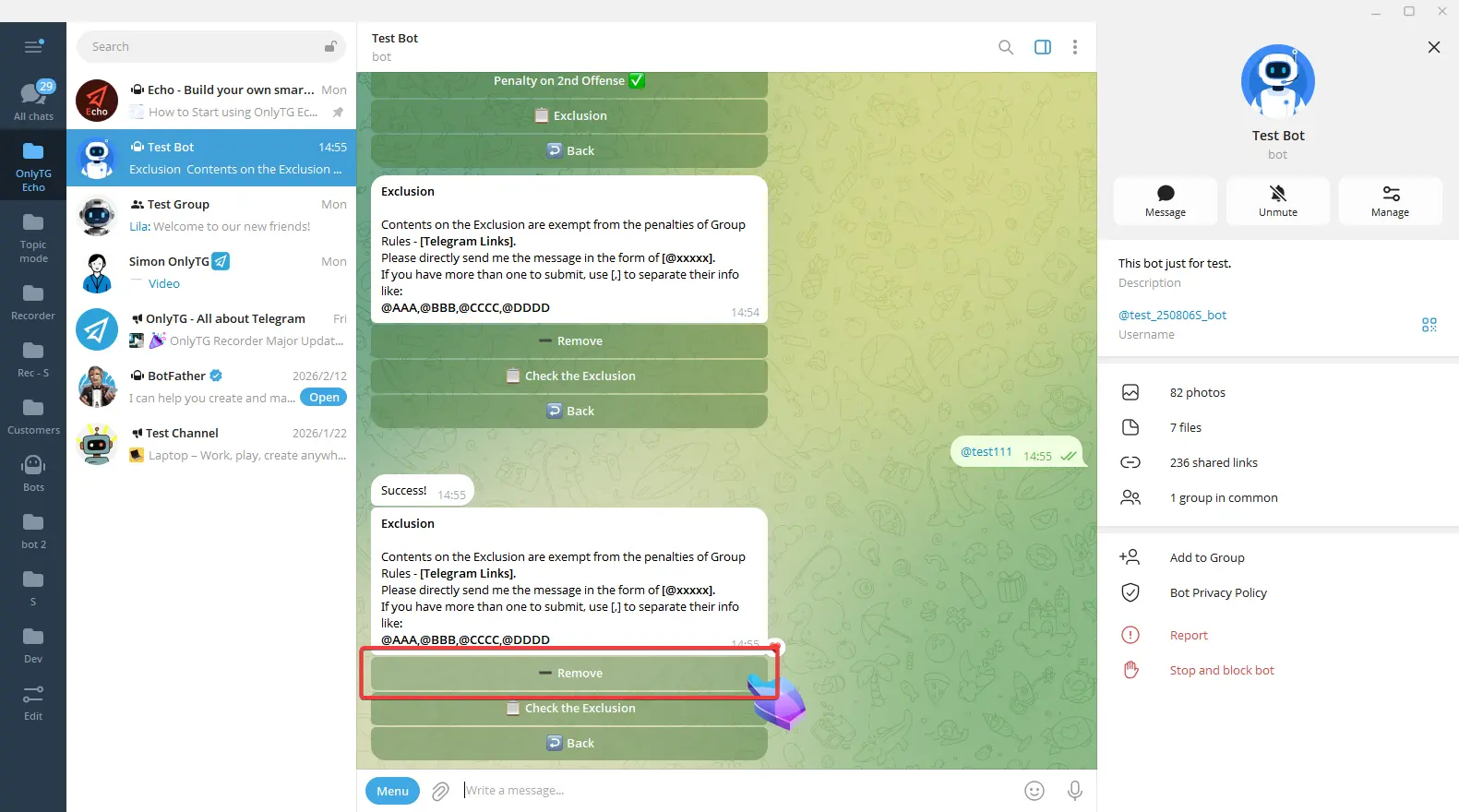
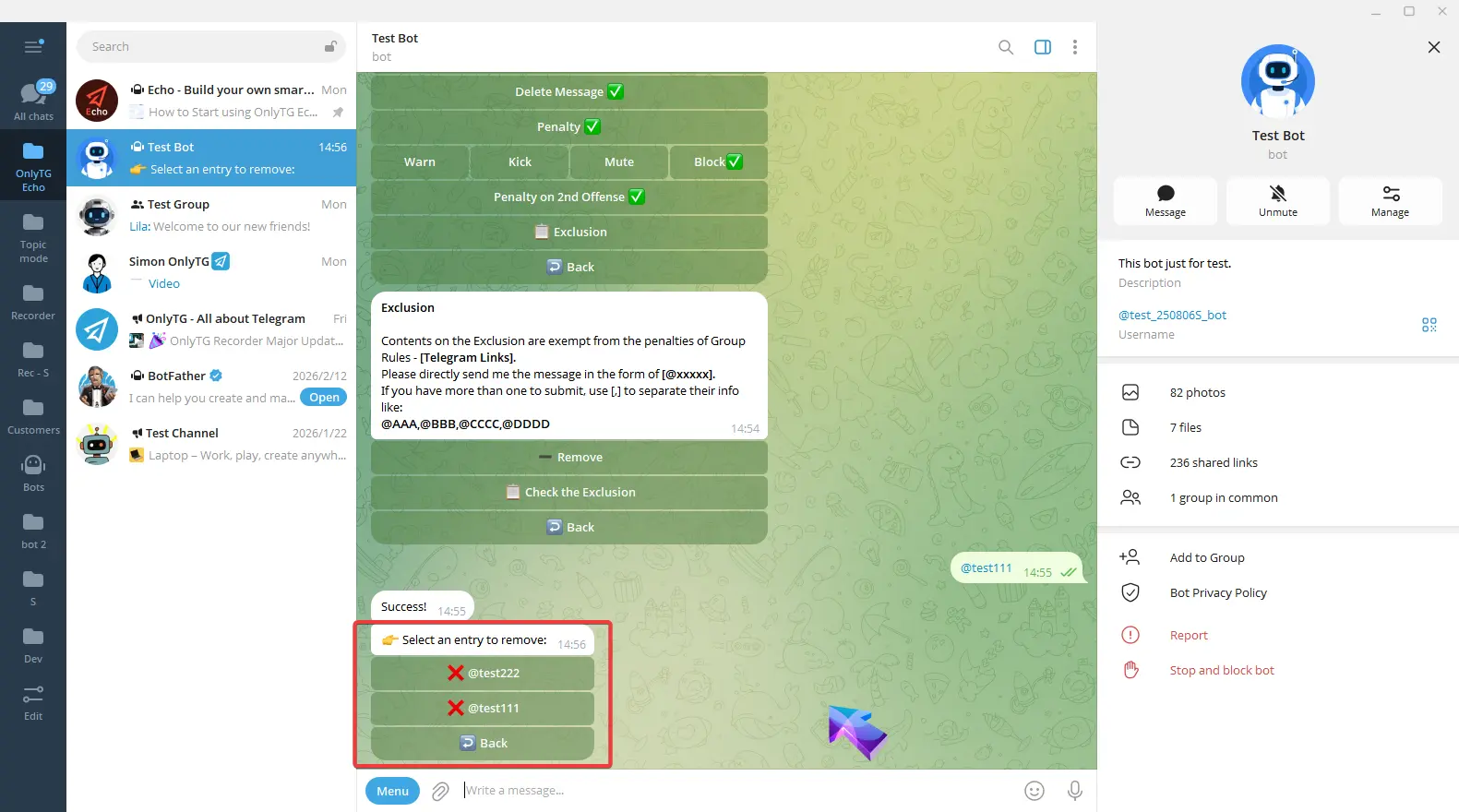
Click Remove to delete the added excluded content.
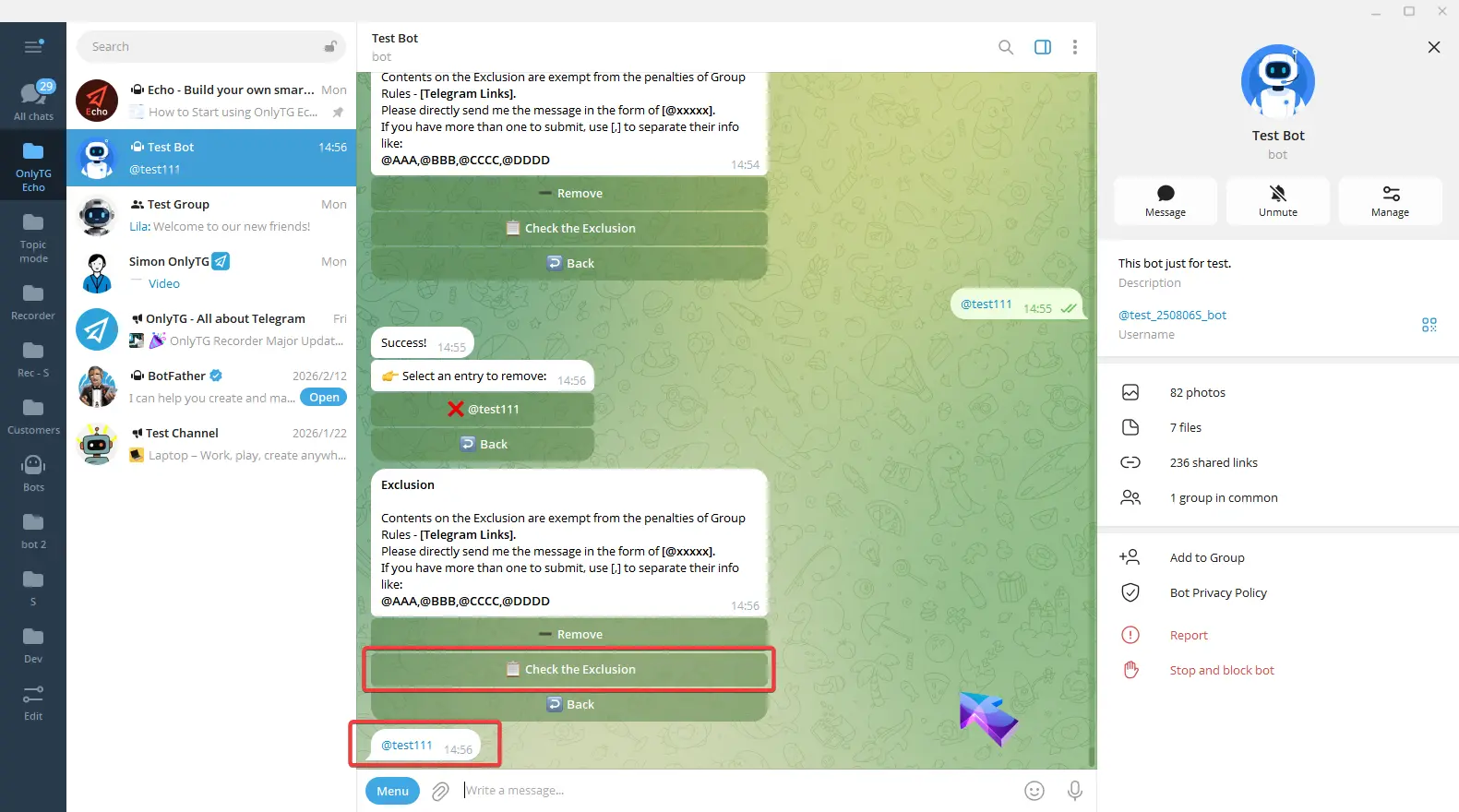
Click Check the Exclusion to view the added excluded content.
4. Other Links
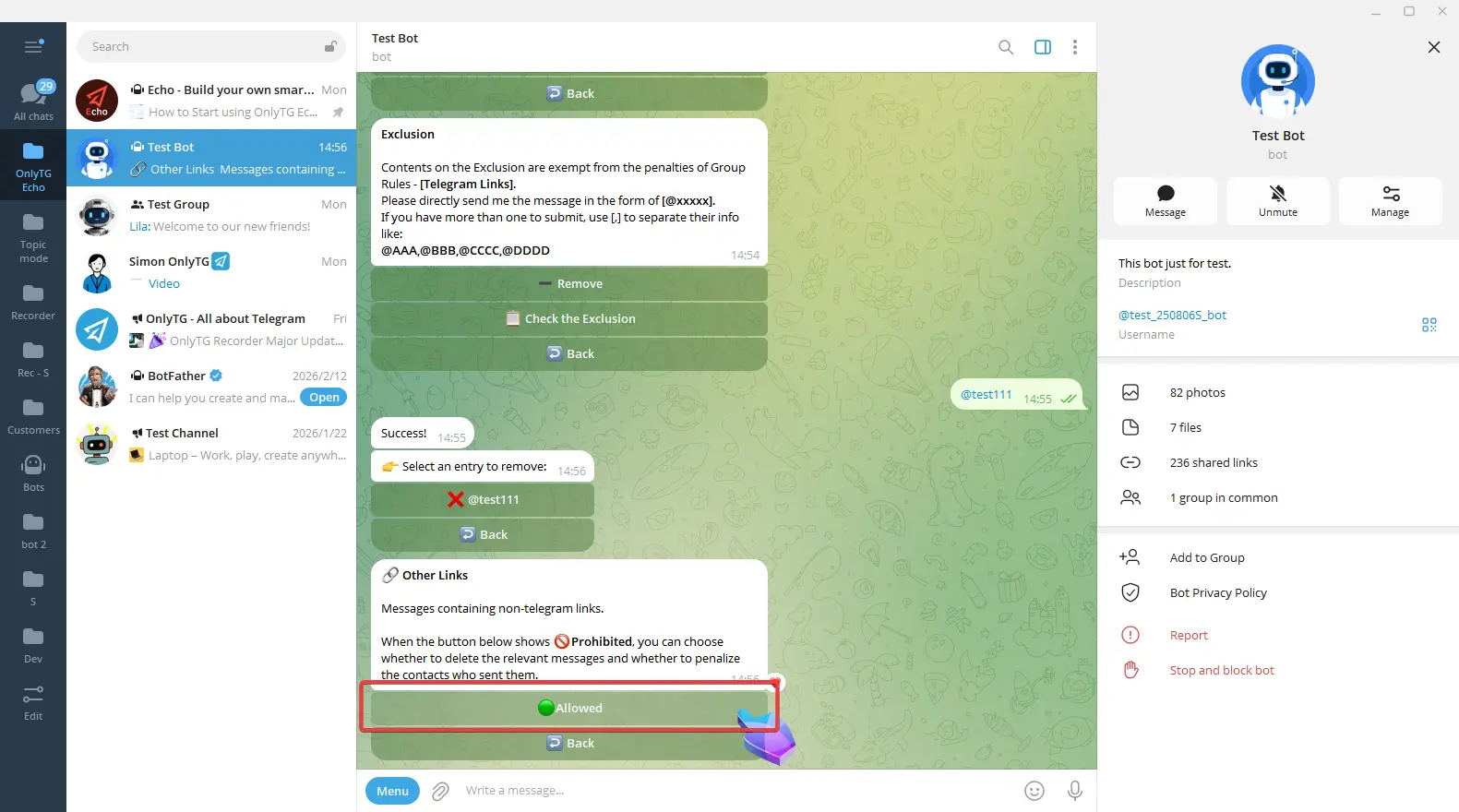
This rule will be triggered when members sends a message in the group containing non-telegram links.
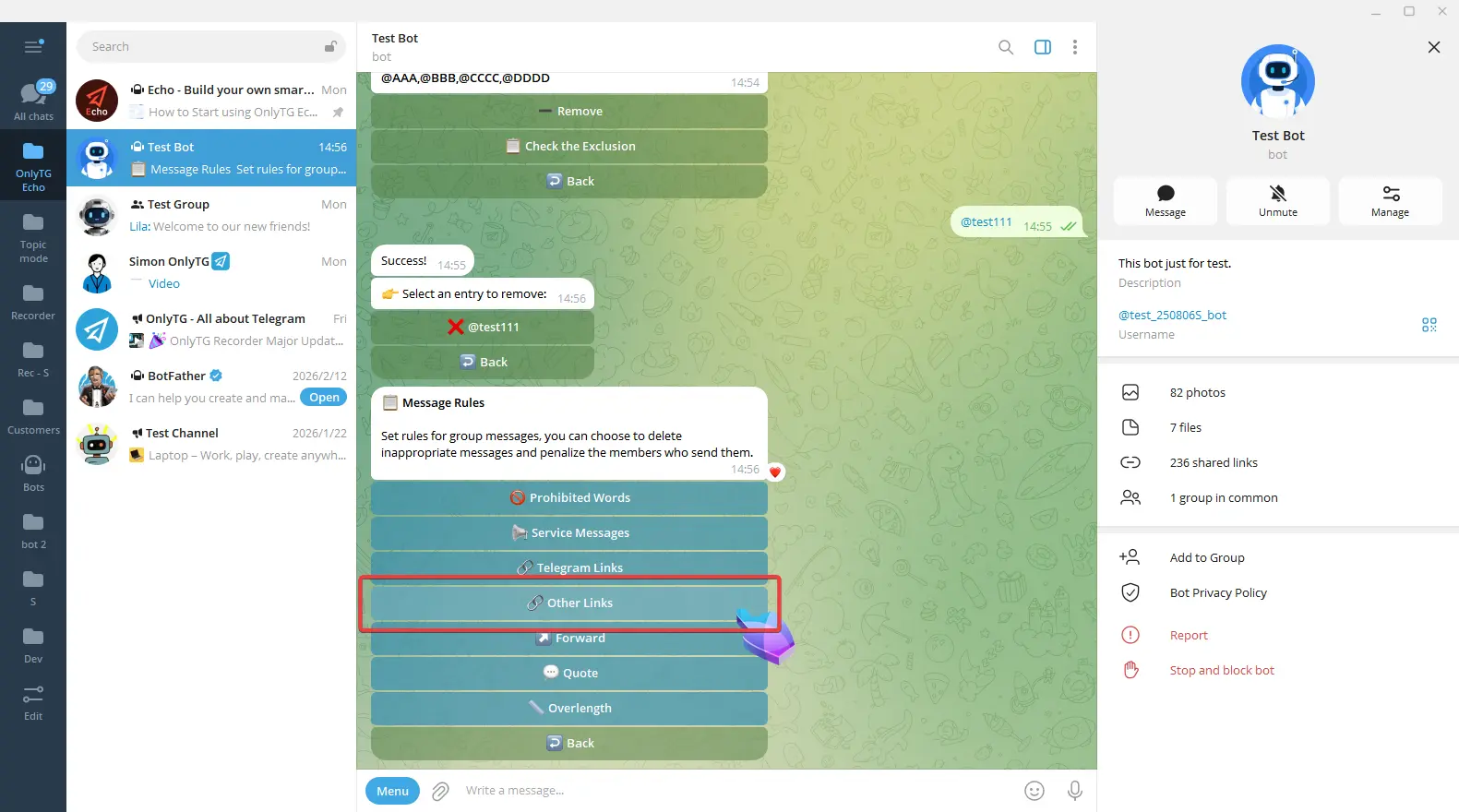
Click Allow to enable it. Click Prohibited again to disable it.
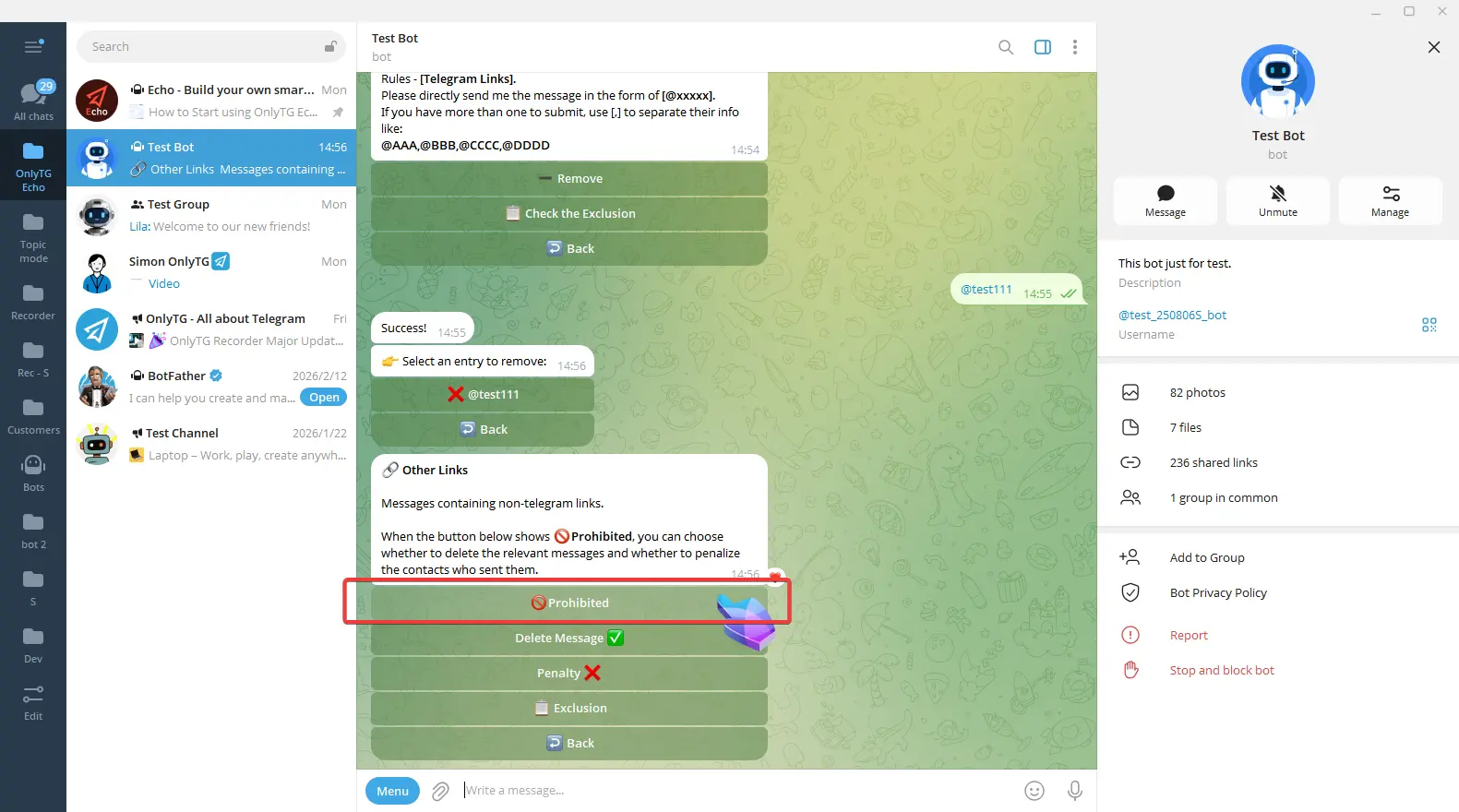
Delete Message: Automatically delete messages that violate the rules. Click to turn this function on or off.
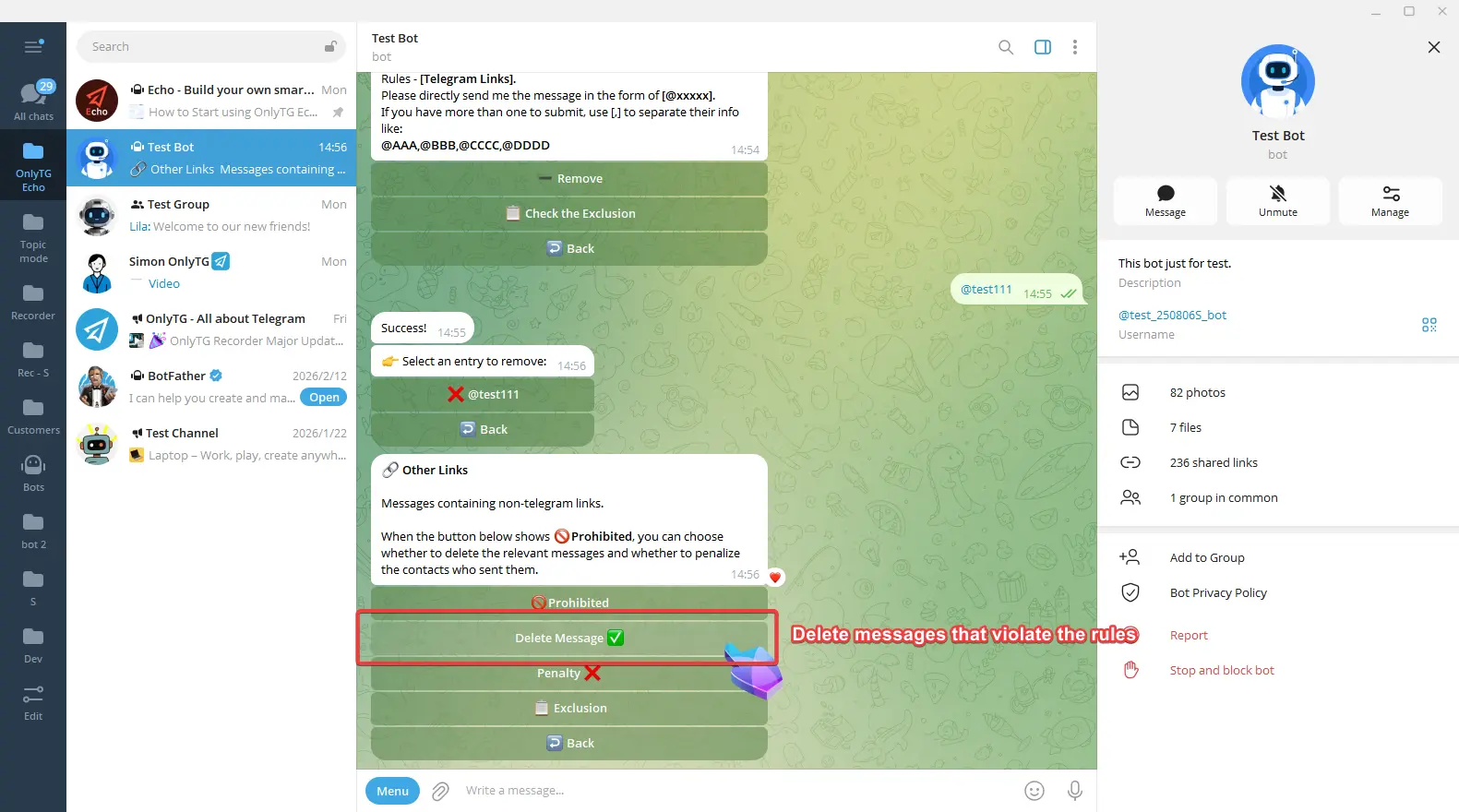
Penalty: Click to enable and select the penalty type.
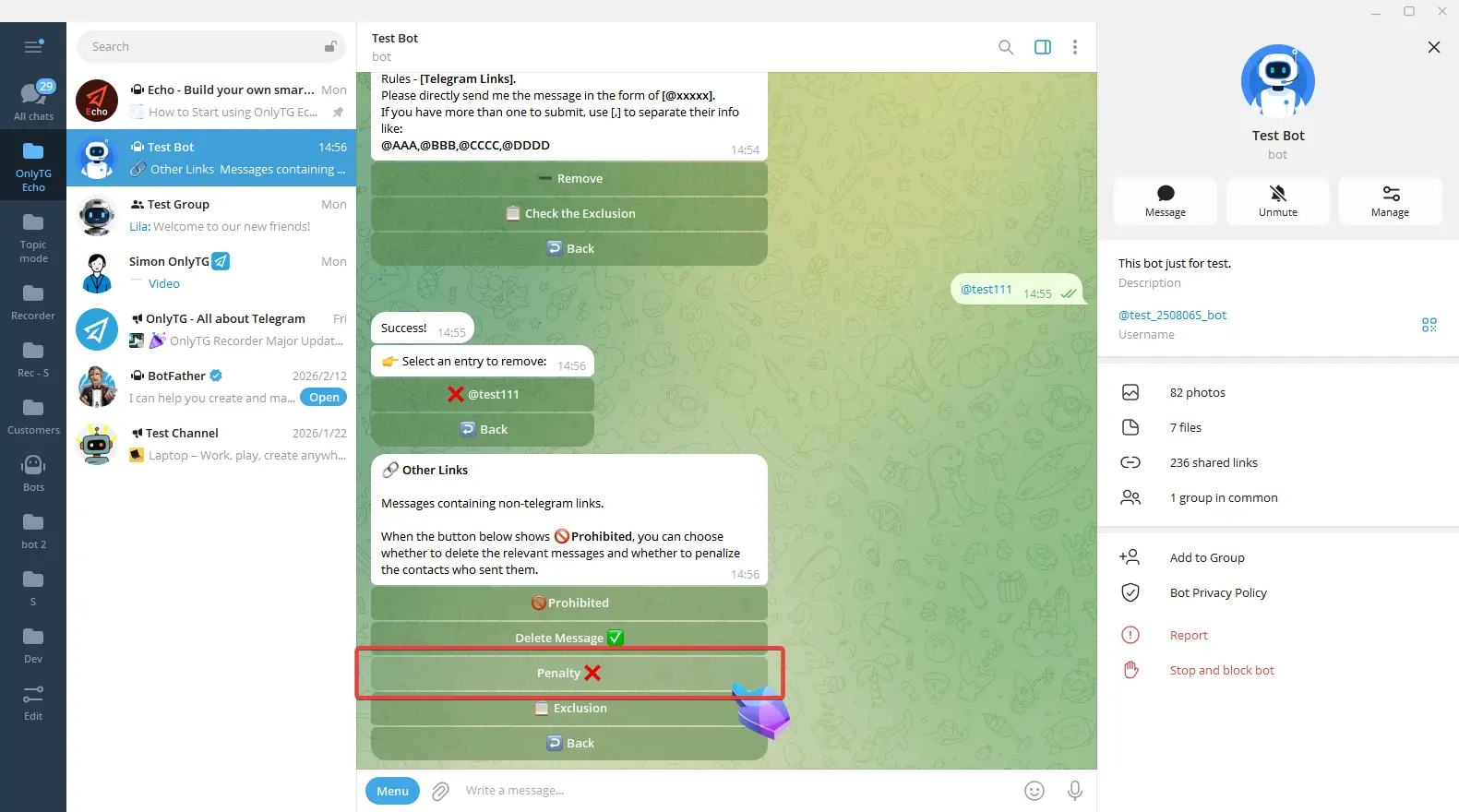
a. Warn: Warn members who violate the rules.
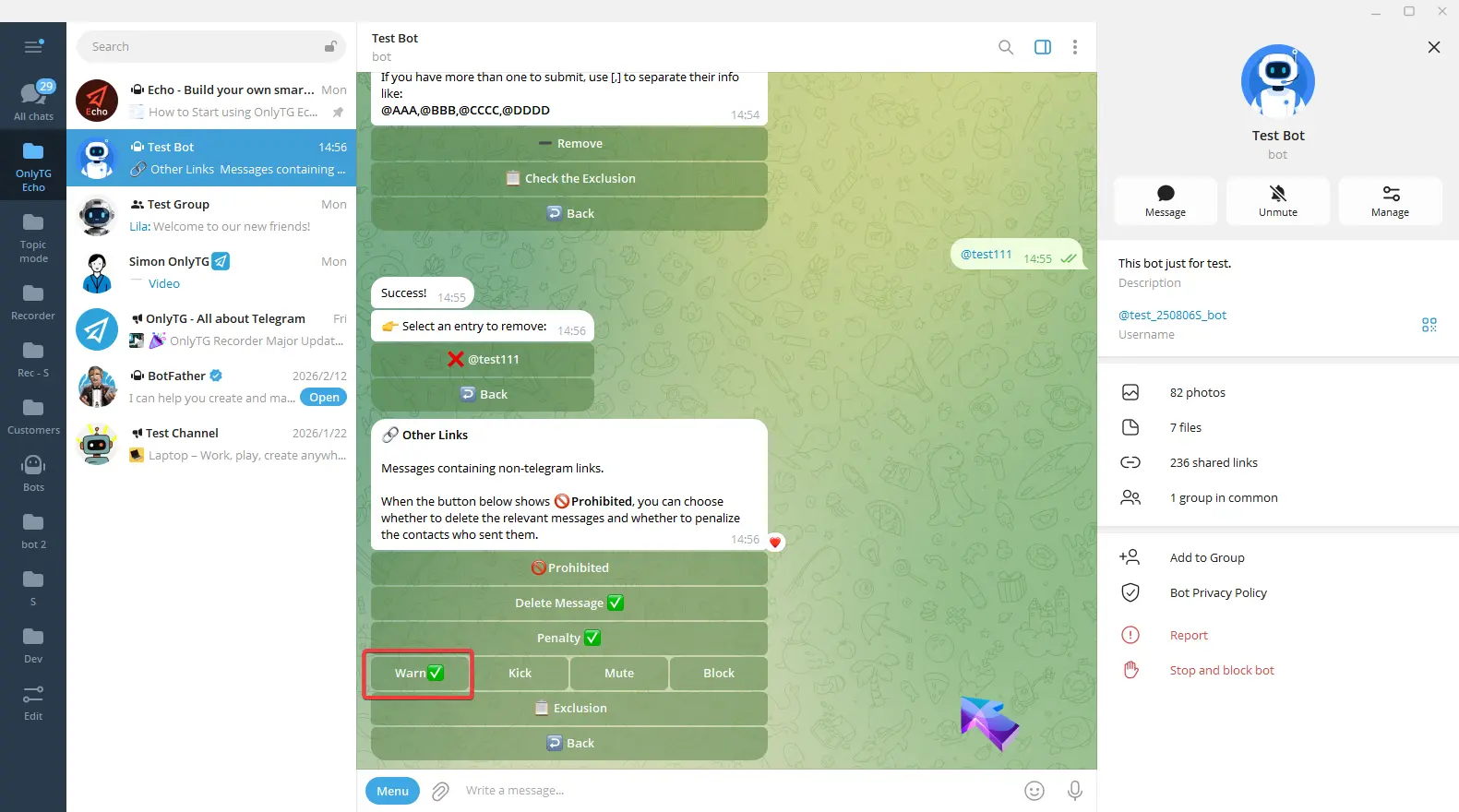
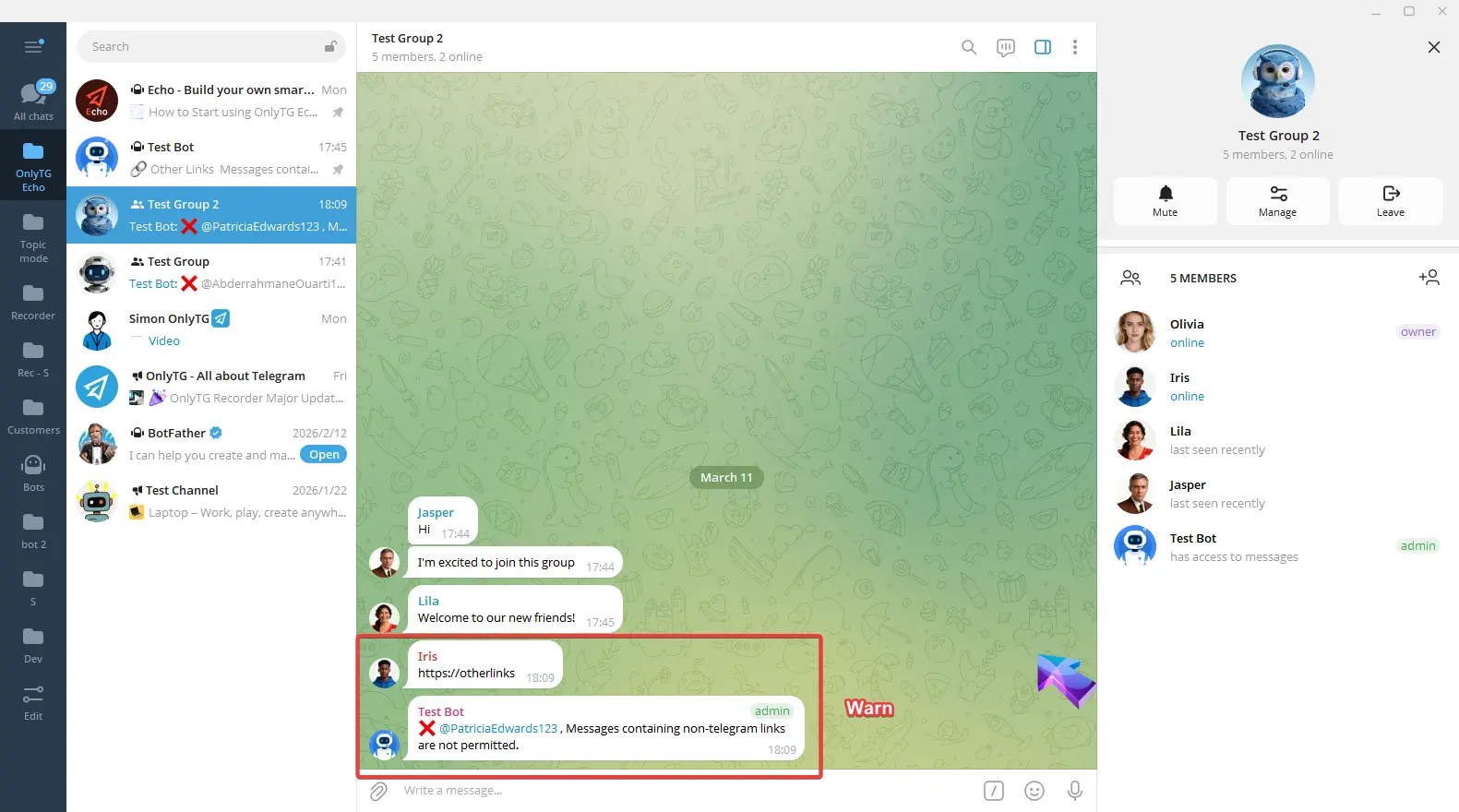
b. Kick: Kick members who violate the rules from the group. Supports the Penalty on 2nd Offense option.
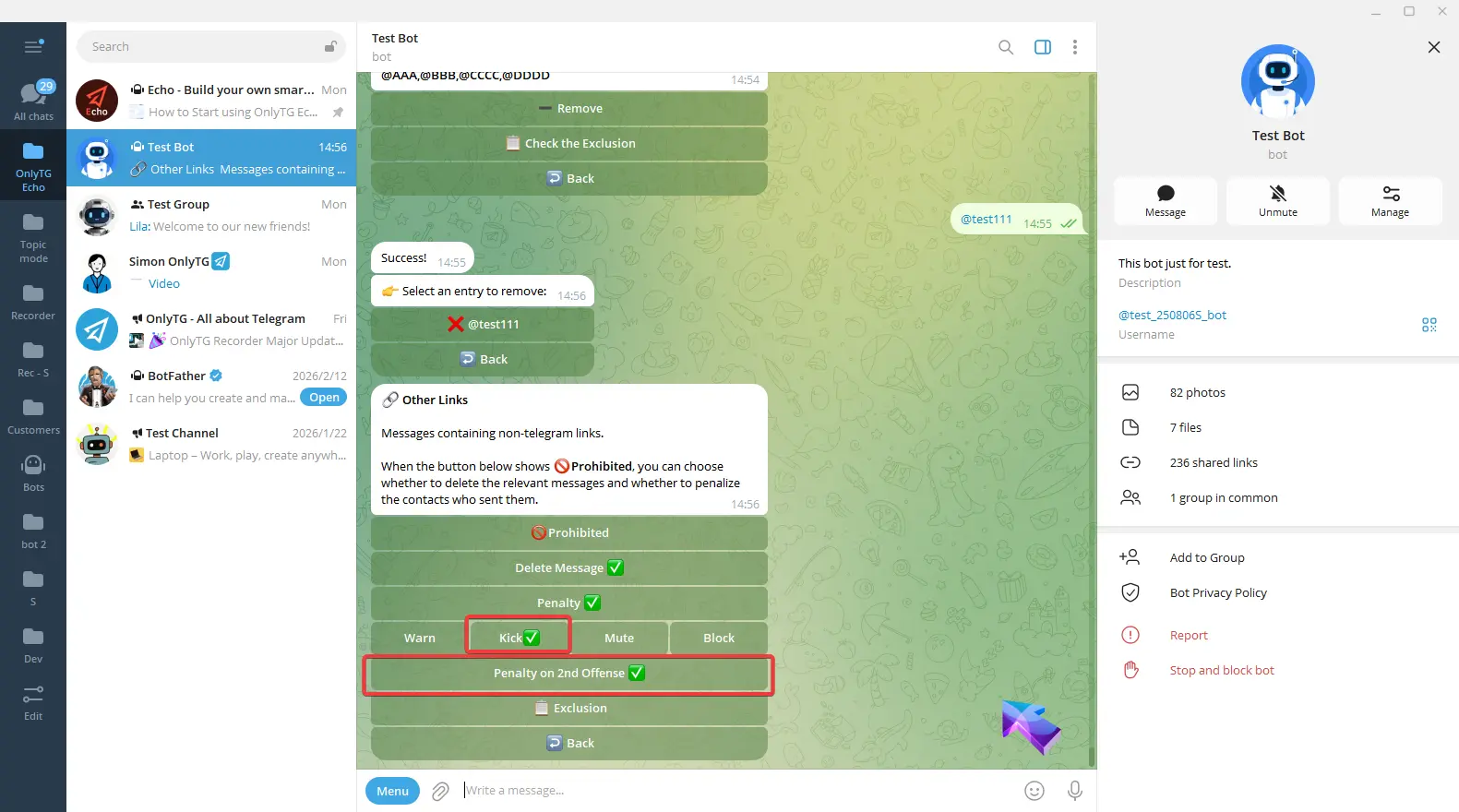
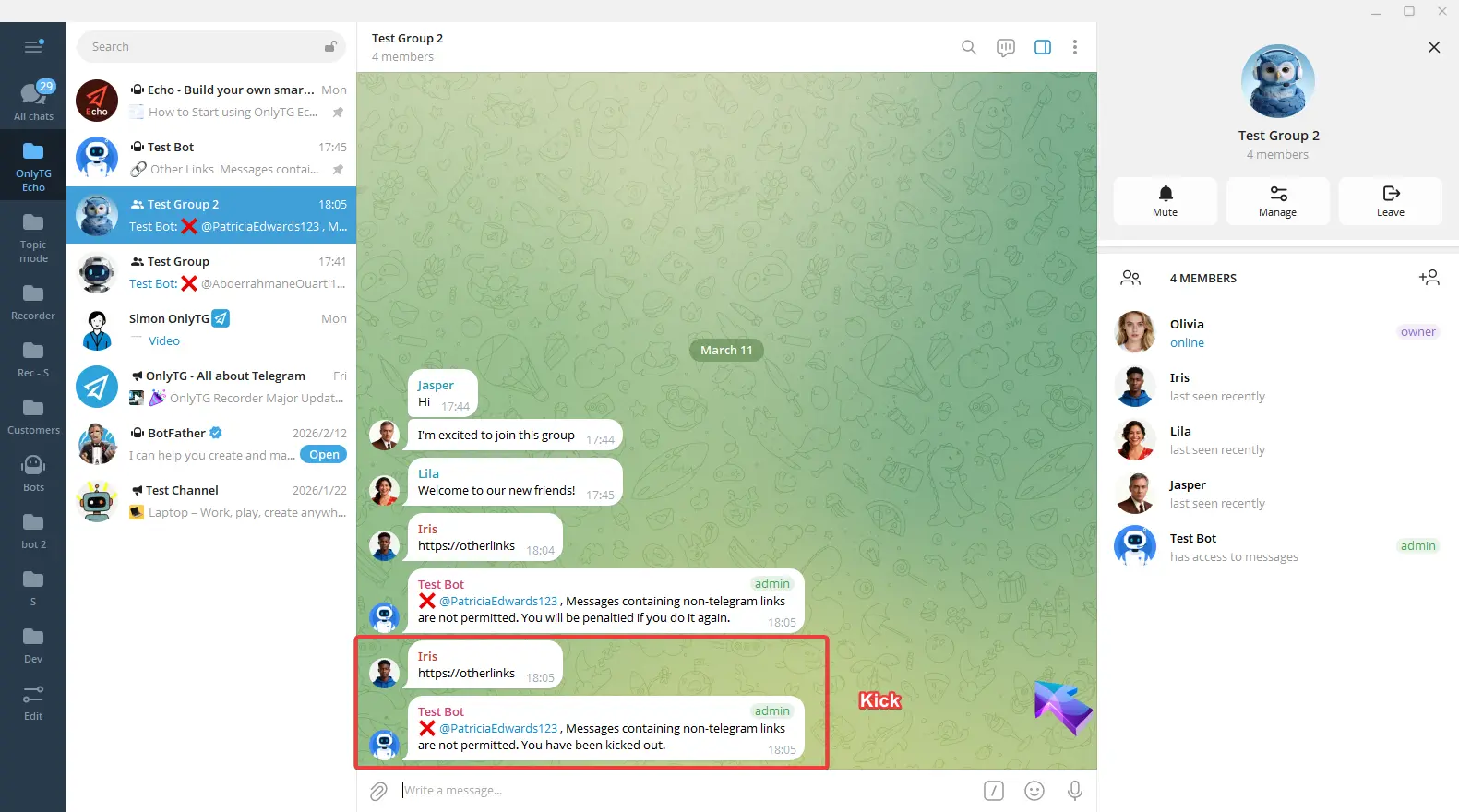
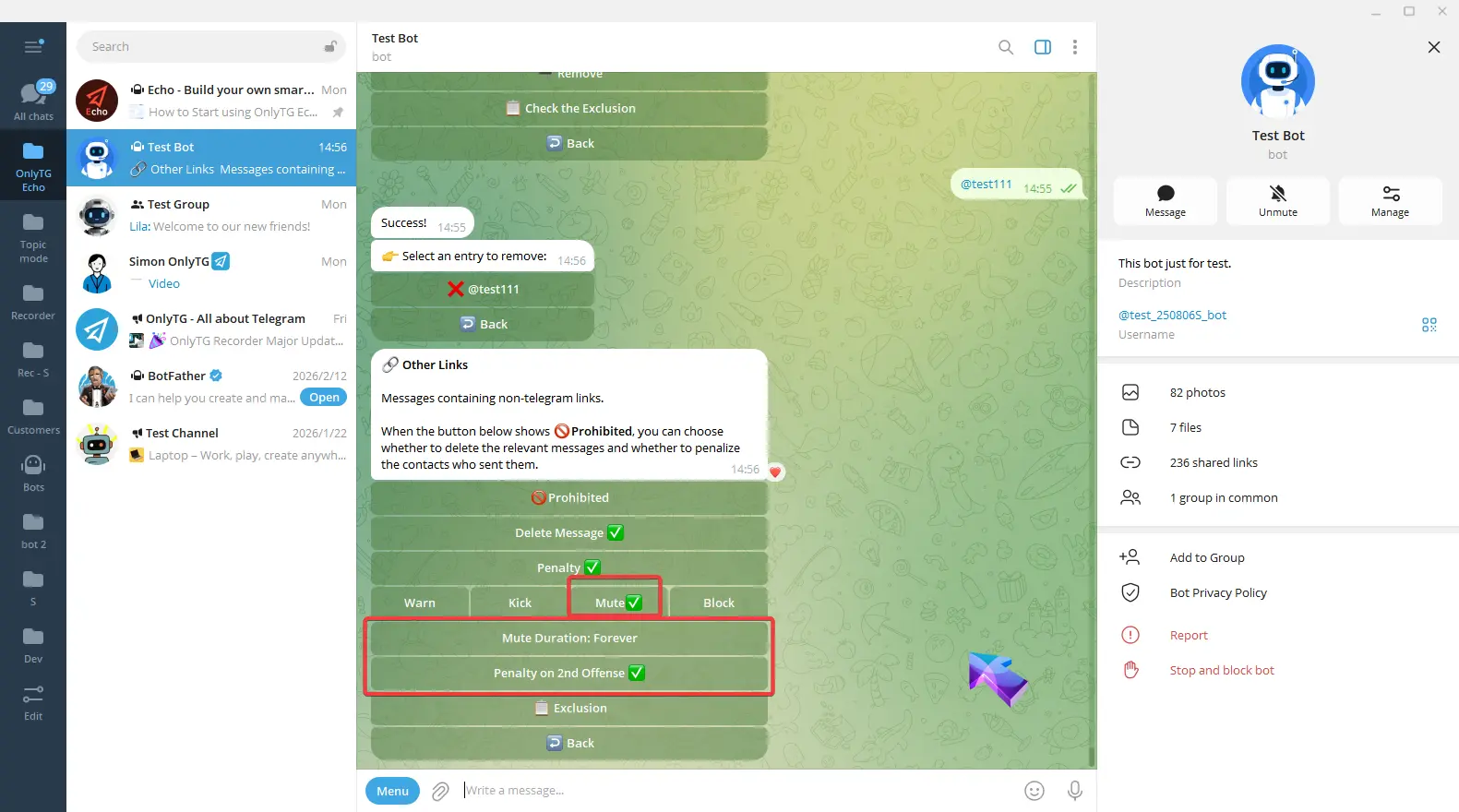
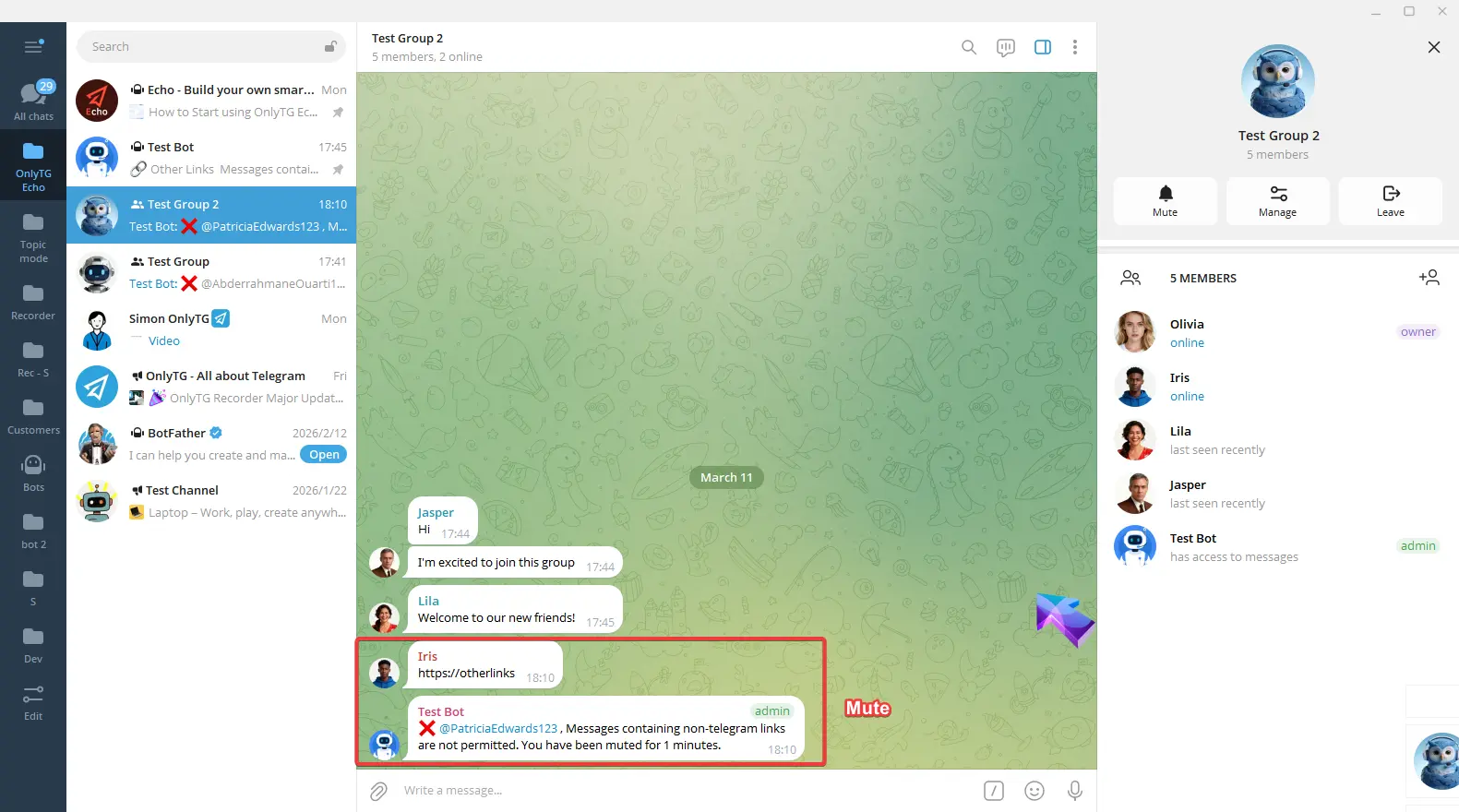
c. Mute: Mute members who violate the rules. Supports the Penalty on 2nd Offense option.
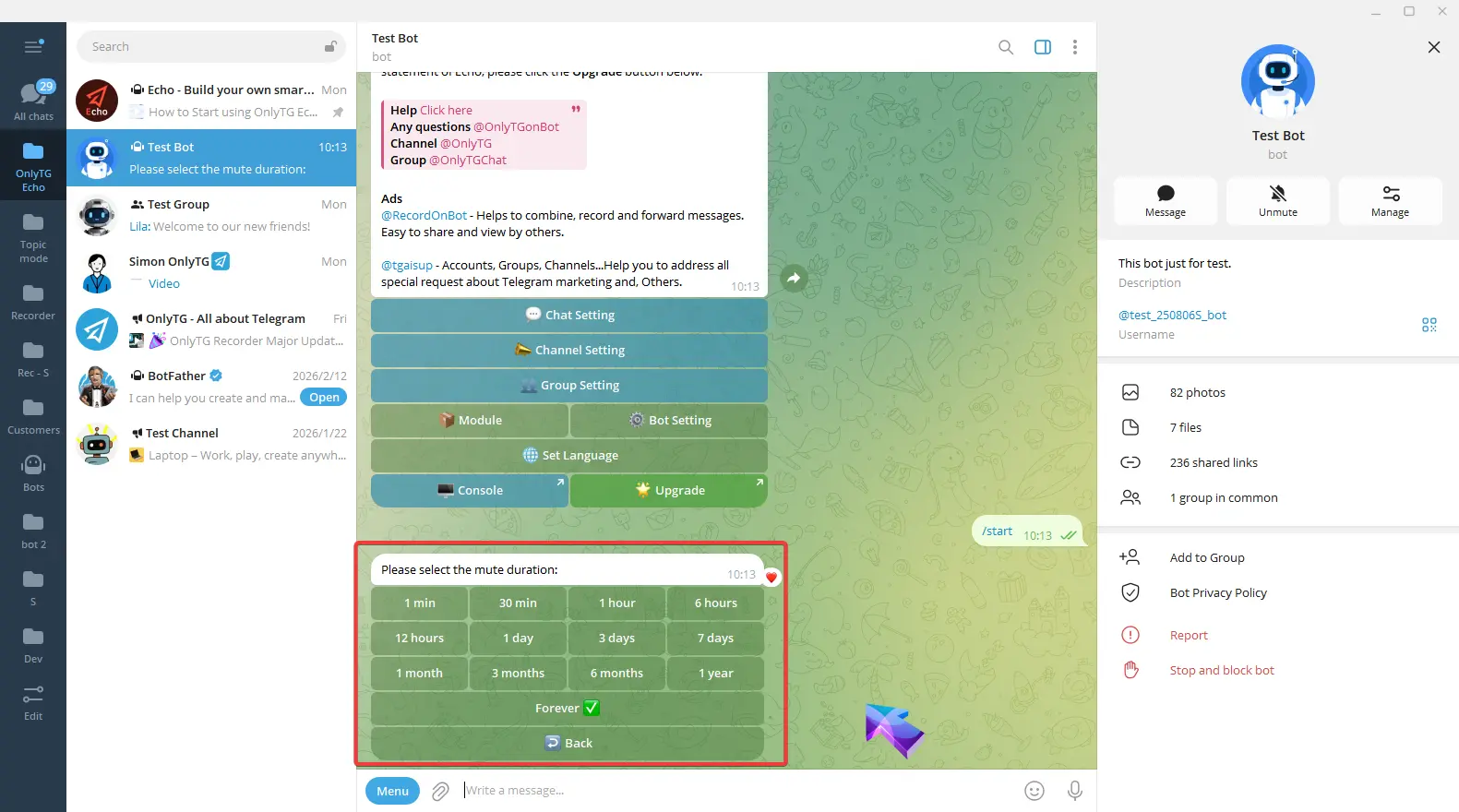
Click Mute Duration to select the mute period.
d. Block: Ban members who violate the rules, which means removing them from the group and preventing them from rejoining. Supports the Penalty on 2nd Offense option.
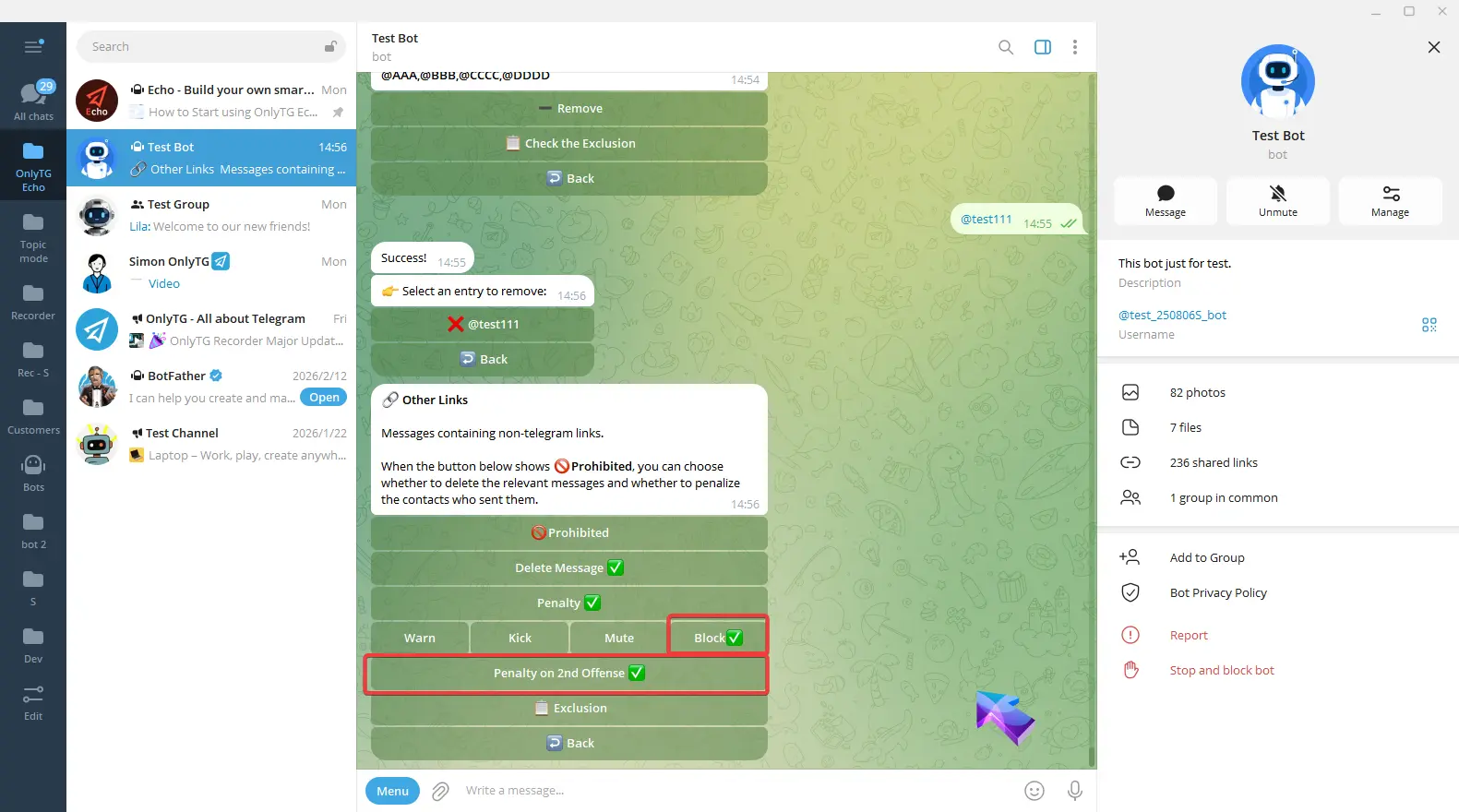
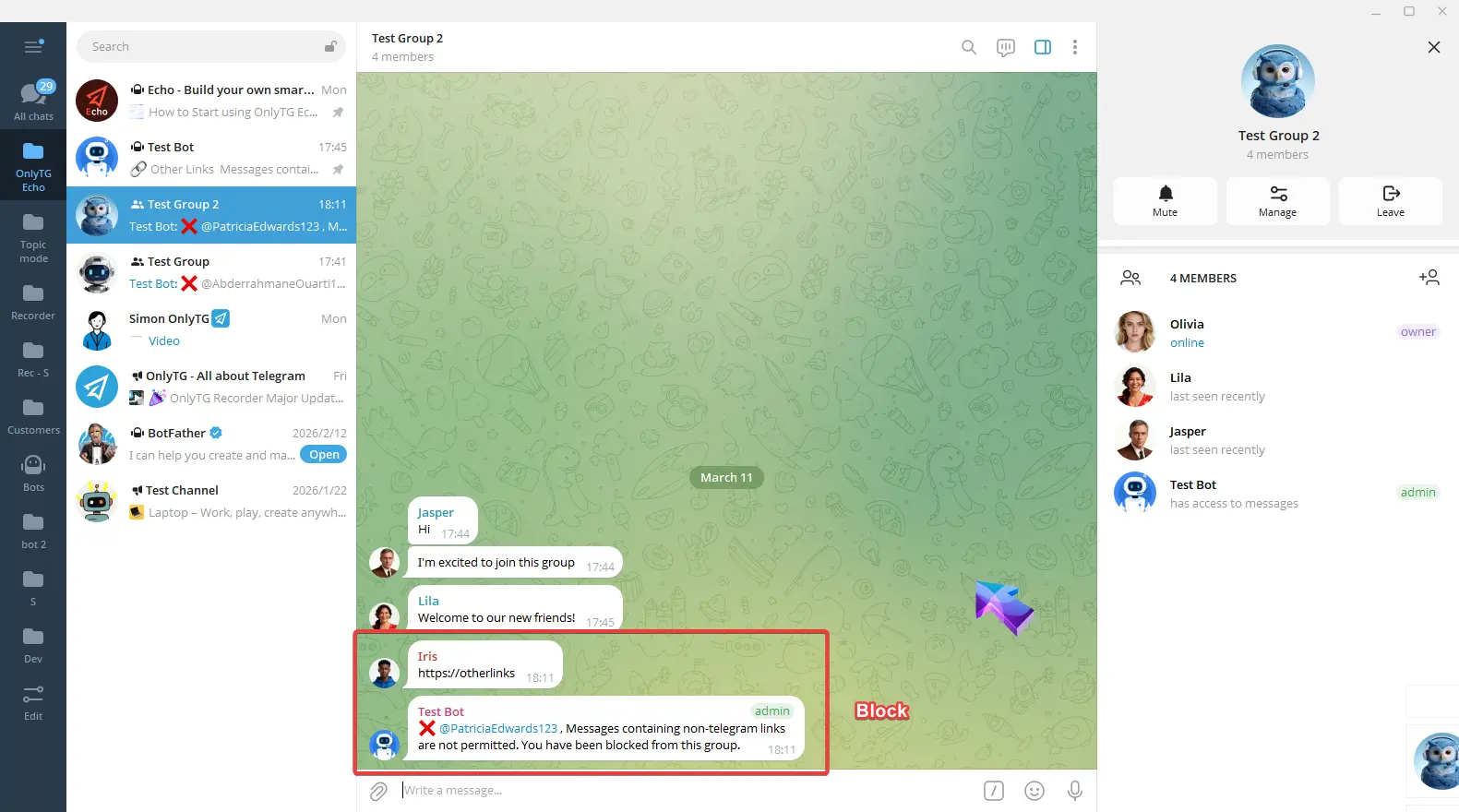
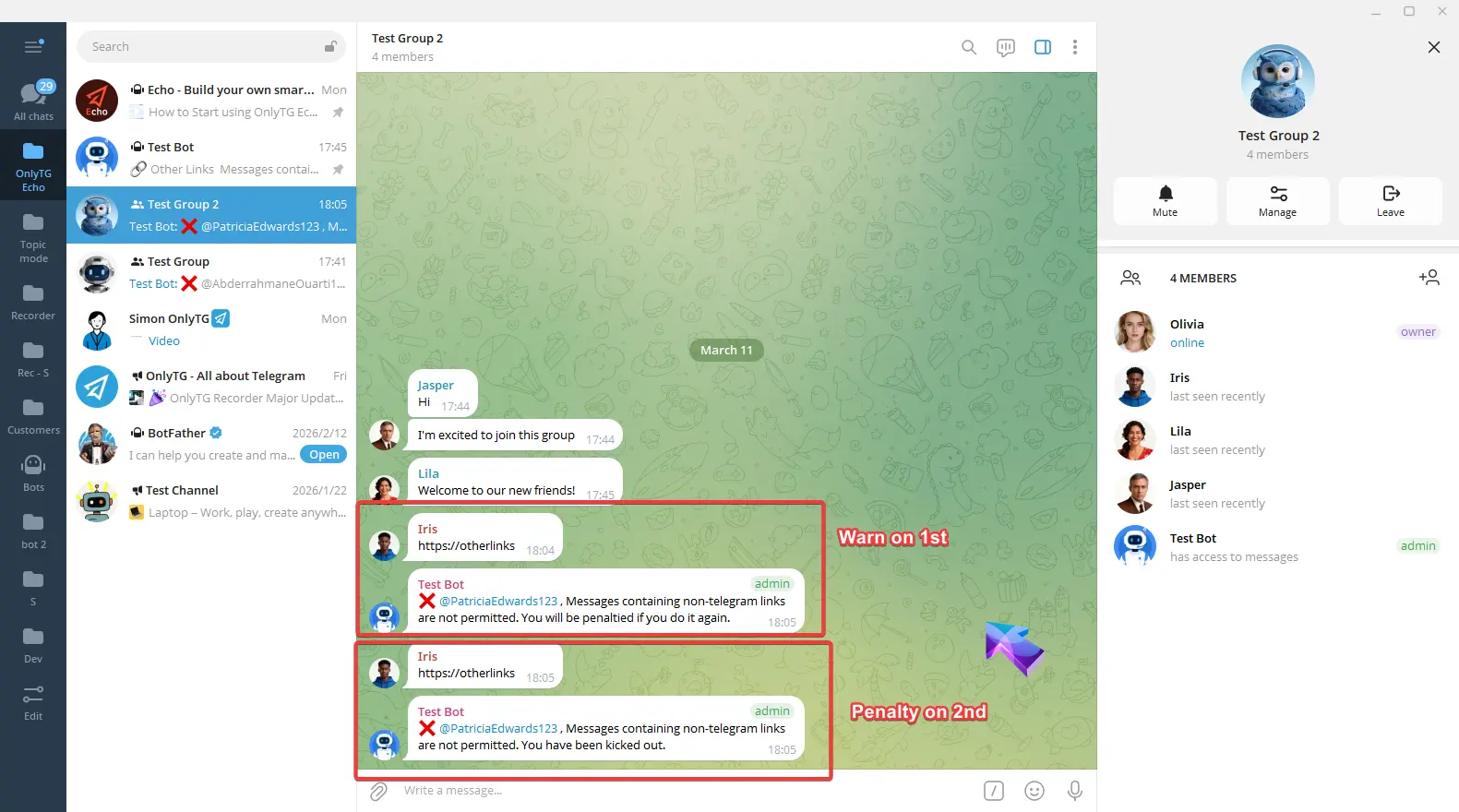
e. Penalty on 2nd: Warning for the first offense, Penalty on the second offense.
When you select Kick, Mute, or Block penalties, you can enable these options.
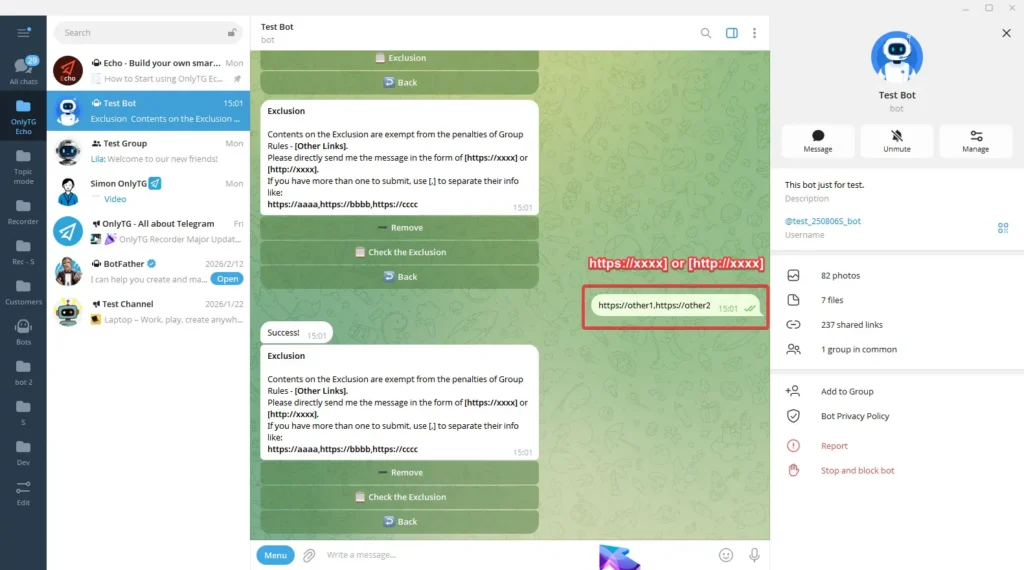
Exclusion: You can add excluded content. Excluded content will not be restricted by this rule.
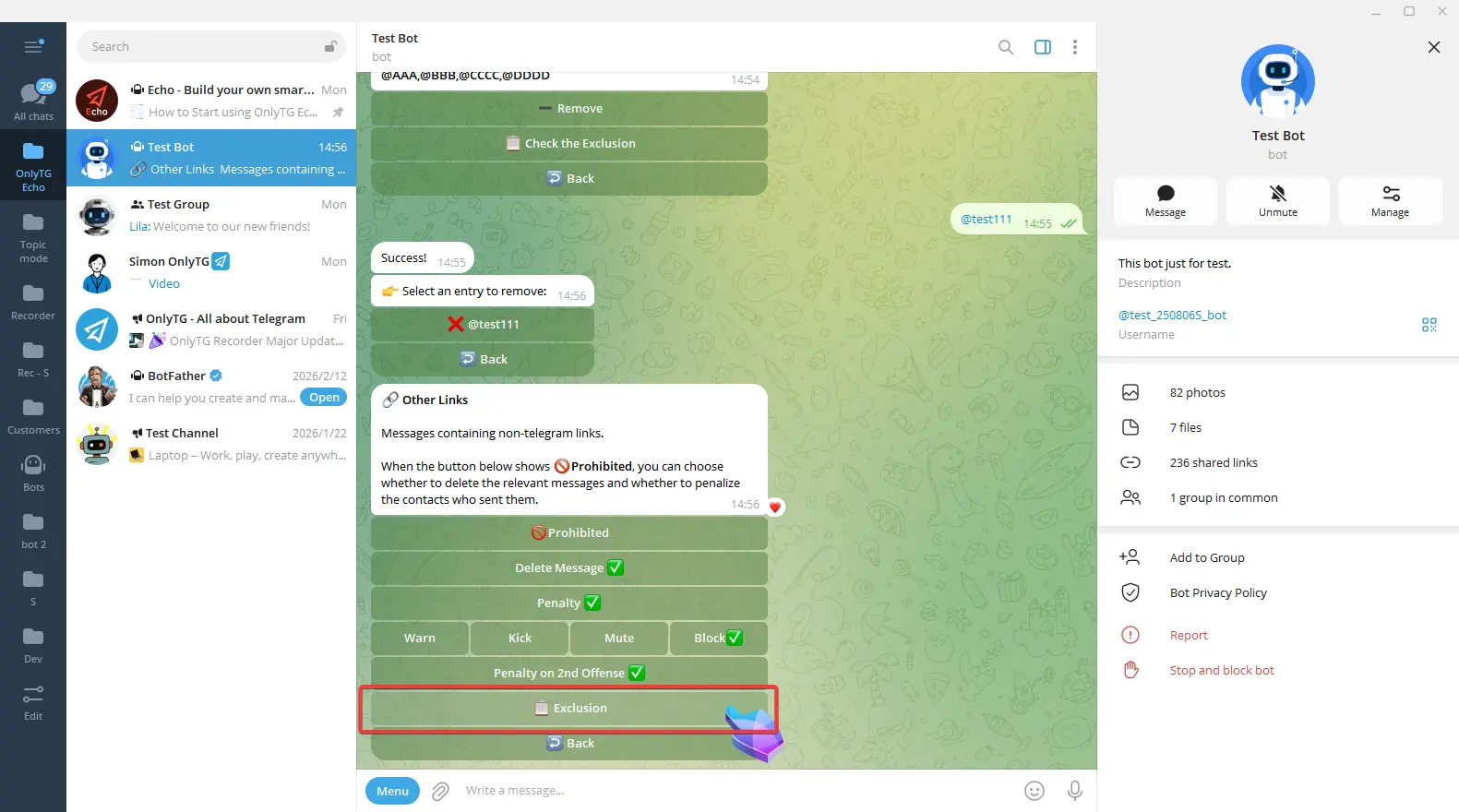
Send in the format [https://xxxx] or [http://xxxx] to add excluded content.
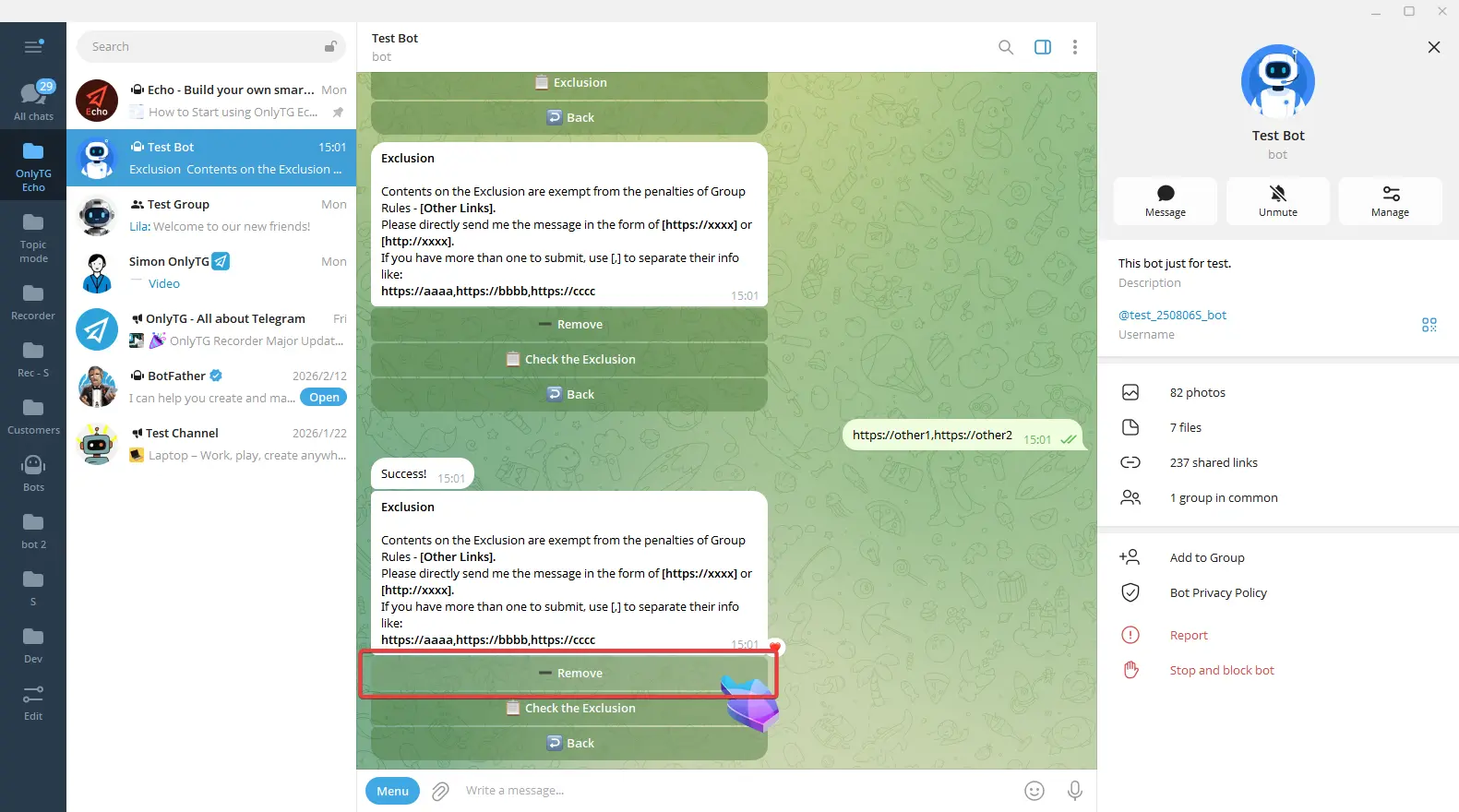
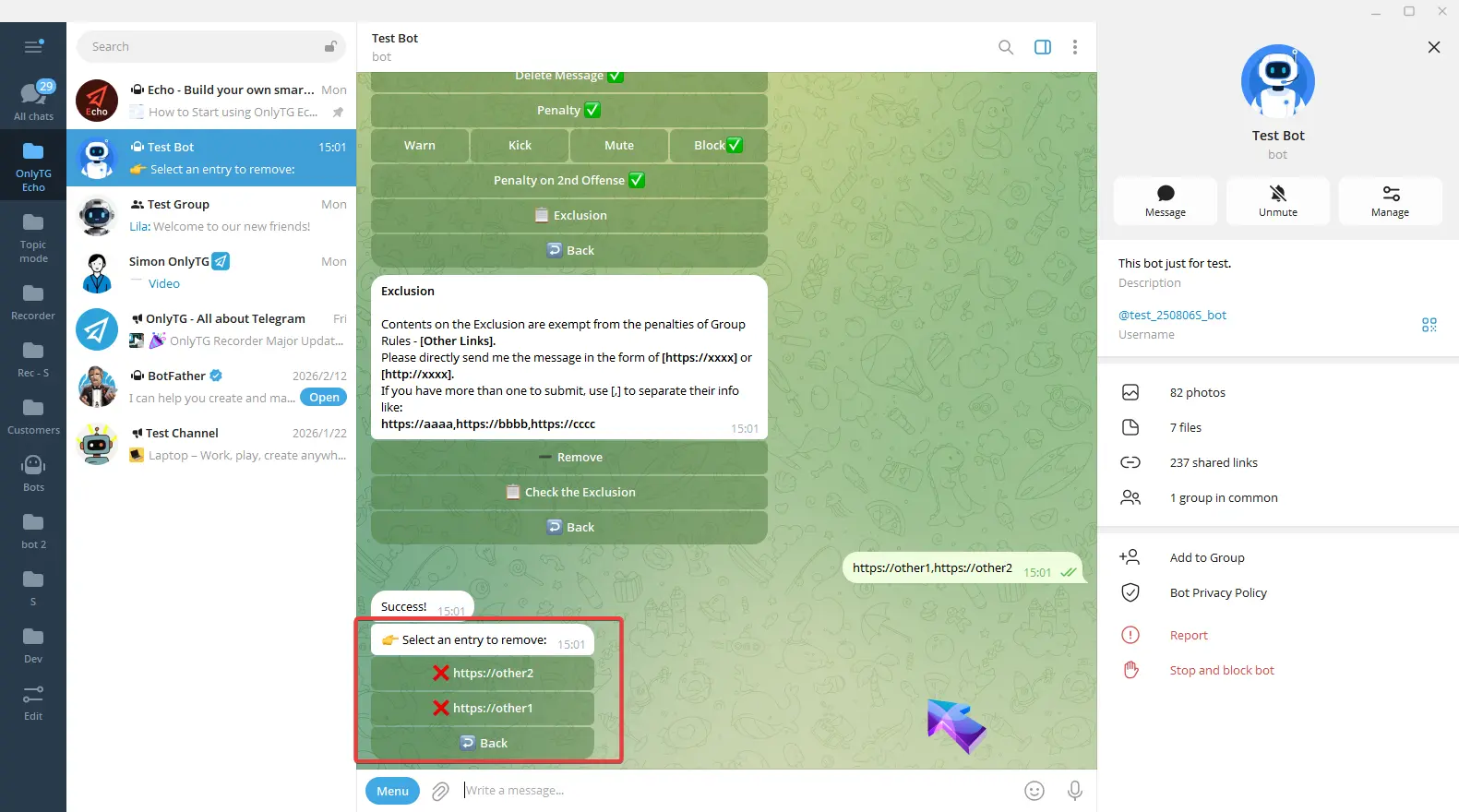
Click Remove to delete the added excluded content.
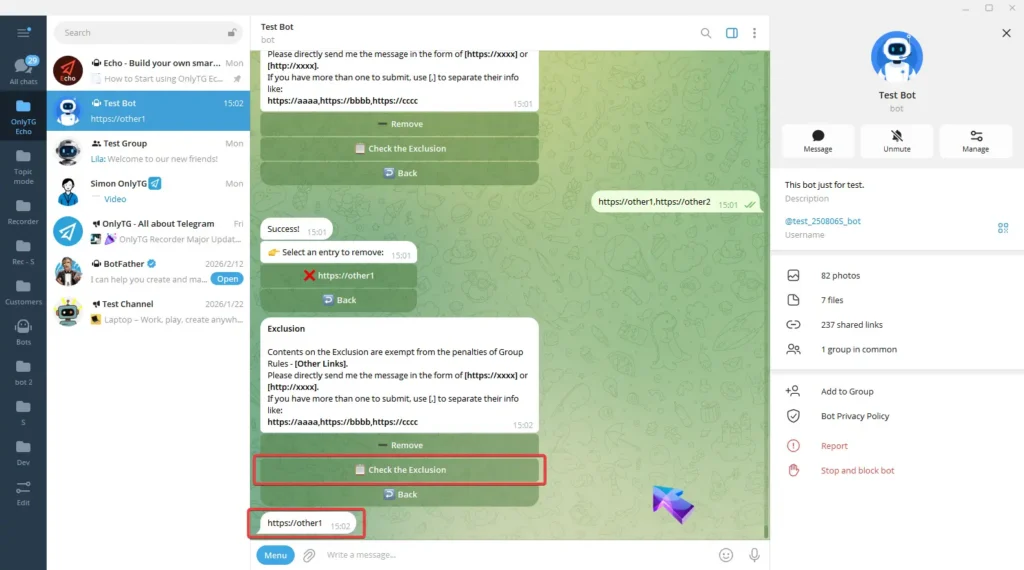
Click Check the Exclusion to view the added excluded content.
5. Forward Messages
This rule will be triggered when members forwards messages from elsewhere to the group.
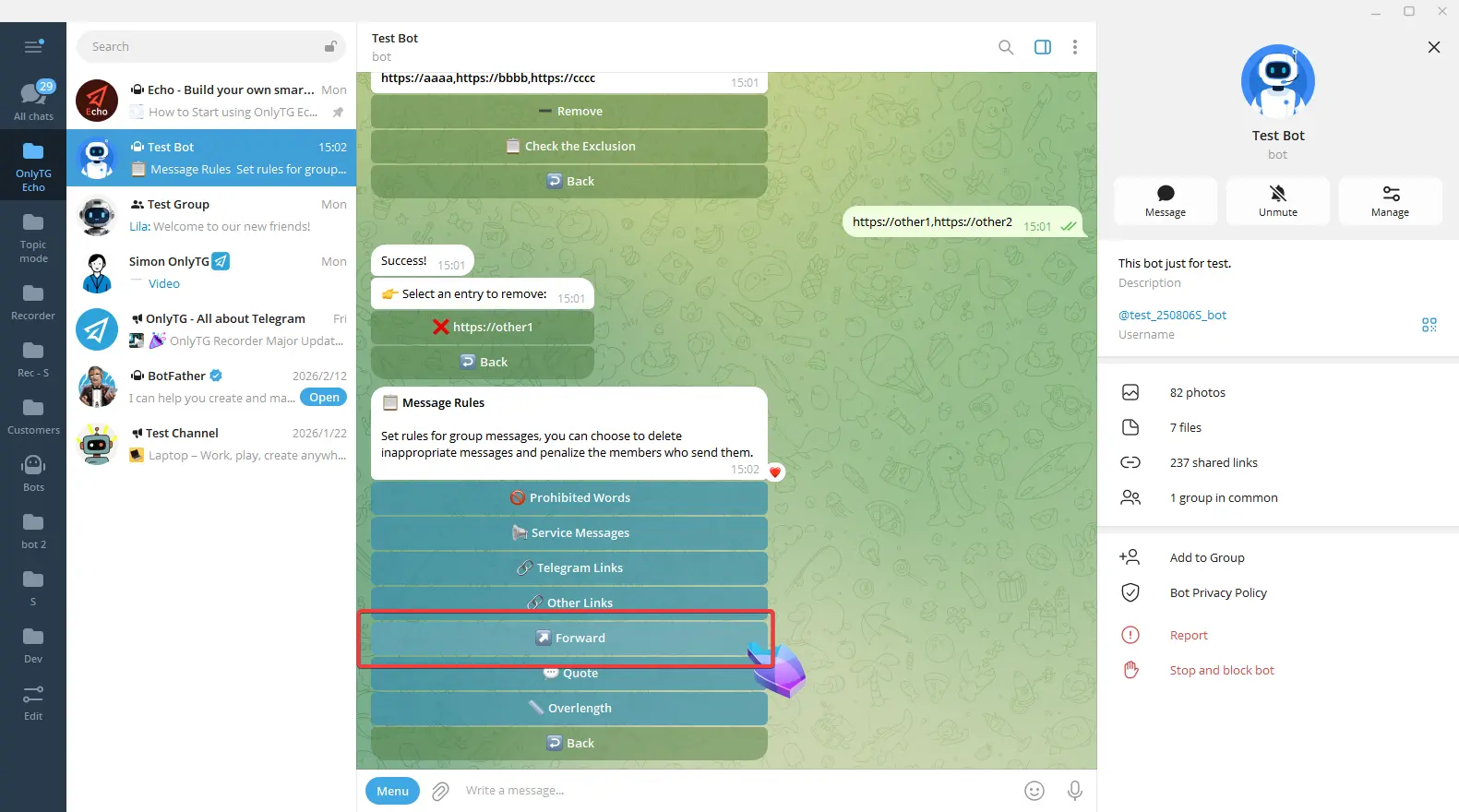
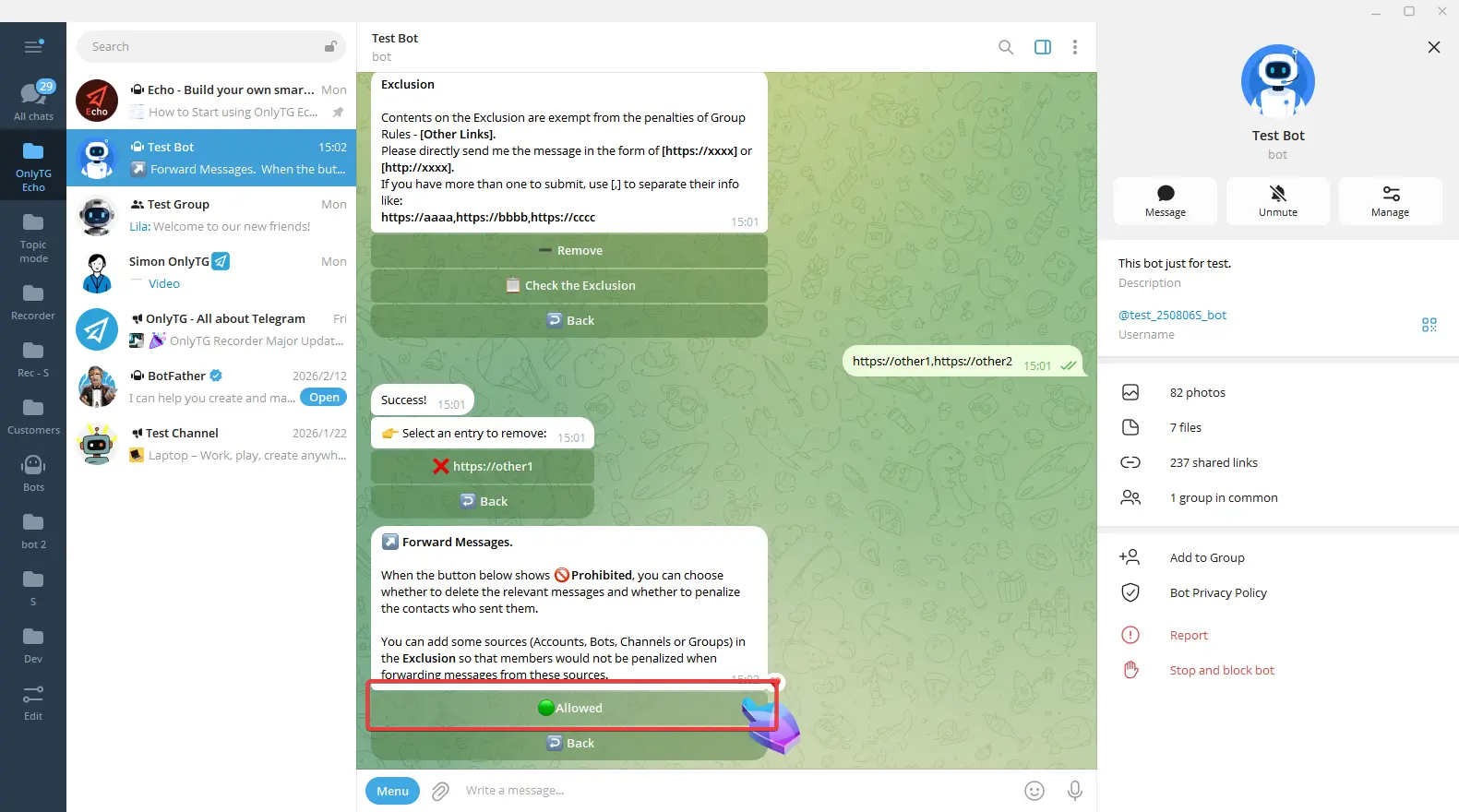
Click Allow to enable it. Click Prohibited again to disable it.
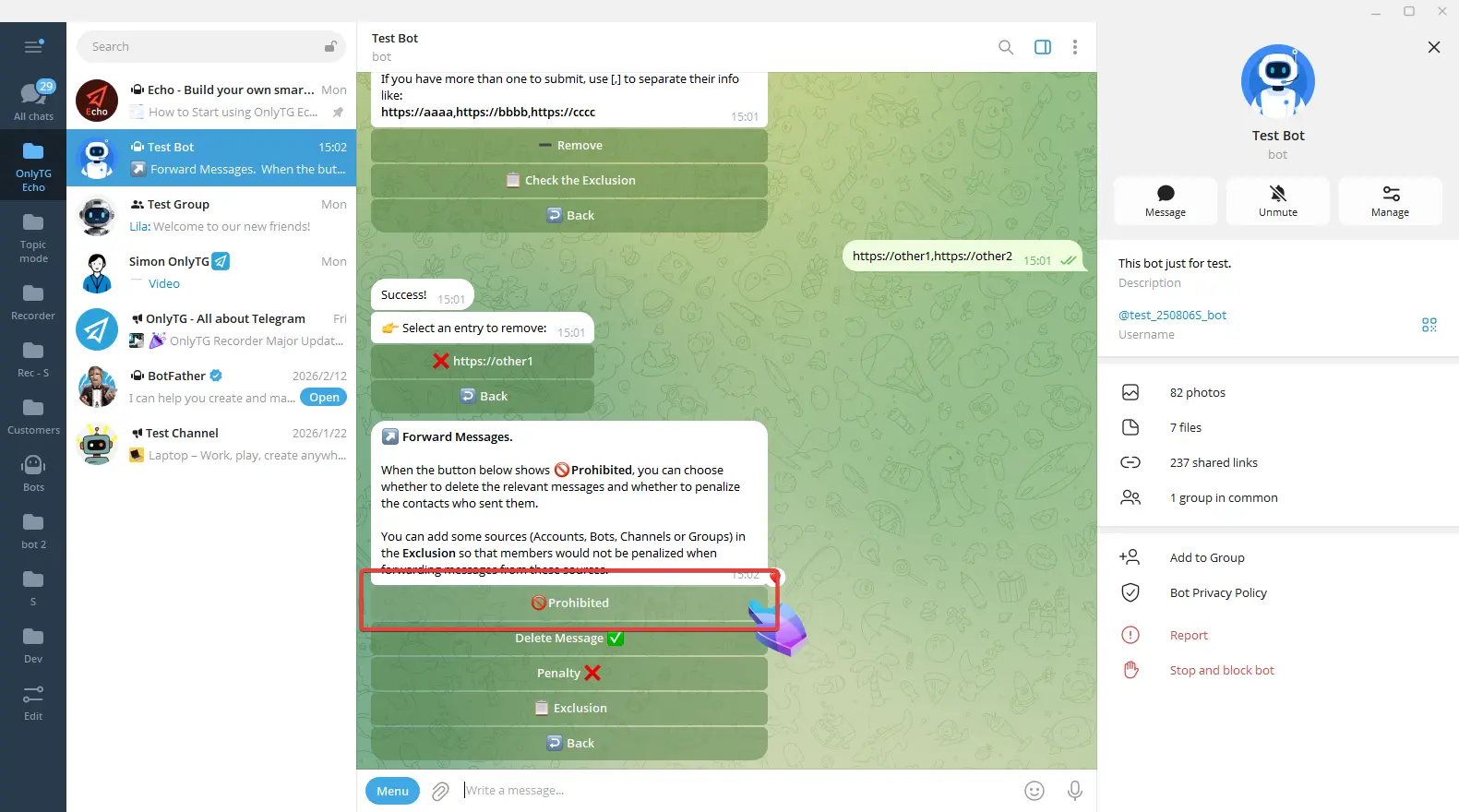
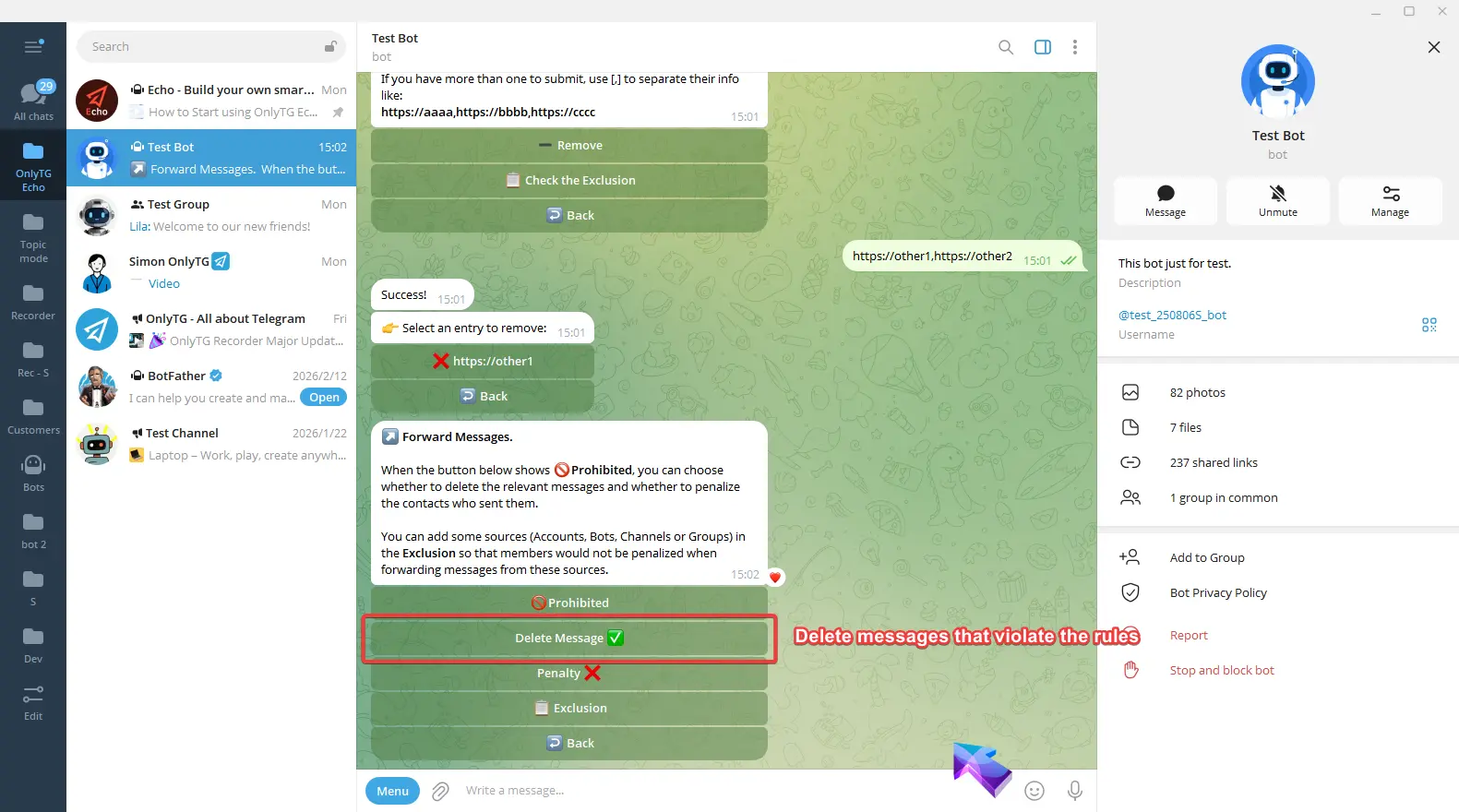
Delete Message: Automatically delete messages that violate the rules. Click to turn this function on or off.
Penalty: Click to enable and select the penalty type.
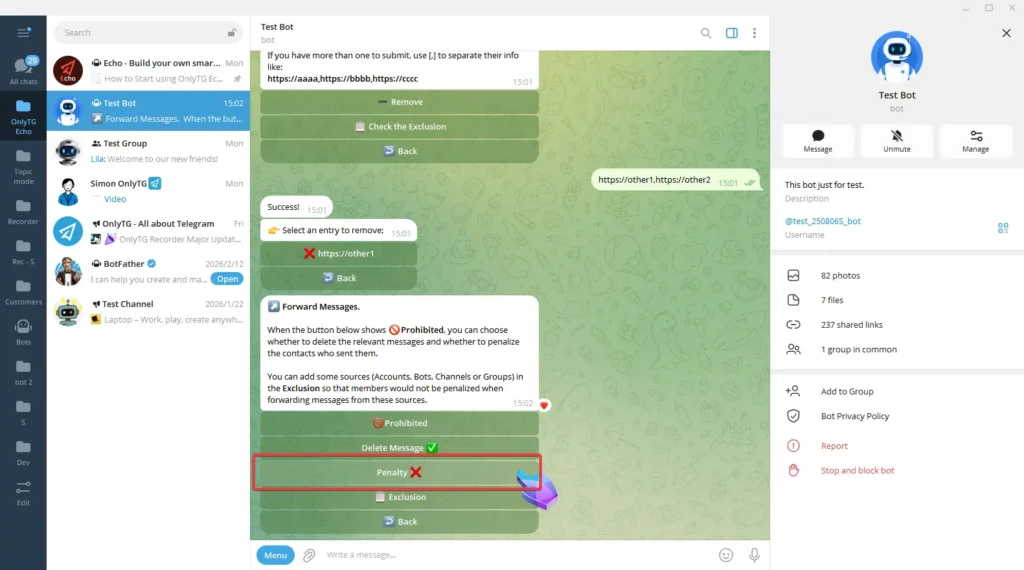
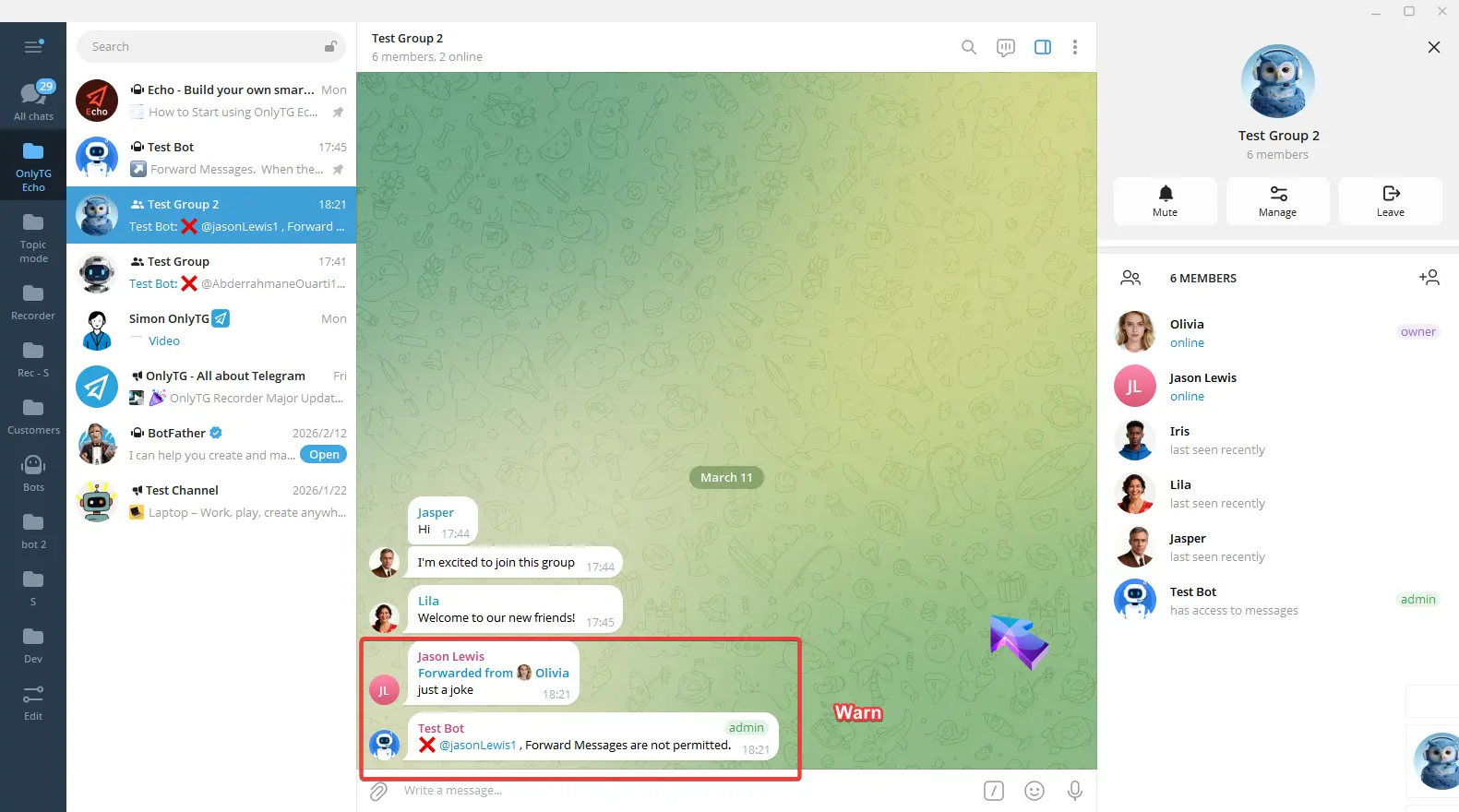
a. Warn: Warn members who violate the rules.
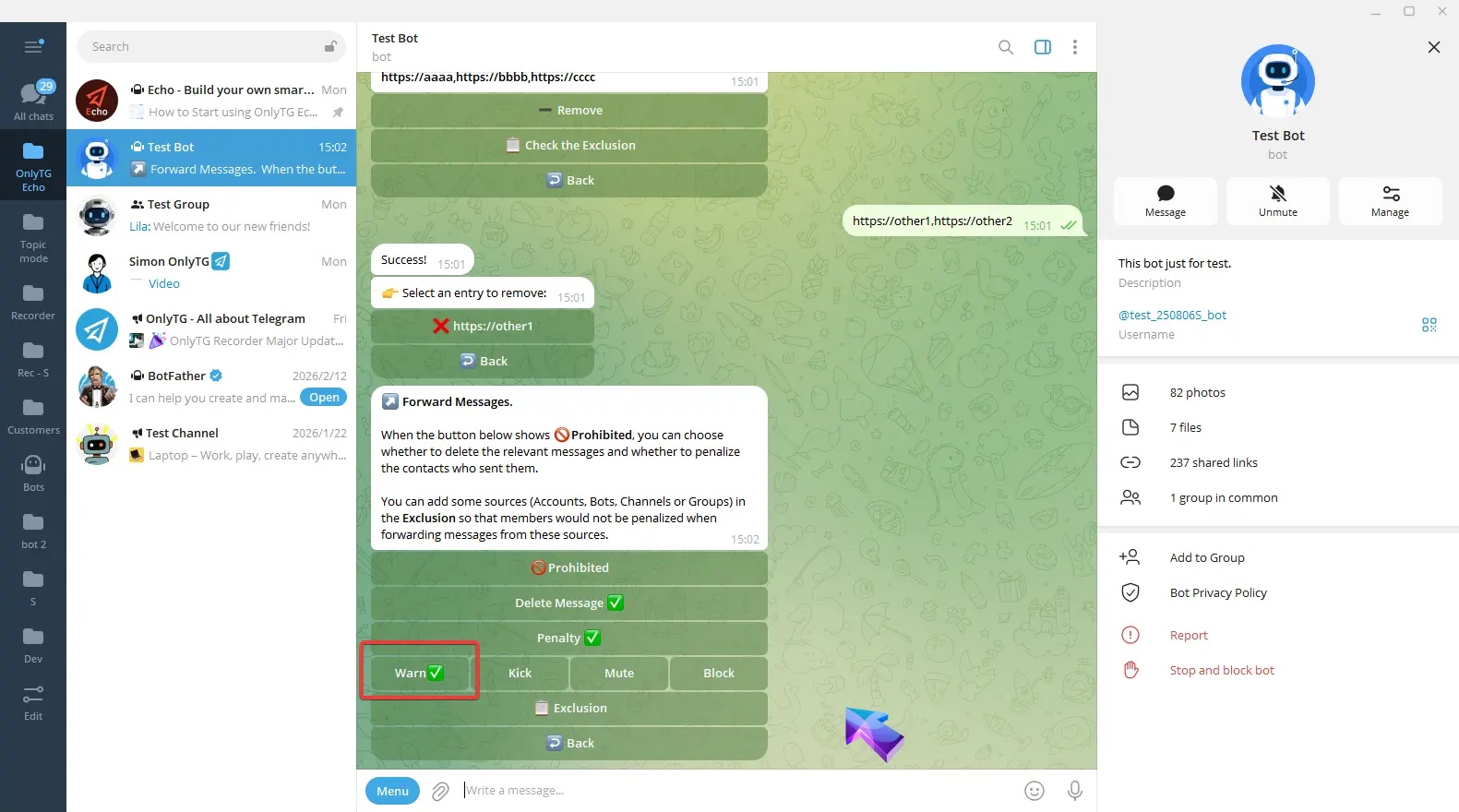
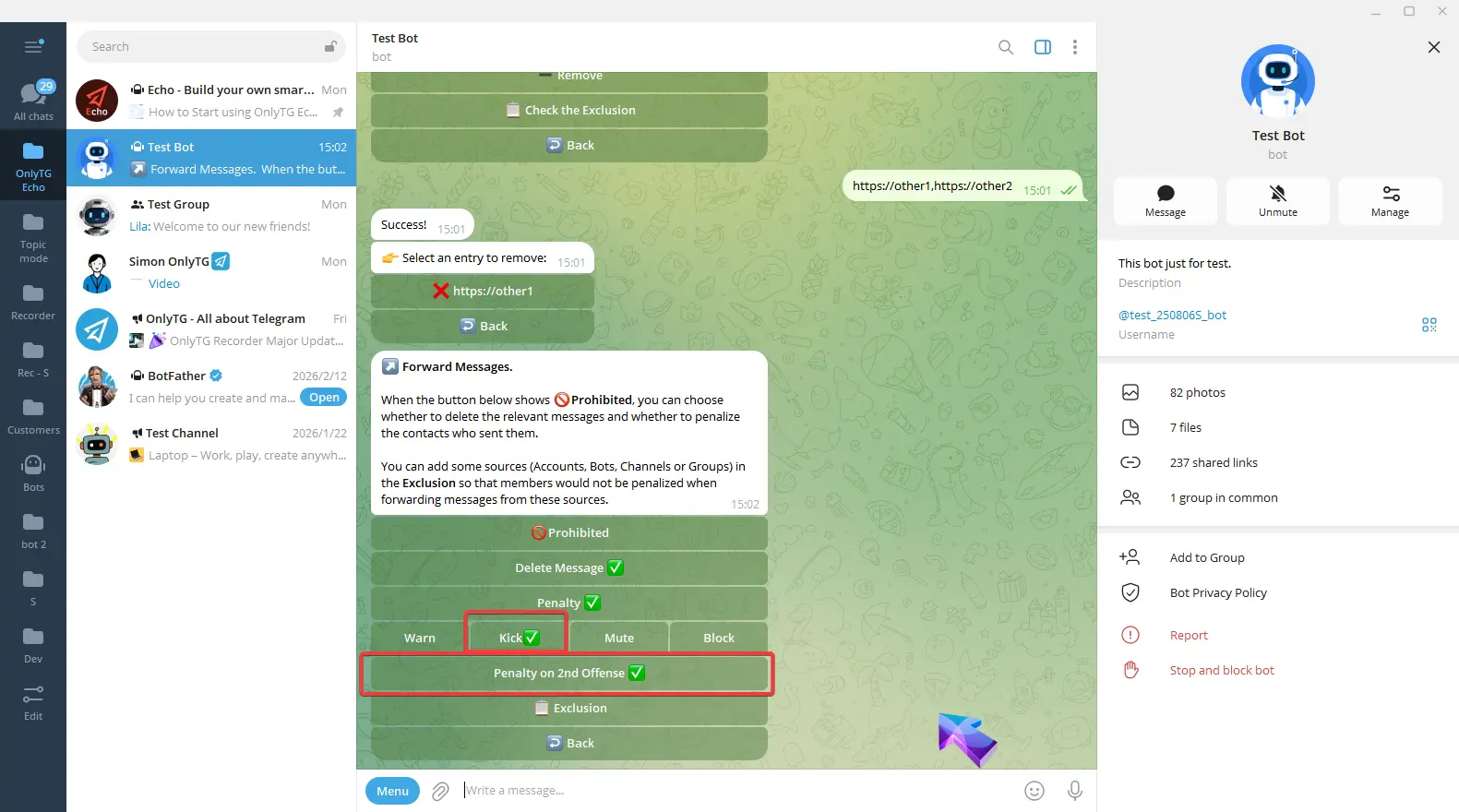
b. Kick: Kick members who violate the rules from the group. Supports the Penalty on 2nd Offense option.
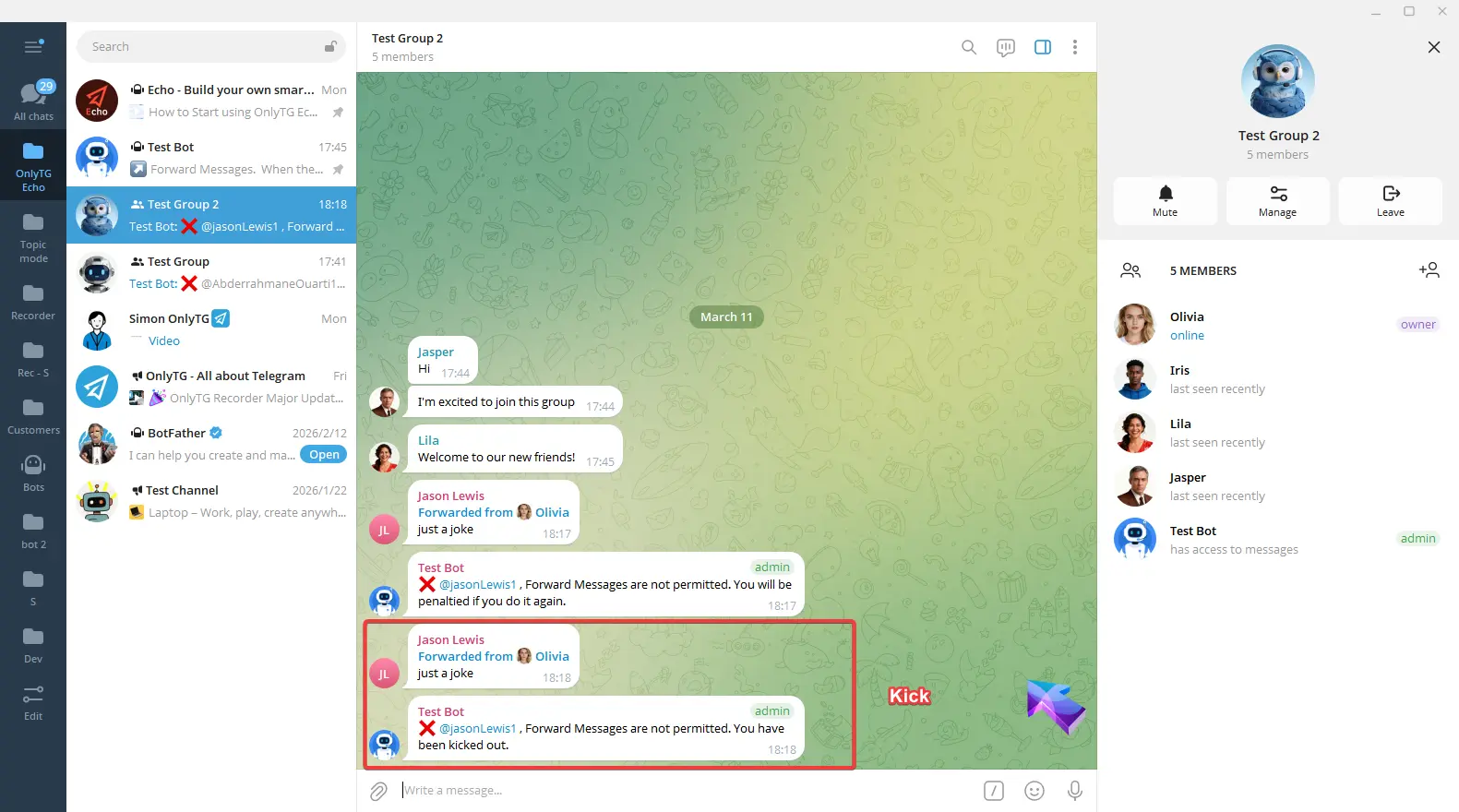
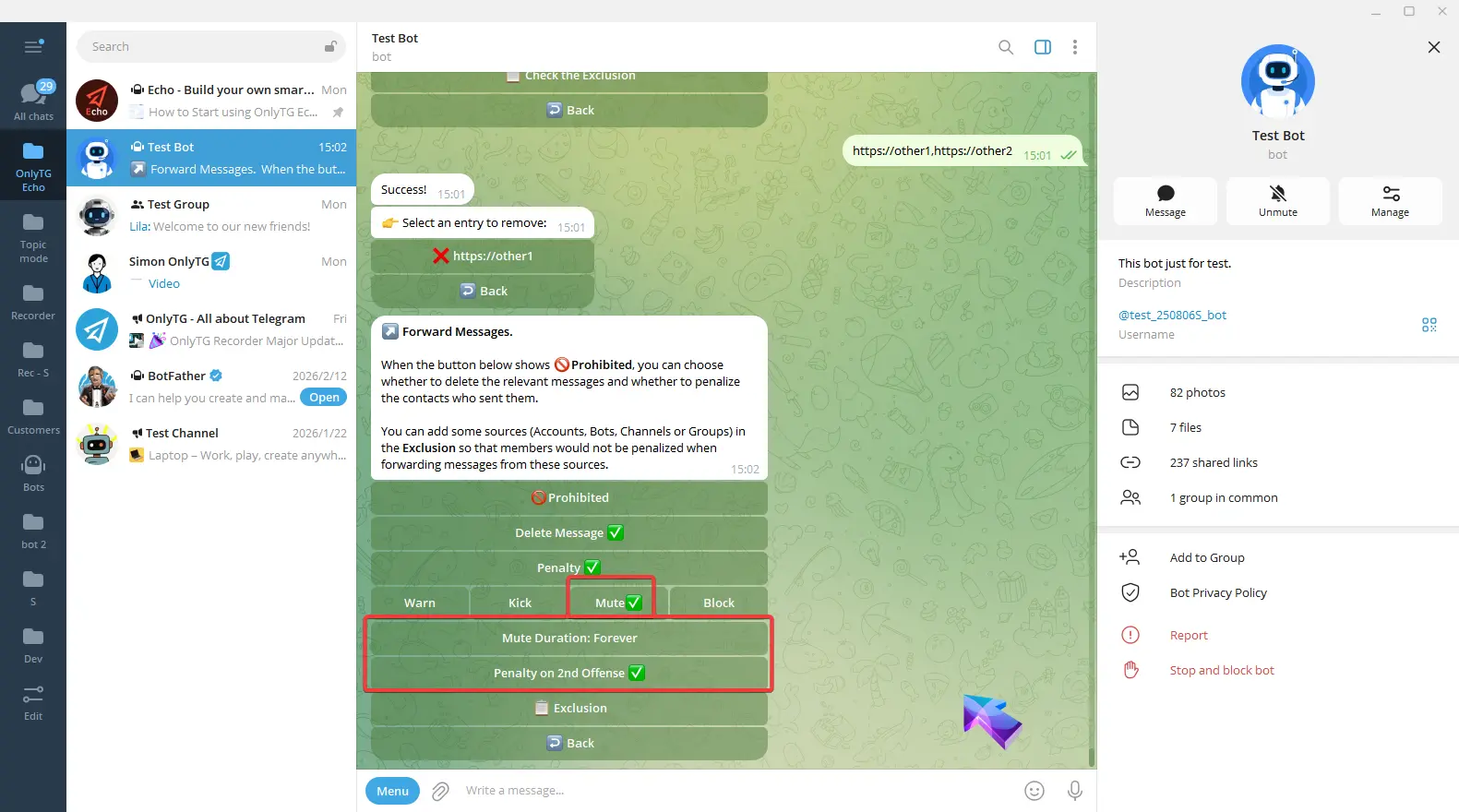
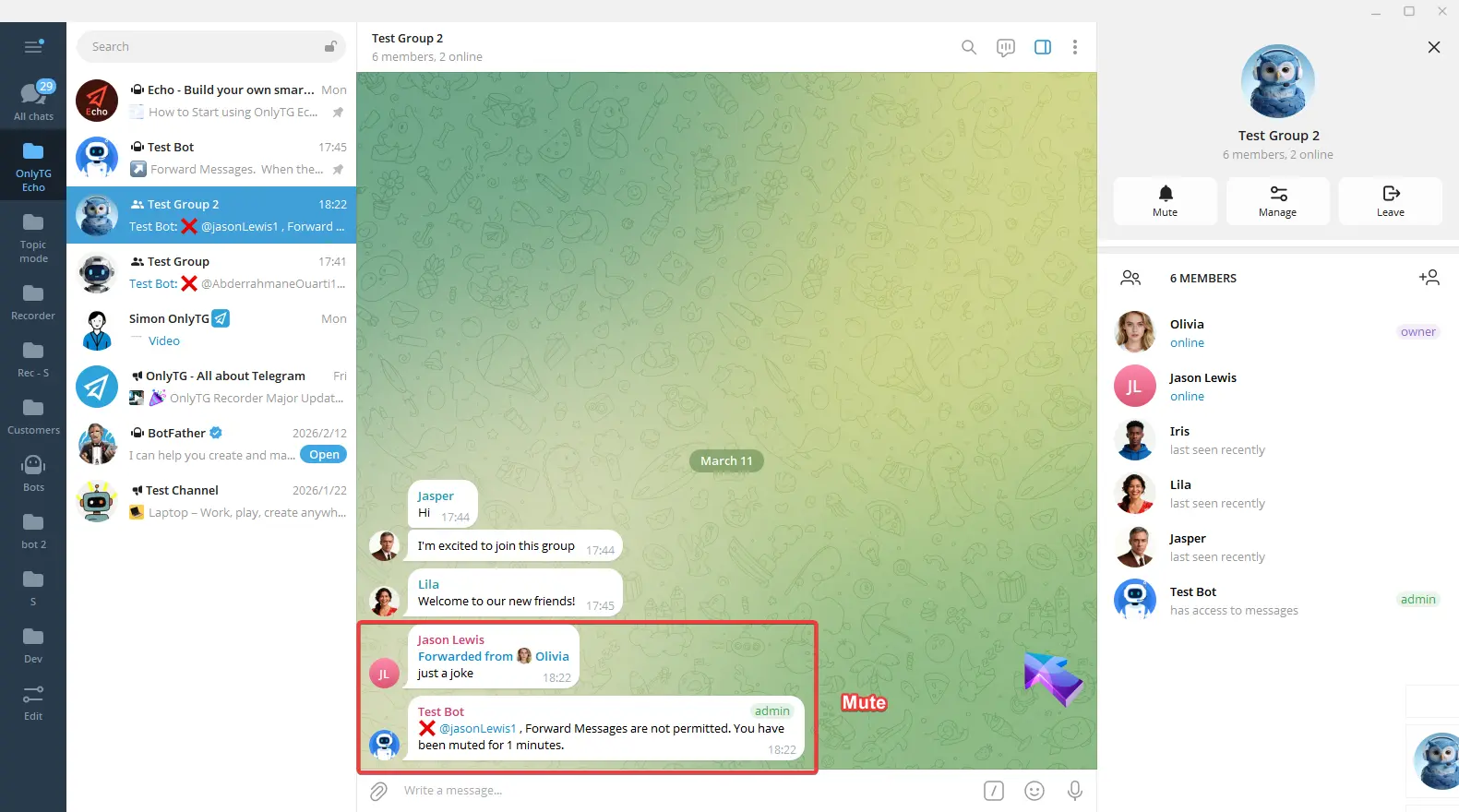
c. Mute: Mute members who violate the rules. Supports the Penalty on 2nd Offense option.
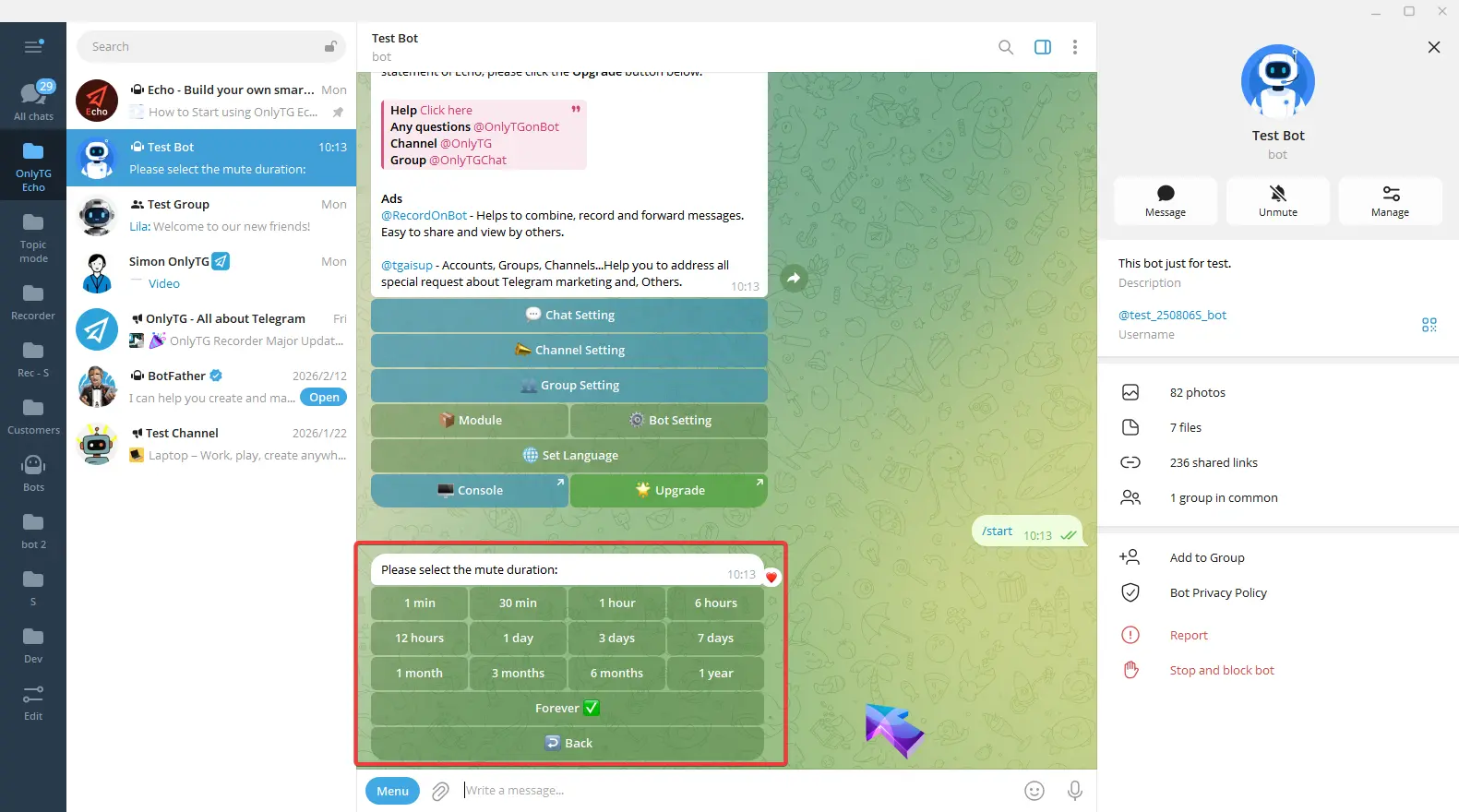
Click Mute Duration to select the mute period.
d. Block: Ban members who violate the rules, which means removing them from the group and preventing them from rejoining. Supports the Penalty on 2nd Offense option.
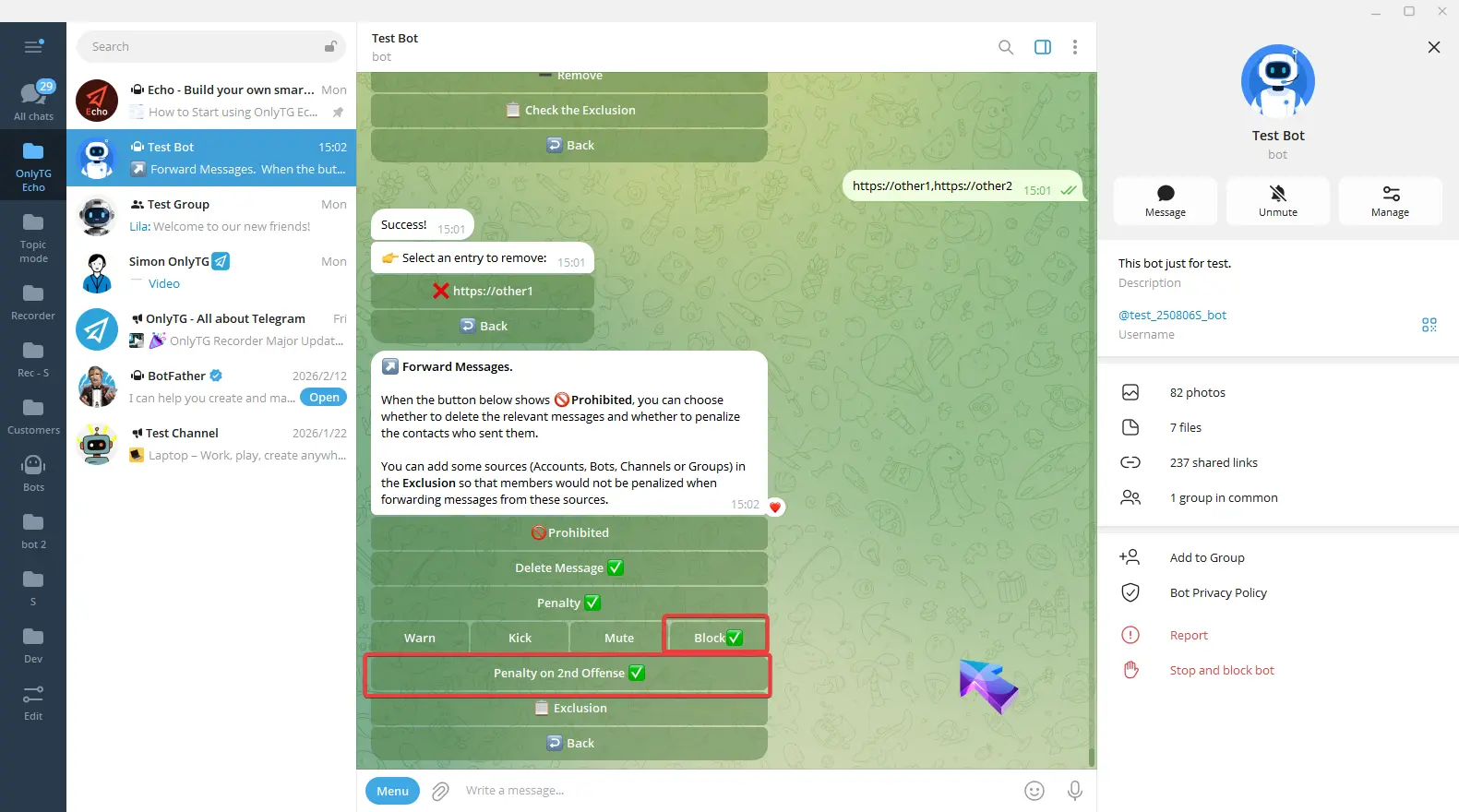
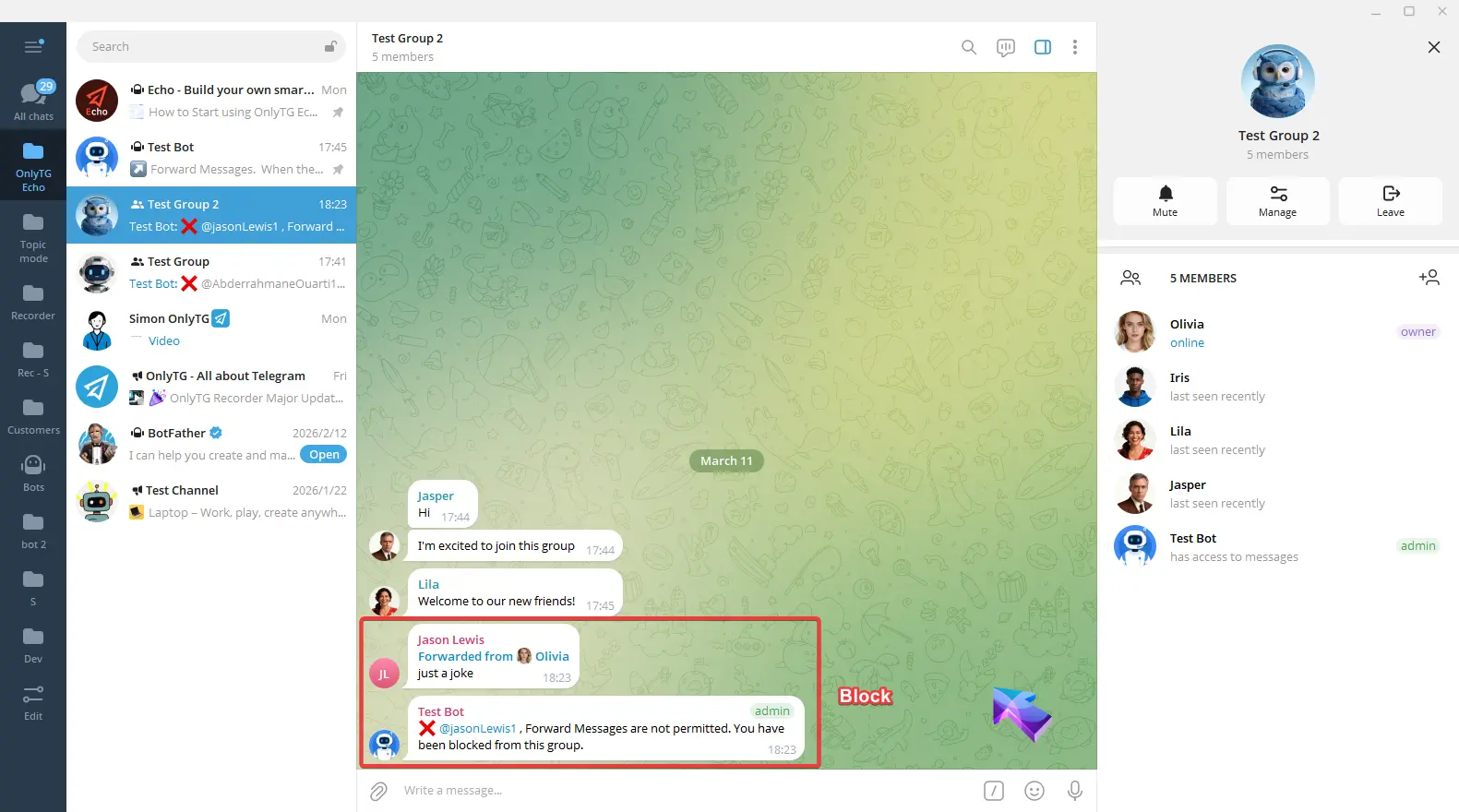
e. Penalty on 2nd: Warning for the first offense, Penalty on the second offense.
When you select Kick, Mute, or Block penalties, you can enable these options.
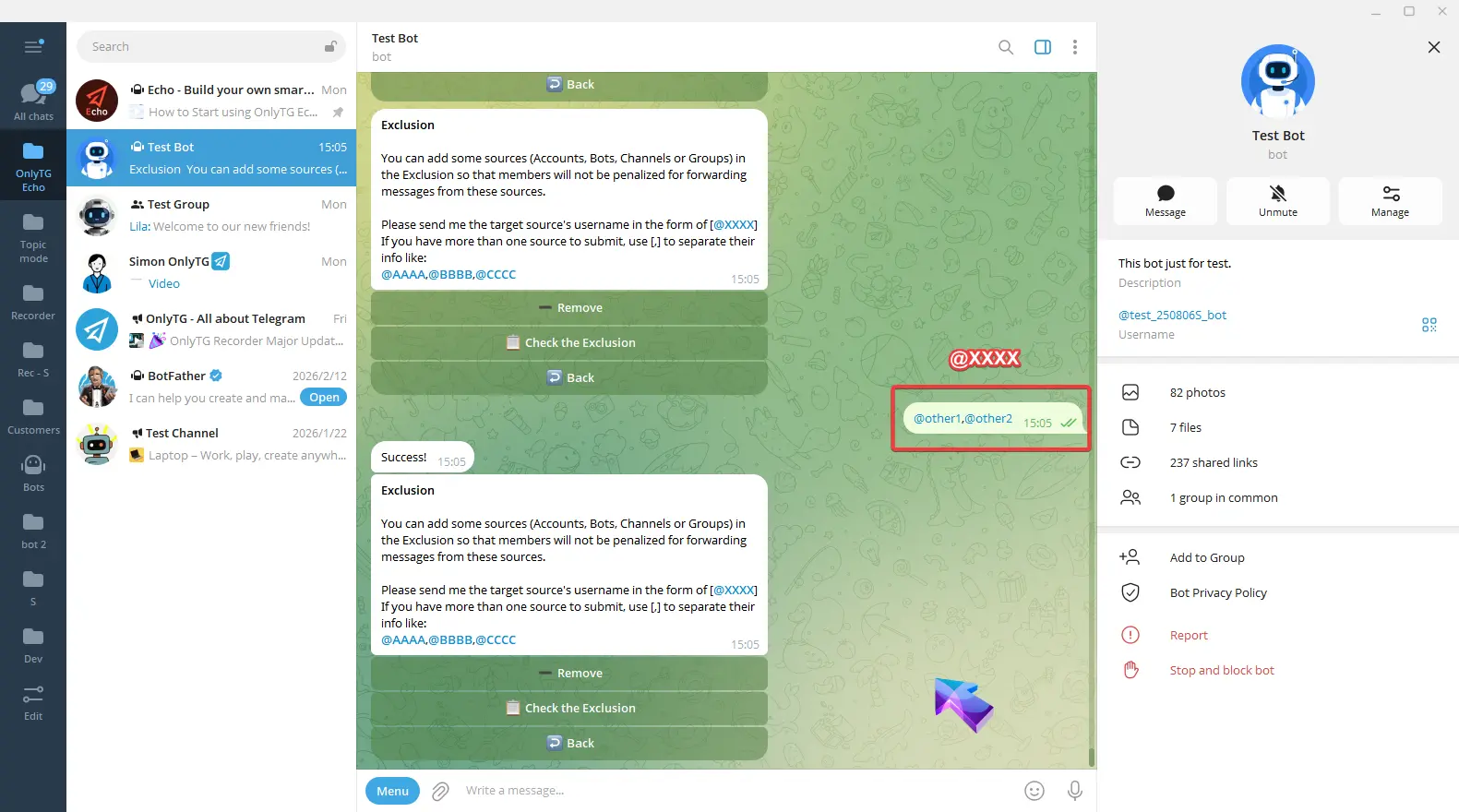
Exclusion: You can add excluded sources, including Accounts, Bots, Channels or Groups. Members will not be restricted by this rule when forwarding messages from excluded sources.
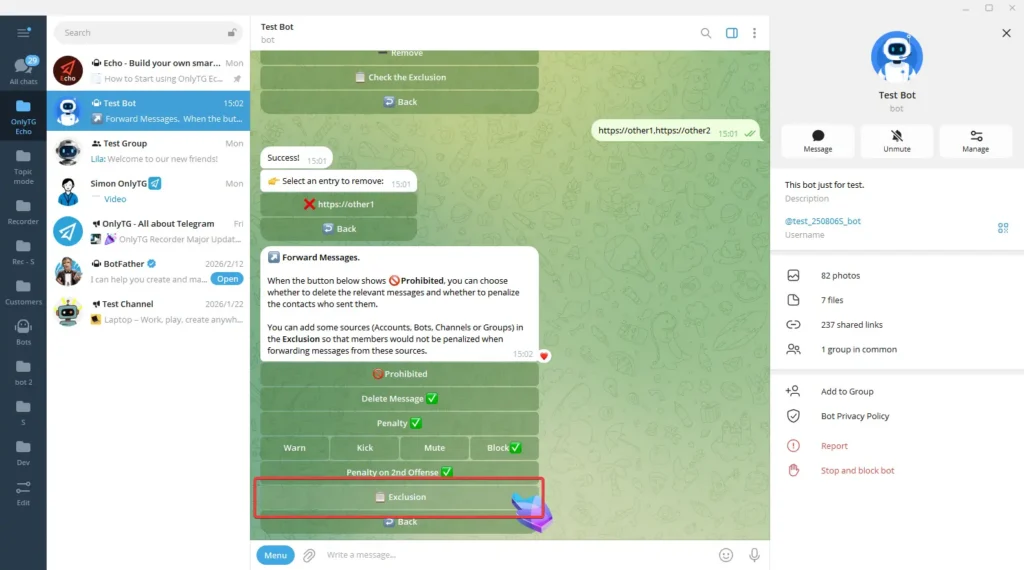
Send the target source’s username in the form of [@XXXX] to add excluded sources.
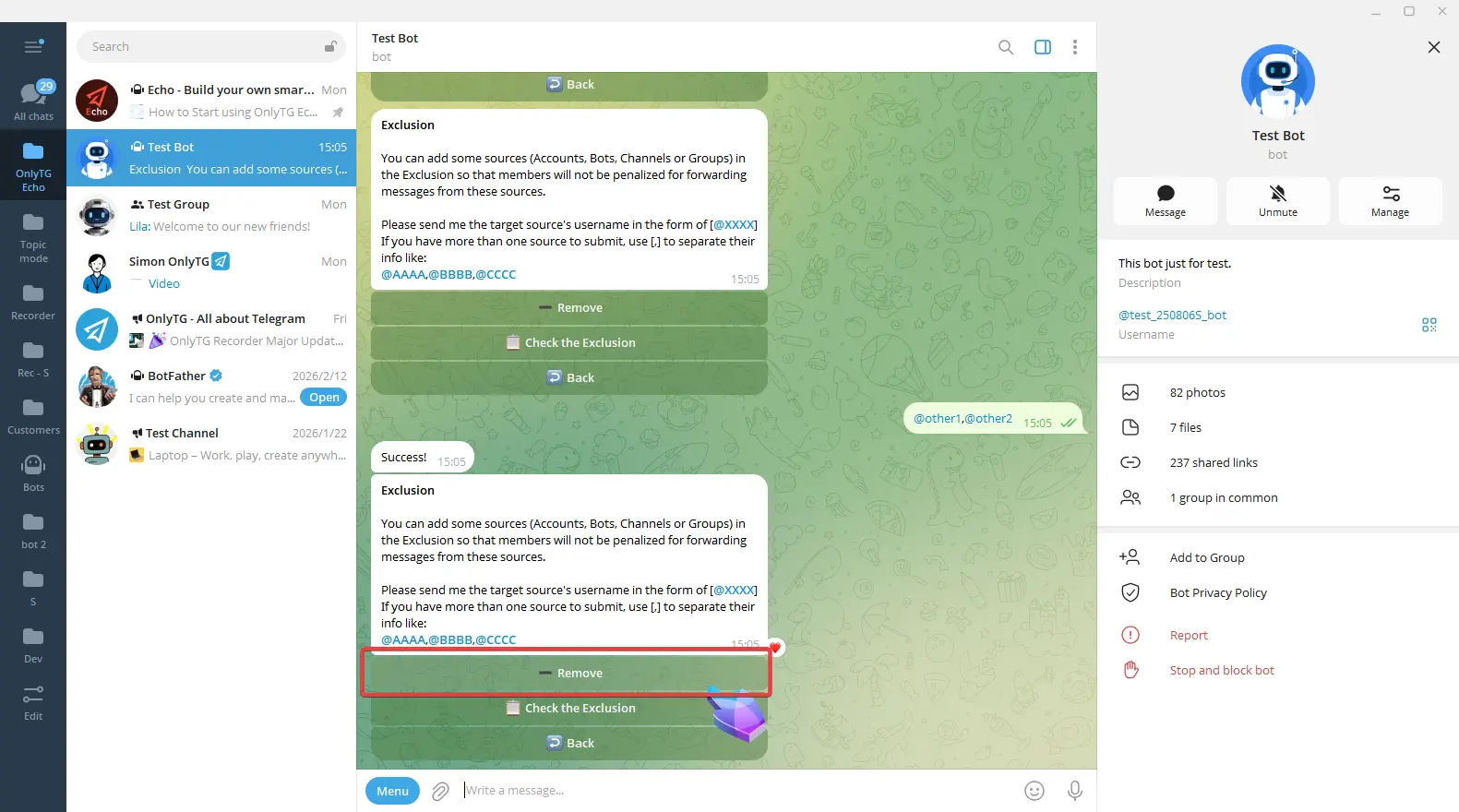
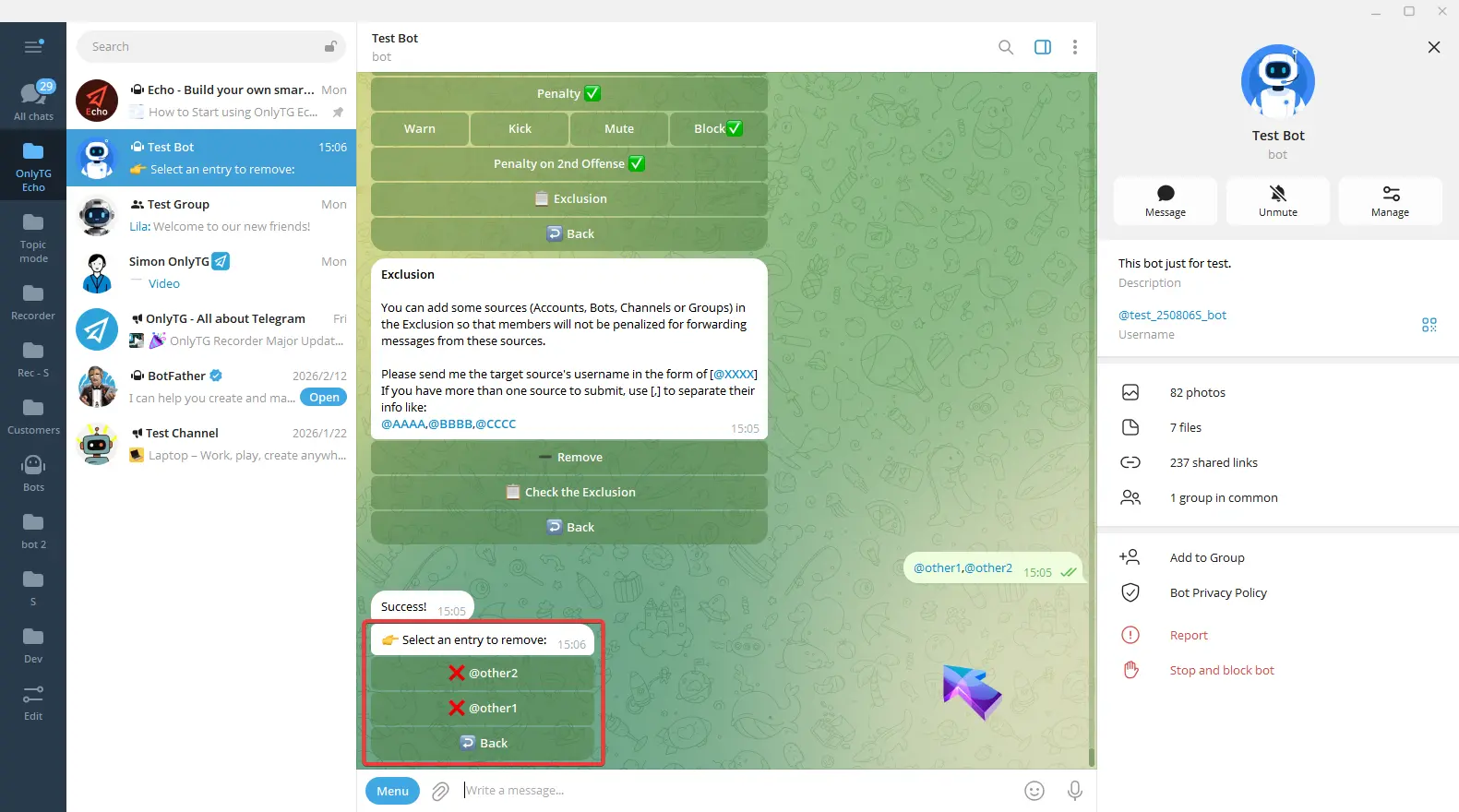
Click Remove to delete the added excluded sources.
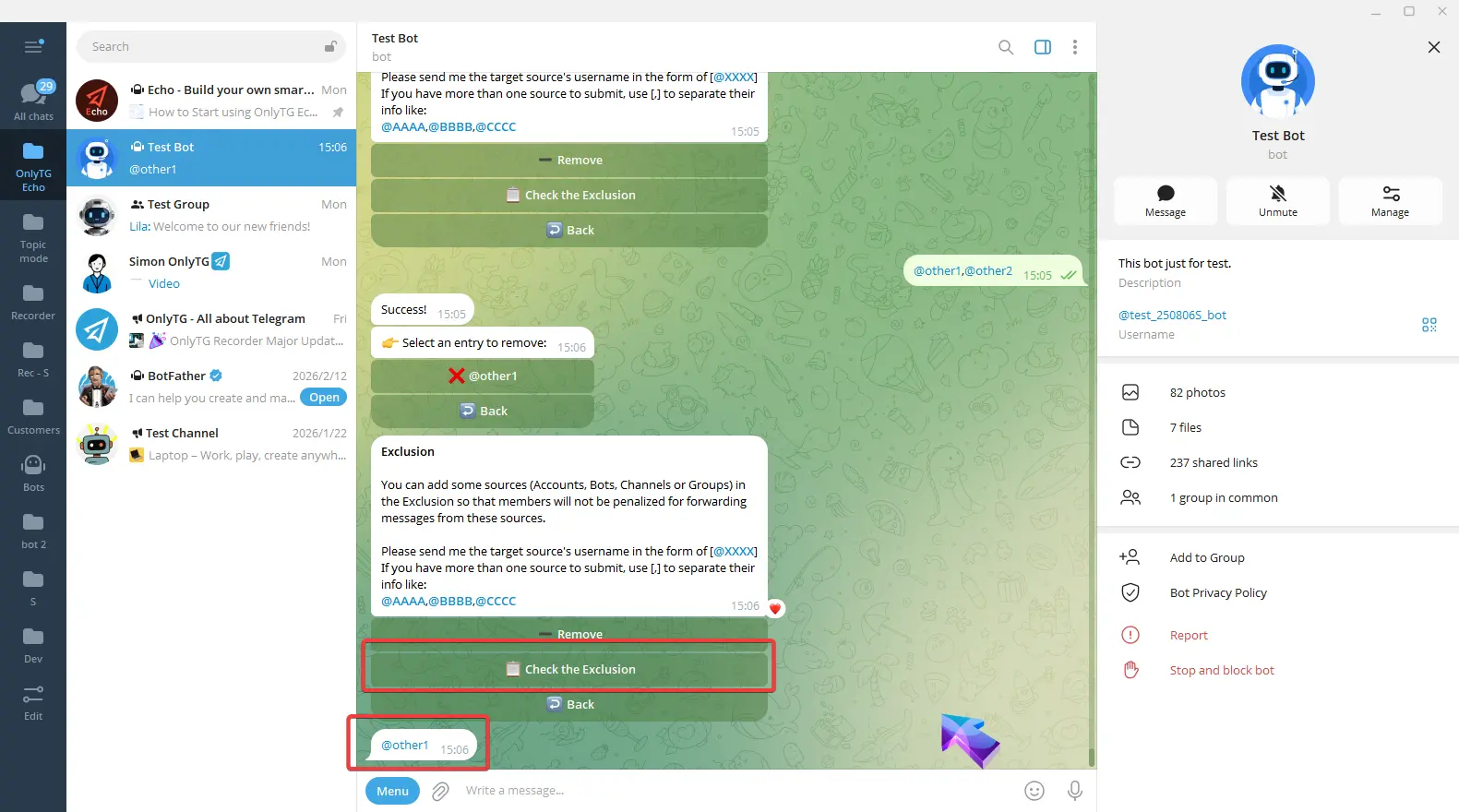
Click Check the Exclusion to view the added excluded sources.
6. Quote Messages
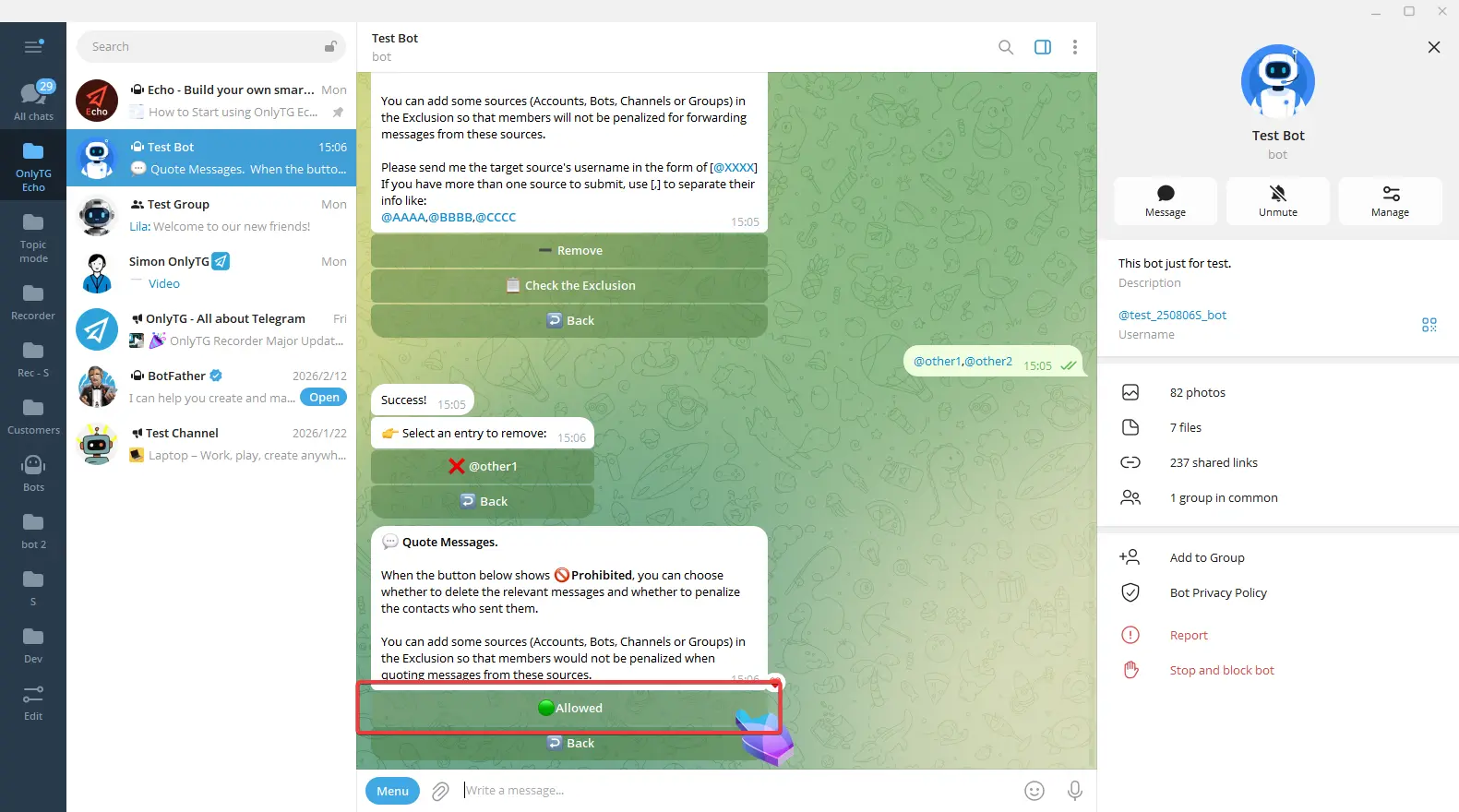
This rule will be triggered when members quotes messages from elsewhere to the group.
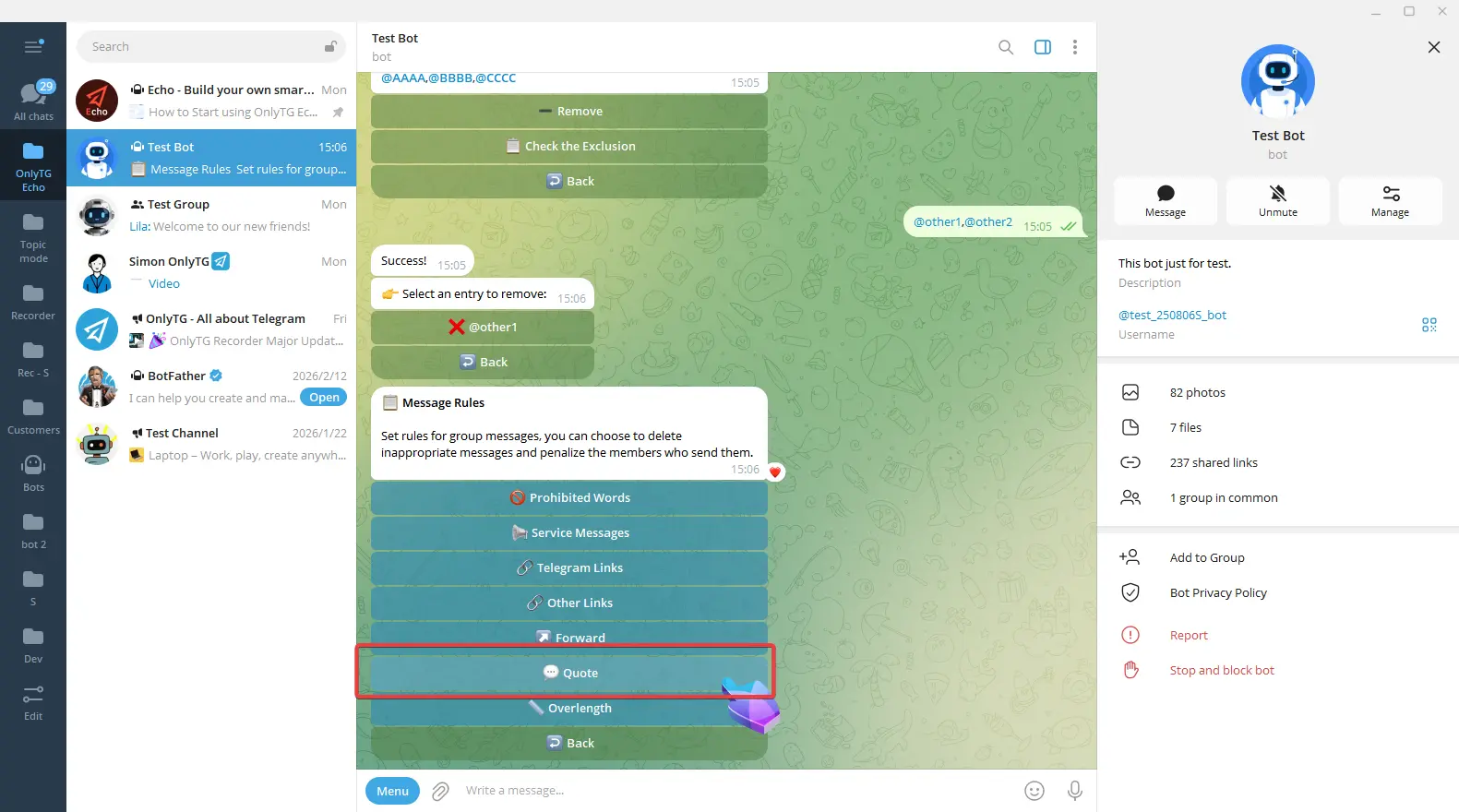
Click Allow to enable it. Click Prohibited again to disable it.
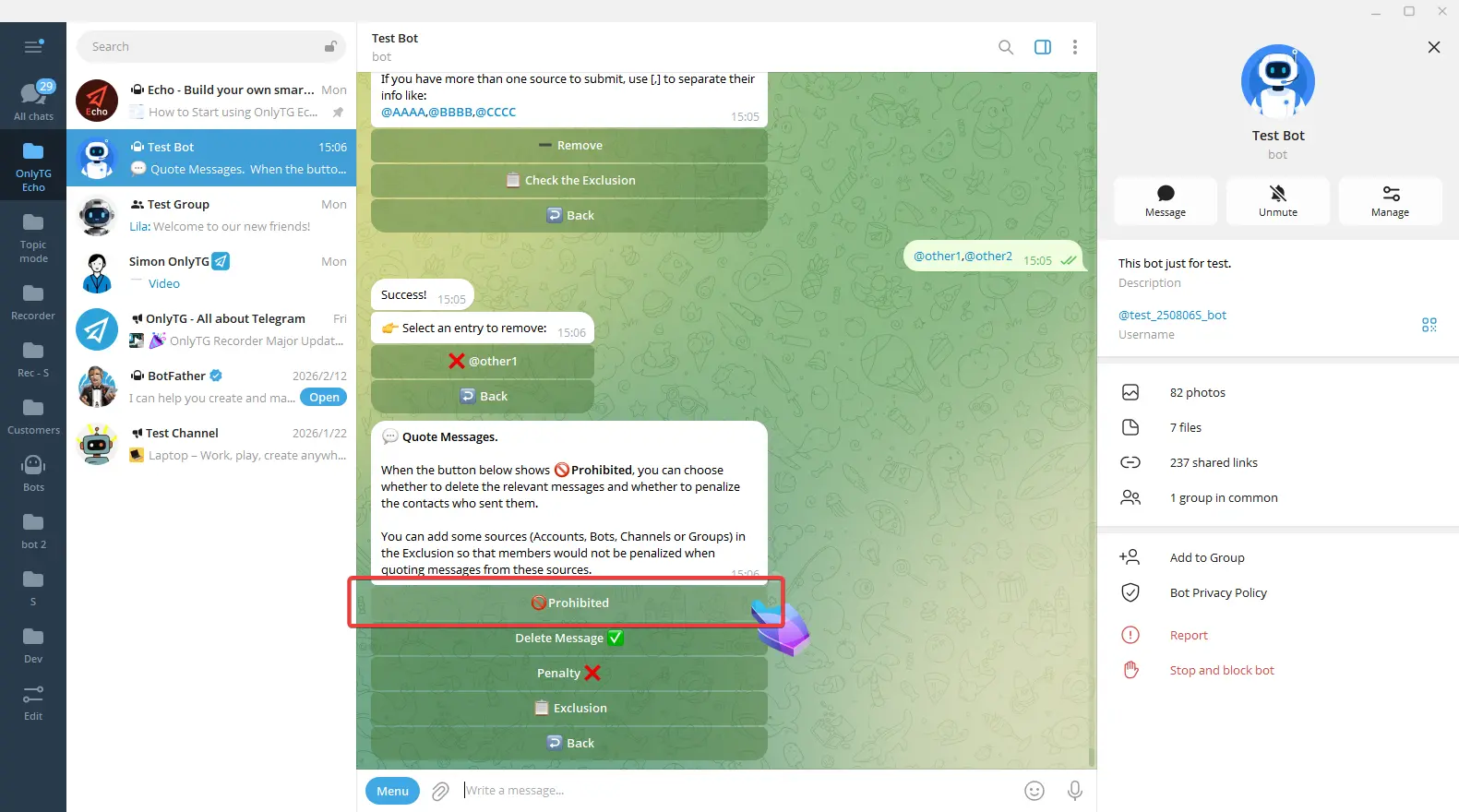
Delete Message: Automatically delete messages that violate the rules. Click to turn this function on or off.
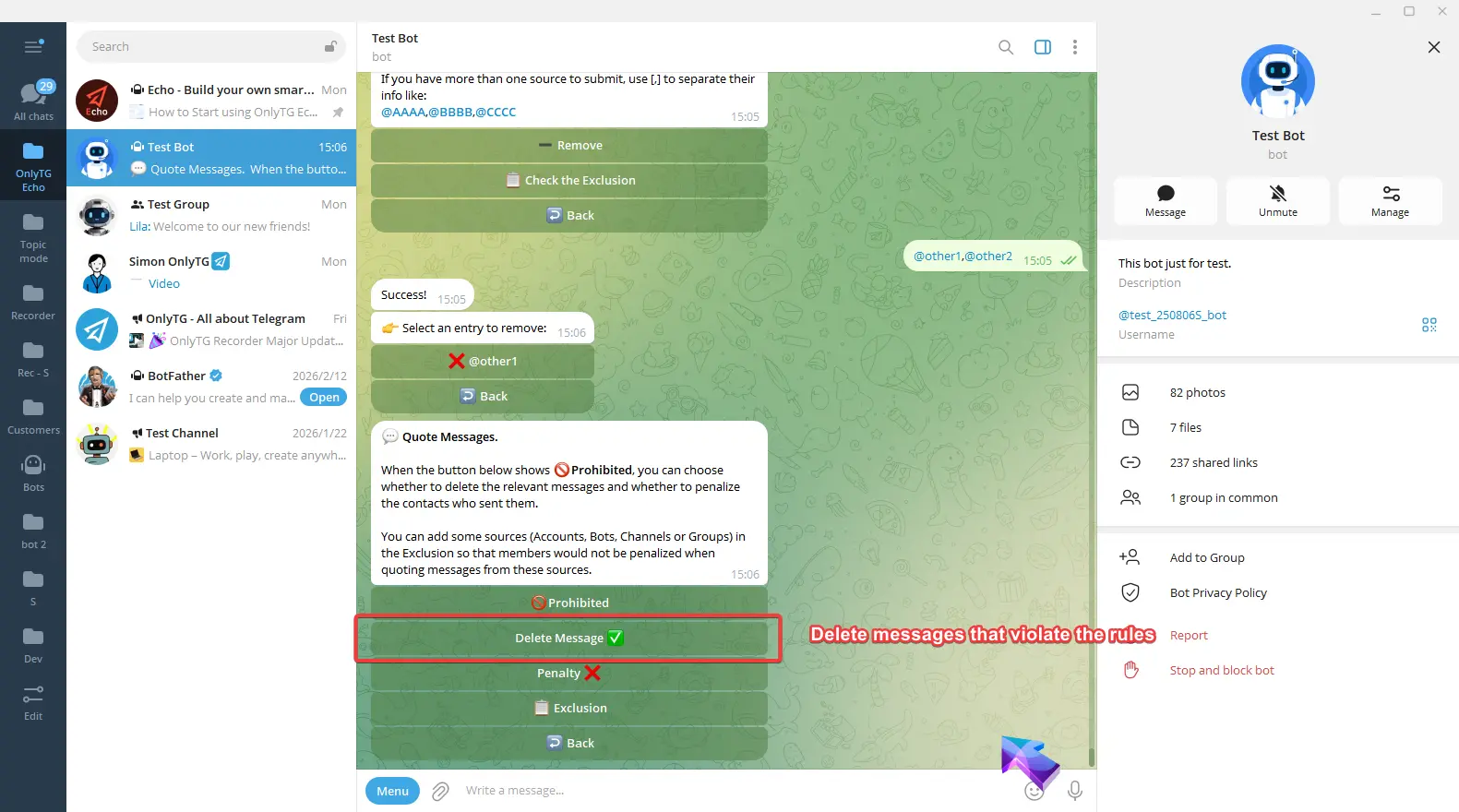
Penalty: Click to enable and select the penalty type.
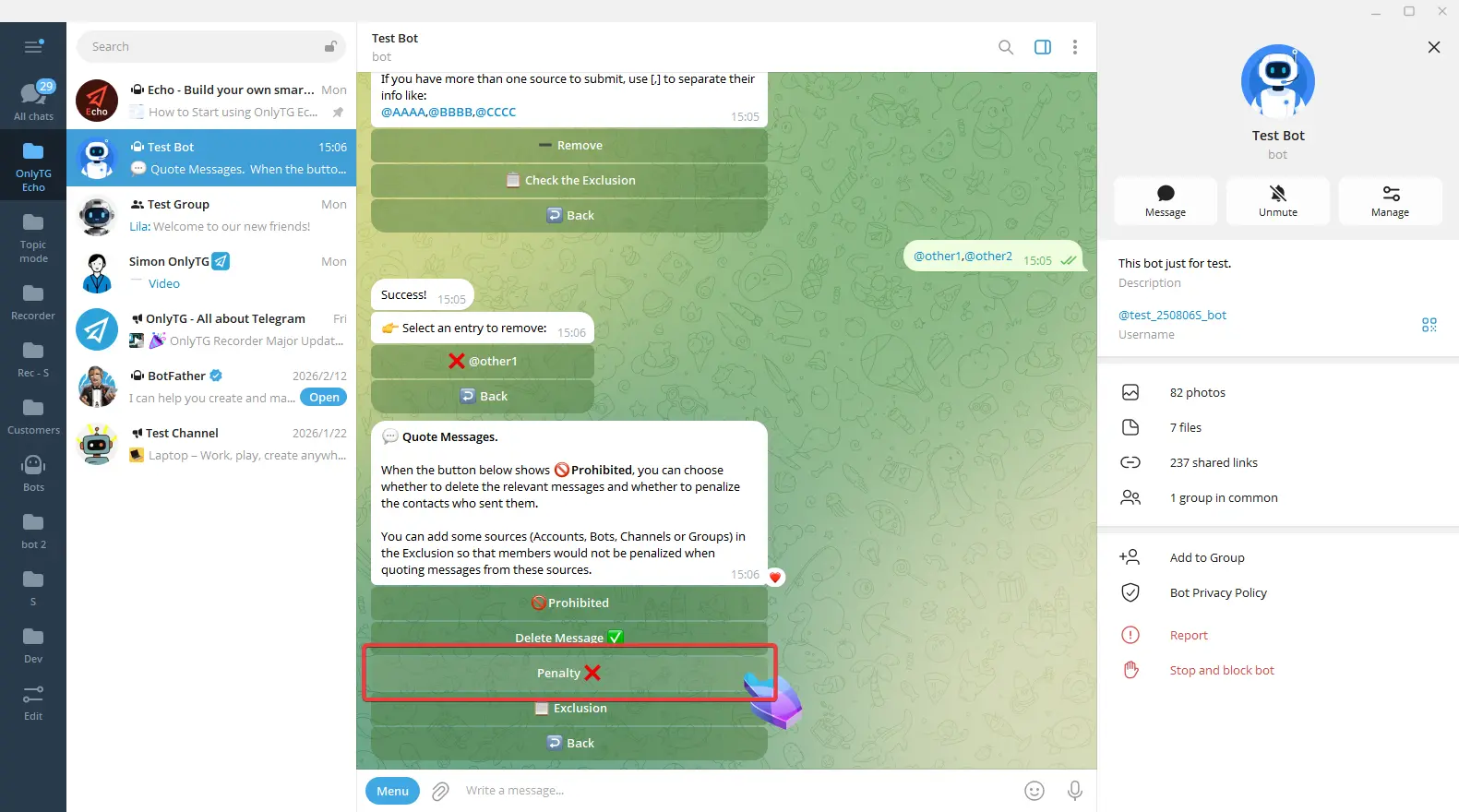
a. Warn: Warn members who violate the rules.
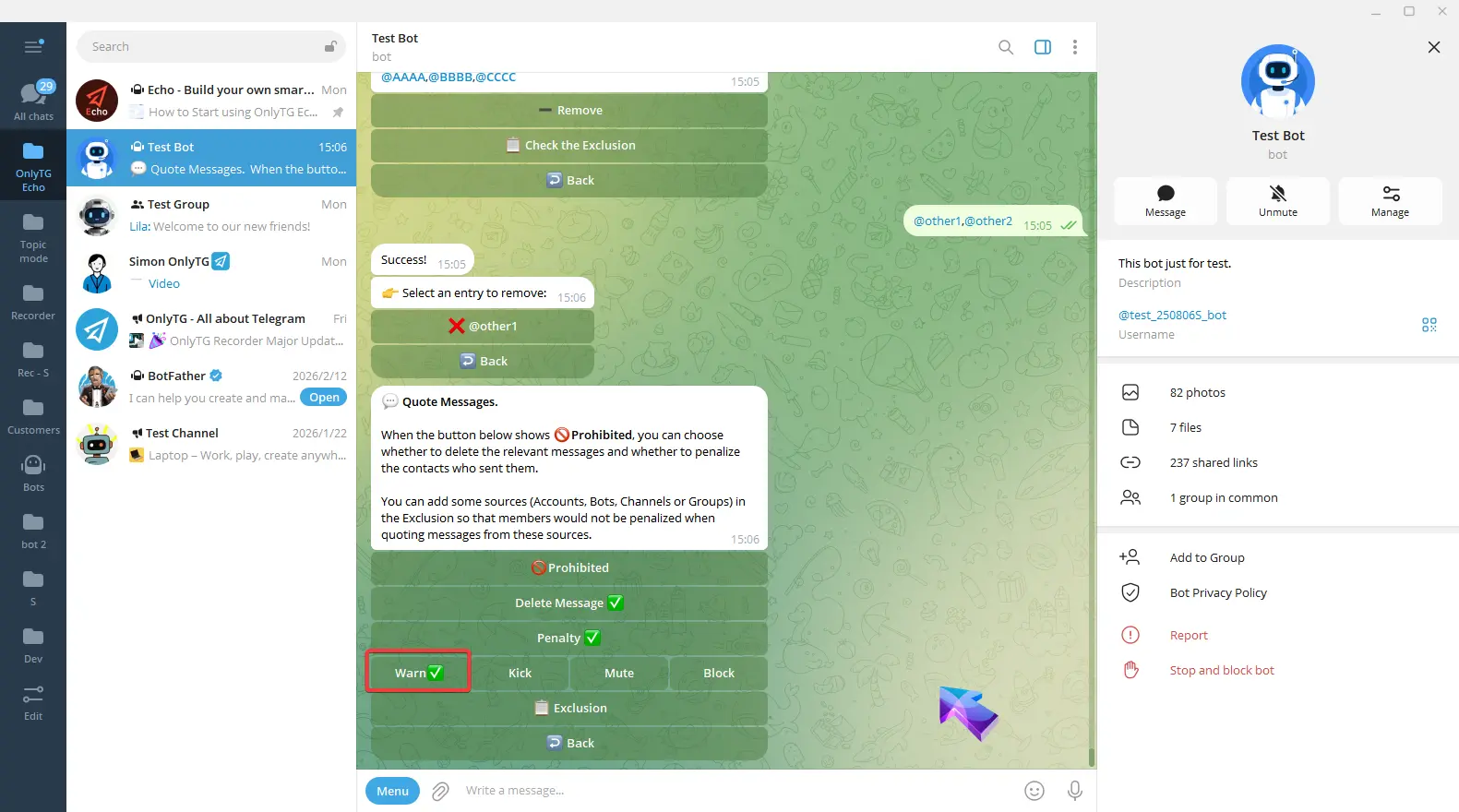
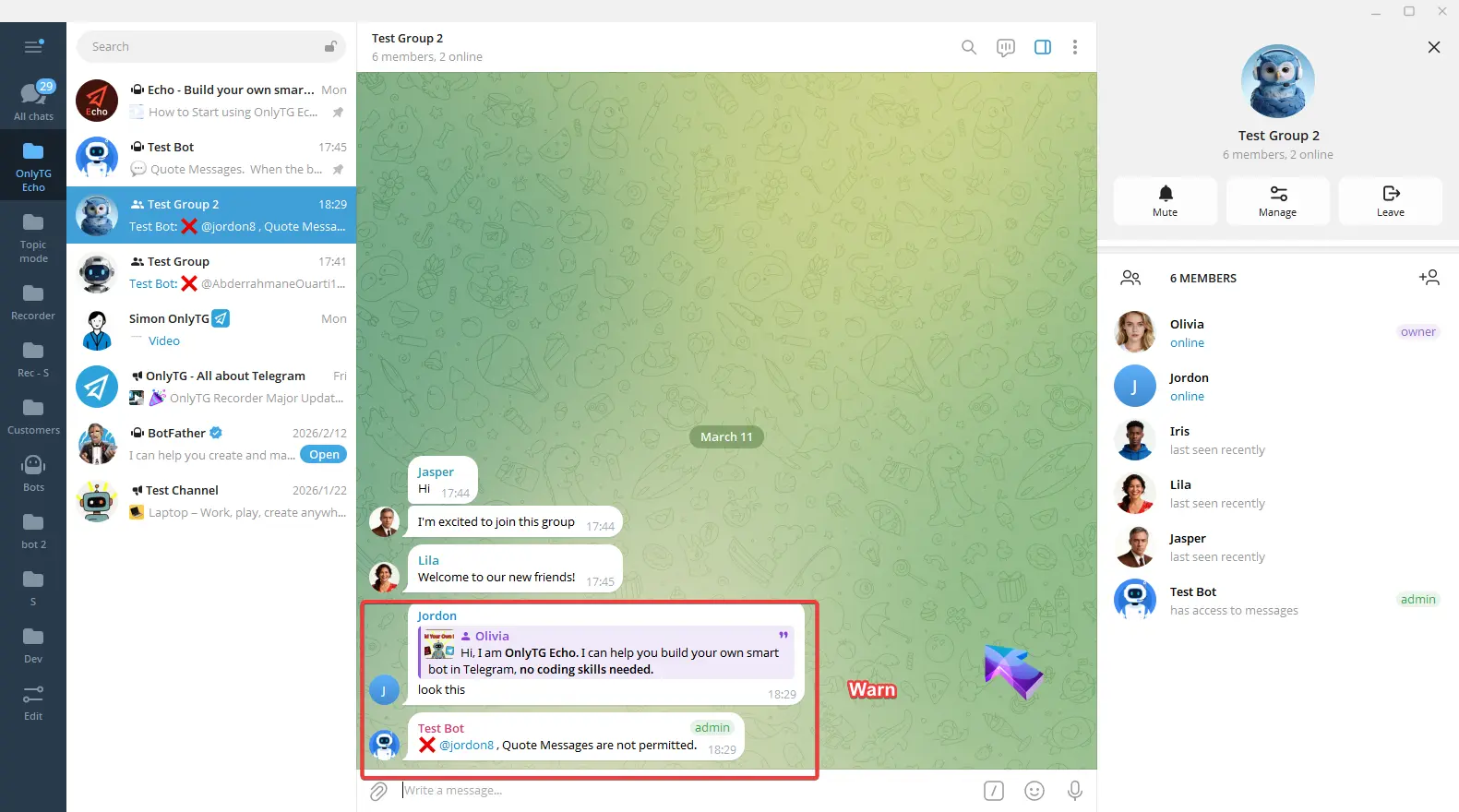
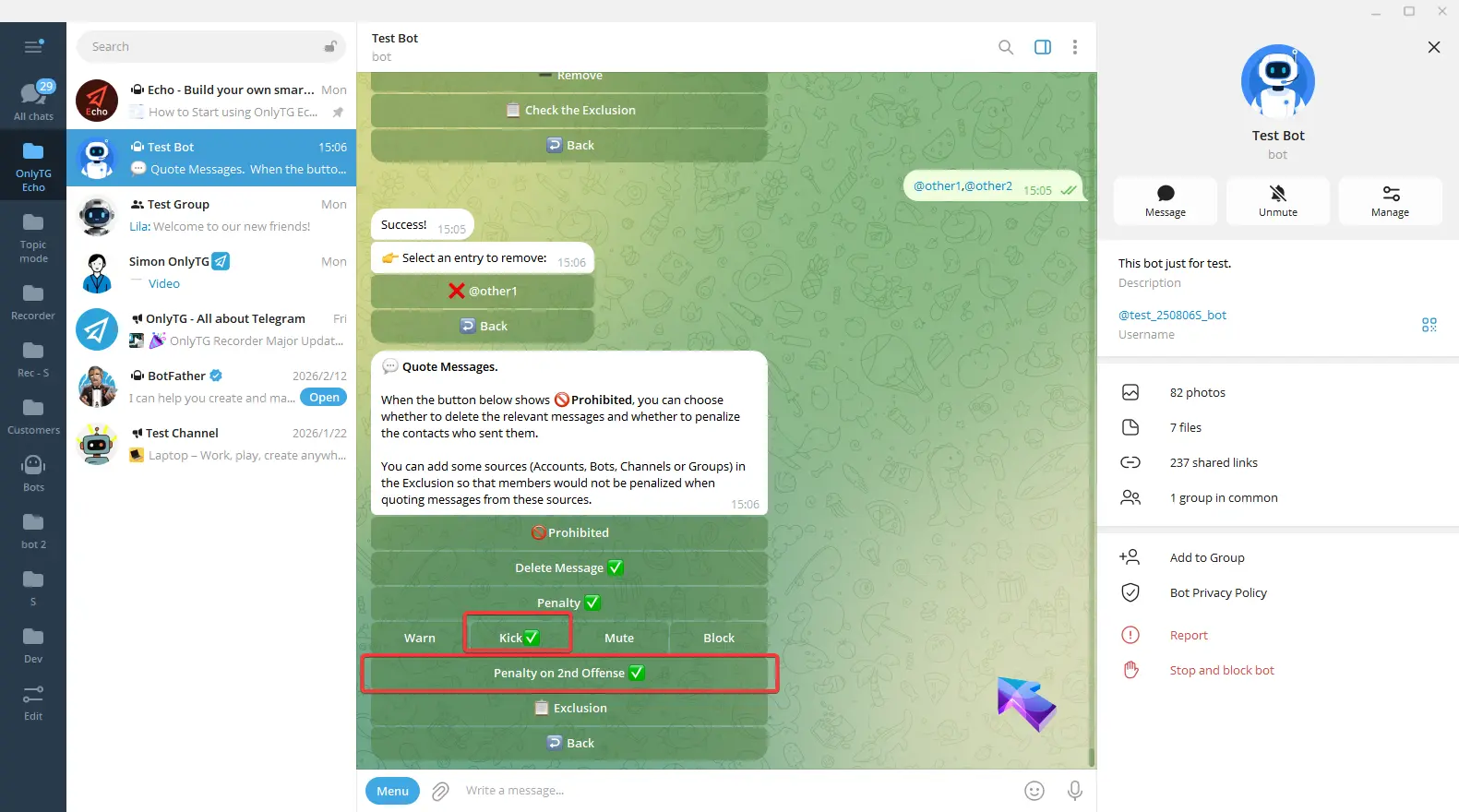
b. Kick: Kick members who violate the rules from the group. Supports the Penalty on 2nd Offense option.
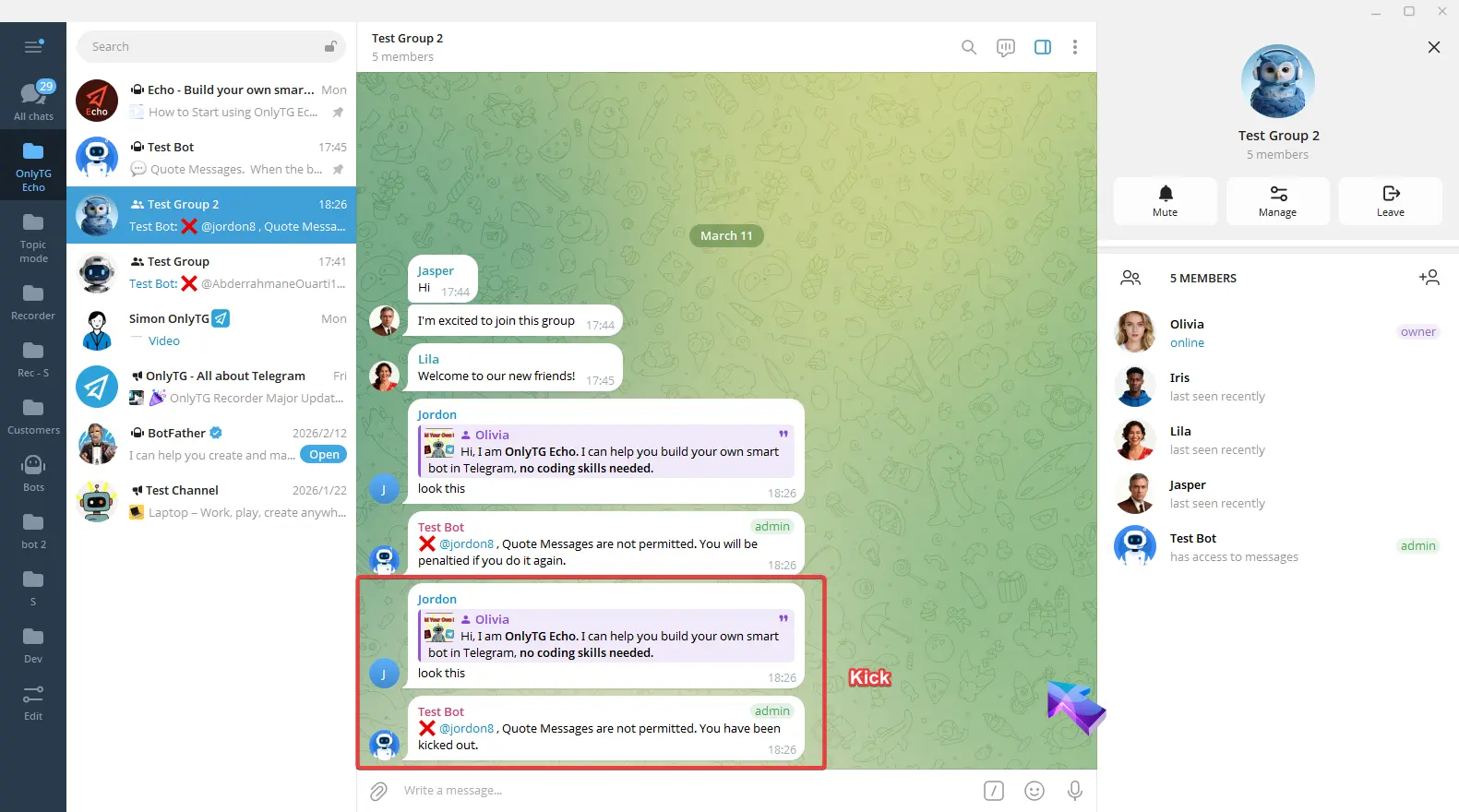
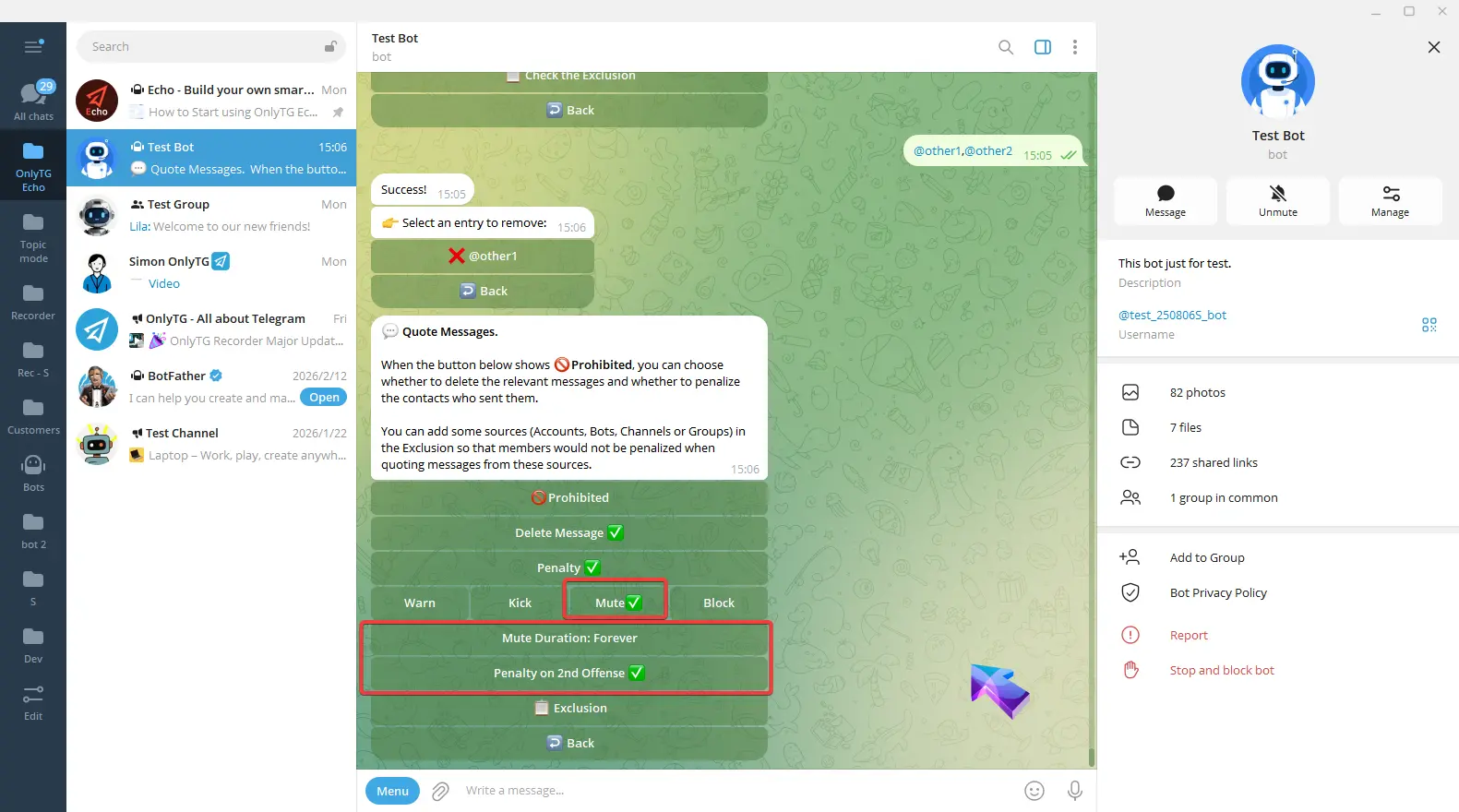
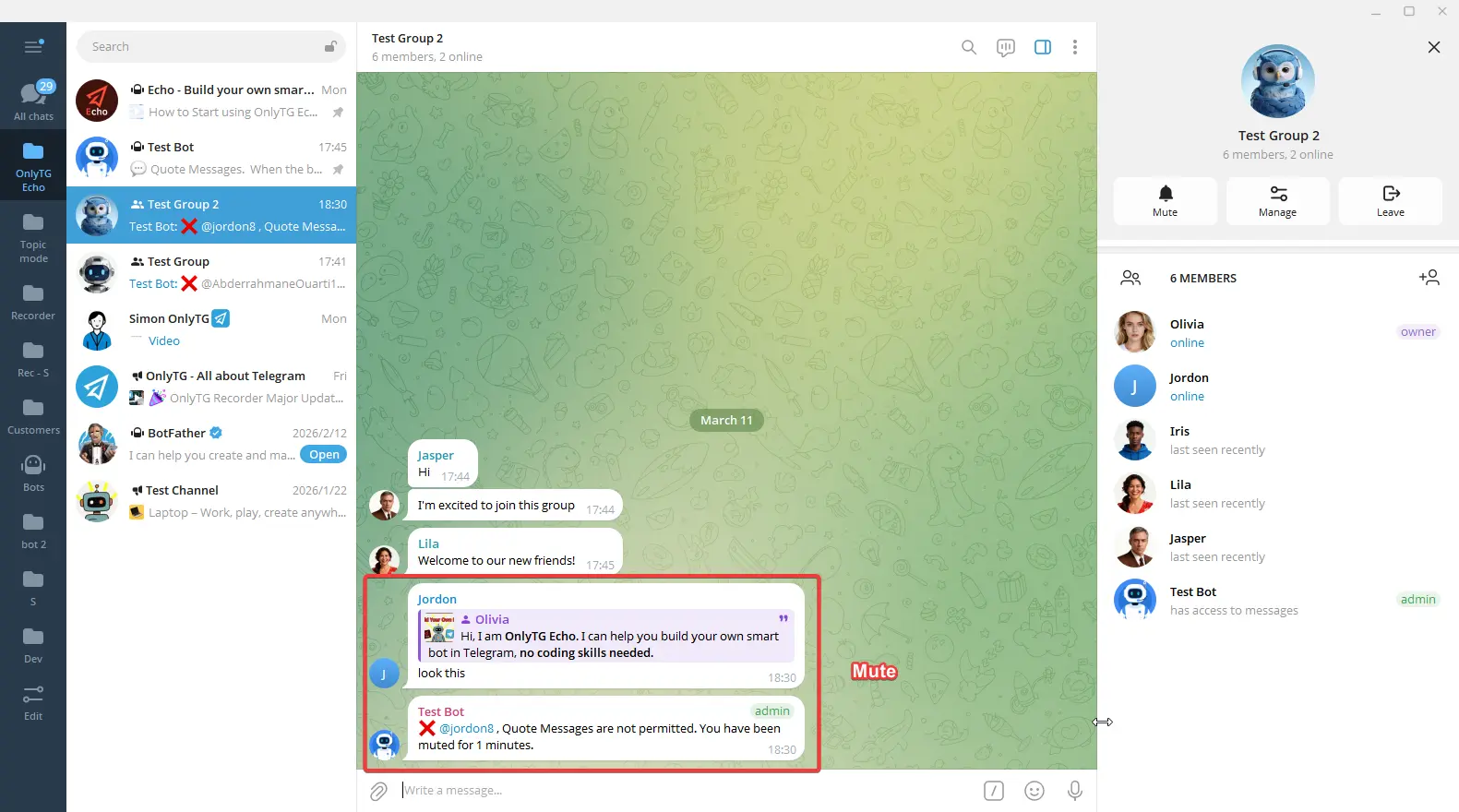
c. Mute: Mute members who violate the rules. Supports the Penalty on 2nd Offense option.
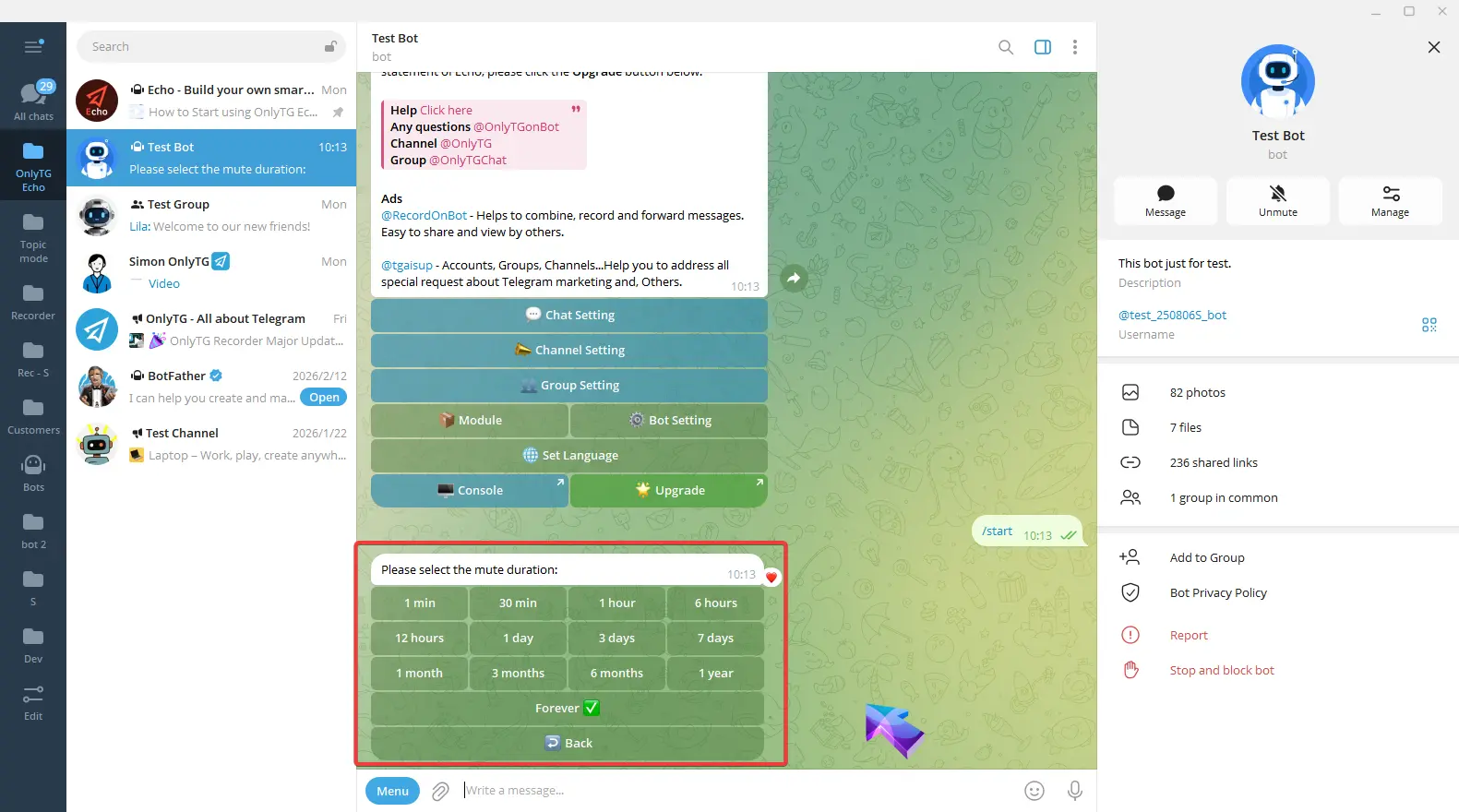
Click Mute Duration to select the mute period.
d. Block: Ban members who violate the rules, which means removing them from the group and preventing them from rejoining. Supports the Penalty on 2nd Offense option.
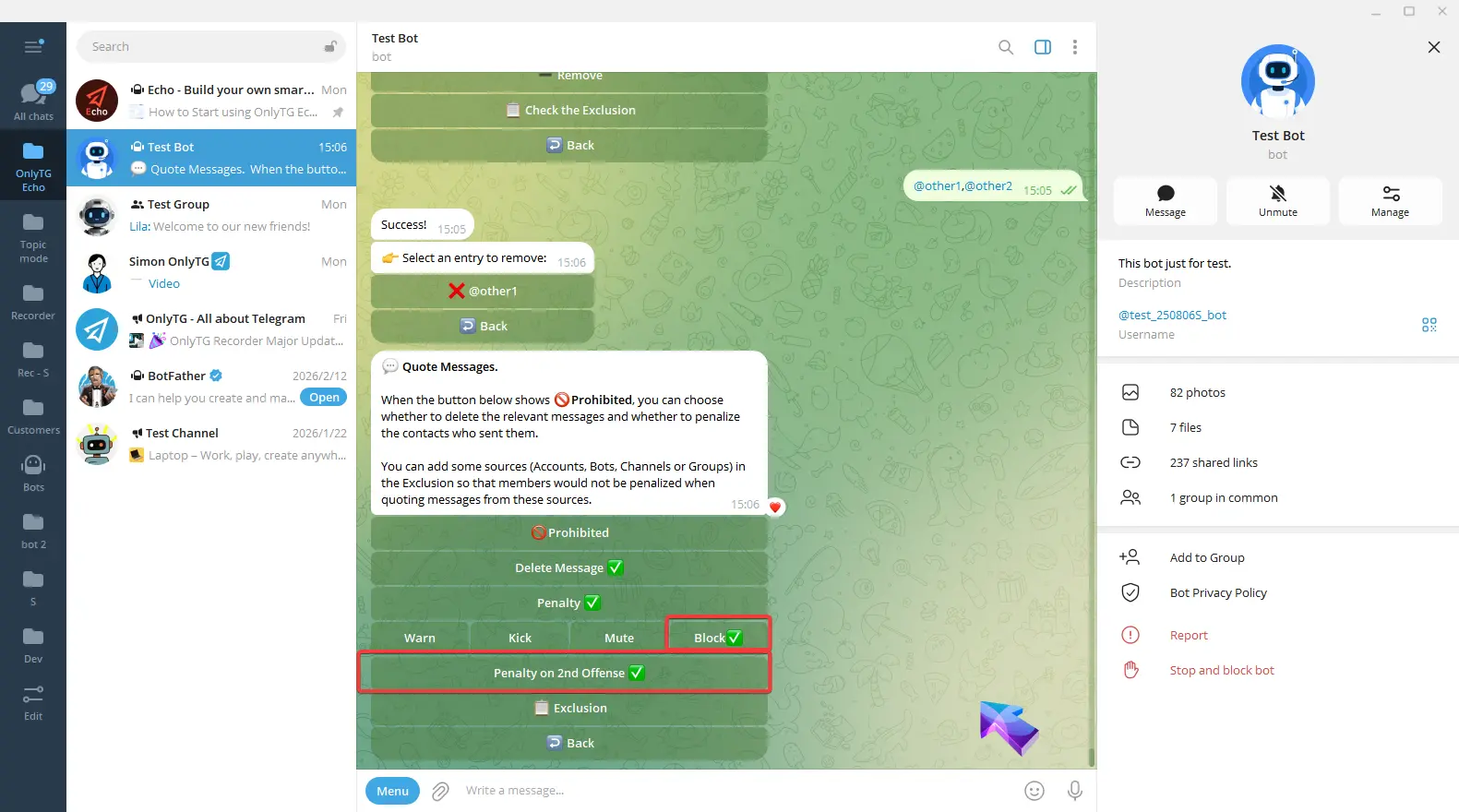
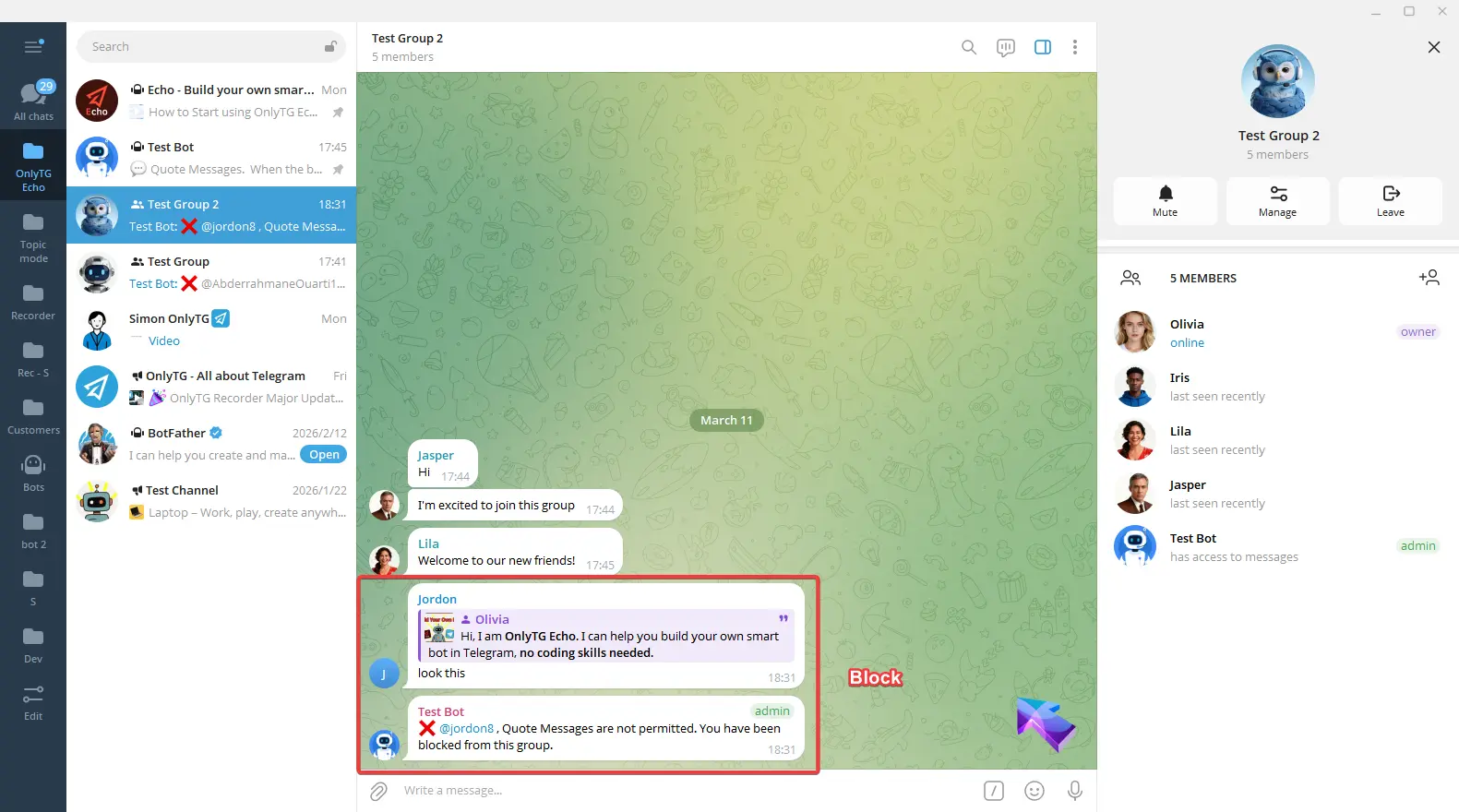
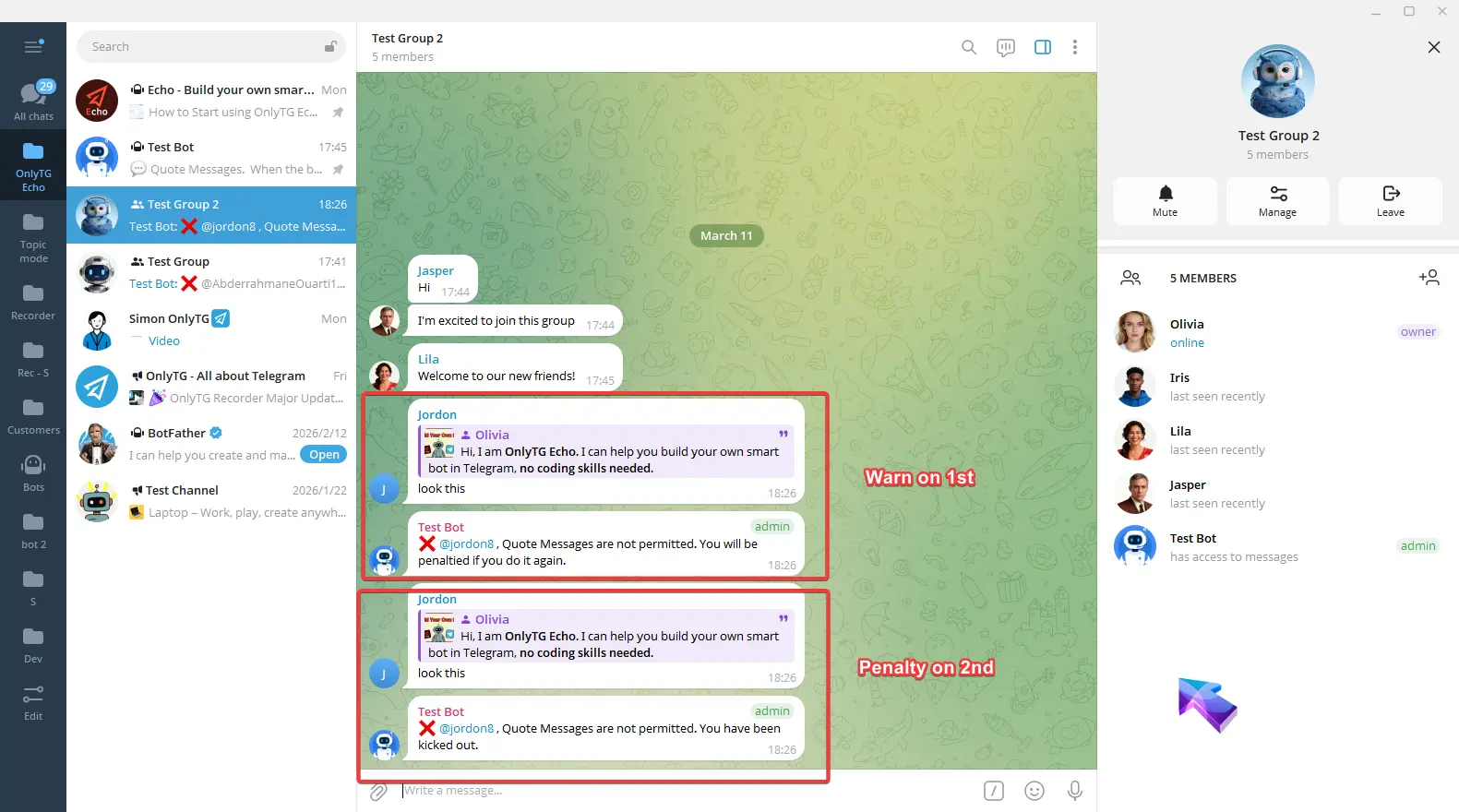
e. Penalty on 2nd: Warning for the first offense, Penalty on the second offense.
When you select Kick, Mute, or Block penalties, you can enable these options.
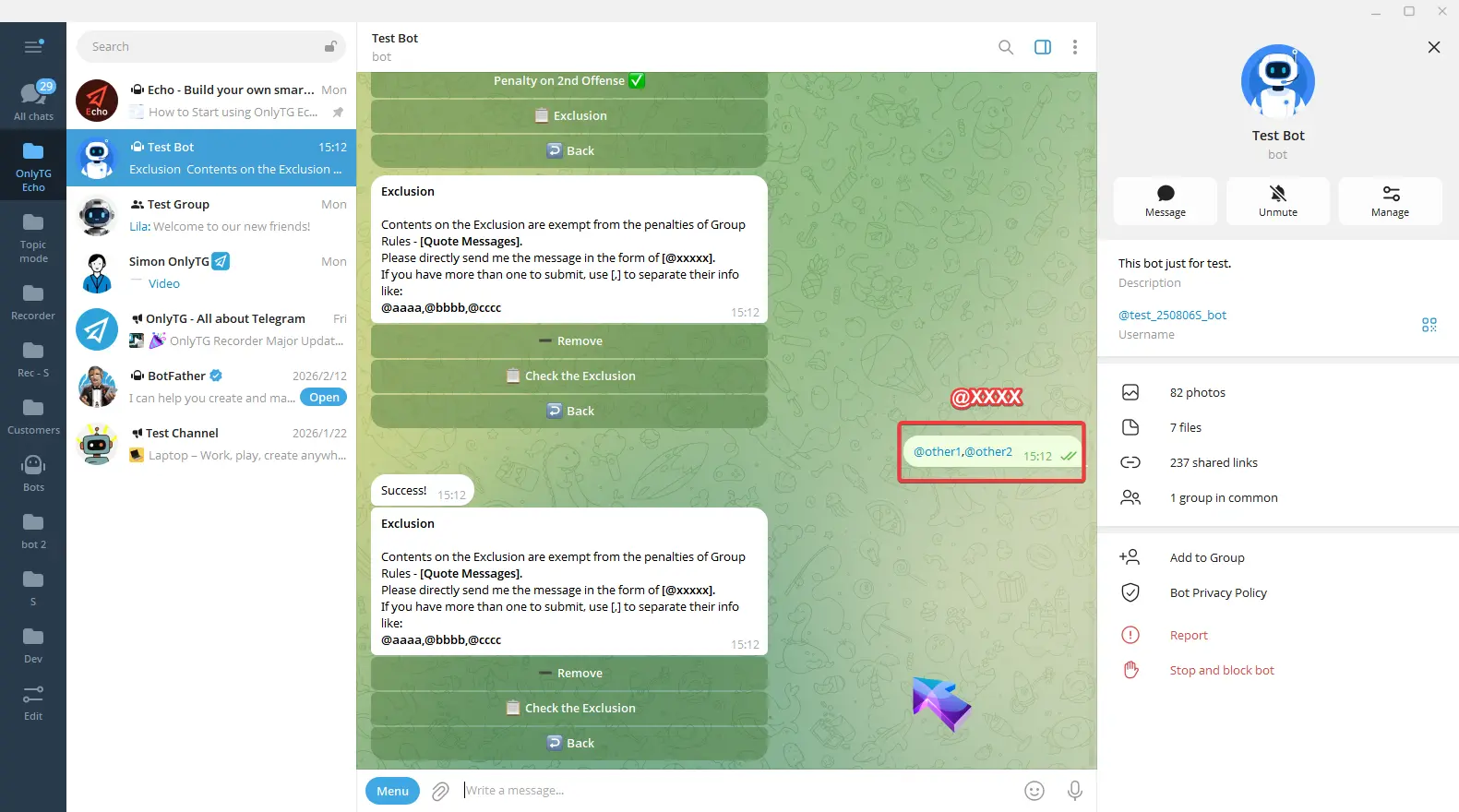
Exclusion: You can add excluded sources, including Accounts, Bots, Channels or Groups. Members will not be restricted by this rule when quote messages from excluded sources.
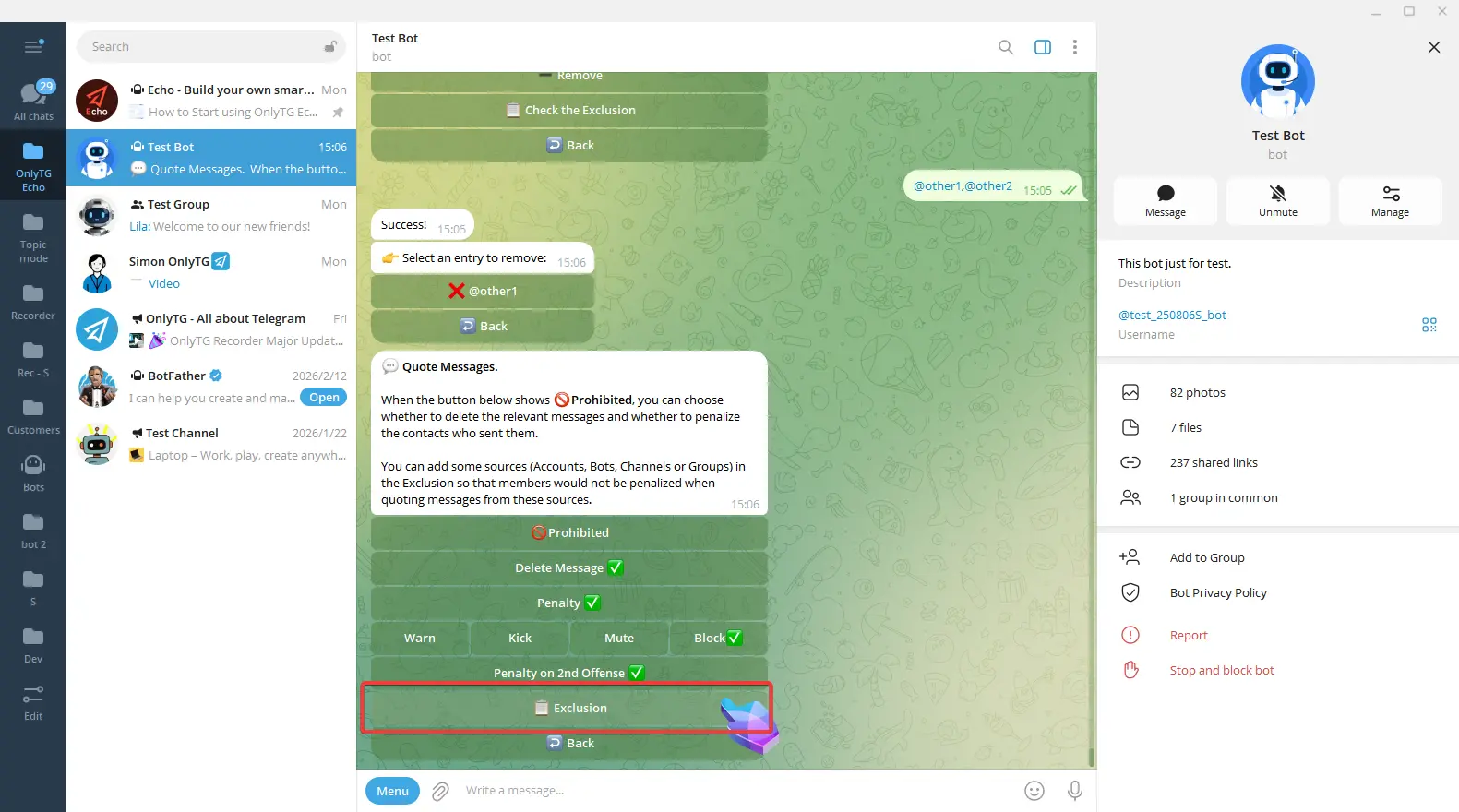
Send the target source’s username in the form of [@XXXX] to add excluded sources.
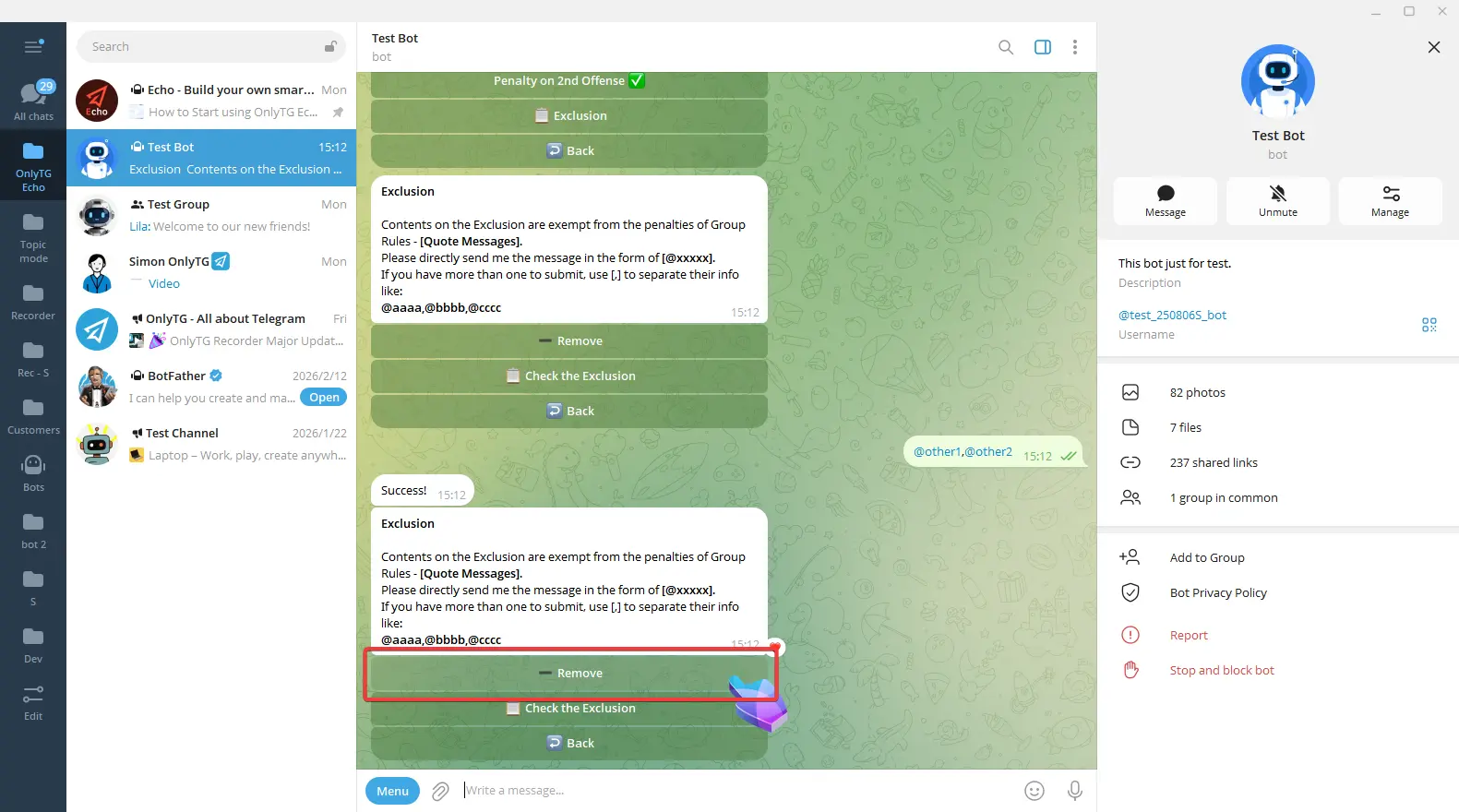
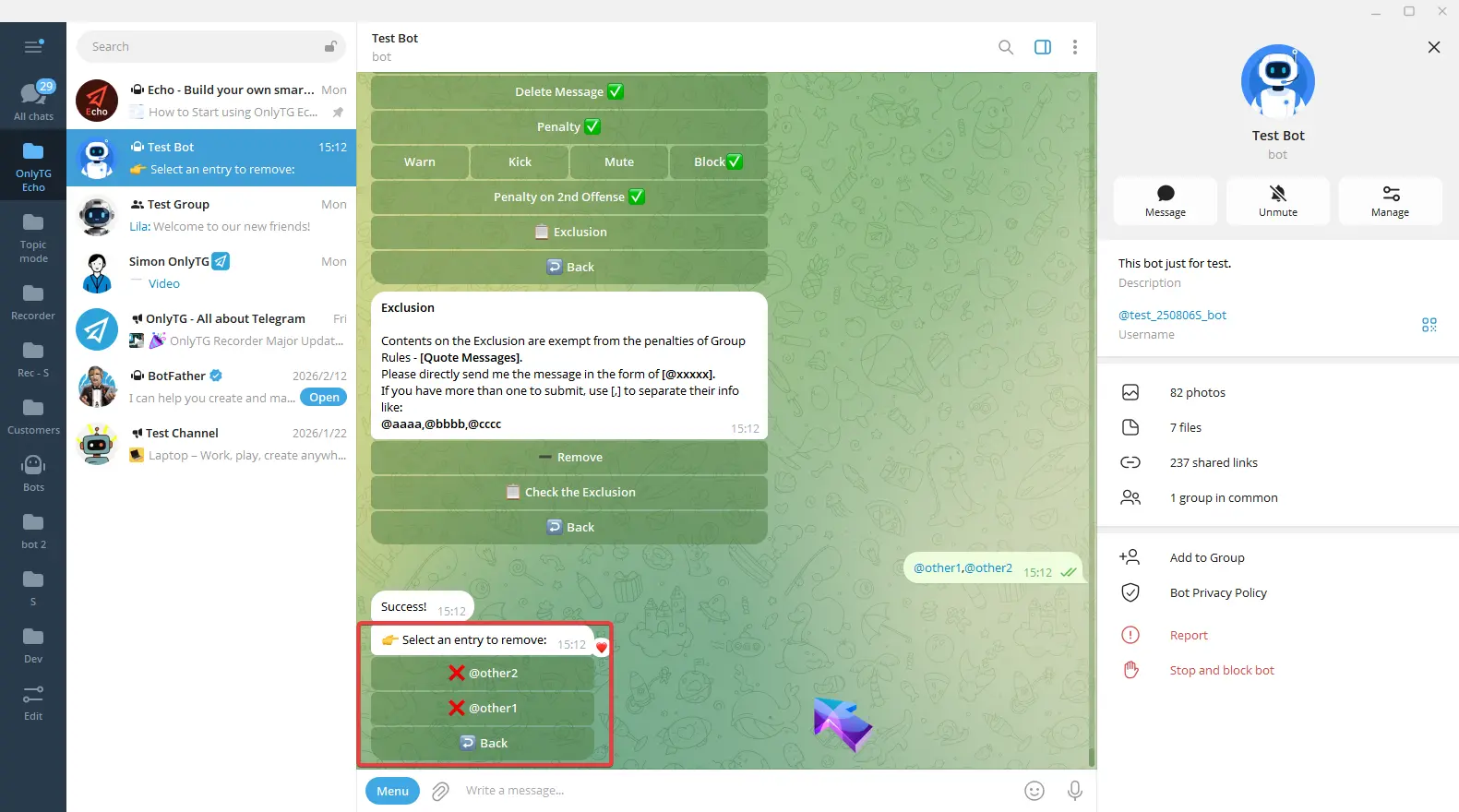
Click Remove to delete the added excluded sources.
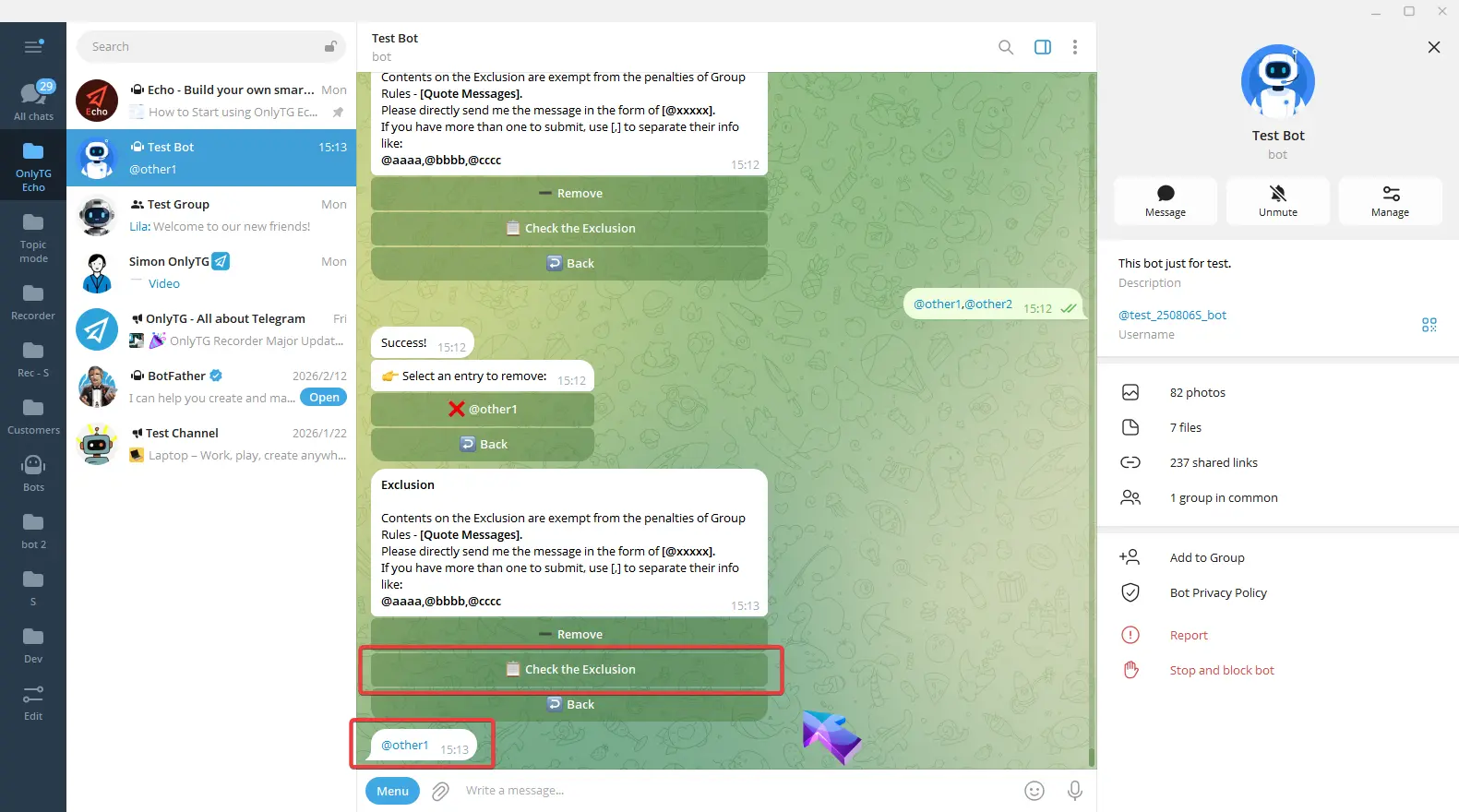
Click Check the Exclusion to view the added excluded sources.
7. Overlength Messages
This rule will be triggered when members sends a message in the group that is over the specified max length.
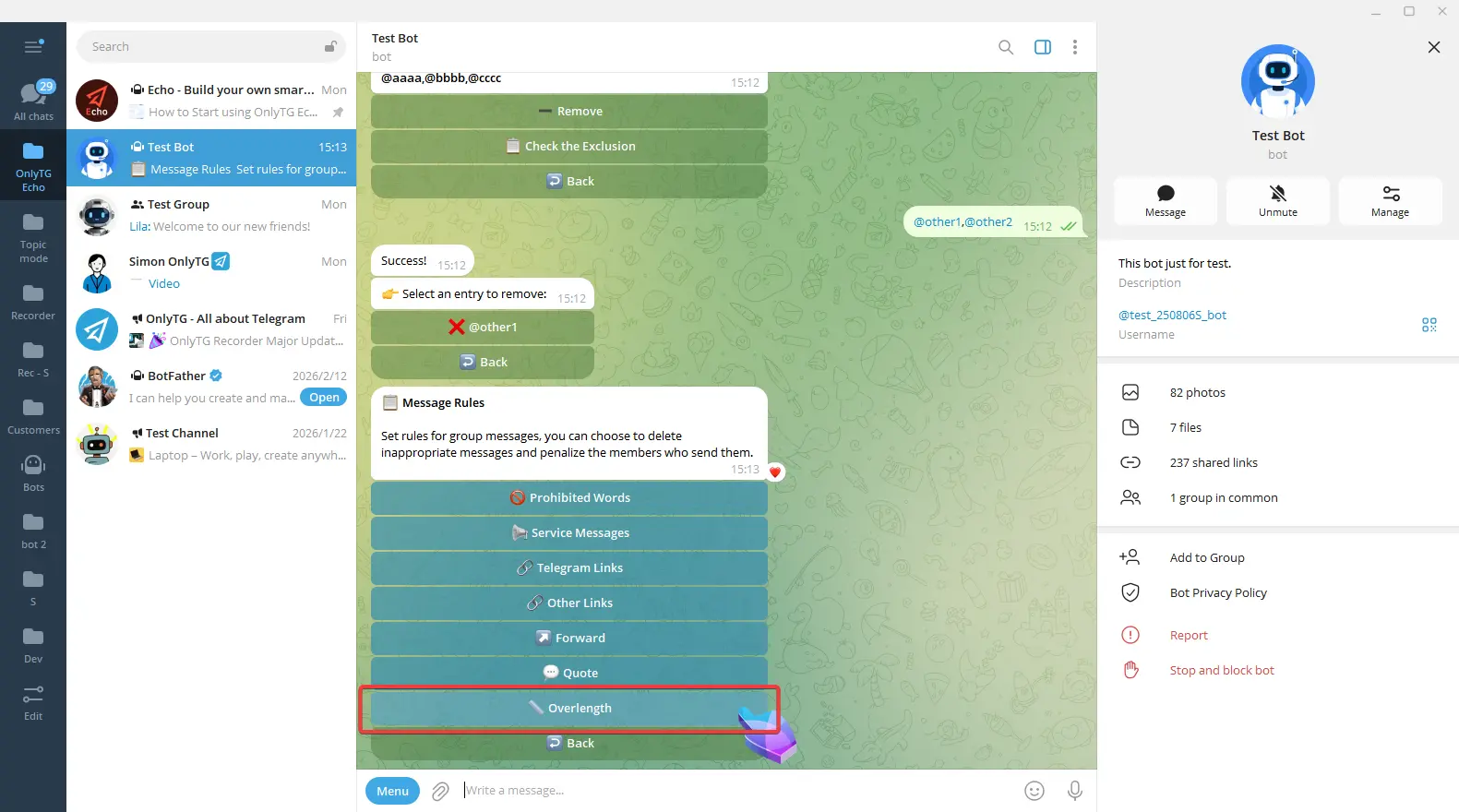
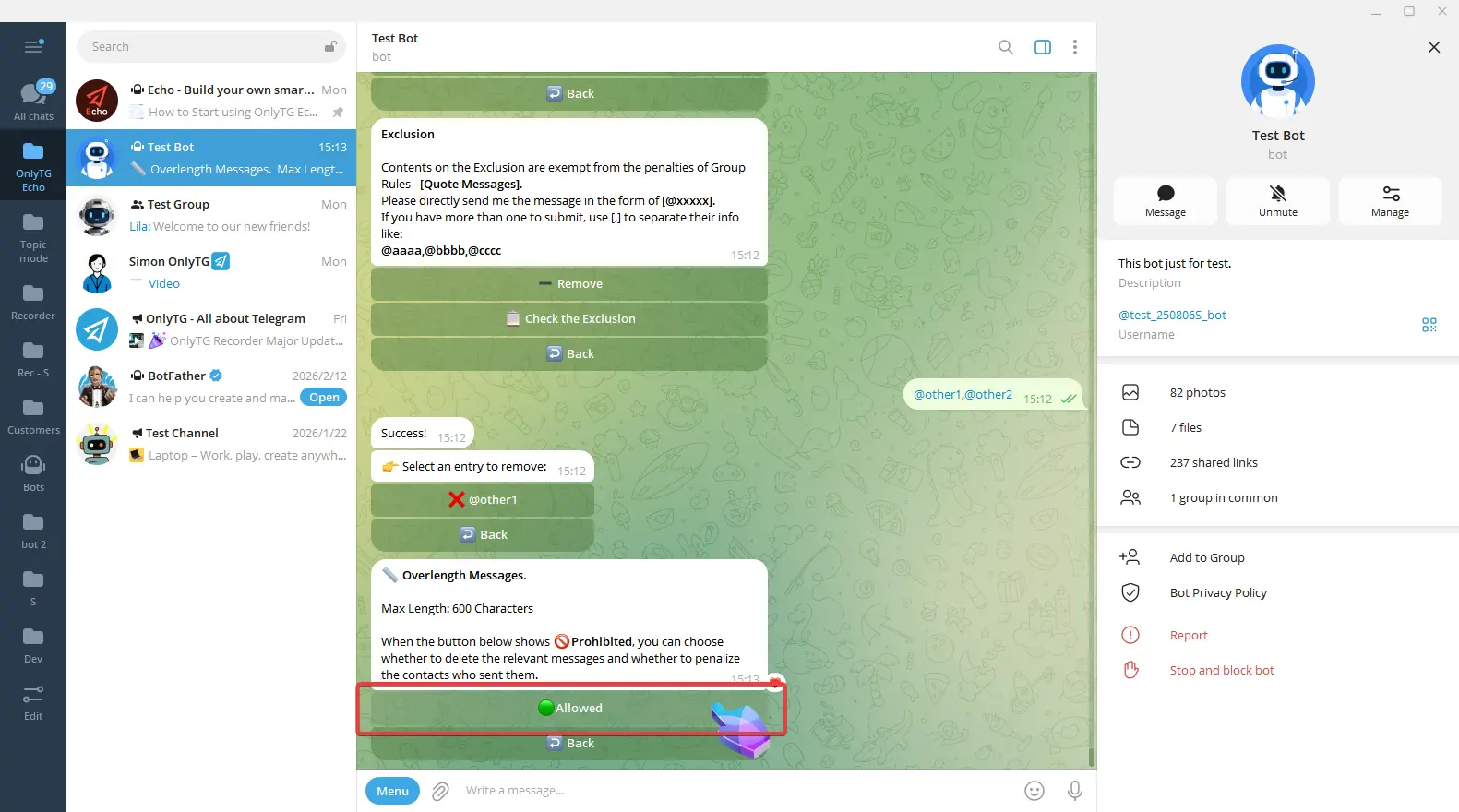
Click Allow to enable it. Click Prohibited again to disable it.
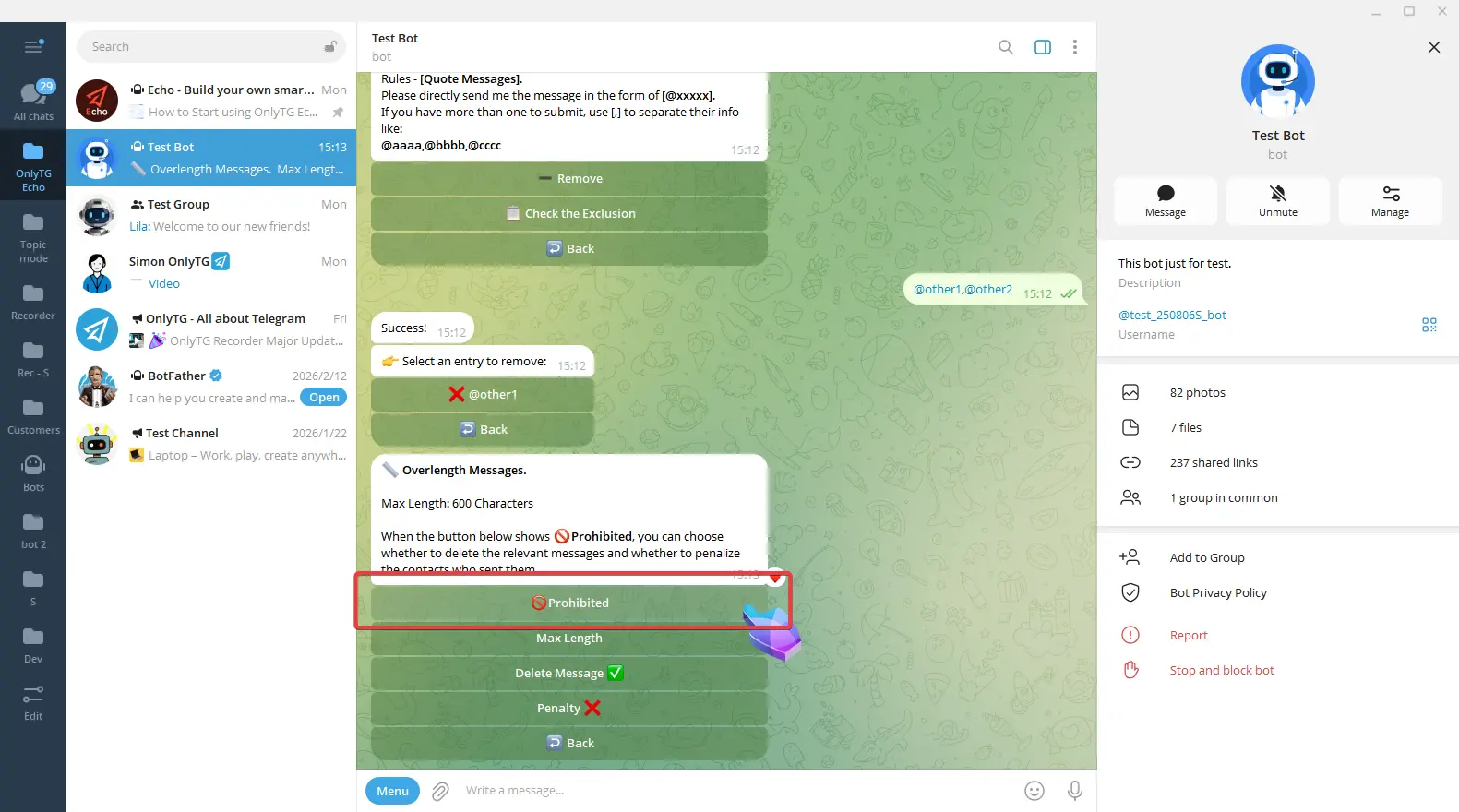
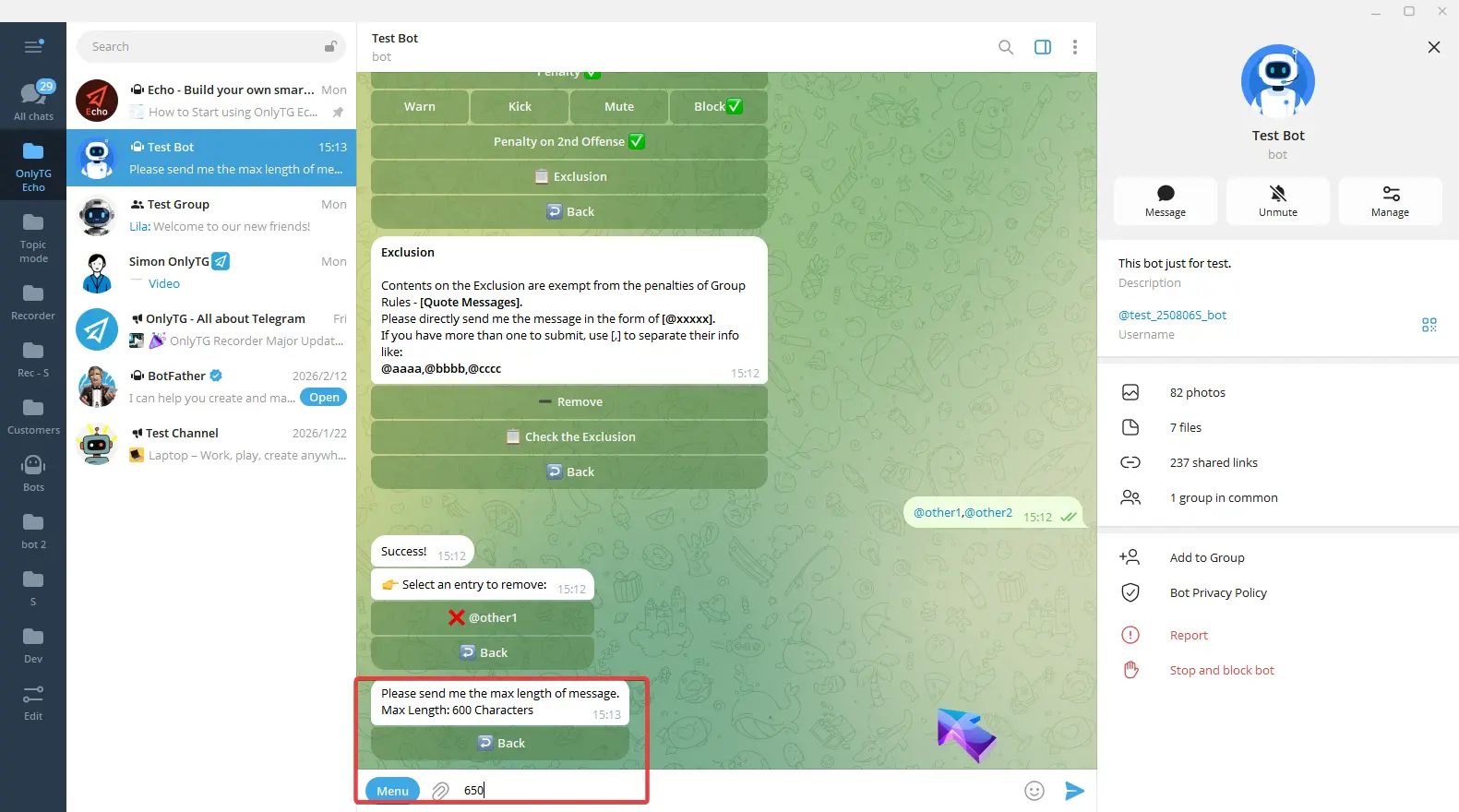
Max length: Set the max message length. Click and send the length to complete the setting.
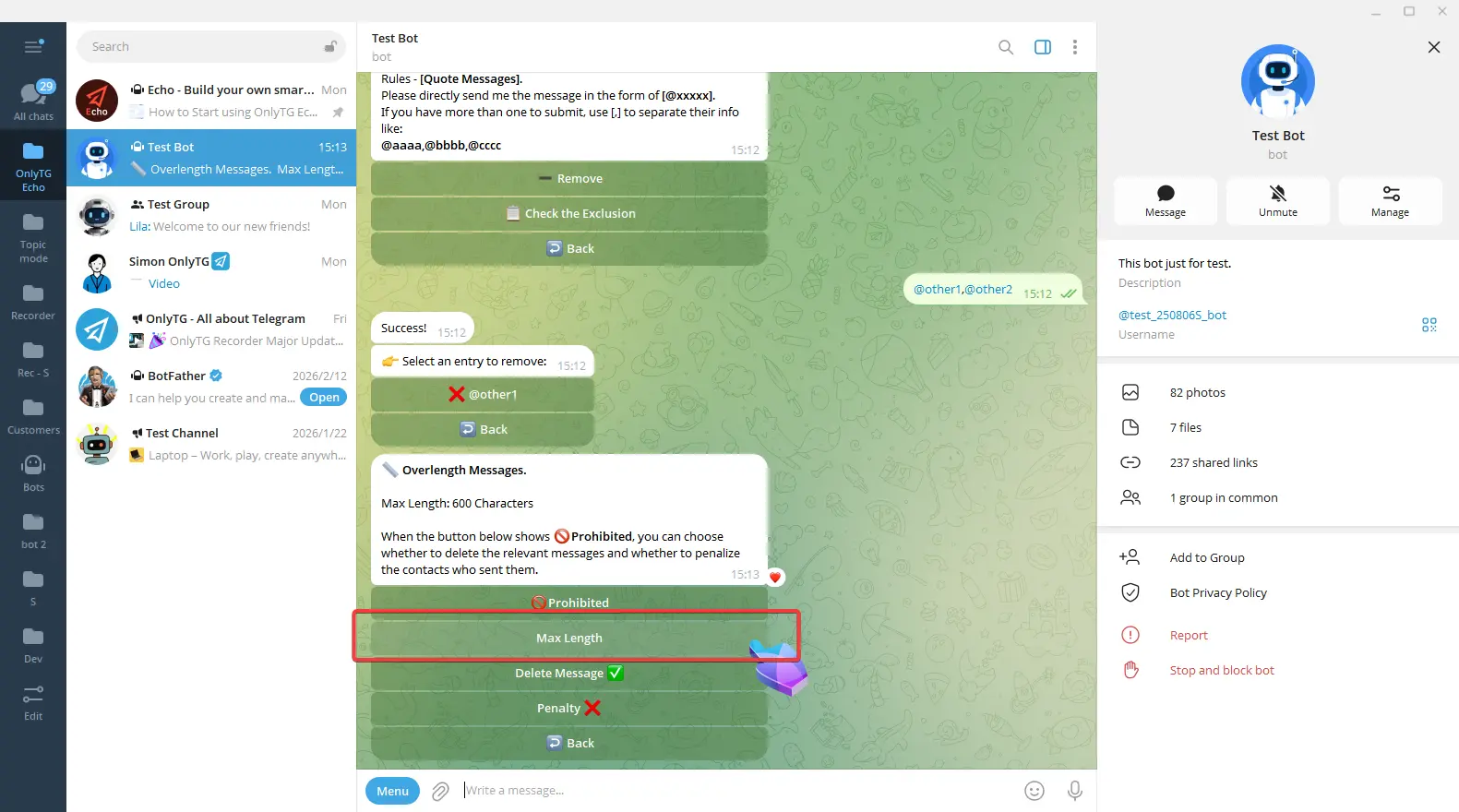
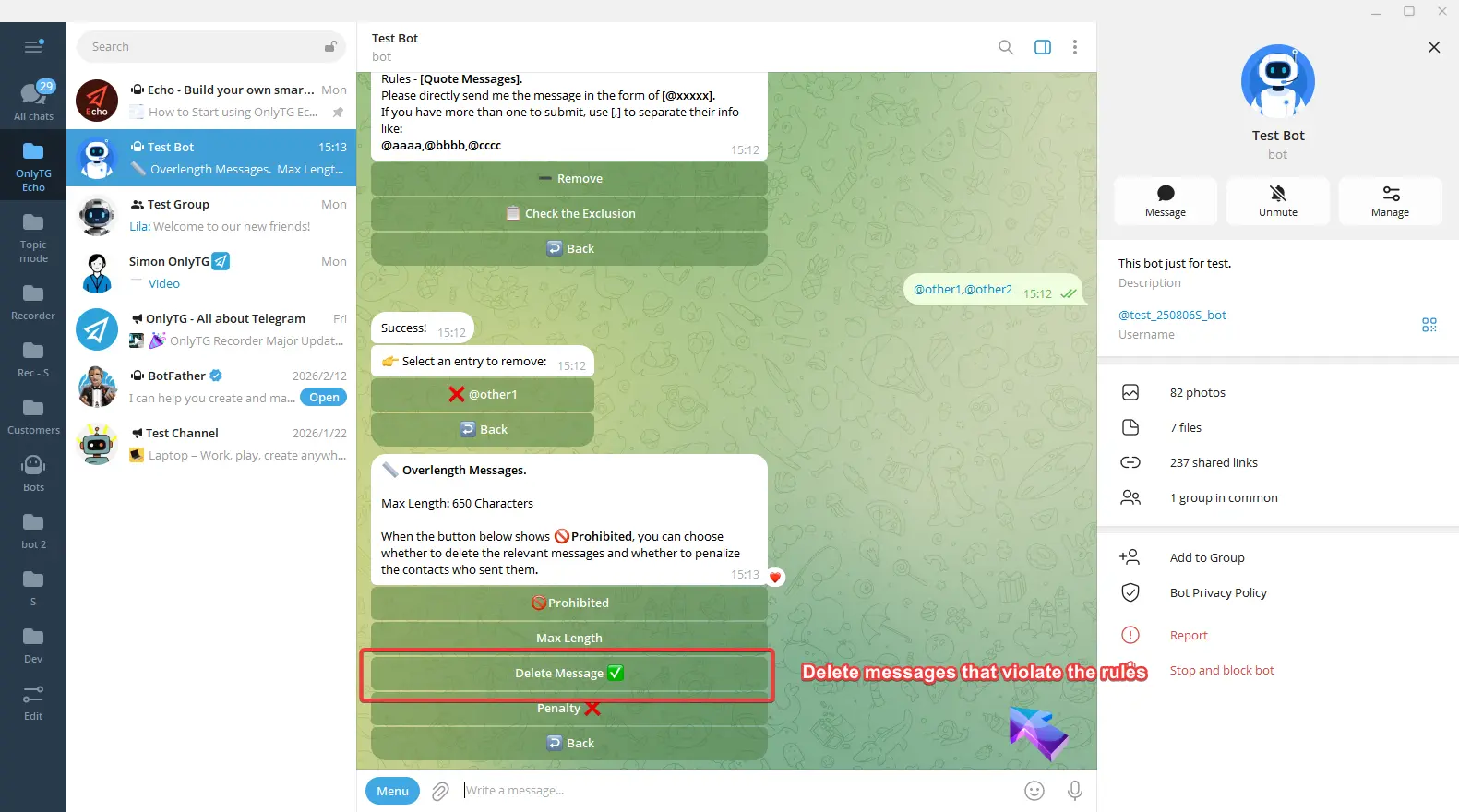
Delete Message: Automatically delete messages that violate the rules. Click to turn this function on or off.
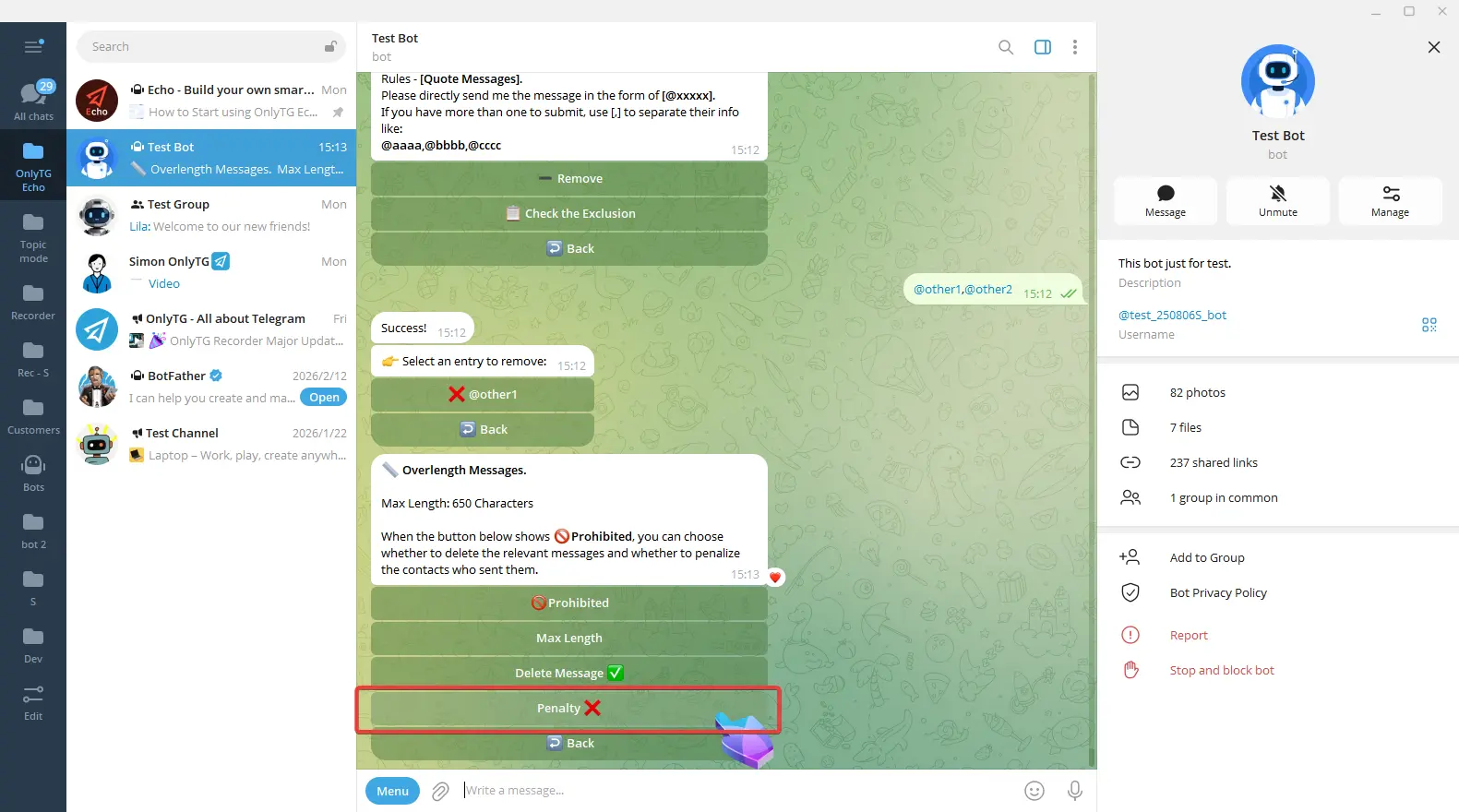
Penalty: Click to enable and select the penalty type.
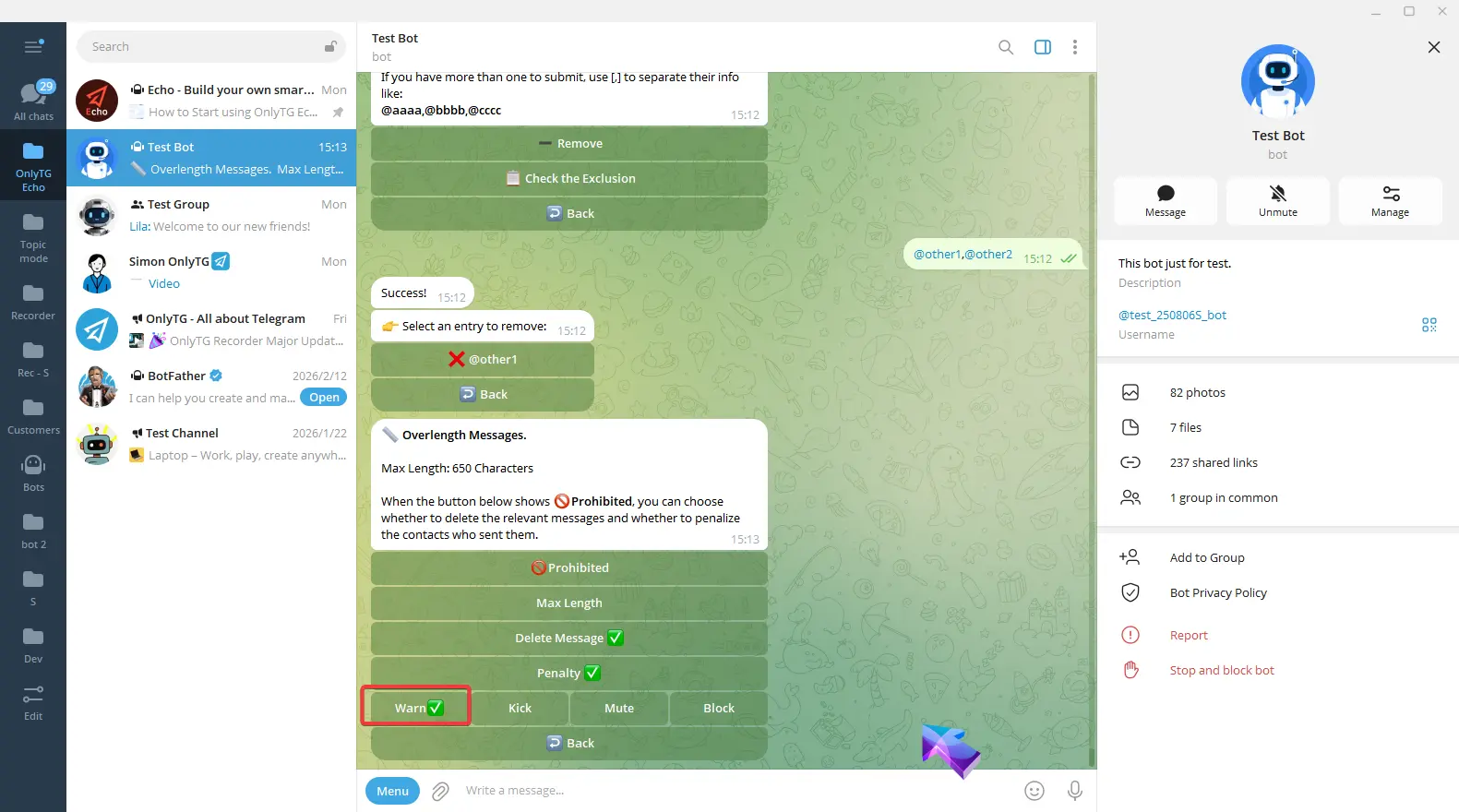
a. Warn: Warn members who violate the rules.
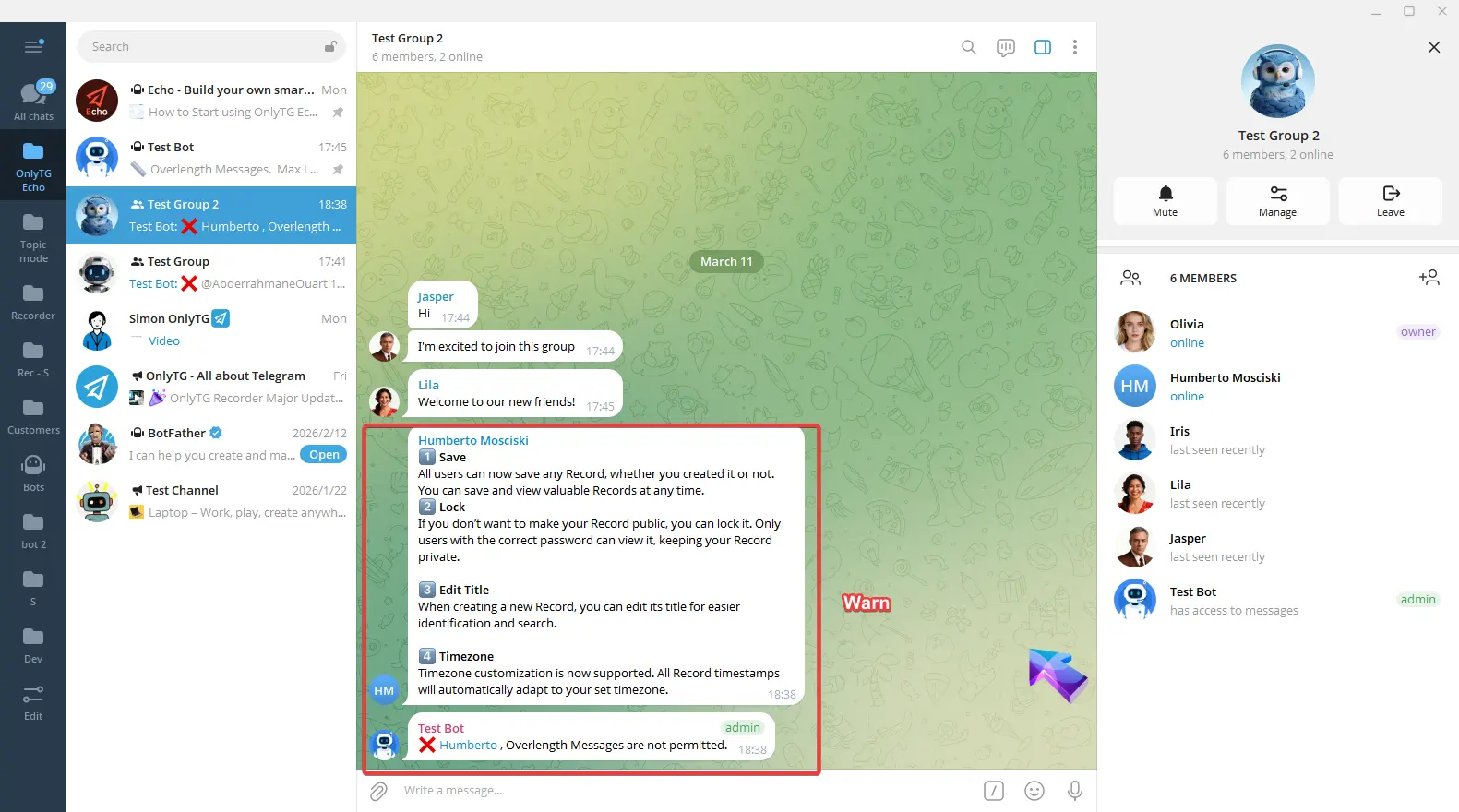
b. Kick: Kick members who violate the rules from the group. Supports the Penalty on 2nd Offense option.
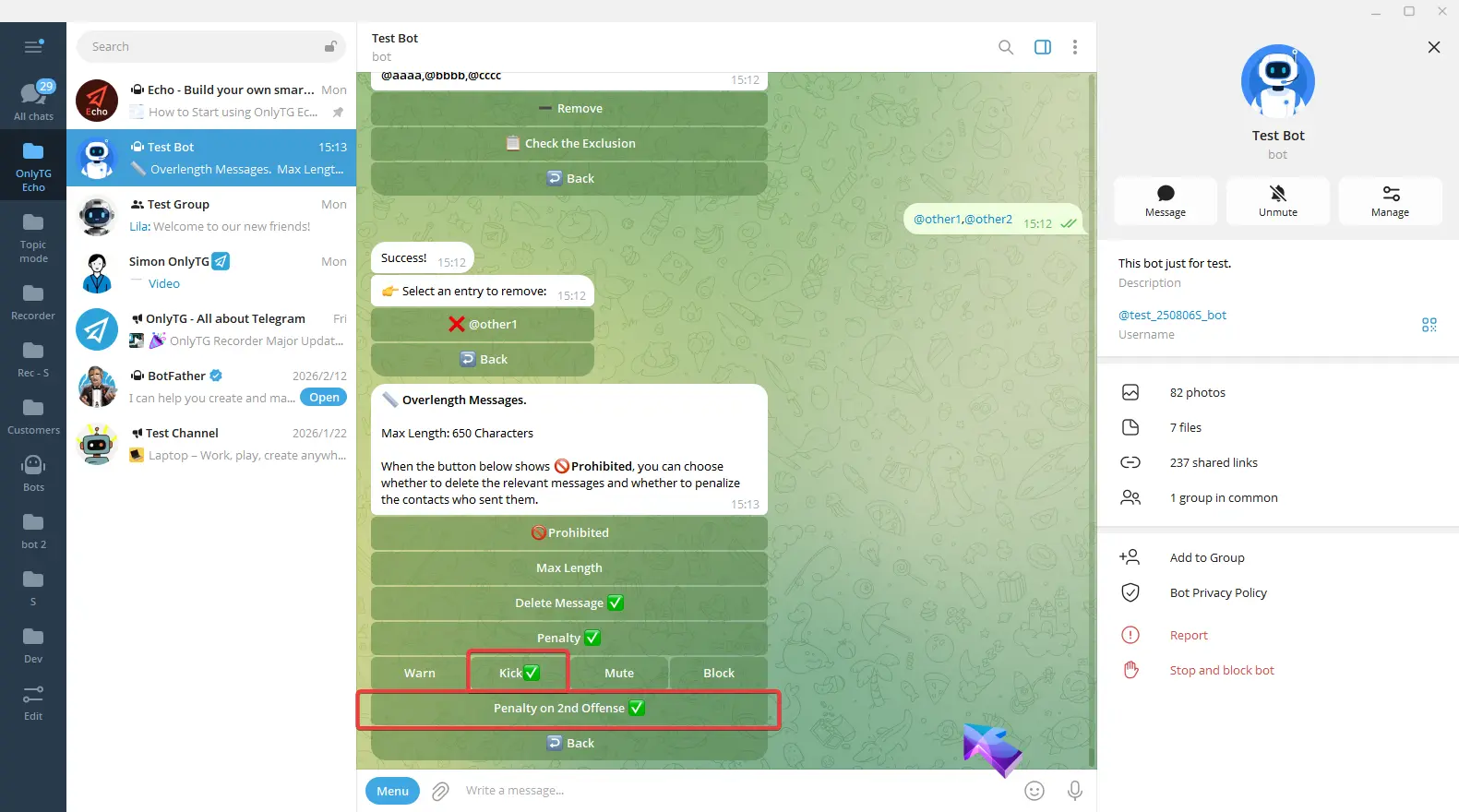
c. Mute: Mute members who violate the rules. Supports the Penalty on 2nd Offense option.
Click Mute Duration to select the mute period.
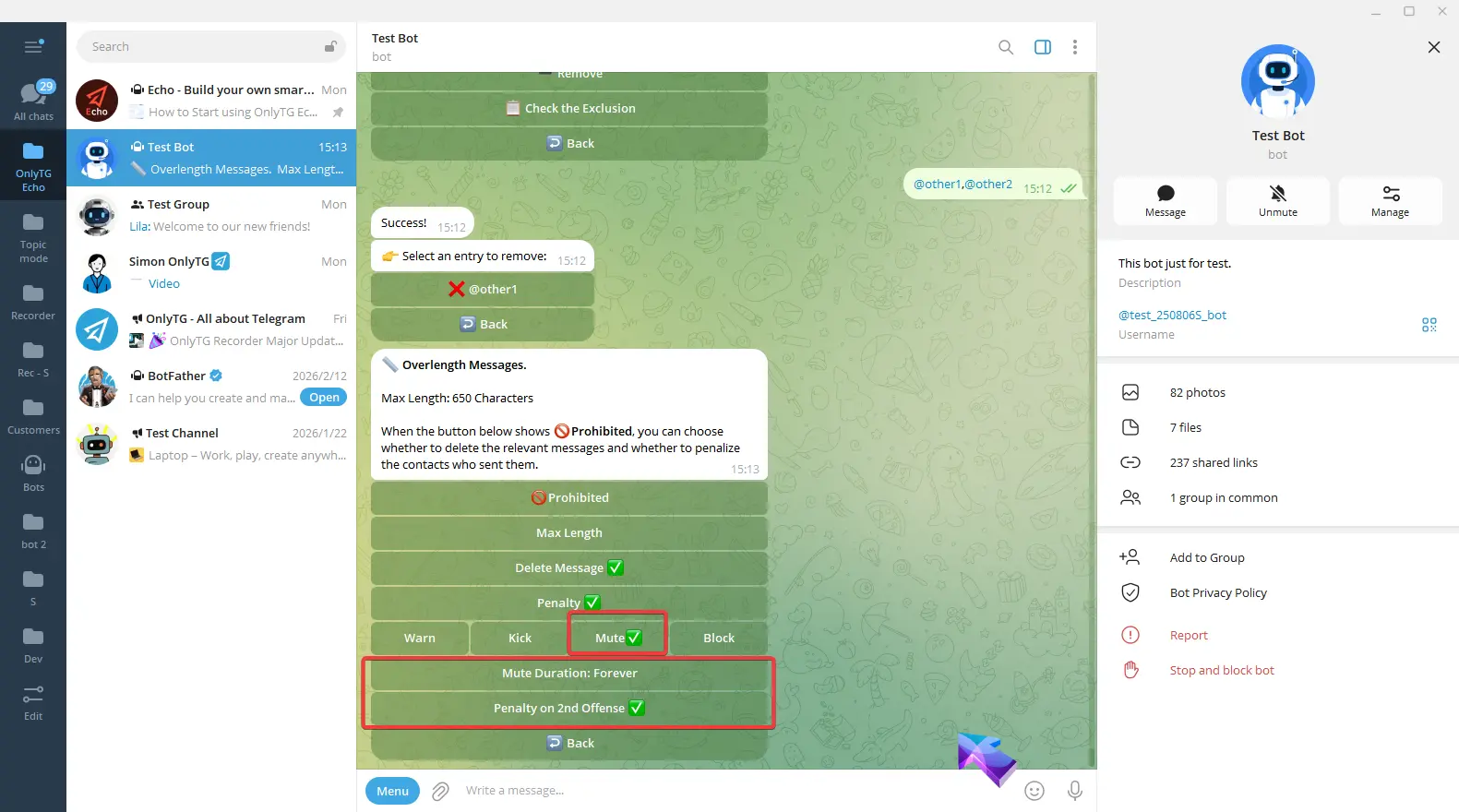
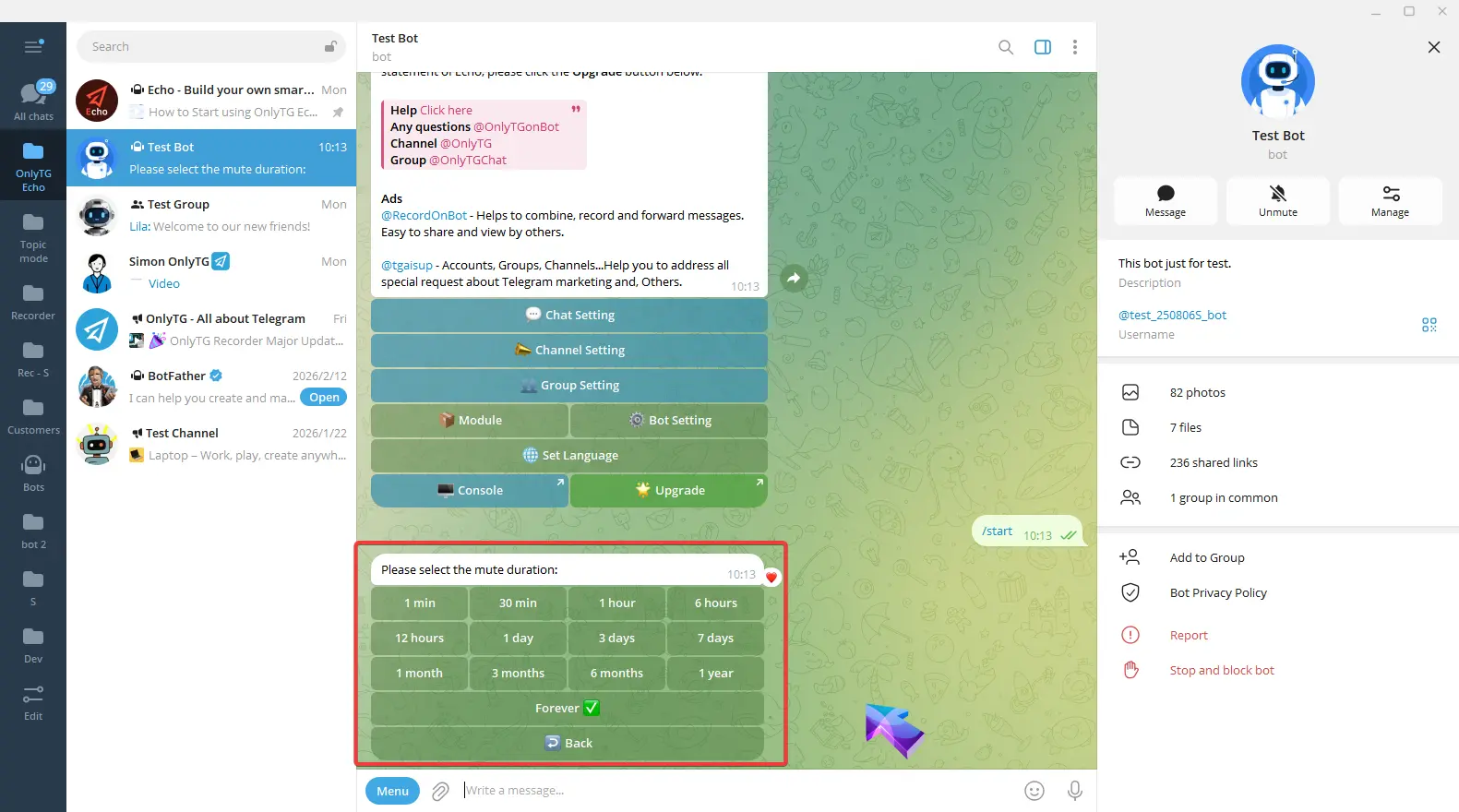
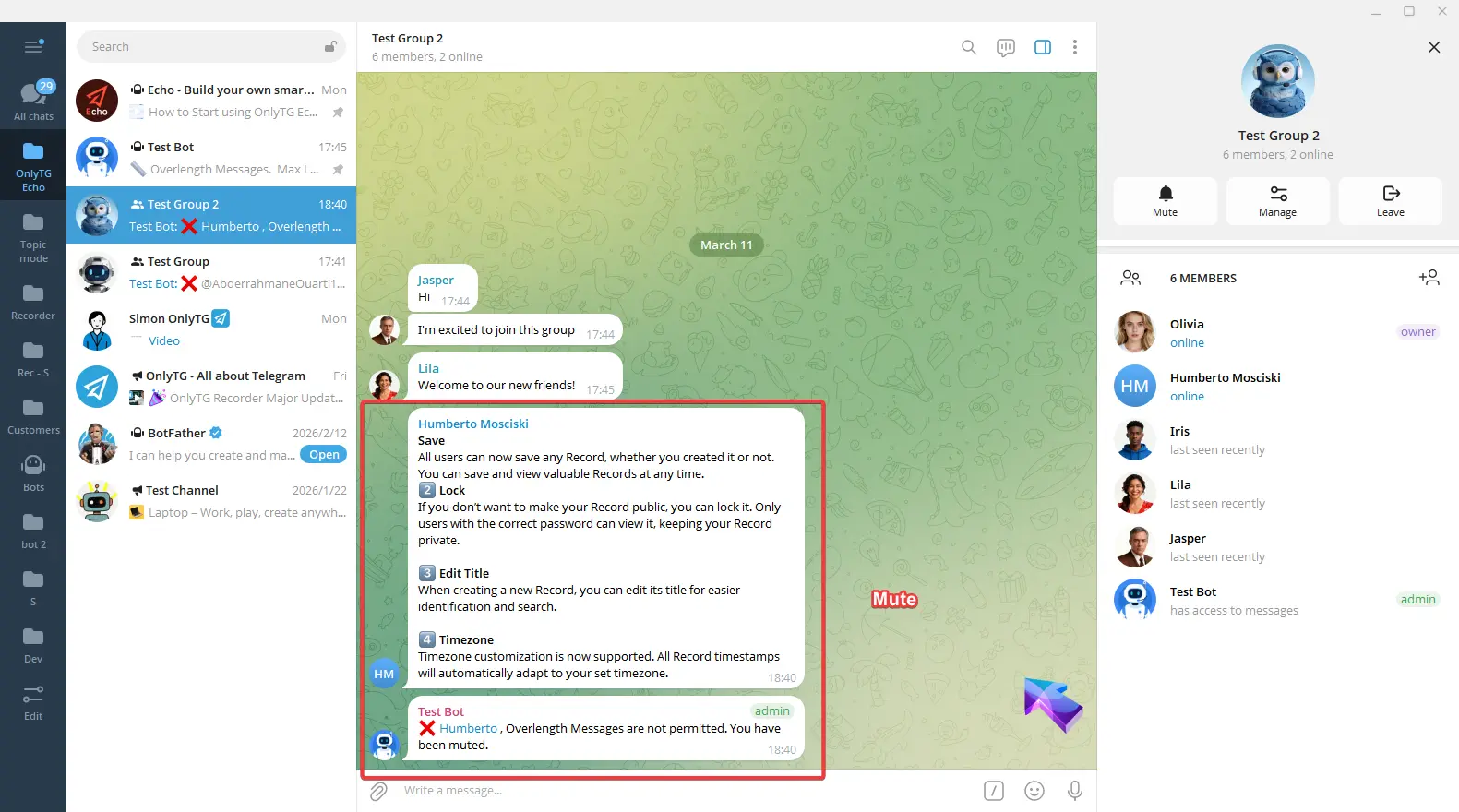
d. Block: Ban members who violate the rules, which means removing them from the group and preventing them from rejoining. Supports the Penalty on 2nd Offense option.
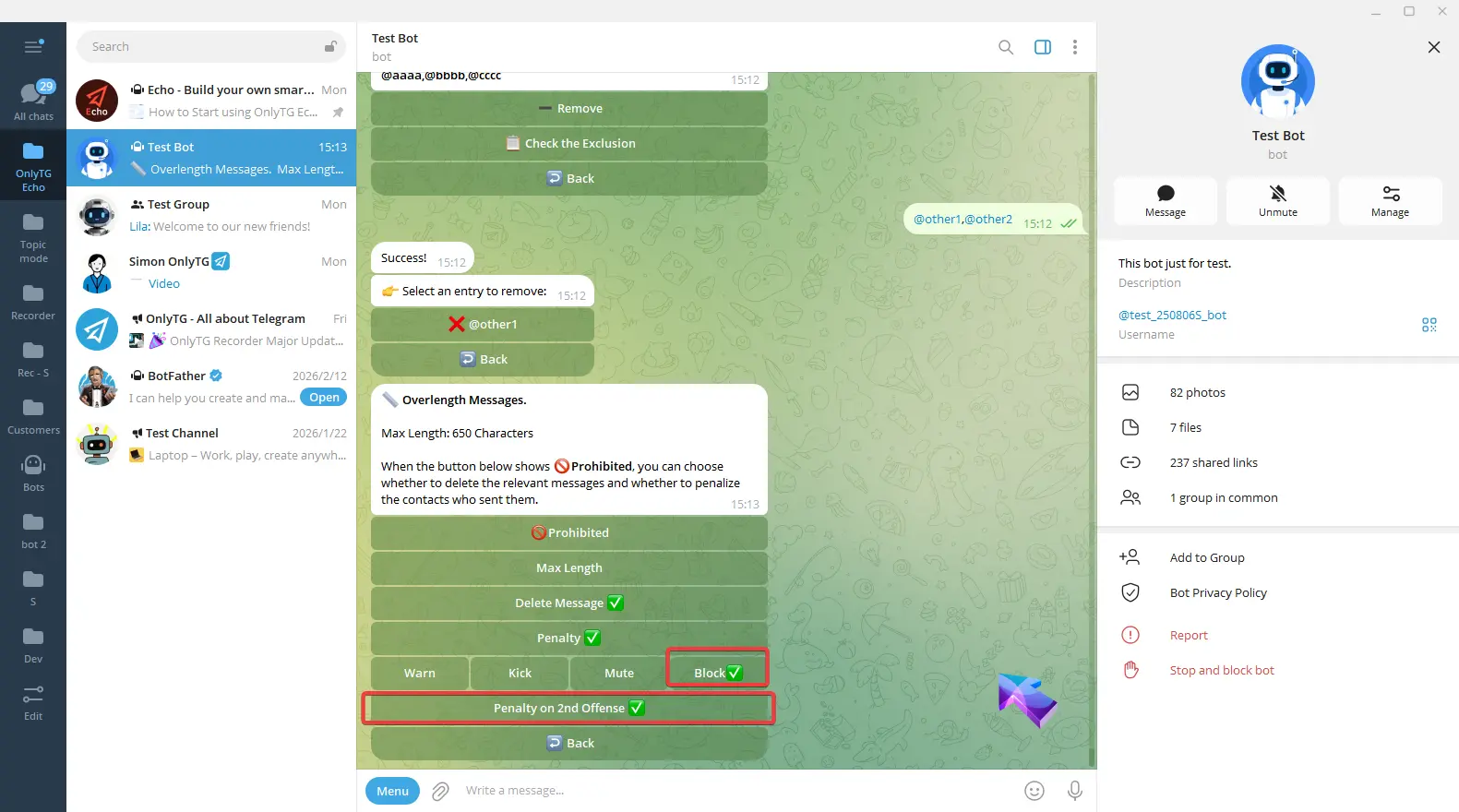
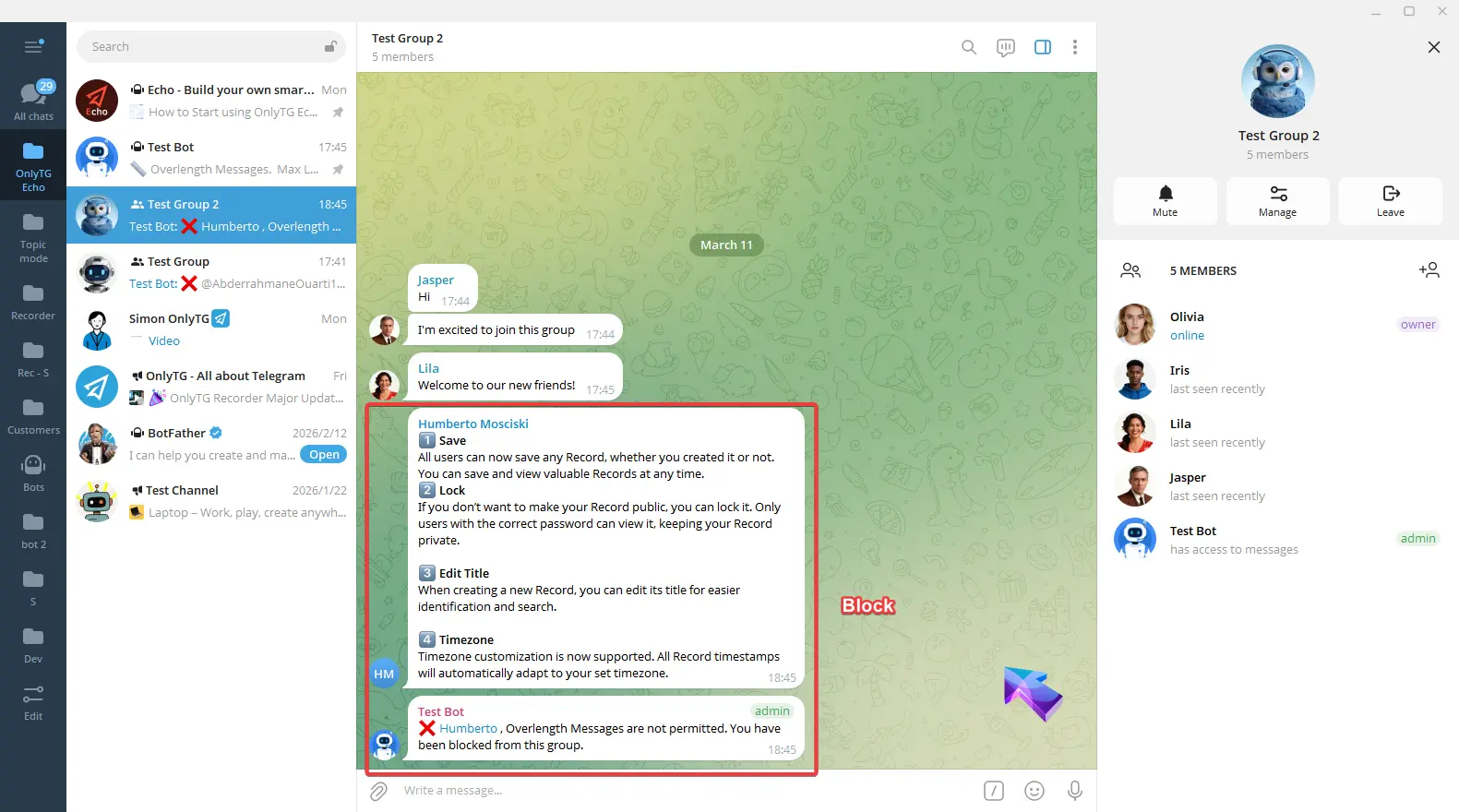
e. Penalty on 2nd: Warning for the first offense, Penalty on the second offense.
When you select Kick, Mute, or Block penalties, you can enable these options.
Anti-spam
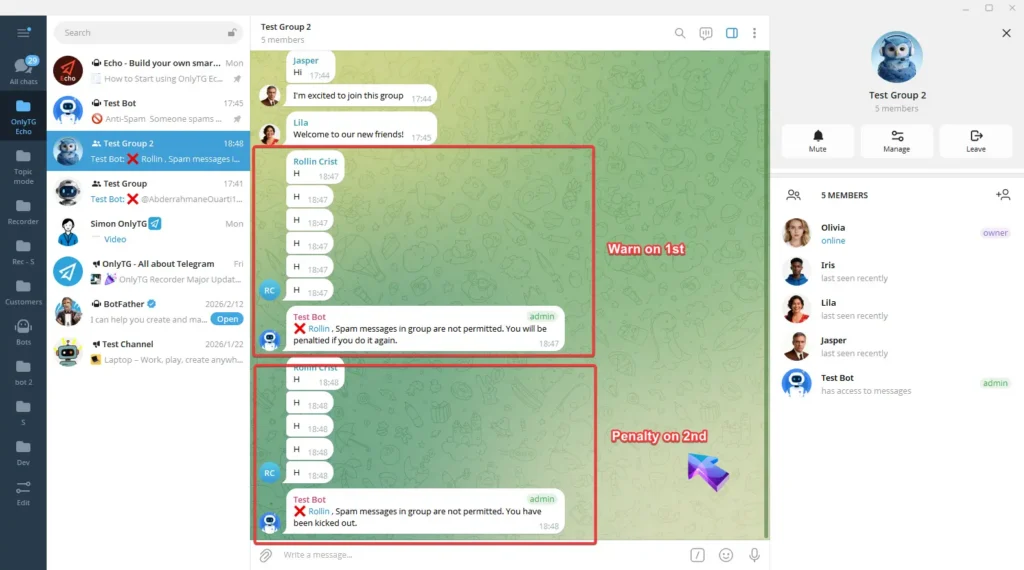
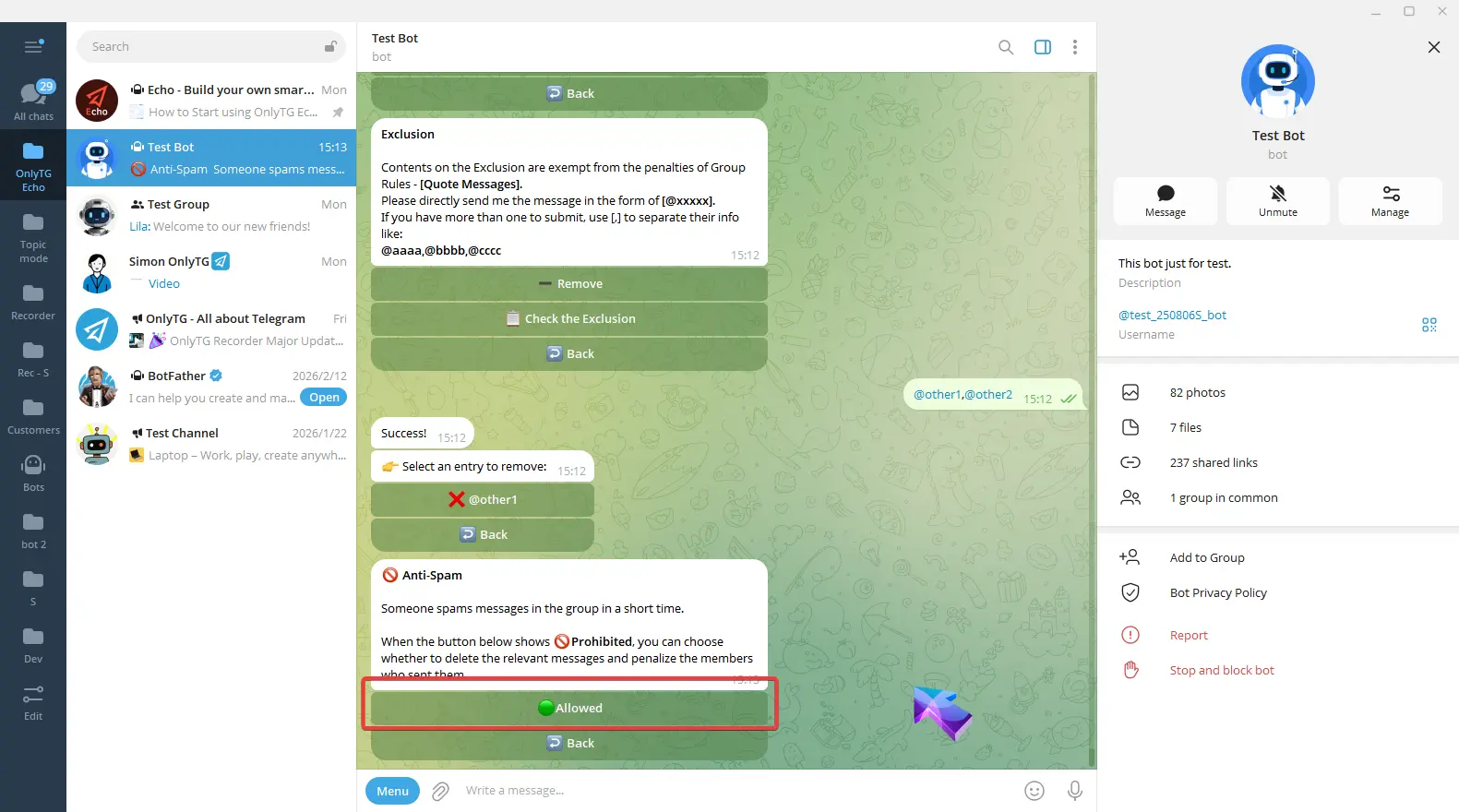
This rule will be triggered when members spams messages in the group in a short time.
Click Allow to enable it. Click Prohibited again to disable it.
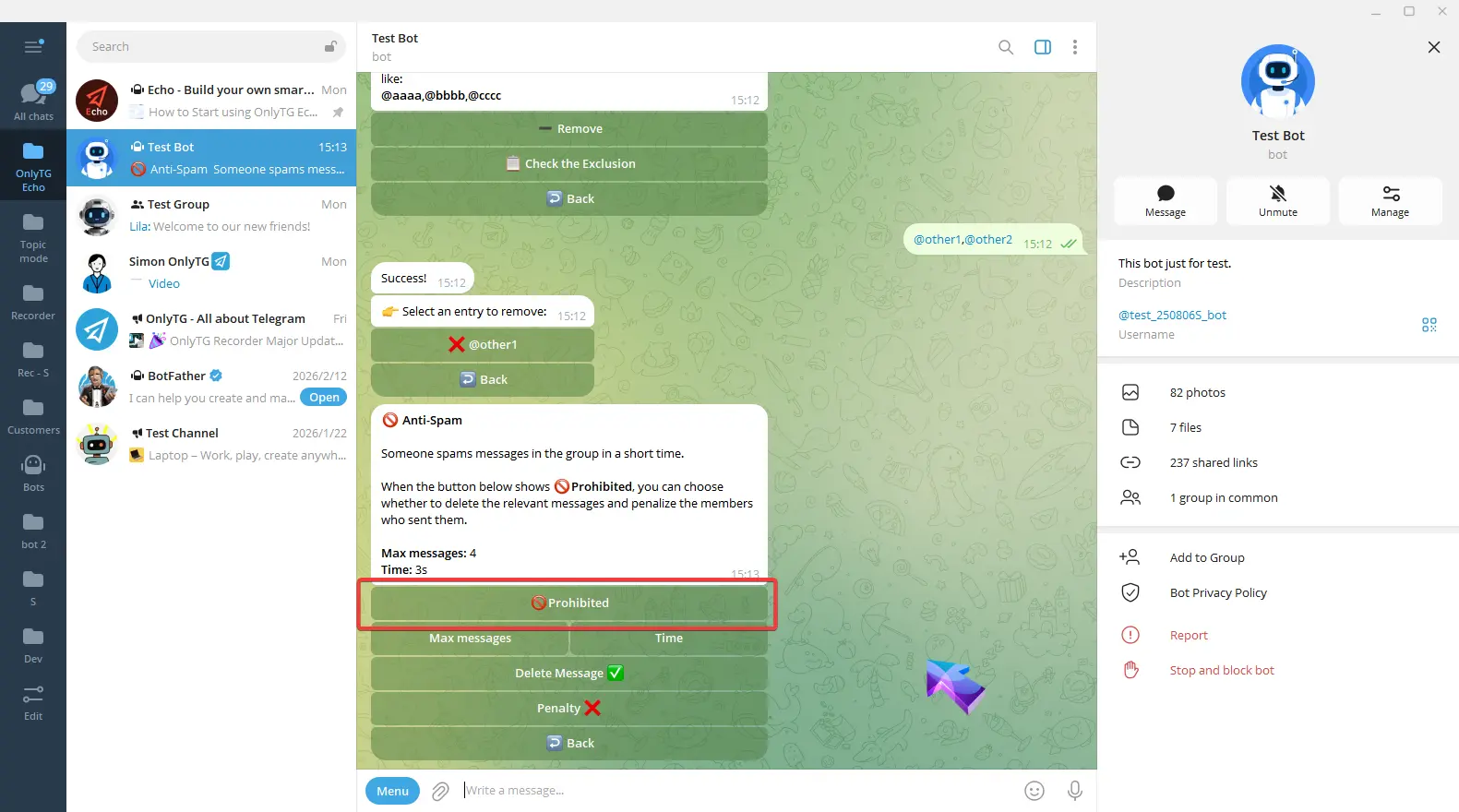
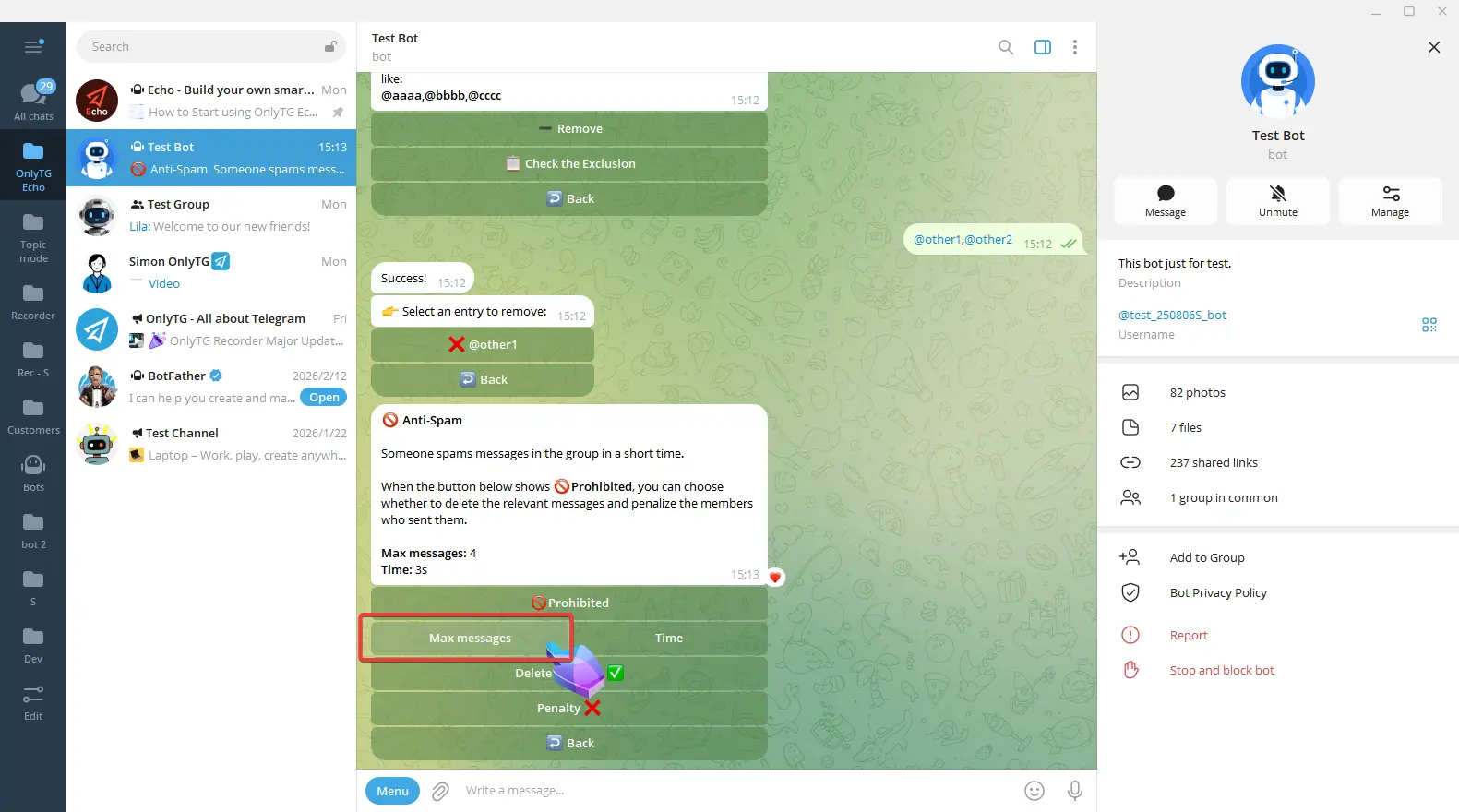
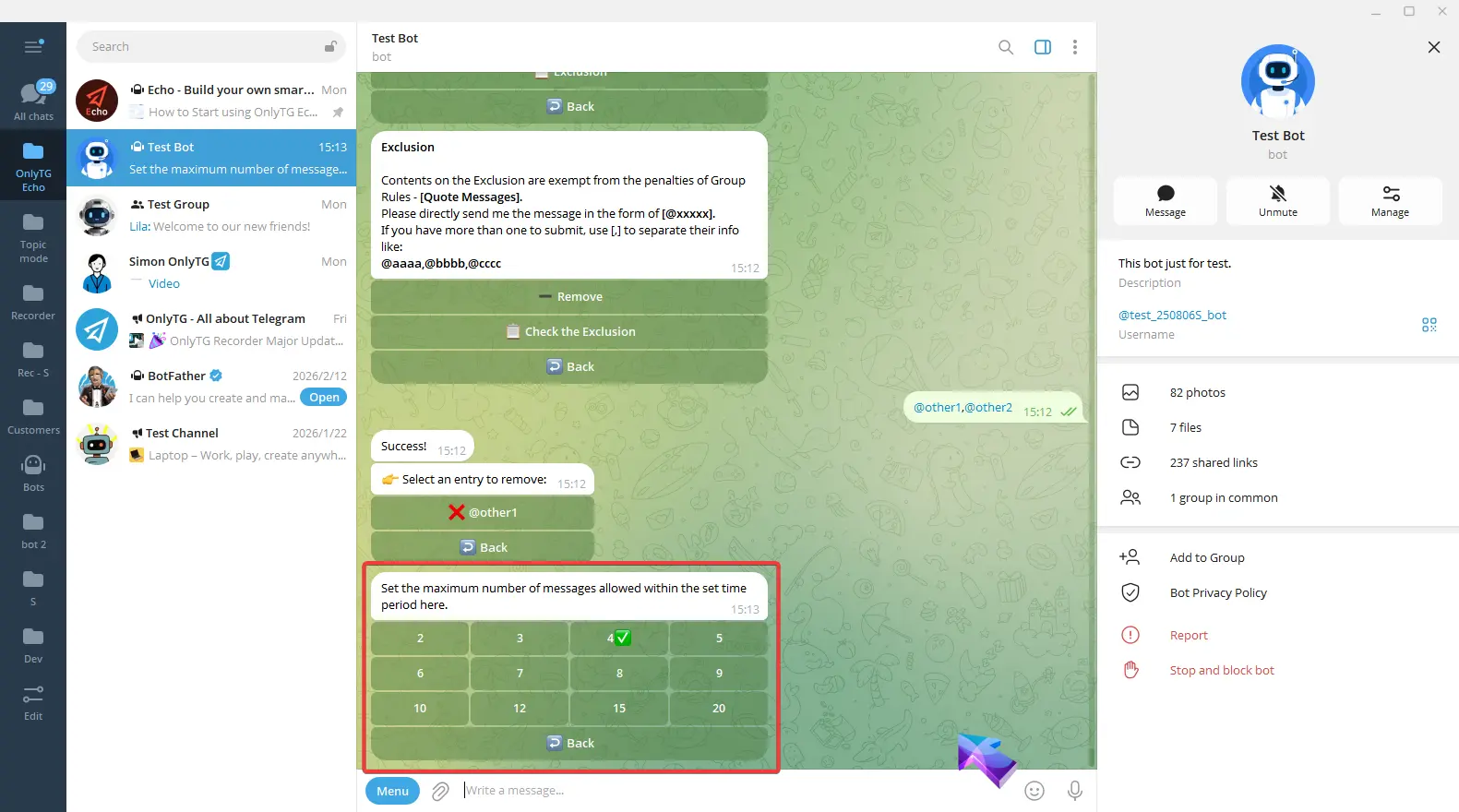
Max Message: Set the maximum number of messages allowed within the set time period here.
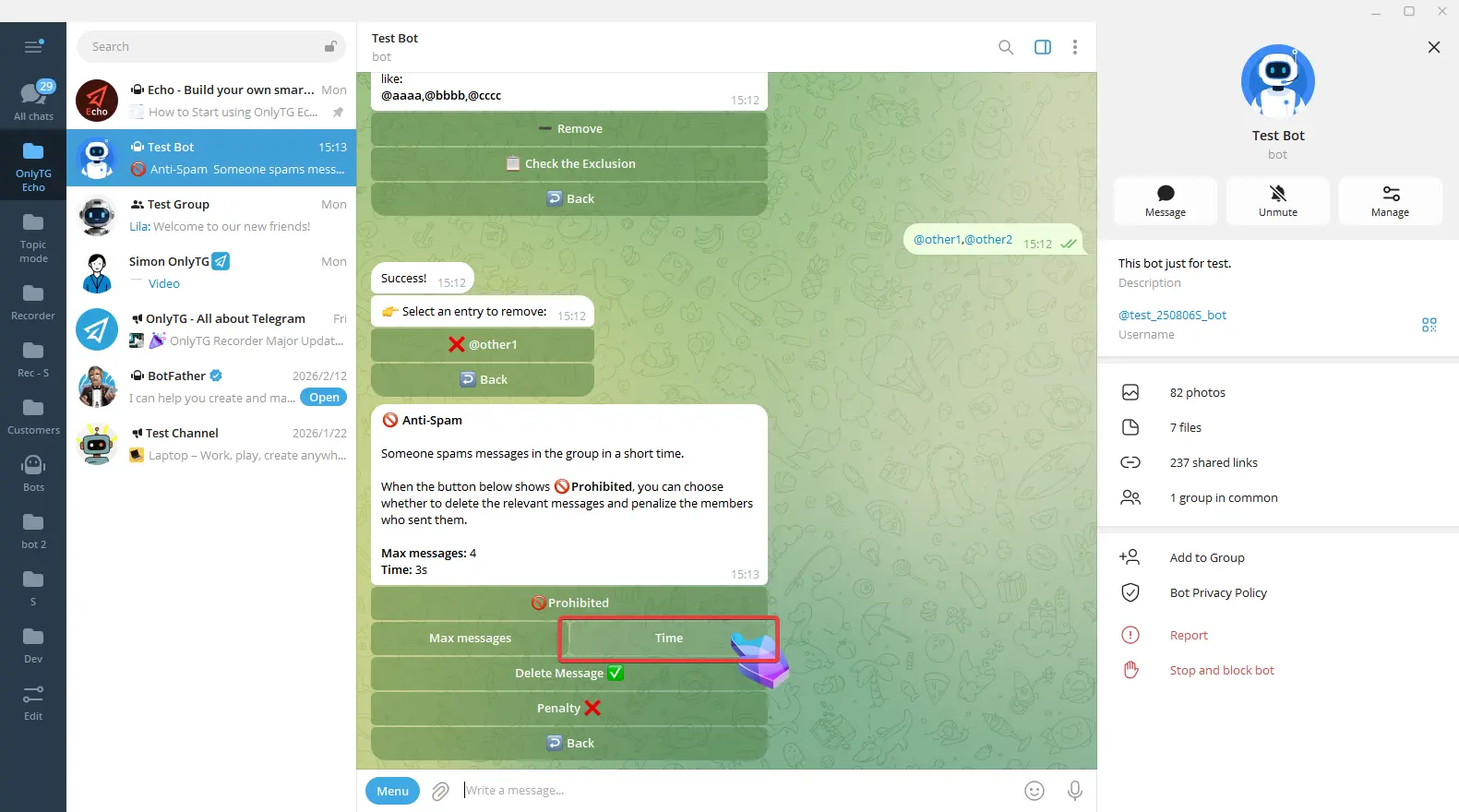
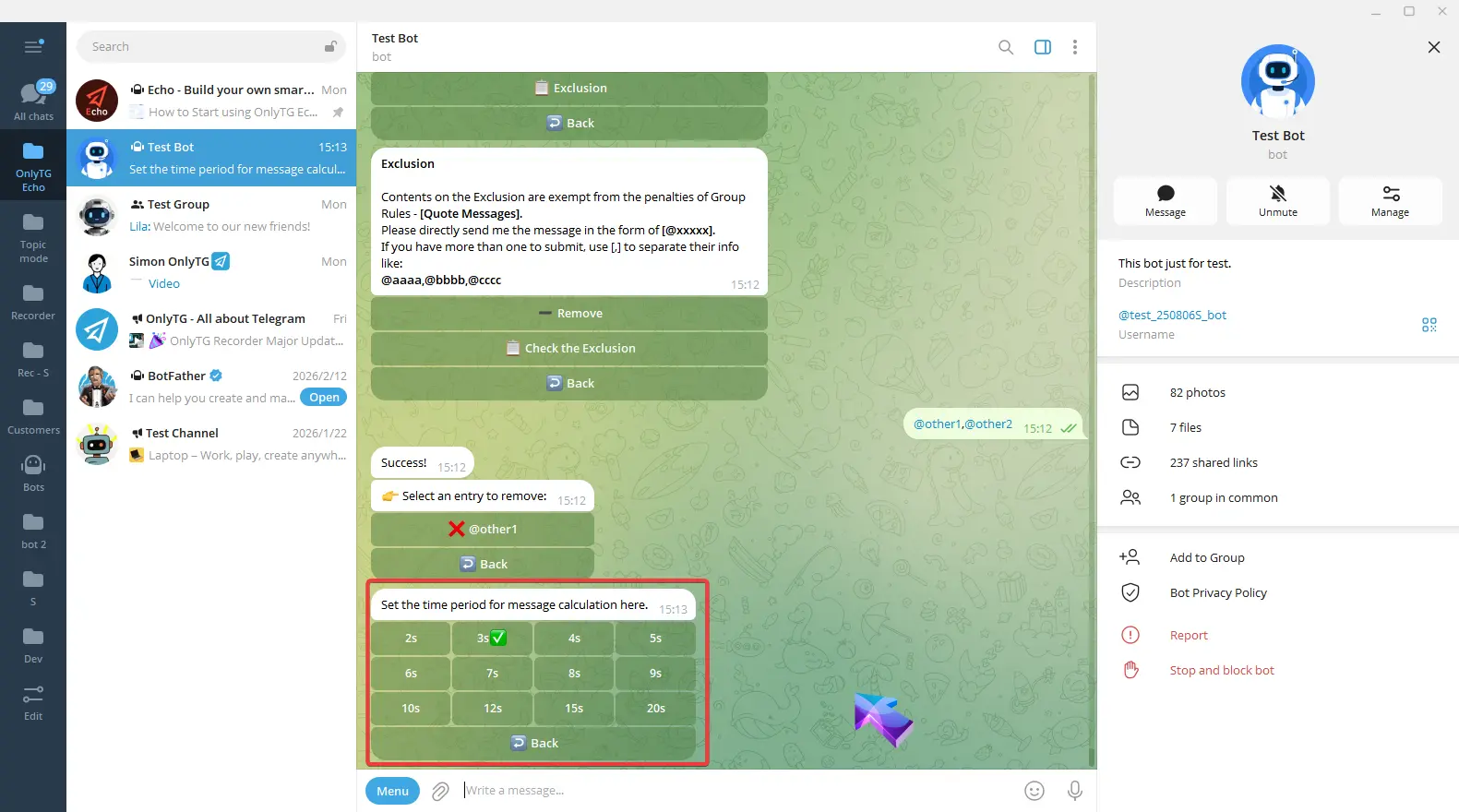
Time: Set the time period for message calculation here.
Delete Message: Automatically delete messages that violate the rules. Click to turn this function on or off.
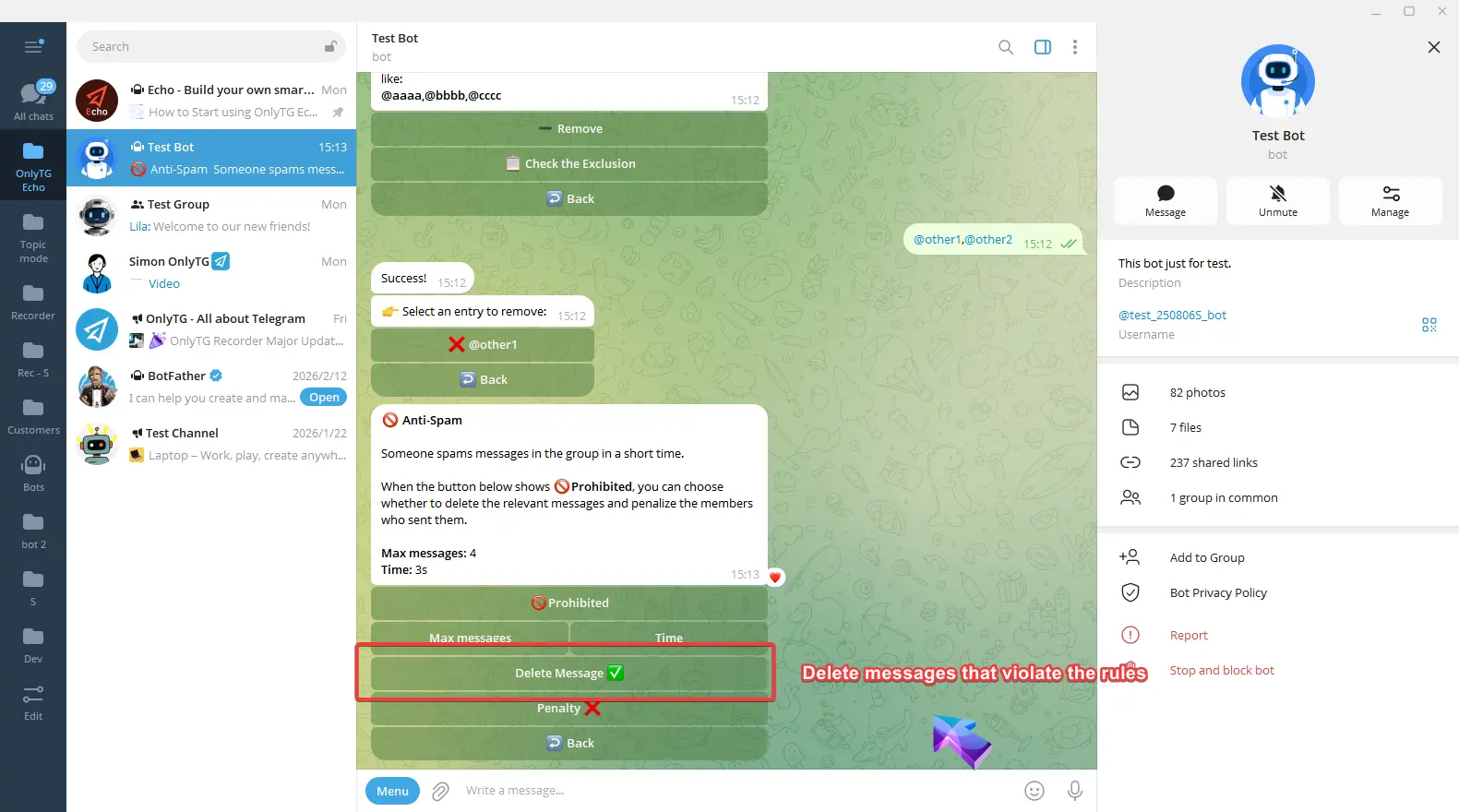
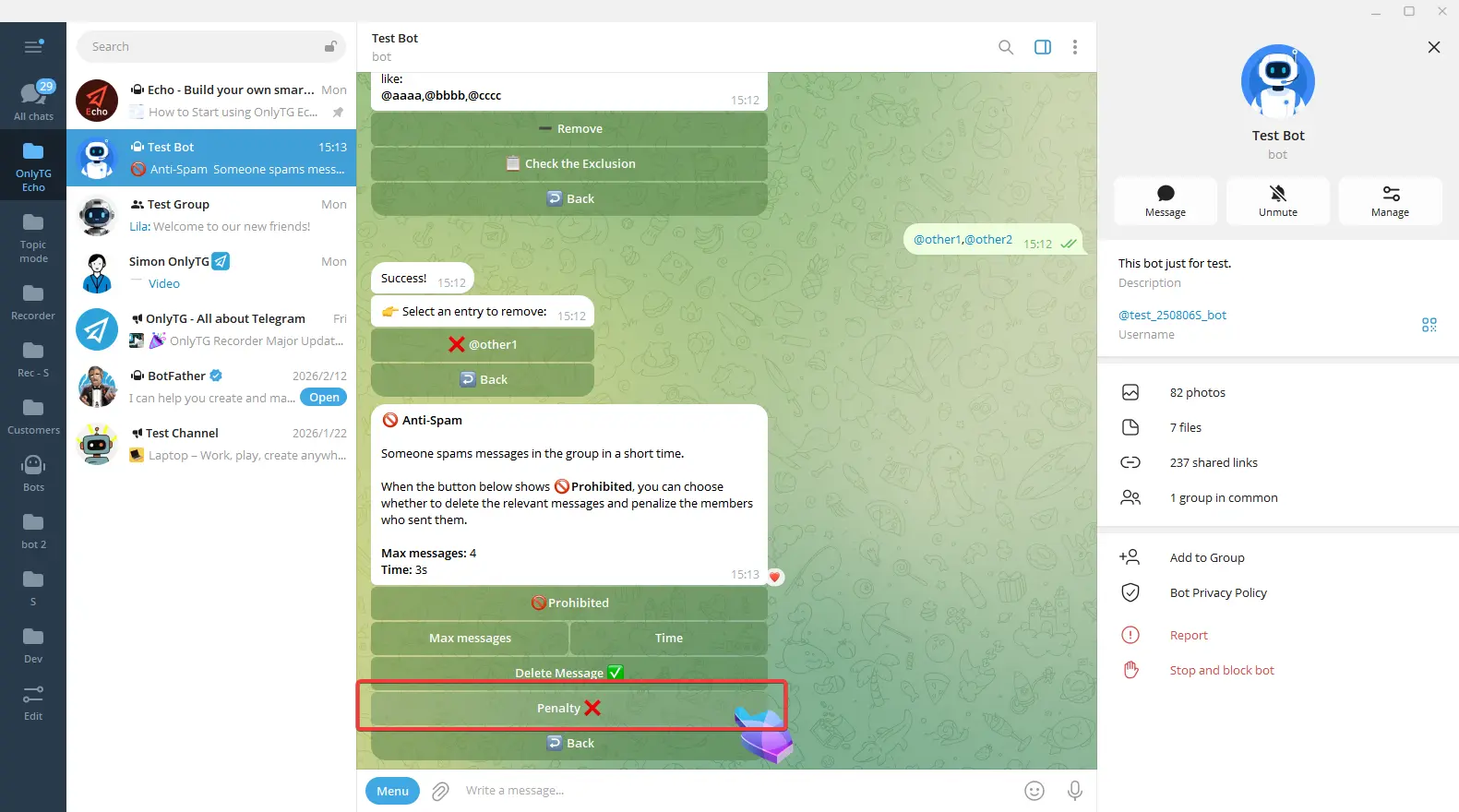
Penalty: Click to enable and select the penalty type.
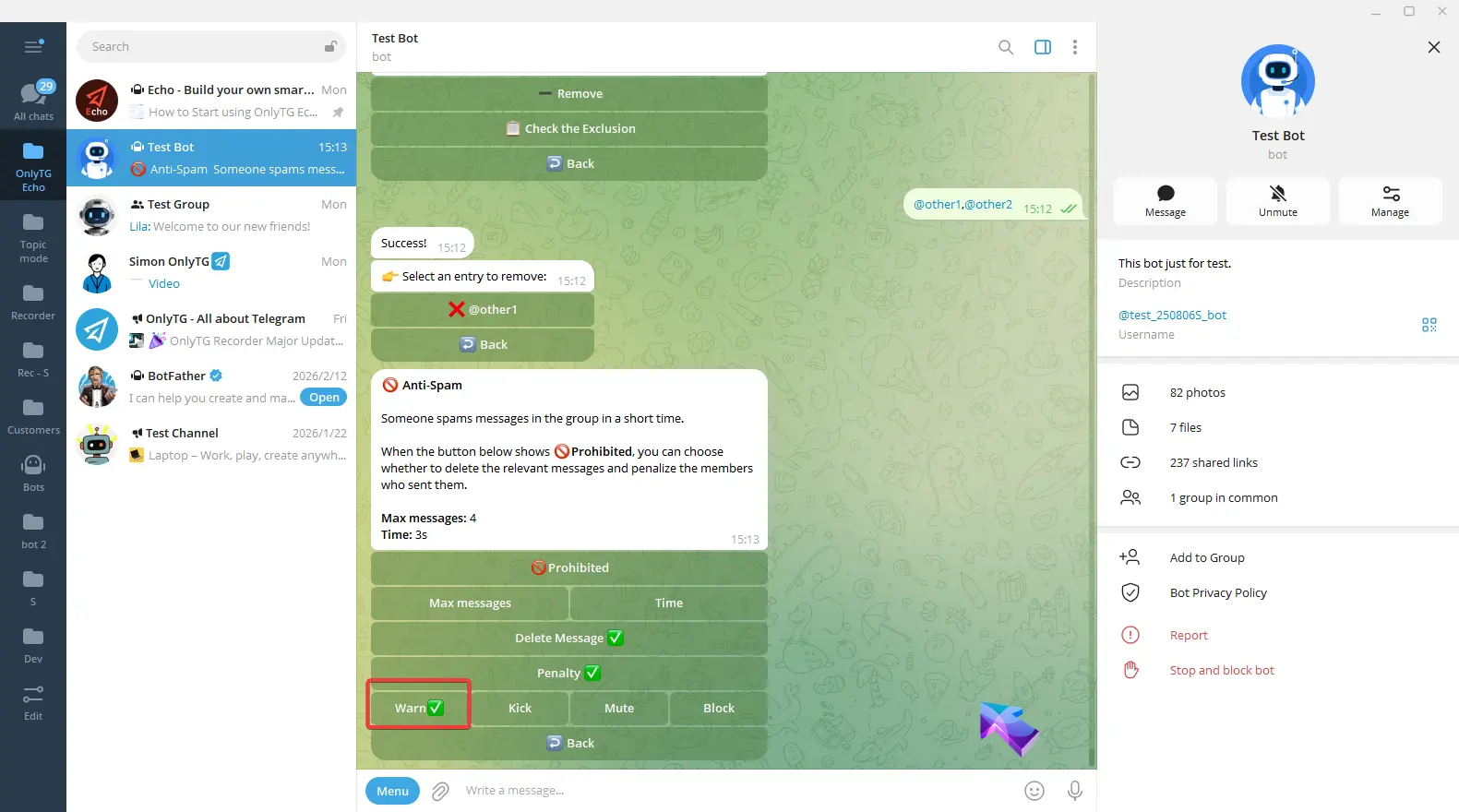
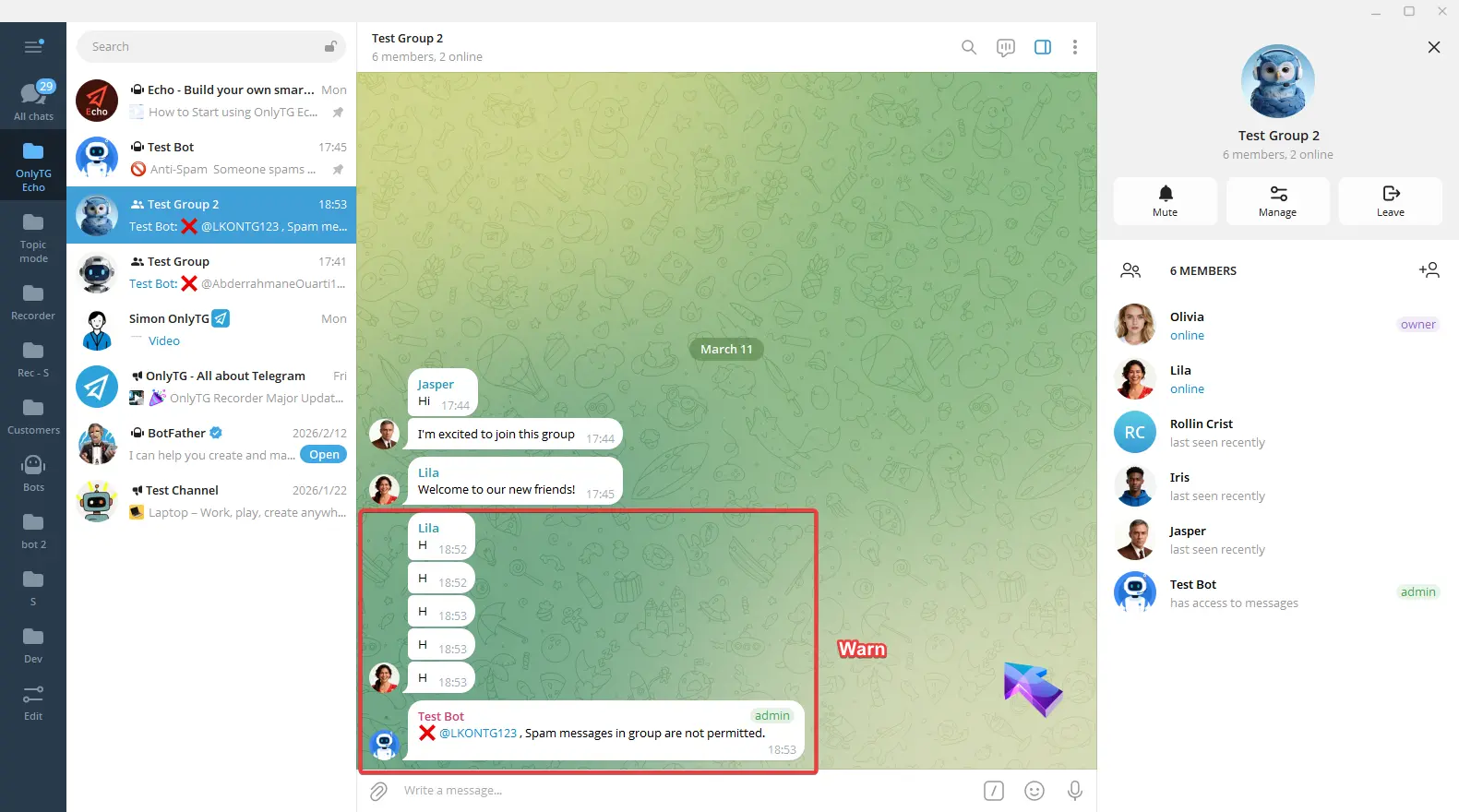
a. Warn: Warn members who violate the rules.
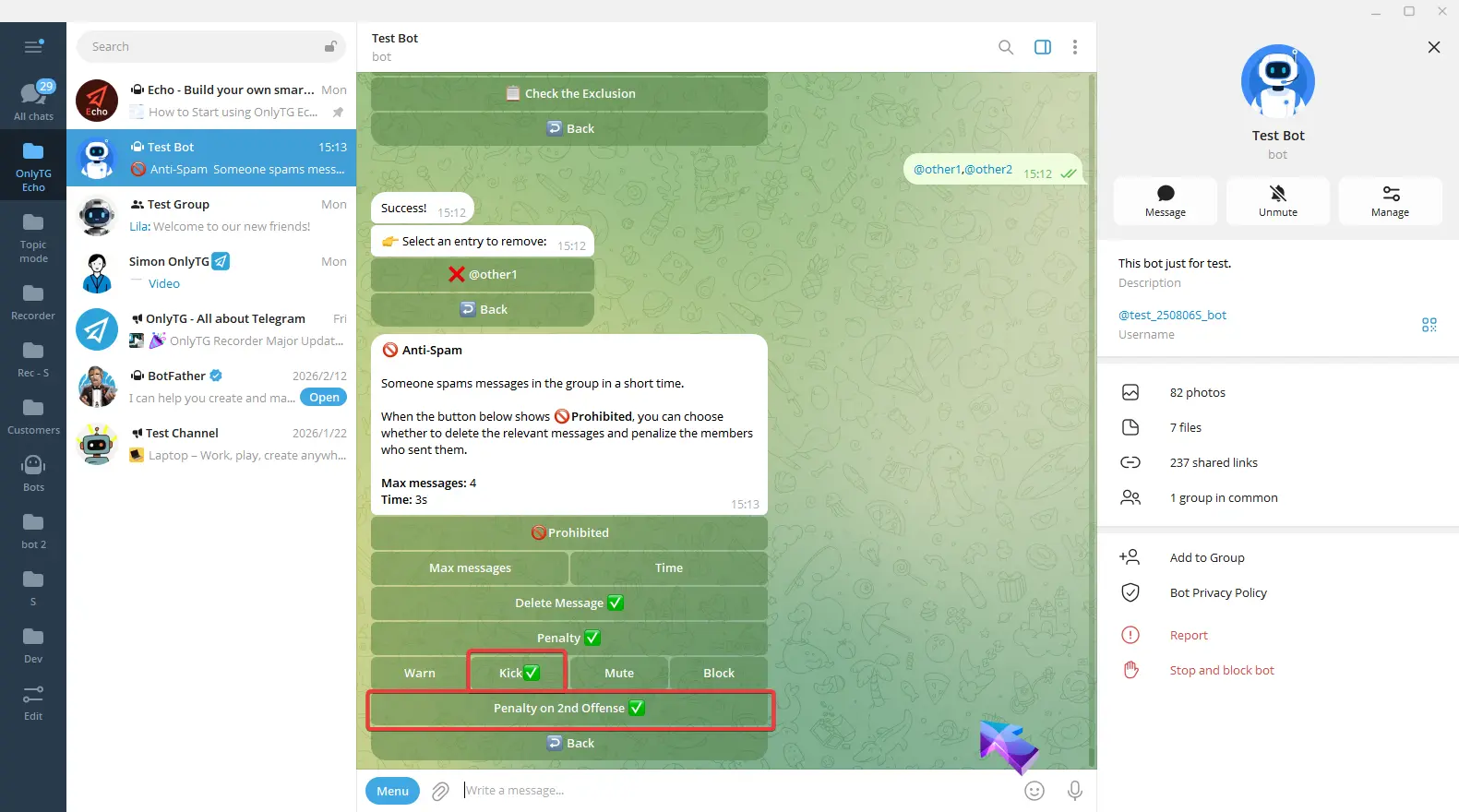
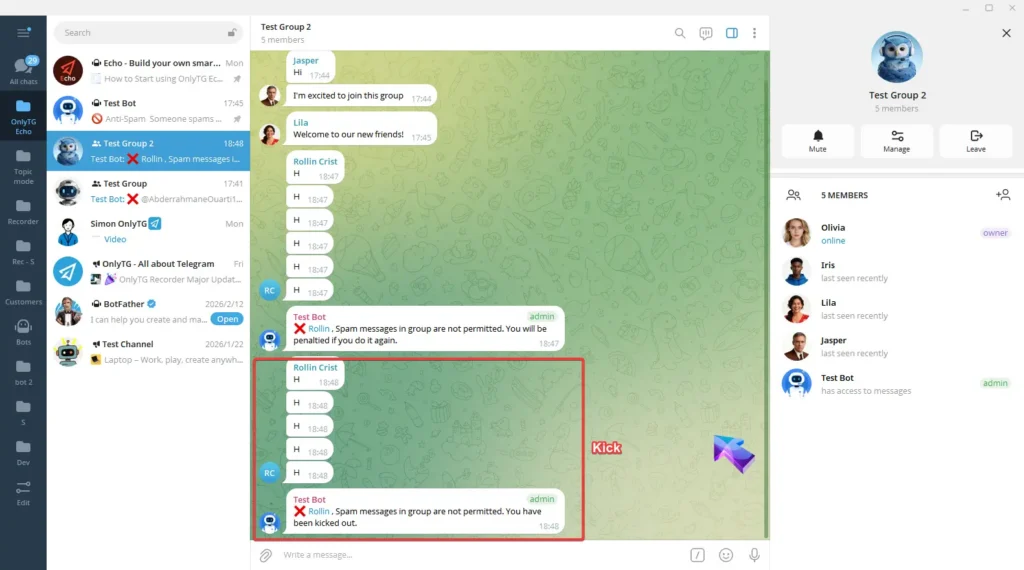
b. Kick: Kick members who violate the rules from the group. Supports the Penalty on 2nd Offense option.
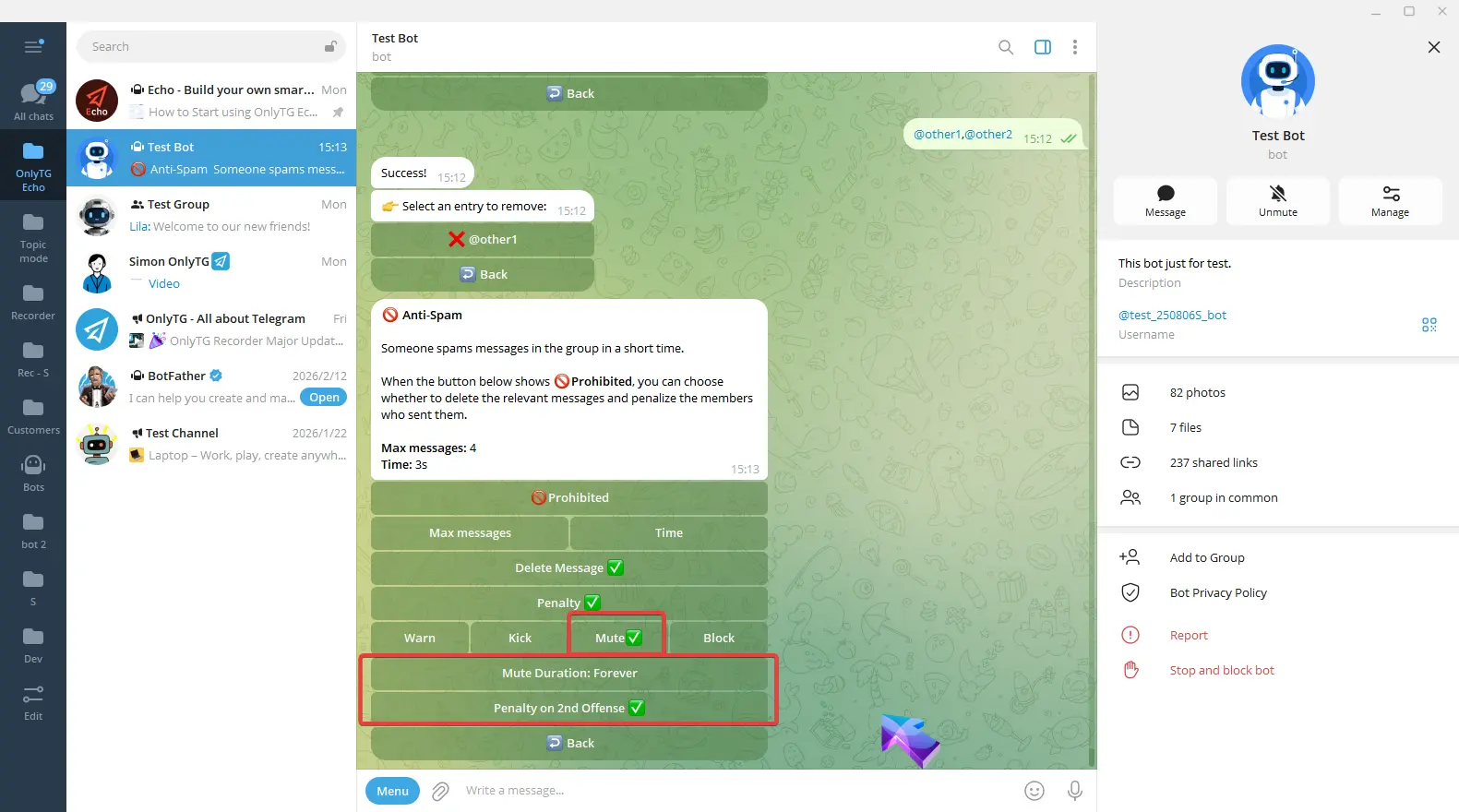
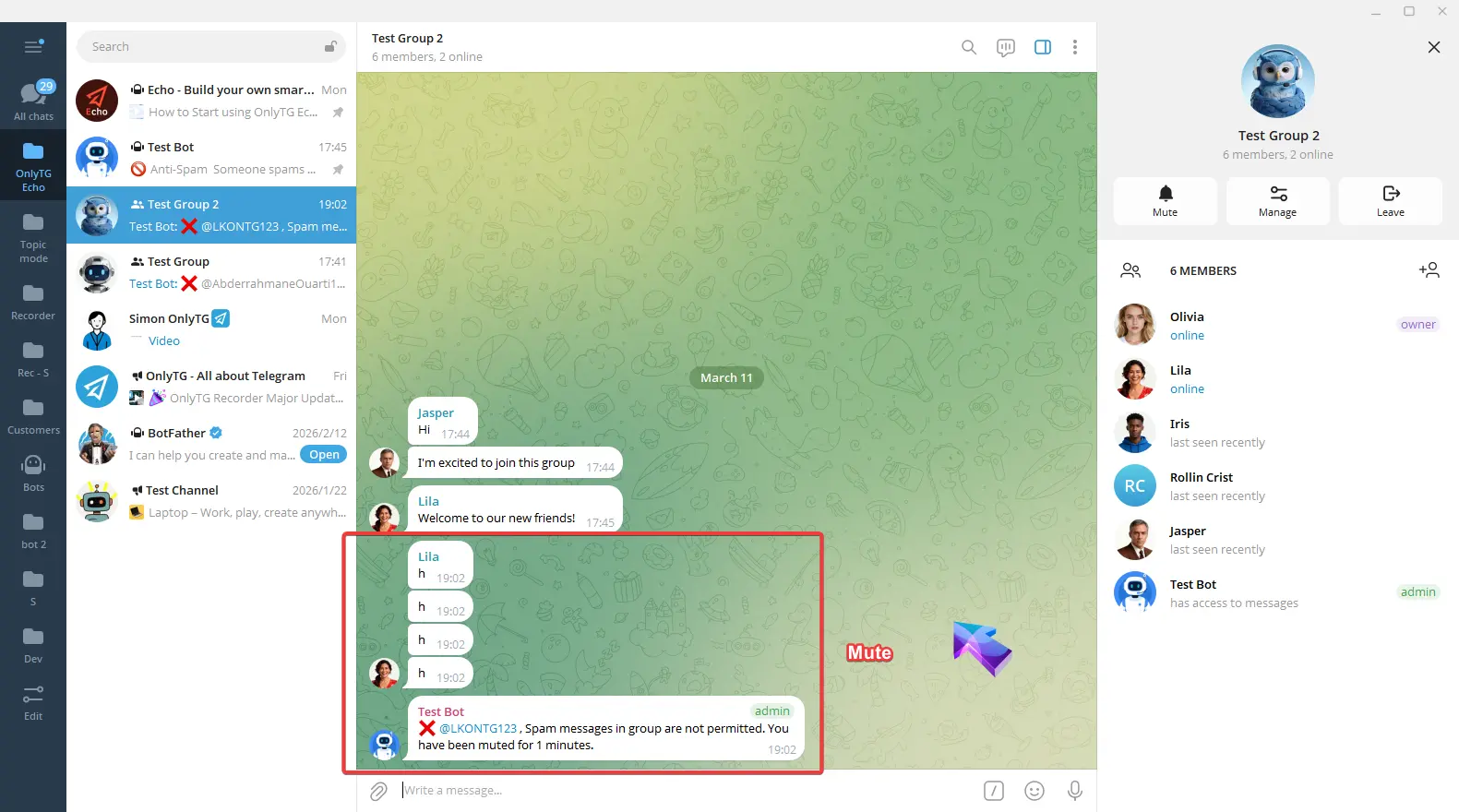
c. Mute: Mute members who violate the rules. Supports the Penalty on 2nd Offense option.
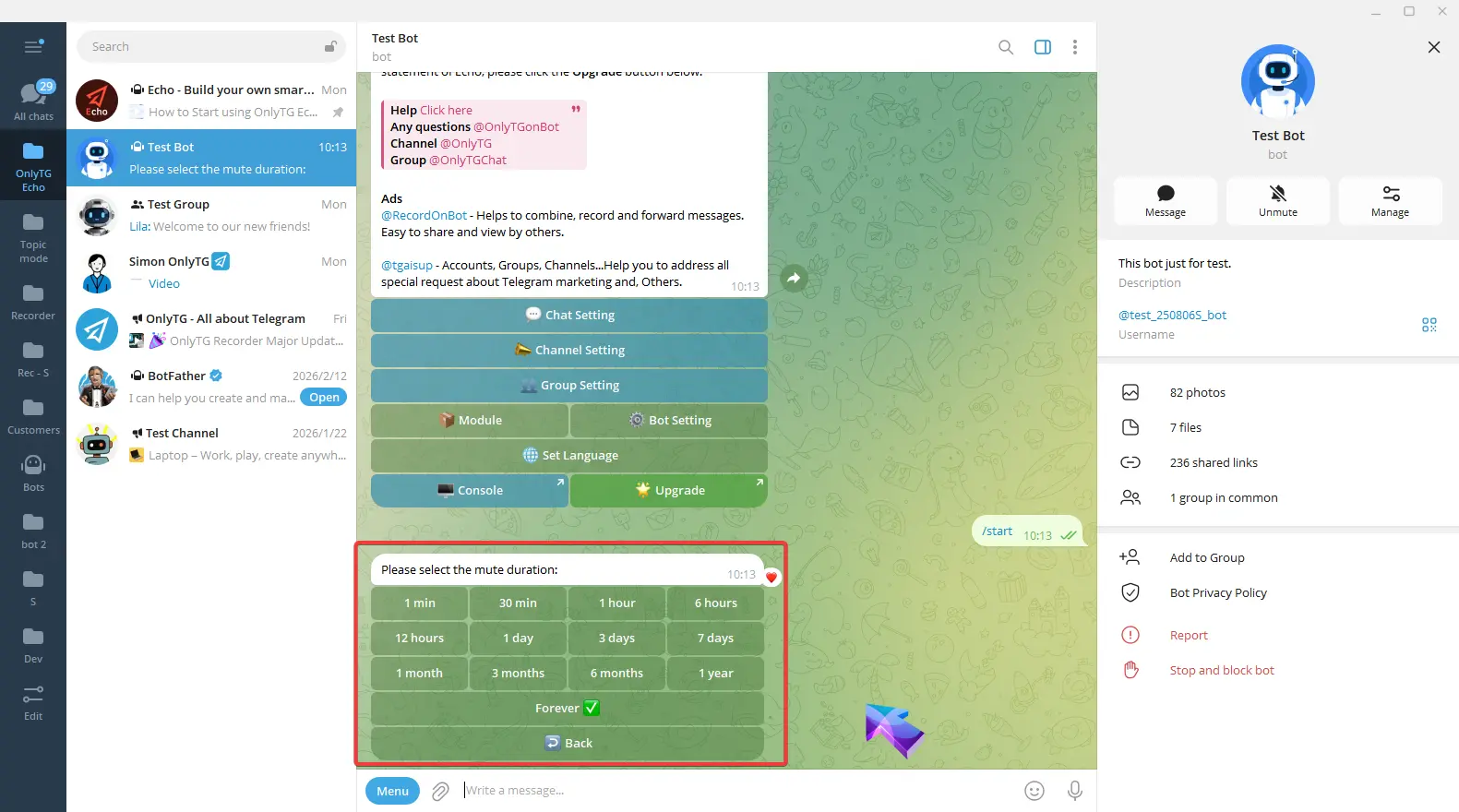
Click Mute Duration to select the mute period.
d. Block: Ban members who violate the rules, which means removing them from the group and preventing them from rejoining. Supports the Penalty on 2nd Offense option.
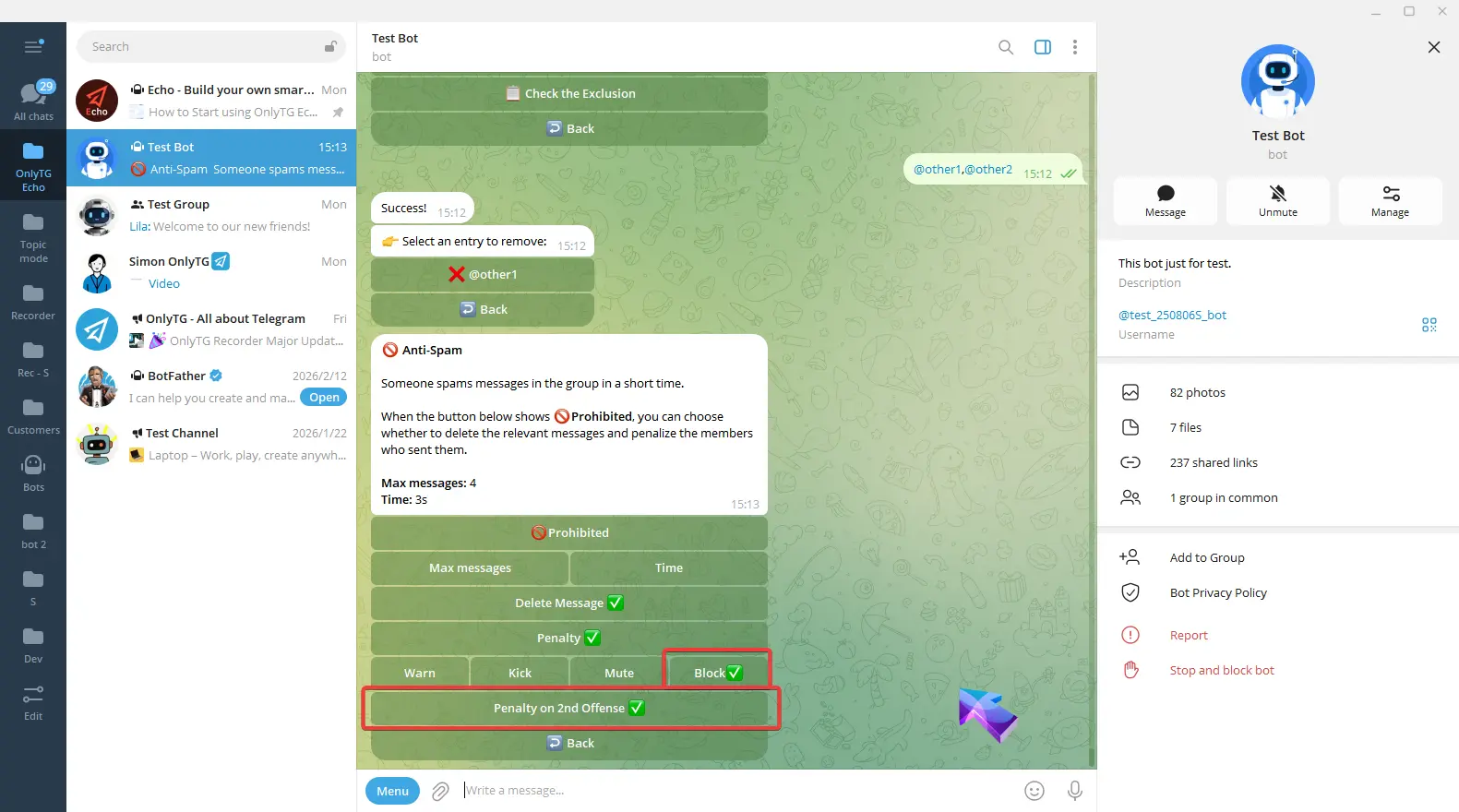
e. Penalty on 2nd: Warning for the first offense, Penalty on the second offense.
When you select Kick, Mute, or Block penalties, you can enable these options.
Anti-bots
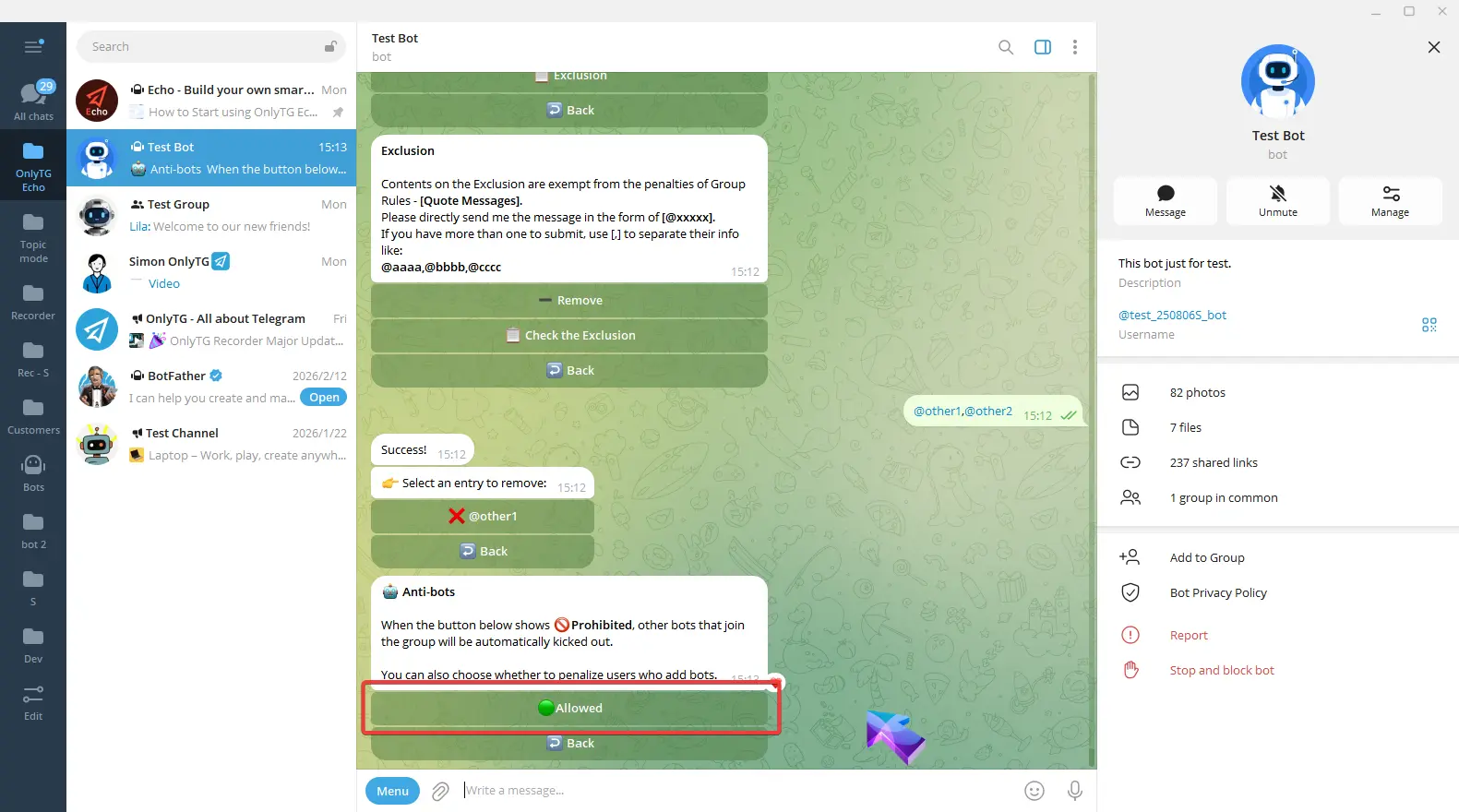
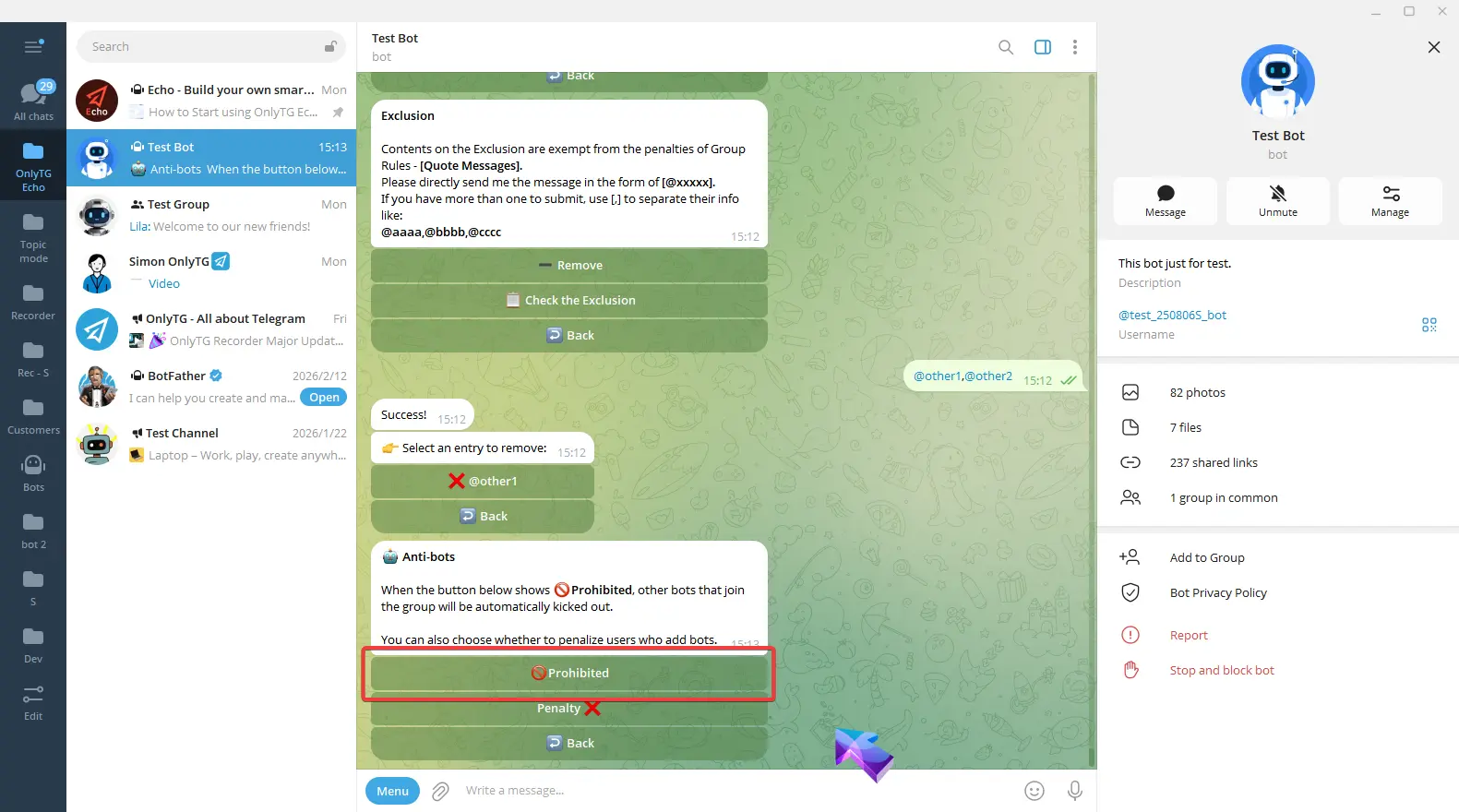
When enabled, other bots joining the group will be automatically kicked out.
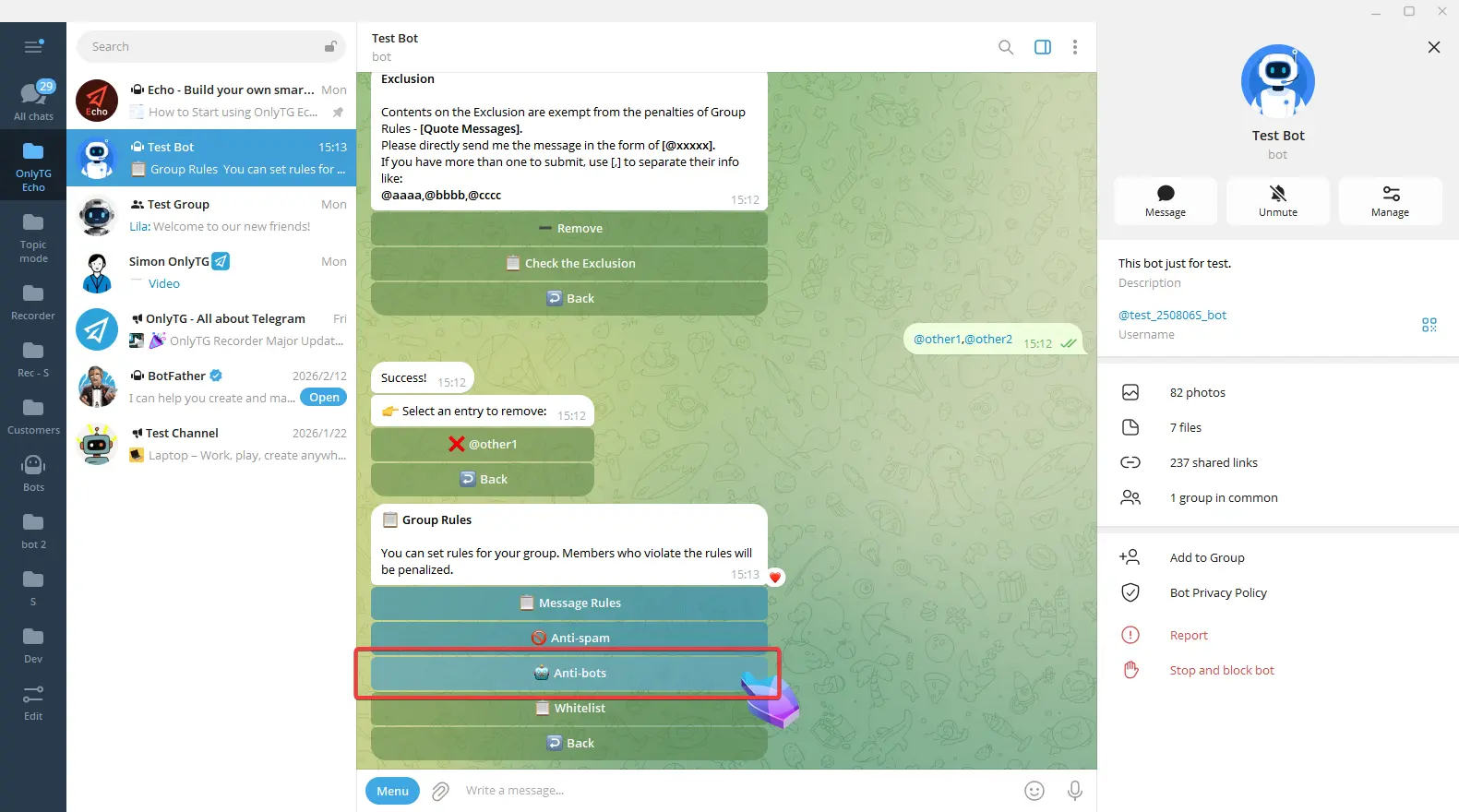
Click Allow to enable it. Click Prohibited again to disable it.
Penalty: Click to enable and select the penalty type.
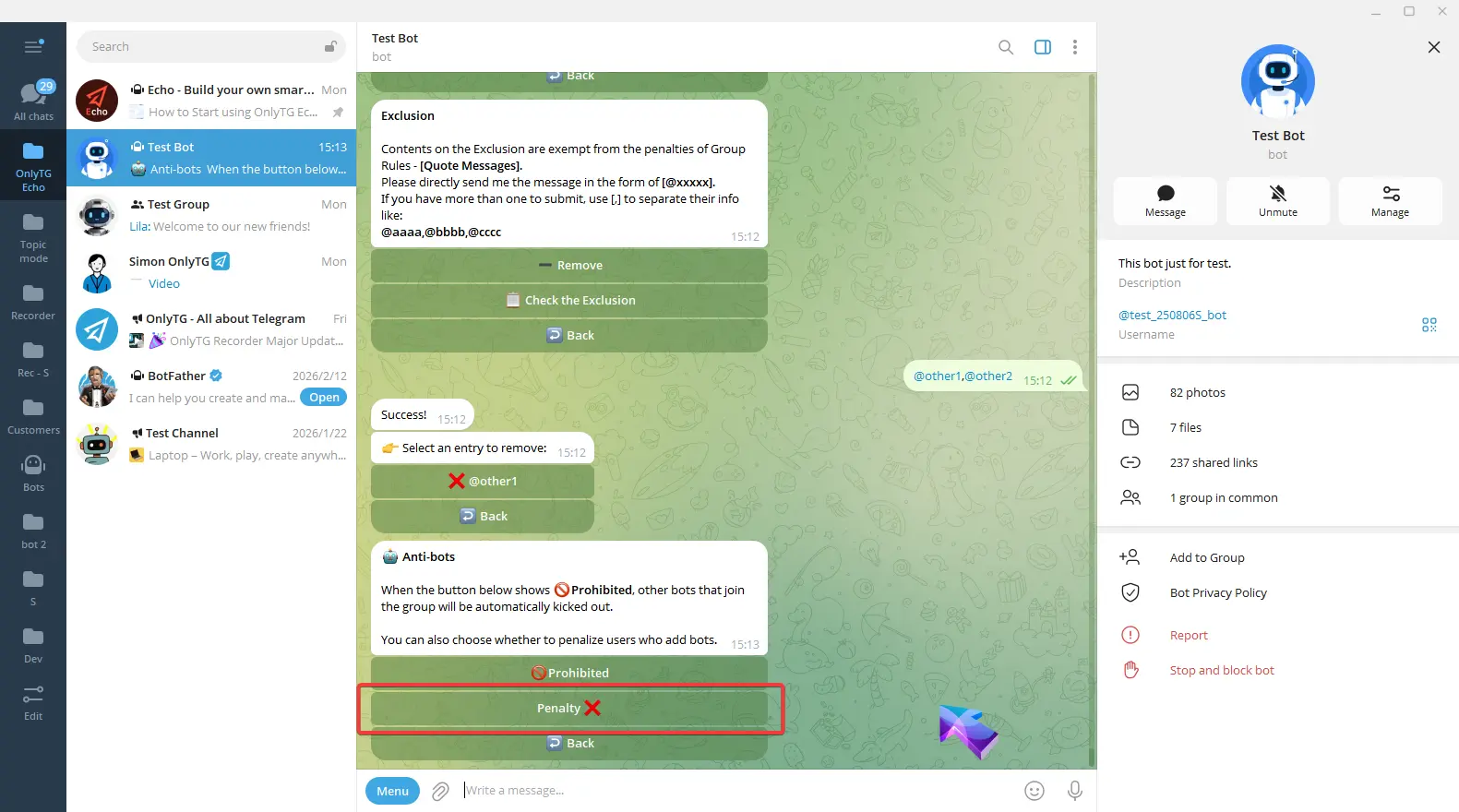
a. Warn: Warn members who violate the rules.
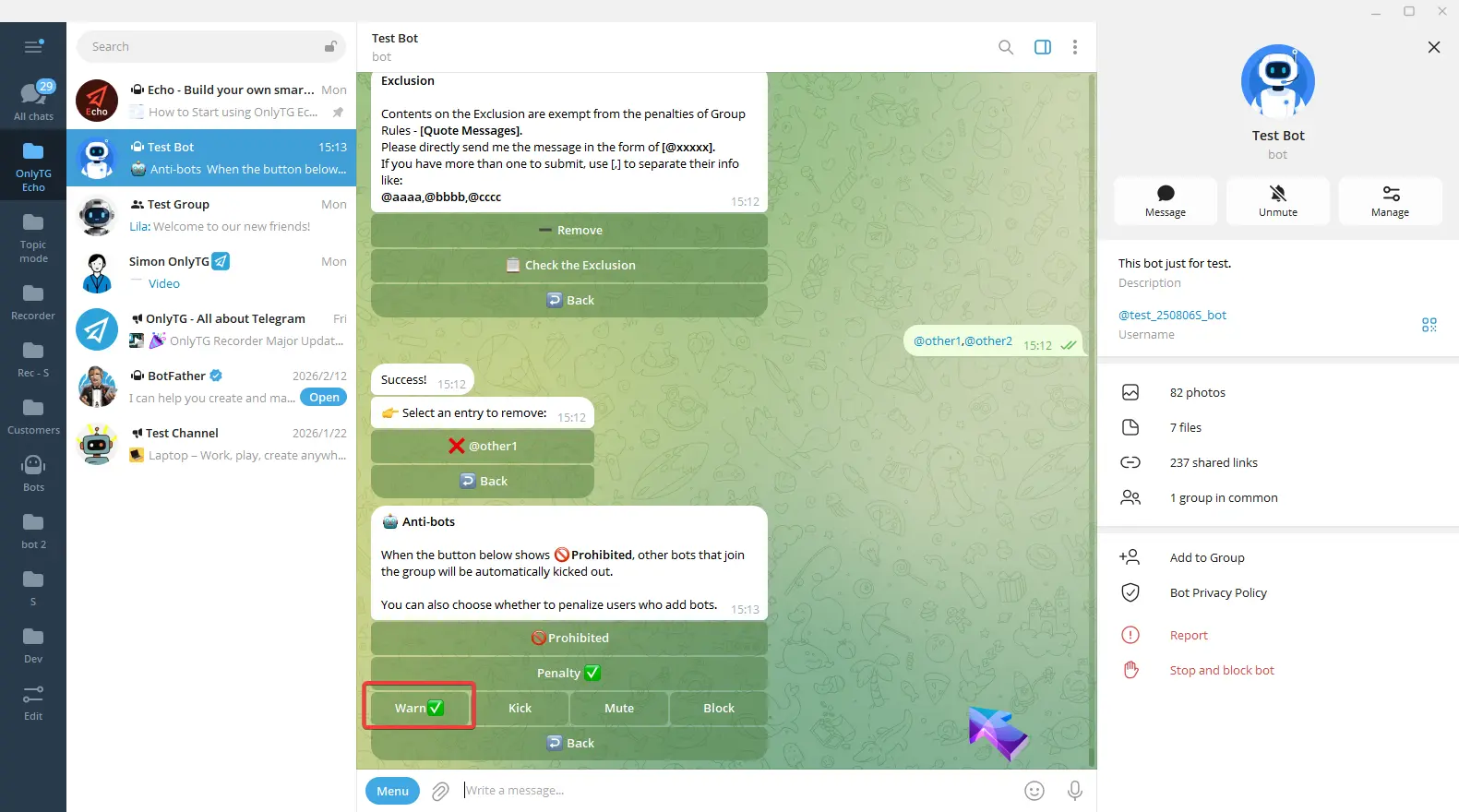
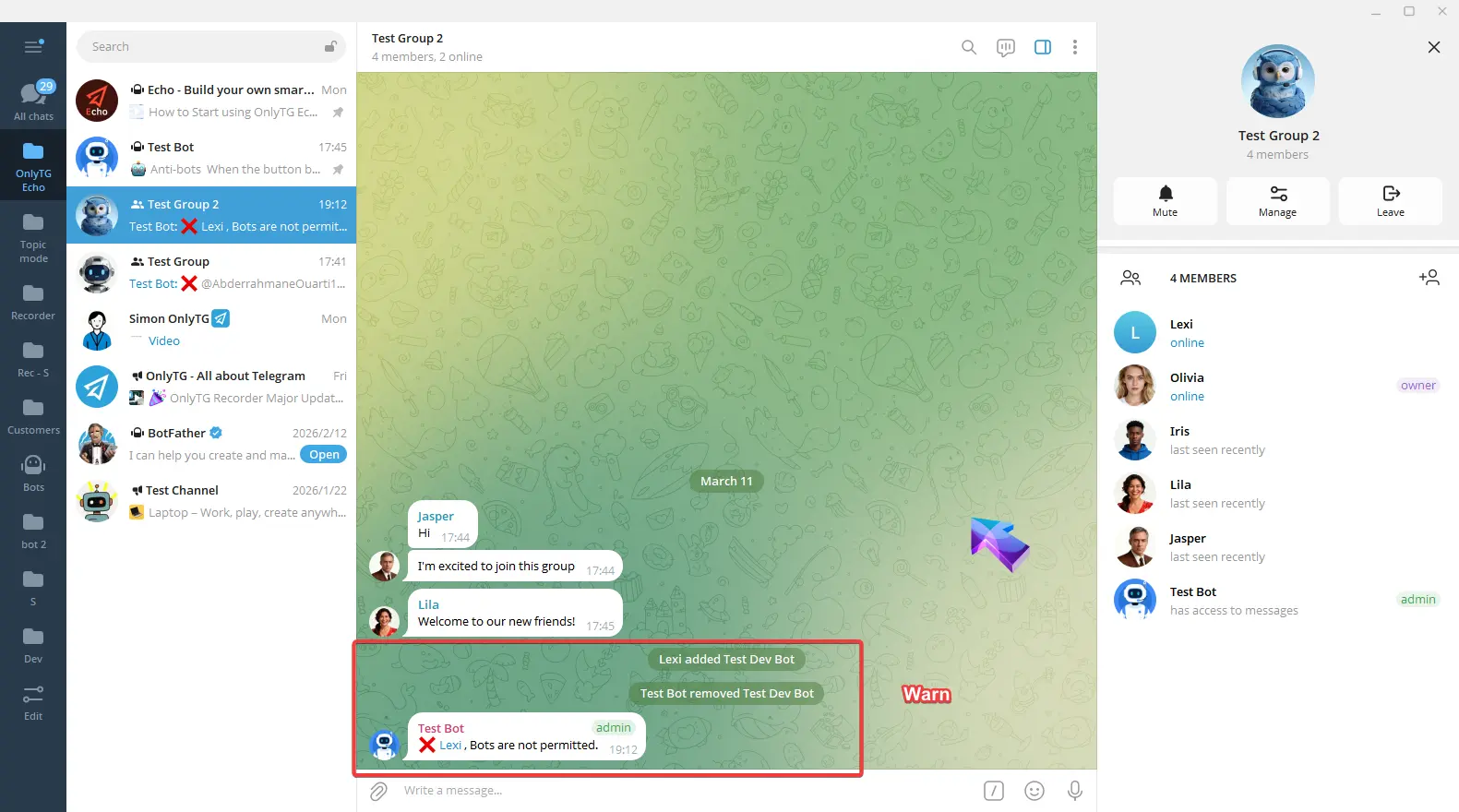
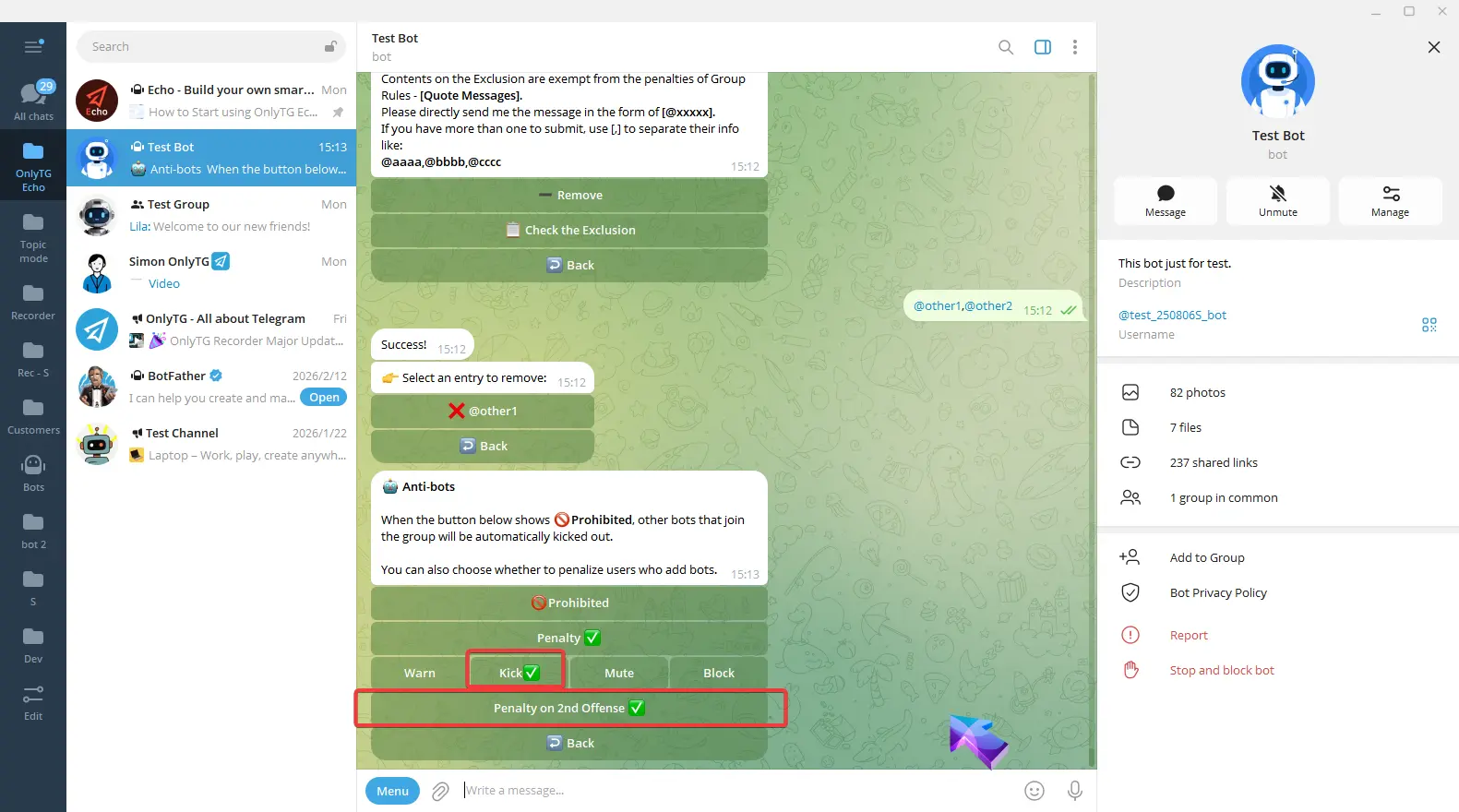
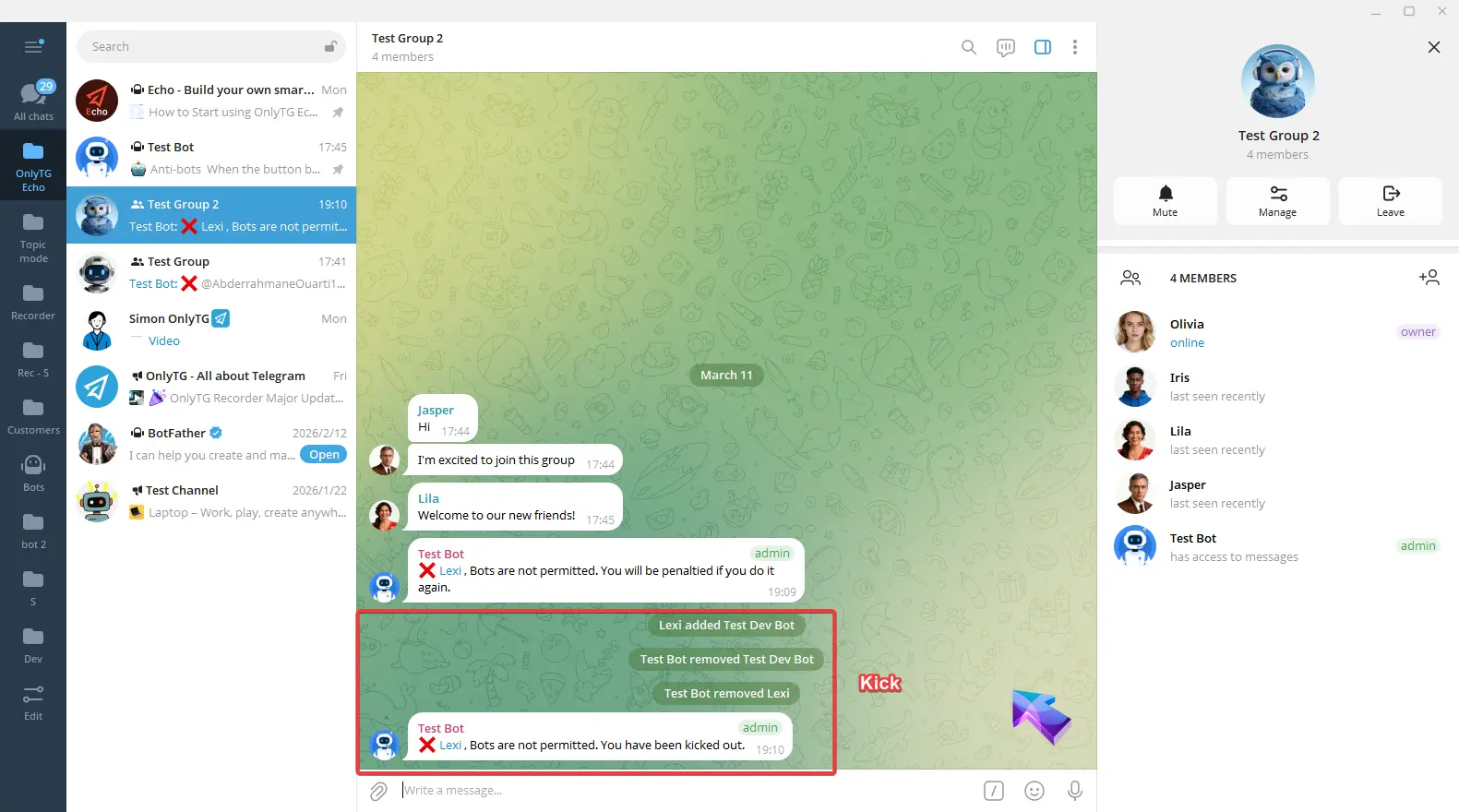
b. Kick: Kick members who violate the rules from the group. Supports the Penalty on 2nd Offense option.
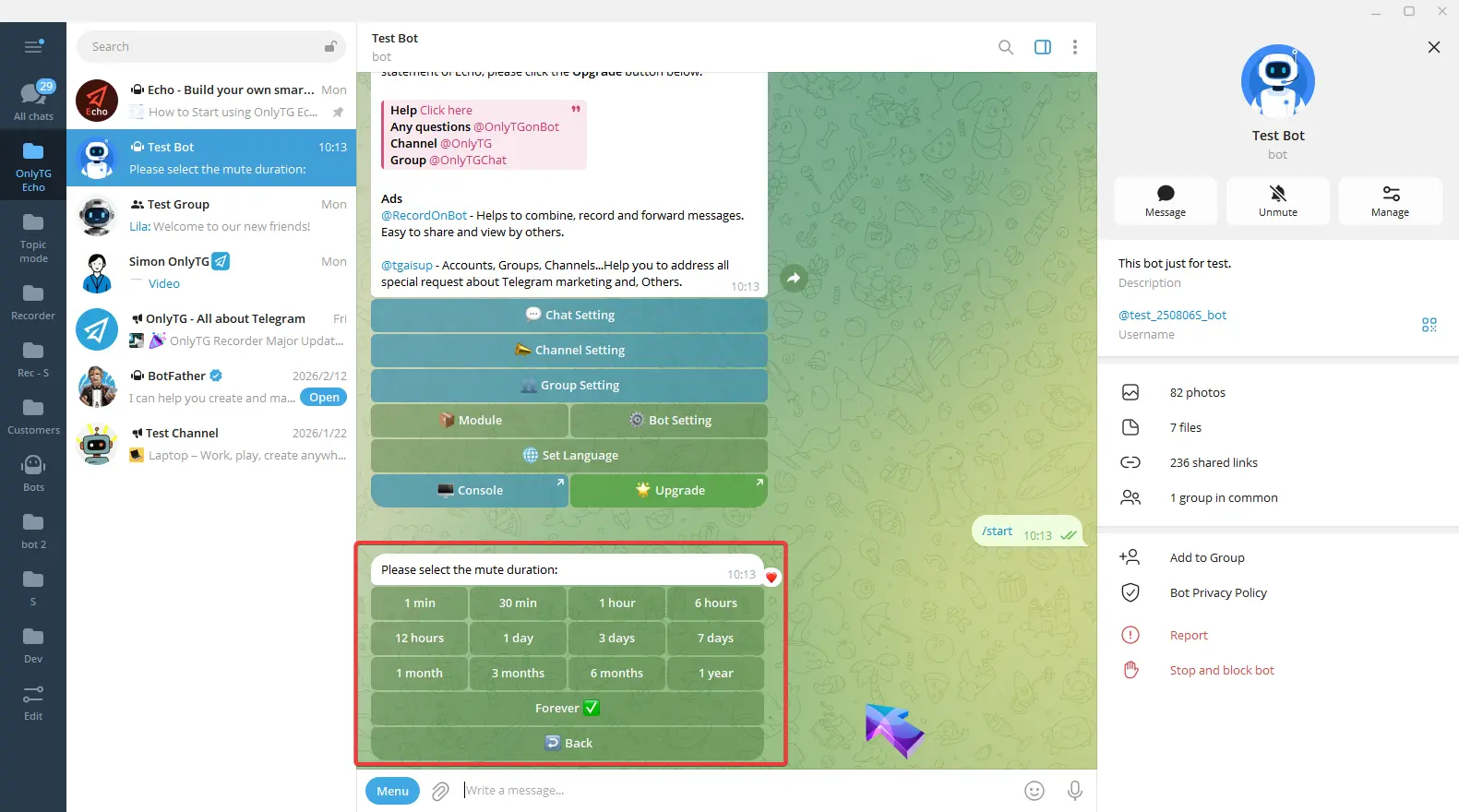
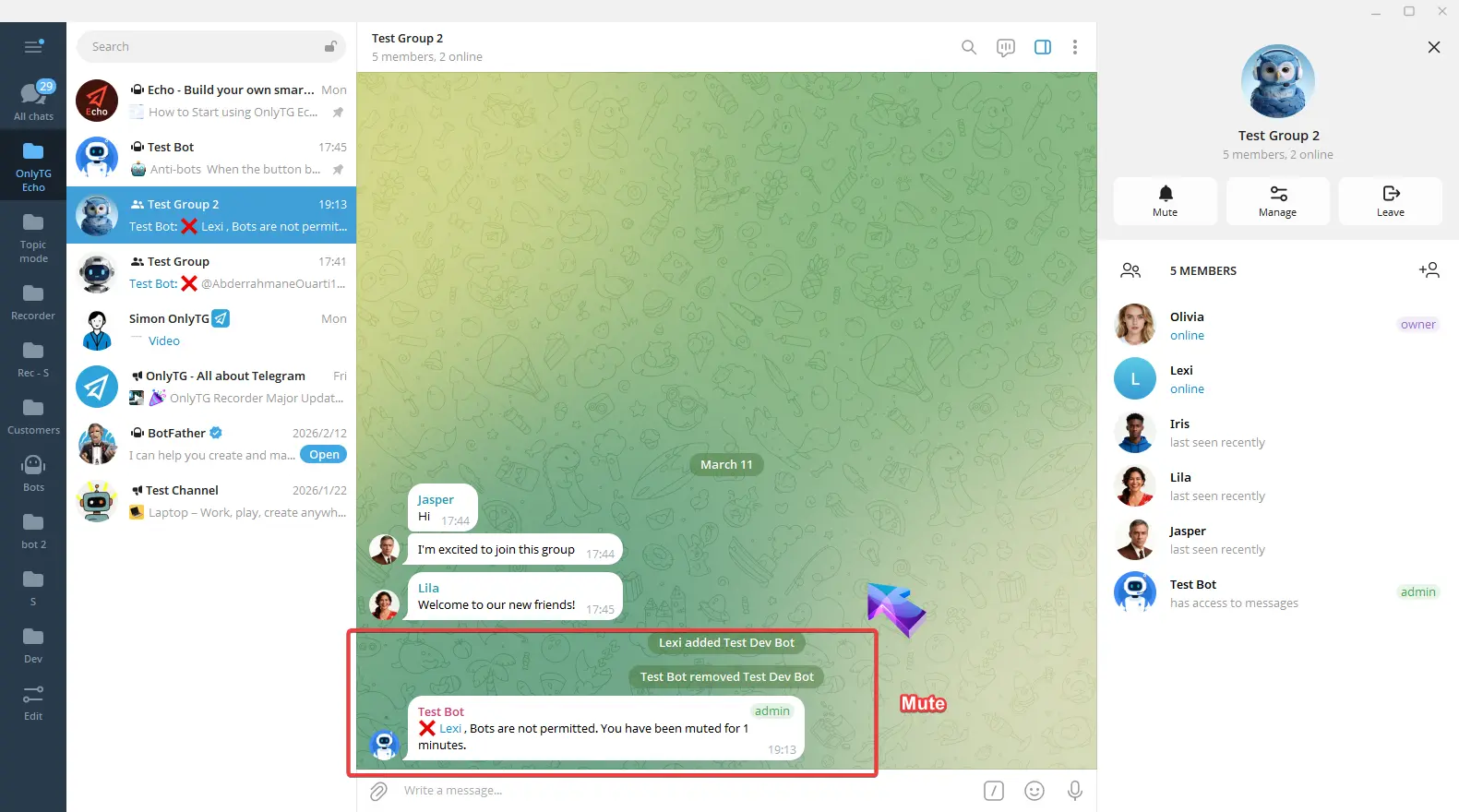
c. Mute: Mute members who violate the rules. Supports the Penalty on 2nd Offense option.
Click Mute Duration to select the mute period.
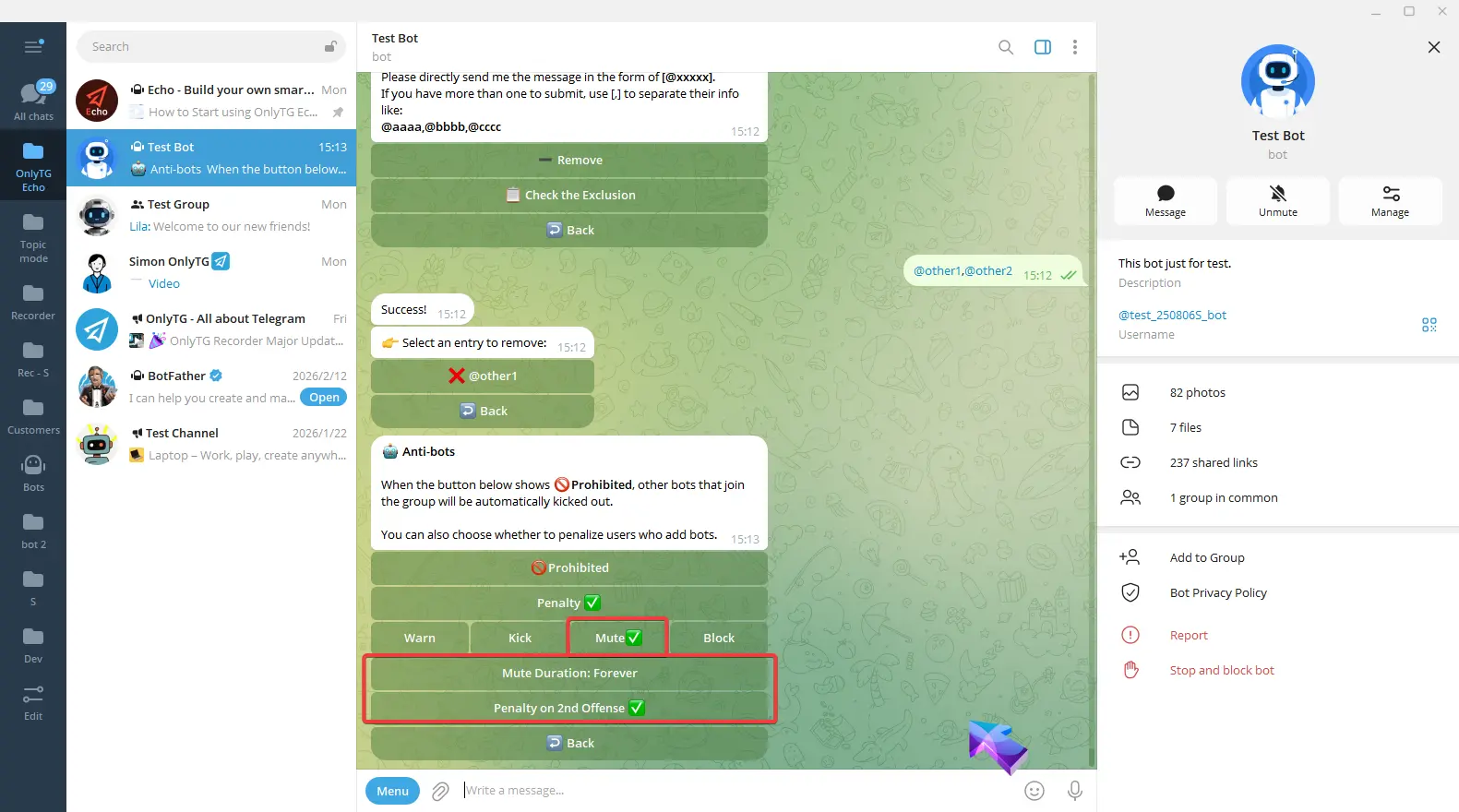
d. Block: Ban members who violate the rules, which means removing them from the group and preventing them from rejoining. Supports the Penalty on 2nd Offense option.
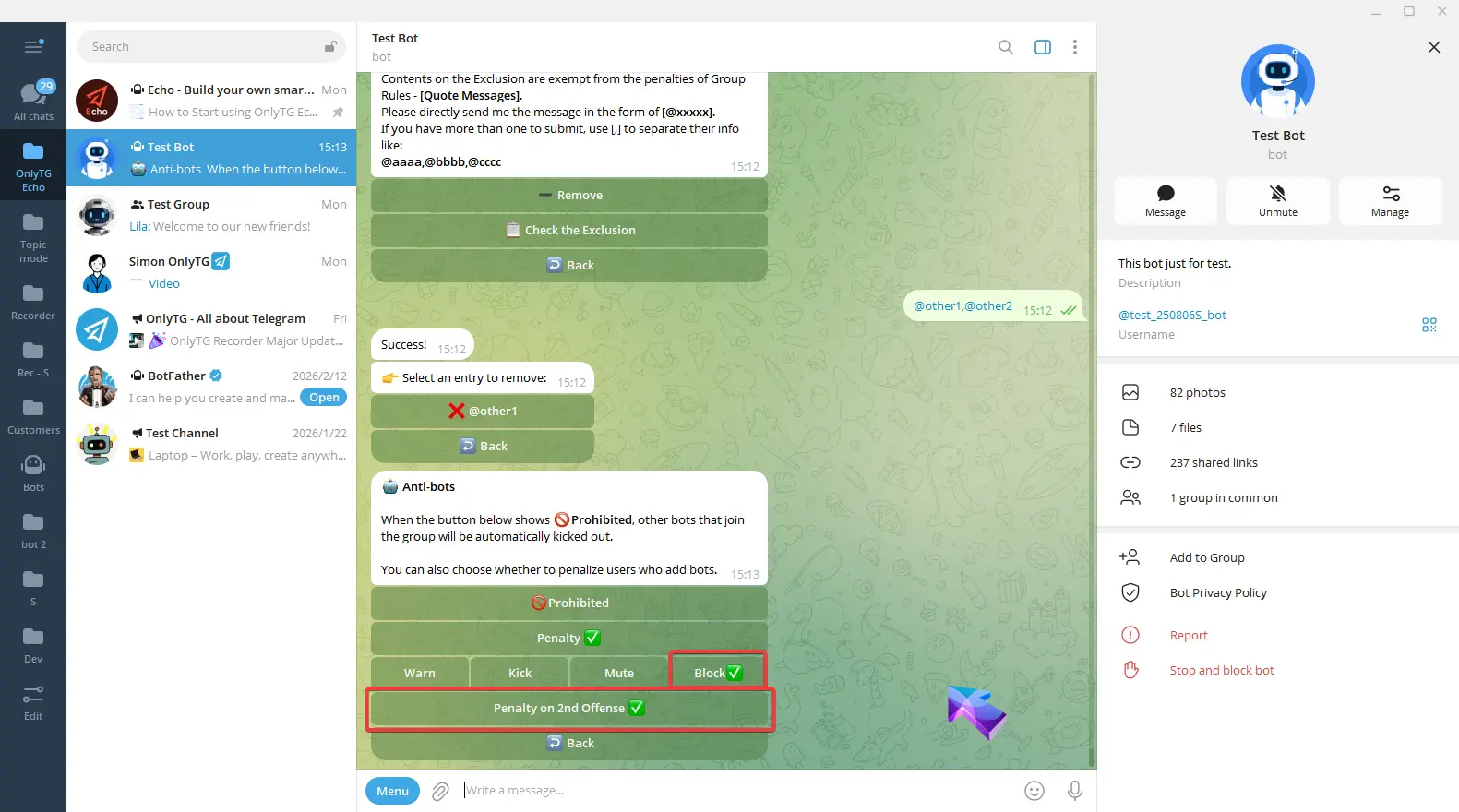
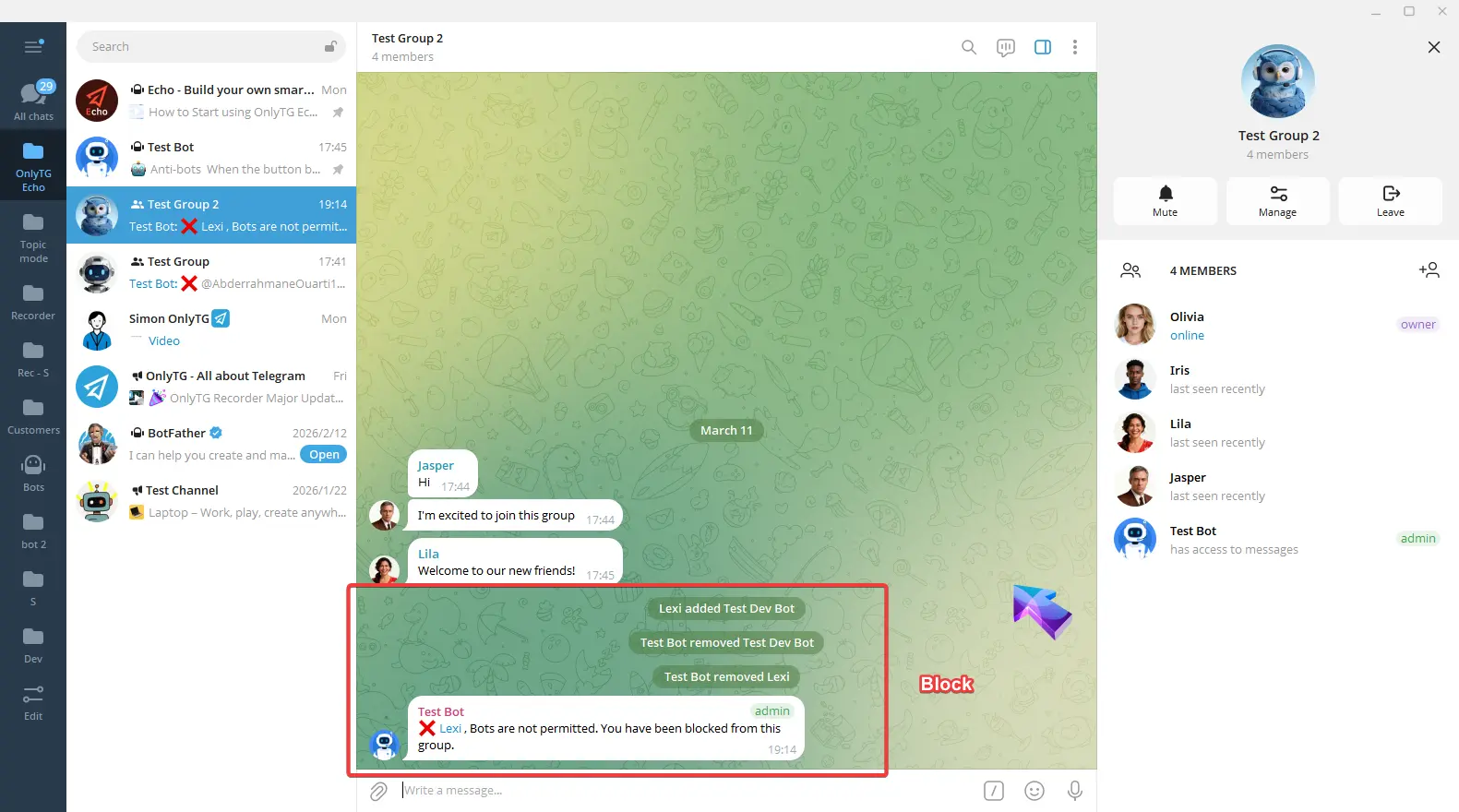
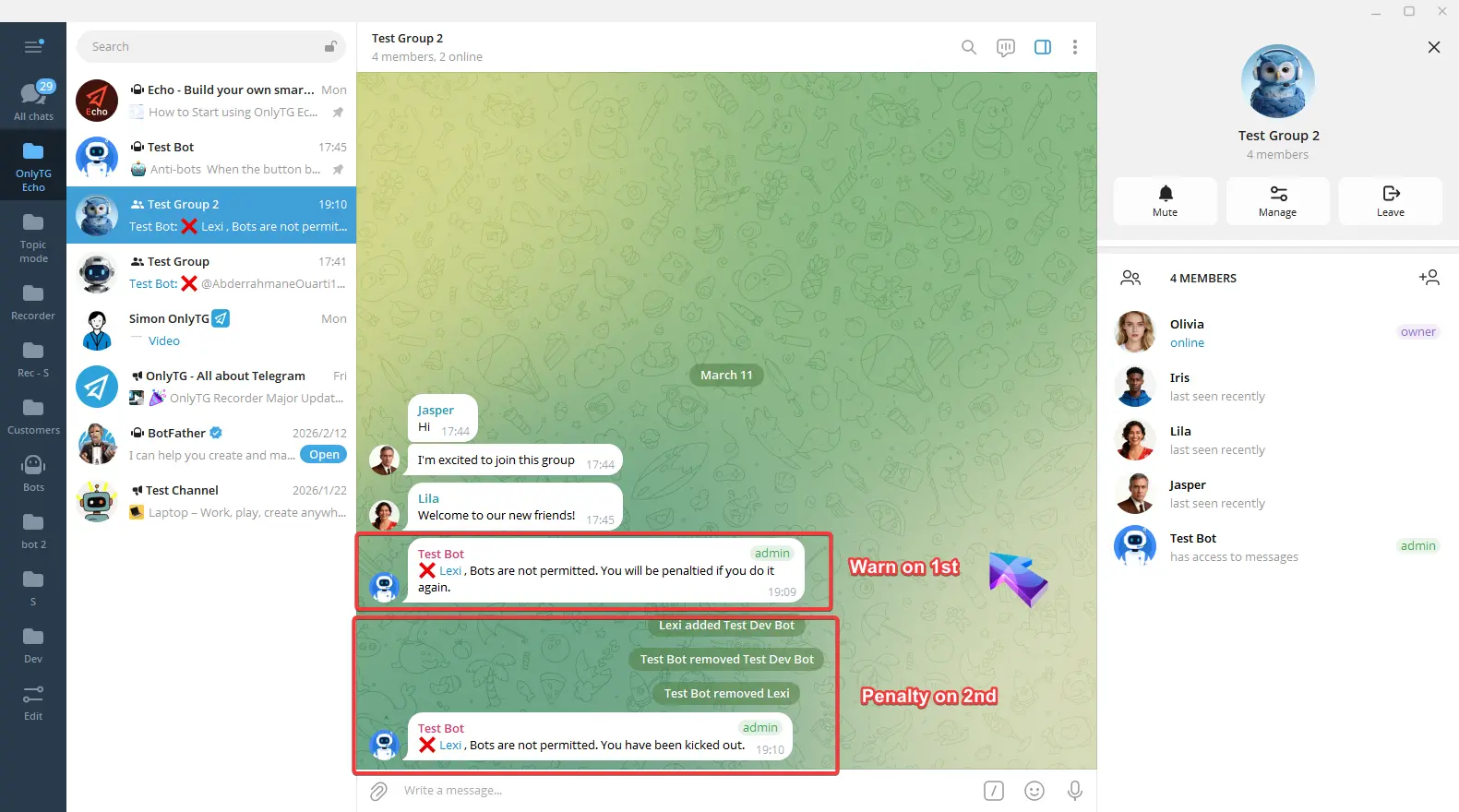
e. Penalty on 2nd: Warning for the first offense, Penalty on the second offense.
When you select Kick, Mute, or Block penalties, you can enable these options.
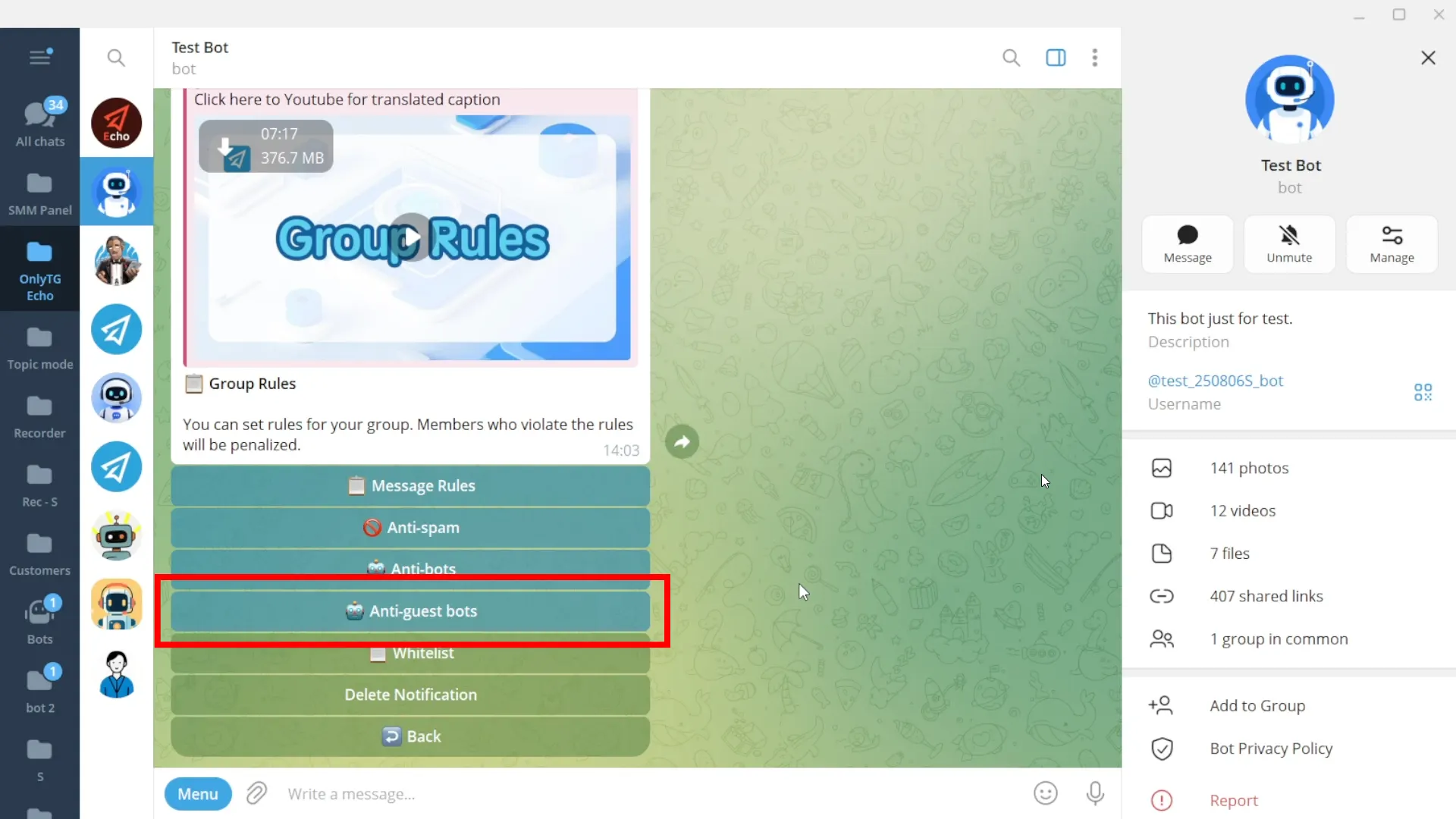
Anti-guest bots
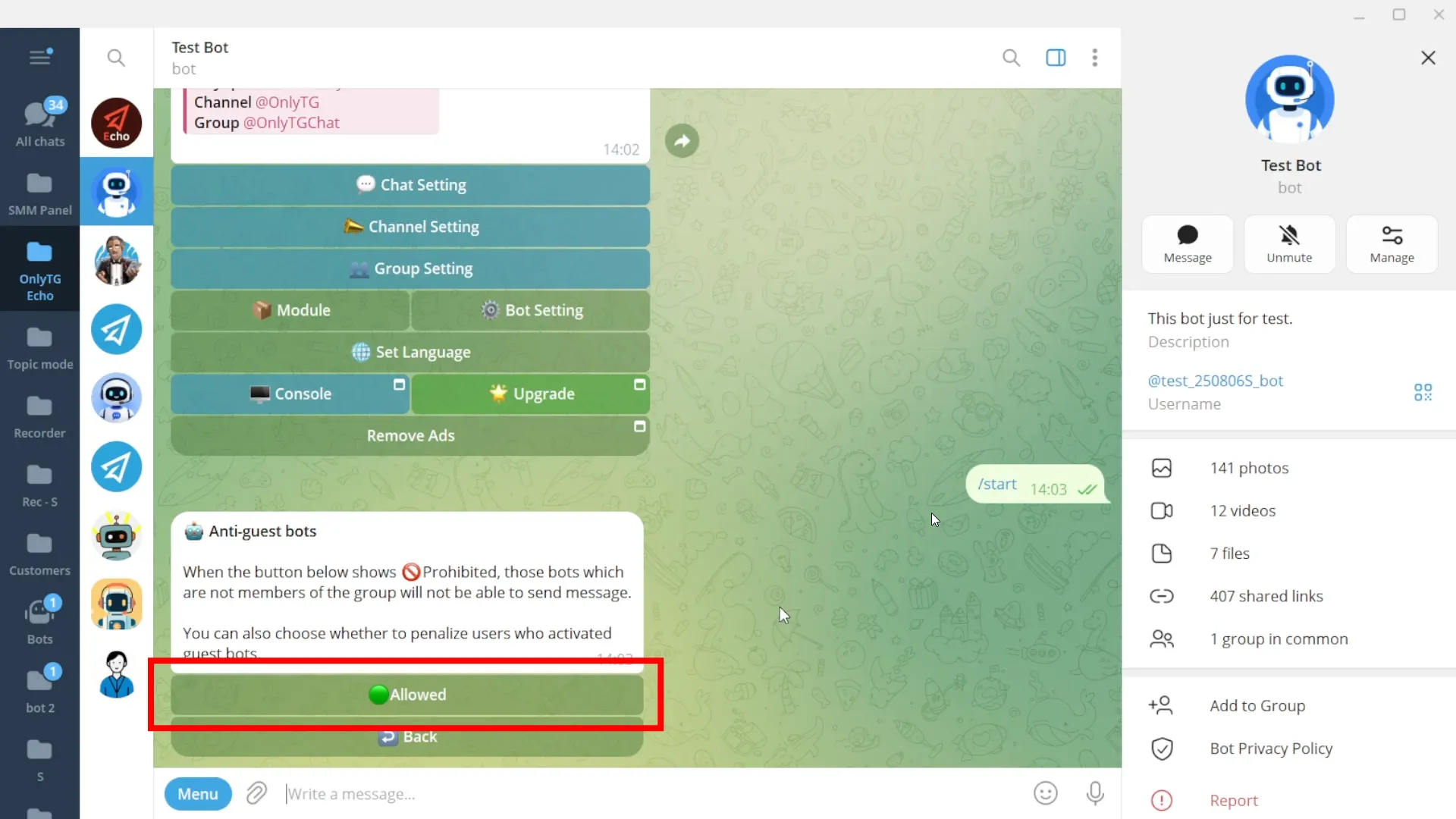
When enabled, guest bots that are not members of the group will not be able to send messages in the group.
Click Allow to enable it. Click Prohibited again to disable it.
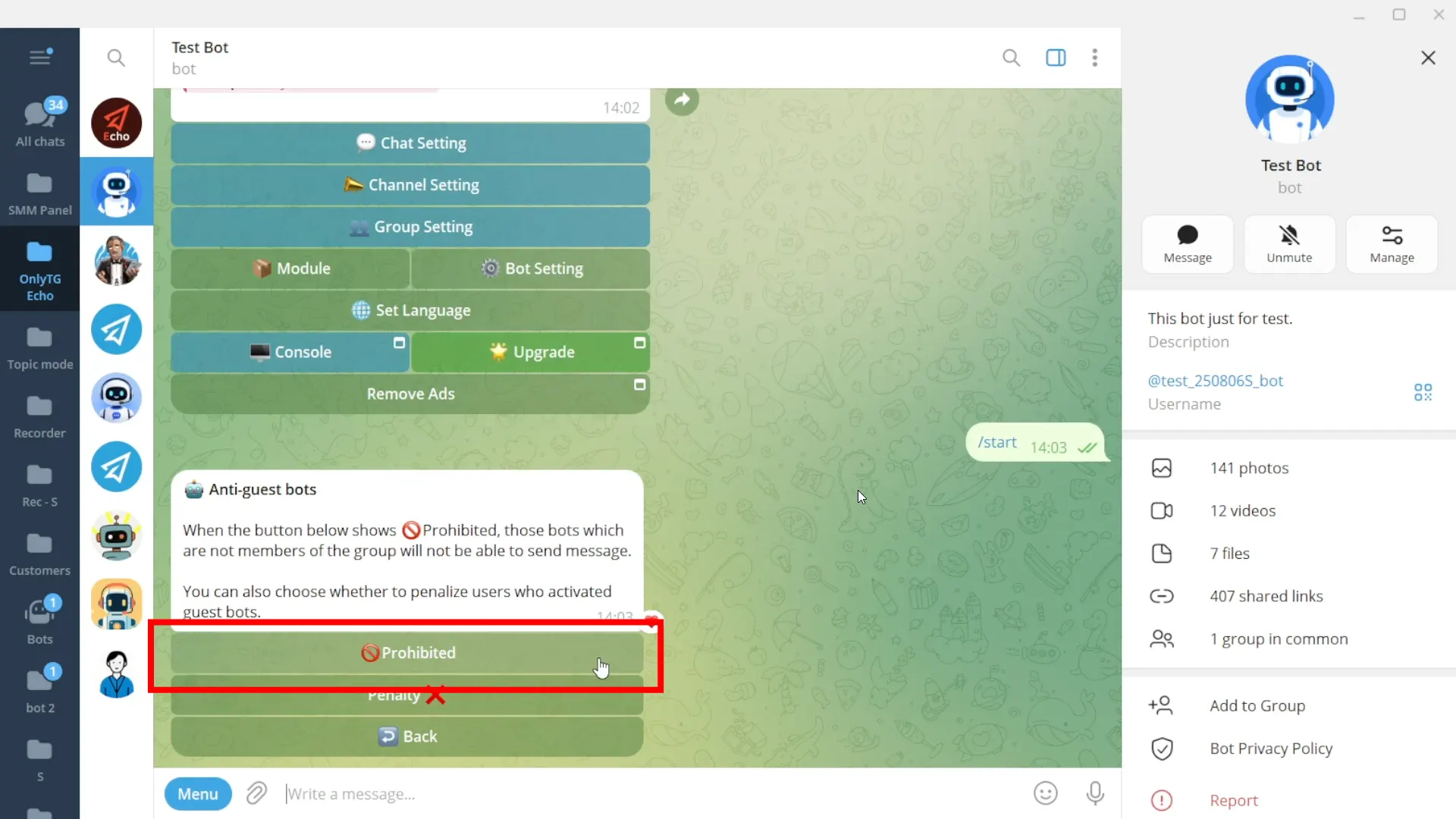
Penalty: Click to enable and select the penalty type.
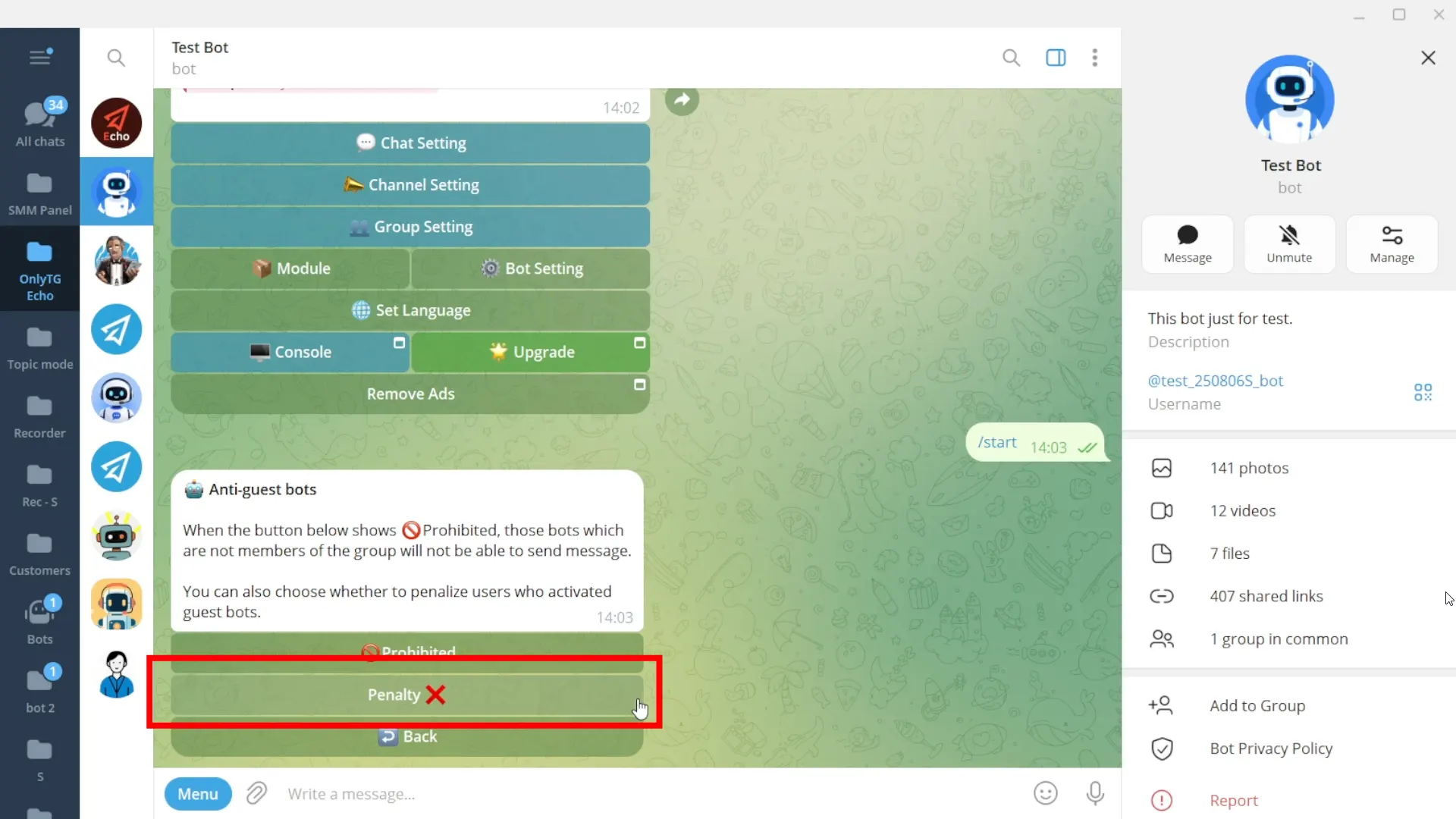
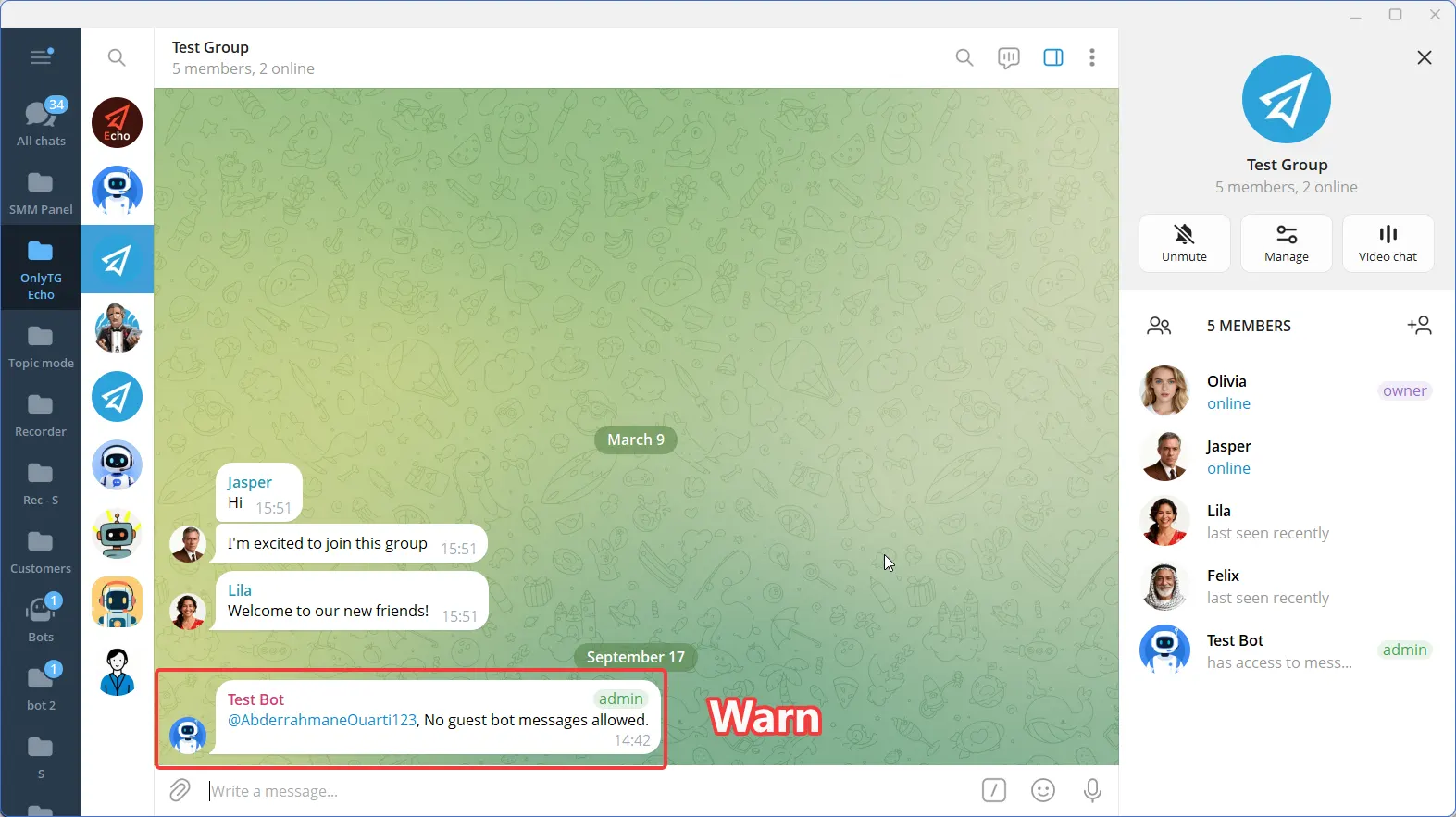
a. Warn: Warn members who violate the rules.
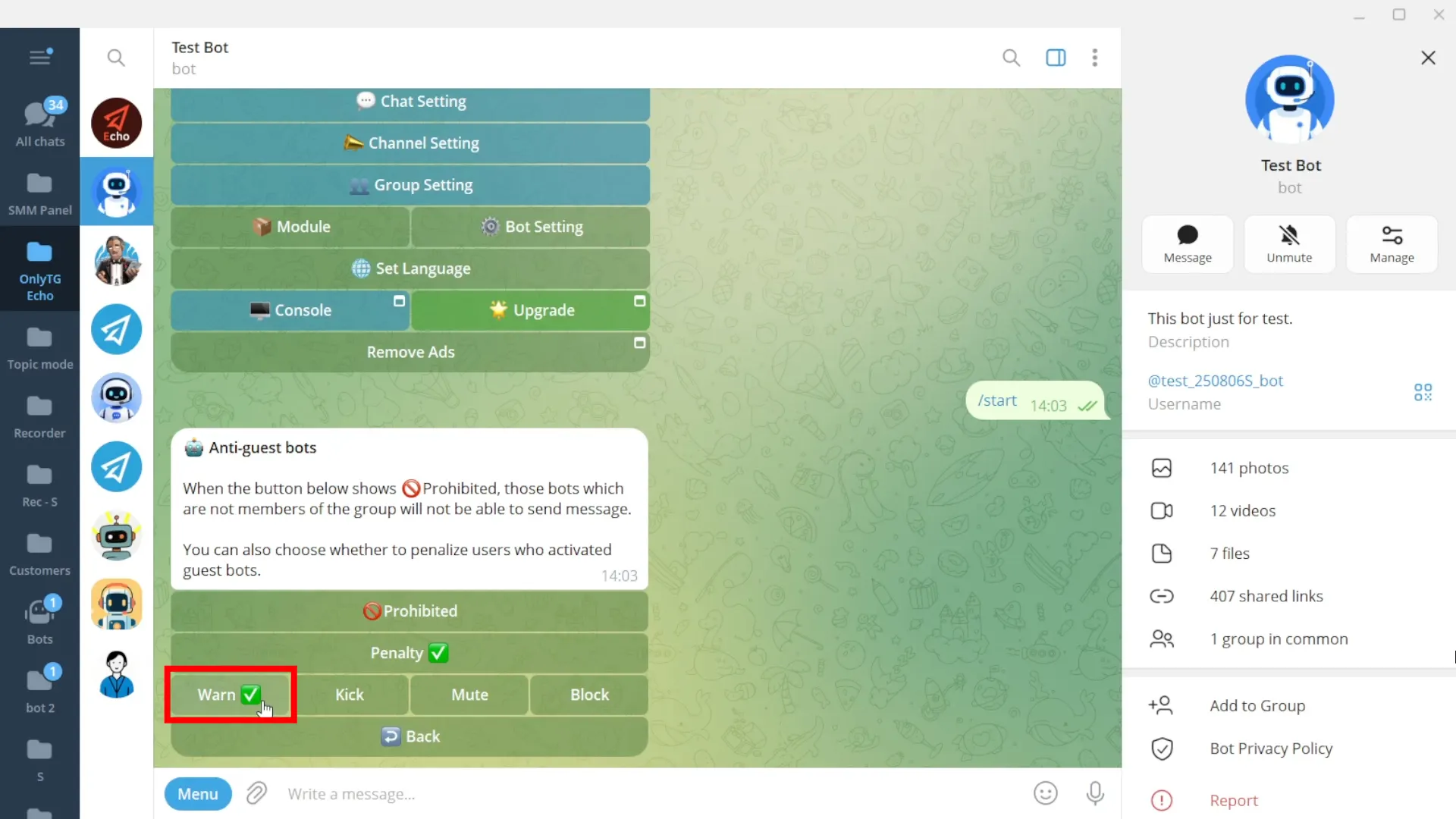
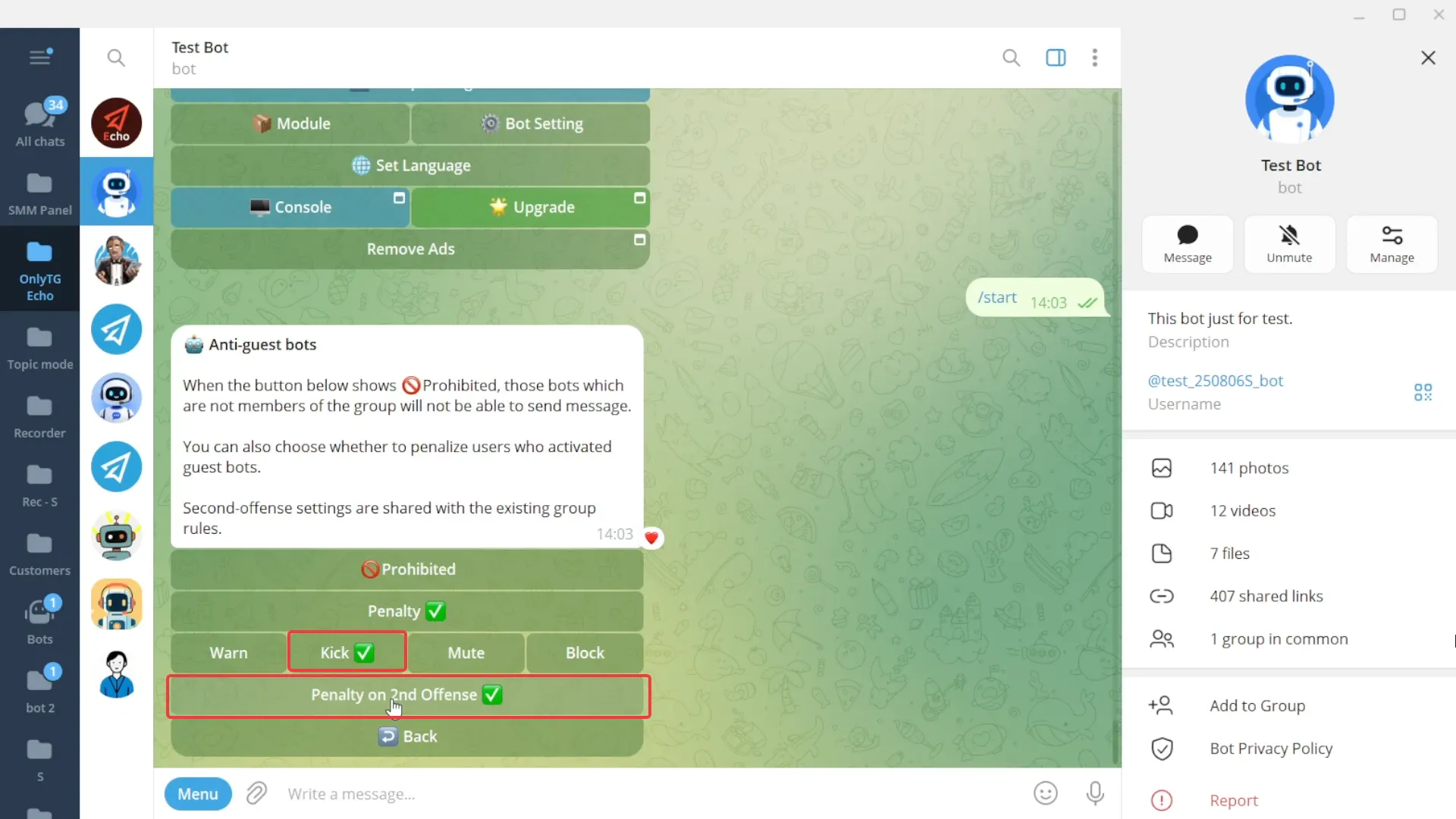
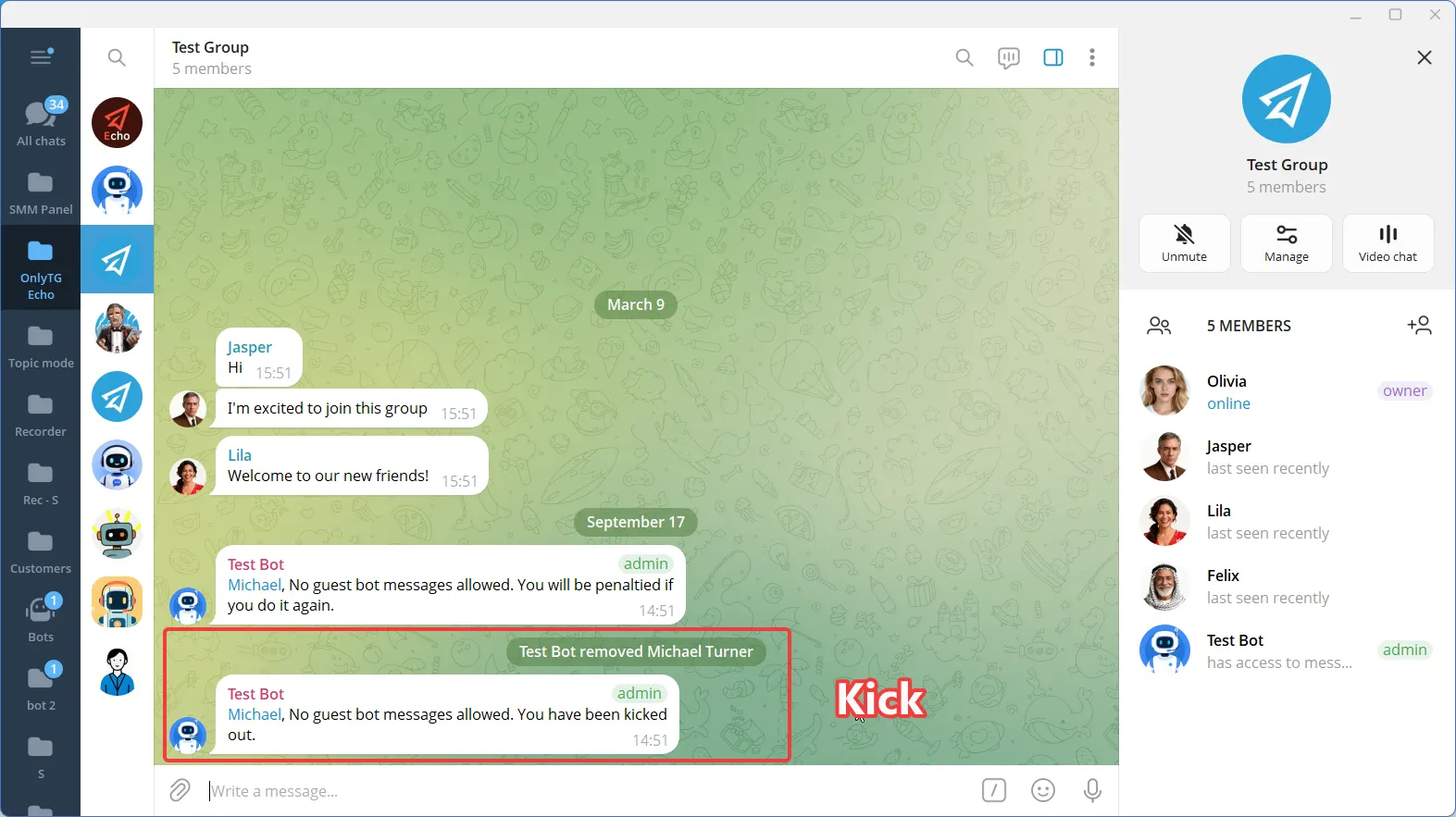
b. Kick: Kick members who violate the rules from the group. Supports the Penalty on 2nd Offense option.
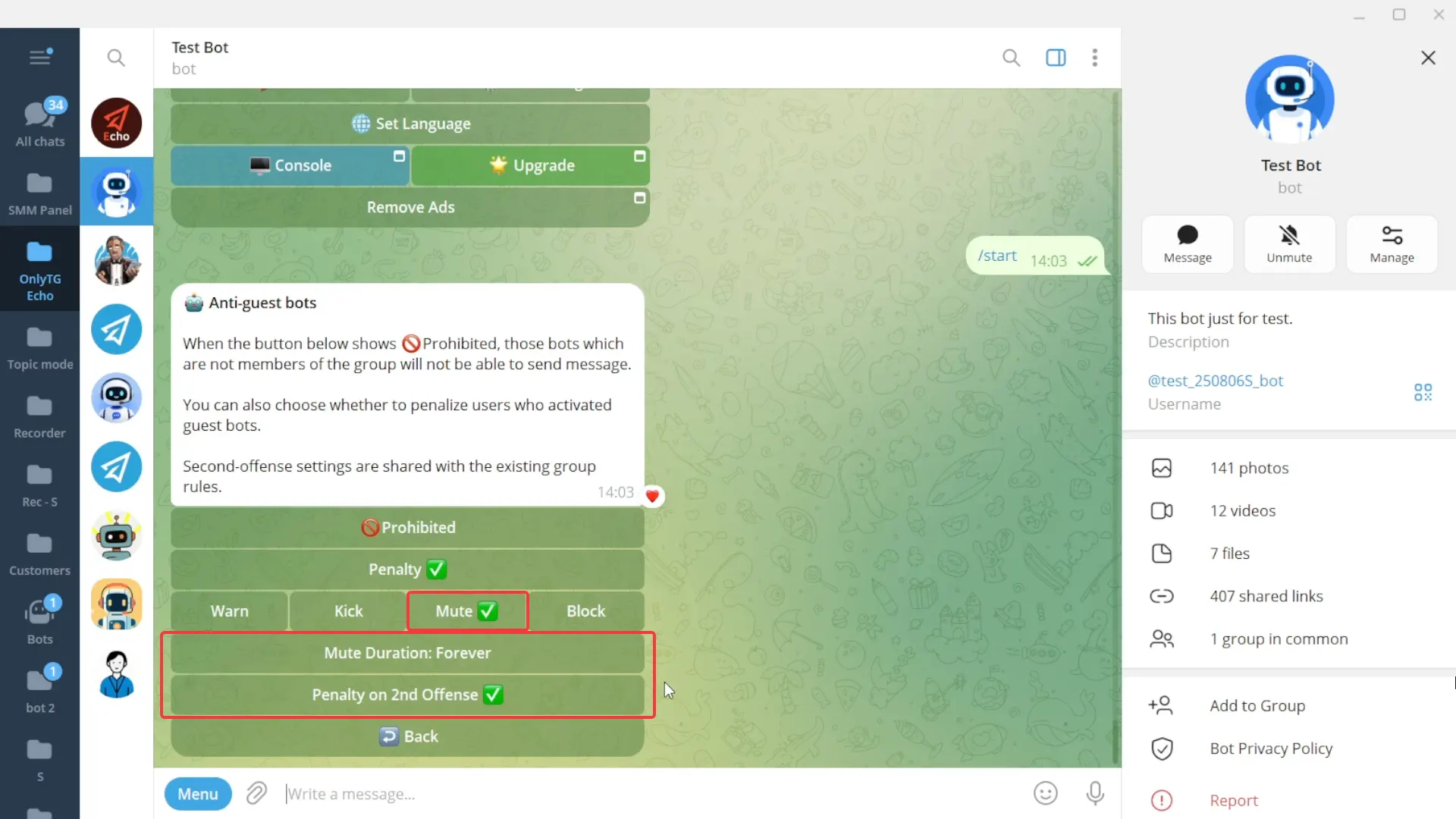
c. Mute: Mute members who violate the rules. Supports the Penalty on 2nd Offense option.
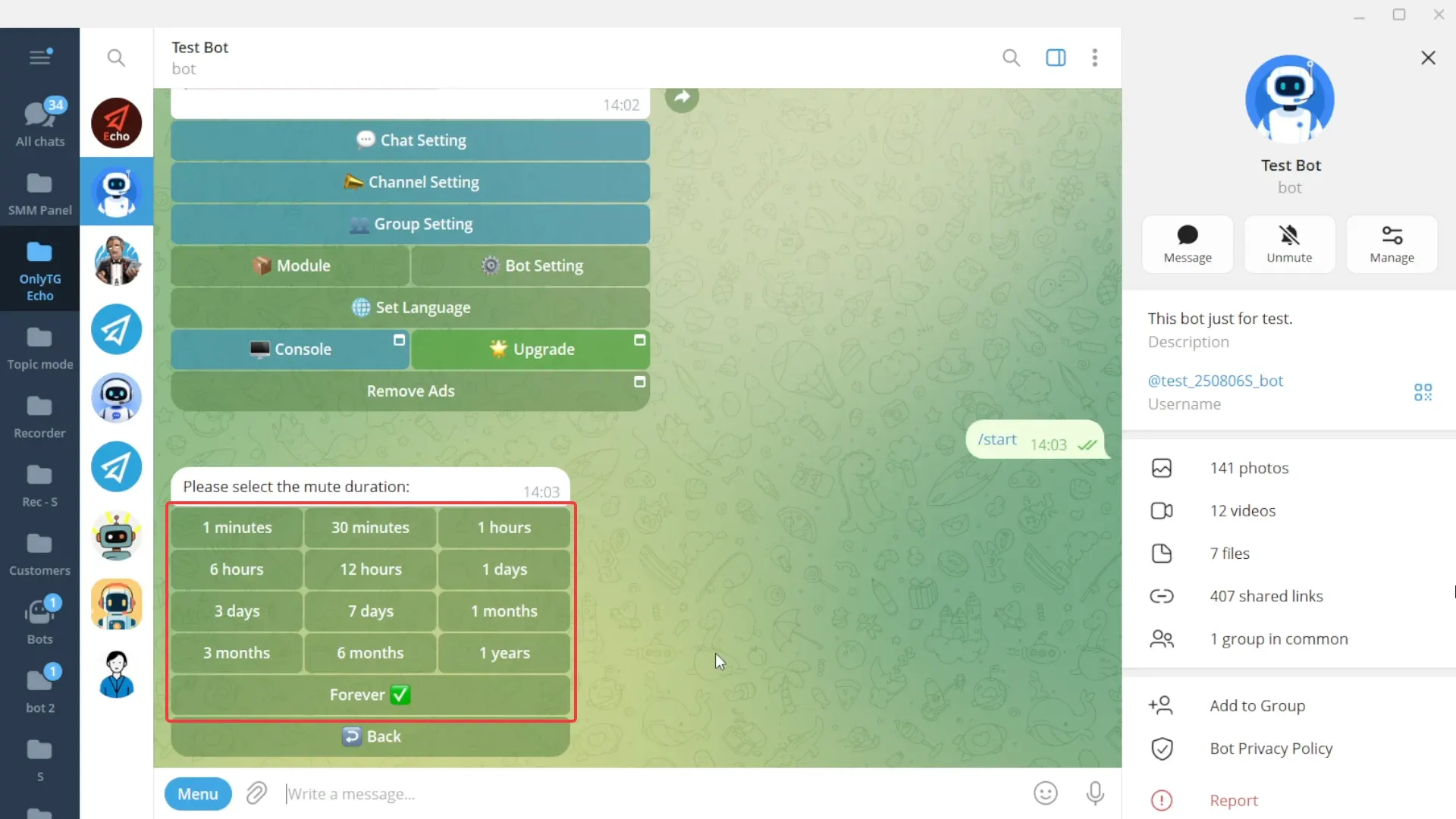
Click Mute Duration to select the mute period.
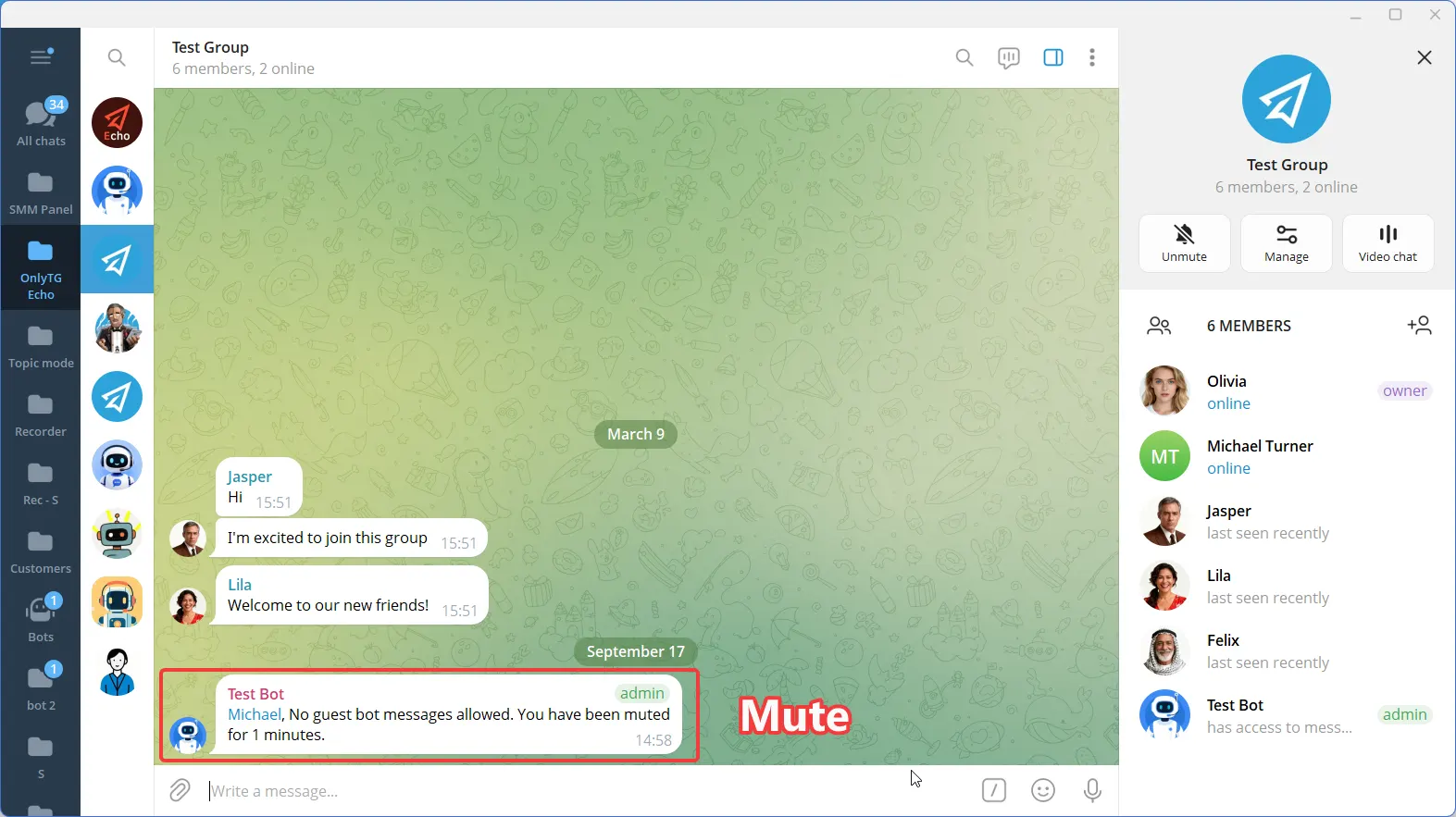
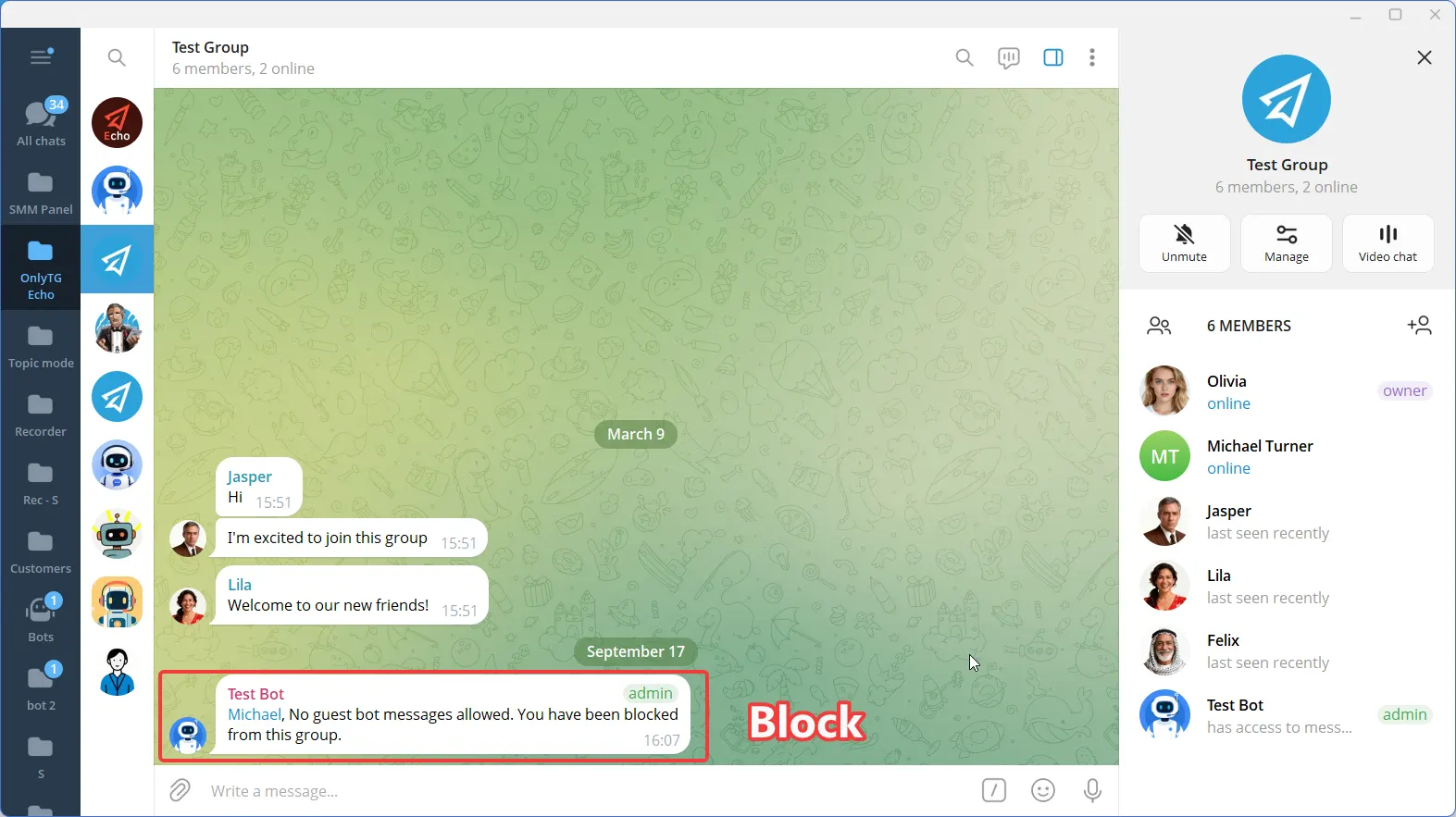
d. Block: Ban members who violate the rules, which means removing them from the group and preventing them from rejoining. Supports the Penalty on 2nd Offense option.
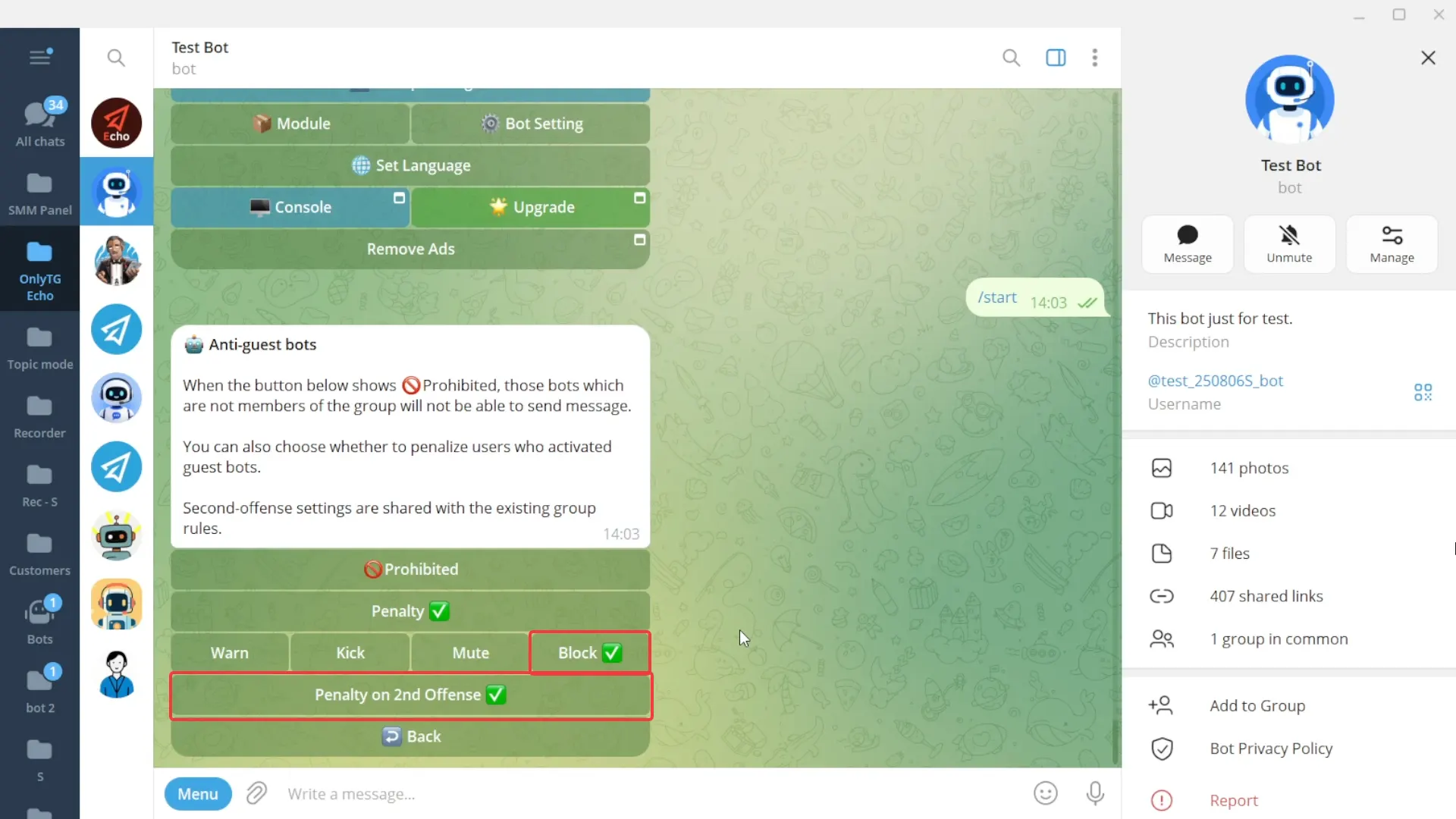
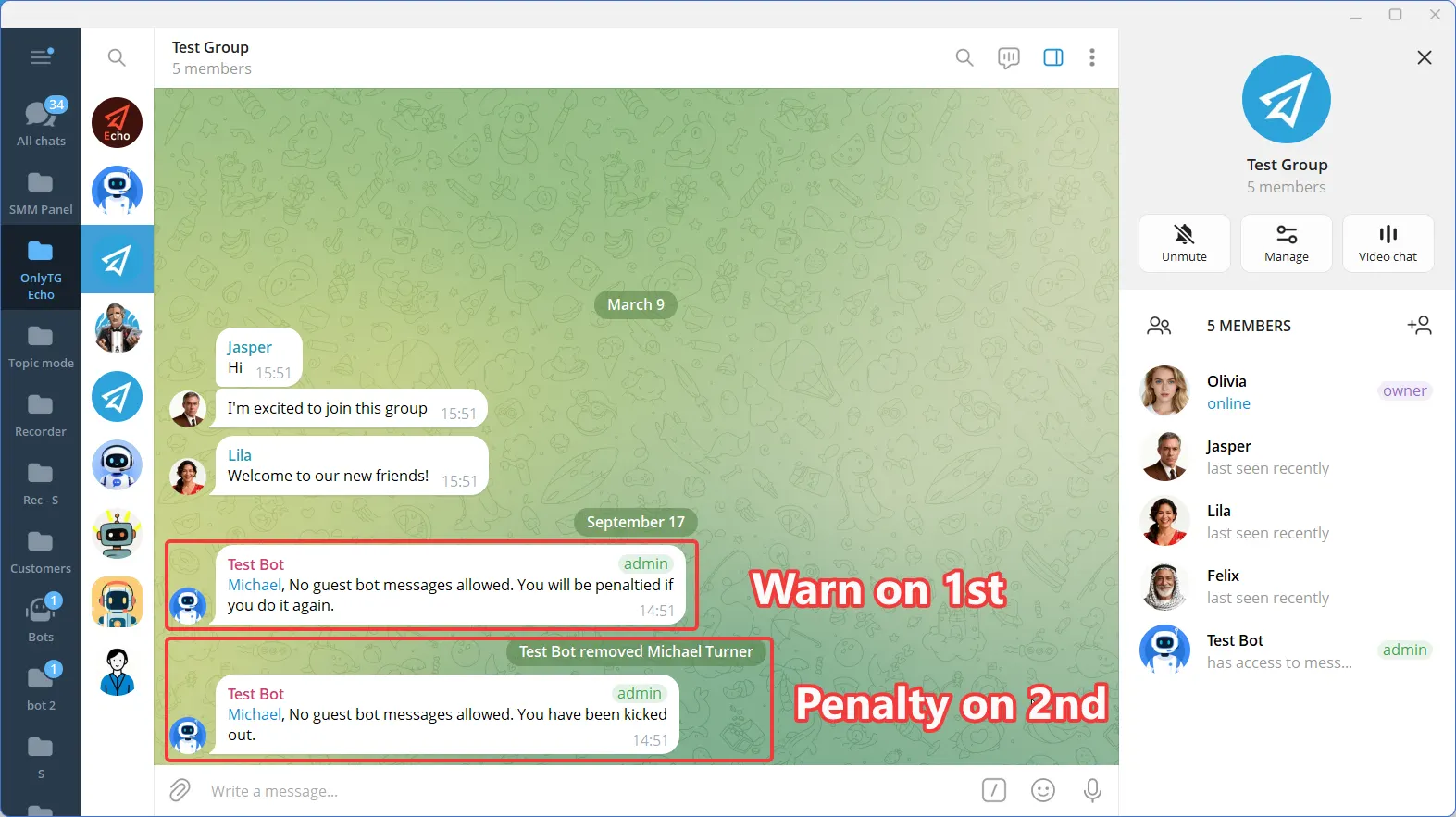
e. Penalty on 2nd: Warning for the first offense, Penalty on the second offense.
When you select Kick, Mute, or Block penalties, you can enable these options.
step 3
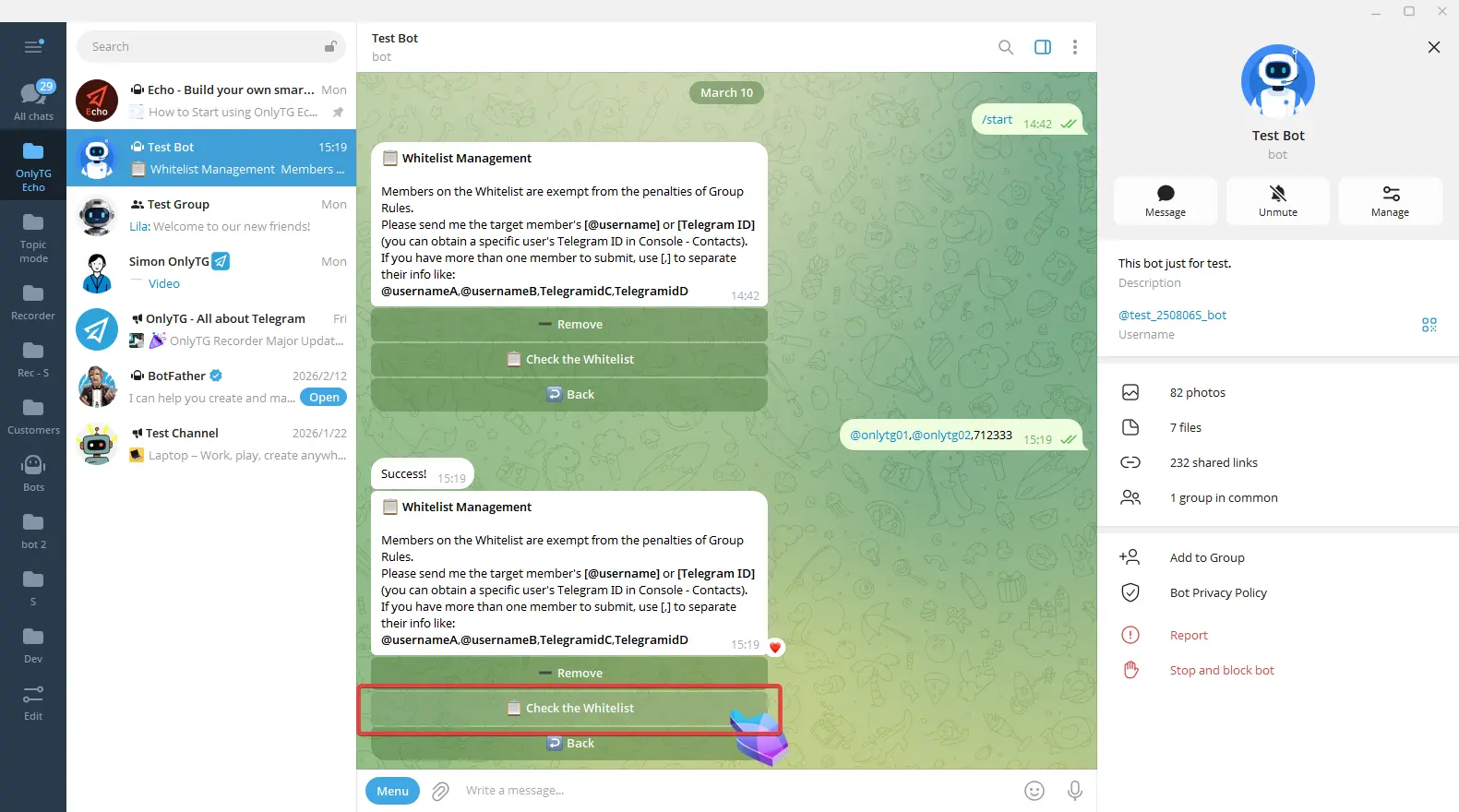
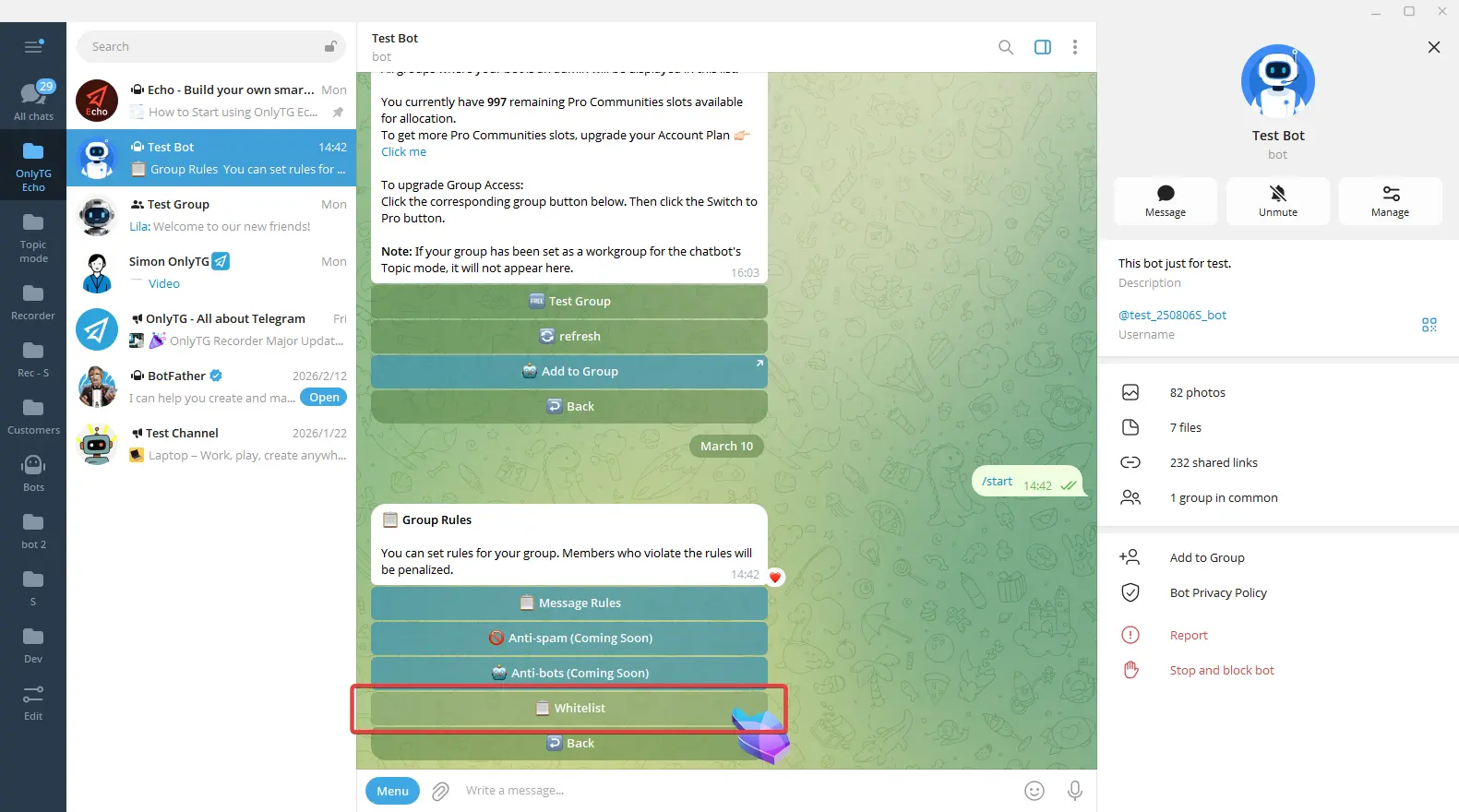
You can also click Whitelist to add members. Members on the Whitelist are exempt from the penalties of Group Rules.
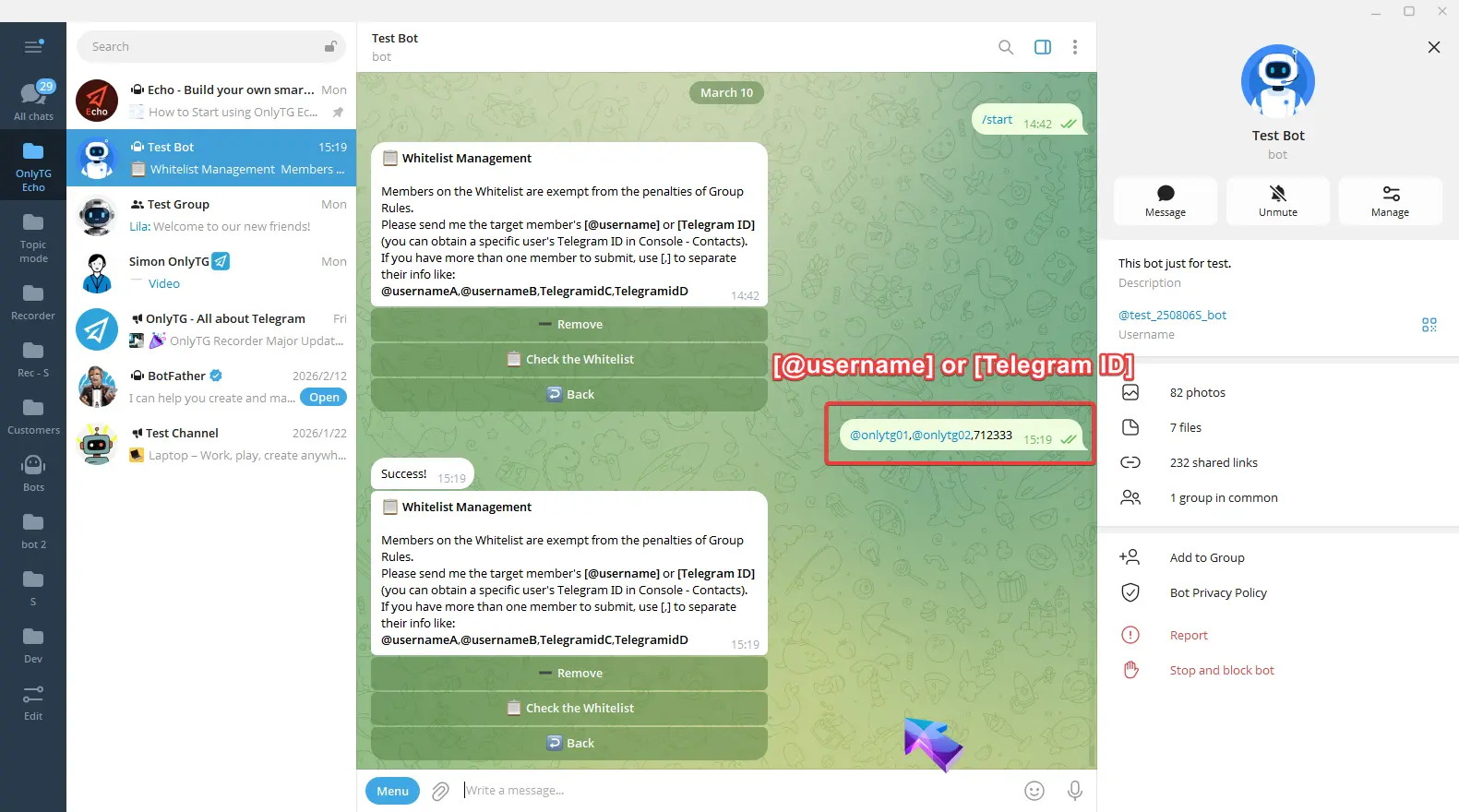
Simply send the target member’s [@username] or [Telegram ID] to add them successfully.
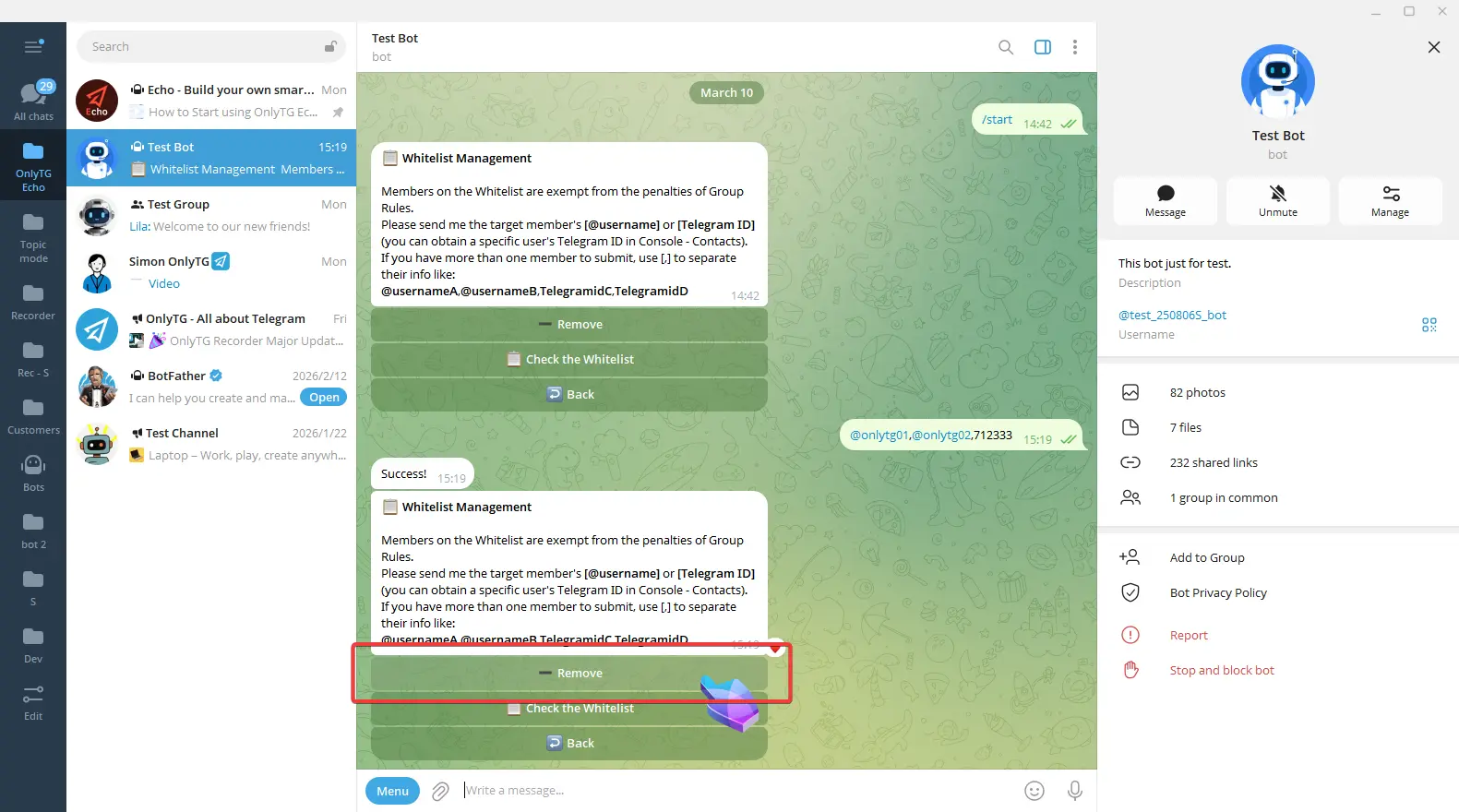
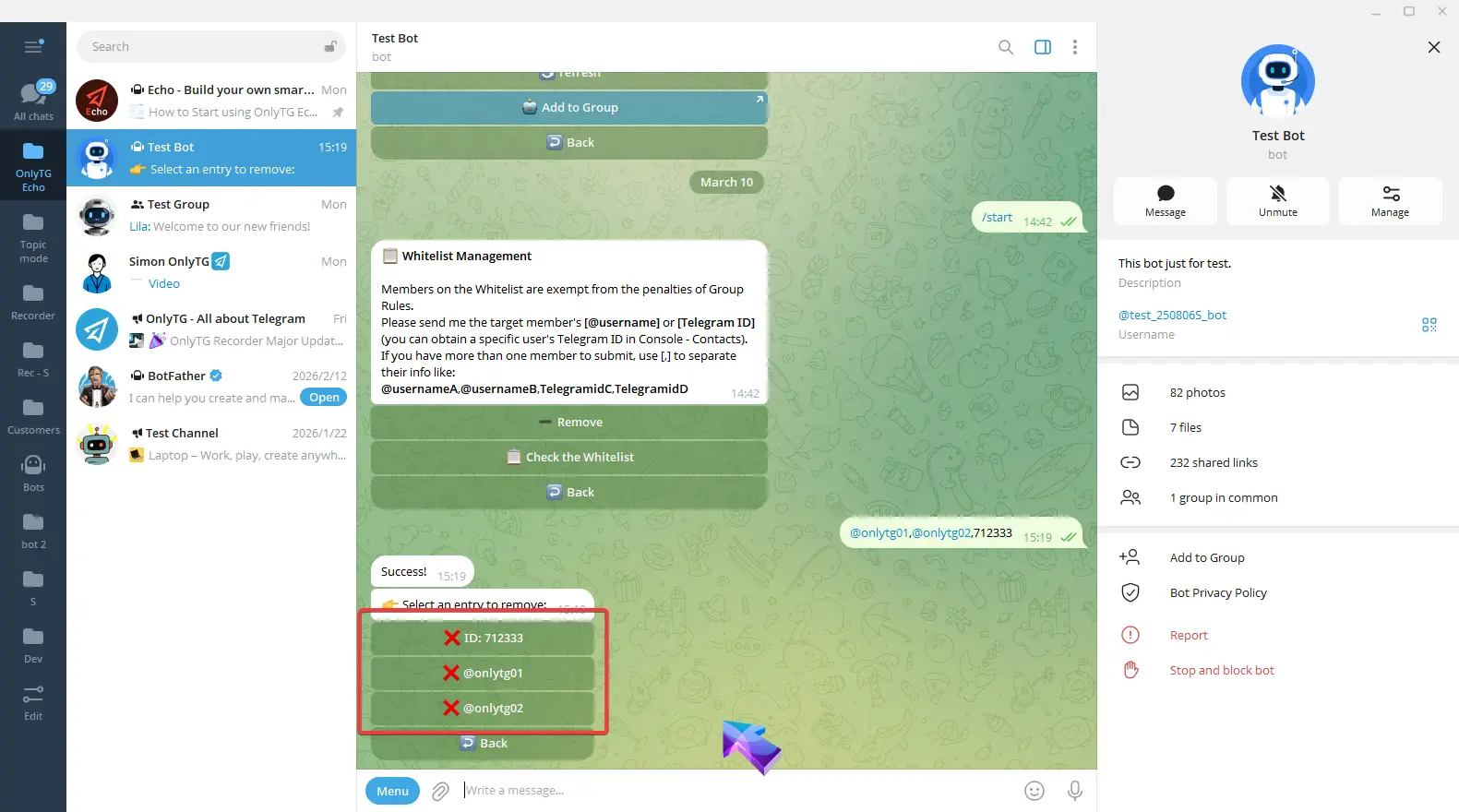
Click Remove to select and remove members from the whitelist.
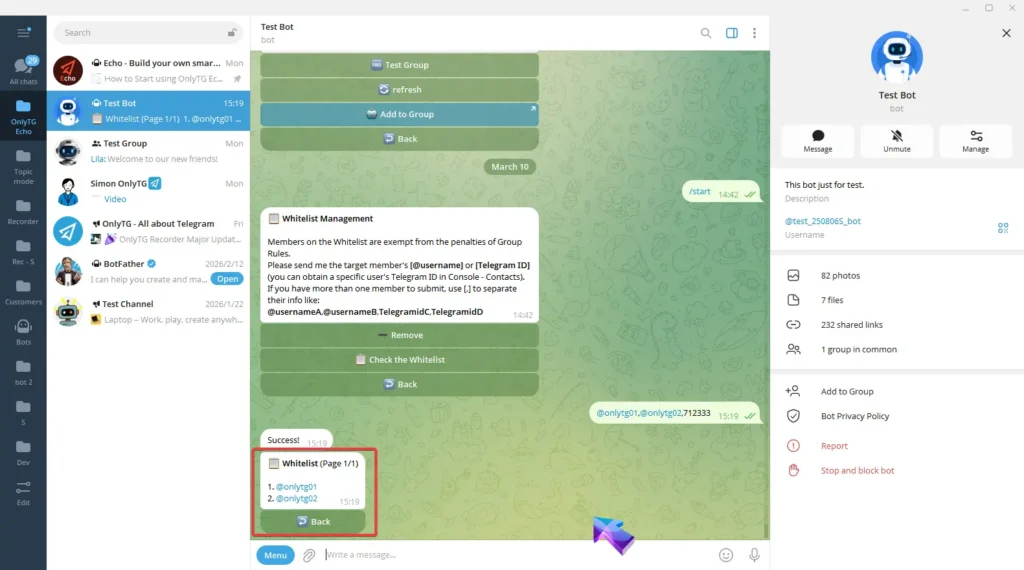
Click Check the Whitelist to view members in the whitelist.