OnlyTG has launched social media growth services, SMM Panel. This service helps you rapidly boost followers, views, reactions and other metrics for your social media accounts in a short period. Supporting platforms including Telegram, Instagram, TikTok, YouTube, Facebook and X.
Method 1: Via Telegram Bot
Video Tutorial 1
step 1
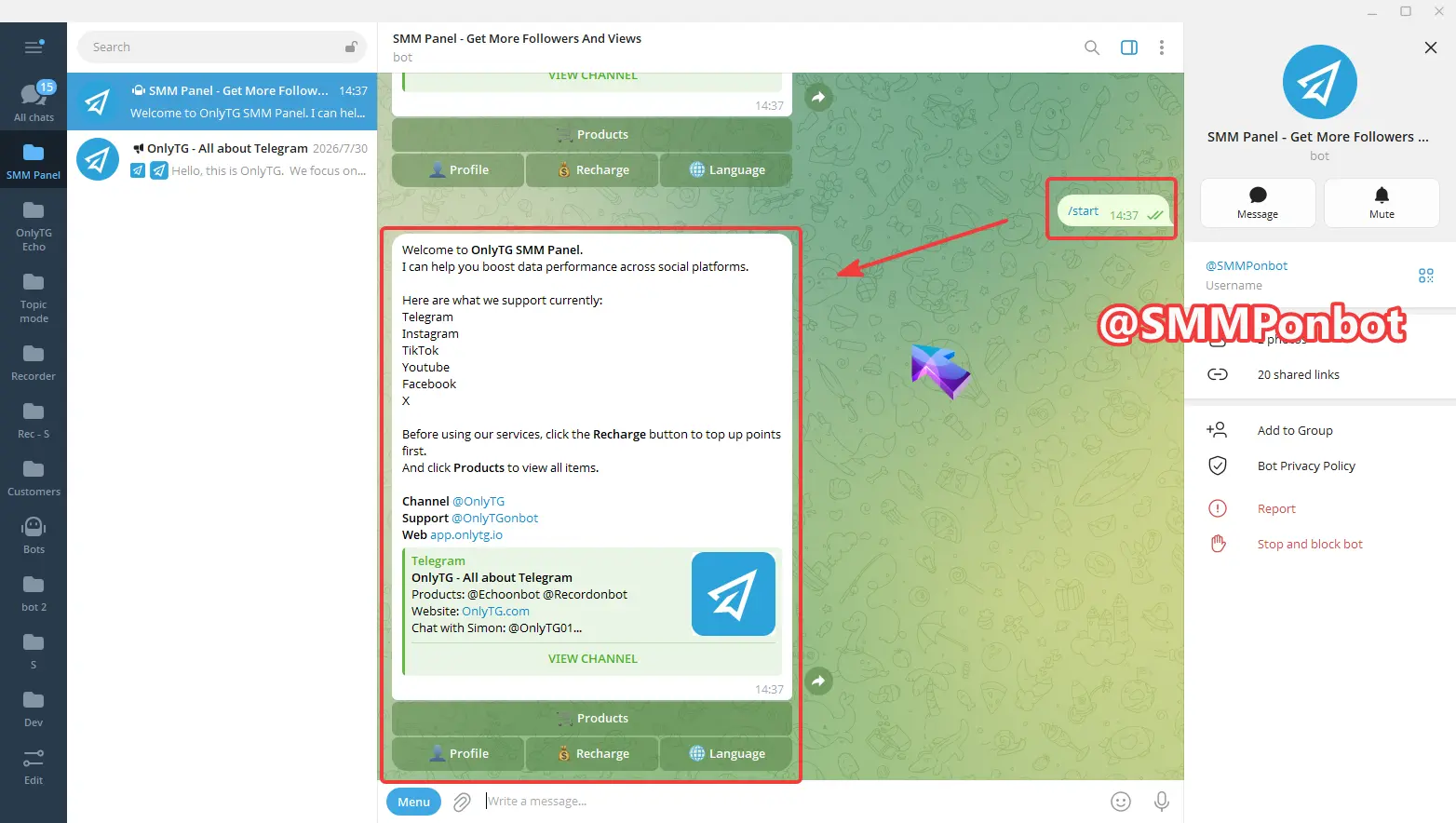
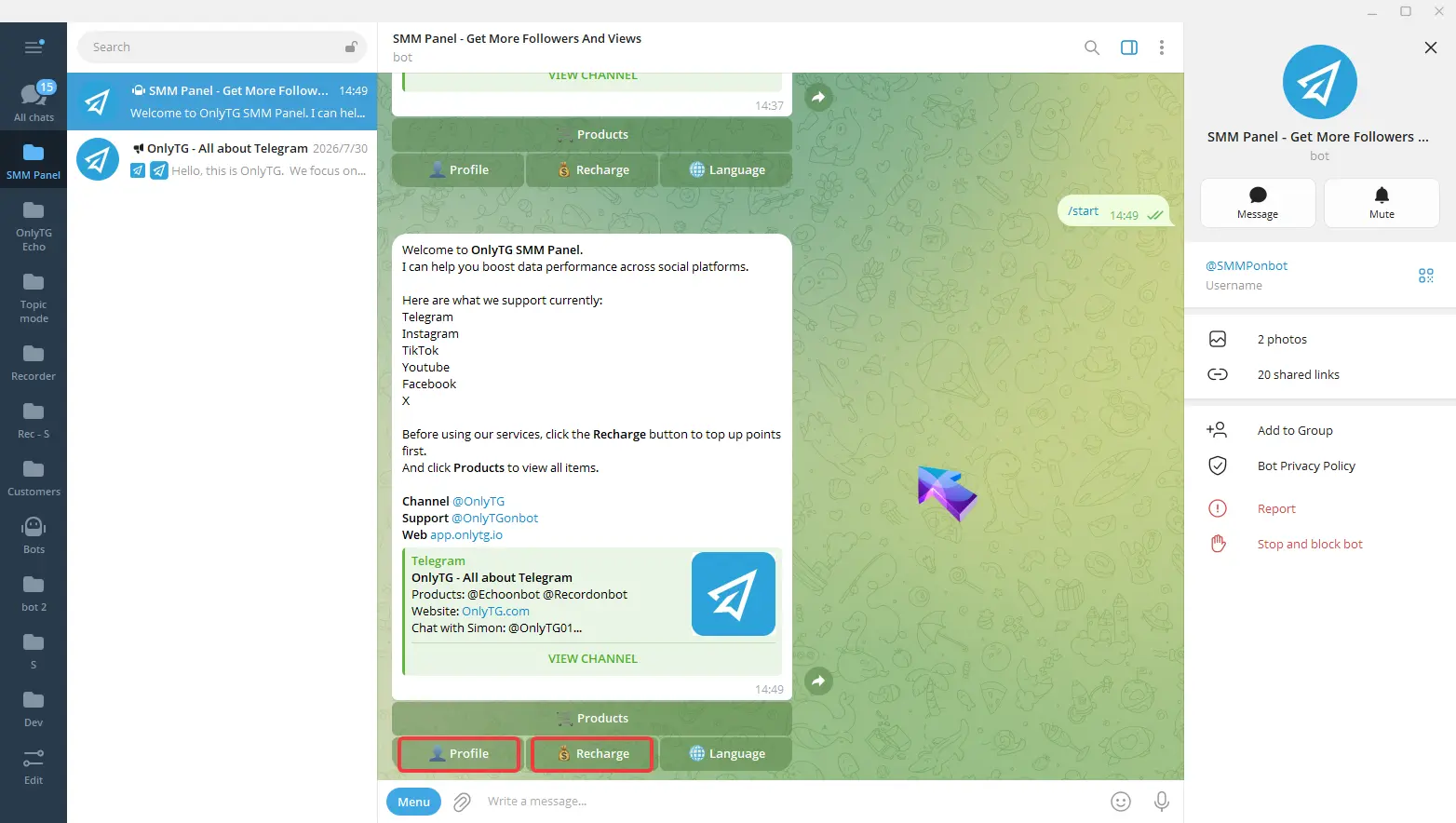
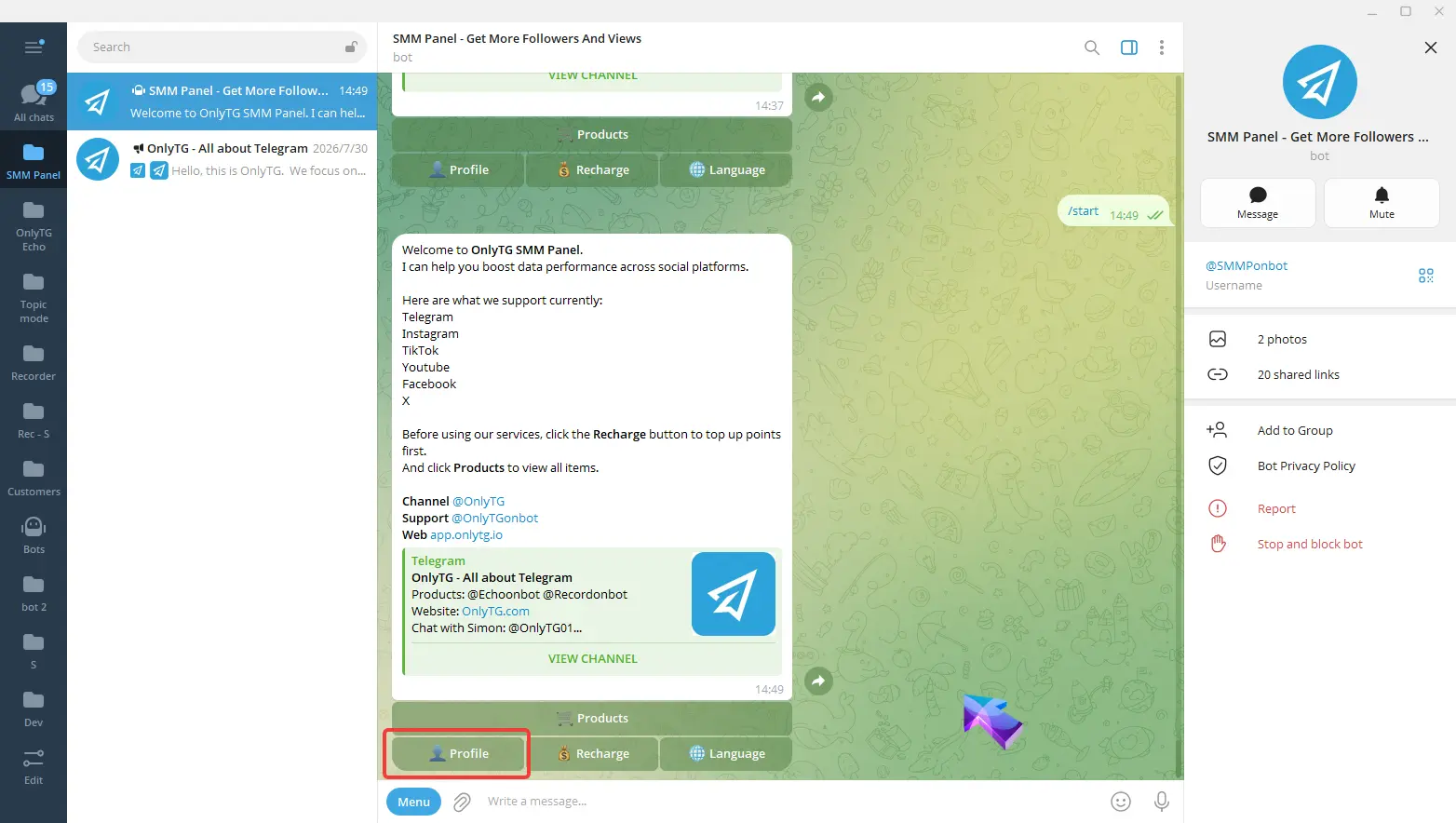
Locate the bot @SMMPonbot on Telegram and send the /start command to it. The bot will send a welcome message.
step 2
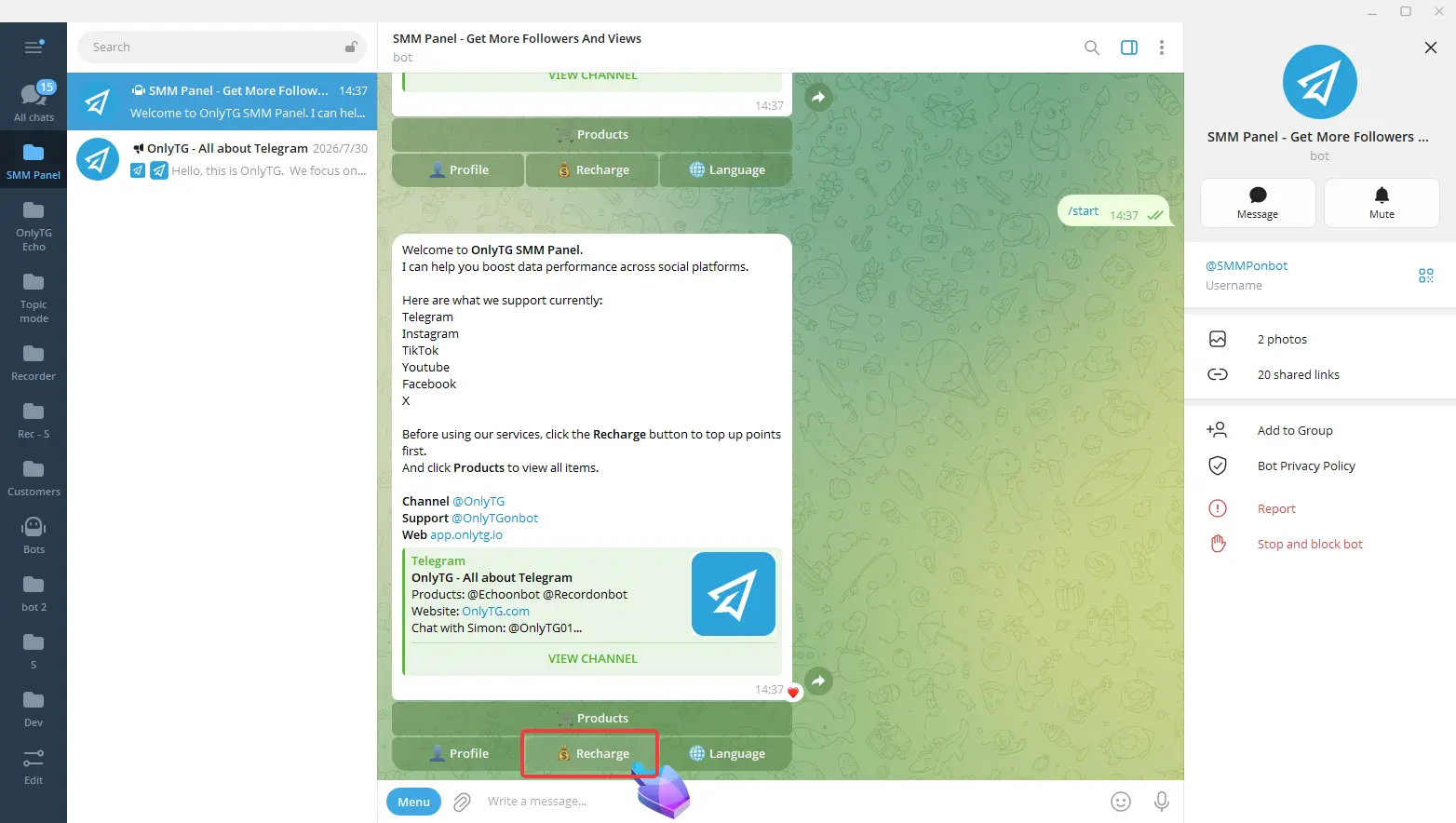
If you are a first-time user, click the Recharge button under the welcome message to top up.
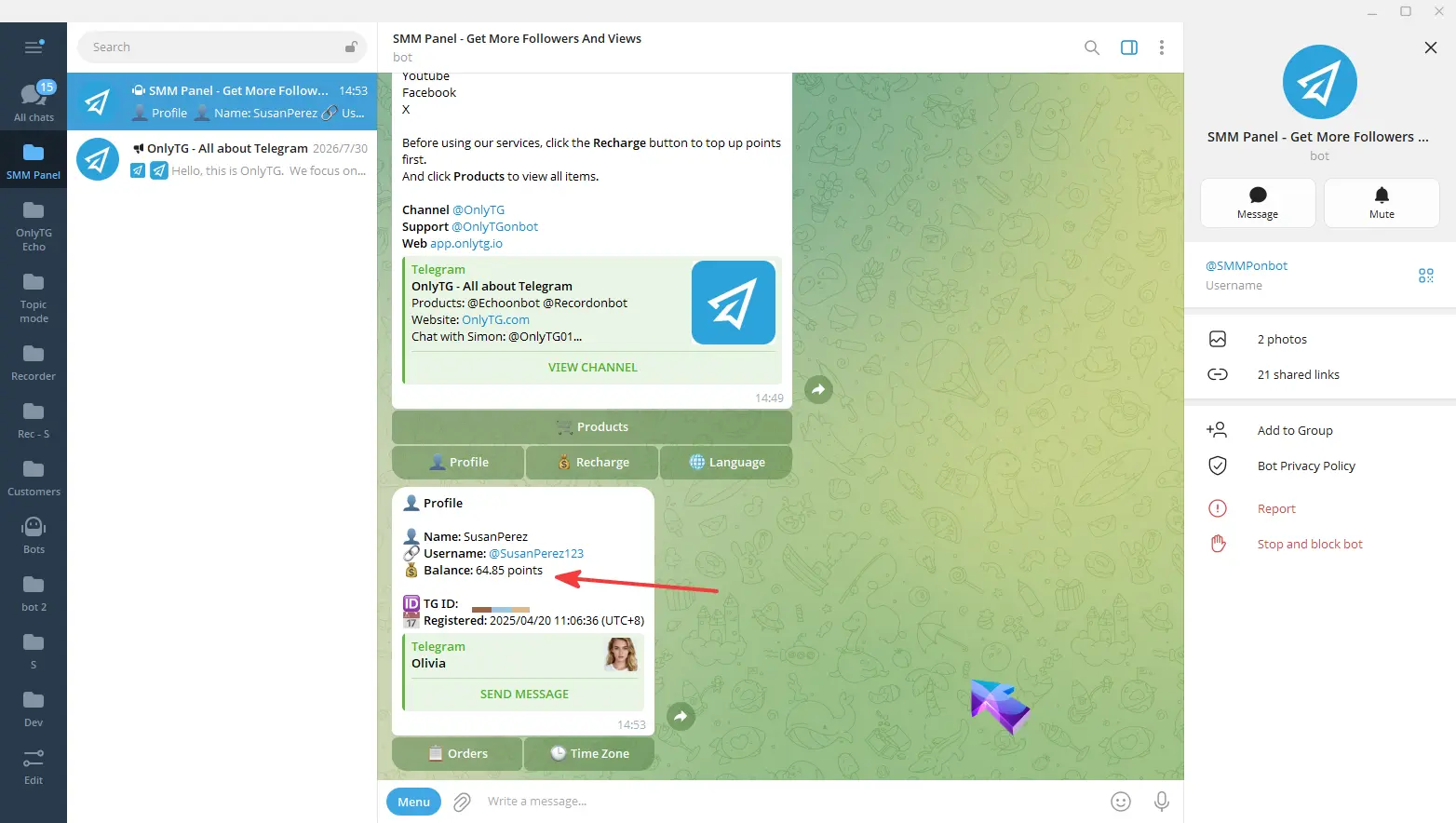
You can see your balance here. The exchange rate is 1 USDT = 1 point, with a minimum recharge amount of 10 USDT.
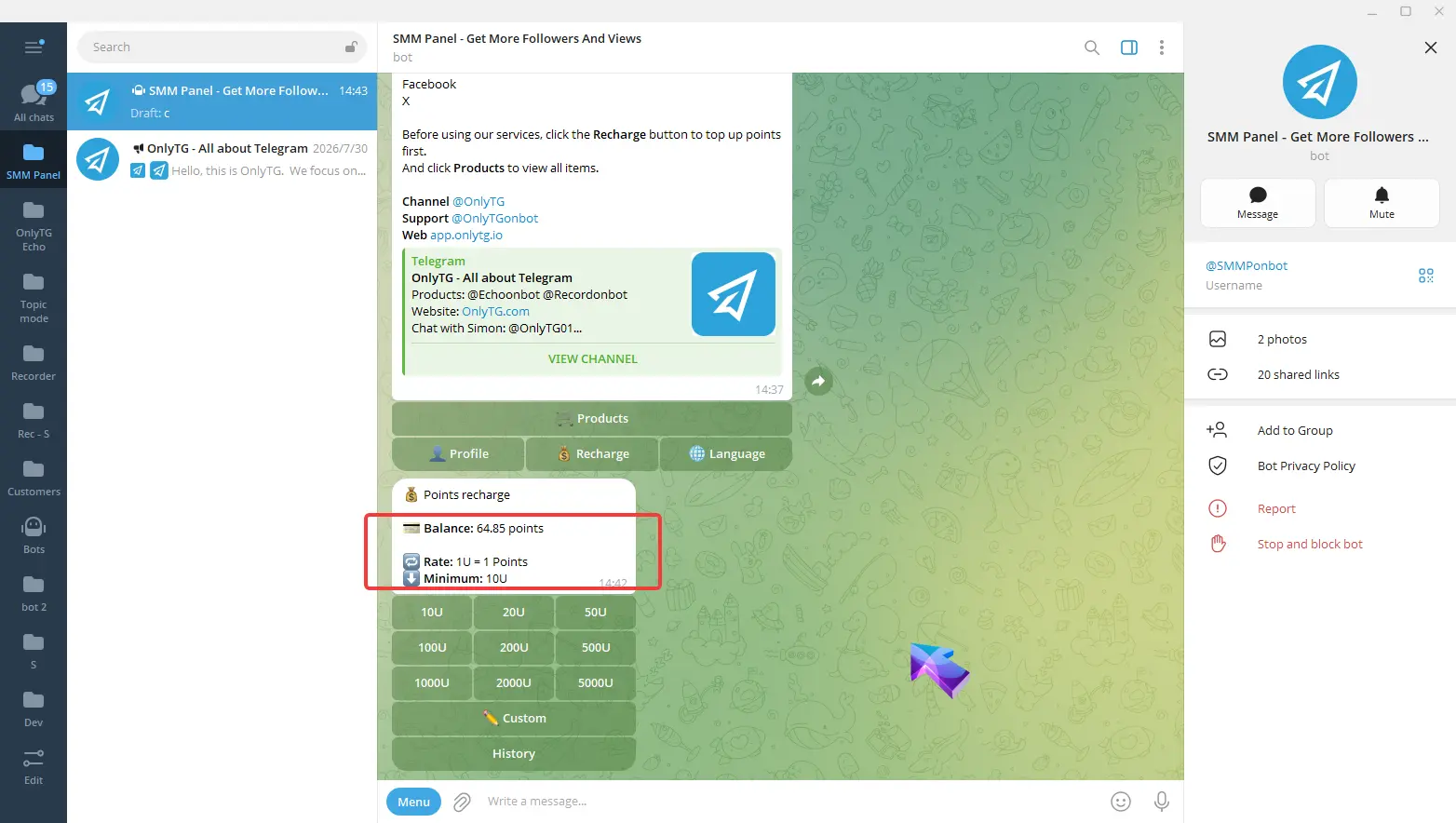
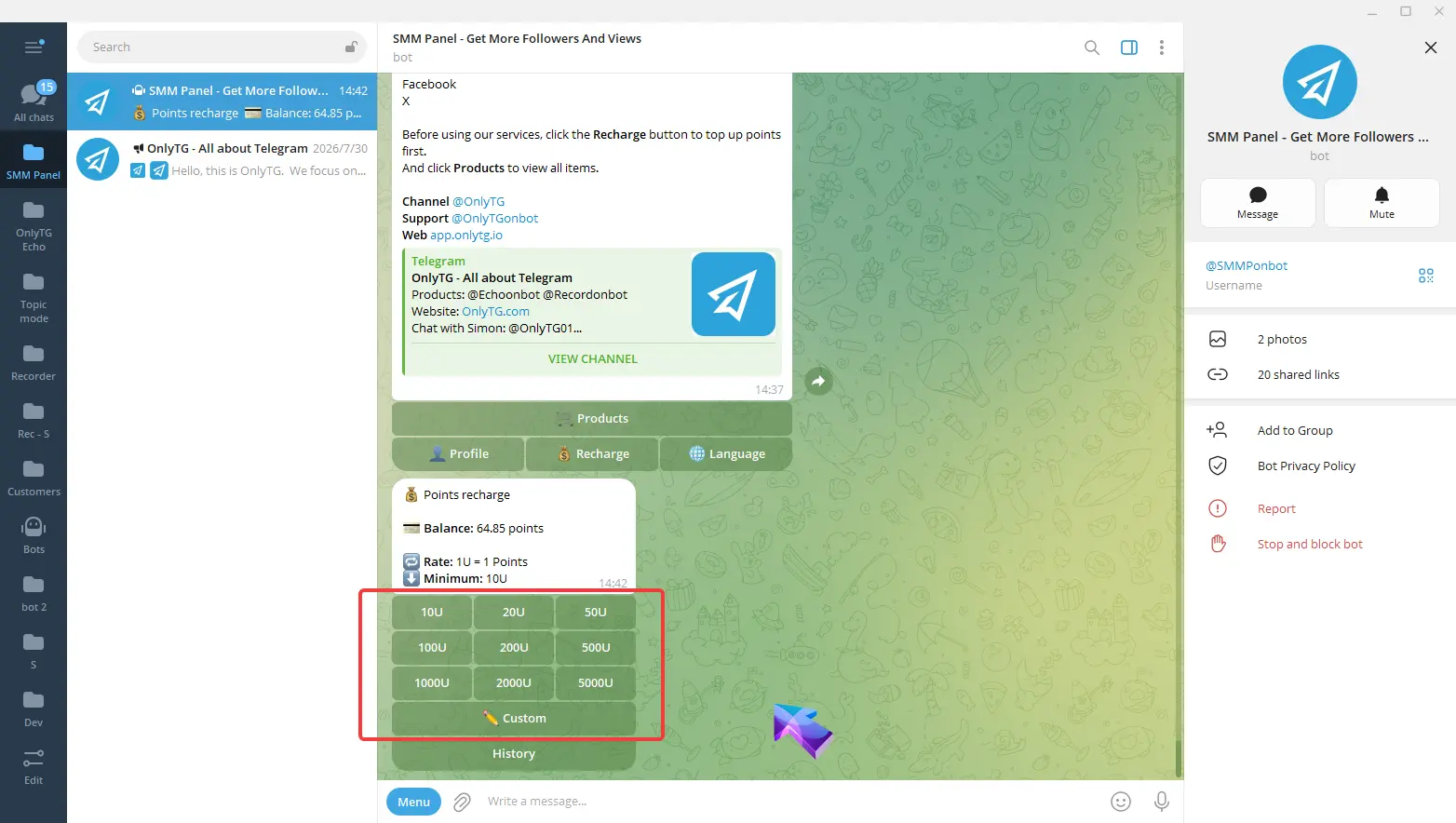
Next, you may quickly select preset recharge amounts below, or click Custom to enter a personalized recharge value.
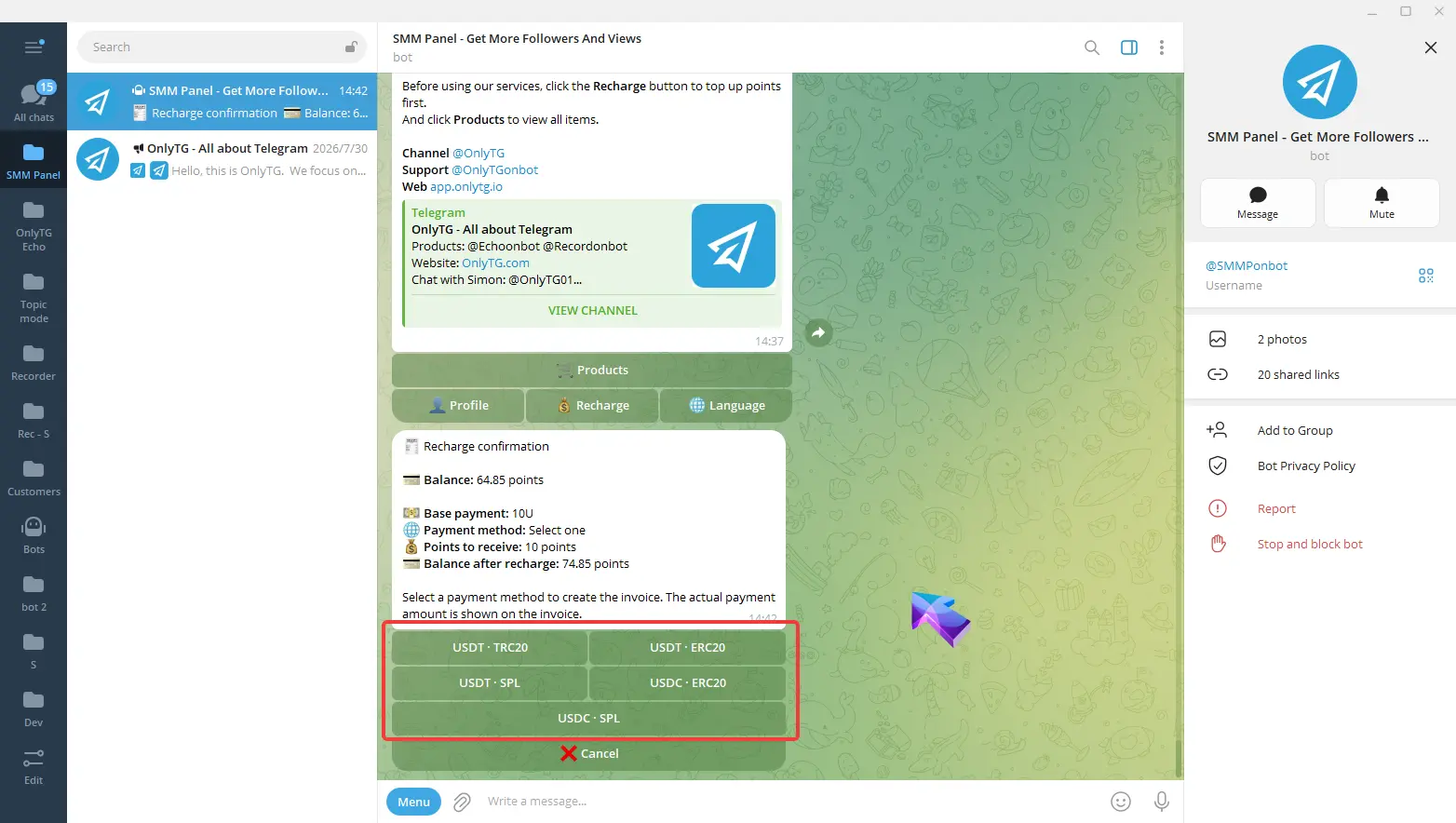
Then, confirm your order details and select your payment method.
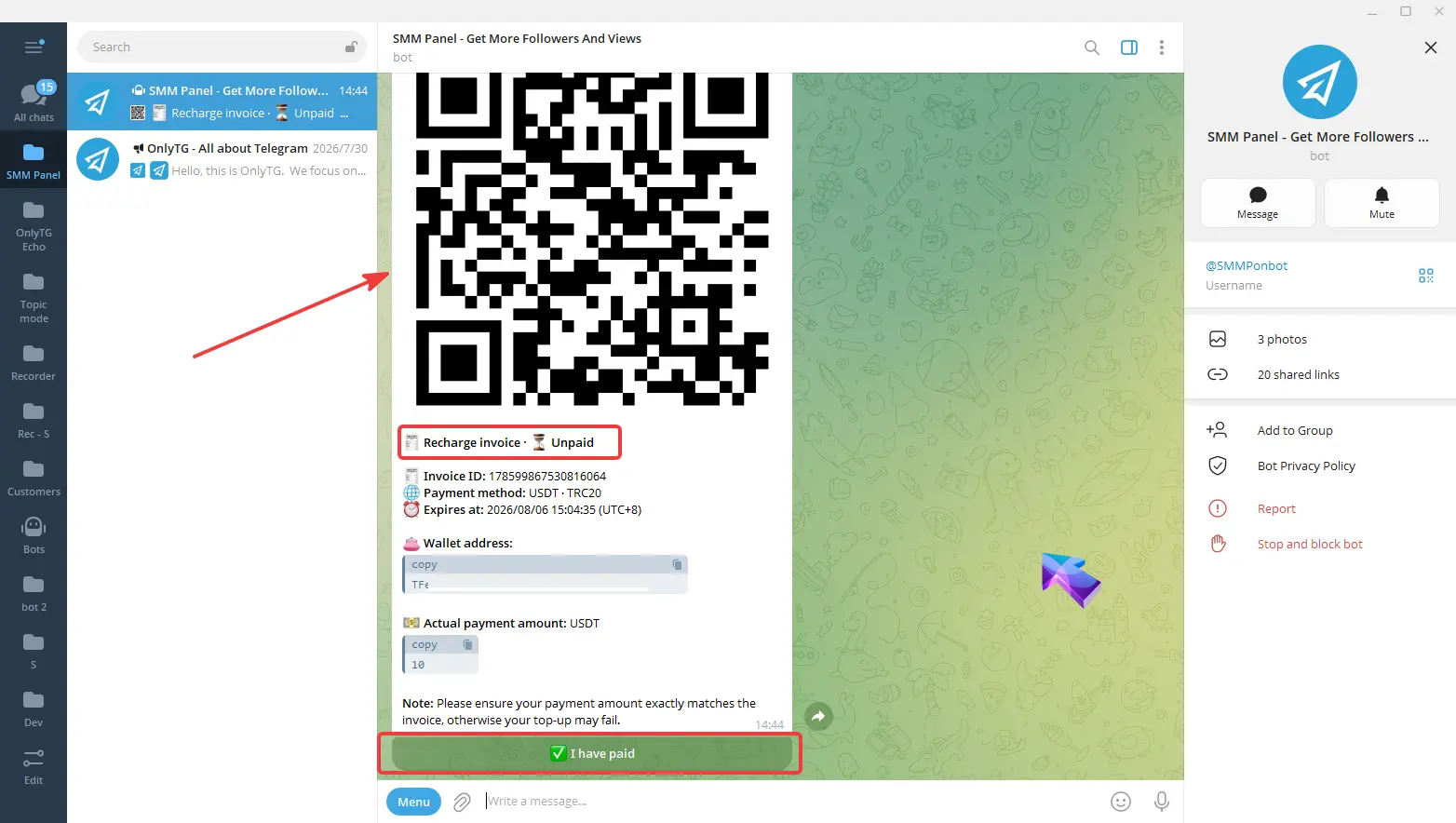
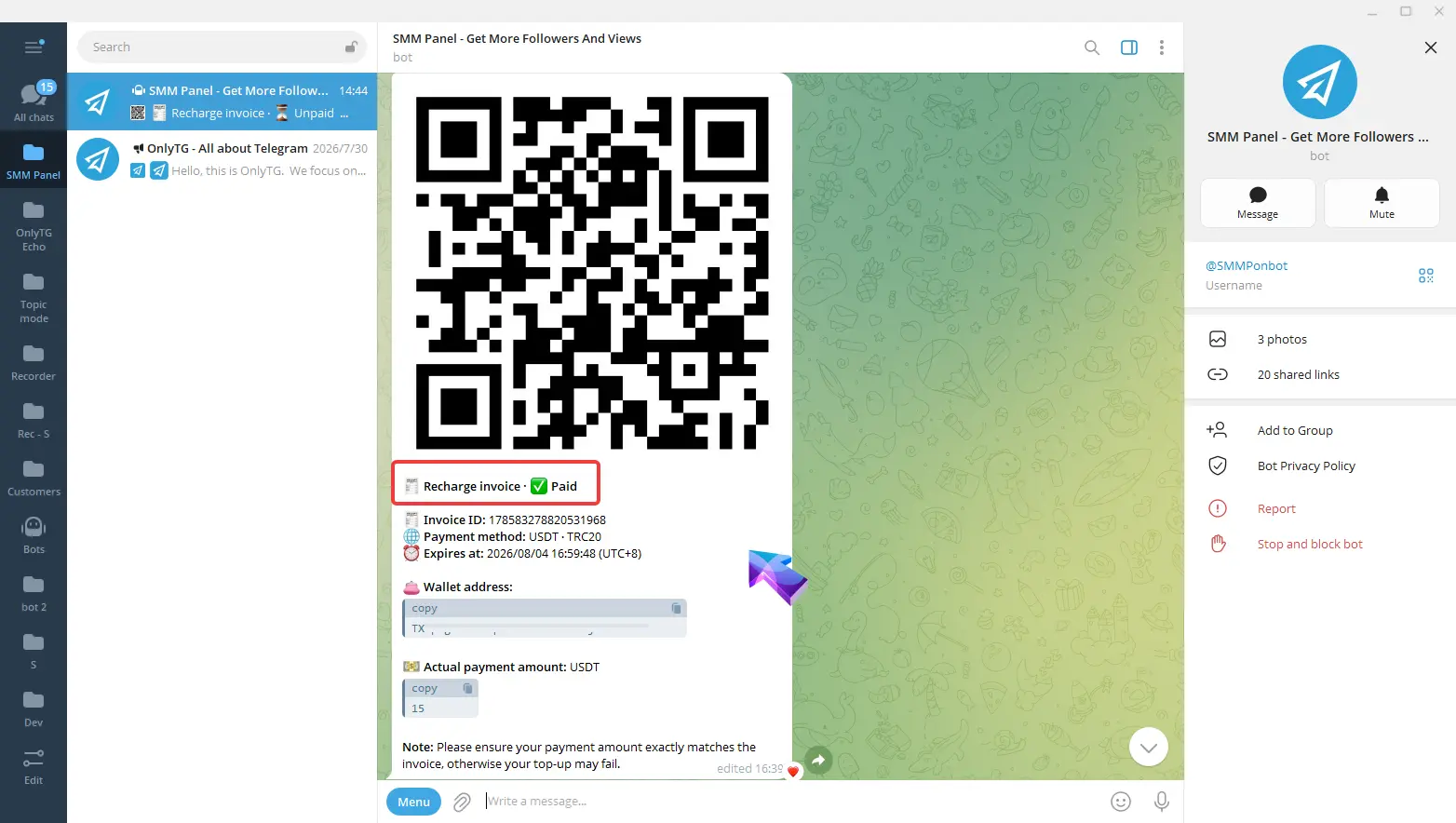
After completing payment via QR code, click I have paid to refresh the order status. Once the status changes to paid, your top-up is successful.
And you can Click the Profile or Recharge button below the welcome message to check your balance.
step 3
Click the Products button on the welcome message.
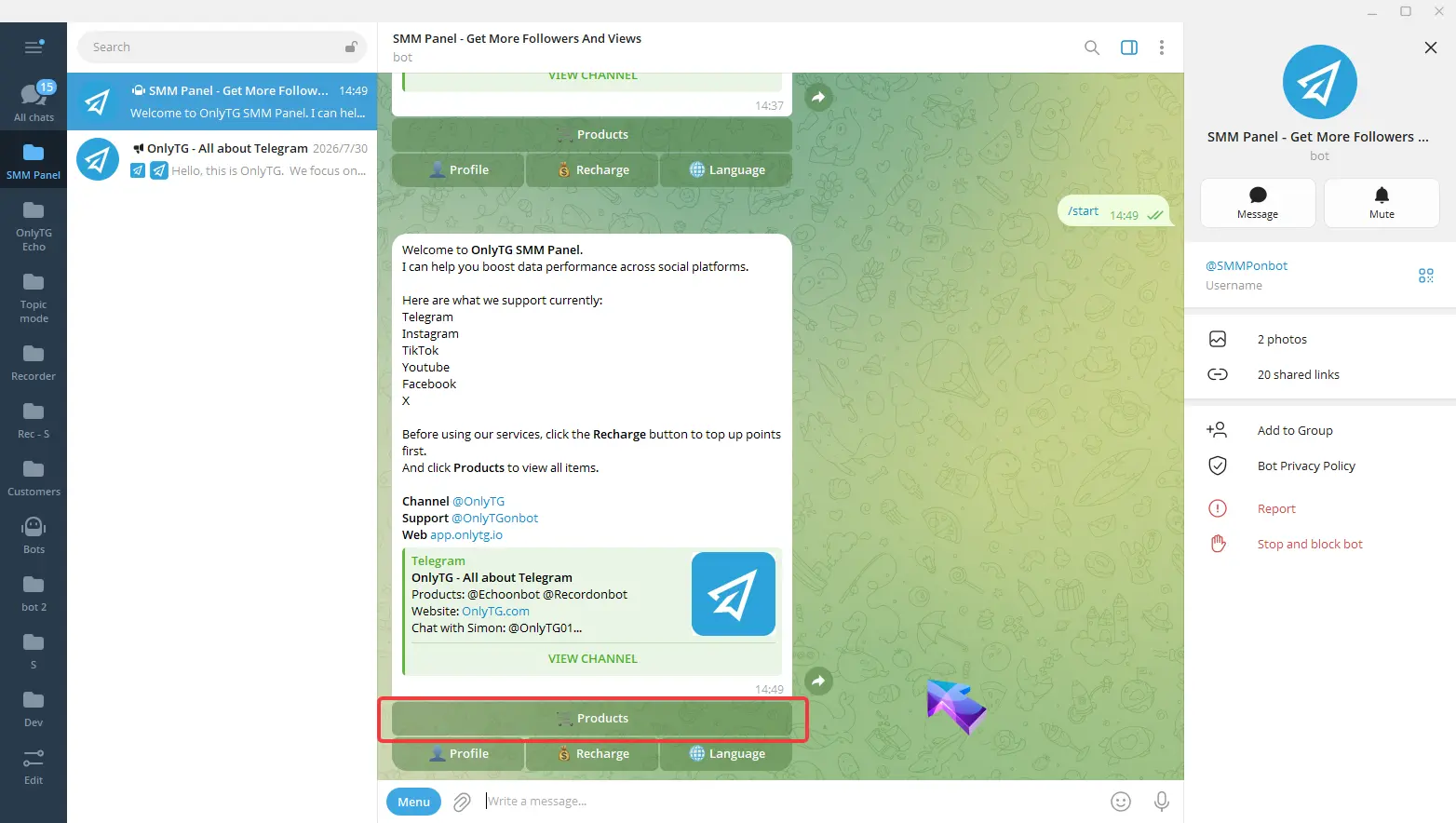
Select your target platform and growth type in sequence, then pick the service you need.
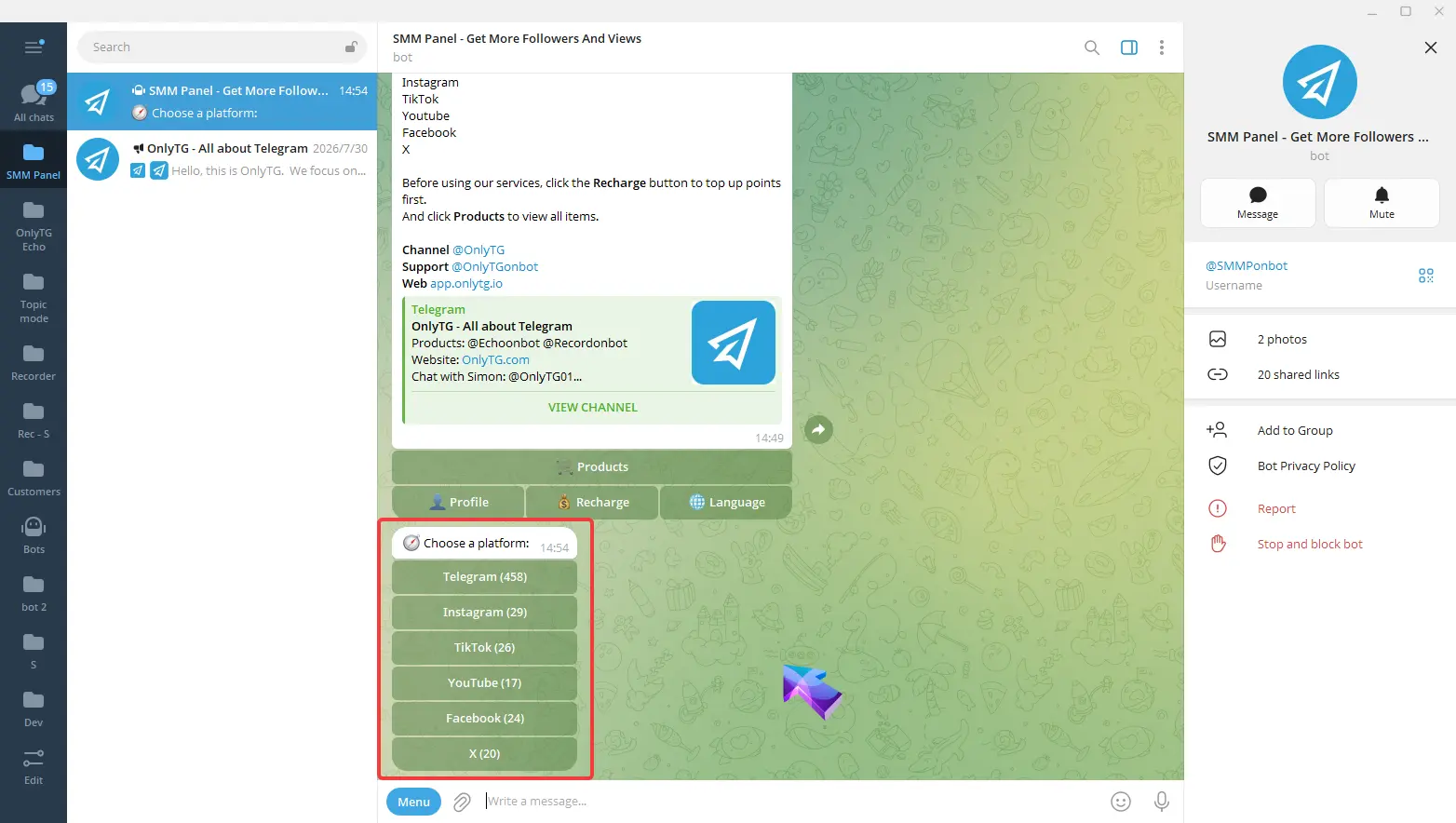
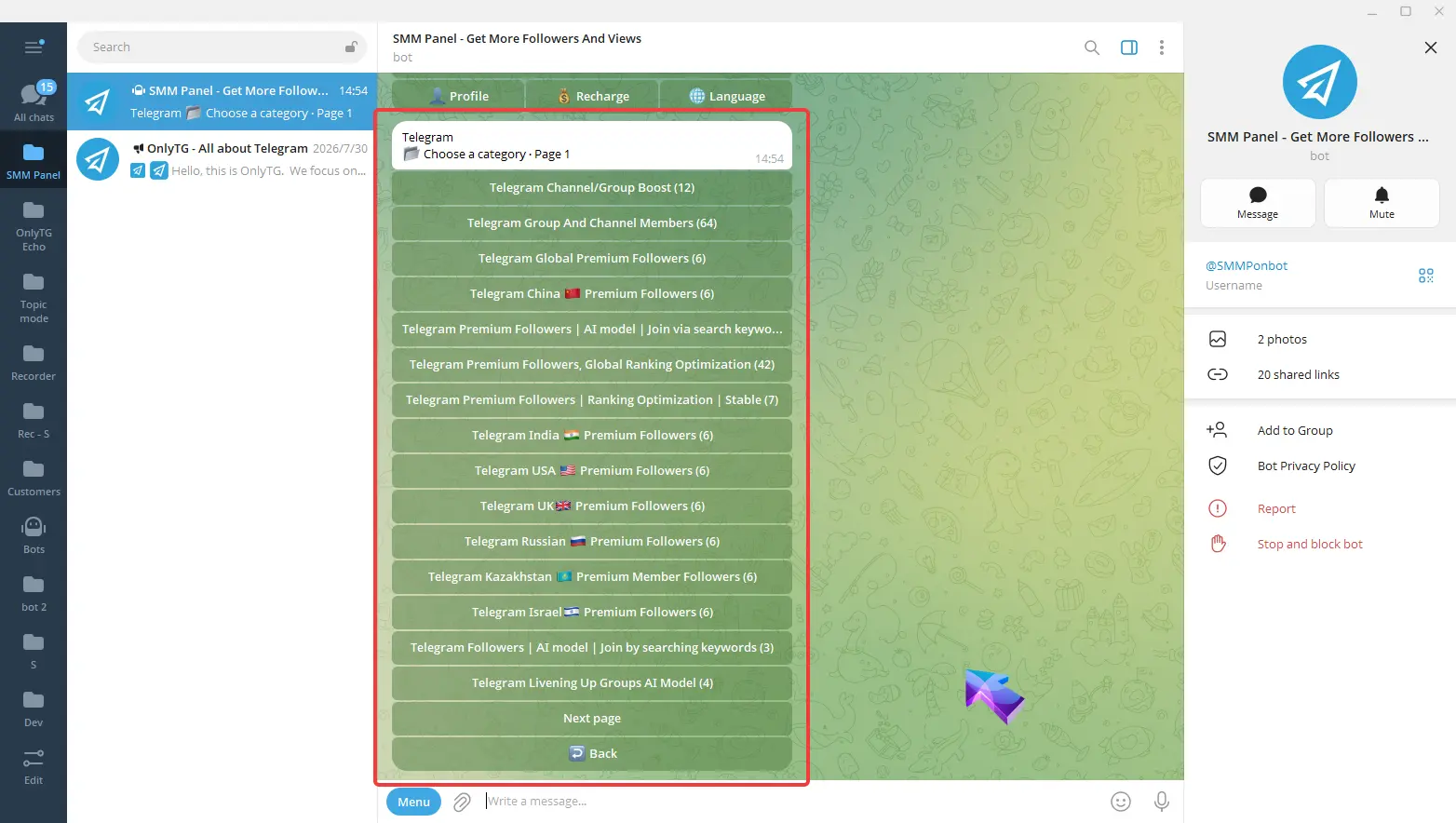
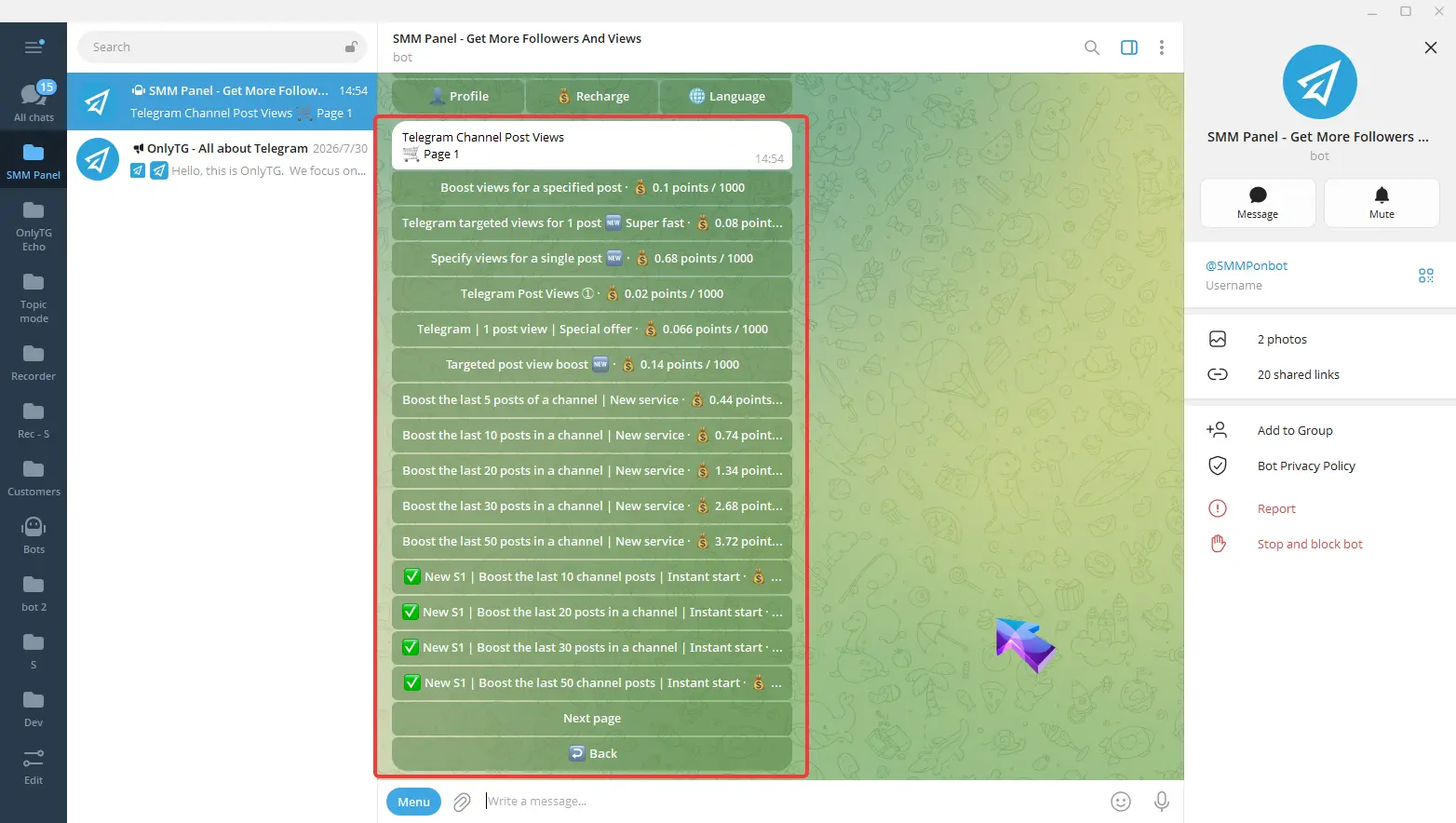
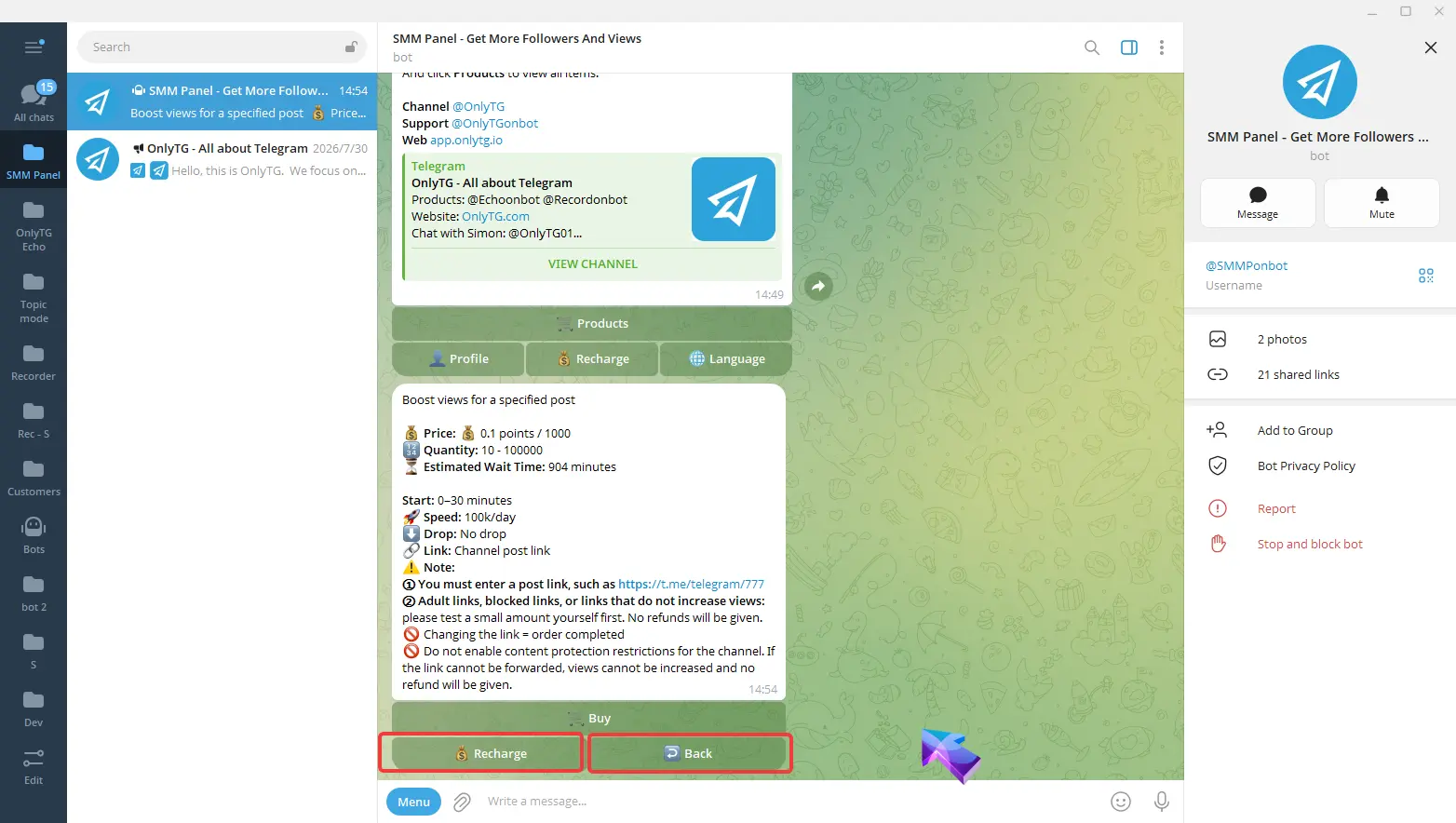
After selection, detailed information about this service will be displayed, including pricing, quantity, estimated waiting time and notes.
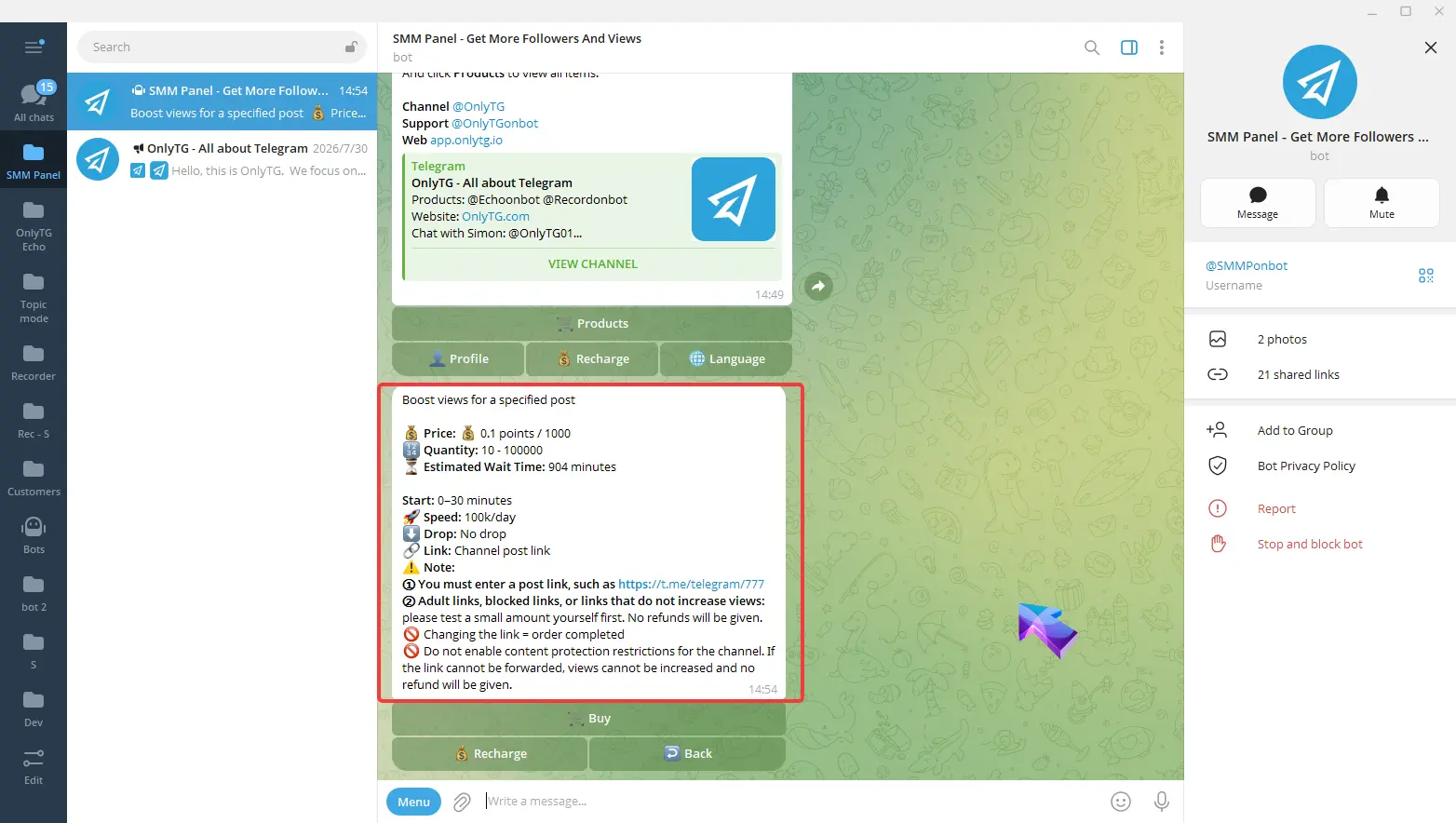
If this service is not what you need, hit the Back button to browse other options.
You can also top up funds by clicking the Recharge button here if your balance is insufficient.
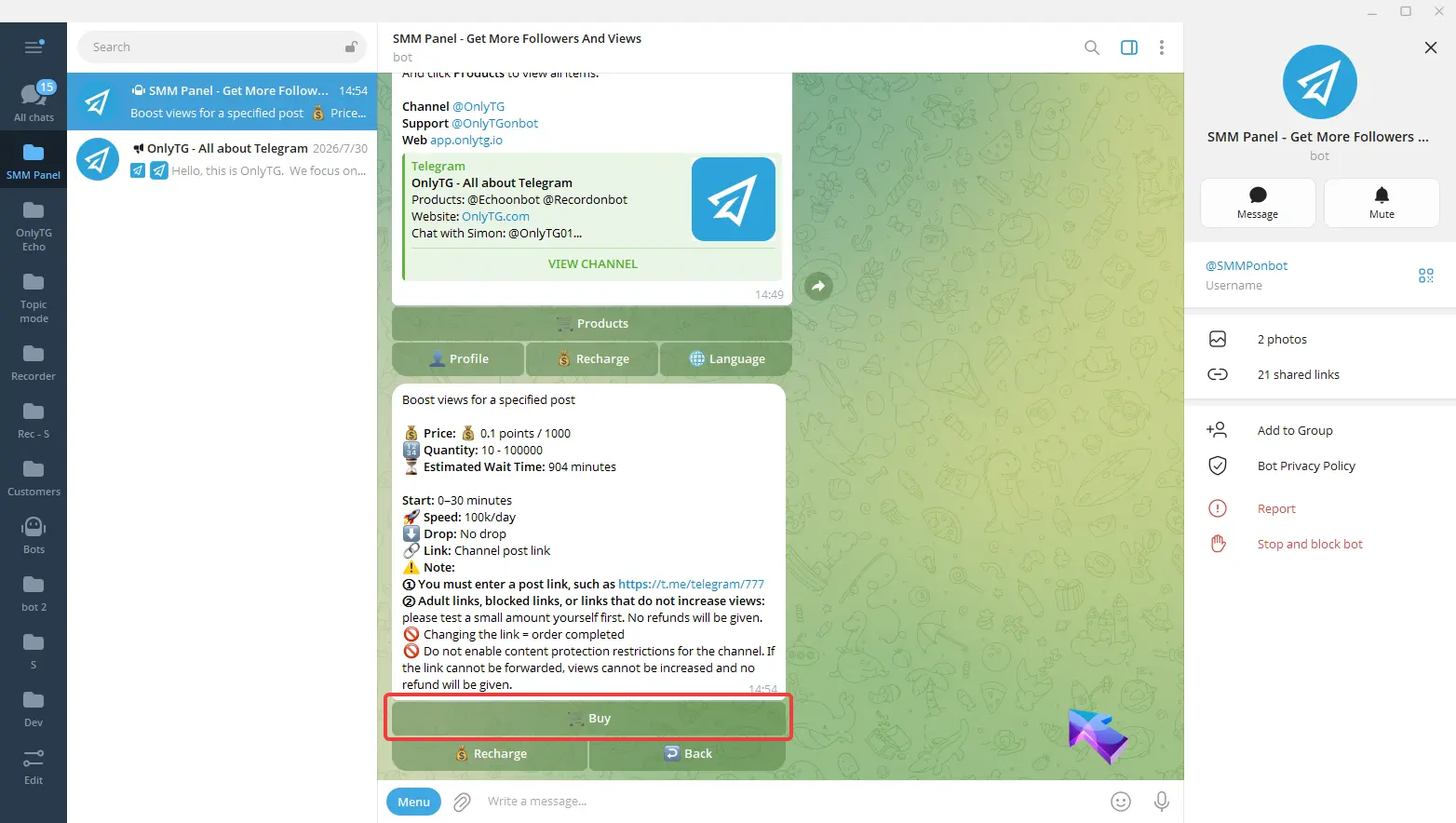
Click the Buy button to proceed.
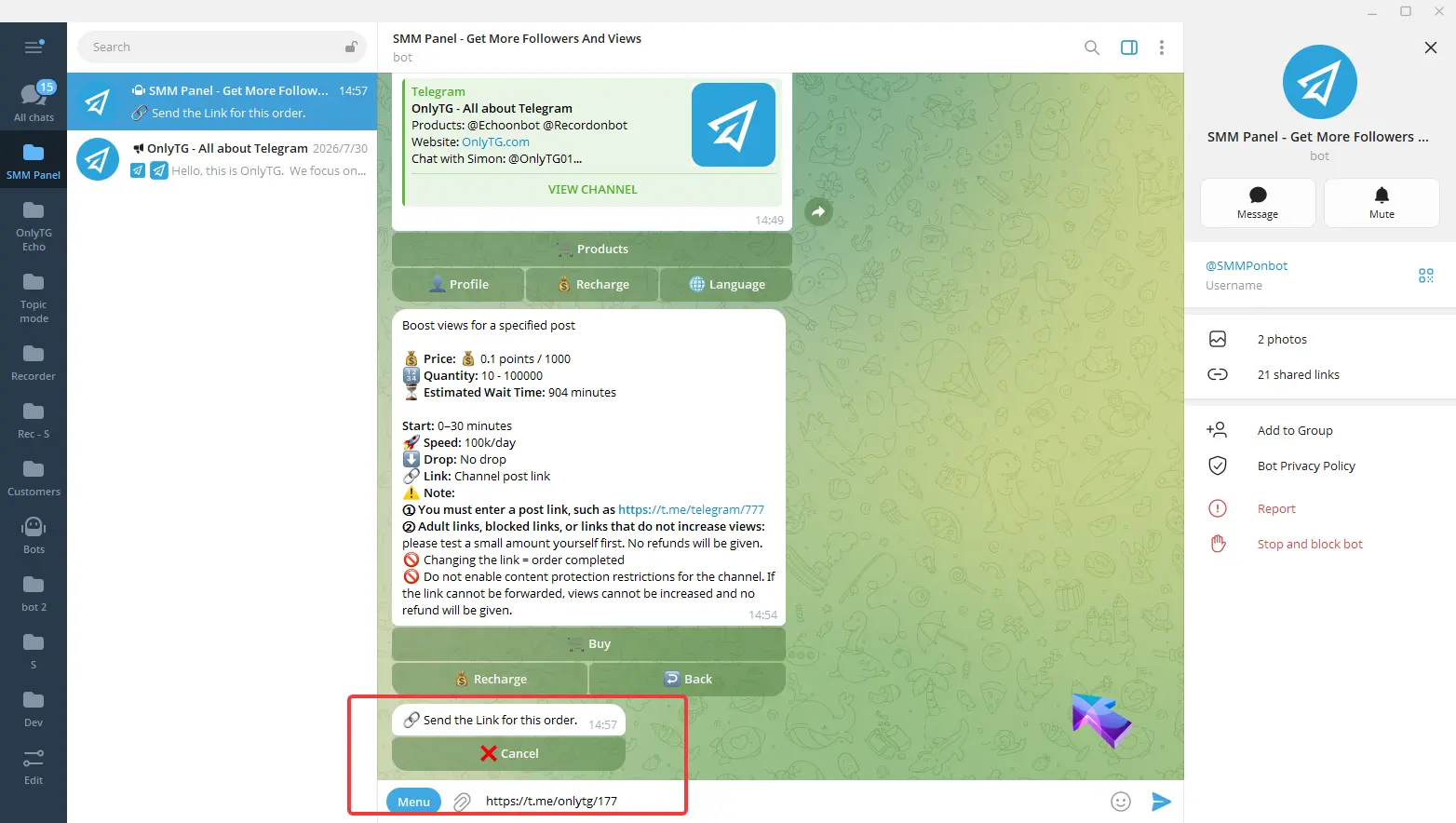
Send the corresponding link as prompted,
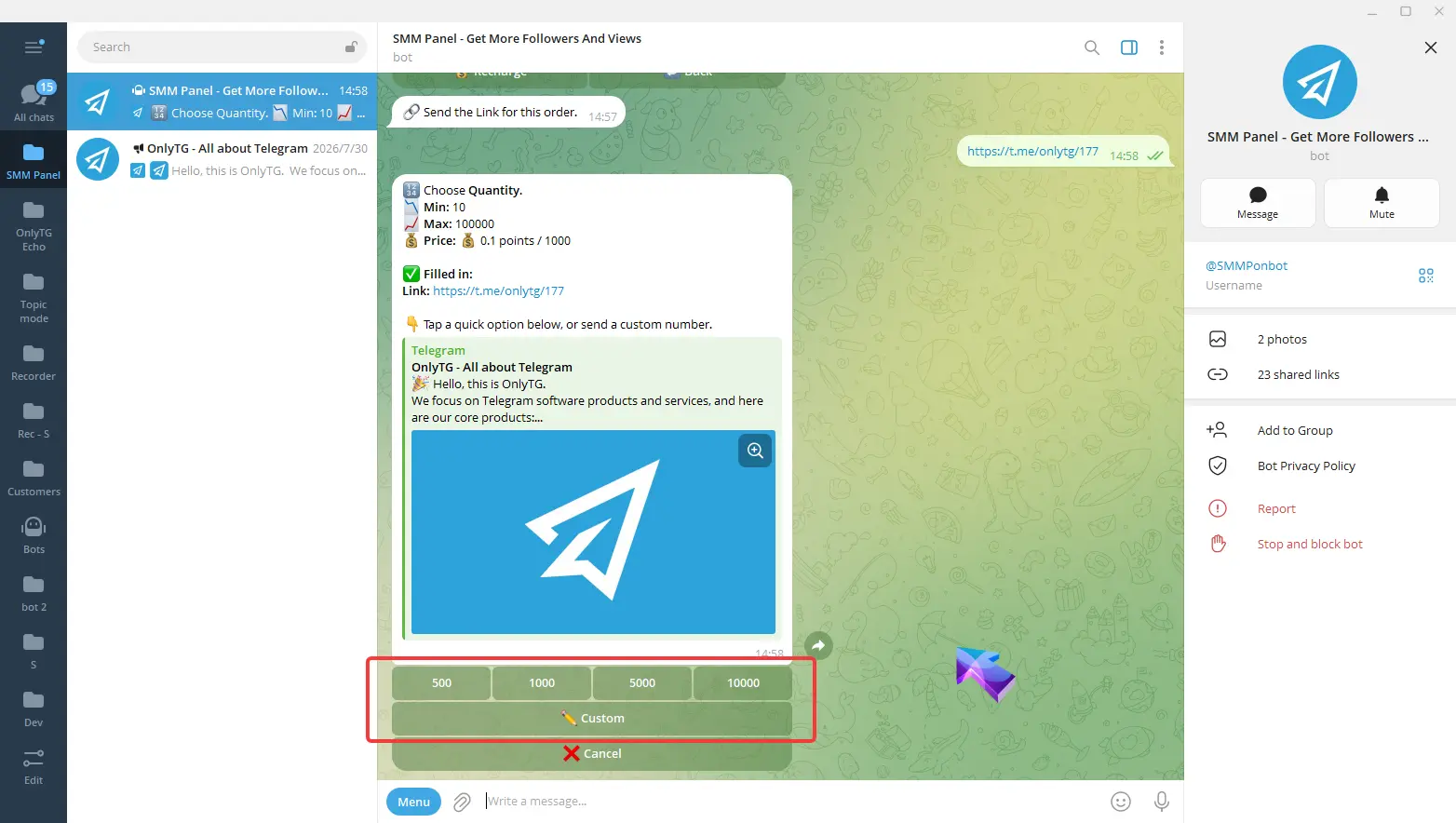
Then choose the purchase quantity — you can pick fixed quantity options or enter a custom number.
Finally, review all order information and click Confirm.
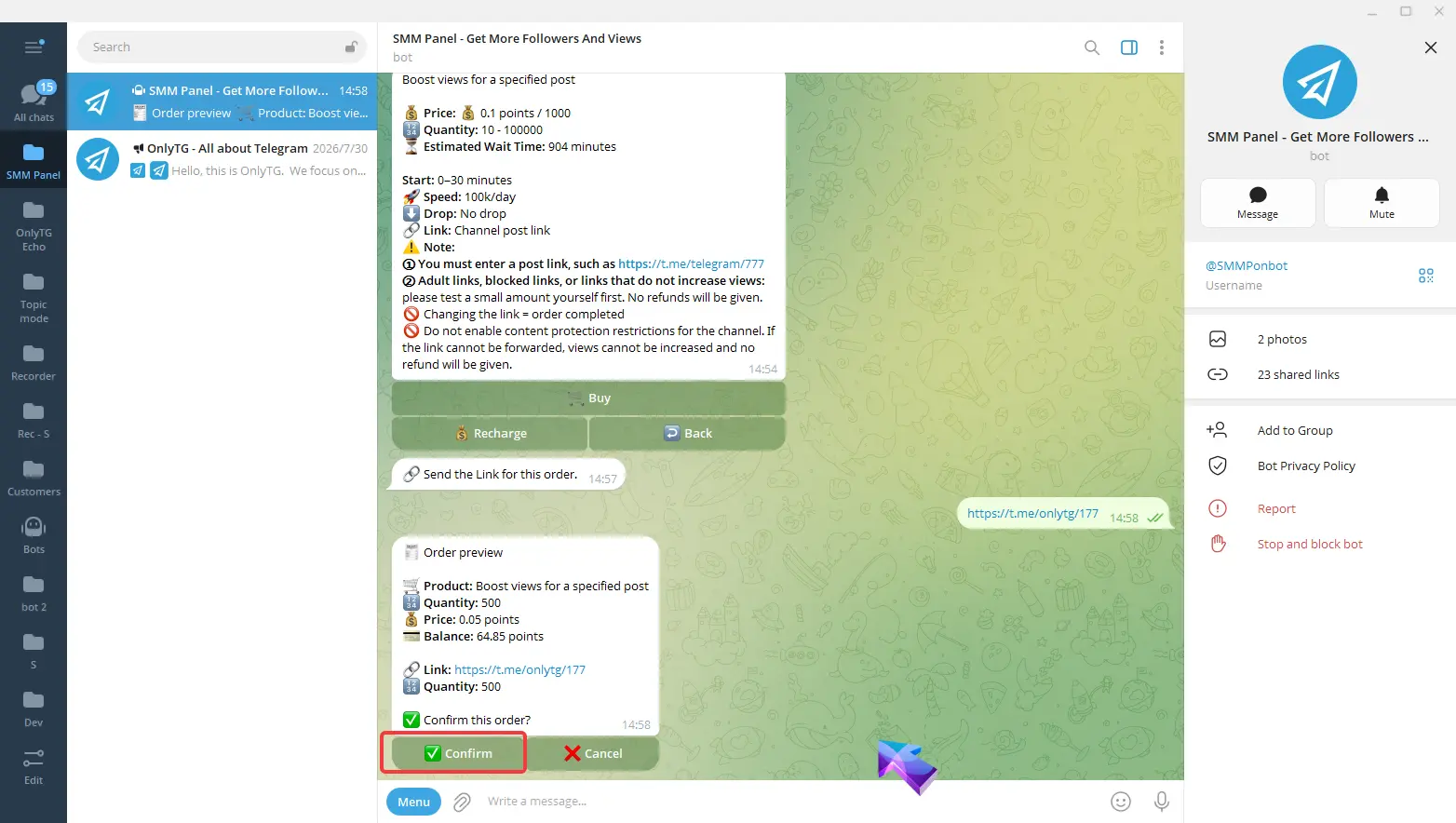
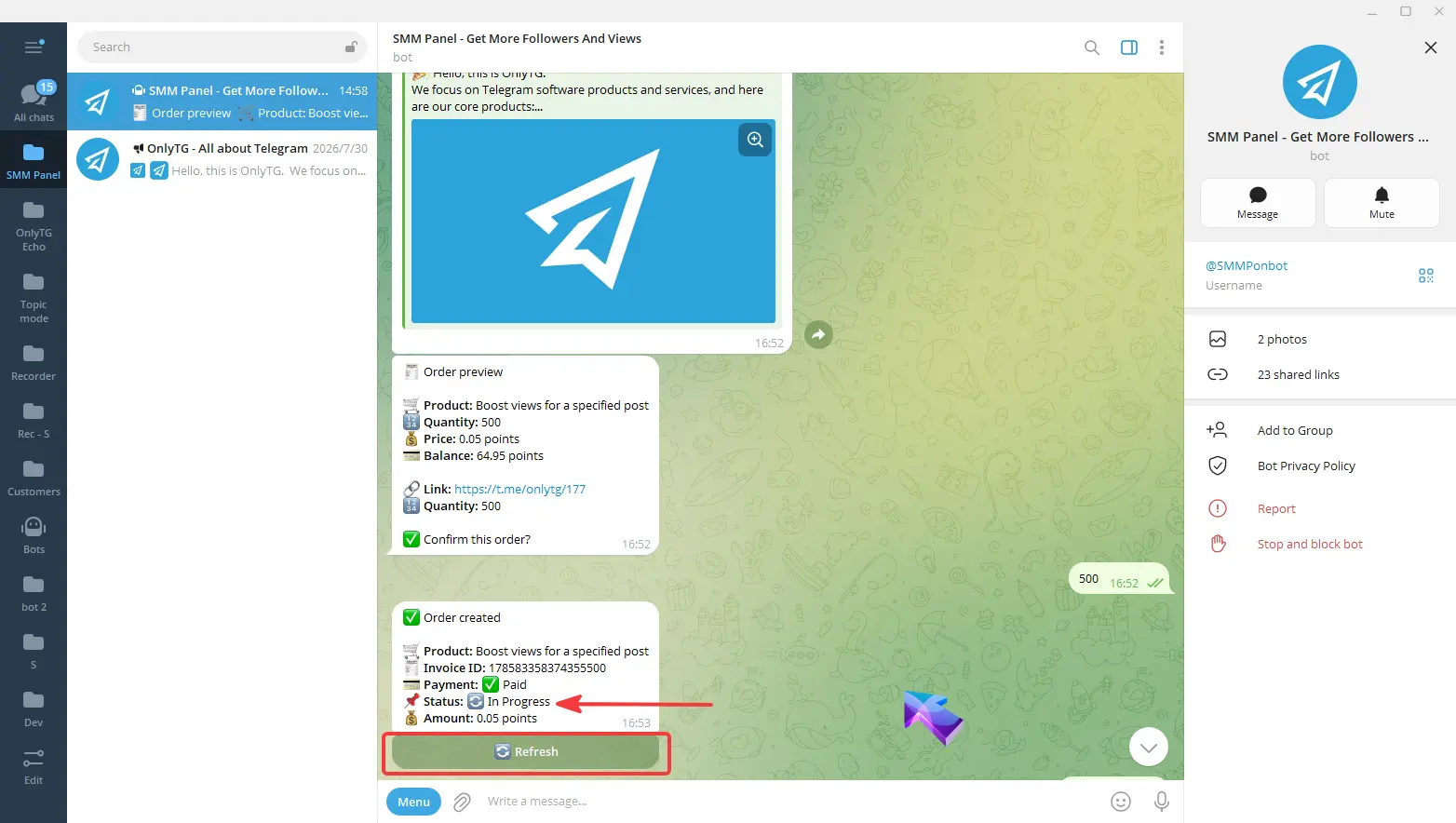
Now the service will start automatically. Use the Refresh button to update your order status.
If you want to check order status later, open the welcome message and click Profile, then select Orders.
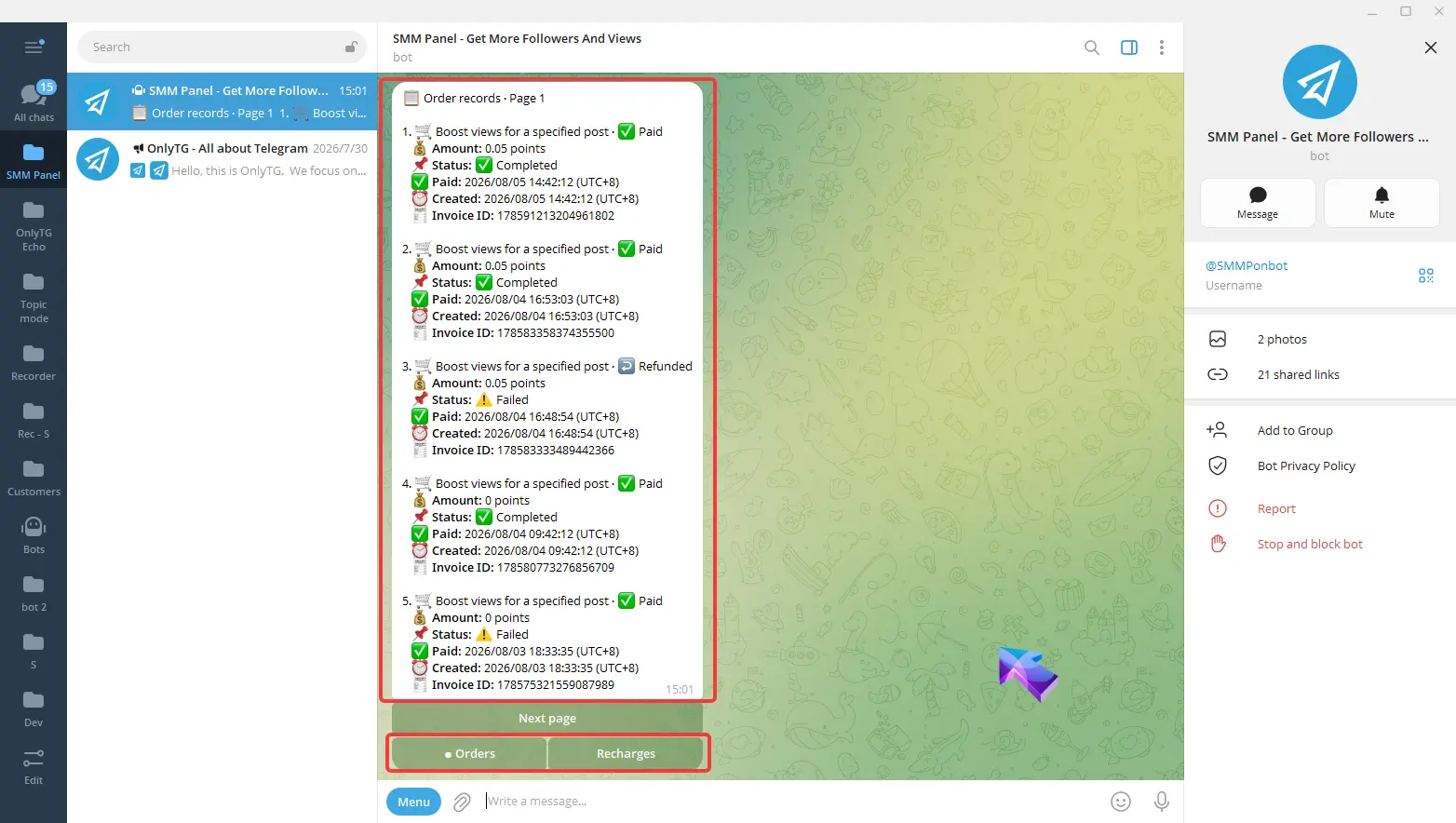
You can view all your order records here, covering service orders and recharge orders. Toggle between Orders button and Recharges button to switch displays.
Method 2: Via OnlyTG Console
Video Tutorial 2
step 1
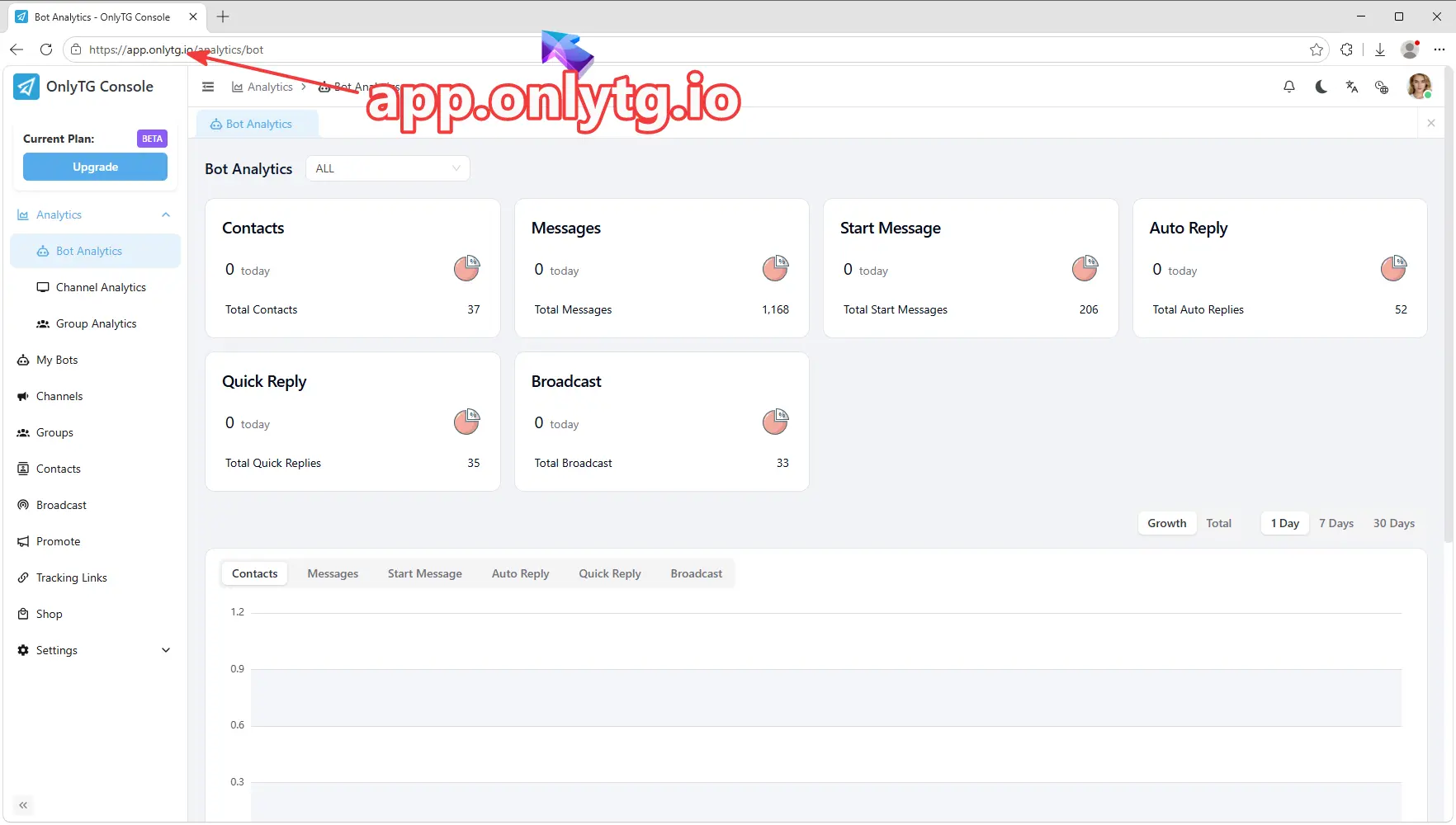
Enter app.onlytg.io in your browser to access the OnlyTG Console and log in.
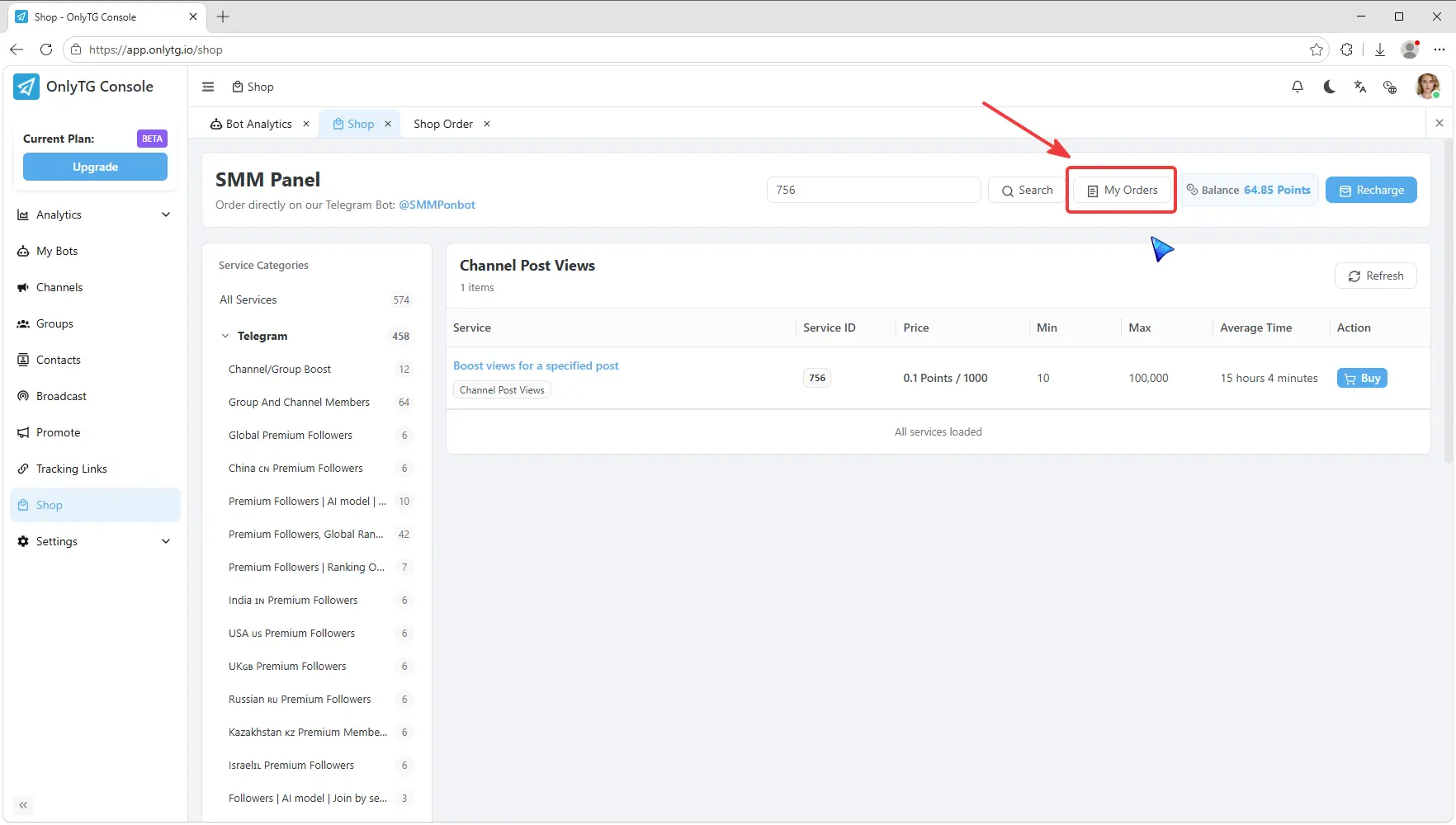
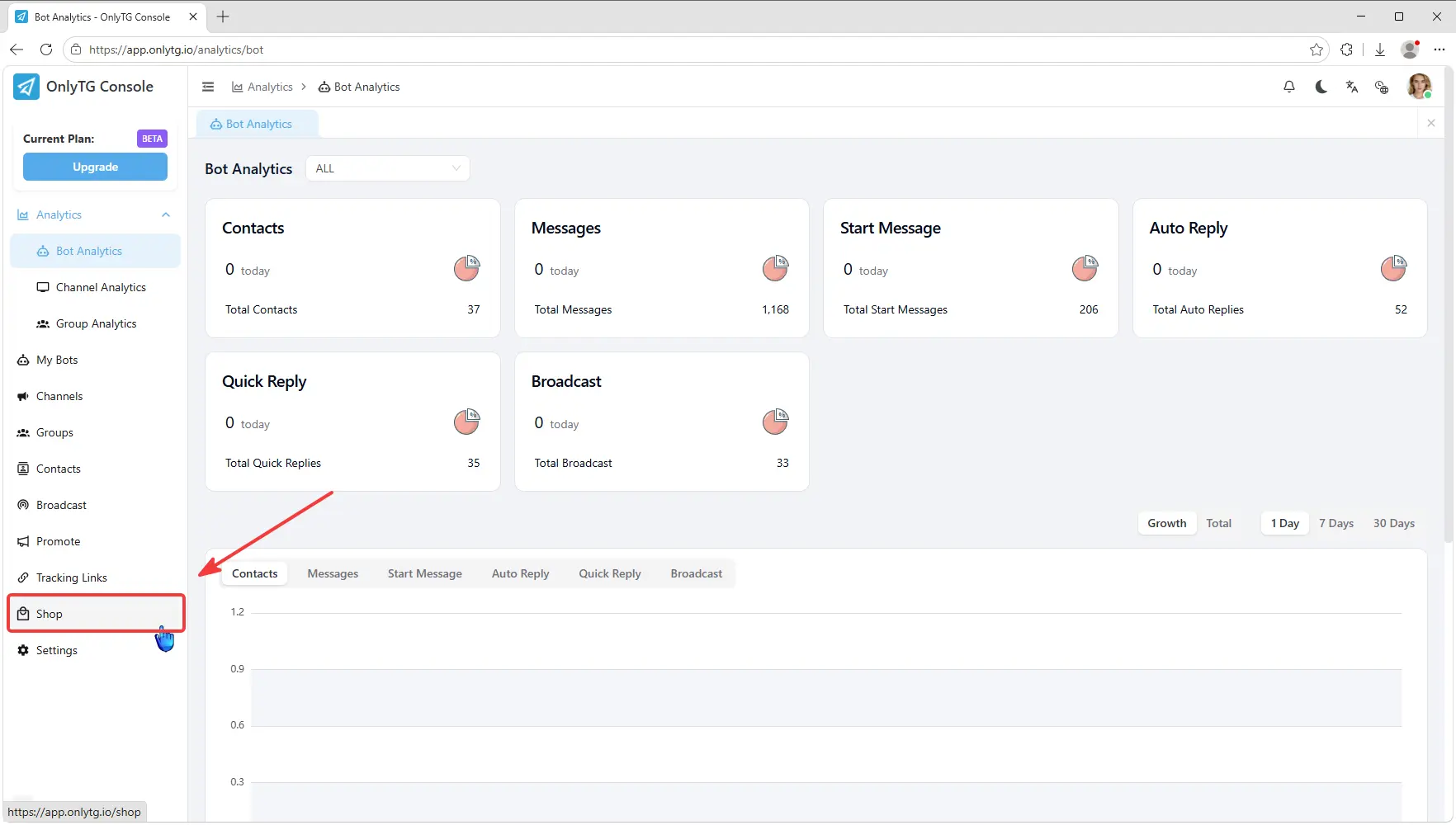
Locate the Shop option in the left menu. After clicking it, you will see the SMM Panel on the right side.
step 2
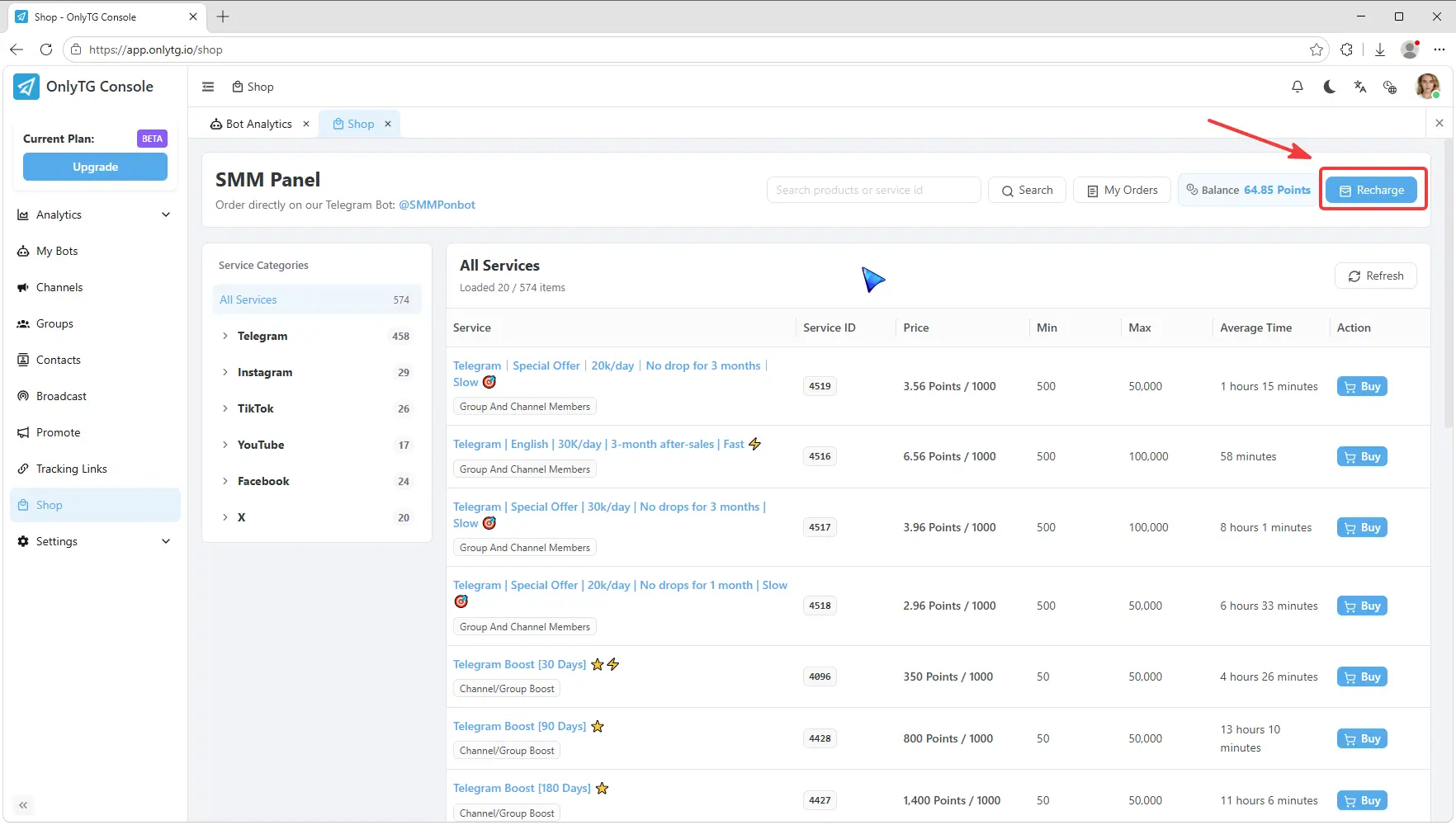
If you are a new user, click Recharge in the upper right corner to top up your balance.
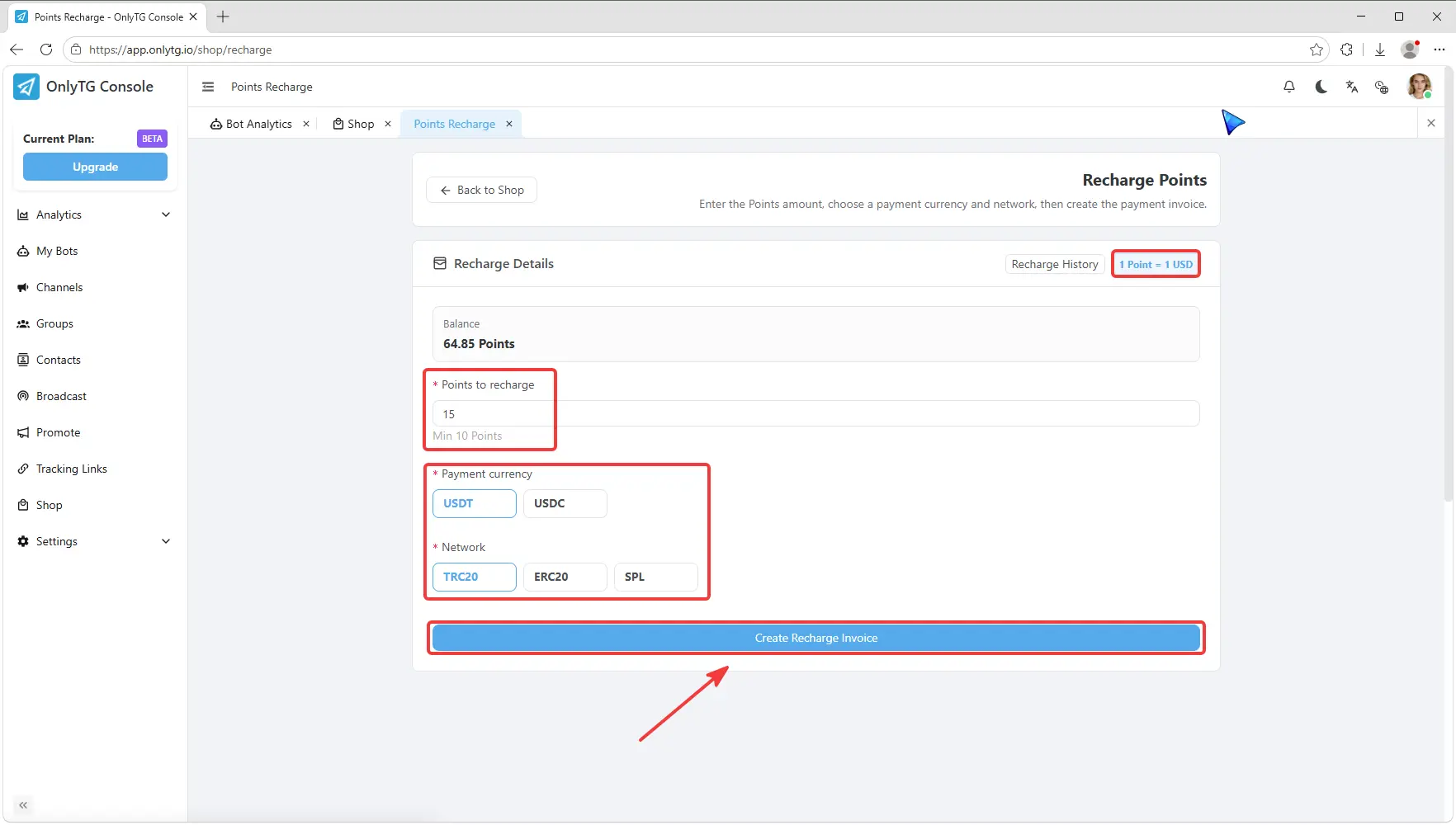
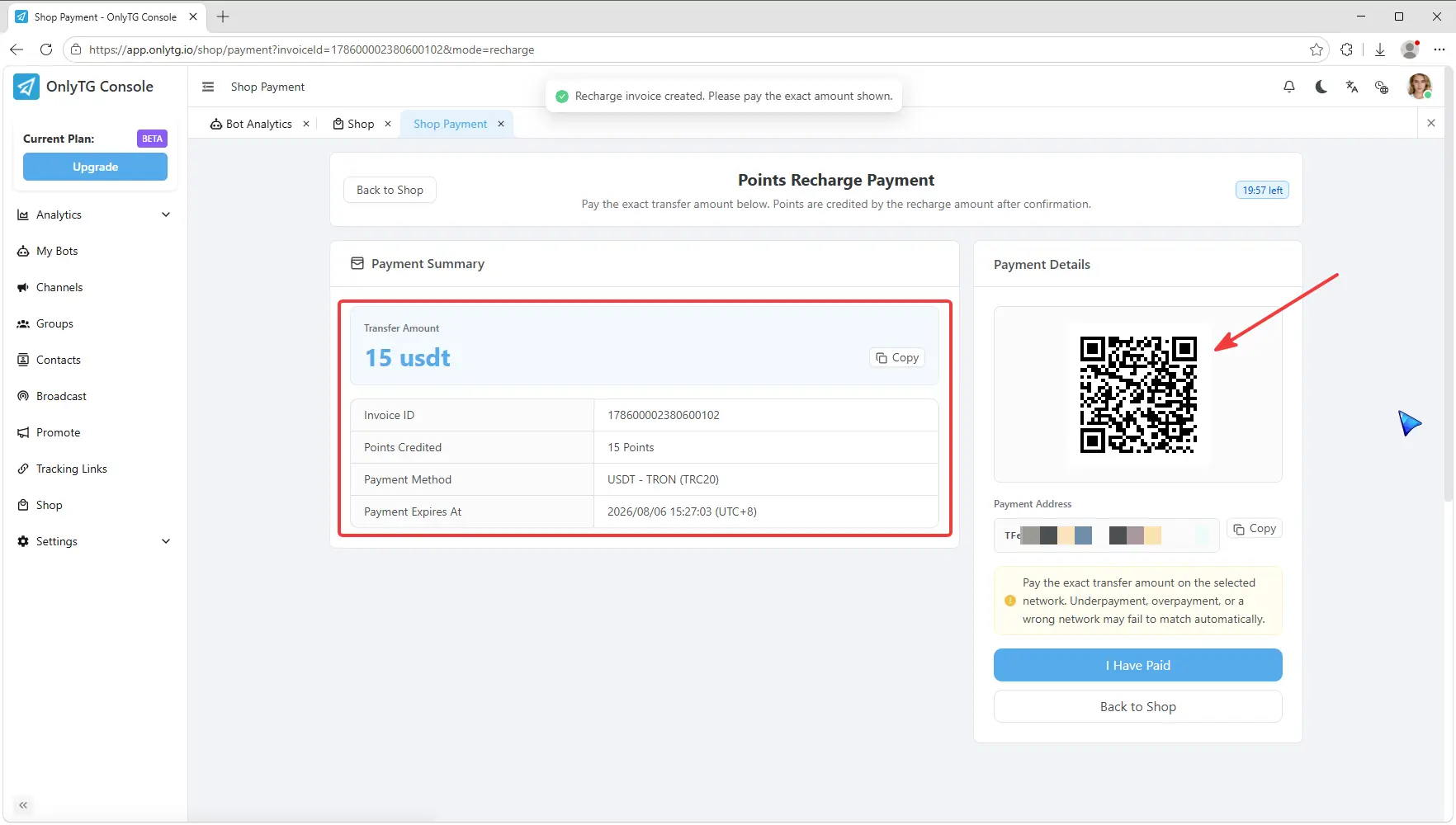
On the recharge page, enter your desired recharge amount, select a payment method, then click the Create Recharge Invoice button.
Complete the QR code payment after verifying all order details.
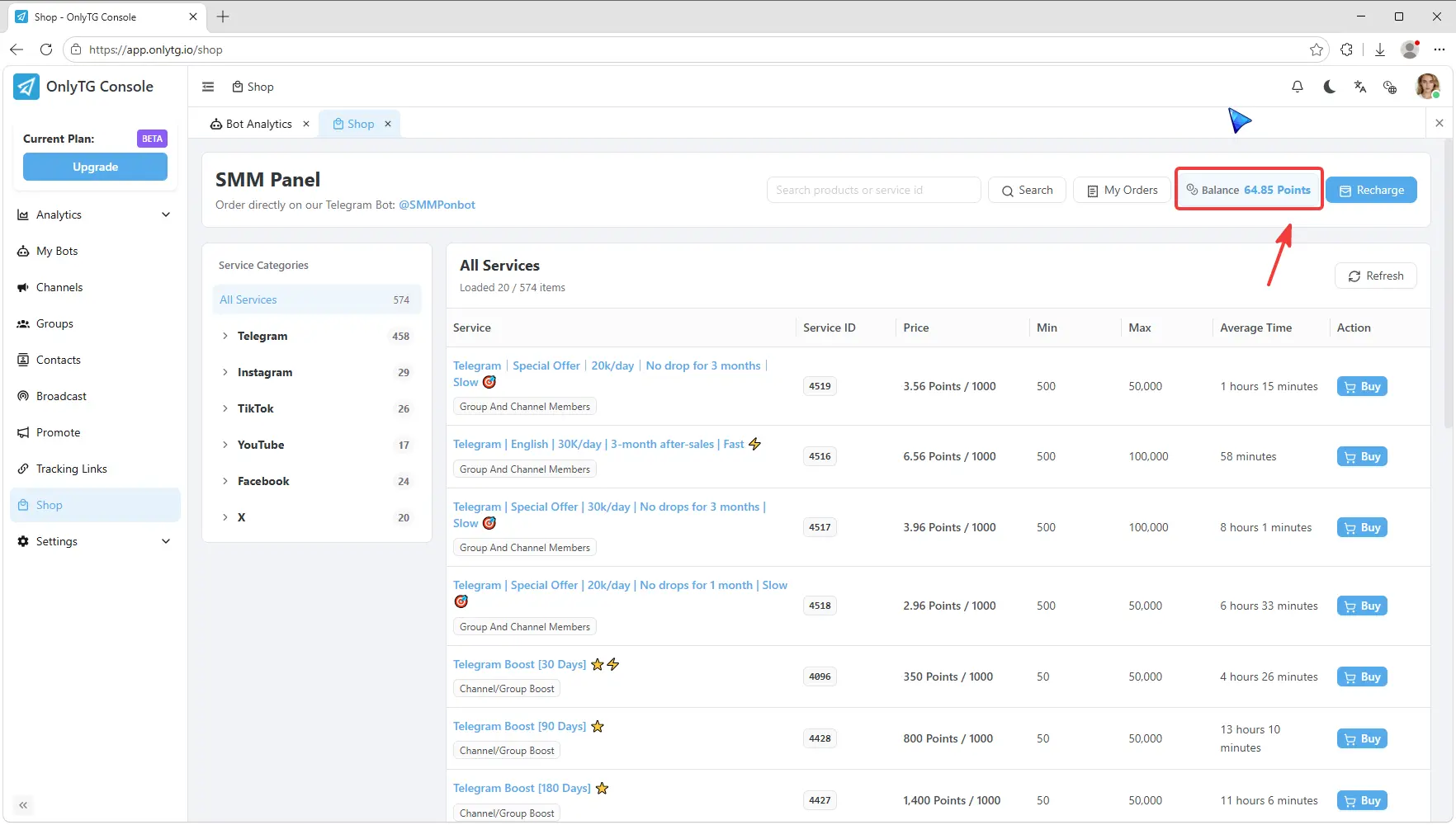
Once the recharge finishes, return to the Shop page, where you can check your current balance in the upper right corner.
step 3
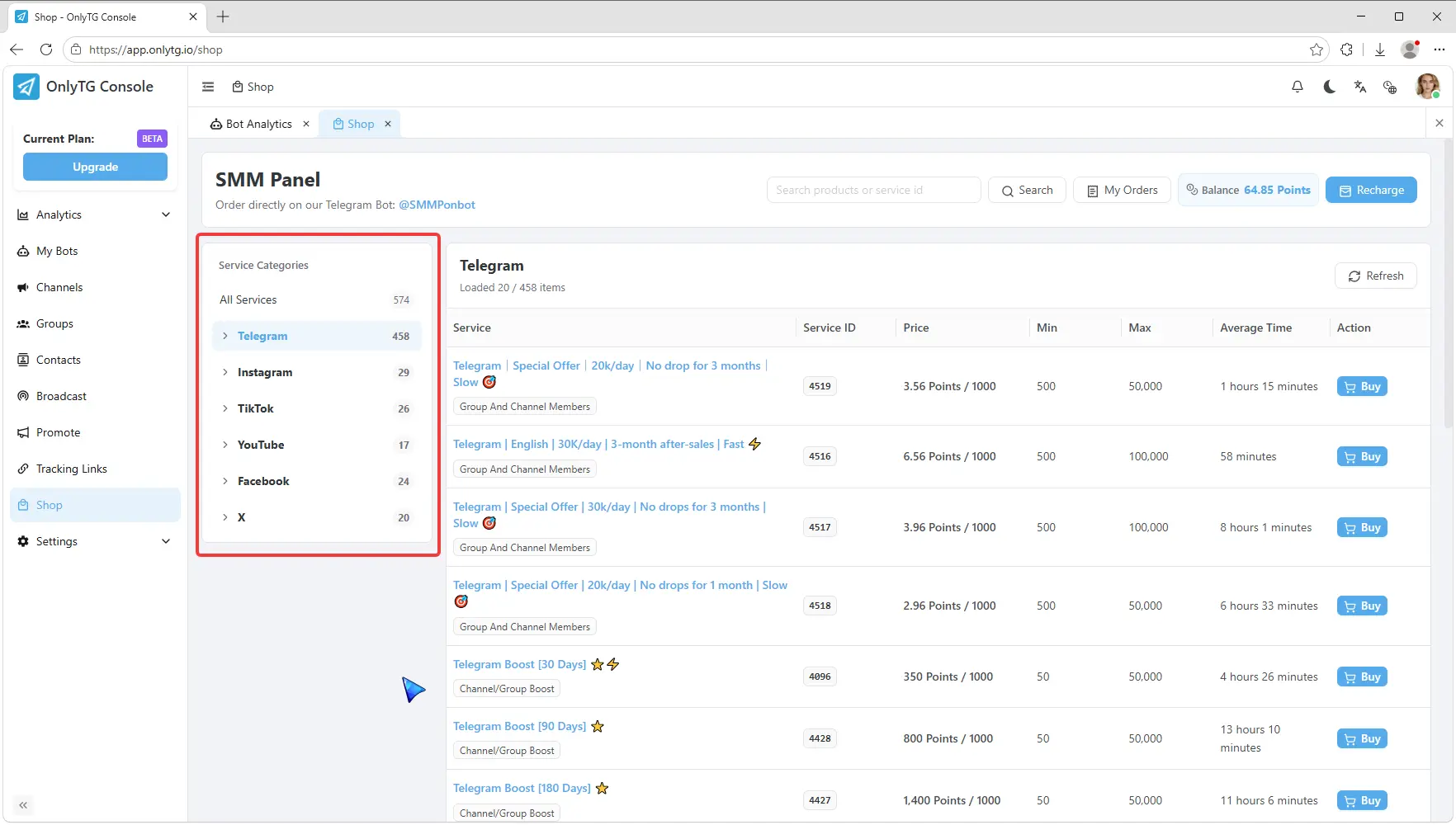
Now let’s proceed to buy services. Select your target platform and growth type one by one in the left category bar.
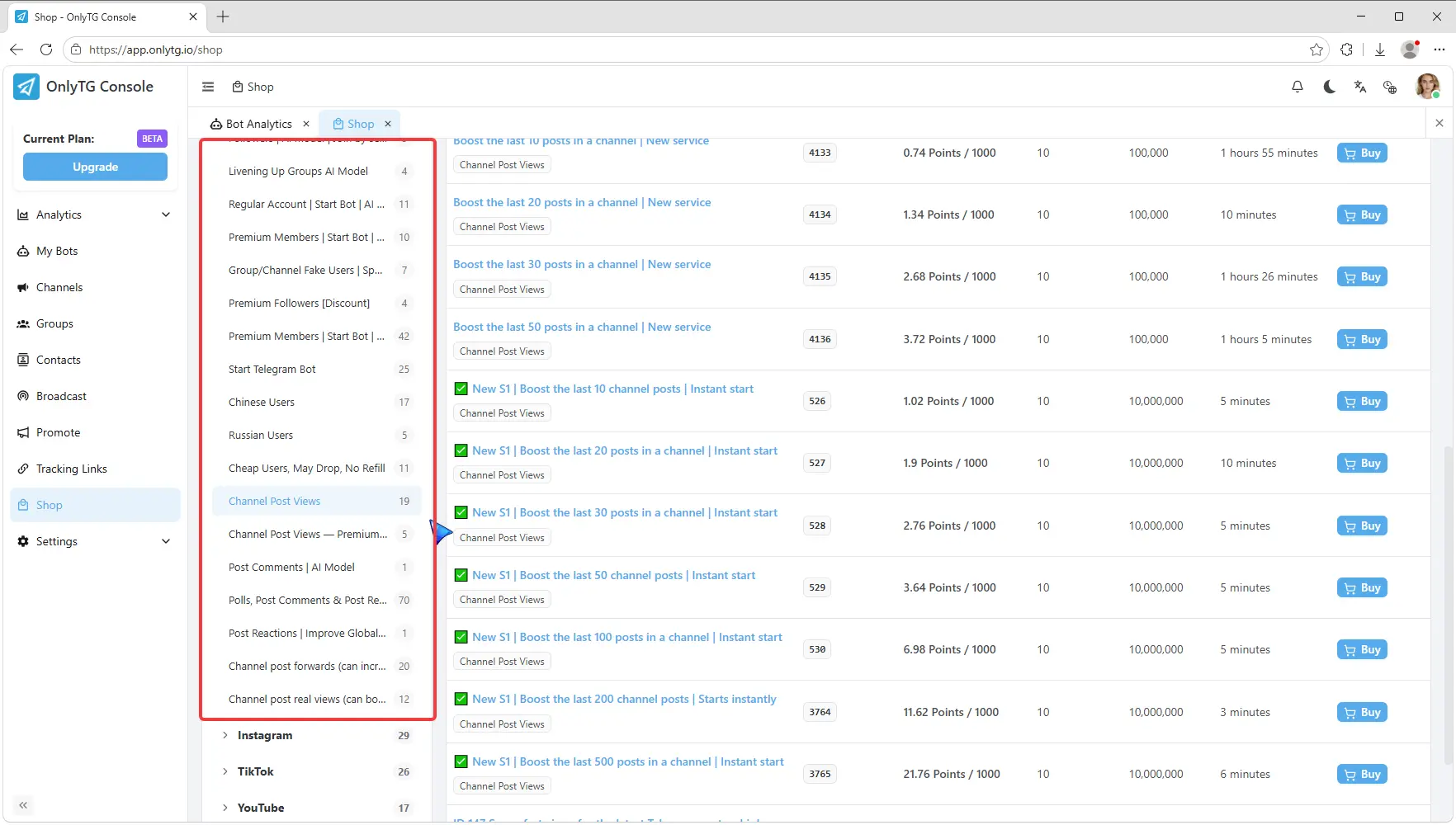
All services under this category along with relevant details will appear on the right, including service ID, price, minimum and maximum order quantity, and average processing time.
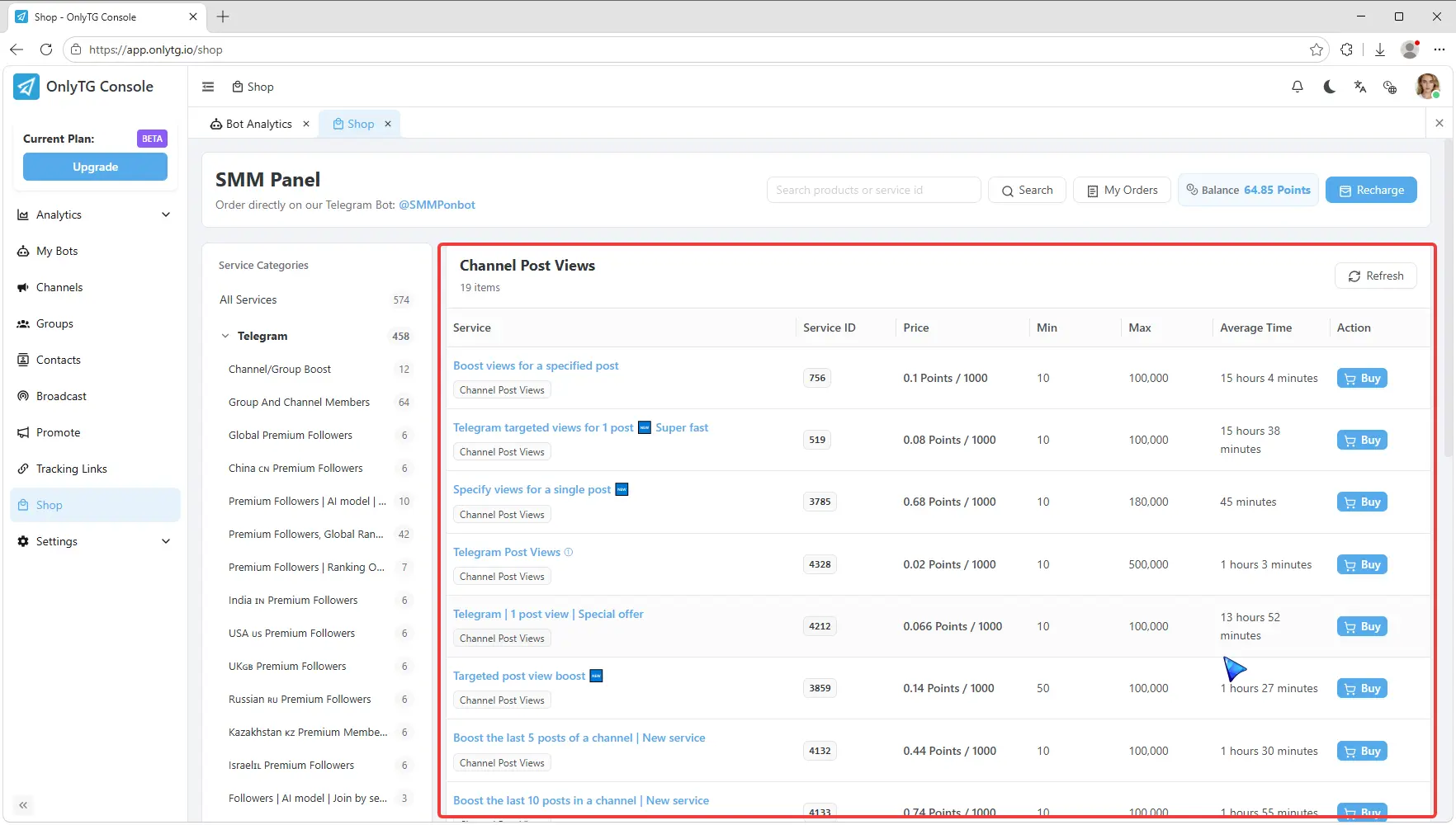
You can copy the service ID into the search box above for quick service lookup later.
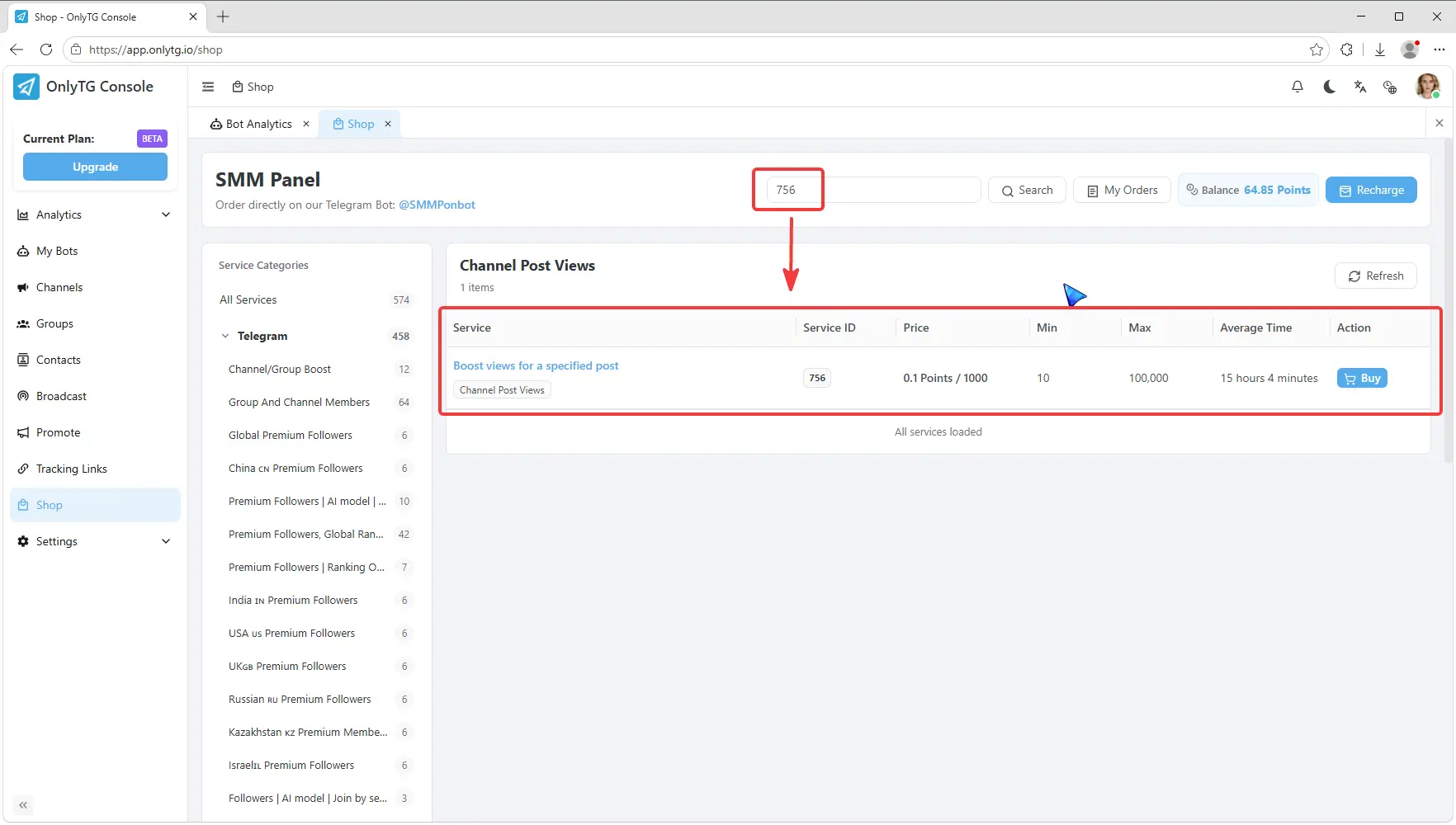
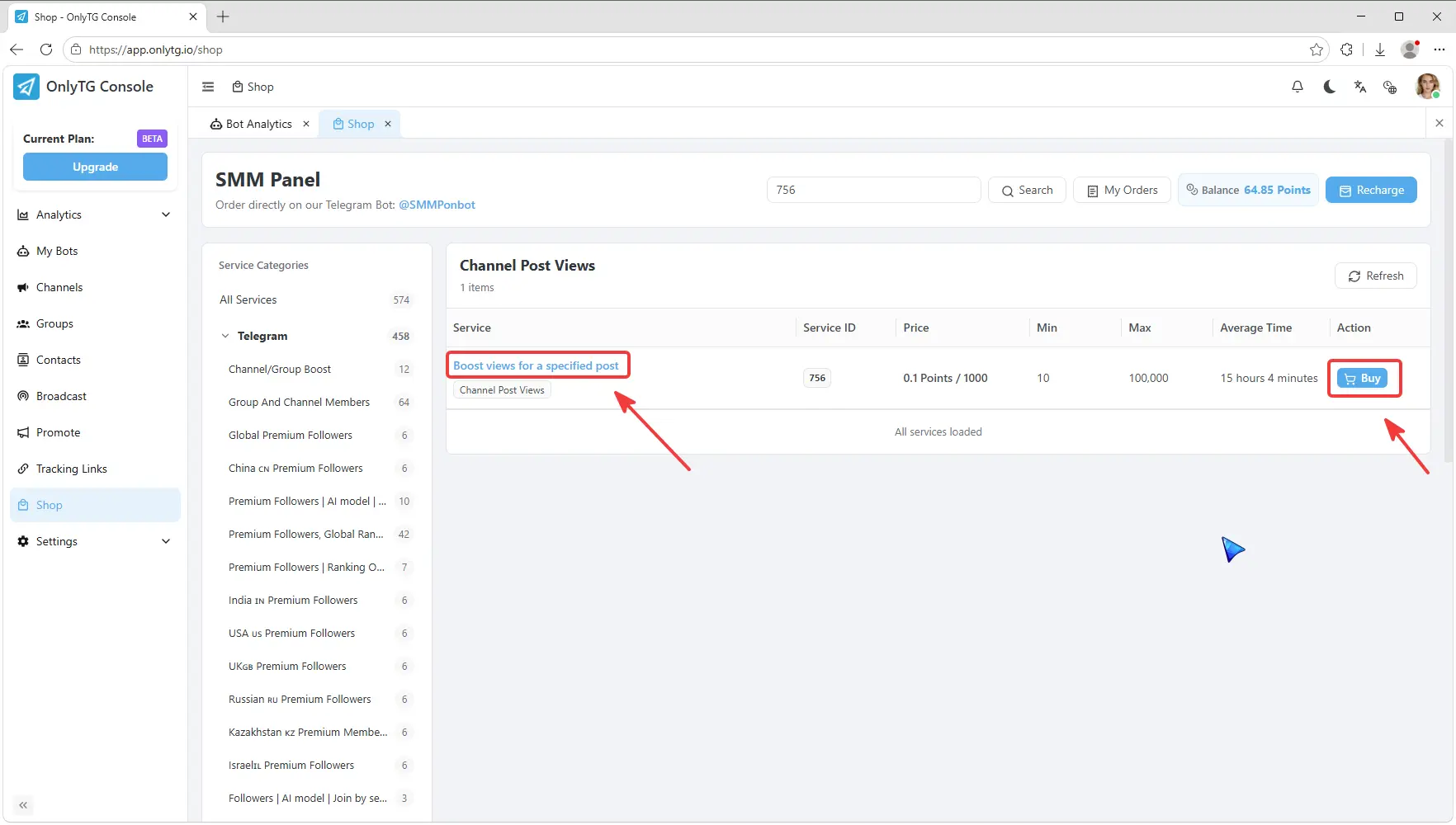
Next, click the service name or the Buy button on the far right to open the order details page.
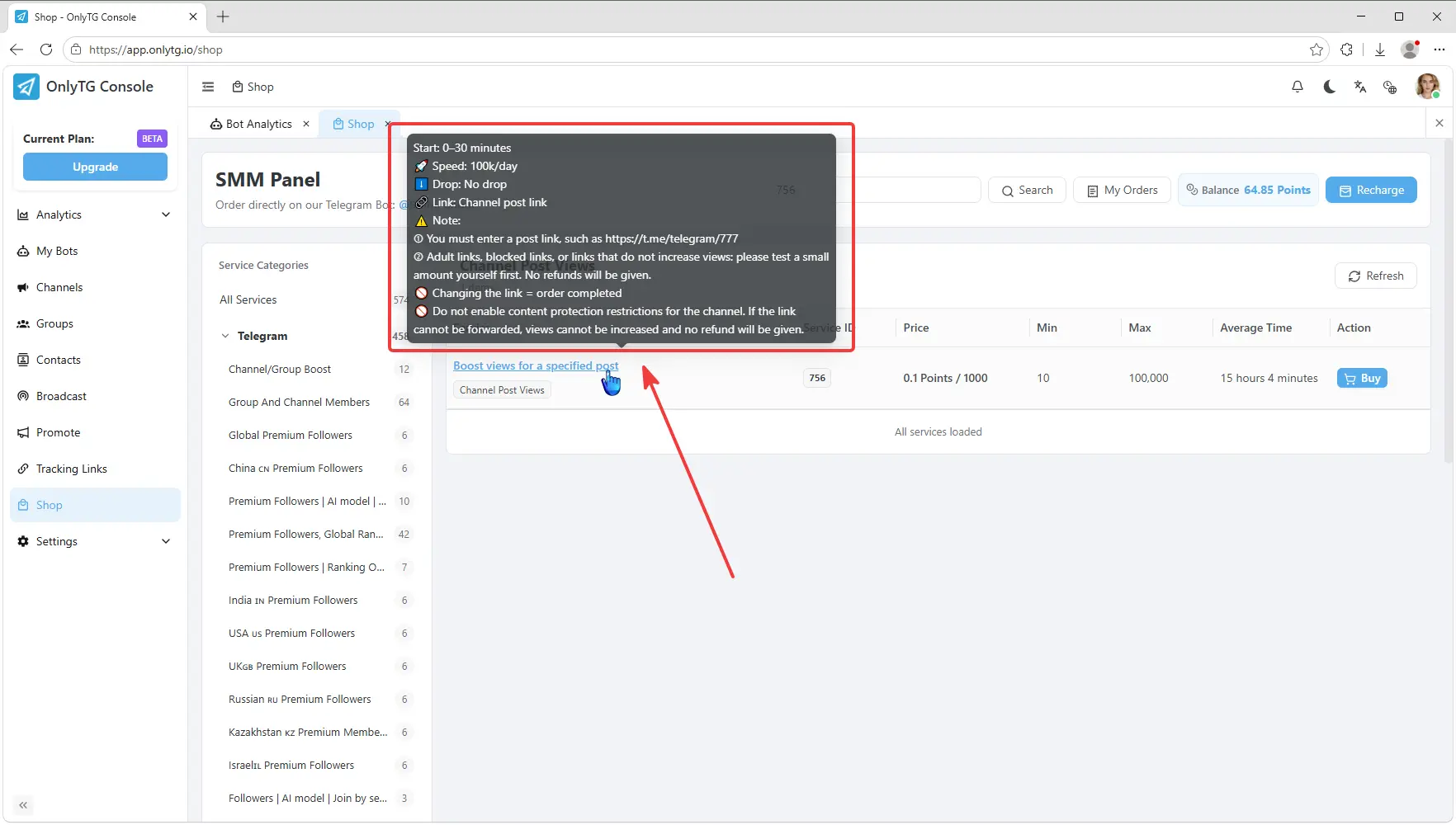
Hover your mouse over the service name to quickly preview full service details without opening the order page.
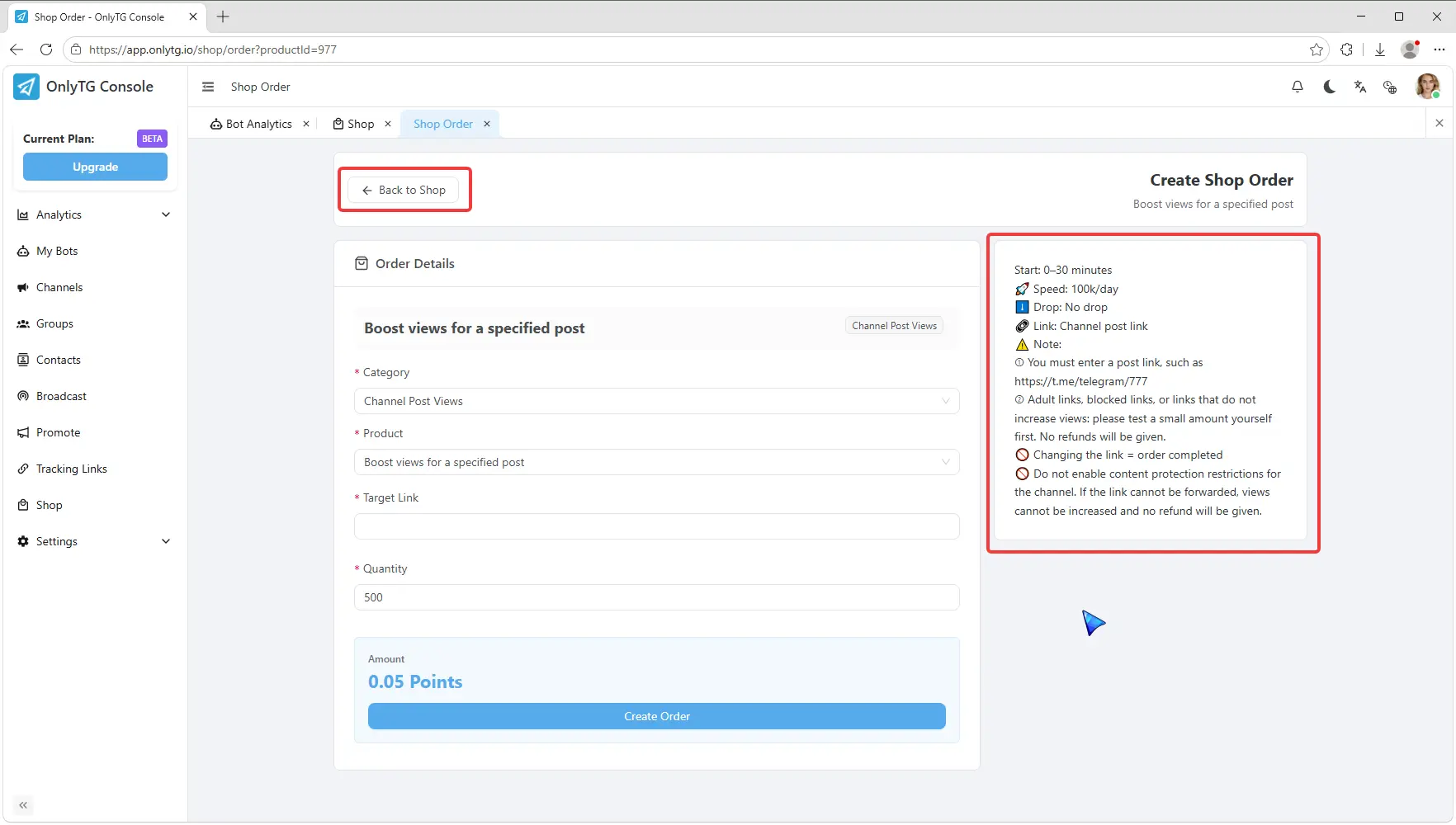
On the order details page, you can still view full service information on the right. If this service isn’t what you need, click Back to Shop in the upper left corner to pick another one.
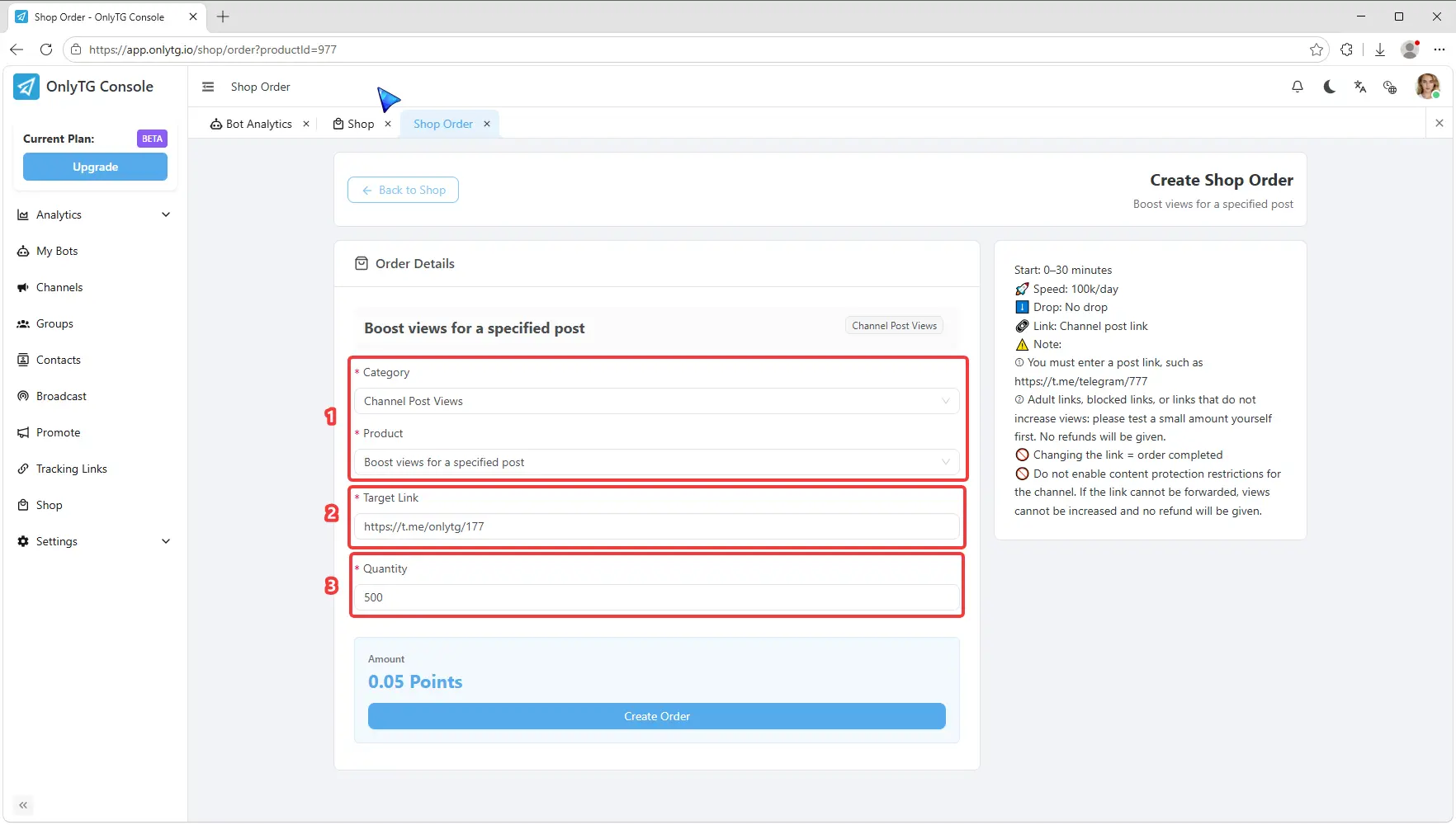
If you confirm this service, fill in the information on the left. Double-check the service category and product, paste the corresponding link into target link, and enter your desired purchase quantity in quantity. Please note the quantity cannot be lower than the minimum limit.
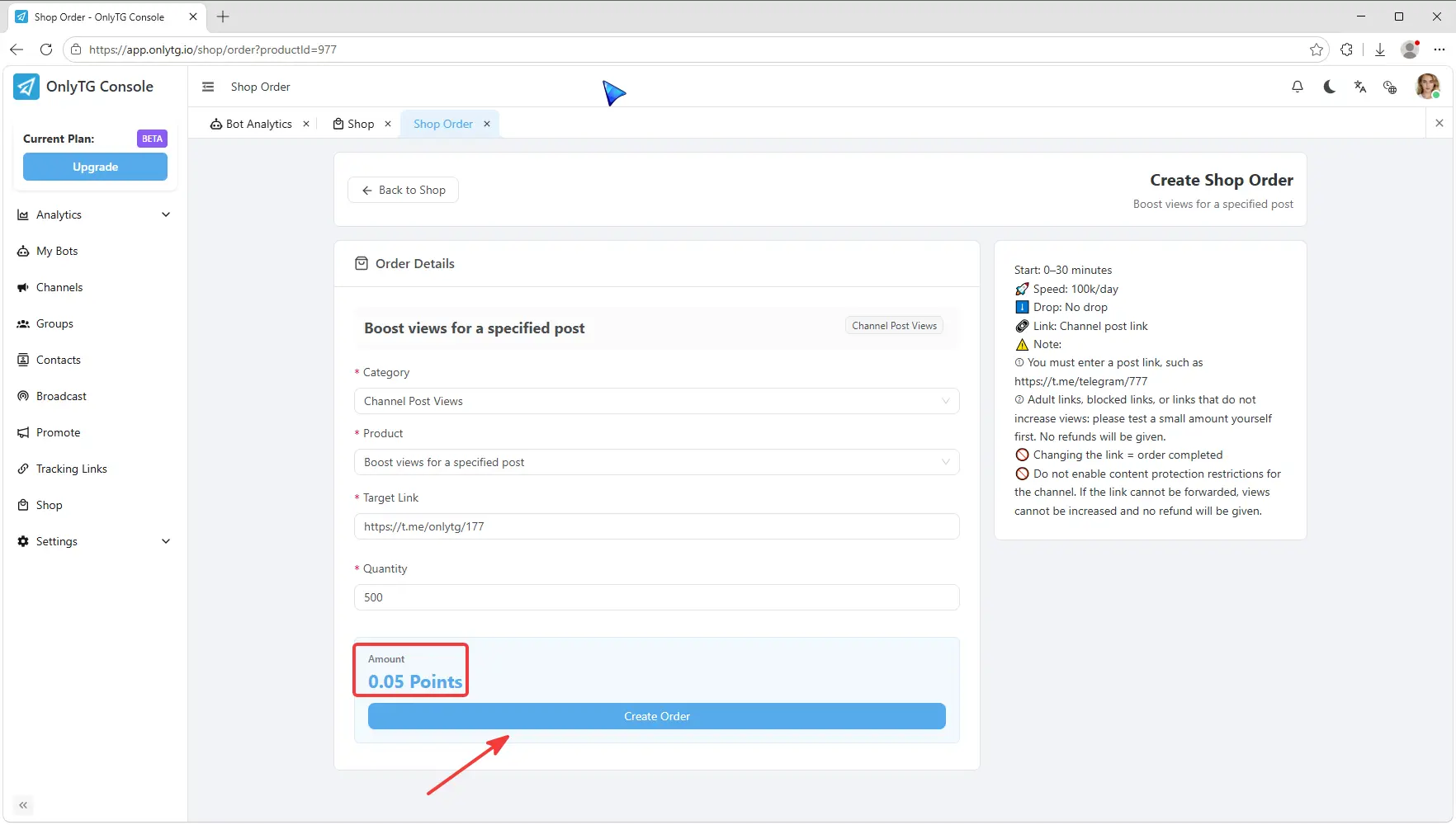
The system will automatically calculate the required amount.
Simply click Create Order below to finish creating your order, and the service will start automatically.
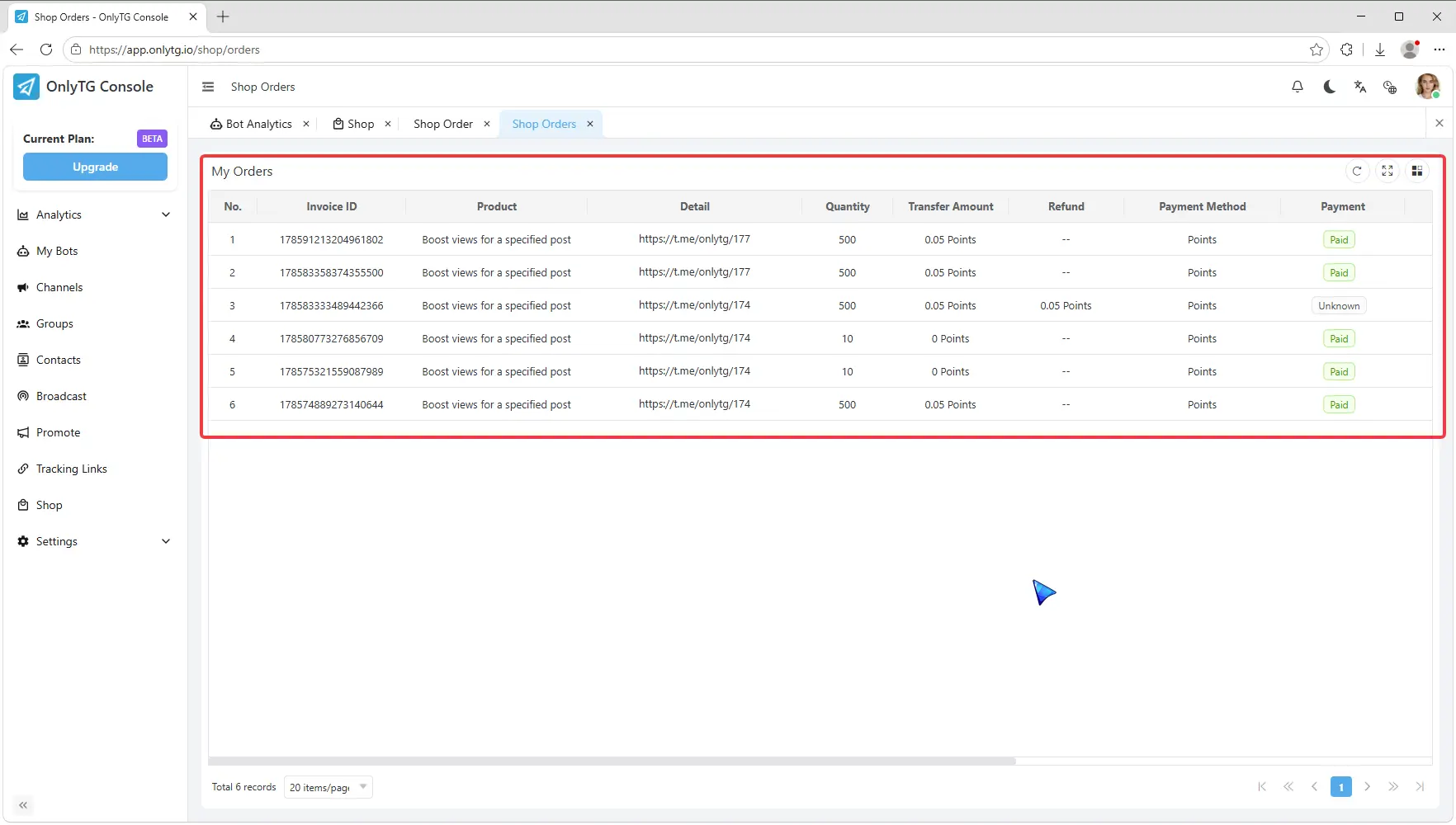
You can check all your order records and statuses by click My Orders button on Shop Page.