
If you need a low-cost Telegram bot builder with multi-layer menu buttons, OnlyTG Echo is one of the most practical no-code options I have tested for Telegram operators. It helps you create a private Telegram bot, route messages through that bot, configure start messages, add buttons, set keyword replies, and manage conversations without exposing your personal account.
I see the same pain every week from channel owners, community admins, and small sellers: too many repeated questions, slow replies, messy onboarding, and no clean way to guide users after they tap “Start.” In this guide, I will walk through the real setup flow from the official OnlyTG Echo docs, then share practical scenarios, extra features, and FAQ notes I would check before using it in a live Telegram workflow.
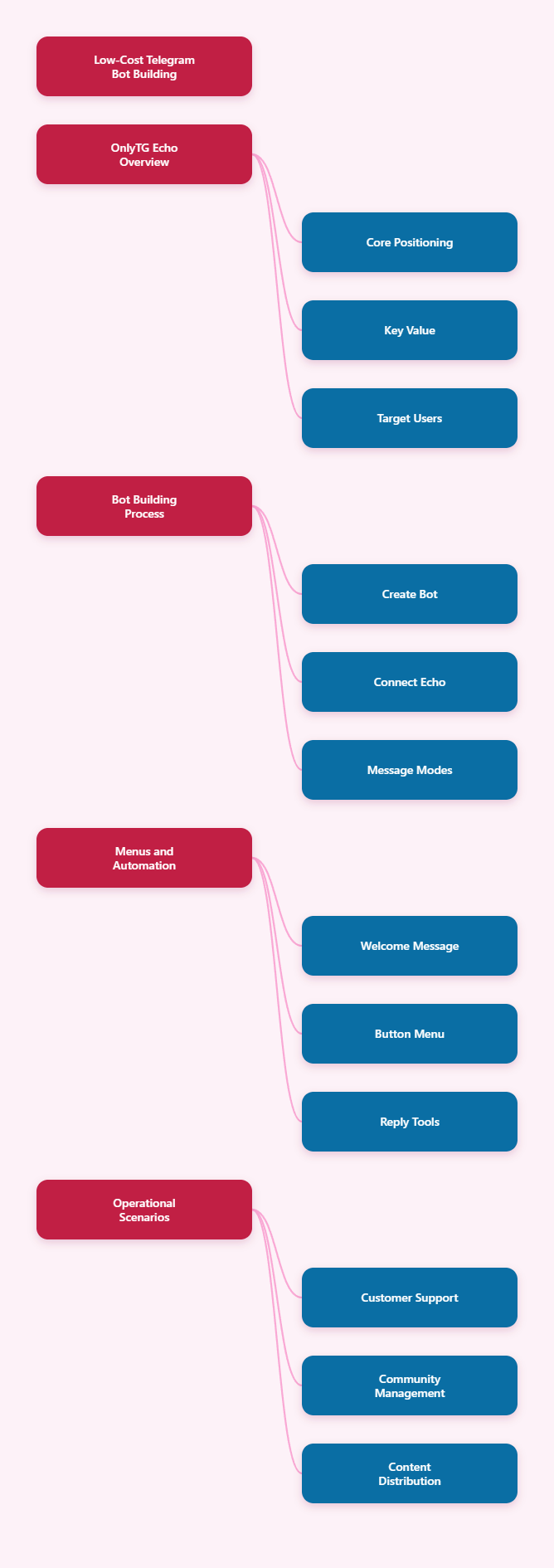
Why I Picked This Telegram Bot Builder Framework
For structure, I am following the style of high-performing English SaaS tutorials: quick answer first, use-case framing, step-by-step setup, real workflows, feature comparison, FAQ, and a soft product CTA. That format works well because Telegram users usually search with a problem in mind, not just a product name.
The key idea is simple: OnlyTG Echo connects to a Telegram bot you create through BotFather. After binding the token, your bot becomes a communication layer between you and your contacts, with tools for start messages, auto-replies, quick replies, broadcast, menu buttons, modules, group settings, and channel or group management features depending on plan access.
| Operator Problem | OnlyTG Echo Feature | Practical Result |
|---|---|---|
| Users do not know where to start | Start Message, Dynamic Start Message | Send guided onboarding after /start |
| Repeated support questions | Auto-reply, Quick Reply, Modules | Reuse prepared answers faster |
| Messy bot navigation | Bot Menu, Buttons | Let users tap instead of typing |
| Privacy concerns | Message Receive and Reply via bot | Reply without exposing your personal username |
| Group spam risk | Group CAPTCHA | New members must pass a test before normal messaging |
OnlyTG Echo Tutorial: Build the Bot Step by Step
This is the core workflow I would use if I were setting up a low-cost Telegram bot builder with multi-layer menu buttons for a channel, group, or small business inbox. I am keeping each step practical because the value of OnlyTG Echo is not “automation magic”; it is saving you from writing code and manually answering the same messages all day.
Step 1: Create Your Telegram Bot in BotFather
- Open Telegram and search for BotFather. Pick the official BotFather account, because this is Telegram’s own bot management tool.
- Send the command
/newbot. This starts the bot creation flow and prevents you from needing a developer just to register a bot. - Follow the prompt to choose a display name. This is the friendly name users see, so I usually keep it clear, like a brand name plus “Support” or “Guide.”
- Choose a unique username that ends with
bot, such asMySecureBot. Telegram requires the bot username format, and this username becomes part of the bot identity. - Copy the API token BotFather gives you. Treat this token like a password, because OnlyTG Echo needs it to connect your bot.
This step solves the first big operator problem: you get your own bot instead of forcing users to contact your personal Telegram profile. For creators and small merchants, that separation is a big privacy win.
Step 2: Bind the Bot Token to OnlyTG Echo
- Open OnlyTG Echo in Telegram. The official docs point users to start with Echo and add their personal bot.
- Send or paste the BotFather token into OnlyTG Echo when prompted. Echo uses this token to link your Telegram bot with its no-code control flow.
- Confirm the bot is connected. If forwarding does not work later, the official help advice is to verify that the bot is properly bound, the token is correct, and the bot has been started with
/start. - Open your new bot and send
/start. This checks that the user-facing bot is alive and ready for configuration.
This step solves the “I have a bot, but it does nothing” problem. BotFather creates the shell; OnlyTG Echo gives you practical message handling and configuration.
Step 3: Choose How Messages Are Received and Replied To
OnlyTG Echo supports receiving messages and replying to contacts through the bot. According to the official documentation, it has two delivery modes: Single Mode and Topic Mode.
- Send
/startto your bot. - Click Chat to check the current mode.
- Use Single Mode when you want a simpler one-to-one style message flow.
- Use Topic Mode when you want to manage messages in a workgroup-style structure instead of mixing everything together.
- Test by sending a message from another Telegram account to the bot, then reply through the Echo flow.
This solves a very specific support problem: users can contact your bot, and you can respond through the bot without exposing your real Telegram username. For operators who deal with leads, support, or community questions, that privacy layer matters.
| Mode | Best For | Why I Would Use It |
|---|---|---|
| Single Mode | Simple private conversations | Fast setup and easy testing |
| Topic Mode | Workgroup-style message handling | Cleaner separation for multiple conversations |
Step 4: Configure the Start Message
The start message is the first thing users see after opening your bot or sending /start. OnlyTG Echo supports start messages with text, media, and buttons, which is why I consider it useful for a low-cost Telegram bot builder with multi-layer menu buttons.
- Go to the start message setting area in Echo.
- Create a short welcome message. I usually write one sentence that explains what the bot can do.
- Add media if it helps, such as an image explaining your community rules or product categories.
- Add buttons to guide users to common actions, such as “Pricing,” “Help Center,” “Contact Admin,” or “Join Channel.”
- Preview the message before pushing it live. The content module docs mention previewing modules, which is useful because button-heavy messages can look different on mobile.
This solves the cold-start problem. Instead of dropping users into an empty chat, you give them a mini landing page inside Telegram.
Step 5: Build Multi-Form Messages
OnlyTG Echo’s Multi-form Messages Builder lets you build message content with text, media, and buttons. The docs say this builder can be used when setting message content for start messages, auto-replies, quick replies, and other areas.
- Open the message content editor in the feature you are configuring.
- Add text first. Keep it short, because Telegram users scan fast.
- Add media when it improves clarity. For example, a screenshot can explain a membership rule faster than a long paragraph.
- Add buttons for navigation. Button content can guide users to links or preset modules where supported.
- If you need a text plus multiple images or videos format, use the multimedia mode option noted in the docs. The docs also note that multimedia mode does not support files and buttons, so choose the format based on the message goal.
- Preview the message and check the order.
This solves the “my bot replies look plain and confusing” problem. A structured message with one or two buttons feels more like a lightweight app screen than a wall of text.
Step 6: Create Content Modules for Reuse
Modules are preset messages in OnlyTG Echo. The official module docs say you can use them when setting Start Message, Auto-reply, Quick Reply, and similar content areas.
- Click Add module.
- Add the message content: text, media, and buttons.
- For buttons, enter the button name and content. The docs state that button content accepts links or modules.
- Use one line of text as one row of buttons. If you want multiple buttons in the same row, separate them with
|. - Click preview to confirm the module layout.
- Reuse that module in start messages, auto-replies, or quick replies whenever the same answer is needed.
This is where OnlyTG Echo starts to feel like a real no-code system. You build an answer once, then reuse it instead of rebuilding the same support block ten times.
Step 7: Set Auto-Replies and Keyword Replies
OnlyTG Echo supports auto-replies based on keywords. The official docs explain that when the bot detects configured keywords in a user message, it sends the corresponding preset message. If no keyword is set, the reply can be sent whenever users send something.
- Open the auto-reply setting.
- Click Add new Auto-reply.
- Add one or more keywords. For example, a shop might use “price,” “shipping,” and “refund.”
- Create the reply content with the message builder or a saved module.
- Remember that each auto-reply can include a maximum of five messages, based on the official docs.
- Test with real keyword variations from another account.
This solves the repeat-question problem. You are not replacing all human support; you are letting the bot handle the first predictable answer.
Step 8: Configure Bot Menu Buttons
The Bot Menu feature lets you set a menu button below the bot input field. The docs note that this button itself automatically sends the button name, and you can configure the react message content for it.
- Go to Chat Setting and open Bot Menu.
- Set the menu button name. Keep it short, like “Menu,” “Help,” or “Start.”
- Configure the react message content that should appear after users tap it.
- Use the Multi-form Messages Builder if you need text, media, or buttons in the response.
- Connect buttons to links or modules where supported, so users can move from one menu layer to the next.
- Preview the result from a user account, not only from your admin view.
This is the closest practical setup for a low-cost Telegram bot builder with multi-layer menu buttons. Instead of making users memorize commands, you create a button-led path: menu button, response message, inline buttons, and module-based follow-up.
| Menu Layer | Example Button | Connected Content |
|---|---|---|
| Layer 1 | Menu | Main help message |
| Layer 2 | Pricing | Pricing module or link |
| Layer 2 | Support | Support instructions |
| Layer 3 | Refund Rules | Saved policy module |
Step 9: Add Dynamic Start Messages When Sources Matter
OnlyTG Echo also provides Dynamic Start Message. The official docs describe it as a way for the bot to automatically send different start messages to users coming from different sources.
- Open the Dynamic Start Message setting.
- Click Add New Message.
- Configure the message content with text, media, and buttons.
- Use modules if you already prepared the right content.
- Match the message to the source or campaign you want to guide.
This solves a common growth problem. A user from a product launch does not need the same first message as a user from a community invite.
Real Use Cases I Would Actually Deploy
Below are three grounded examples based on real OnlyTG Echo capabilities. I am not promising revenue jumps or fake conversion numbers; the measurable improvements here are operational: fewer manual message blocks, faster first response setup, and clearer user paths.
1. Channel Blogger: Turning a Telegram Channel Into a Guided Inbox
User identity: A solo tech blogger running a Telegram channel for tools, coupons, and product notes.
Original problem: Readers keep asking the same questions: “Where is the guide?”, “Do you have a discount?”, and “How do I contact you?” The blogger does not want to expose a personal Telegram username.
- Create a bot with BotFather and bind it to OnlyTG Echo.
- Set a start message that explains three paths: latest guide, deal list, and contact.
- Create modules for “Latest Guide,” “Recommended Tools,” and “Contact Rules.”
- Add buttons in the start message that point to those modules or links where supported.
- Set keyword replies for “discount,” “guide,” and “contact.”
- Use message receive and reply to handle private questions through the bot.
Quantifiable improvement: The first user journey changes from one empty chat plus manual typing to one start message with three visible choices. The blogger also reduces three repeated answers into three reusable modules.
2. Community Admin: Making New Member Onboarding Less Chaotic
User identity: A Telegram group admin managing a public discussion community.
Original problem: New members ask rules questions, spam accounts enter the group, and admins repeat basic guidance too often.
- Create and bind the Telegram bot with OnlyTG Echo.
- Use group management settings after adding the bot where required by the official workflow.
- Enable Group CAPTCHA so new members receive a CAPTCHA test.
- Configure the rule explanation as a module with short text and buttons.
- Set keyword-based replies for terms like “rules,” “link,” or “admin.”
- Keep human admins for judgment calls, but let the bot handle the predictable entry layer.
Quantifiable improvement: New members must pass one defined test before normal messaging, and rule delivery becomes one reusable module instead of repeated manual posts.
3. Cross-Border Small Seller: Building a Lightweight Telegram Support Bot
User identity: A small cross-border seller using Telegram for pre-sales questions and order support.
Original problem: Customers ask about shipping, payment, product availability, and refund policy at different times of day. The seller cannot reply instantly to every lead.
- Create the bot in BotFather and bind the token to OnlyTG Echo.
- Set a welcome start message with buttons: “Shipping,” “Payment,” “Catalog,” and “Talk to Human.”
- Create modules for shipping policy, payment notes, and product catalog links.
- Add keyword replies for “shipping,” “pay,” “refund,” and “track.”
- Use bot-based message receiving and replying for private customer conversations.
- If users come from different campaign links, prepare dynamic start messages for different sources.
Quantifiable improvement: Four common support topics move from manual replies to four button-accessible paths. The seller still handles real sales conversations, but the bot filters the first layer of questions.
Other OnlyTG Echo Features Worth Knowing
Once the core bot is working, these extra features make OnlyTG Echo more useful for operators who want a low-cost Telegram bot builder with multi-layer menu buttons and practical Telegram management tools.
- Quick Reply: Use saved replies for common support answers, especially when you still want a human to choose the response.
- Broadcast: Echo includes broadcast support in its assistant feature set, useful for sending updates through the bot to contacts where the workflow is supported.
- Dynamic Start Message: Send different onboarding content to users from different sources, which is useful for campaigns, partner links, or niche audiences.
- Bot Menu: Set the button below the input field and configure the reaction message, then use buttons and modules to simulate layered navigation.
- Content Modules: Build reusable blocks for policies, product notes, rules, or help menus so you do not recreate the same content.
- Group CAPTCHA: Ask new members to pass a test before normal messaging, and remove users who fail within the configured time.
- Channel and Group Statistics: Official docs state that statistics are currently available to users on the Starter Plan and above, with a free 3-day Starter Plan trial mentioned in the docs.
- In-app Bot Editing: OnlyTG materials mention editing bot name, description, and about info directly in Echo, which can save trips back to BotFather for basic profile changes.
FAQ About OnlyTG Echo
Is OnlyTG Echo really no-code?
Yes. The official OnlyTG Echo positioning is that you can build your own smart bot on Telegram with no coding skills required. You still need to create a bot through BotFather and bind the token, but you do not need to write Telegram Bot API code for the supported Echo features.
Can I use OnlyTG Echo as a low-cost Telegram bot builder with multi-layer menu buttons?
Yes, with a practical interpretation. Echo supports start messages, bot menu responses, buttons, and modules. You can combine these into layered navigation, although the exact behavior depends on whether you use links, modules, multimedia mode, or button responses in a specific message type.
Does the bot hide my personal Telegram username?
OnlyTG Echo is designed to route one-on-one communication through your linked bot, so you can reply without exposing your personal account in the same way a direct chat would. You should still test your privacy flow with another account before sending real traffic.
Final Take: Should You Try OnlyTG Echo?
If your Telegram operation is still held together by manual replies, pinned posts, and copy-pasted FAQs, OnlyTG Echo is worth testing. It gives you the building blocks I care about most: BotFather binding, private bot-based replies, start messages, keyword auto-replies, reusable modules, bot menu responses, and group tools like CAPTCHA.