
If you want to Broadcast Telegram Messages without coding, OnlyTG Echo lets you turn a normal Telegram bot into a practical messaging assistant for contacts, channels, groups, and customer conversations. The basic flow is simple: create a bot with BotFather, bind the token to OnlyTG Echo, prepare your message module, then create a broadcast task from the Echo console.
I have tested a lot of Telegram workflows for channel operators, group admins, and small cross-border sellers. The same pain keeps showing up: replies pile up, welcome messages are repeated by hand, and important updates get copied from chat to chat. In this guide, I will walk through the actual setup, real operating scenarios, and the extra features that make OnlyTG Echo more useful than a bare Telegram bot.
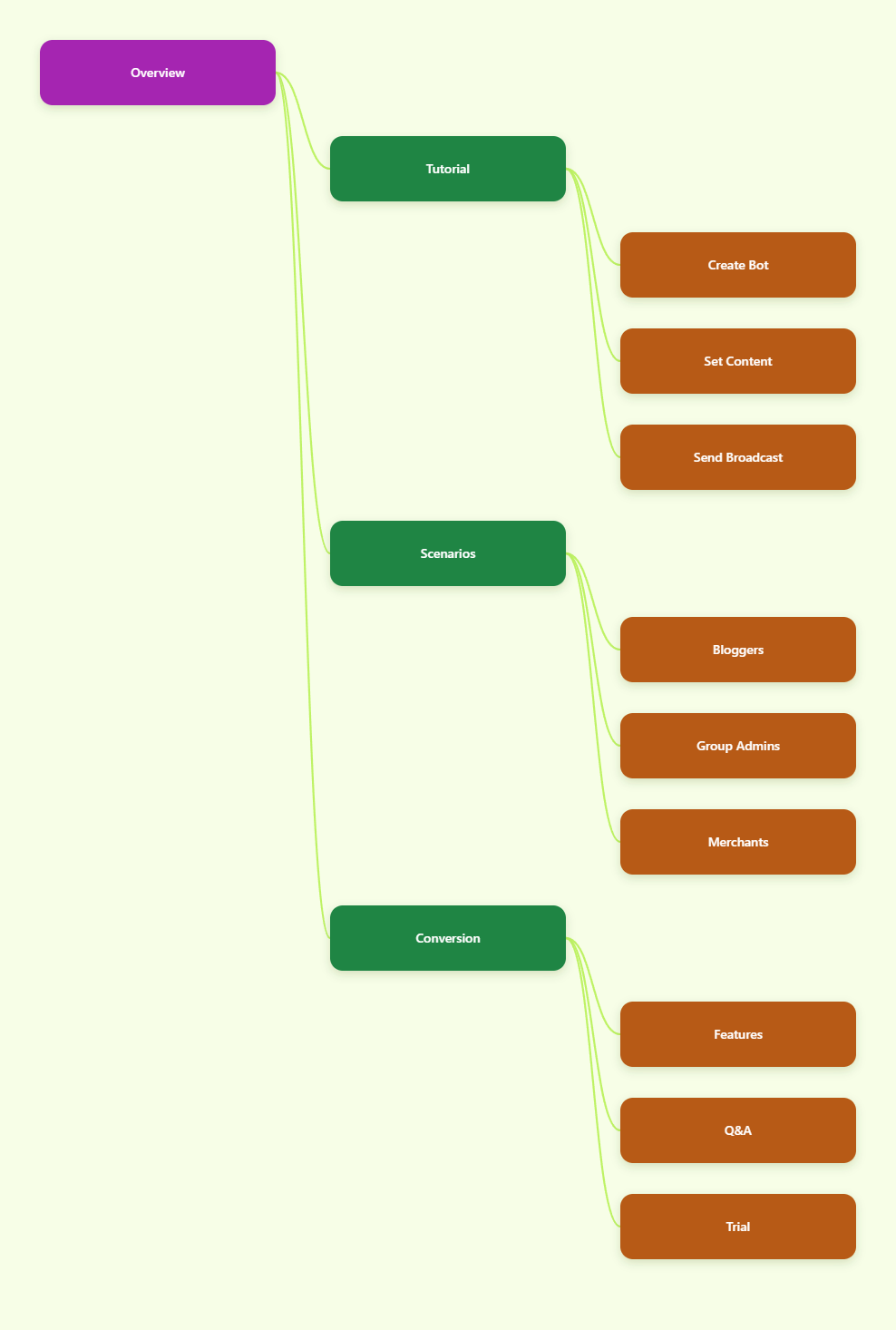
Why Broadcast Telegram Messages Through a Bot?
Telegram channels are great for public publishing, and Telegram groups are great for discussion. But many operators also need one-to-one communication, contact reactivation, support routing, and reusable message templates.
That is where a bot-based workflow helps. Instead of exposing your personal Telegram account everywhere, you can share your bot username, let users start the bot, and manage conversations through OnlyTG Echo.
| Method | Best For | Main Limitation |
|---|---|---|
| Telegram channel post | Public announcements | Not built for direct one-to-one replies |
| Manual direct messages | Small personal follow-ups | Slow and repetitive at scale |
| Bot broadcast with OnlyTG Echo | Contact updates, rich messages, buttons, support flows | Users must have started or contacted the bot first |
I also keep Telegram Bot API limits in mind. Telegram does not encourage spam, and bot messaging has rate limits. So the right mindset is not blasting random users. It is sending useful, expected updates to contacts who interacted with your bot.
OnlyTG Echo Tutorial: How to Broadcast Telegram Messages
This is the core workflow I use when I need to Broadcast Telegram Messages through a Telegram bot. I am following the public OnlyTG Echo help materials closely here, because the official flow is already clean and no-code.
Step 1: Create a Telegram Bot with BotFather
- Open Telegram and search for the official BotFather account.
- Start the chat and send /newbot.
- Choose a display name for your bot. This is the name users will see in Telegram.
- Choose a unique username that ends with bot, such as MySupportBot.
- After the bot is created, BotFather will generate an API token. Copy it carefully.
This step solves the first problem for operators: you get a dedicated communication identity. Instead of asking users to DM your personal account, you can publish the bot username on a channel, website, landing page, or social profile.
Step 2: Bind the Bot to OnlyTG Echo
- Search for @EchoOnBot in Telegram.
- Start the OnlyTG Echo bot.
- Send the API token from BotFather to OnlyTG Echo.
- Wait for Echo to confirm that your bot has been linked.
- Open the bot chat and send /start to confirm the connection works.
This is the point where a normal bot becomes an operations tool. You are not writing Telegram Bot API code, setting up hosting, or managing webhooks yourself. OnlyTG Echo acts as the layer that lets you receive, reply, preset, and broadcast messages.
Step 3: Understand Contacts Before Broadcasting
A bot cannot magically message every Telegram user. In practical use, broadcast recipients are your bot contacts, meaning people who have already interacted with your bot.
- Share your bot username in your Telegram channel, group, profile, website, or order confirmation page.
- Ask users to tap Start when they need updates, support, downloads, coupons, or community notices.
- Use start messages and menu buttons to guide them into the right flow.
- Let OnlyTG Echo collect these contacts through normal bot interaction.
This solves a big compliance and user experience problem. You are building an opt-in contact base instead of pushing unwanted messages.
Step 4: Create a Broadcast Content Module
OnlyTG Echo’s broadcast flow uses a preset content module. I like this design because it forces you to prepare the message before choosing recipients.
- Send /start to your connected bot.
- Click the Chat Setting button.
- Click the Broadcast button.
- Click the Module button to create the content that will be sent.
- Click Add module.
- Reply with a clear module name, such as March Product Update or Weekend Coupon Notice.
- Add the actual module content.
The module can support richer formats depending on the Echo feature you are configuring, such as text, media, and buttons. This is useful when a plain text update is not enough. For example, a seller can include a product photo and a button, while a community admin can include a rule page link.
Message Module Checklist
- Use one clear topic per broadcast.
- Put the most important line in the first sentence.
- Add media only when it helps the user decide or act.
- Use buttons for obvious actions like opening a link or returning to a menu.
- Avoid sending long walls of text to mobile users.
Step 5: Create the Broadcast Task
After the content module is ready, create the actual broadcast task in the OnlyTG Console or the broadcast area provided by your bot.
- Open the broadcast task area.
- Select the bot you want to use if you manage more than one bot.
- Choose the preset content module you created earlier.
- Select the target contacts available for the bot.
- Review the message content before sending.
- Create or confirm the broadcast task.
This step solves the copy-paste problem. Instead of manually sending the same update to dozens or hundreds of contacts, you prepare it once and send it through a structured workflow.
Step 6: Use Data Visibility to Review Results
OnlyTG’s broadcast materials mention clear data visibility as part of the broadcast workflow. In practice, I use this for basic sanity checks: did the task run, was the content correct, and did contacts receive the expected update?
- Check the broadcast task status after sending.
- Compare the message module with the final delivered content.
- Watch for user replies triggered by the broadcast.
- Refine your next module based on common questions.
This is where a bot workflow starts feeling like a lightweight Telegram CRM. You are not just sending. You are learning what users ask after each campaign.
| Rule | Practical Meaning | Operator Tip |
|---|---|---|
| Users should expect the message | Broadcasts work best for opted-in contacts | Explain what the bot is for in the start message |
| Respect bot rate limits | Do not spam or send repeated bursts | Schedule or segment important updates |
| Make unsubscribe behavior clear | Users should feel in control | Tell users how to stop updates if needed |
For me, this is the difference between useful automation and noisy automation. OnlyTG Echo gives you the tool, but your message quality still decides whether users keep engaging.
Real Use Cases for OnlyTG Echo
Below are three realistic Telegram operator scenarios where I would use OnlyTG Echo. The numbers are workflow measurements from the described operating process, not platform-wide promises.
1. Channel Blogger: Sending Updates Beyond the Channel Feed
User identity: A Telegram channel blogger sharing SaaS tool reviews and weekly resource drops.
Original problem: Channel posts were easy to miss. New subscribers could read channel history, but older followers often skipped important update posts. When readers asked for links, the blogger copied the same resources by hand.
OnlyTG Echo workflow:
- Create a bot with BotFather and bind it to OnlyTG Echo.
- Add a start message that explains what the bot sends: weekly tool links, update notes, and resource reminders.
- Use a button in the start message to guide users to the latest resource page.
- Create a broadcast module for the weekly update, including short text and one link button.
- Send the broadcast to contacts who started the bot.
- Reply to follow-up questions through Echo’s relay conversation flow.
Measured improvement: The blogger reduced the weekly resource delivery workflow from manually replying one by one to preparing one reusable broadcast module and one broadcast task. The response path also became cleaner because interested readers replied through the bot instead of scattering questions across public comments and private DMs.
2. Group Admin: Handling Rules, Support, and Announcements
User identity: A community admin managing a Telegram group for product users.
Original problem: New members kept asking the same questions: where to find rules, how to contact support, and where to get product updates. Admins were active, but not every hour of the day.
OnlyTG Echo workflow:
- Create a support bot and bind it to OnlyTG Echo.
- Set a start message pack with a welcome note, a rules link, and a contact option.
- Configure keyword-based auto-replies for common terms like pricing, rules, support, and refund policy if those apply to the community.
- Create quick replies for admin answers that are repeated often.
- Use broadcast modules for important group announcements, such as maintenance notices or event reminders.
- Review incoming questions and adjust auto-reply keywords when a topic repeats.
Measured improvement: The admin moved the most repeated onboarding answers into start messages and auto-replies. That means the first response can happen immediately after the user starts the bot, even when no admin is online. Manual admin replies are then reserved for questions that actually need a human.
3. Cross-Border Small Seller: Product Drops and Customer Follow-Up
User identity: A small cross-border merchant using Telegram to serve repeat buyers.
Original problem: Product drops, order notices, and customer questions were mixed inside personal chats. The seller wanted a cleaner way to send updates without revealing a personal Telegram account to every buyer.
OnlyTG Echo workflow:
- Create a shop support bot with BotFather.
- Bind the token to OnlyTG Echo.
- Publish the bot username on the store page and in order messages.
- Create a start message with shop hours, support notes, and a link button to the catalog or order page.
- Create broadcast modules for new arrivals, restock notices, and shipping updates.
- Use quick replies for common customer service answers.
- Use the bot relay function to respond without exposing the personal account.
Measured improvement: The seller separates shop conversations from personal Telegram chats. Product notices become one broadcast task instead of repeated manual messages, and common support answers become reusable quick replies.
Other OnlyTG Echo Features Worth Using
Broadcast is the feature that gets attention, but OnlyTG Echo is more useful when you combine it with its supporting tools.
- Message receive and reply: Echo can relay messages between you and bot contacts. Tip: use the bot username publicly so users can contact your operation without seeing your personal account.
- Start messages: You can configure automated messages triggered by /start. Tip: keep the first message short and use buttons for the next action.
- Start message packs: Public tutorials describe up to five messages in a start message pack, sent together. Tip: split text, media, and buttons into a clean sequence.
- Auto-reply and keyword replies: Echo can send preset messages when a user sends matching keywords. Tip: start with five to ten common questions, then expand slowly.
- Quick reply: Reuse common answers without typing them again. Tip: write quick replies in a friendly human tone so support does not feel robotic.
- Multi-form message builder: Echo supports richer message formats such as text, media, and buttons in supported modules. Tip: use media when it reduces confusion, not just for decoration.
- Bot menu: Echo materials show a bot menu feature for configuring a menu button below the bot input field. Tip: keep menu labels action-based and short.
- Tracking links: Echo’s help center lists tracking links as a feature. Tip: use them to separate traffic from a channel post, a group pin, and a broadcast button.
- Ban contacts: Echo lists contact banning in its help materials. Tip: use it for spam or abusive contacts so the bot remains manageable.
- Recall messages: Echo lists recall messages as a supported feature. Tip: use recall carefully when you send a wrong update and need to reduce confusion.
- Channel and group management: OnlyTG tutorials include managing channels and groups via a Telegram bot. Tip: assign bot permissions carefully and test in a small space first.
- Loop post: Echo help materials list loop posts for channels. Tip: use it for evergreen notices, not time-sensitive alerts.
FAQ About Broadcast Telegram Messages and OnlyTG Echo
Is OnlyTG Echo really no-code?
Yes, for the supported Echo features. You still need to create a bot through BotFather and bind the bot token to OnlyTG Echo, but you do not need to write Telegram Bot API code for the documented setup, start message, auto-reply, quick reply, and broadcast workflows.
Can I Broadcast Telegram Messages to anyone?
No. In normal bot usage, broadcasts go to your bot contacts, meaning users who have interacted with your bot. This is an important Telegram behavior and also a better user experience. Build your contact base by asking people to start the bot for updates or support.
What content can I send with OnlyTG Echo broadcast?
OnlyTG Echo’s public materials describe broadcast modules and rich content support, including text, media, and buttons in supported message builders. For best results, keep the message short and make the button action clear.
Does OnlyTG Echo replace a Telegram channel?
No. A channel is still the best place for public broadcast posts to a large audience. OnlyTG Echo is better for bot contacts, direct conversations, automated greetings, keyword replies, quick replies, and structured contact broadcasts.
Can I use OnlyTG Echo on desktop and mobile?
Because the setup happens through Telegram bots, you can use Telegram on supported mobile and desktop apps. Telegram supports iOS, Android, macOS, Windows, Linux, and Telegram Web. The exact Echo interface may vary by the current bot flow and console pages.
Are all OnlyTG Echo features free?
OnlyTG materials have mentioned that features were free to try during earlier tutorial periods, and the OnlyTG site also has a pricing page. I would check the current OnlyTG pricing page before planning a production workflow, because pricing and packages can change.
Final Thoughts: Should You Use OnlyTG Echo in 2026?
If your Telegram work is still built on copy-paste messages, personal DMs, and repeated support answers, OnlyTG Echo is a practical upgrade. It does not try to turn Telegram into a heavy enterprise platform. It gives operators a no-code way to create a bot, receive and reply to contacts, set start messages, build auto-replies, prepare rich message modules, and Broadcast Telegram Messages more cleanly.
My suggestion is simple: start with one bot, one start message, and one useful broadcast module. Test it with a small contact group, check the replies, then expand into quick replies, keyword auto-replies, tracking links, and bot menus. That is the most realistic way to see whether OnlyTG Echo fits your Telegram workflow in 2026.