
When customer messages arrive on Telegram around the clock, the biggest problem is not sending replies—it is keeping handoffs clean across shifts, avoiding duplicate answers, and making sure urgent conversations do not get lost.
In 2026, teams can solve this with three practical approaches: using Telegram’s native Business features for small teams, linking Telegram to a shared inbox or CRM workspace for multi-agent collaboration, and structuring support with groups, topics, and bot-assisted routing for higher message volume.
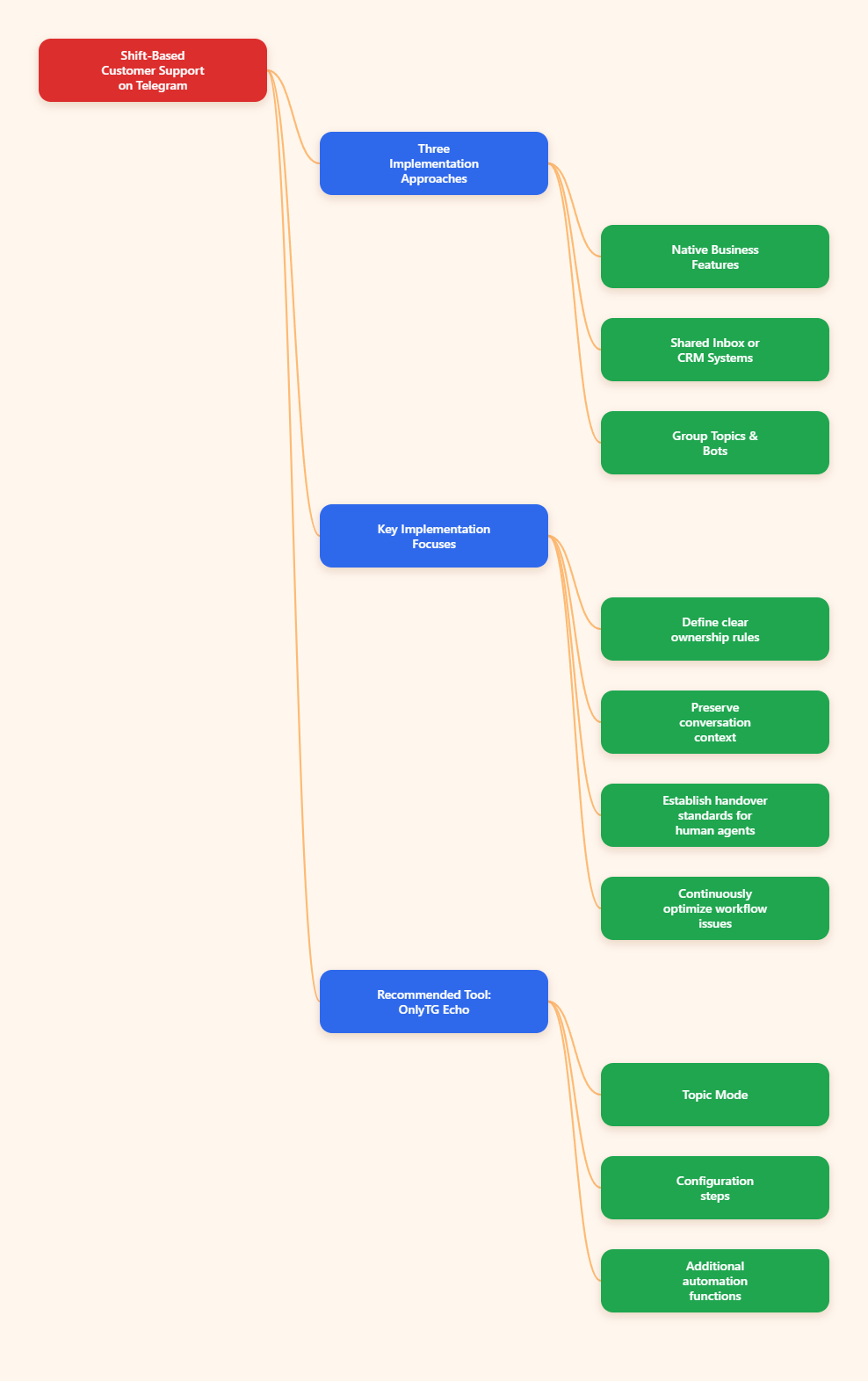
Step-by-Step Guide to Shift-Based Telegram Support
Method 1: Use Native Telegram Business Features for Small Shift Teams
This approach works best for solo operators or small teams that already use a Telegram account directly and need lightweight shift coverage without a full help desk stack.
- Step 1: Turn on Telegram Business features.
Telegram introduced Business accounts with features such as opening hours, location, quick replies, automated messages, custom start pages, and chatbot support. Business features are available to Premium subscribers. Open your Telegram account settings and enable the business profile options relevant to support. - Step 2: Set business hours and away coverage.
Configure your opening hours so customers know when live support is available. Then create an away message for periods when your shift is offline. This is useful for nights, weekends, holidays, or lunch-hour transitions. - Step 3: Add a greeting message for first contact.
Use a greeting message to acknowledge new inbound chats or users returning after inactivity. Keep it short: explain response times, available support hours, and what information the customer should send first. - Step 4: Build quick replies for repeated tasks.
Create quick replies for common cases such as order status, billing clarification, account verification steps, bug reporting format, and escalation instructions. Telegram supports rich formatting, links, files, stickers, media, and multiple messages in quick replies. - Step 5: Define a shift handoff checklist.
Because Telegram alone is not a true shared inbox, create an internal SOP: outgoing shift reviews unresolved chats, tags urgent cases in your internal tracker, and sends the incoming shift a handoff summary outside the customer thread if needed. - Step 6: Keep sensitive workflows out of public groups.
For customer-specific or confidential support, use private chats rather than public groups. Community groups are useful for general questions, but they are not ideal for billing, account recovery, or personal data exchange.
Best for: low-volume support, founder-led support, or early-stage teams.
Main limitation: ownership tracking and collaboration are still manual.
Method 2: Connect Telegram to a Shared Inbox or Telegram-Native CRM
This is the most reliable method for true shift-based support because multiple agents can access the same conversations in one workspace.
- Step 1: Choose a shared inbox platform that supports Telegram.
Current 2026 references show multiple tools positioning shared inbox support for Telegram, including Telegram-native CRM and omnichannel inbox platforms. The core value is the same: centralize messages so several team members can view, assign, and respond without forwarding screenshots or sharing one device. - Step 2: Connect your Telegram account or bot.
Follow the vendor’s Telegram integration flow. Depending on the platform, this may be a direct connection to a Telegram account, a bot-based workflow, or a business integration. Verify what data is synced, how media is handled, and whether private chats, groups, or channels are supported. - Step 3: Create queues by shift.
Set up clear ownership rules such as Day Shift, Evening Shift, Weekend Shift, or Language-Based Queues. A shared inbox works only if every conversation has a visible state: new, assigned, waiting on customer, escalated, or resolved. - Step 4: Assign conversations instead of letting agents “grab” randomly.
Assignment is the key control for avoiding duplicate replies. Each new Telegram conversation should either auto-route or be triaged by a lead agent. - Step 5: Use automation for repetitive intake.
Add FAQ replies, bot-based triage, issue categorization, and escalation triggers. Several 2026 support references emphasize that good automation should not stop at auto-replies; it should collect context, identify issue type, and preserve a clean path to a human handoff. - Step 6: Log handoff notes at shift change.
Before a shift ends, agents should leave internal notes summarizing customer status, promises made, blockers, and the next action. This is far more reliable than using memory or ad hoc chat messages. - Step 7: Track response time by shift.
Review first-response time, backlog, unresolved conversations, and reassignment patterns. If one shift constantly inherits messy threads, the process—not just staffing—needs fixing.
Best for: support teams, sales-plus-support teams, and any business with multiple agents.
Main limitation: requires additional tooling and process design.
Method 3: Use Telegram Groups, Topics, and Bots for Structured Community Support
This method is useful when support happens inside a community, product group, or channel discussion area rather than only in private DMs.
- Step 1: Decide between a support group and channel comments.
A Telegram channel is broadcast-first. To enable two-way discussion, you link a discussion group to the channel. Telegram then adds a comment button to new channel posts, and comments flow into the linked discussion group. - Step 2: Enable topics in a suitable supergroup.
Telegram topics help organize conversations in larger groups. References indicate that topics can be enabled in group settings and are especially useful for separating announcements, bug reports, onboarding, billing questions, and feature requests. - Step 3: Create support-specific topics.
Set up topics such as Urgent Issues, Account Help, Bug Reports, Billing, and Resolved / Read-Only. This reduces noise during shift changes because the next team can jump directly into the relevant thread. - Step 4: Give admins granular permissions.
Telegram supports granular admin rights in groups and channels. Only assign the permissions each moderator or shift lead actually needs, such as deleting messages, banning users, pinning messages, or managing topics. This reduces the risk of accidental moderation mistakes. - Step 5: Add a support bot where automation helps.
Bots can answer FAQs, collect issue details, and route users to the correct topic or person. In group contexts, bot behavior depends on permissions and privacy mode. In some setups, the bot must be an admin or have privacy mode adjusted to read the right messages. - Step 6: Define a human handoff rule.
Automation should not trap complex tickets. If the user mentions payment failure, account lockout, legal issue, or security concern, escalate to a human agent immediately. - Step 7: Close or archive stale topics when appropriate.
Closed topics can help separate resolved cases from active ones, keeping live shifts focused on current work.
Best for: public communities, creator businesses, crypto/web3 groups, product communities, and channel-based support.
Main limitation: less private than direct ticket-style support unless carefully designed.
Methods Compared: Which Setup Fits Your Team?
| Method | Best Use Case | Advantages | Disadvantages |
|---|---|---|---|
| Native Telegram Business | Solo support or small teams with light volume | Simple to start; uses official Telegram features; greeting, away messages, and quick replies help with coverage | Weak collaboration; no true shared ownership; manual handoffs can cause missed messages |
| Shared Inbox or Telegram-Native CRM | Multi-agent shift support with accountability | Shared visibility; assignment; internal notes; cleaner handoffs; scalable for sales and support | Needs third-party software; setup and training required; pricing varies by tool |
| Groups, Topics, and Bots | Community-driven support and public discussions | Great organization in large groups; transparent answers; bot-assisted routing; useful for channel comments | Not ideal for confidential issues; moderation workload increases; process can become messy without topic rules |
Practical Tool Recommendation: OnlyTG Echo
For teams that want to handle Telegram conversations with a bot and keep agent collaboration more organized, OnlyTG Echo (@EchoOnBot) is one practical option. Based on OnlyTG’s published tutorials and help materials, the core setup is simple: create a Telegram bot with BotFather, bind the bot token to OnlyTG Echo, add the bot to a group, and then switch the bot from single mode to Topic mode. This mode is presented by OnlyTG as a way to work with a topic-based group structure for team support.
How to set up OnlyTG Echo Topic mode:
- Step 1: Create a Telegram bot in BotFather.
Open Telegram, start a chat with @BotFather, create a new bot, and copy the bot token BotFather gives you. OnlyTG’s setup materials consistently start with this step. - Step 2: Start OnlyTG Echo and bind your bot token.
Open @EchoOnBot, start the bot, and send or bind the token from BotFather. According to OnlyTG’s tutorials, this is the step that connects your newly created bot to the OnlyTG Echo system. - Step 3: Create or prepare a topic-enabled group.
OnlyTG’s Topic mode tutorials refer to using a topic group. In practice, prepare the Telegram group you want your team to use and make sure topics are enabled there before changing modes. - Step 4: Add your bot to the group.
Add the bound bot to the target group so it can participate in the support workflow inside that team space. - Step 5: Grant the bot the permissions it needs.
If your workflow depends on topics, make sure the bot has the necessary group permissions. Reference material about Telegram topic-based bot workflows indicates that topic handling may require admin access and topic-management permission, so review permissions carefully during setup. - Step 6: Change the bot from single mode to Topic mode.
This is the key action shown across OnlyTG Echo tutorial references. After the bot is bound and added to the group, switch its working mode inside OnlyTG Echo from single mode to Topic mode.
What this setup is useful for: If your support model is centered on Telegram and your team wants a more structured internal handling flow than one long message stream, OnlyTG Echo’s Topic mode may help organize collaboration around a topic group. It appears especially relevant for teams providing customer service with multiple people inside Telegram.
Important note: The referenced materials clearly show the high-level flow—bind token, create a topic group, add the bot, and switch to Topic mode—but they do not fully document every permission screen or every edge case in public summaries.
Common Questions About Telegram Shift Support
Can Telegram itself function as a full shared inbox for support teams?
Not by itself in the way a dedicated support platform can. Telegram offers Business features, groups, topics, bots, and admin controls, but true multi-agent ownership, internal notes, and assignment are usually better handled through a shared inbox or CRM integration.
What is the best Telegram setup for 24/7 support?
For 24/7 coverage, the most dependable setup is a shared inbox or Telegram-native CRM combined with automation for intake and a clear human handoff process. Native Telegram Business features help, but they are not enough for larger shift operations on their own.
Should support happen in private chats or groups?
Use private chats for account-specific, billing, or sensitive issues. Use groups or linked discussion spaces for general questions, community troubleshooting, and publicly useful answers. Many teams use both: public discussion for common issues and private escalation for confidential cases.
Do Telegram bots replace human agents?
No. Bots are best for FAQs, triage, collecting structured details, and routing. Complex cases still need human agents, especially when empathy, exceptions, payments, or risk decisions are involved.
How do topics improve shift handoffs?
Topics reduce noise by grouping related conversations. That means the next shift can open the relevant topic—such as billing or urgent bugs—instead of scrolling through one crowded group timeline.
Conclusion
Shift-based customer support on Telegram works best when you match the toolset to your workload. Small teams can start with Telegram Business features, while growing teams should move to a shared inbox or CRM for assignment and handoff control. For community-heavy support, topics, discussion groups, and bots add structure.