Skip to content
OnlyTG Icon
  • ProductsExpand
    • Echo
    • Recorder
  • ResourcesExpand
    • Help
    • Blog
  • PricingExpand
    • Echo Pricing
  • EnglishExpand
    • 中文 (中国)
    • Русский
    • English
Contact us
OnlyTG Echo

Configure Telegram Bot Menu by OnlyTG Echo

Home » Blog » OnlyTG Echo » Configure Telegram Bot Menu by OnlyTG Echo

In the Telegram ecosystem, Telegram Bots have become an indispensable component. When operating your own bot, have you ever encountered these issues:

  • Users send inquiries during your offline hours, and delayed responses lead to losing the customer;
  • Users struggle to understand bot commands, forcing you to repeatedly explain instructions.

These problems can be effectively resolved by configuring telegram bot menu buttons.

How to configure telegram bot menu buttons

We recommend using OnlyTG Echo for this setup – simple, efficient, secure, stable, and packed with extended functionalities.

Prerequisite: Create your bot and bind it to OnlyTG Echo

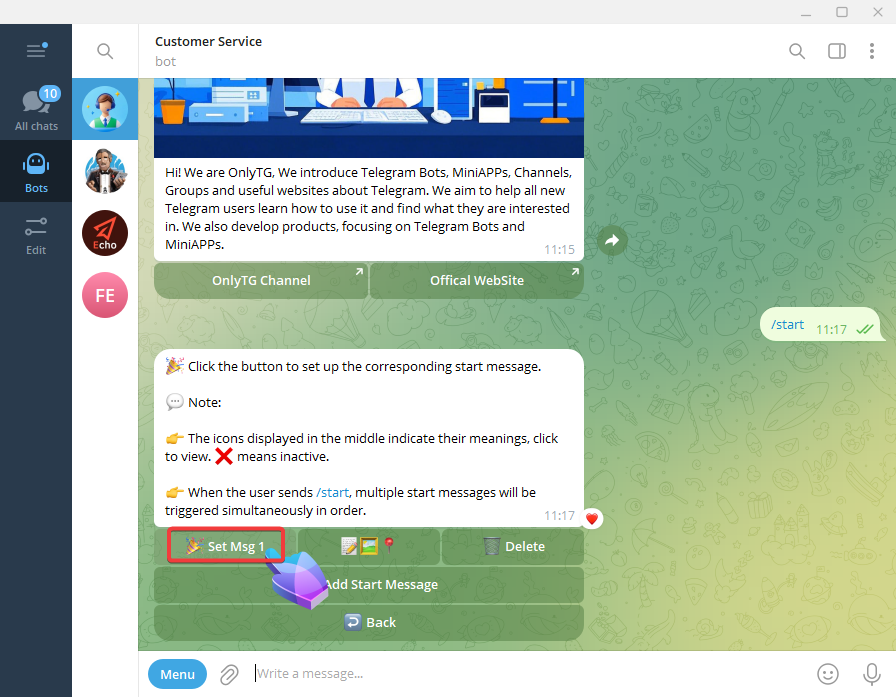
  1. Set Start Message:
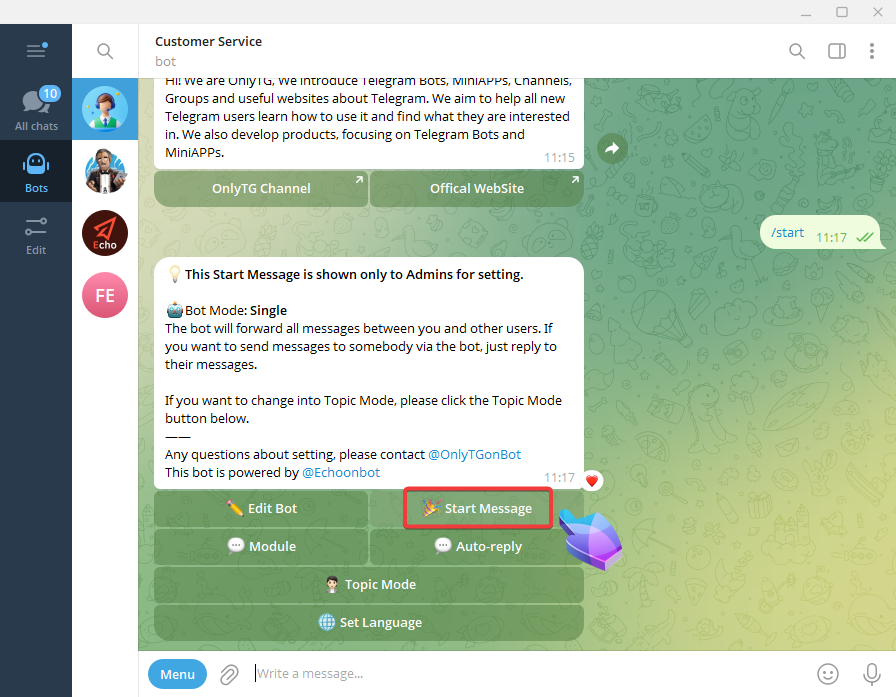
telegram bot menu
Configure Telegram Bot Menu by OnlyTG Echo

We can configure text, media files and buttons for start message.
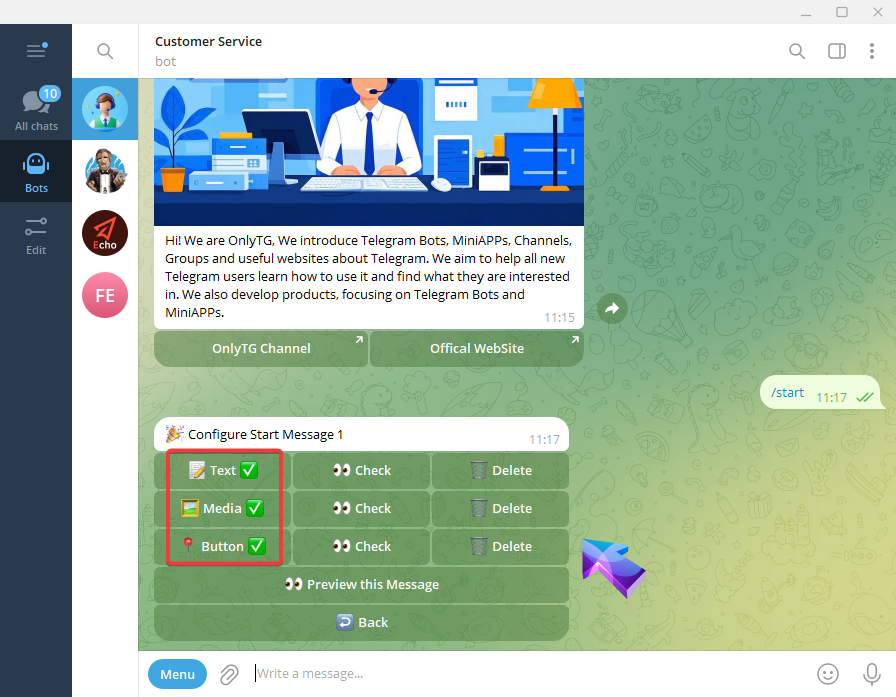
Configure Telegram Bot Menu by OnlyTG Echo

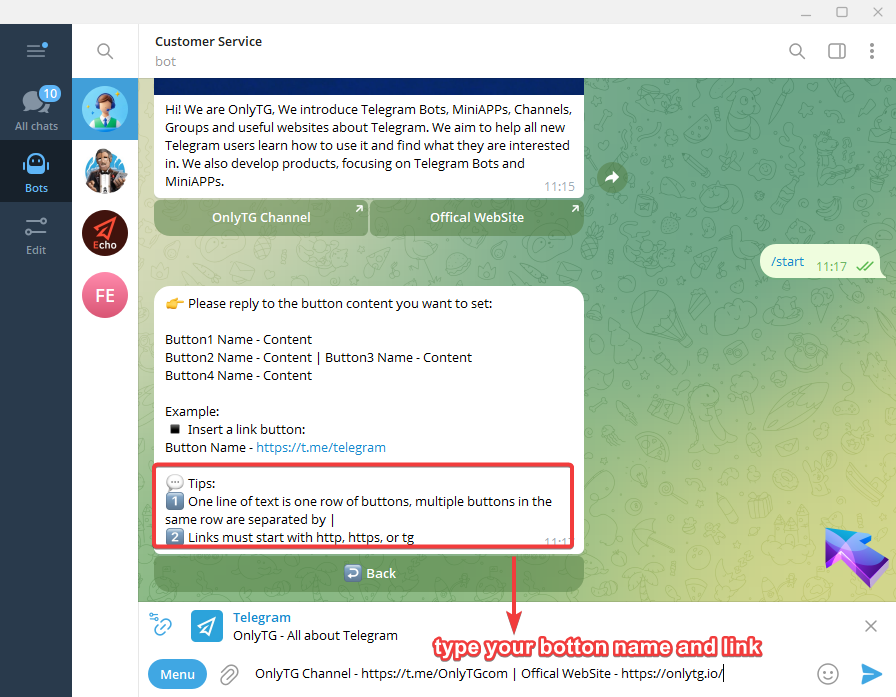
2. Configure Menu Buttons:

telegram bot menu

Usage Effectiveness Demonstration

Now, Your bot upgrade is complete. Let’s preview the results: When users send /start to the bot, they’ll receive the start  messages with menu buttons. These buttons directly guide users to help center page or the official website for more information.
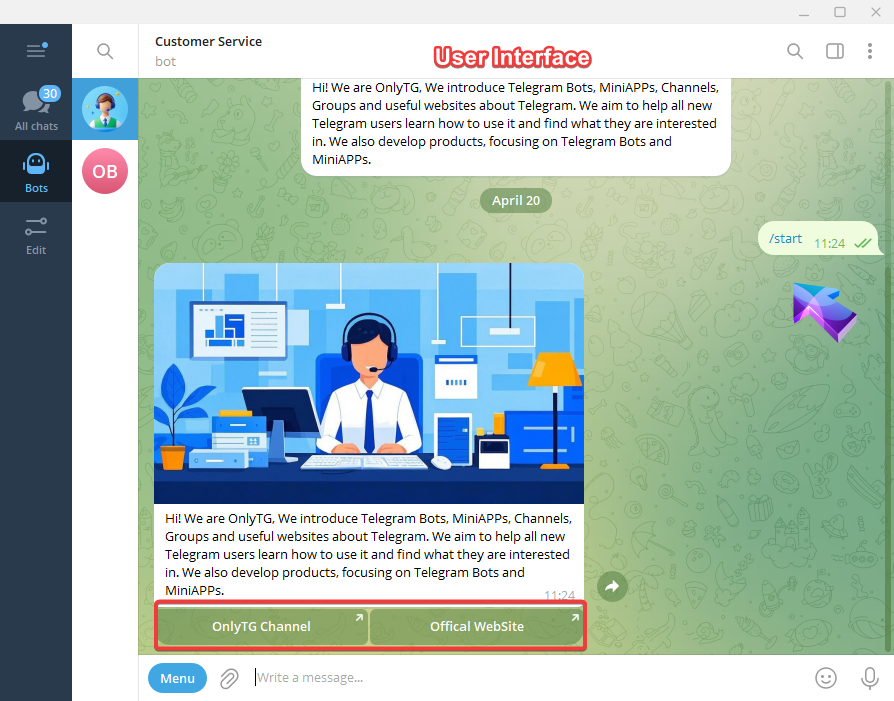
Configure Telegram Bot Menu by OnlyTG Echo

OnlyTG Echo is a comprehensive bot solution offering multiple features beyond menu buttons:

  • Edit bot information
  • View bot statistics
  • Message anonymization message forward
  • Auto reply

All your telegram bot operational needs can be fulfilled with a single OnlyTG Echo bot!

You can click the following link to quickly use OnlyTG Echo and learn more about OnlyTG.

OnlyTG Echo Bot: https://t.me/echoonbot

Official Telegram Channel: https://t.me/onlytg

Source: https://onlytg.io/onlytg/configure-telegram-bot-menu-by-onlytg-echo.html

Post Tags: #bot#Telegram

Post navigation

NextContinue
Set up Telegram Bot Welcome Messages using OnlyTG Echo
Table of Contents
  • How to configure telegram bot menu buttons
  • Usage Effectiveness Demonstration
Echo Sidebar
  • Latest Post
  • Echo
  • Recorder
  • Tips
Telegram Tips

How to find similar Telegram groups and channels via related recommendations

There are many public channels and groups on Telegram. Each channel or group usually focuses on a specific topic, and…

Telegram Tips

How to Advertise on Telegram

There are mainly three ways to advertise on Telegram: official ad direct placement, third-party cooperative ads, and promotion within your…

Telegram Tips

How to Buy Cryptocurrency/USDT

The first step in buying cryptocurrencies is usually to purchase USDT, then exchange USDT for other coins like BTC, ETH,…

Telegram Tips

How to Buy Telegram Stars

Stars is a virtual currency officially launched by Telegram for purchasing paid content within Telegram. Stars is not classified as…

Telegram Tips

What is the purpose of Telegram group and channel levels? How to boost?

In Telegram, Levels act like an “experience bar” for public groups and channels. As a community reaches higher levels, it…

Telegram Tips

What are the actual benefits of a Telegram Premium subscription, and how to purchase it?

Telegram Premium is a subscription service that unlocks enhanced limits and exclusive features while supporting the app’s independent development. What…

Telegram Tips

How to change the display language in Telegram

To change the language on Telegram, you can head into the settings. Telegram supports dozens of languages, and many are…

Telegram Tips

What exactly is the difference between Telegram channels and groups?

The main difference is the direction of communication: Groups are for chatting with others (two-way), while Channels are for broadcasting…

How to Loop Post in Channel via Telegram Bot

OnlyTG Echo provides the function to automatically loop posts in your channel. Firstly, you need to create a new bot via @botfather and…

How to Configure Multiple Media when Setting OnlyTG Echo Features

OnlyTG Echo provides the function to configure multiple media to a single message when setting Start Message/Auto Reply/Quick Reply/Broadcast and other features. Firstly, you need…

How to Upgrade Channel to Pro Channel in Telegram

OnlyTG Echo provides the function to upgrade your channel to Pro Channel. This will consume your Pro Communities slots and unlock more advanced features….

How to Edit a Published Post via Telegram Bot

OnlyTG Echo provides the function to Edit Channel Post via your bot. Firstly, you need to create a new bot via @botfather and…

How to Publish Channel Post via Telegram Bot

OnlyTG Echo provides the function to Publish Channel Post via your bot. Firstly, you need to create a new bot via @botfather and…

How to Manage Channel via Telegram Bot

OnlyTG Echo provides the function to Manage Channel via your bot. Firstly, you need to create a new bot via @botfather and send its…

How to Send Group Greeting via Telegram Bot

OnlyTG Echo provides the function to send the Greeting Message to new members joining the group. Firstly, you need to create a new…

How to Set Group CAPTCHA via Telegram Bot

OnlyTG Echo provides the function to send the CAPTCHA test to new members joining the group. Firstly, you need to create a new bot…

How to Use OnlyTG Recorder?

Welcome to OnlyTG Recorder! Developed by our dedicated bot development team, OnlyTG Recorder is designed to serve as an assistant…

How to find similar Telegram groups and channels via related recommendations

There are many public channels and groups on Telegram. Each channel or group usually focuses on a specific topic, and…

How to Advertise on Telegram

There are mainly three ways to advertise on Telegram: official ad direct placement, third-party cooperative ads, and promotion within your…

How to Buy Cryptocurrency/USDT

The first step in buying cryptocurrencies is usually to purchase USDT, then exchange USDT for other coins like BTC, ETH,…

How to Buy Telegram Stars

Stars is a virtual currency officially launched by Telegram for purchasing paid content within Telegram. Stars is not classified as…

What is the purpose of Telegram group and channel levels? How to boost?

In Telegram, Levels act like an “experience bar” for public groups and channels. As a community reaches higher levels, it…

What are the actual benefits of a Telegram Premium subscription, and how to purchase it?

Telegram Premium is a subscription service that unlocks enhanced limits and exclusive features while supporting the app’s independent development. What…

How to change the display language in Telegram

To change the language on Telegram, you can head into the settings. Telegram supports dozens of languages, and many are…

What exactly is the difference between Telegram channels and groups?

The main difference is the direction of communication: Groups are for chatting with others (two-way), while Channels are for broadcasting…

  • OnlyTG
  • Echo
  • Recorder
  • Help
  • Blog
  • Echo Pricing
OnlyTG EchoTelegram VK YouTube Facebook X Email

© 2026 OnlyTG

Scroll to top
  • Products
    • Echo
    • Recorder
  • Resources
    • Help
    • Blog
  • Pricing
    • Echo Pricing
Contact us