
Setting up Telegram looks simple until a verification code does not arrive, a number is already linked to another account, or your profile exposes more personal information than expected. In 2026, Telegram is still a fast, multi-device messaging app, but account setup now requires more attention to privacy, security, and regional eligibility rules.
If you are searching for how to complete telegram registration profile setup, this guide walks you through the full process from installing the official app to securing your account after registration. It also explains what you can and cannot do without a phone number, how usernames work, and which profile settings deserve your attention before you join public groups or channels.
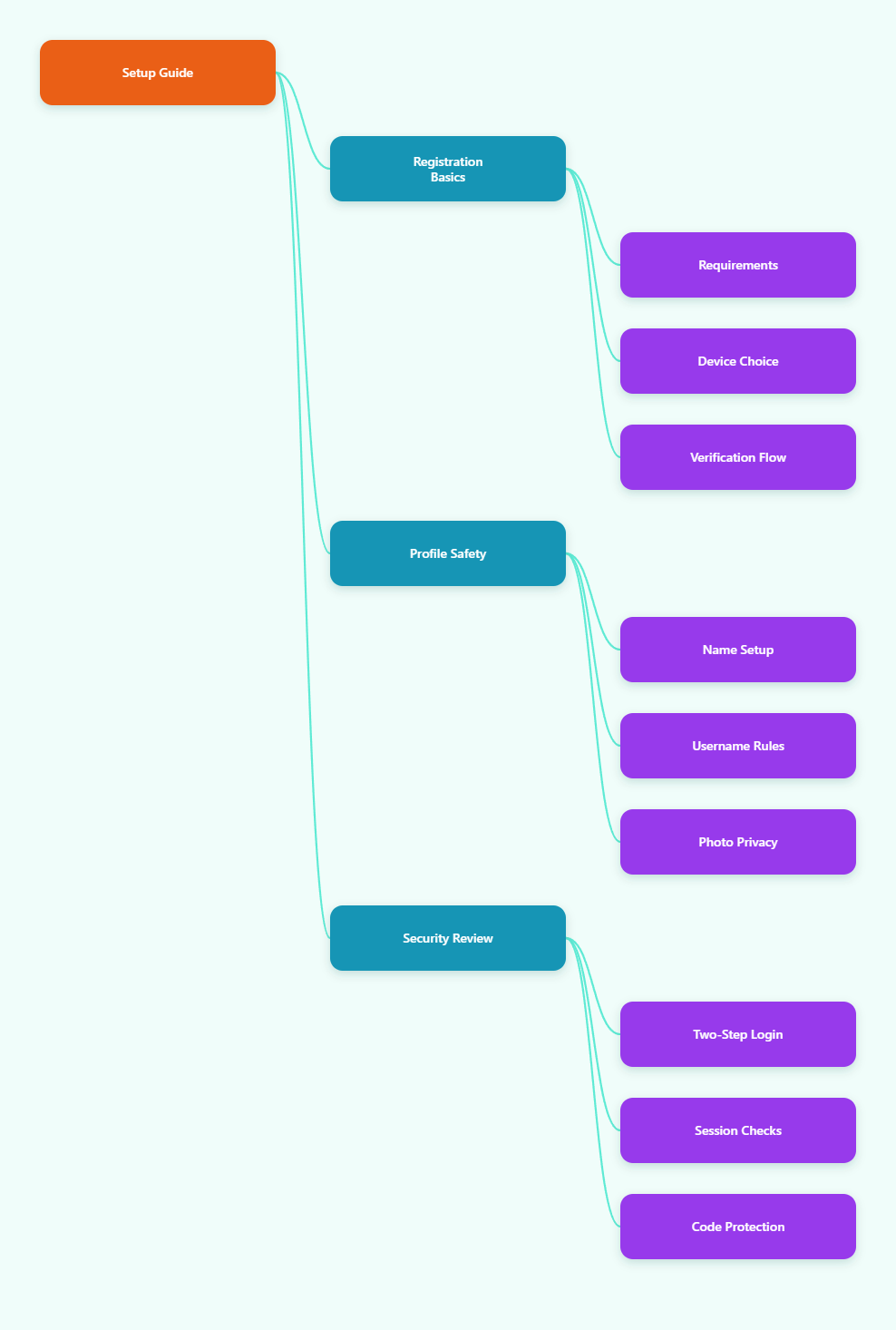
What Do You Need Before Telegram Registration in 2026?
Telegram account creation starts with a phone number. Telegram uses phone numbers as unique account identifiers, so you should prepare a number you can access reliably.
Do not treat the number as a one-time formality. If you lose access to it before setting up recovery and active sessions, account recovery becomes harder.
Basic registration requirements
Before you begin, make sure you have the following ready:
- A phone number that can receive SMS or calls, depending on the verification option available.
- The official Telegram app from the App Store, Google Play, or Telegram’s official website.
- A stable internet connection for receiving the in-app verification flow and syncing account data.
- Accurate country code selection so the code is sent to the right number.
For users in the European Union, the United Kingdom, and Australia, Telegram’s terms state that users must be at least 18 years old to sign up. Users elsewhere should still check local rules and app store guidance before creating an account.
Should you use mobile, desktop, or web first?
The safest route is to register from the official mobile app first. Telegram Desktop and Telegram Web are best used after your account already exists, especially because QR login requires an account that is already signed in on another device.
After the mobile setup is complete, you can link desktop or web by going to Settings > Devices > Link Desktop Device and scanning the QR code shown on the computer.
How to Complete Telegram Registration Profile Setup Step by Step
This is the core workflow for how to complete telegram registration profile setup without skipping important security and privacy steps. The menus may vary slightly between iOS, Android, desktop, and web, but the logic is almost the same.
Step 1: Install the official Telegram app
Download Telegram only from trusted sources. Use the Apple App Store for iPhone, Google Play for Android, or Telegram’s official website for desktop apps.
Avoid unofficial APKs, modified clients, or random download links. They may compromise your messages, session tokens, or verification code.
Step 2: Enter and verify your phone number
Open Telegram and tap Start Messaging. Select your country code, enter your phone number, and wait for the verification code.
If Telegram offers SMS or call verification, use the option that works for your device and carrier. If you already have Telegram signed in on another device, the code may arrive inside Telegram instead of SMS.
Step 3: Add your name and profile photo
Telegram asks for a profile name during setup. This does not have to be your legal name, but it should help contacts recognize you.
You can add a profile photo immediately or skip it until privacy settings are configured. If you use Telegram for public groups, a neutral image is often safer than a personal face photo.
Step 4: Review your profile before messaging
Before joining groups, open Settings and check your profile page. Confirm that your name, photo, and bio match how you want to appear.
Use this quick checklist:
- Profile name is recognizable but not overly personal.
- Photo is appropriate for public or semi-public spaces.
- Bio does not include private information.
- Username is set only if you want people to find you without your number.
Can You Create Telegram Without a Phone Number?
Officially, Telegram account creation requires a phone number. You cannot create a normal Telegram account with only an email address, username, or QR code.
Some users look for temporary or virtual number options, but this comes with real risks. Numbers may be reused, blocked, rejected, or later assigned to someone else.
Why Telegram asks for a phone number
Telegram uses your number as the account’s unique identifier. It also helps you move between devices and connect with contacts if you allow contact syncing.
That does not mean everyone automatically sees your number. Phone number visibility is controlled separately in privacy settings, which you should adjust after registration.
What about virtual or temporary numbers?
Some virtual number providers can receive Telegram verification codes, but reliability is inconsistent. Telegram may reject certain numbers, and shared temporary numbers are especially risky because another person may later receive recovery codes.
If privacy is your concern, a better approach is usually to use a stable number and then hide it inside Telegram. This gives you more control than relying on a disposable number you may lose.
Best practical recommendation
Use a long-term phone number that you control. Then set Who can see my phone number to Nobody and limit Who can find me by my number to My Contacts if that fits your privacy needs.
This setup is more durable for business accounts, creator profiles, and community managers who cannot afford sudden account loss.
Which Profile Settings Should You Configure First?
Your Telegram profile is more than a name and photo. In public groups, channels, and comments, people may use it to identify, contact, or impersonate you.
Configure the visible parts of your profile before you become active. This is a key part of any complete Telegram registration profile setup.
Name, bio, and profile photo
Your screen name, profile photos, and username are generally public-facing identity elements. Telegram’s privacy policy explains that these details help other users recognize and reach you.
Keep your bio short and safe. Avoid adding your home city, private email, employer details, financial handles, or recovery clues.
- Personal account: Use a first name or nickname and a low-risk photo.
- Business account: Use a brand-consistent name and logo.
- Community admin: Use a role-based identity to reduce personal exposure.
Username rules and discoverability
A Telegram username lets people contact you without knowing your phone number. Usernames must be at least five characters and can use letters, numbers, and underscores.
Usernames are case-insensitive, so @ExampleName and @examplename point to the same username. Choose carefully because changing a username can break old links or allow someone else to claim the released name.
Profile photo visibility
Telegram lets you restrict who can see your profile photos. In Privacy and Security settings, look for Profile Photos or a similar label depending on your app version.
For safer public participation, consider:
- Set profile photo visibility to My Contacts or Nobody.
- Use exceptions for trusted people or groups.
- Use a public-facing image if your account appears in large communities.
How Do You Secure a New Telegram Account?
Security should be configured immediately after registration. Telegram syncs across devices, which is convenient, but every active session is also a possible access point.
Enable Two-Step Verification
Go to Settings > Privacy and Security > Two-Step Verification. Set an additional password that will be required when logging in, along with the verification code.
Add a recovery email during setup. If you forget the password and have no recovery email, regaining access may be difficult and delayed.
Check active sessions
Open Settings > Devices to review where your account is logged in. Telegram shows active sessions so you can terminate devices you no longer use.
Do this after logging in on public computers, shared tablets, or old phones. If a device looks unfamiliar, terminate it and update your two-step verification password.
Protect verification codes
Telegram verification codes are for Telegram login only. Telegram does not send verification codes for other apps, and you should never forward a code to anyone claiming to be support.
Common scams ask for login codes to “verify your identity” or “recover your account.” Real support will not need your one-time login code.
Telegram Registration and Profile Setup Comparison Table
The table below summarizes the safest choices for 2026 account setup. Use it as a quick audit after creating your account.
| Setup Area | Default or Common Choice | Recommended 2026 Setup | Why It Matters |
|---|---|---|---|
| Registration device | Desktop or web first | Official mobile app first | Mobile setup is the most reliable starting point for new accounts. |
| Phone number | Temporary or shared number | Stable number you control | Reduces lockout and account ownership risks. |
| Phone visibility | Visible to broad contacts | Nobody or My Contacts | Limits exposure in groups and public spaces. |
| Username | Random or frequently changed | Consistent, brand-safe username | Improves discoverability and avoids broken links. |
| Profile photo | Personal face photo for all | Restricted or neutral image | Reduces scraping, impersonation, and unwanted attention. |
| Login security | SMS code only | Two-Step Verification enabled | Adds a password layer if codes are intercepted. |
| Devices | Never reviewed | Check active sessions regularly | Helps remove forgotten or suspicious logins. |
What Problems Happen During Telegram Registration?
Most registration issues fall into a few categories: code delivery, number ownership, app version, or device linking confusion. Start with the simplest fix before assuming the account is banned or lost.
Verification code does not arrive
Check that the country code and phone number are correct. Then wait before requesting another code, because repeated attempts can trigger temporary limits.
If available, try the call option. Also confirm that your carrier can receive international or automated messages.
New number already has an account
Phone numbers can be recycled by carriers. If your new number is already linked to a Telegram account, follow Telegram’s login and account recovery prompts carefully.
Do not use the account if it clearly contains someone else’s data. Secure the number, log out unknown sessions if you gain access through legitimate verification, and set up your own profile details.
Cannot sign up from desktop
If you are trying to create a brand-new account from desktop or web and it fails, switch to the official mobile app. Desktop and web are generally better for logging into an existing account, often by QR code.
Once your account exists on mobile, scan the QR code from Telegram Web or Desktop using Settings > Devices > Link Desktop Device.
Conclusion: Complete Telegram Setup the Right Way in 2026
A good Telegram setup is not just about receiving a code and choosing a profile photo. In 2026, the smarter approach is to create the account with a stable phone number, complete your profile intentionally, and lock down privacy before joining public spaces.