
If you want a free tool to add URL button in Telegram channel marketing posts, OnlyTG Echo is one of the easiest no-code options I have tested. It lets you publish Telegram channel posts through your own bot, attach buttons, schedule content, loop posts, and manage channel workflows without writing Bot API code.
That is where OnlyTG Echo becomes useful. It turns your Telegram bot into a practical posting assistant, so you can publish channel posts with cleaner calls to action, buttons, media, and repeatable workflows.
In this guide, I will walk through the exact setup flow, show where URL buttons fit into Telegram channel marketing, share a few realistic operating scenarios, and cover extra features like auto-reply, quick reply, broadcast, bot menu, start messages, and channel post editing.
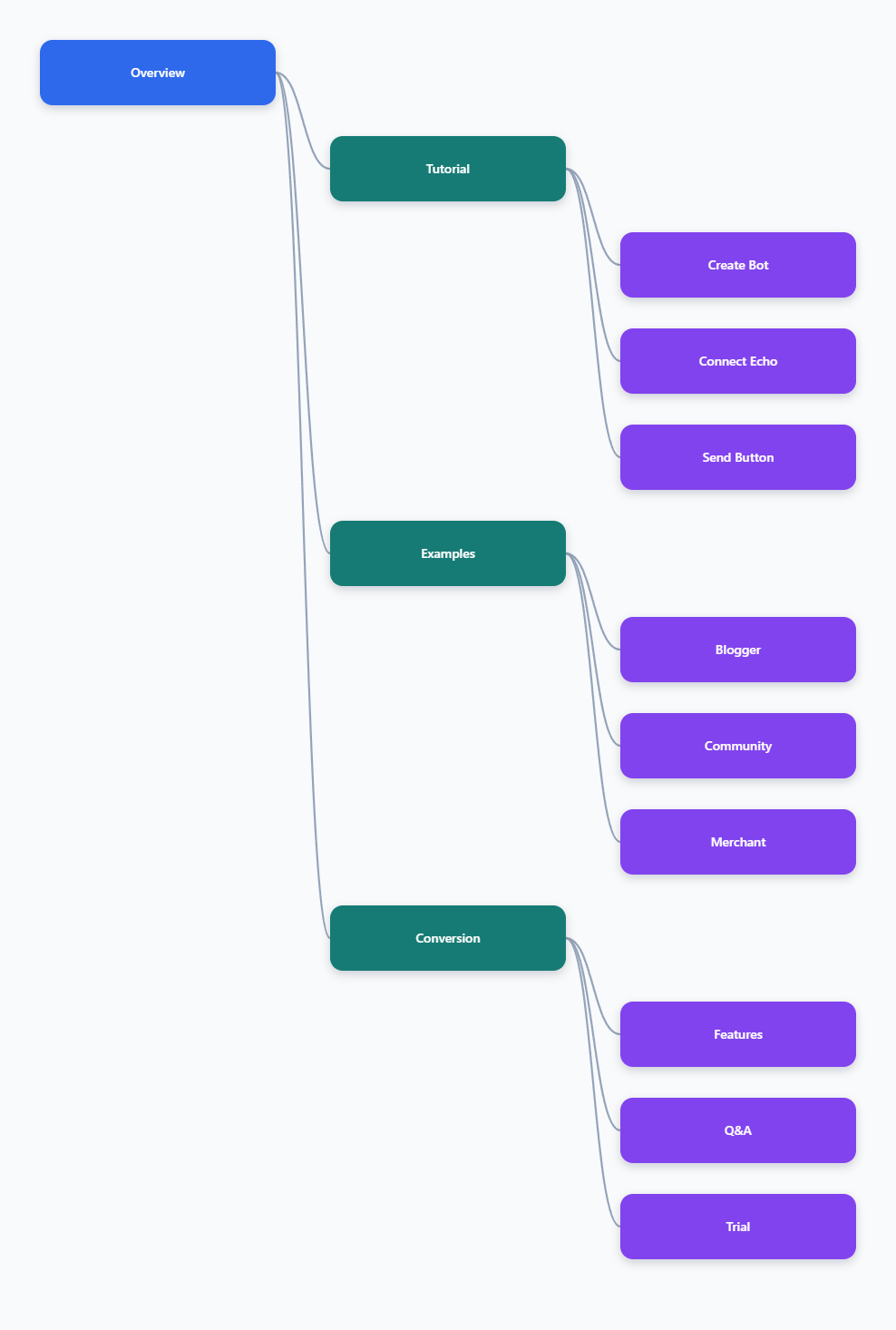
Why URL Buttons Matter for Telegram Marketing
I usually describe Telegram channel posts as “fast-moving landing pages.” A user sees your message in a feed, makes a quick decision, and either taps, saves, forwards, or scrolls away.
A URL button gives that post a visible action point. Instead of hiding a link inside text, you can guide users toward a product page, bot conversation, order form, support chat, community link, or campaign landing page.
| Post Element | Best Use | Common Problem |
|---|---|---|
| Plain text link | Simple announcements | Easy to miss in long posts |
| URL button | Marketing CTA, product links, support links | Needs bot-based publishing |
| Media plus button | Promotions, launches, visual campaigns | Requires clean formatting |
| Looped post | Recurring reminders | Can annoy users if overused |
The official OnlyTG materials describe OnlyTG Echo as a Telegram bot tool for building and managing your own smart bot. The channel post feature supports configuring text, media, and buttons for a post, which is exactly what most channel marketers need.
OnlyTG Echo Tutorial: Add URL Buttons to Telegram Channel Posts
This is the core workflow I use when I want a clean Telegram marketing post with a button. The setup is no-code, but you still need to follow the order carefully because Telegram bot permissions matter.
Step 1: Create Your Telegram Bot with BotFather
- Open Telegram and search for @BotFather.
- Start the chat and create a new bot using BotFather’s standard bot creation flow.
- Choose a bot name and username when BotFather asks for them.
- Copy the bot token returned by BotFather.
This step solves the first major problem: you need a bot identity before any tool can publish channel posts on your behalf. OnlyTG Echo works through the bot you connect, so the token is the bridge between your Telegram bot and Echo’s management flow.
I recommend saving the token somewhere secure. Do not post it in groups, public docs, or shared screenshots because anyone with the token may be able to control the bot.
Step 2: Bind the Bot to OnlyTG Echo
- Open Telegram and go to @Echoonbot.
- Send the /start command.
- Click the Add Bot button in Echo.
- Paste the bot token from BotFather when Echo asks for it.
- Wait for Echo to confirm that the bot has been added.
This step turns a raw Telegram bot into an operating tool. Instead of writing code against the Telegram Bot API, you can manage practical features from the Echo interface.
For a channel operator, this removes the most annoying barrier: you do not have to build your own posting script just to add a button under a marketing post.
Step 3: Add Your Bot to the Telegram Channel
- Open the Telegram channel where you want to publish marketing posts.
- Go to the channel management area.
- Add your bot as an administrator.
- Enable the permissions needed for posting and managing messages.
- Return to Echo after the bot has been added.
This step solves the permission problem. Telegram will not let a bot post to your channel unless the bot is added to that channel with the right admin permissions.
If your channel does not appear inside Echo later, this is the first place I would check. In my testing, most setup mistakes come from missing admin access, not from Echo itself.
Step 4: Open Channel Setting in OnlyTG Echo
- Go back to your connected bot in OnlyTG Echo.
- Send /start if you need to reopen the menu.
- Click Channel Setting.
- Use the refresh option if your channel is not visible yet.
- Select the channel you want to manage.
This step solves the “where do I post from?” question. Once the channel appears in Echo, you can manage channel-related actions from a guided interface instead of manually calling Telegram endpoints.
Step 5: Create a New Channel Post
- Inside your selected channel, click Post.
- Choose New Post.
- Add your post text first.
- Add media if the campaign needs an image, video, or other supported content.
- Review the message before adding buttons.
This step solves the content packaging problem. Telegram marketing posts perform better when the message has one clear point, one clear offer, and one clear next action.
I usually write the post in three blocks:
- Hook: one short line that says why the post matters.
- Context: two or three lines explaining the offer, update, or resource.
- Action: a direct line telling users what to do next.
Step 6: Add the URL Button
- Choose the button configuration option in the post builder.
- Enter the button label users will see.
- Add the destination URL, such as a website page, order page, Telegram link, or support link.
- Keep the button text short and action-based.
- Preview the post layout before publishing.
This is the key reason many people search for a free tool to add URL button in Telegram channel marketing posts. The button makes the CTA visible, tappable, and separate from the body copy.
| Button Text | Good For | My Tip |
|---|---|---|
| Read Guide | Blog posts and tutorials | Use when the user needs education first |
| Join Channel | Community growth | Link to the next Telegram destination |
| View Offer | Soft selling | Avoid sounding too aggressive |
| Contact Support | Service businesses | Send users to a bot or support chat |
Telegram’s bot platform supports buttons and inline keyboards, but the manual developer route can feel heavy for non-technical operators. Echo’s value is that it puts this flow into a simpler Telegram-based interface.
Step 7: Publish, Schedule, or Loop the Post
- Publish immediately if the post is time-sensitive.
- Use scheduling if the campaign should go live later.
- Use loop posting only for recurring reminders that are still useful to subscribers.
- Check the live post in the channel after publishing.
- Edit the post if you notice a typo or wrong link.
This step solves the timing problem. According to OnlyTG’s public materials, Echo supports posting messages with buttons, scheduling posts, and looping posts at set intervals.
My practical rule is simple: schedule launch content, loop evergreen reminders carefully, and edit mistakes quickly. A button with the wrong link is worse than no button at all.
Step 8: Edit a Published Channel Post When Needed
- Open Channel Setting again.
- Select the target channel.
- Click Post, then My Post.
- Find the post you want to modify.
- Click Edit Post and update the text, media, or button details as supported by the interface.
This step solves the “small mistake after publishing” problem. OnlyTG’s channel post edit documentation states that Echo can modify a published post through your bot.
For marketing posts, editing is not a tiny feature. It protects campaigns from broken URLs, outdated pricing, typo-heavy copy, and unclear CTAs.
Real Use Cases I Would Actually Use
I do not like tool reviews that only say “great for business” and stop there. So here are three grounded Telegram workflows where OnlyTG Echo makes sense.
Case 1: Channel Blogger Promoting a Long-Form Guide
User identity: A niche Telegram channel blogger publishing AI tool reviews and SaaS tutorials.
Original problem: The blogger posted long explanations with a plain link at the bottom. Readers reacted to the post, but many missed the link because it was buried under screenshots and commentary.
Measured improvement: The improvement here is mainly operational and visible: the CTA moves from hidden text to a dedicated button. In a small tracking sheet, the blogger can compare button-link clicks against older plain-link posts using the same UTM-tagged destination URL.
Case 2: Community Admin Sending Support and Rules Links
User identity: A Telegram group and channel admin managing a paid learning community.
Original problem: New members kept asking for the rules, refund policy, support contact, and lesson index. The admin repeated the same answers every day.
Measured improvement: The admin can measure fewer repeated manual replies by counting how often the same support questions appear before and after the bot menu and button posts are live. The realistic win is not magic automation; it is less copy-paste work.
Case 3: Small Cross-Border Seller Promoting a Product Drop
User identity: A small cross-border seller using Telegram to announce product drops and limited stock updates.
Original problem: The seller posted product photos, prices, and a checkout link. Users asked “where to buy?” even when the link was already in the caption.
Measured improvement: The seller can compare post-level outcomes by using campaign-specific links. The cleanest metric is not just sales; it is the number of users who tap from the channel post into the product or support flow.
Other OnlyTG Echo Features Worth Knowing
The URL button workflow is the main reason I would recommend Echo to a Telegram marketer, but it is not the only useful feature. Based on OnlyTG’s public documentation and tutorials, these supporting tools are also worth testing.
- Start Message: Configure messages triggered by /start. Use this as the front desk for your bot, especially if new users need directions.
- Auto-Reply: Set automatic replies for common user inputs. Keep the logic simple, because confusing automation feels worse than a slow human reply.
- Quick Reply: Save repeated answers for faster manual support. I like this for pricing, onboarding, rules, and troubleshooting replies.
- Broadcast: Send messages to multiple bot contacts. Use it responsibly and avoid blasting users who did not expect updates.
- Bot Menu: Set menu buttons below the bot input field. OnlyTG’s docs note that the button currently sends the button name, so design labels that make sense as user inputs.
- Multi-form Messages Builder: Build richer messages with text, media, and buttons for Start Message, Auto-Reply, Quick Reply, Broadcast, and similar features.
- Single Mode and Topic Mode: Echo supports different delivery modes for receiving and replying to messages through the bot. Check the current mode from the Chat area after sending /start.
- Channel Management: Manage connected channels through the bot and check channel-related information where supported by Echo and the OnlyTG Console.
Practical Tips Before You Publish Button Posts
A free tool to add URL button in Telegram channel marketing posts helps with execution, but the post still needs good judgment. A bad offer with a button is still a bad offer.
Keep One Main CTA
Do not turn every post into a dashboard. If the post is about a guide, the button should lead to the guide. If the post is about a product, the button should lead to the product.
Use Trackable Links
If you care about performance, use campaign links or UTM parameters where your website analytics can read them. Telegram itself is fast and direct, but your landing page analytics will usually tell you more about clicks and conversions.
Preview on Mobile
Most Telegram users read posts on a phone. Button text that looks fine on desktop may feel too long on mobile, so keep labels short.
Do Not Overuse Loop Posts
Loop posting is useful for recurring announcements, but it can also make a channel feel robotic. I would reserve it for evergreen posts, event reminders, or important onboarding content.
| Goal | Echo Feature | Best Practice |
|---|---|---|
| Drive clicks | Channel post button | Use one clear URL button |
| Save time | Quick Reply | Prepare answers for repeated questions |
| Welcome users | Start Message | Explain what the bot can do |
| Repeat reminders | Loop Post | Use only for useful recurring content |
FAQ
Is OnlyTG Echo a free tool to add URL button in Telegram channel marketing posts?
OnlyTG Echo is publicly presented as a no-code Telegram bot tool, and its materials describe channel posting with buttons. Pricing and plan details can change, so I recommend checking the official OnlyTG Echo pricing page before relying on any specific free or paid limit.
Do I need coding skills to use OnlyTG Echo?
No coding is required for the basic Echo setup described in the official tutorials. You create a bot with @BotFather, bind the token to @Echoonbot, and configure features through the Telegram-based interface.
Can OnlyTG Echo publish posts with media and buttons?
Yes. OnlyTG’s channel post documentation says you can configure text, media, and buttons for a channel post. This is the feature used to create marketing posts with visible URL buttons.
Why does my channel not appear in OnlyTG Echo?
The most common reason is that the bot has not been added to the channel correctly or does not have the needed admin permissions. After fixing permissions, return to Echo and use the refresh option in the channel area.
Final Thoughts: Should You Try OnlyTG Echo?
If your Telegram channel already gets attention but your links feel invisible, OnlyTG Echo is worth testing. It gives you a practical way to publish channel posts with URL buttons, media, scheduling, loop posting, and post editing from your own Telegram bot.
My advice is to start small. Create one clean campaign post, add one button, track one destination link, and compare it with your usual plain-link posts. If the workflow saves time and makes the CTA easier to see, keep building from there.