
If you want a clean, safe, and reliable way to join Telegram on an iPhone, this create telegram account ios tutorial walks you through the full process without shortcuts that can lock you out later.
The goal is simple: install the official app, verify the right phone number, finish the profile setup, and secure the account before you start joining groups or messaging new people.
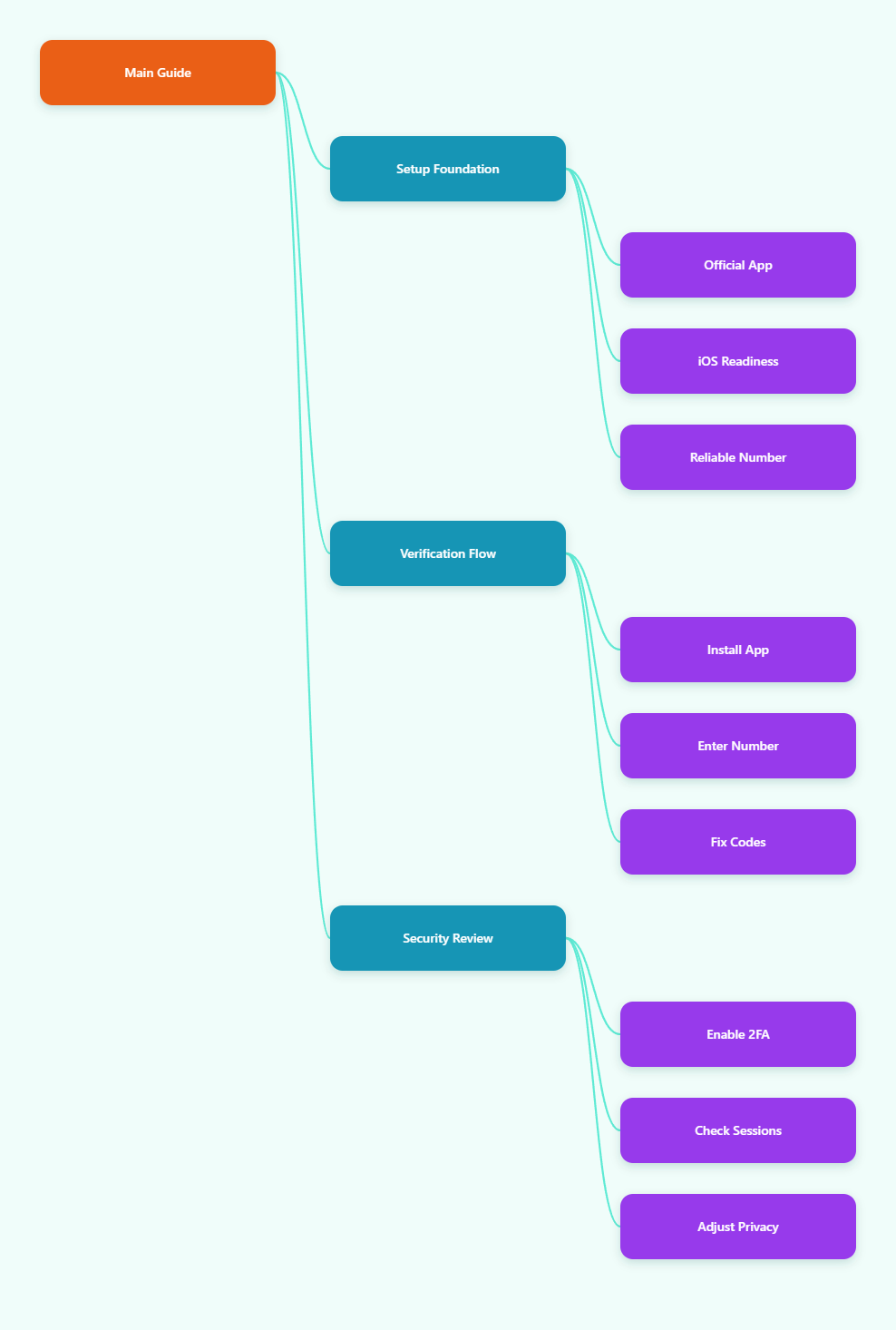
What You Need Before Creating a Telegram Account on iOS
Before you tap Get in the App Store, make sure the basics are ready. Most failed signups come from using the wrong app, a weak phone number setup, or missing access to the verification code.
Use the Official iPhone App
Download Telegram from the Apple App Store and confirm that the listing is the official Telegram Messenger app. Telegram also lists official apps on its own apps page, and the iPhone and iPad app is the normal route for iOS users.
Avoid clone apps, modified IPA files, and websites offering Telegram downloads outside the App Store. They can create security risks and may not support the current login flow correctly.
- Best source: Apple App Store on your iPhone.
- Publisher check: confirm the app is the official Telegram listing in your region.
- Avoid: unofficial builds, cracked apps, and login pages that ask for your Telegram code.
Check iOS and Network Requirements
Telegram states that iOS support starts from iOS 13.0 and above in its official FAQ. If your iPhone is much older or running an outdated system version, update iOS before signing up.
You also need a stable internet connection. Wi-Fi is fine, but if SMS or call verification is failing, check that your SIM has cellular signal and can receive normal texts or calls.
Prepare a Reliable Phone Number
For standard Telegram signup, you need a phone number that can receive verification. Telegram uses the number to validate the account and reduce automated fake account creation.
Using disposable or public SMS inbox numbers is risky. Those numbers may already be abused, previously registered, recycled, or blocked from receiving Telegram verification.
- Use a number you control long term.
- Keep the SIM active after signup.
- Do not share your verification code with anyone.
- Do not rely on public temporary-number websites for a personal account.
Create Telegram Account iOS Tutorial: Step-by-Step Setup
This section gives you the exact setup flow for iPhone. The wording in the app can vary slightly by region and app version, but the sequence stays similar.
Step 1: Install Telegram from the App Store
Open the App Store, search for Telegram Messenger, and install the official app. Wait until the download finishes before switching apps or restarting your phone.
If the install fails, check storage, Apple ID status, Screen Time restrictions, and network quality. A stuck App Store download is an iOS issue, not a Telegram account issue.
Step 2: Start the Signup Flow
Open Telegram and tap the button to start messaging. Choose your country code carefully, then enter your phone number in international format.
Review the number before continuing. A single wrong digit can send the code to someone else or trigger extra delays when you retry.
- Country code: match the country where the number is registered.
- Phone field: enter the number without extra leading zeros unless your local format requires them after the country code.
- Final check: confirm the number before requesting the code.
Step 3: Enter the Verification Code
Telegram may send the login code by different routes depending on your account history. If the number was used before, Telegram often sends the code to another logged-in Telegram session first instead of SMS.
Check any old phone, tablet, desktop app, or active Telegram session connected to that number. The code may appear as a service message inside Telegram, not as a normal SMS.
If you are not logged in anywhere, wait for the app to offer SMS, call, or help options. Do not keep requesting codes repeatedly, because rapid retries can create temporary delays.
Step 4: Add Your Name and Optional Photo
After verification, Telegram asks for a display name. You need a first name, but you do not need to use your legal name unless that fits your personal or business use case.
A profile photo is optional. If you plan to join public groups, consider using a neutral image and reviewing profile photo privacy settings before posting actively.
Step 5: Review Contacts Permission
Telegram may ask to access your contacts so it can show people you know and help others find you. This is convenient, but it is not always necessary.
You can allow contacts now, deny access, or manage synced contacts later in Settings under Privacy and Security. Telegram’s privacy policy also notes that users can stop syncing contacts and delete synced contacts from its servers through settings.
Verification Code Problems and Safe Fixes
Code delivery issues are common, especially when moving to a new iPhone or signing in after a long time. The safest fix is to understand where Telegram is sending the code before assuming SMS is broken.
Why the Code May Not Arrive by SMS
Telegram does not always send SMS first. If you have an existing session, the code can go to that session for security reasons.
Other causes include weak signal, blocked international SMS, carrier filtering, airplane mode, incorrect number format, iOS notification issues, or too many repeated attempts. Some virtual or recycled numbers may also have lower reliability.
| Problem | Likely Cause | Safe Fix |
|---|---|---|
| No SMS arrives | Code sent to another Telegram session first | Check old devices and wait for the SMS or call option |
| Wrong number warning | Country code or digits entered incorrectly | Go back, correct the number, and retry slowly |
| Repeated delays | Too many code requests in a short period | Stop retrying and wait before requesting again |
| Call never arrives | Carrier blocks automated calls or number is inactive | Confirm SIM service, disable call blocking, or contact support |
What to Try First
Start with low-risk checks. Restart the iPhone, update Telegram, confirm cellular signal, and make sure the SIM can receive normal messages from other services.
If the screen shows a Didn’t get the code option, use it instead of guessing. Telegram’s own login screens and translation strings direct users to check cellular settings, confirm the phone number, try another number, or contact support when SMS or calls fail.
- Check old Telegram sessions before waiting for SMS.
- Disable VPN temporarily if login keeps failing.
- Do not request a new code every few seconds.
- Use the official Help option inside the login flow.
- Update iOS if the app behaves unusually.
What Not to Do
Never give your login code to a person, bot, support account, or website. Telegram codes are for the app login screen only.
Do not buy access to a pre-made account if you want a stable personal or business identity. You may inherit spam restrictions, recovery problems, or a number that someone else still controls.
Secure Your New Telegram Account Immediately
Creating the account is only half the job. A good create telegram account ios tutorial should also cover the first security settings because account theft often happens after successful login.
Turn On Two-Step Verification
Go to Telegram Settings, then Privacy and Security, then Two-Step Verification. Set a strong password and add a recovery email you actually control.
This protects you if someone gets your SMS code. Telegram’s two-step verification requires a password in addition to the login code when signing in on a new device.
- Password: use a unique phrase not used on other sites.
- Recovery email: add one to avoid permanent lockout.
- Hint: make it useful to you but not obvious to others.
Check Active Sessions
Telegram supports multiple devices, which is useful, but you should monitor them. In Privacy and Security, open Devices or Active Sessions and remove anything you do not recognize.
If you signed in on an old phone during verification, decide whether to keep that session active. Removing unused sessions reduces the chance that someone with an old device can read new cloud chats.
Set a Local Passcode
On iPhone, protect the app with a passcode or Face ID where available. This is separate from your Telegram cloud login and helps if someone briefly handles your unlocked phone.
Also keep your iPhone passcode strong. Telegram settings cannot compensate for a device that anyone can unlock easily.
Privacy Settings Worth Changing on iPhone
Telegram gives users many privacy controls, but not every protective setting is enabled by default. Spend five minutes adjusting visibility before you join public chats.
Hide or Limit Your Phone Number
Open Settings, then Privacy and Security, then Phone Number. Set who can see your number and who can find you by number.
For most people, a safer setup is to limit phone number visibility to contacts or nobody. If you use Telegram for business, balance discoverability with privacy risk.
Control Profile Photo and Last Seen
Profile photos, last seen status, and online status can reveal more than you expect. Limit these to contacts if you join large public groups.
You can also use exceptions for trusted people. This is practical when you need visibility for a team but not for strangers.
Understand Cloud Chats and Secret Chats
Telegram cloud chats sync across devices and are convenient. However, users looking for extra privacy should understand that Secret Chats are the device-specific option designed for end-to-end encrypted conversations with self-destruct timers.
Use Secret Chats for sensitive one-to-one conversations. They do not sync across all devices the way normal cloud chats do, which is part of their privacy model.
Account Warm-Up and Anti-Spam Basics
New Telegram accounts can face restrictions if they look automated, especially when sending unsolicited messages to strangers. Telegram’s spam FAQ explains that accounts may become limited after users report unwanted messages.
Start Slowly
Do not create an account and immediately send mass messages, join many groups, or post links everywhere. That behavior looks suspicious even if your intent is legitimate.
Begin with normal activity: message people who expect to hear from you, complete your profile, and join relevant groups gradually.
Avoid Cold Outreach Mistakes
If you use Telegram for community building or customer support, ask people to opt in before messaging them. A single spam report may matter more for a new account than for an established one.
- Do not scrape group members for direct messages.
- Do not send the same link-heavy message repeatedly.
- Do not use automation tools that ignore user consent.
- Use channels, bots, or groups for scalable communication.
Know Where to Appeal
If your account is limited, Telegram commonly directs users to @SpamBot for information about restrictions. Be clear, brief, and honest if you appeal.
Do not try to evade restrictions by cycling through disposable numbers. That can make future account stability worse.
Final Checklist for a Safe iOS Setup
By this point, you should have a working Telegram account on your iPhone and a safer configuration than the default setup. The best result is not just getting in, but keeping reliable access.
Use this final checklist before you start using Telegram heavily:
- Install only the official Telegram app from the App Store.
- Use a phone number you control long term.
- Check old sessions if the code does not arrive by SMS.
- Enable Two-Step Verification with a recovery email.
- Review active sessions and remove unknown devices.
- Limit phone number, photo, and last seen visibility.
- Use Secret Chats for sensitive one-to-one messages.
- Start slowly to avoid spam-related restrictions.
This create telegram account ios tutorial is designed for the way Telegram works in 2026: mobile-first signup, careful verification, stronger privacy habits, and realistic anti-spam behavior. Follow the steps once, secure the account immediately, and you will avoid most problems that cause new iPhone users to lose access.