
If you want to add Telegram contacts via username link, the safest route is usually a public username, a t.me link, or a Telegram QR code. You do not need to ask for someone’s phone number, and they do not need to save yours first.
This guide walks you through the cleanest methods for personal networking, customer support, communities, and small business use. You will learn how Telegram usernames work, how to create the right link, how to share it without exposing private data, and what to do when a username link does not open.
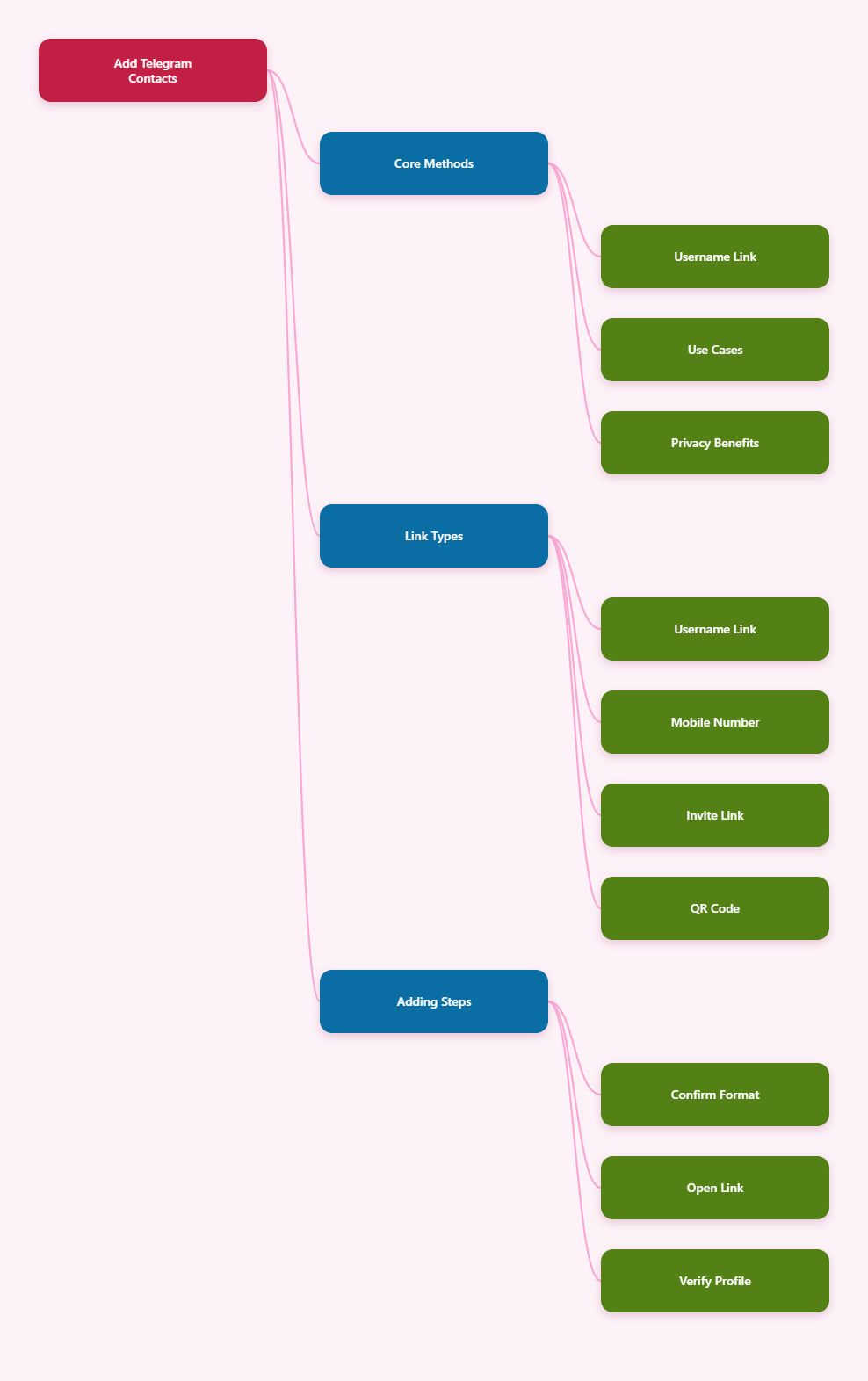
Quick Answer: The Best Way to Add Someone by Username Link
The standard Telegram username link format is https://t.me/username. Replace username with the person’s public Telegram username, without the @ symbol.
Telegram’s own FAQ explains that once a public username is set, people can use t.me/username or username.t.me to open the profile, channel, group, or bot. The user can then start a chat if Telegram allows it under that account’s privacy settings.
- Best for personal contact: Share your own t.me/username link.
- Best for business: Use a public username on a business account, bot, group, or channel.
- Best for offline sharing: Turn the t.me link into a QR code.
- Best for private groups: Use an invite link instead of a public username.
How Telegram Username Links Work
A Telegram username is a public handle that starts with @ inside the app, such as @telegram. Outside the app, the same handle can be shared as a link, such as https://t.me/telegram.
According to Telegram’s FAQ, a public username lets other users find you in Telegram search without knowing your phone number. That is the main reason username links are useful for creators, support teams, freelancers, community managers, and anyone who does not want to publish a personal number.
Username Link vs Phone Number vs Invite Link
Not every Telegram link does the same job. Use the table below to choose the right method before you share anything publicly.
| Method | Best Use Case | Privacy Level | Main Limitation |
|---|---|---|---|
| t.me/username | Adding a person, bot, public group, or channel | Good, because phone number is not required | Only works if the username exists and remains active |
| Phone number | Trusted friends, family, or known colleagues | Lower, because it requires number exchange | May expose personal contact details |
| Private invite link | Private groups and restricted communities | Controlled by admins | Can expire, be revoked, or hit usage limits |
| Telegram QR code | Events, printed materials, packaging, and badges | Depends on the encoded link | Static QR codes must be reprinted if the link changes |
Before You Start: Check These Requirements
Most failed attempts happen because the username is incomplete, private, changed, or typed incorrectly. Run through these checks first.
- The account must have a public username. A phone-number-only account cannot be reached through a normal t.me/username link.
- The username must be exact. Do not add spaces, emojis, or extra punctuation.
- The link should use the t.me format. The clean version is https://t.me/username.
- The Telegram app should be installed. Links can open in a browser preview, but the app gives the smoothest experience.
- Privacy settings still apply. A username can make someone findable, but it does not override Telegram’s account-level protections.
How to Add Telegram Contacts via Username Link
Use this process when someone sends you a Telegram handle, a t.me link, or a QR code that points to a username. The flow is almost the same on iPhone, Android, desktop, and web.
Step 1: Confirm the Username Format
Ask for the person’s public Telegram username or link. A usable username usually appears as @username inside Telegram and as https://t.me/username outside Telegram.
If the person gives you @username, remove the @ symbol when building the link. For example, @alexsupport becomes https://t.me/alexsupport.
Step 2: Open the Link on Your Device
Tap or paste the link into your browser. If Telegram is installed, your device should offer to open the profile in the Telegram app.
If the link opens a Telegram preview page first, tap the button that opens the chat in Telegram. This browser step is normal, especially on desktop or when universal links do not trigger instantly.
Step 3: Verify the Profile Before Messaging
Before you add or message the contact, check the display name, profile photo, bio, mutual groups, and any verification indicators where applicable. Telegram verification is available for large official channels, groups, and bots, not ordinary personal accounts.
This check matters because scammers often copy names and profile photos. The username itself is the stronger identifier, but you should still confirm it through a trusted source when money, contracts, crypto, customer support, or account access is involved.
Step 4: Start the Chat or Add the Contact
Once the profile opens, tap Message to start the conversation. Depending on your app version and platform, you may also see an option to add the person to your contacts from the profile menu.
If you only need to talk once, you may not need to save the person as a phone contact. If you plan to contact them often, save the chat, add a note outside Telegram, or add them to contacts if the app presents that option.
Step 5: Save the Link for Future Use
For business workflows, save the username link in your CRM, help desk, booking form, or internal notes. For personal use, keep it in a contact card or pinned message.
A username can change, so do not treat a t.me link as permanent proof of identity. For important relationships, confirm the username again if a deal, payment, or sensitive file exchange happens later.
How to Create Your Own Telegram Username Link
If you want others to add you without your phone number, create a public username first. Telegram’s FAQ confirms that public usernames allow people to find and message you without knowing your number.
- Open the Telegram app.
- Go to Settings.
- Tap your profile area or username field.
- Choose a clear public username that matches your name, brand, or support identity.
- Save the username if Telegram shows it as available.
- Share your link as https://t.me/yourusername.
Keep the username short, readable, and consistent with your website or social profiles. Avoid random numbers unless your preferred name is unavailable, because people often mistype long or messy handles.
Good Username Practices
- Use brand consistency: Match your domain, social handle, or business name where possible.
- Avoid impersonation risk: Do not choose a handle that looks like another brand or public figure.
- Make it pronounceable: A link is easier to share on podcasts, calls, and event stages when people can hear it once and type it correctly.
- Keep a backup channel: Add the link to your website contact page so people can verify it.
How to Share a Telegram Username Link Safely
A username link is convenient, but it is also public. Anyone who sees it may be able to open your profile and message you, depending on your settings.
Before posting the link on a website, social bio, marketplace profile, or printed flyer, review your Telegram privacy controls. Pay special attention to who can see your phone number, who can add you to groups, and who can call you.
Recommended Privacy Setup
- Open Settings in Telegram.
- Go to Privacy and Security.
- Review Phone Number visibility.
- Limit who can add you to Groups and Channels.
- Review Calls, Forwarded Messages, and Profile Photos.
- Turn on Two-Step Verification for extra account protection.
Security organizations and consumer safety guides regularly warn that Telegram scams often involve impersonation, fake support accounts, phishing links, and pressure to share one-time passwords. Never share Telegram login codes, even if the sender claims to be support.
Free and Paid Tools for Telegram Links
You do not need a tool to create a basic Telegram username link. You can type https://t.me/username manually. Tools become useful when you need QR codes, branded landing pages, analytics, or team workflows.
Free Tools
- Telegram app: Best for creating your username and sharing your profile directly. It is free and official, but it does not provide marketing analytics.
- Browser address bar: Best for quick manual link creation. Type the t.me URL and test it before sending.
- Built-in phone camera QR scanning: Best for opening Telegram QR codes at events. It is simple, but scan behavior depends on the device and installed apps.
- Free QR generators: Best for turning a t.me link into a printable QR code. Use reputable providers and test the final code on multiple phones.
Paid or Business Tools
- Dynamic QR code platforms: Best for campaigns where the printed QR code may need a new destination later. The advantage is editability and scan analytics; the downside is subscription cost and reliance on the provider.
- Omnichannel inbox platforms: Best for teams managing Telegram alongside other messaging apps. They help route conversations, but setup is more complex than a direct username link.
- CRM systems: Best for storing Telegram links next to customer records. They do not create Telegram identity by themselves, but they keep team follow-up organized.
- Link-in-bio tools: Best for creators who want one page linking to Telegram, email, newsletter, and other social profiles. They add a step before Telegram opens, which may reduce direct conversions.
Common Problems and Fast Fixes
When a Telegram username link fails, the cause is usually simple. Work through these fixes before assuming the account is gone.
The Link Opens in Browser, Not Telegram
Install or update the Telegram app, then tap the link again. On desktop, you may need to allow the browser to open external app links.
If your browser blocks the app prompt, copy the username and search it inside Telegram instead. Use Telegram’s search field and enter the handle with or without the @ symbol.
Telegram Says Username Not Found
Check for typos, missing characters, or old usernames. The person may have changed their handle, deleted the account, or moved a public group or channel to a different username.
Ask the owner to resend the link from their current profile. Do not rely on screenshots, because a screenshot can show an outdated or impersonated handle.
A Private Group Link Does Not Work
Private group invite links are different from public username links. Admins can revoke them, set expiration dates, or limit the number of uses.
If a private invite link fails, ask an admin for a fresh invite. If the group became public, the admin may need to share the public t.me/username instead.
You Cannot Message the Person
The account may have privacy restrictions, spam protections, or regional access issues. You can still view a profile in some cases, but messaging may not be available.
Use another verified contact method, such as the person’s official website, email, or public social profile. This is especially important for customer support and payments.
Best Use Cases for Username Links
Telegram username links work best when people need quick contact without exposing phone numbers. They are especially useful in public or semi-public environments.
- Freelancers: Add a Telegram link to proposals, portfolios, and invoices.
- Local businesses: Put a QR code on menus, receipts, window stickers, and delivery cards.
- Community managers: Share public group or channel links on event pages.
- Customer support teams: Use a bot, channel, or business-facing account instead of a personal profile.
- Creators: Place the link in social bios, newsletters, and member onboarding pages.
For anything sensitive, add context near the link. Tell users what will happen after they tap it, who manages the account, and what information they should never send in chat.
FAQ
Can I add someone on Telegram with only their username?
Yes. If the person has a public Telegram username, search for it in Telegram or open https://t.me/username. You do not need their phone number to start from a public username link.
Does a Telegram username link reveal my phone number?
A username link does not automatically publish your phone number. However, your visibility depends on your Telegram privacy settings, so review the Phone Number section under Privacy and Security.
What is the correct Telegram username link format?
The most common format is https://t.me/username. Telegram also supports username-based links such as username.t.me for public usernames.
Can I create a Telegram link to a phone number?
For normal sharing, use a username link instead. Phone-number-based discovery depends on contacts and privacy settings, while public username links are the intended way to let people message you without knowing your number.
Why does my t.me link not open?
The app may not be installed, the browser may not be allowed to open Telegram, the username may have changed, or the invite link may be expired or revoked. Test the link inside Telegram search and ask the owner for a fresh link if needed.
Are Telegram QR codes safe?
They are as safe as the link they contain. Scan only codes from trusted sources, preview the destination when possible, and avoid codes that lead to suspicious bots, fake support accounts, or payment requests.
Final Checklist
To add Telegram contacts via username link in 2026, keep the workflow simple: confirm the username, open the t.me link, verify the profile, start the chat, and save the contact only when needed.