
Trying to add someone on Telegram should be simple, but it can get confusing fast. Maybe you have their phone number but they do not appear, you only know their username, or your contact sync is not working.
This practical guide shows you how to add Telegram contacts easily using every reliable method available in 2026. You will also learn when to use each method, how to protect your phone number, and how to fix missing contacts without guessing.
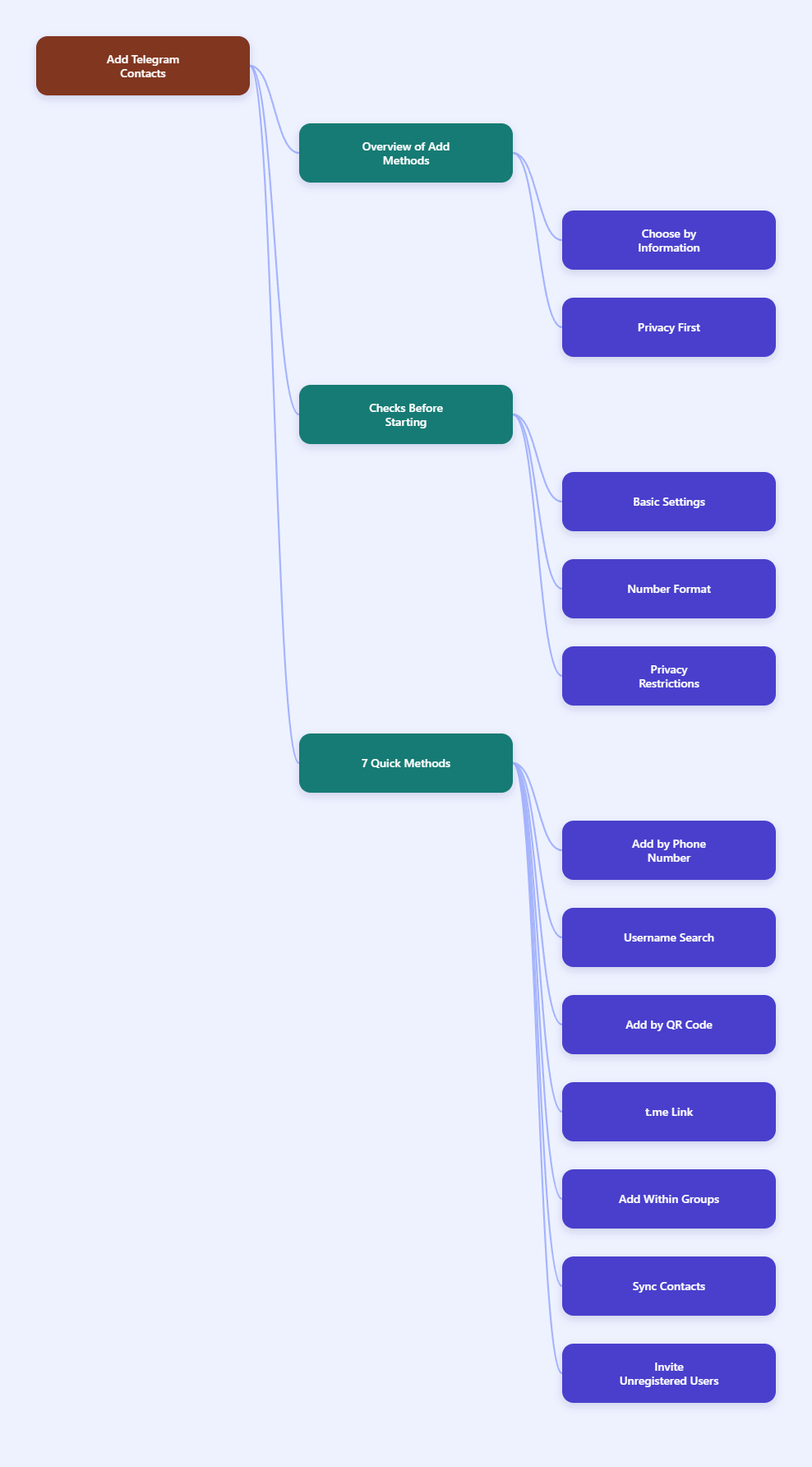
Quick Answer: The Best Way to Add a Telegram Contact
The fastest method depends on what information you already have. Telegram supports adding people through phone numbers, usernames, QR codes, profile links, synced phone contacts, and group or channel invite paths.
If you only remember one rule, use the least sensitive method that still works. A username, QR code, or t.me link is usually better than exchanging phone numbers with someone you do not know well.
| What You Have | Best Method | Privacy Level | Works Best For |
|---|---|---|---|
| Phone number | Add New Contact | Medium | Friends, family, clients you already know |
| Telegram username | Search by @username | High | Online contacts, creators, business leads |
| QR code | Scan profile QR code | High | In-person meetings, events, networking |
| t.me link | Open profile link | High | Websites, emails, social bios |
| Group access | Open profile from shared chat | Medium | Communities, teams, class groups |
Before You Start: Check These Telegram Settings
Most contact problems are not caused by Telegram being broken. They usually come from permissions, privacy settings, or a mismatch between your phone address book and Telegram’s cloud contact sync.
Before trying advanced fixes, review these basics:
- Install the latest official Telegram app for iOS, Android, desktop, or web.
- Make sure your internet connection is stable before syncing contacts.
- Confirm that Telegram has permission to access contacts on your device.
- Use the full international phone format, including country code.
- Ask the other person whether they use a username, hidden number, or privacy restrictions.
Understand Phone Number Privacy
Telegram accounts are created with phone numbers, but that does not mean everyone can see your number. Telegram lets users control who can see their phone number and who can find them by number in Privacy and Security settings.
That is why adding by phone number may fail even when the number is correct. If the person has restricted discovery by phone number, ask for their username, QR code, or t.me link instead.
How to Add Telegram Contacts Easily: Step-by-Step
Use the method that matches your situation. The steps below are written for regular users, not developers, and work for common Telegram mobile and desktop workflows.
1. Add a Telegram Contact by Phone Number
This is the classic method when you already know the person personally. It is best for trusted contacts because it may involve saving a phone number to your device or Telegram contact list.
- Open Telegram on your phone.
- Go to Contacts or tap the new message icon.
- Choose New Contact or Add Contact.
- Enter the person’s first name, last name if needed, and phone number.
- Use the correct country code, such as +1, +44, or +61.
- Tap Create, Save, or the checkmark.
- Open the new contact and send a short message to confirm you found the right person.
If the person does not appear, do not keep adding the same number repeatedly. First confirm the number, country code, and whether the person allows discovery by phone number.
2. Add Someone by Telegram Username
A Telegram username is often the cleanest way to connect without sharing phone numbers. Telegram’s own FAQ explains that a username creates a public t.me-style link and makes the account searchable in global results.
- Ask the person for their exact @username.
- Open Telegram and tap the Search bar.
- Type the username with or without the @ symbol.
- Check the profile photo, bio, mutual groups, or display name before messaging.
- Open the profile and tap Add to Contacts if the option appears.
- Edit the saved name if you want a clearer label in your contact list.
Usernames are public identifiers, so verify carefully. Popular names, impersonators, and similar spellings can lead you to the wrong account.
3. Add a Contact with a Telegram QR Code
QR codes are ideal when you meet someone face to face. Instead of spelling out a username or exchanging numbers, one person shows a profile QR code and the other scans it.
- Ask the person to open their Telegram profile or settings area.
- Have them open their profile QR code if available in their app version.
- Open your phone camera or Telegram’s QR scanner if your version provides one.
- Scan the code and open the Telegram profile link.
- Confirm the profile details, then message or save the contact.
If you are sharing your own QR code for business cards, event booths, or flyers, test it before printing. If the code points to a username and you later change that username, static QR codes may need to be replaced.
4. Add Someone Through a t.me Link
A t.me link is Telegram’s standard public link format for usernames, groups, channels, and bots. For a personal profile, the format usually looks like https://t.me/yourusername.
- Ask the person to send their t.me profile link.
- Open the link on a phone or computer where Telegram is installed or available through the browser.
- Review the profile that opens.
- Start a chat or use Add to Contacts if available.
- Save the link in your CRM, notes, or address book if this is a business contact.
This method is especially useful for websites, email signatures, creator pages, and customer support flows. It also avoids exposing phone numbers during the first contact.
5. Add a Person from a Shared Group
If you and the other person are in the same Telegram group, you may be able to open their profile from the member list or from a message they posted. This depends on the group’s visibility, privacy settings, and moderation rules.
- Open the shared group or community.
- Tap the person’s name or profile picture from a message.
- Review their public profile details.
- Tap Message to start a private chat if Telegram allows it.
- Use Add to Contacts from the profile menu if you want to save them.
Use this respectfully. Just because someone is in the same group does not mean they want unsolicited messages, especially in large public communities.
6. Invite Someone Who Is Not on Telegram Yet
If a person does not have Telegram installed, adding them as a Telegram contact will not create a chat immediately. You can invite them from the mobile app by sharing Telegram’s download or invite flow.
- Open Telegram on your phone.
- Go to Contacts.
- Choose Invite Friends or a similar invite option.
- Select the person from your phone contacts.
- Send the invitation through SMS, email, or another messaging app.
Keep the invitation simple. Tell them why you are inviting them, especially if it is for a team, class, event, or support channel.
7. Add Contacts on Telegram Desktop
Telegram Desktop is useful when you are managing work contacts from a laptop. It syncs with your Telegram account, but phone-level contact permissions and mobile sync settings can still affect what appears.
- Open Telegram Desktop.
- Click the menu icon and open Contacts.
- Select Add Contact if available.
- Enter the name and phone number, including country code.
- Save the contact and wait for Telegram to sync.
If desktop does not show a new phone contact, try adding or syncing it from the mobile app first. Mobile apps usually have the clearest access to your device address book.
Which Method Should You Use?
There is no single best method for every situation. The right choice depends on privacy, speed, trust, and whether you are connecting personally or professionally.
| Situation | Recommended Method | Why It Works |
|---|---|---|
| Close friend or family member | Phone number | Simple and familiar when both sides trust each other |
| Online buyer, seller, or freelancer | Username or t.me link | Avoids exposing private phone numbers |
| Conference or meetup | QR code | Fast, accurate, and easy in person |
| Community member | Shared group profile | Lets you verify context before messaging |
| Business support contact | Public t.me link | Easy to place on websites, emails, and help pages |
Tools That Help You Manage Telegram Contacts
You do not need shady automation tools to manage Telegram contacts well. In fact, avoid tools that promise bulk adding, scraping, or spam outreach because they may violate platform rules, damage trust, or trigger account restrictions.
Free Tools
- Telegram Mobile App: Best for adding contacts, scanning QR codes, inviting friends, and managing privacy settings.
- Telegram Desktop: Best for work chats, typing longer messages, and checking contacts from a computer.
- Phone Contacts App: Best for cleaning duplicate numbers, adding country codes, and organizing real-world contacts.
- Built-in QR Scanner or Camera App: Best for quickly opening Telegram QR codes and profile links.
- Telegram Privacy Settings: Best for controlling who sees your number, who can find you, and whether contacts sync.
Paid or Business-Friendly Tools
- CRM Software: Useful if you handle customer conversations and need to store Telegram usernames or t.me links next to client records.
- Dynamic QR Code Platforms: Useful for printed materials where you may need to update the destination later without reprinting the code.
- Team Inbox Platforms with Telegram Support: Useful for businesses that handle Telegram messages across multiple agents, when officially supported and configured correctly.
The main benefit of paid tools is organization, not magic contact growth. Use them to keep records clean, track consent, and route messages responsibly.
How to Fix Telegram Contacts Not Showing
If you added someone but cannot find them, work through this checklist in order. It solves most contact display and sync issues without deleting your account or reinstalling everything immediately.
- Check the phone number format: Add the country code and remove extra zeros or local-only formatting.
- Confirm Telegram contact permission: On iPhone or Android, allow Telegram to access contacts in system settings.
- Enable Sync Contacts: In Telegram, open Settings, then Privacy and Security, and look for contact sync options.
- Refresh the contact list: Close and reopen Telegram, then check Contacts again.
- Test with username search: If phone lookup fails, search for the person’s username or t.me link.
- Clear Telegram cache: Use Telegram’s storage settings to clear cached files if the app is showing stale data.
- Update Telegram: Install the latest official version from your app store or Telegram’s official desktop site.
- Ask about privacy settings: The other person may not allow people to find them by phone number.
If you previously uploaded messy contacts, Telegram also provides an option to delete synced contacts. Use it carefully: it can clean your Telegram contact list, but it may change what appears across your synced devices.
Privacy Tips Before Adding New Telegram Contacts
Telegram gives users flexible privacy controls, but you still need good habits. A small settings check can prevent awkward exposure of your phone number or unwanted messages.
- Set Who can see my phone number to My Contacts or Nobody if you prefer privacy.
- Review Who can find me by my number before sharing your phone number widely.
- Use a username for public networking instead of giving out your number.
- Do not add strangers from groups unless there is a clear reason to message them.
- Block and report spam accounts instead of replying to suspicious messages.
- Keep business contacts labeled clearly so you do not confuse them with personal contacts.
For businesses, consent matters. If someone gave you a Telegram link for support, do not automatically add them to unrelated groups, channels, or promotional lists.
FAQ: Adding Telegram Contacts
Can I add someone on Telegram without their phone number?
Yes. You can use their Telegram username, t.me link, QR code, or open their profile from a shared group if their privacy settings allow it. This is often the best option for privacy.
Why can’t I find someone on Telegram by phone number?
The number may be saved incorrectly, Telegram may not have contact permission, sync may be off, or the person may restrict who can find them by phone number. Ask for their username or profile link if phone search fails.
Does adding someone on Telegram show my phone number?
It depends on your privacy settings and your relationship with that contact. Telegram lets you control who can see your phone number in Privacy and Security settings, so review those options before adding new people.
How do I add a Telegram contact by QR code?
Ask the person to show their Telegram profile QR code, scan it with your camera or Telegram scanner, open the profile, and start a chat or save them as a contact. Always verify the profile before messaging.
Can I bulk add Telegram contacts?
Regular users should avoid bulk-adding strangers. Telegram supports contact syncing from your own phone address book, but scraping users or mass-adding people can look like spam and may create account risk.
Will deleting synced contacts delete my chats?
Deleting synced contacts is meant to remove imported contact records, not erase your message history. Still, review the prompt carefully before confirming because it affects your contact list across Telegram.
Final Checklist
To add Telegram contacts easily, start with the safest identifier you have: username, t.me link, or QR code. Use phone numbers for trusted people, and check permissions, country codes, and privacy settings when contacts do not appear.