
A growing Telegram community can create a surprising amount of work. New customers open a bot and ask how to get started. Existing contacts request the same information repeatedly. Group members need reminders about community rules, while channel subscribers expect regular updates. When every interaction depends on someone being available to respond or publish a message, routine communication can become difficult to manage.
The challenge is not simply how to create a Telegram chatbot. It is how to turn that bot into a useful part of a business workflow. With the right setup, a Telegram bot can welcome users, provide predefined answers, support community management, and help businesses maintain consistent communication without handling every task manually.
It Starts With One Simple User Action
Imagine a small online business launching a Telegram channel and a customer-facing bot.
A potential customer discovers the business through a social media post, opens its Telegram bot, and presses Start. The customer wants to know what the business offers, how to access its resources, and where to find the latest updates.
This first interaction is an important moment.
If the bot provides no useful information, the customer may leave without understanding what to do next. If the business owner has to manually welcome every new contact, the process becomes increasingly difficult as the audience grows.
A useful chatbot begins by giving users a clear next step.
For example, the welcome message might say:
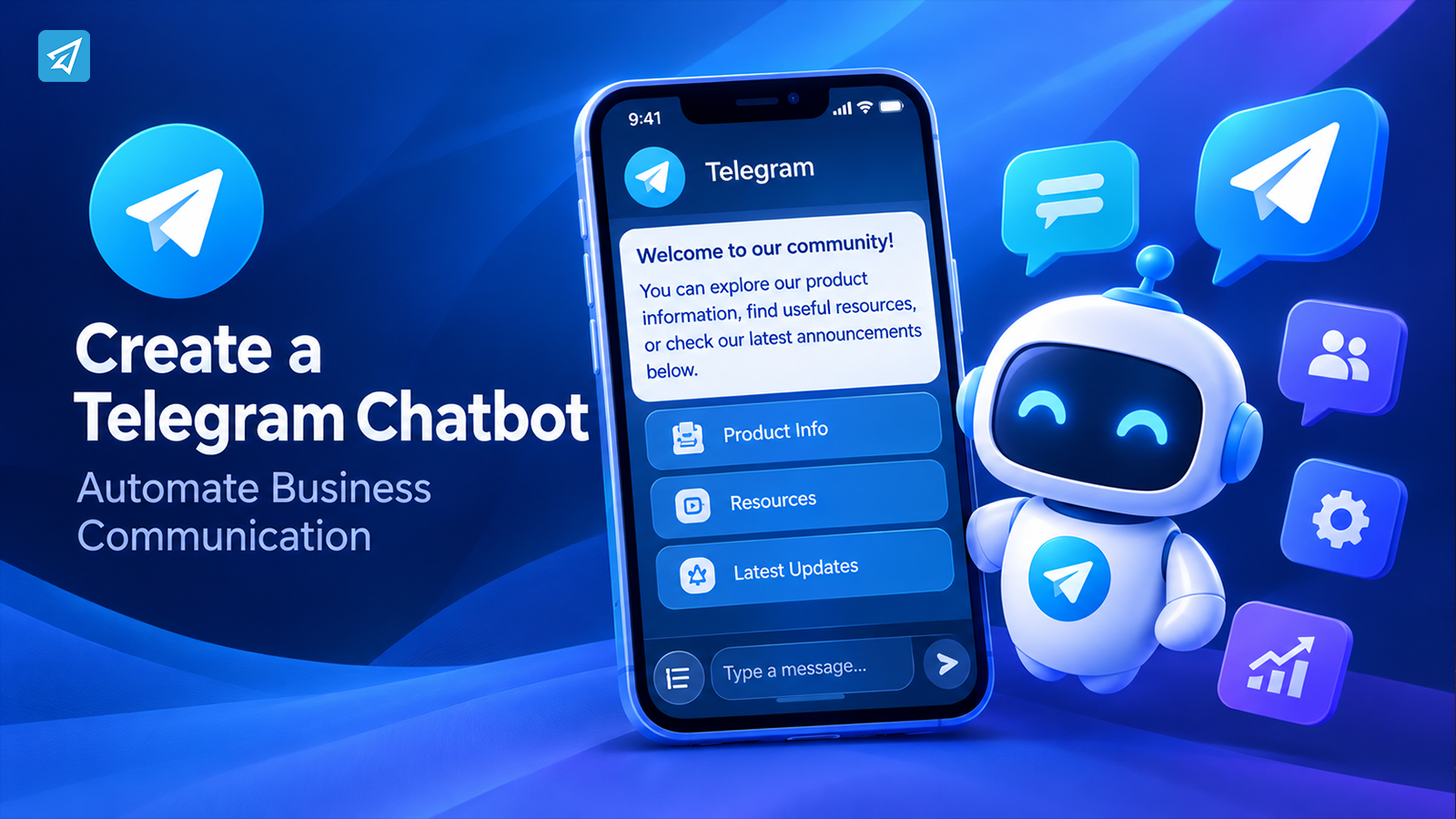
“Welcome to our community! You can explore our product information, find useful resources, or check our latest announcements below.”
Buttons can direct users toward relevant links or predefined content.
The objective is not to create a complicated conversation. It is to make the first interaction easy to understand and useful.
What Happens When the Process Is Manual?
Without automation, the same communication process can involve several repetitive steps.
A customer starts the bot. The business owner receives a message, reads it, and manually sends the appropriate information. Another customer asks the same question later. The owner repeats the process.
The workflow looks like this:
User sends a message → Business owner checks it → Owner prepares a reply → User receives the information
The process works when only a few people are involved. As interactions increase, however, the business begins to encounter several problems.
First, response time depends on availability. A customer who starts a conversation outside business hours may have to wait.
Second, repetitive questions consume time that could be spent on more complex requests or business development.
Third, information may become inconsistent. Different responses can contain different links, instructions, or descriptions.
The same issue appears in community management. Administrators may need to welcome new members, explain group rules, remove spam, and publish reminders. If every action requires manual attention, managing the community becomes an ongoing operational burden.
The solution is to identify which parts of the process follow predictable rules and automate those first.
Now Add Automation to the Workflow
A Telegram chatbot changes the way routine interactions are handled.
Before automation:
User → Staff → Manual Reply
After automation:
User → Telegram Bot → Automation Rule → Response or Action
The business defines what should happen when a particular event occurs. When a user starts the bot, a welcome message is sent. When a message contains a configured keyword, a predefined response can be triggered. When a community needs a recurring announcement, the business can schedule its publication.
This is the practical meaning of Telegram bot automation.
The bot does not need to replace every conversation or handle every unusual request. Instead, it manages predictable interactions and recurring activities.
That distinction is important. A business should automate the tasks that are repetitive and rule-based, while retaining human involvement where personal judgment or a more detailed response is needed.
Step 1: Handle the First Interaction
The first step in creating a useful Telegram chatbot is configuring what happens when someone opens it.
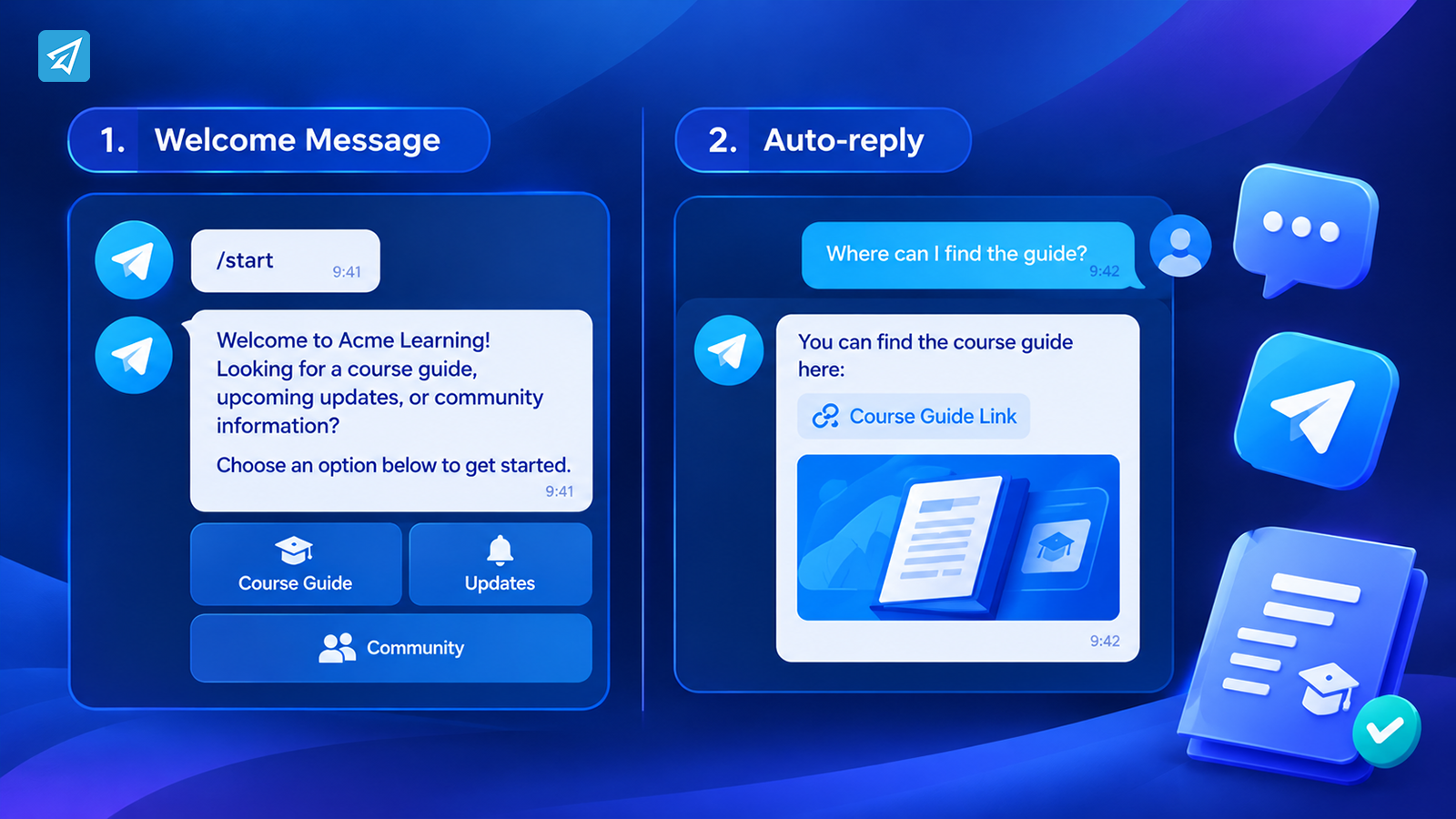
Telegram users can start a bot using the Start button or the /start command. A business can use this moment to introduce the bot and explain what users can do next.
OnlyTG Echo provides a Start Message function that supports text, media, and buttons.
A practical welcome message could look like this:
“Welcome to Acme Learning!
Looking for a course guide, upcoming updates, or community information?
Choose an option below to get started.”
The business can then provide relevant buttons or links.
For a product business, the welcome message might direct customers toward product information. For a creator, it could introduce a content library or community. For a service business, it might explain how to contact the team.
A well-designed welcome message accomplishes three things:
- It introduces the purpose of the bot.
- It reduces uncertainty about what users should do next.
- It directs users toward the information or resources they need.
Instead of treating the Start Message as a simple greeting, businesses can use it as the entry point to a broader communication workflow.
Step 2: Recognize What the User Needs
After the initial interaction, users may ask similar questions.
A customer might write:
“How do I register?”
Another asks:
“Where can I find the product guide?”
A third wants to know:
“Is there a new announcement?”
These questions do not always require a custom response. If the business already knows the appropriate answer, it can configure a keyword-based reply.
OnlyTG Echo supports Auto-reply, allowing businesses to associate keywords with predefined messages. When a contact sends a message containing a configured keyword, the corresponding response can be triggered.
For example:
User: “Where can I find the course guide?”
Configured keyword: guide
Automated response: “You can find the course guide here: [Guide Link].”
The response can include text, media, or buttons, depending on the configured message.
This approach works particularly well for common questions, resource links, instructions, and announcements.
Quick Reply provides another useful option. Businesses can prepare preset messages and trigger them through simple commands when communicating with contacts.
The distinction is straightforward:
Auto-reply handles configured keywords automatically. Quick Reply helps the business send a prepared message when it chooses to respond.
Both reduce the need to repeatedly write the same information.
Step 3: Move Beyond Simple Replies
A Telegram chatbot can support more than individual conversations.
Consider a business that has three communication responsibilities:
- Answering questions from people who contact its bot.
- Maintaining a Telegram group for customers or community members.
- Publishing announcements in a Telegram channel.
Each activity has a different operational requirement.
For private bot contacts, the business may need welcome messages, predefined replies, and broadcasts.
For groups, it may need to verify new members, explain rules, welcome legitimate participants, and respond to common questions.
For channels, it may need to publish content at planned times rather than manually sending every post.
OnlyTG Echo includes capabilities for these different Telegram environments.
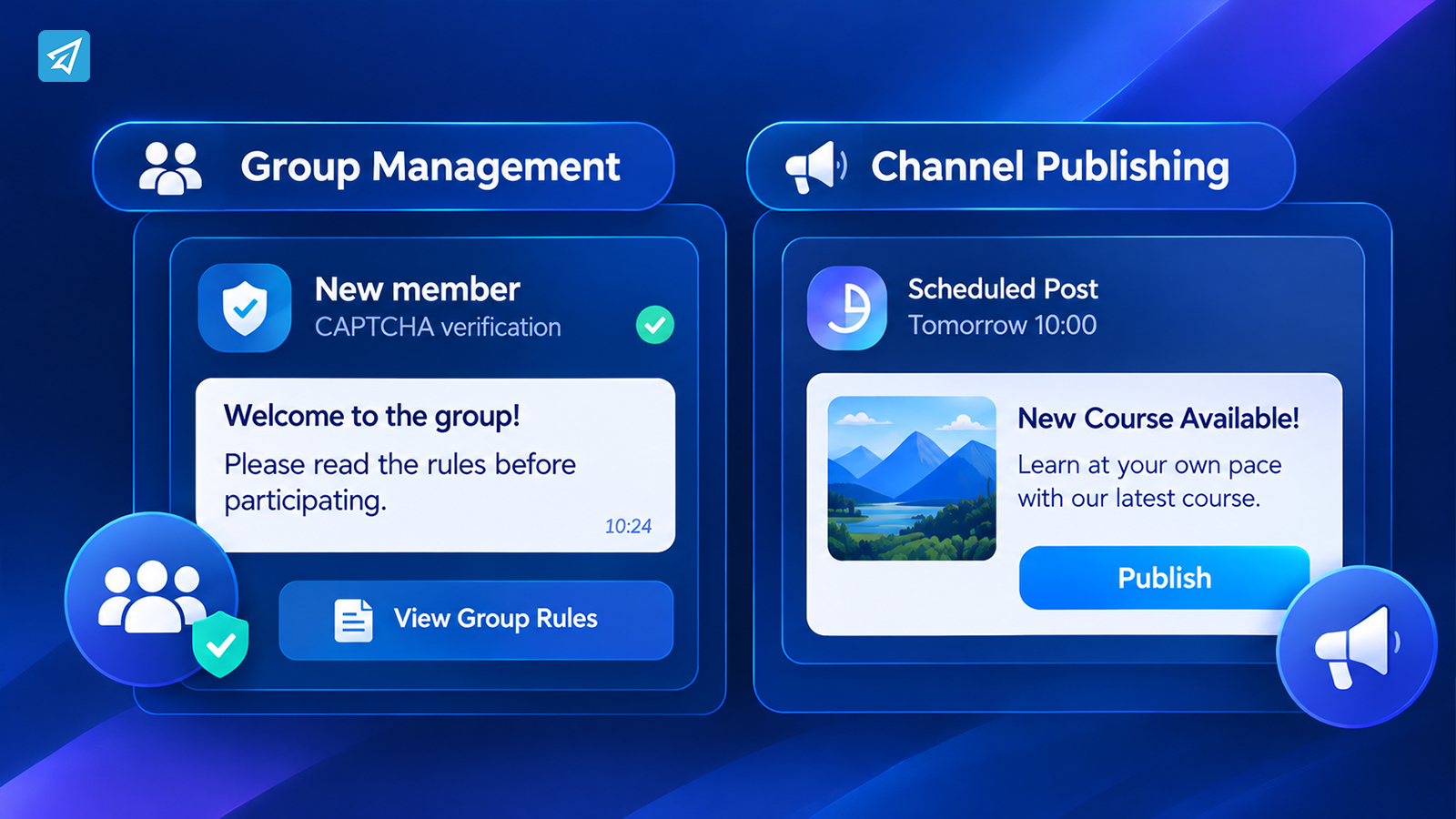
Automating group management
A public group may attract new members every day. Some join to participate in discussions, while others may post spam or irrelevant links.
Administrators can use Group CAPTCHA to verify new members. Group Greeting can send a preset welcome message after a member joins and completes CAPTCHA verification, when enabled.
Group Rules can also be configured to apply community policies and penalties for rule violations.
These functions help businesses establish a more consistent onboarding and moderation process.
Automating channel publishing
A business channel may publish product updates, educational content, event reminders, or community announcements.
Instead of publishing every post manually, the team can prepare content in advance and use scheduled posts.
OnlyTG Echo supports channel posts and scheduled publishing. It also supports loop posts, which can publish preset content periodically where the feature is available.
This helps turn content publishing from an isolated task into a planned operating process.
Step 4: Keep the Workflow Running Automatically
The real value of automation becomes clearer when several activities are connected.
Imagine a business that publishes a weekly resource in its Telegram channel.
The team prepares the content, schedules the post, and shares the relevant information with its audience. Meanwhile, its Telegram bot continues to provide welcome messages and preset responses to contacts.
The workflow becomes:
Prepare content → Schedule publishing → Users receive updates → Contacts interact with the bot → Business reviews activity
Each part supports the next.
A new subscriber can discover the channel, read a post, and open the bot to find additional information. A contact who already uses the bot can receive a broadcast or access a predefined resource.
The business is no longer relying on someone to remember every routine task at the appropriate moment.
It is operating a repeatable communication process.
However, automation should be designed carefully. Businesses should avoid sending unnecessary messages or repeating content too frequently. The objective is consistent, relevant communication—not simply increasing the number of automated messages.
Step 5: Measure What Is Happening
Once a Telegram chatbot and its surrounding workflow are running, the next question is whether the process is serving its purpose.
For example:
- Are people interacting with the bot?
- Are new users joining the group?
- Is the channel attracting subscribers?
- Which sources are bringing people to the bot?
- Does the business need to improve its welcome message or publishing strategy?
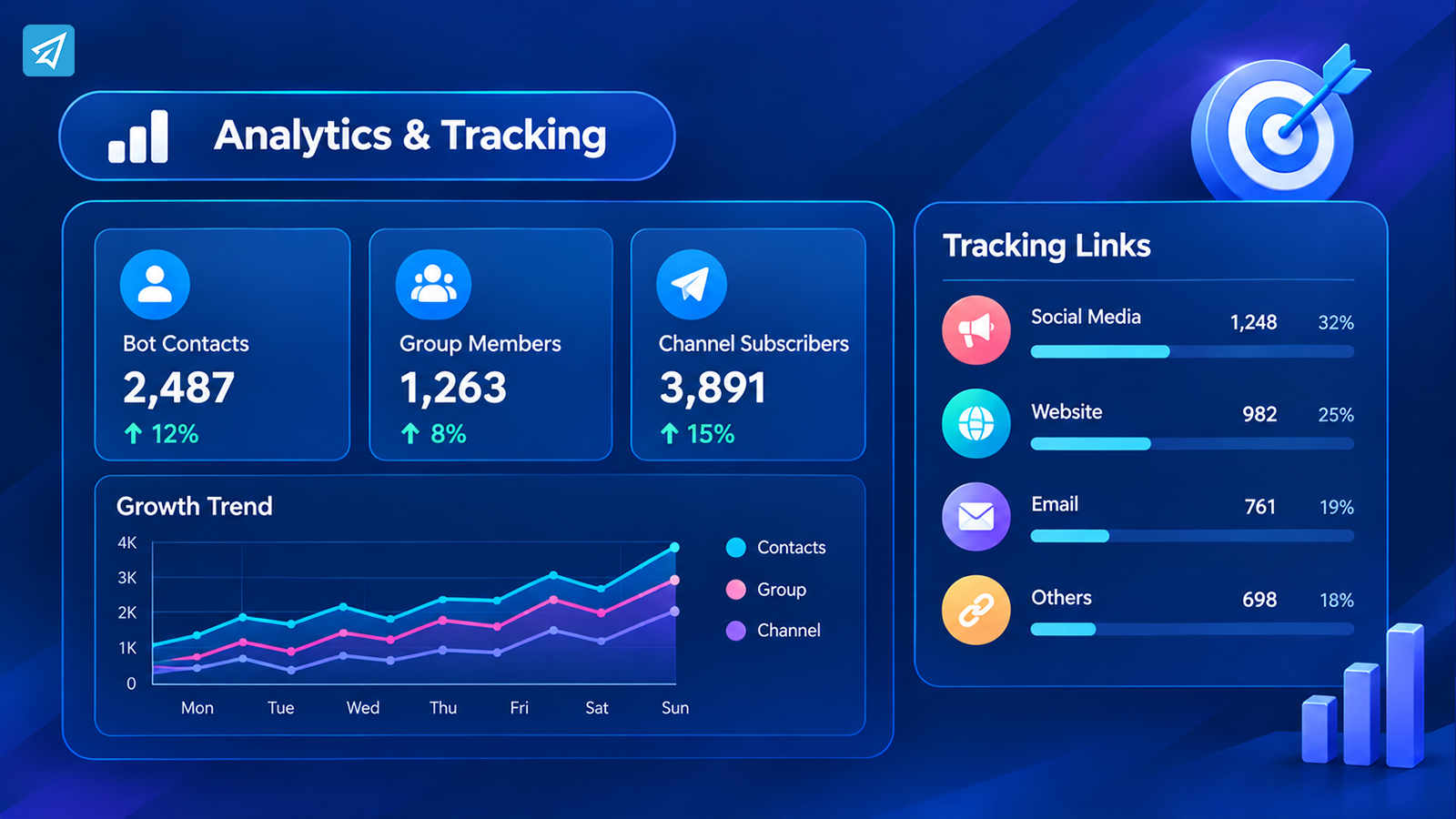
OnlyTG Echo provides analytics for bot contacts, group members, and channel subscribers.
Tracking Links can also help businesses identify the source associated with contacts who start a bot through different tracking links.
This creates a useful feedback loop.
The business can compare the activity associated with different entry points and review whether its communication workflow is working as intended.
Analytics do not automatically explain every user decision. They provide information that businesses can use to make better operational choices.
For example, if a business shares its bot through several promotional links, tracking those links can help it distinguish the sources of new contacts. If a channel publishes recurring content, channel analytics can provide additional information about its audience.
The important principle is to use measurement to improve the workflow rather than treating automation as a one-time setup.
One Workflow, Two Operating Models
| Workflow Stage | Manual Process | Automated Process |
|---|---|---|
| First interaction | Owner welcomes each contact manually | Start Message provides an automatic introduction |
| Common questions | Owner repeatedly writes answers | Keyword-based Auto-reply sends preset information |
| Prepared responses | Messages are copied or rewritten | Quick Reply sends configured messages |
| Group onboarding | Administrators handle new members manually | CAPTCHA and Group Greeting support onboarding |
| Community moderation | Rules and routine actions depend on administrators | Group Rules and keyword replies automate configured actions |
| Content publishing | Every post is published manually | Scheduled and loop posts support recurring publishing |
| Performance review | Activity is reviewed manually | Analytics and Tracking Links provide additional insight |
What This Workflow Looks Like in Practice
Consider a small online education business that uses Telegram to communicate with learners.
The business has a public channel for announcements, a group for community discussions, and a bot that provides useful information.
Here is how the workflow can operate.
1. A user discovers the business
The user sees a promotional link and opens the Telegram channel.
2. The user visits the bot
The user opens the bot and presses Start.
3. The bot introduces the business
The Start Message explains what the bot can provide and includes relevant buttons or links.
4. The user asks a common question
The user sends a message containing a configured keyword, such as “guide.”
5. The bot sends the relevant information
The Auto-reply provides a preset answer with the appropriate resource link.
6. The user joins the community
The user enters the Telegram group, where CAPTCHA and Group Greeting can support the onboarding process.
7. The business publishes recurring content
The team schedules channel posts and prepares group content in advance.
8. The business reviews activity
Analytics and Tracking Links help the team understand bot, group, and channel activity.
The result is a coordinated workflow in which user interaction, routine communication, community operations, publishing, and measurement support one another.
How to Use OnlyTG Echo
A practical implementation can be kept relatively simple.
Step 1 — Create a Telegram Bot
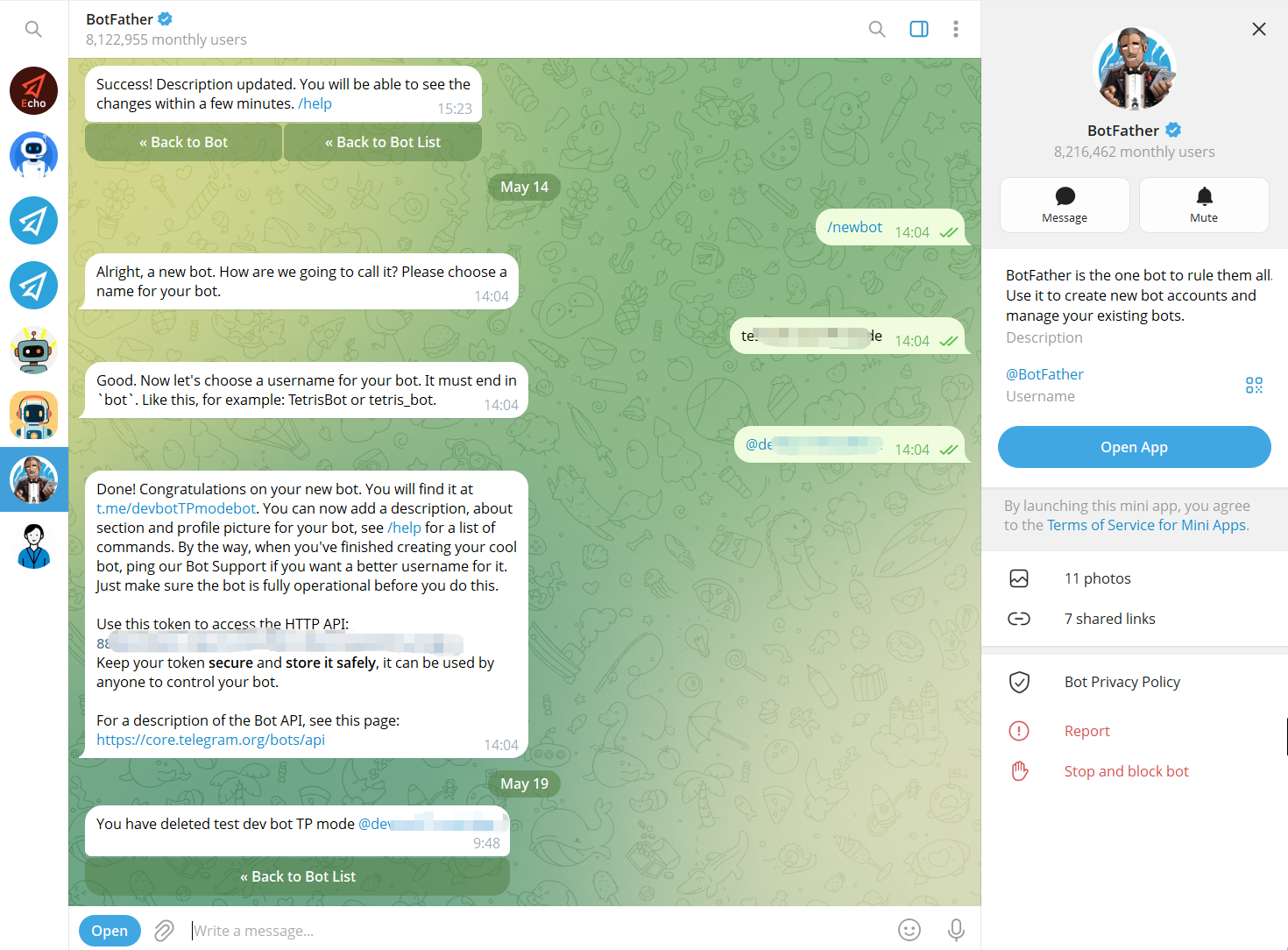
Use Telegram’s BotFather to create a bot and obtain its bot token. The bot becomes the communication interface that users interact with.
Step 2 — Connect the Bot to OnlyTG Echo
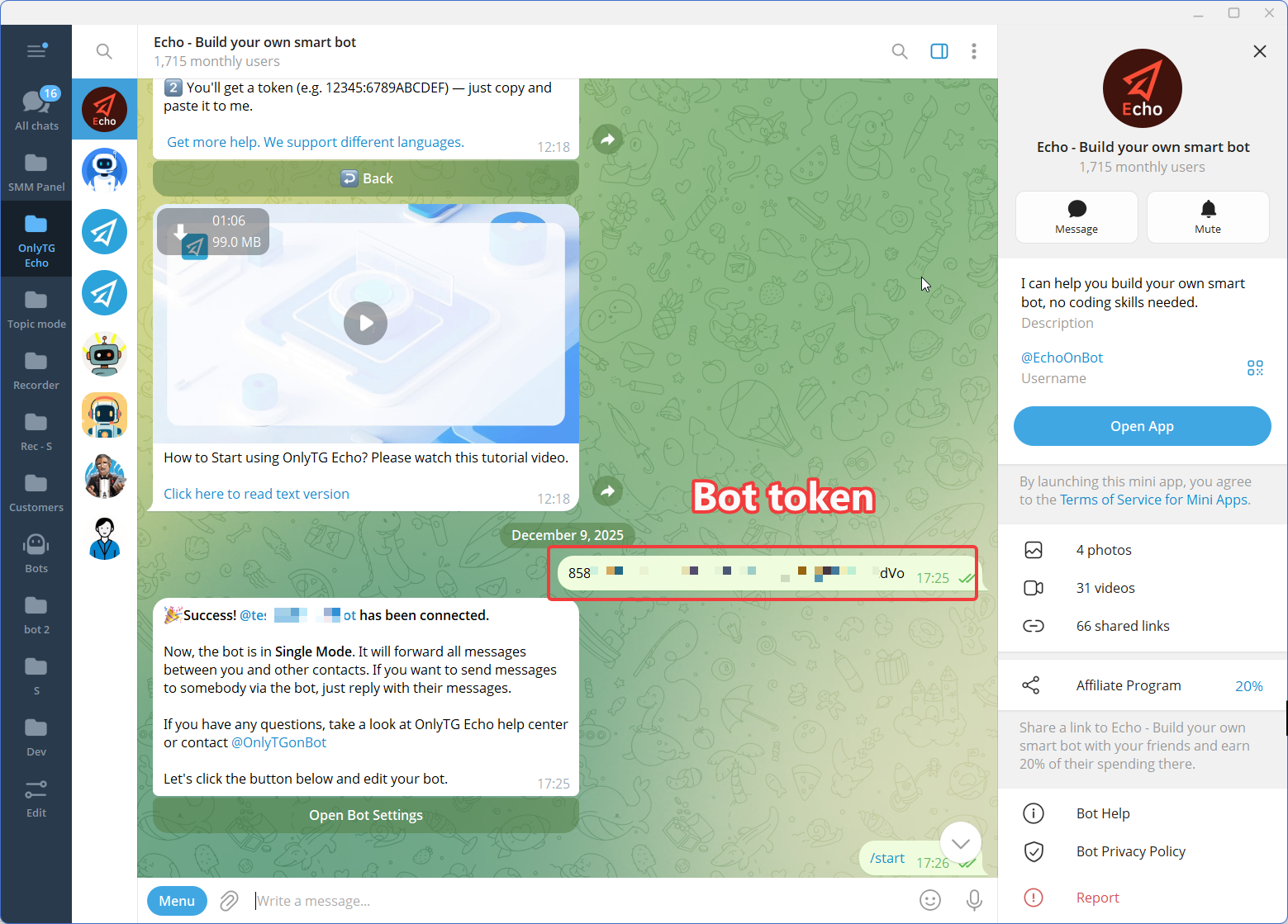
Connect the newly created Telegram bot to OnlyTG Echo using the bot token.
The purpose of this step is to give the business a no-code environment for configuring the bot’s communication behavior rather than requiring a custom automation workflow to be developed from scratch.
Step 3 — Configure the Features
FAQ
1. Do I need coding knowledge to create a Telegram chatbot?
No. Telegram provides @BotFather for creating a bot, while no-code tools such as OnlyTG Echo allow businesses to configure welcome messages, preset replies, group management, and channel publishing without building the entire workflow through code.
2. Can a Telegram chatbot automatically answer customer questions?
Yes, for questions that can be handled through predefined rules. OnlyTG Echo supports keyword-based Auto-reply, which can send configured messages when a user’s message contains a relevant keyword. It is suitable for common questions, instructions, resource links, and other predictable communication.
3. When should a business start automating Telegram communication?
A practical time to start is when repetitive tasks begin taking meaningful time away from other work. Common examples include answering the same questions, welcoming group members, moderating routine activity, and publishing recurring channel updates. Automating one recurring task is often a useful first step.
Conclusion: Turn Your Telegram Bot Into a Business Workflow
Creating a Telegram chatbot is only the beginning. The real value comes from deciding what should happen after a user starts the bot, how common questions should be handled, how communities should be managed, and how communication should continue over time.
A well-designed workflow turns manual interactions into consistent processes while leaving room for human involvement where it matters.
OnlyTG Echo helps businesses configure these processes across Telegram bots, groups, and channels through no-code automation capabilities.
Ready to build a more manageable Telegram workflow? Explore OnlyTG Echo and start configuring the communication tasks your business repeats every day.