
Skip to content
OnlyTG Icon
  • ProductsExpand
    • Echo
    • Recorder
  • ResourcesExpand
    • Help
    • Blog
  • PricingExpand
    • Echo Pricing
  • EnglishExpand
    • 中文 (中国)
    • Русский
    • English
Contact us
Telegram Tips

How to Auto-Replies in Telegram Groups in 2026

Home » Blog » Telegram Tips » How to Auto-Replies in Telegram Groups in 2026

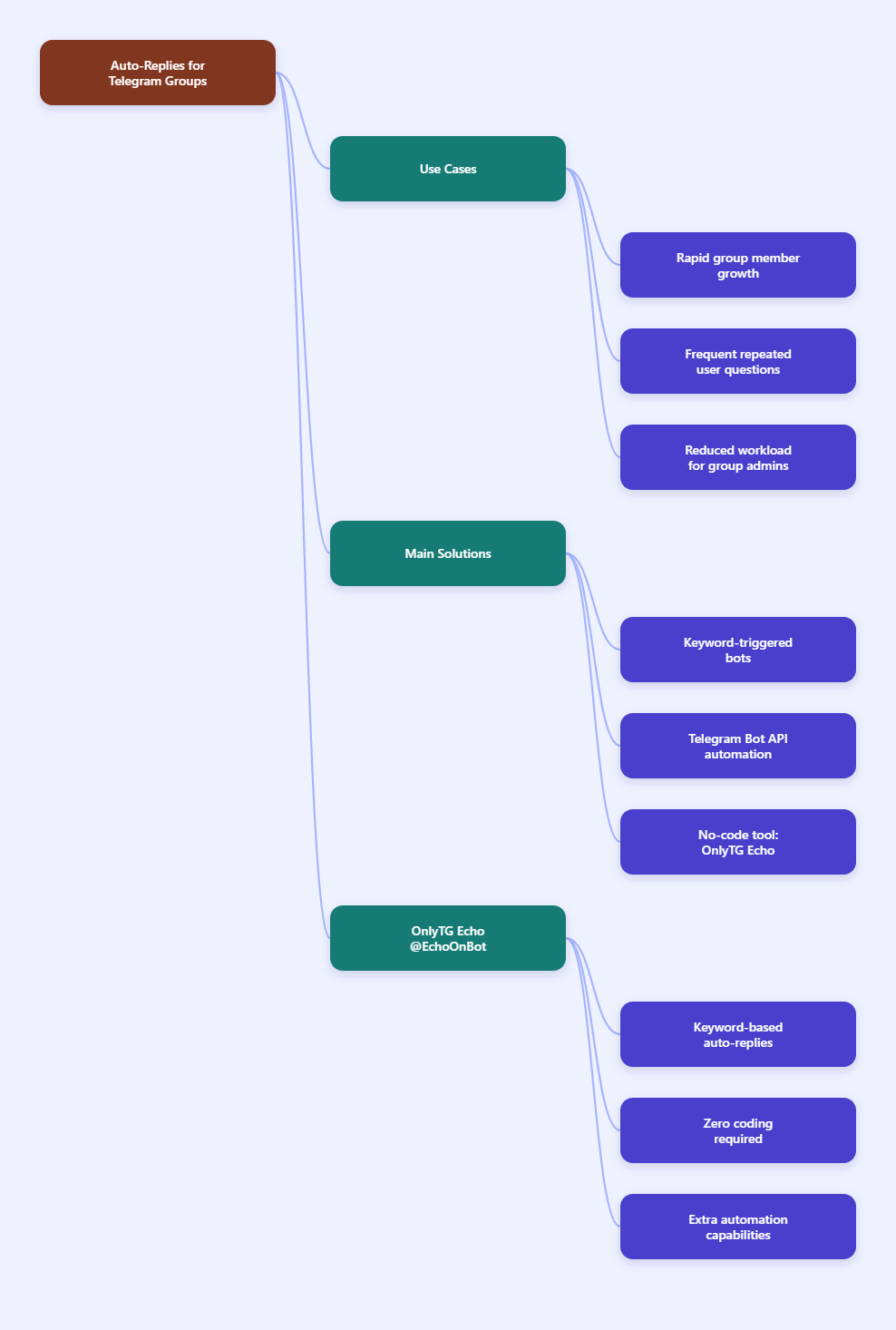
If your Telegram group is growing, repetitive questions can quickly overwhelm admins and slow down engagement. In 2026, the most reliable ways to solve this problem are keyword-triggered reply bots, Telegram bot API-based automation, and no-code tools like OnlyTG Echo. In this guide, you’ll learn how to set up auto-replies in Telegram Groups in a way that is practical, clean, and aligned with how Telegram bots actually work today.
Auto Replies

Step-by-Step Methods to Set Up Auto-Replies in Telegram Groups

Setting up an auto‑reply Telegram Bot and adding it to your group is the fastest way to enable auto‑replies within Telegram Groups. Once you have a bot with auto‑reply capabilities, follow these steps below.
  1. Choose the reply style you need. Decide whether you want simple FAQ replies, welcome messages, support routing, or keyword-based answers. For most groups, keyword replies are the best starting point because they keep the chat tidy and respond only when needed.
  2. Add the bot to your group. In Telegram, bots can be invited to groups by an admin. After adding the bot, grant the permissions it needs. If you want it to read broader group messages, check its privacy mode settings and group permissions carefully.
  3. Set the trigger words. Define the keywords or phrases that should activate a reply. Common examples include “price,” “rules,” “support,” “docs,” or “refund.” Use clear, low-ambiguity triggers so the bot does not answer the wrong messages.
  4. Write the response content. Prepare short, useful replies. You can include text, links, instructions, or formatted guidance. Keep replies concise so they fit naturally in group conversations.
  5. Test in a private or low-traffic group first. Send sample messages that contain the keyword and confirm that the bot replies exactly as intended. Test edge cases such as different capitalizations, punctuation, and partial matches.
  6. Adjust reply timing and scope. If your tool supports it, set a trigger interval or cooldown so the bot does not repeat itself too often. This is especially important in busy groups where the same keyword may appear multiple times.
  7. Review and refine regularly. As your group’s FAQs change, update the bot’s rules and replies. Auto-replies work best when they stay current and aligned with the community’s real questions.

Methods Compared: Which Reply Approach Works Best?

Method Best For Pros Cons
Keyword-triggered bot replies FAQs, support shortcuts, resource sharing Fast to set up, easy to maintain, reduces repetitive admin work Requires clear keywords and good rule design; may need tuning
Manual admin replies Small groups with low message volume Personal, flexible, no setup needed Not scalable, slows response time, easy to miss questions
Custom Bot API automation Teams with technical resources Highly customizable, can integrate with external systems More complex to build and maintain, requires technical skill
No-code automation tools Businesses and communities that want speed Quick configuration, accessible to non-developers, useful dashboards Feature sets vary by platform; some tools may be less flexible than custom code

Practical Tool Recommendation: OnlyTG Echo

If your main goal is to answer repetitive group questions automatically, OnlyTG Echo is a practical option because it supports Keywords Reply for Telegram groups. According to its public product materials, it is designed for smart Telegram automation, including keyword-triggered responses, start messages, quick replies, and group-related automation. That makes it useful for communities that want a clean, low-friction auto-reply setup without building a bot from scratch.

  1. Open OnlyTG Echo and connect your Telegram bot. Start by linking your bot to the platform through the setup flow.
  2. Go to group settings. Select the target group where you want replies to run.
  3. Enable Keywords Reply. Create a new keyword rule and define the trigger word or phrase.
  4. Set the response message. Add the reply content you want members to receive when the keyword is detected.
  5. Adjust trigger rules. Set intervals or other controls so the bot does not over-reply in active chats.

Beyond keyword replies, OnlyTG Echo also offers other useful automation features such as start messages, quick replies, broadcast-style messaging, and group automation workflows. If you manage a Telegram community and want to reduce repetitive admin work while keeping responses consistent, it can be a strong all-in-one option to evaluate.

FAQ: Common Questions About Telegram Group Auto-Replies

Q1: Can a Telegram bot auto-reply to every message in a group?
A1: It can, but that is usually not a good idea. Most groups work better with keyword-triggered replies so the chat stays readable and the bot only responds when needed.

Q2: Do I need to disable privacy mode for auto-replies?
A2: It depends on your setup. Telegram bots in groups are affected by privacy mode and permissions, so you should check how your bot is configured before expecting it to read messages broadly.

Q3: What kinds of messages are best for auto-replies?
A3: FAQs, pricing questions, support links, onboarding instructions, and rules reminders are the best candidates because they appear often and usually need the same answer.

Q4: Will auto-replies make my group look spammy?
A4: Not if you use them carefully. Short replies, clear keywords, and sensible trigger intervals help keep automation helpful rather than intrusive.

Q5: Is a no-code tool better than custom coding?
A5: For most group admins, yes. No-code tools are faster to launch and easier to maintain. Custom code is better only if you need advanced integrations or highly specific logic.

Conclusion

Setting up auto-replies in Telegram Groups in 2026 is easiest when you focus on keyword-based automation, clear reply rules, and careful testing. Whether you use a custom Bot API setup or a no-code platform like OnlyTG Echo, the goal is the same: answer repetitive questions quickly without cluttering the chat. Start with the simplest rules, refine them over time, and keep responses useful. 

Post Tags: #Telegram

Post navigation

Previous Previous
How to Differentiate Telegram Bot Users in 2026
Table of Contents
  • Step-by-Step Methods to Set Up Auto-Replies in Telegram Groups
  • Methods Compared: Which Reply Approach Works Best?
  • Practical Tool Recommendation: OnlyTG Echo
  • FAQ: Common Questions About Telegram Group Auto-Replies
  • Conclusion
Echo Sidebar
  • Latest Post
  • Echo
  • Recorder
  • Tips
Telegram Tips

How to Differentiate Telegram Bot Users in 2026

Segment Telegram bot users with tags, behavior, language, and chat type in 2026

Telegram Tips

How to Set Up Auto-Recurring Posting in Telegram Groups in 2026

Auto-recurring Telegram group posts with bots, Loop Post, and best practices

Telegram Tips

Telegram ChatBot in 2026: A Practical Guide to Setup, Features, Security, and Business Use

Telegram ChatBot setup, features, security, business use, and OnlyTG Echo steps

Telegram Tips

Telegram Channel Management in 2026: A Practical Guide to Building, Running, and Growing Your Channel

Telegram channel management tips, analytics, moderation, and tools for 2026.

Telegram Tips

Telegram Marketing in 2026: A Practical Guide to Grow Your Audience and Get More Leads

Learn how to build a strong Telegram marketing strategy in 2026 with channels, groups, bots, content planning, promotion ideas, and practical tools that help you grow faster.

Telegram Tips

How to Manage a Single Telegram Bot With Multiple Admins Simultaneously in 2026

Manage one Telegram bot with multiple admins using devices, API, or no-code.

Telegram Tips

Telegram Bot Start Message in 2026: How to Create a Better /start Welcome Flow

Learn how to build a Telegram Bot Start Message in 2026 with a clear /start flow, practical onboarding steps, real-world use cases, and tools to automate welcome messages and analytics.

Telegram Tips

Telegram Group Management in 2026: A Practical Guide to Building a Better Community

Practical Telegram group management tips for 2026, including moderation, rules, bots, and tools.

How to Get Unbanned from Telegram in 2026: A Practical Step-by-Step Guide

If your Telegram account or phone number has been restricted, this guide explains how to confirm the ban, appeal to Telegram support, reduce spam flags, and avoid getting blocked again in 2026.

How to create telegram bot in 2026?

Learn how to create a Telegram bot in 2026 using BotFather, with step-by-step coding and no-code methods, plus tips for security, deployment, and choosing the best setup.

How to Loop Post in Channel via Telegram Bot

OnlyTG Echo provides the function to automatically loop posts in your channel. Firstly, you need to create a new bot via @botfather and…

How to Configure Multiple Media when Setting OnlyTG Echo Features

OnlyTG Echo provides the function to configure multiple media to a single message when setting Start Message/Auto Reply/Quick Reply/Broadcast and other features. Firstly, you need…

How to Upgrade Channel to Pro Channel in Telegram

OnlyTG Echo provides the function to upgrade your channel to Pro Channel. This will consume your Pro Communities slots and unlock more advanced features….

How to Edit a Published Post via Telegram Bot

OnlyTG Echo provides the function to Edit Channel Post via your bot. Firstly, you need to create a new bot via @botfather and…

How to Publish Channel Post via Telegram Bot

OnlyTG Echo provides the function to Publish Channel Post via your bot. Firstly, you need to create a new bot via @botfather and…

How to Manage Channel via Telegram Bot

OnlyTG Echo provides the function to Manage Channel via your bot. Firstly, you need to create a new bot via @botfather and send its…

How to Use OnlyTG Recorder?

Welcome to OnlyTG Recorder! Developed by our dedicated bot development team, OnlyTG Recorder is designed to serve as an assistant…

How to Differentiate Telegram Bot Users in 2026

Segment Telegram bot users with tags, behavior, language, and chat type in 2026

How to Set Up Auto-Recurring Posting in Telegram Groups in 2026

Auto-recurring Telegram group posts with bots, Loop Post, and best practices

Telegram ChatBot in 2026: A Practical Guide to Setup, Features, Security, and Business Use

Telegram ChatBot setup, features, security, business use, and OnlyTG Echo steps

Telegram Channel Management in 2026: A Practical Guide to Building, Running, and Growing Your Channel

Telegram channel management tips, analytics, moderation, and tools for 2026.

Telegram Marketing in 2026: A Practical Guide to Grow Your Audience and Get More Leads

Learn how to build a strong Telegram marketing strategy in 2026 with channels, groups, bots, content planning, promotion ideas, and practical tools that help you grow faster.

How to Manage a Single Telegram Bot With Multiple Admins Simultaneously in 2026

Manage one Telegram bot with multiple admins using devices, API, or no-code.

Telegram Bot Start Message in 2026: How to Create a Better /start Welcome Flow

Learn how to build a Telegram Bot Start Message in 2026 with a clear /start flow, practical onboarding steps, real-world use cases, and tools to automate welcome messages and analytics.

Telegram Group Management in 2026: A Practical Guide to Building a Better Community

Practical Telegram group management tips for 2026, including moderation, rules, bots, and tools.

  • OnlyTG
  • Echo
  • Recorder
  • Help
  • Blog
  • Echo Pricing
OnlyTG EchoTelegram VK YouTube Facebook X Email

© 2026 OnlyTG

Scroll to top
  • Products
    • Echo
    • Recorder
  • Resources
    • Help
    • Blog
  • Pricing
    • Echo Pricing
Contact us