
If you want to add Telegram contacts in 2026, the fastest method depends on what information you already have: a phone number, username, QR code, t.me link, or a shared group. Telegram gives you several ways to connect, but each one has different privacy trade-offs.
This guide explains the practical routes that work across iPhone, Android, desktop, and web-style usage. It also shows how to avoid accidentally sharing your phone number or syncing your entire address book when you only want to message one person.
Quick Answer: The Best Way to Add Telegram Contacts
The simplest way is to open Telegram, go to Contacts or Search, enter the person’s phone number or username, open the correct profile, and choose Add to Contacts when the option appears. If you do not want to share numbers, ask for their @username, t.me link, or Telegram QR code.
Use this quick decision rule:
- You have their phone number: add them as a phone contact or create a Telegram contact manually.
- You know their username: search the exact @username and start a chat.
- You meet in person: scan their Telegram QR code.
- You are in the same group: open their profile from the member list or message thread.
- You run a business or community: share a t.me link or QR code instead of asking users to search manually.
The safest general method is username or QR code because it lets both sides connect without immediately exchanging phone numbers.
Before You Add Anyone: What Telegram Uses to Find People
Telegram accounts are created with phone numbers, but users can also set public usernames. That is why a person may be reachable by phone number, username, public link, or QR code.
According to Telegram’s own help and privacy documentation, people can contact you if they know your phone number or if you message them first. Whether they can see your number depends on your privacy settings.
Phone Numbers
A phone number is still the most traditional way to add someone. If the number is linked to an active Telegram account, Telegram can match it and show the user.
This method is convenient, but it is not always ideal for privacy. If your settings allow it, phone-number-based contact discovery may reveal more than you intend.
Usernames
A Telegram username is a public handle such as @example. When someone has a username, you can search it or open a link like https://t.me/example.
Usernames are useful because they allow contact without sharing a phone number. They are especially common for creators, support teams, freelancers, communities, and people who do not want to expose personal contact details.
QR Codes and t.me Links
Telegram supports QR codes for users with public usernames, as well as groups, channels, and bots. Scanning the code opens the right Telegram destination without typing.
A t.me link works in browsers and usually opens the Telegram app if it is installed. For a personal profile, the basic format is https://t.me/username.
How to Add Telegram Contacts by Phone Number
Adding by phone number is best when you already know the person offline, such as a friend, client, colleague, or family member. It is also the most familiar method for users moving from regular phone contacts.
On iPhone
Open Telegram and go to the Contacts area. Tap the add contact option, enter the person’s first name and phone number with the correct country code, then save.
If Telegram cannot find the account, check three things:
- The number includes the correct country code.
- The person actually uses Telegram with that number.
- Telegram has contact permission if you are relying on contact syncing.
Some iPhone users also run into permission restrictions from iOS settings or Screen Time. If manual contact adding fails, review iOS contact permissions for Telegram before assuming the number is wrong.
On Android
Open Telegram, tap the menu or new message icon, then choose Contacts or New Contact. Enter the name and phone number, including the international country code, and save.
If contact names do not appear correctly, go to Telegram settings and review contact sync. You may need to refresh synced contacts or check Android app permissions.
On Telegram Desktop
Telegram Desktop usually lets you add contacts from the Contacts section or from a user profile when the option is available. Enter the phone number and name, then save the contact.
Desktop interfaces can vary by platform and app version. If an option is missing, add the contact from the mobile app first; Telegram normally syncs contacts across logged-in sessions.
How to Add Telegram Contacts Without a Phone Number
Many people search for how to add Telegram contacts without a phone number because they want privacy, business separation, or a cleaner public identity. Telegram supports this through usernames, links, QR codes, and shared groups.
Use an Exact @Username
Tap the search icon in Telegram and type the exact username, including or excluding the @ symbol. Open the matching profile, confirm the name, profile photo, and bio, then start a chat or add the person if the option appears.
Be careful with lookalike usernames. Scammers often copy display names and profile photos, but they cannot use the exact same username.
Use a t.me Profile Link
If someone sends you a link like https://t.me/theirusername, open it in your browser or Telegram. It should take you directly to that person’s profile or chat screen.
This is often the easiest method for websites, email signatures, social media bios, event pages, and customer support pages. It removes the risk of users searching the wrong name.
Use a Shared Group
If you and the person are in the same Telegram group, tap their profile from a message or the member list. You can message them, view available profile details, and add them if Telegram shows the contact option.
Remember that group visibility does not automatically mean the person wants private messages. For business or community etiquette, send a short context line before starting a longer conversation.
Phone Number vs Username vs QR Code: Which Method Should You Use?
Each method has a different balance of speed, privacy, and reliability. Use the table below when choosing the best way to add someone.
| Method | Best For | Privacy Level | Main Risk | Practical Tip |
|---|---|---|---|---|
| Phone number | Friends, family, known clients | Medium | Number visibility and contact sync | Check country code and phone privacy settings |
| Username | Public networking, creators, support | High | Fake lookalike profiles | Verify the exact @username |
| t.me link | Websites, bios, campaigns | High | Wrong or spoofed links | Use the official t.me format |
| QR code | Events, business cards, in-person meetings | High | Outdated printed code | Test the code before publishing |
| Shared group | Communities and team spaces | Medium | Unwanted private messages | Add context before messaging |
For most public or semi-public situations, username, QR code, or t.me link is better than phone number. For close personal contacts, phone number remains simple and reliable.
How to Use Telegram QR Codes in 2026
Telegram QR codes are useful when typing usernames is slow or error-prone. They are also practical for events, restaurants, packaging, printed flyers, business cards, and in-store support desks.
Create Your Own QR Code
If your account has a public username, open your Telegram profile or settings and look for the QR code option near the username area. Telegram’s QR feature has supported public usernames, groups, channels, and bots since the QR code rollout.
Before sharing it widely, scan it from another phone. Make sure it opens the correct profile, group, channel, or bot.
Scan Someone Else’s QR Code
Open Telegram and use the built-in scan option where available, or use your phone camera if it recognizes Telegram links. After scanning, check the profile before messaging.
QR codes are fast, but they are not magic proof of identity. A printed QR code can be replaced, so verify high-risk business or payment conversations separately.
Use QR Codes for Business Contacts
Businesses should connect QR codes to a public username, group, channel, or support bot. This is cleaner than publishing a personal phone number.
For best results, place the QR code next to a clear call to action:
- Chat with support on Telegram.
- Join our Telegram updates channel.
- Scan to message our sales team.
- Get order alerts through Telegram.
Privacy Settings to Check Before Adding People
Before you add Telegram contacts, spend one minute reviewing privacy settings. This prevents accidental exposure of your phone number, contact list behavior, or profile details.
Phone Number Visibility
Go to Settings, then Privacy and Security, then Phone Number. Telegram normally gives controls for who can see your phone number and who can find you by your number.
A privacy-conscious setup is usually:
- Who can see my phone number: Nobody or My Contacts.
- Who can find me by my number: My Contacts, if available in your app version.
- Exceptions: only for people you trust.
The exact wording can vary by platform and update, but the idea is the same: decide whether your number is visible and whether number-based discovery is allowed.
Contact Sync
Telegram asks permission before syncing contacts. Its privacy policy says it stores names and phone numbers from your address book to notify you when contacts join and to display names correctly.
If you do not want Telegram to upload your address book, turn off Sync Contacts in Telegram’s privacy or data settings. You can also use Delete Synced Contacts if you previously allowed syncing and now want to remove uploaded contacts.
Profile Photo and Last Seen
Adding someone does not only affect the contact list. Depending on your settings, they may also see your profile photo, bio, online status, calls availability, or forwarded-message link behavior.
Review these settings if you use Telegram for work, public communities, or high-volume networking.
Common Problems When Adding Telegram Contacts
Most contact problems come from wrong numbers, missing permissions, privacy settings, or app differences. Start with the simplest checks before reinstalling the app.
The Contact Does Not Appear
Confirm that the phone number is linked to Telegram and includes the correct country code. If you imported the number from your phone book, check whether Telegram has access to contacts.
If you are using a username, search the exact handle. Display names are not unique, so they are less reliable than usernames.
The Add Contact Button Is Missing
Telegram interfaces differ between iOS, Android, desktop, and web versions. Some actions are easier on mobile than on web clients.
If you cannot find the add option, start a chat, open the user profile, or add the person from your phone contacts. If that fails, ask the person to send a t.me link or QR code.
Names Show as Numbers
This can happen when contact sync is disabled, permissions changed, or the phone book entry does not match Telegram’s stored contact. Refresh contacts, check app permissions, and confirm the number format.
If privacy is more important than name matching, keep sync off and save only the contacts you truly need.
Safety Checklist Before You Add Telegram Contacts
Telegram is widely used for personal messaging, communities, creators, trading groups, customer support, and bots. That flexibility also means you should verify who you are adding.
- Check the exact username: one extra letter can lead to the wrong person.
- Review mutual groups: they can help confirm context, but they are not identity proof.
- Do not trust profile photos alone: images are easy to copy.
- Avoid sharing codes: Telegram login codes are never needed to add contacts.
- Be careful with payment requests: verify through another channel before sending money.
- Use privacy exceptions sparingly: do not expose your phone number to everyone by default.
For businesses, use official usernames and consistent branding. For individuals, use a username when you want reachability without giving away your personal number.
Best Practices for Websites, Blogs, and Online Stores
If you run an independent website, blog, or ecommerce store, do not make visitors guess how to find you on Telegram. Use a clean t.me link, a tested QR code, and a short explanation of what happens after they click.
Use One Clear Telegram Destination
Send users to the right place based on intent. Use a personal profile for one-to-one consulting, a bot for automated support, a channel for announcements, and a group for community discussion.
Too many Telegram links on one page can confuse visitors. One primary call to action usually performs better.
Set Expectations
Tell users whether they are contacting support, joining a public channel, or entering a discussion group. This improves trust and reduces accidental messages.
Good examples include:
- Message us on Telegram for order support.
- Join our Telegram channel for weekly updates.
- Scan the code to add our Telegram contact.
Test Mobile and Desktop Flow
Open your t.me link from iPhone, Android, desktop browser, and Telegram Desktop if possible. The link should open the correct profile or destination every time.
If you print a QR code, test the final printed version, not just the digital file. Low contrast, small size, and glossy surfaces can make QR codes harder to scan.
Conclusion: The Smart Way to Add Telegram Contacts in 2026
The best way to add Telegram contacts in 2026 is to choose the method that matches your relationship and privacy needs. Use phone numbers for trusted personal contacts, usernames or t.me links for public networking, and QR codes for fast in-person or business sharing.
Before adding many people, check phone number visibility, contact sync, and profile privacy. A few settings can prevent unwanted number exposure while keeping Telegram easy to use.
If you remember one rule, make it this: use usernames, links, or QR codes when privacy matters, and use phone numbers only when you already trust the contact.
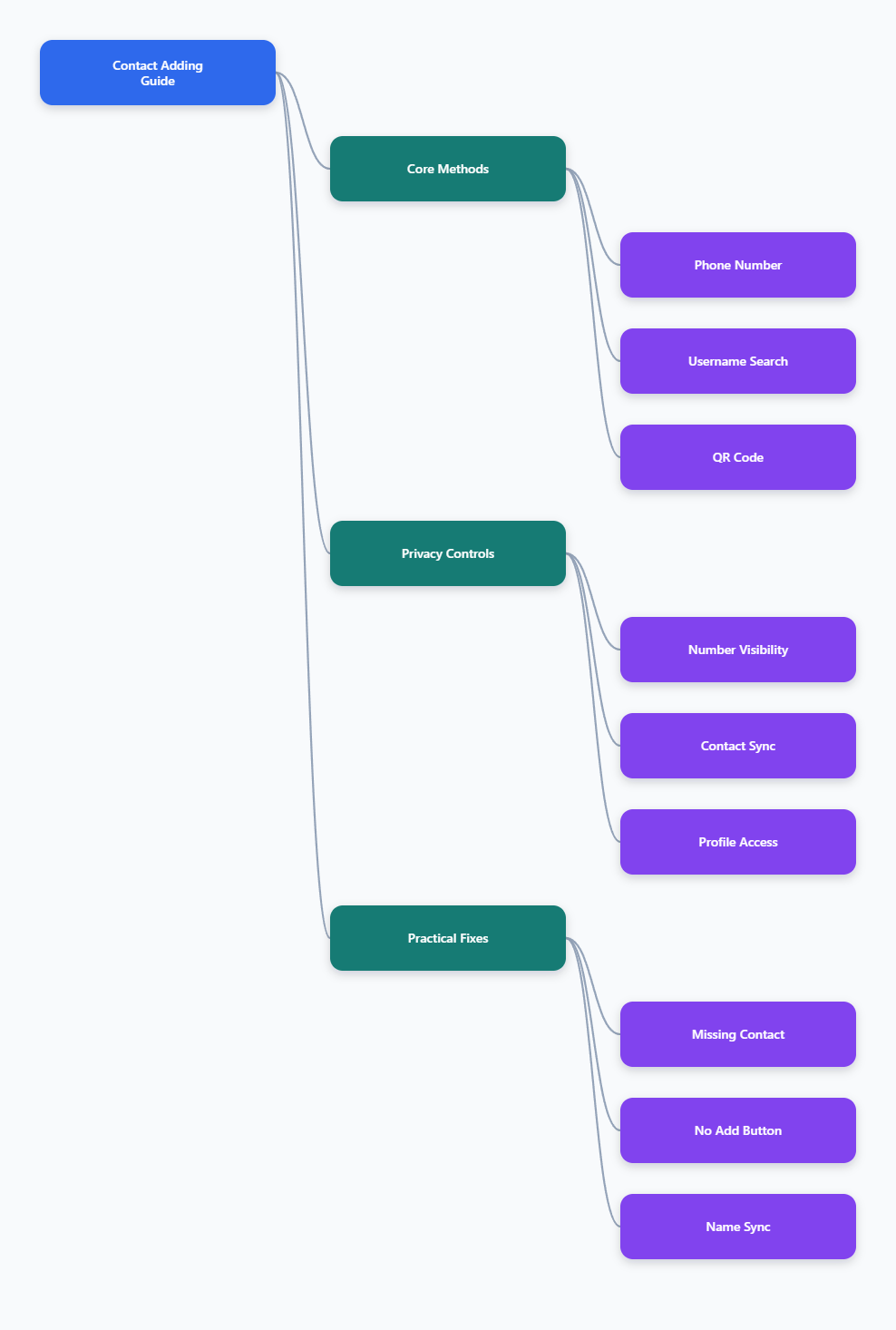
Article Structure Summary
Contact Adding Guide
- Core Methods
- Phone Number
- Username Search
- QR Code
- Privacy Controls
- Number Visibility
- Contact Sync
- Profile Access
- Practical Fixes
- Missing Contact
- No Add Button
- Name Sync