
Setting up Telegram on an iPhone should be simple, but many new users still get stuck at the same points: the app is missing from search results, the verification code does not arrive, or Telegram says a code was sent to another device.
This article explains the full iPhone setup flow, what to check before you begin, how to avoid common registration mistakes, and what to do when the code screen does not behave as expected. You will also learn the first privacy and security settings to change after registration.
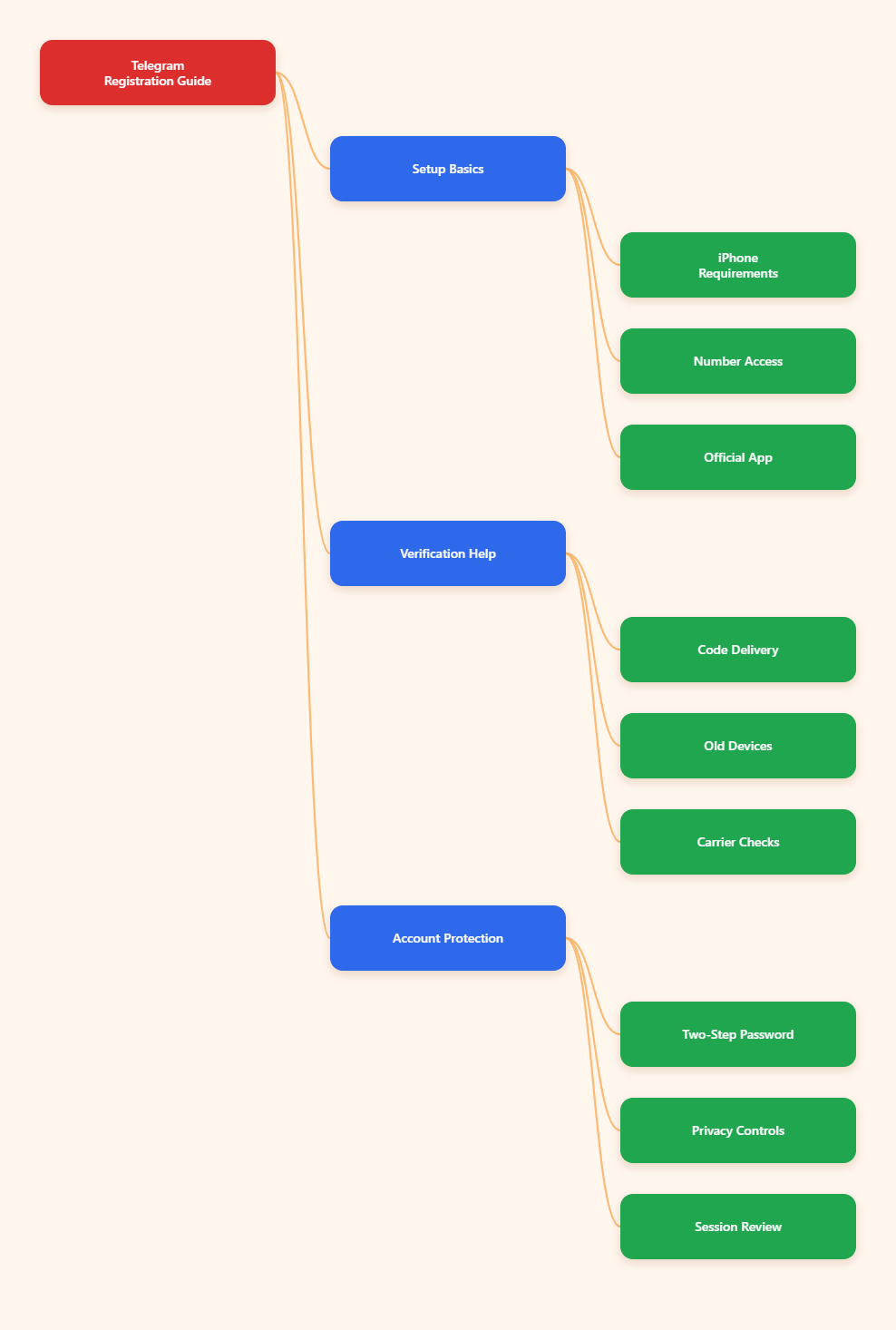
What Do You Need Before Registering Telegram on iPhone?
Before opening the App Store, make sure your iPhone and phone number are ready. Most registration failures happen because the number cannot receive codes, the country code is wrong, or an old Telegram session already exists somewhere else.
Basic iPhone Requirements
Telegram Messenger is available from the Apple App Store in supported regions. Apple listings commonly show that Telegram requires a recent iOS version, with current listings indicating iOS 13.0 or later for iPhone in many markets.
Before installing, check:
- Your iPhone has a stable Wi-Fi or cellular connection.
- Your iOS version meets the App Store requirement shown in your region.
- You have enough storage for the app and its cache.
- Your Apple ID can download apps in your current App Store country.
If Telegram does not appear in search, open the official Telegram Messenger listing from the App Store rather than downloading random apps with similar names.
Phone Number Access
Telegram registration requires a valid phone number. You do not need to show that number to every Telegram user later, but you do need access to it during registration.
Use a number that can receive:
- SMS from verification services.
- Incoming voice calls, if Telegram offers a call option.
- Future recovery messages if you change phones.
Avoid disposable public numbers. They may work once, but you can lose access later and become locked out of the account.
How to Register in Telegram on iPhone iOS Step by Step
The safest way to register is to install the official app, enter your real country code, verify the code, and immediately review your security settings.
Step 1: Download the Official App
Open the App Store and search for Telegram Messenger. Check that the app is published by Telegram FZ-LLC or the official Telegram publisher shown in your region.
Tap Get, confirm with Face ID, Touch ID, or your Apple ID password, and wait for the installation to finish.
Step 2: Start Registration
Open Telegram and tap Start Messaging. Select your country from the list or confirm that the country code is correct.
Enter your phone number without extra spaces, symbols, or a leading zero if your country format does not require it. A wrong country code is one of the most common reasons Telegram verification fails.
Step 3: Enter the Verification Code
Telegram may send a login code in different ways depending on whether the number already has an active Telegram session. If you are new, the code is usually sent by SMS or phone verification when available.
If the number was used before and another device is still logged in, Telegram may send the code to that existing Telegram app first. In that case, check your old phone, tablet, desktop app, or Telegram Web session.
Step 4: Add Your Profile Details
After verification, Telegram asks for your name. Use a display name you are comfortable showing to people you message.
You can add a profile photo now or skip it. For privacy, many users start without a face photo and adjust visibility settings first.
Why Is Telegram Not Sending the Code?
Code delivery issues are common on iPhone, especially after changing devices, traveling, using a blocked number type, or reinstalling the app. The key is to identify where Telegram is trying to send the code.
Check Old Logged-In Devices
If Telegram says it sent a code to another device, it means your number is likely already tied to an existing Telegram account. Telegram prefers sending login codes inside active Telegram sessions for security.
Look for the code on:
- Your old iPhone or Android phone.
- An iPad with Telegram installed.
- Telegram Desktop on Windows, macOS, or Linux.
- Telegram Web in a browser session.
If you still have access to one of these sessions, use the in-app code to complete login on the iPhone.
Wait for SMS or Call Options
Telegram may not show every verification option immediately. In many cases, you need to wait on the code screen before an SMS or call option appears.
Do not repeatedly delete and reinstall the app every few minutes. Too many attempts can trigger temporary limits and make the delay worse.
Check Carrier and iPhone Filters
Some carriers block or delay automated verification messages. iPhone settings can also hide unknown senders, making a code harder to spot.
Try these checks:
- Confirm airplane mode is off.
- Restart the iPhone once.
- Check the Messages app, including unknown sender filters.
- Disable call blocking or SMS filtering apps temporarily.
- Try again on a stable mobile network instead of only Wi-Fi.
Can You Register Telegram Without a Phone Number in 2026?
For normal users, Telegram still requires a phone number during sign-up. You can hide the number from most people later, but you cannot simply create a standard Telegram account with only an email address.
Virtual Numbers and Privacy
Some users choose a secondary SIM, business line, or paid private number to separate Telegram from their personal phone number. This can be reasonable if you keep long-term access to that number.
The risk is account recovery. If you lose the number and also lose all logged-in Telegram sessions, Telegram may not be able to prove the account belongs to you.
Temporary Numbers Are Risky
Free public SMS websites and recycled temporary numbers are unsafe for Telegram registration. Anyone who later receives the same number may try to access the account.
Do not use a number you cannot control. This is especially important if you plan to use Telegram for business, crypto communities, customer chats, or private groups.
Hide Your Number After Signup
After you register, go to Settings > Privacy and Security > Phone Number. Telegram lets you control who can see your number and who can find you by number.
For most privacy-focused users, a safer setup is:
- Who can see my phone number: Nobody or My Contacts.
- Who can find me by my number: My Contacts.
- Username: Use a username for sharing instead of your phone number.
2026 Telegram iPhone Registration Checklist
The table below summarizes the practical differences between a smooth registration and a risky setup. Use it before you create the account, especially if you are setting up Telegram for work or community management.
| Area | Recommended in 2026 | Risky Approach | Why It Matters |
|---|---|---|---|
| App source | Official App Store Telegram Messenger | Clone apps or unknown links | Protects login codes and account data |
| Phone number | Long-term SIM or trusted secondary line | Public temporary number | Prevents future lockouts |
| Verification | Check old sessions, SMS, and calls | Spam repeated attempts | Avoids delays and temporary limits |
| Privacy | Hide number and use username | Leave defaults unchecked | Reduces unwanted contact discovery |
| Security | Enable two-step verification | Rely only on SMS codes | Adds protection if the number is compromised |
How Should You Secure Telegram After Registration?
Registration is only the first step. Once your iPhone is logged in, spend five minutes locking down the account before joining public groups or sharing your username.
Enable Two-Step Verification
Open Settings > Privacy and Security > Two-Step Verification. Add a strong password and recovery email if Telegram offers that option in your region and app version.
This adds an extra password on top of login codes. It is one of the most important protections against SIM swap attacks, stolen numbers, and unauthorized login attempts.
Review Active Sessions
Go to Settings > Devices and review every active session. If you see a device, browser, or location you do not recognize, terminate that session.
This is especially important if the phone number was used for Telegram before or if you bought a second-hand device.
Adjust Discovery Settings
Telegram can connect people through phone contacts, usernames, groups, and forwarded messages. You should decide how discoverable you want to be.
Review these settings:
- Phone number visibility.
- Profile photo visibility.
- Calls and peer-to-peer call settings.
- Forwarded message attribution.
- Group and channel invite permissions.
These settings make the difference between a clean private setup and an account that exposes more than you intended.
What Mistakes Should New Telegram iPhone Users Avoid?
Most serious Telegram problems start with small setup choices. Avoiding these mistakes helps you keep access to your account and reduces privacy risks.
Do Not Share Login Codes
Telegram login codes are for you only. No support agent, group admin, buyer, seller, or bot needs your verification code.
If someone asks for the code, assume it is an account takeover attempt.
Do Not Depend on One Device
If your iPhone is your only logged-in device and you lose the number, recovery becomes difficult. Keep your phone number active and consider logging in on a trusted desktop or tablet you control.
Do not stay logged in on public computers or shared devices.
Do Not Ignore Username Privacy
A username makes it easier for people to contact you without seeing your number. However, usernames are public and searchable.
Choose one that does not reveal your full legal name, private business details, or other identifiers unless that is your goal.
Conclusion
Learning how to register in telegram on iphone ios in 2026 is mostly about doing the basics correctly: install the official app, use a phone number you control, enter the right country code, and understand where Telegram may send the verification code.