Skip to content
OnlyTG Icon
  • ProductsExpand
    • Echo
    • Recorder
  • ResourcesExpand
    • Help
    • Blog
  • PricingExpand
    • Echo Pricing
  • EnglishExpand
    • 中文 (中国)
    • Русский
    • English
Contact us
Telegram Tips

How to Create a Group in Telegram in 2026: A Step-by-Step Guide

Home » Blog » Telegram Tips » How to Create a Group in Telegram in 2026: A Step-by-Step Guide

Telegram groups are designed for multi-user conversations, and the setup process is simple on Android, iPhone, and desktop.

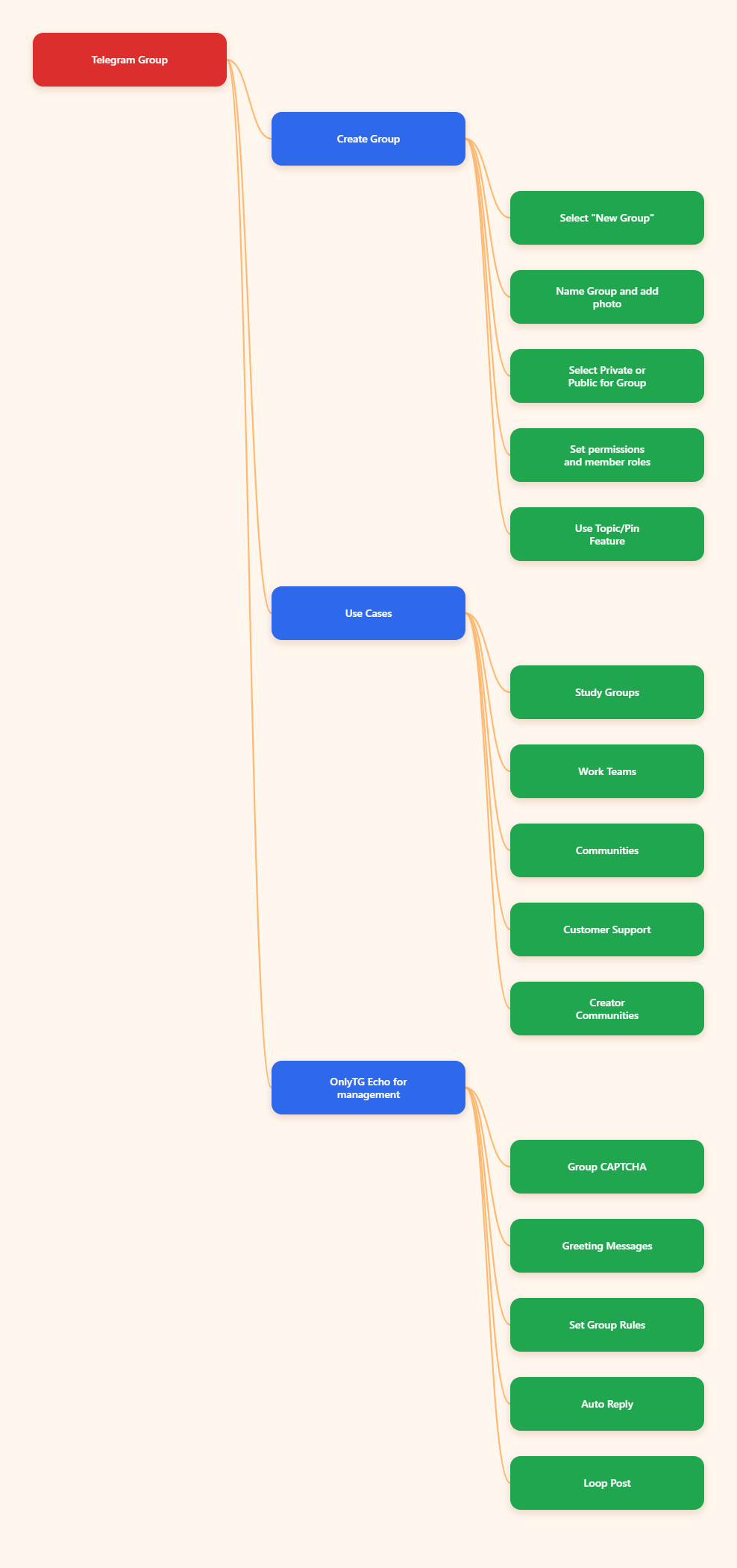
What You Will Know in This Guide
How to Create a Group in Telegram in 2026: A Step-by-Step Guide

Step 1: Open Telegram and Start a New Group

Summary: Open Telegram, start a new chat, select New Group, and add at least one contact to begin.

The exact taps vary slightly by device, but the basic flow is consistent. Telegram’s group setup is designed to be quick: you open the app, start a new message or compose action, choose New Group, add members, and create the group.

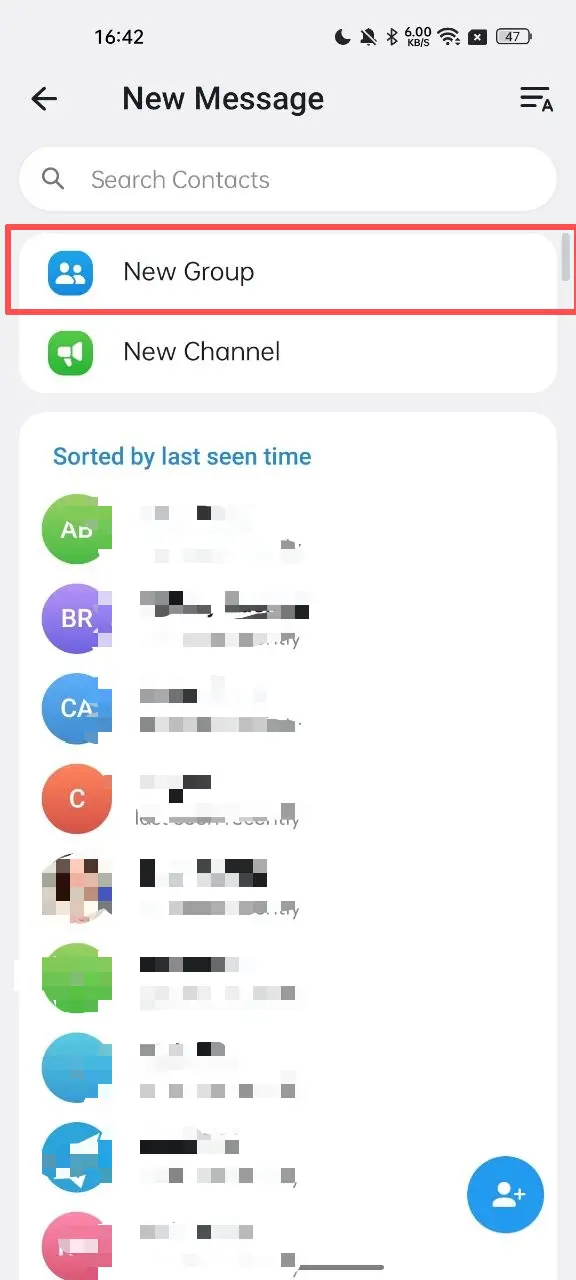
On Android/iPhone/iPad

  1. Open the Telegram app.
  2. Tap the “+” icon in the lower-right corner.
  3. Select New Group.
  4. Choose at least one contact to add.
  5. Enter the group name.
  6. Tap “√” button.
Telegram Group

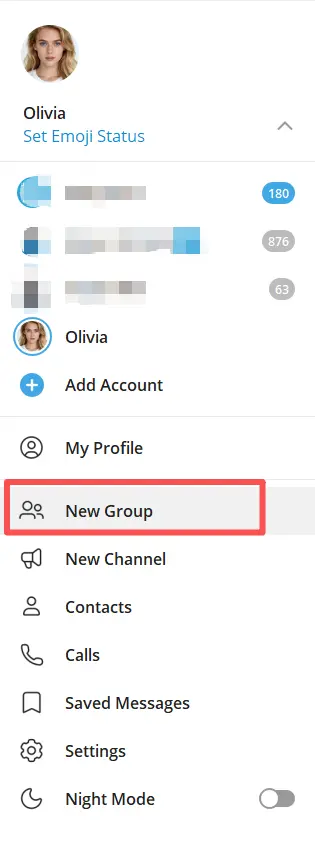
On Desktop

  1. Open Telegram Desktop.
  2. Click the menu or compose option.
  3. Select New Group.
  4. Enter the group name and tap Next button.
  5. Choose at least one contact to add.
  6. Click the Create button.

Desktop setup is convenient when you want to type a longer group description or manage the chat immediately after creating it.
telegram group

Step 2: Name the Group and Add a Photo

A good group name should be easy to remember and directly reflect the purpose of the chat. For example, a project team might use a name like Q3 Product Launch Team, while a hobby community might use Weekend Hiking Club.

The photo matters too. A logo, team icon, or simple visual can make the group easier to identify in busy chat lists. If the group is public-facing, consistency between the group name and visual identity helps people recognize it faster.

A clear name and photo are especially useful when you manage multiple communities or when members join from search, invites, or shared links.

Step 3: Choose Between a Private and Public Group

Summary: Decide whether the group should be open to anyone with a link or limited to invited members.

Telegram groups can be set up for different levels of access. A private group is invitation-based and is usually better for internal teams, close communities, or premium audiences. A public group can be discoverable and joined more openly, which is helpful for larger communities and topic-based discussions.

The right choice depends on your goal:

  • Private group: best for confidential conversations, internal coordination, or exclusive communities.
  • Public group: best for outreach, discoverability, and broader participation.

If your goal is to keep discussions controlled, start private. If you want growth and visibility, a public group may be the better fit.

Step 4: Set Permissions and Member Roles

Summary: Control who can post, invite, pin, and manage the group so the chat stays organized.

After creation, the most important job is configuring permissions. Telegram group management typically includes options for who can send messages, add members, change group info, or pin content. These controls help reduce spam and make the group easier to moderate.

Useful permission settings often include:

  • Who can send messages
  • Who can add new members
  • Who can edit group info
  • Who can pin messages
  • Who can approve join requests, if used

If your group has multiple administrators, assign roles carefully. Give full control only to people you trust. For smaller groups, one or two admins may be enough. For larger communities, distribute responsibilities so moderation does not depend on one person.

Step 5: Use Topic and Pinned Messages

Summary: Organize conversations with topics, highlight important updates with pinned messages, and set expectations early.

As a group grows, a single chat stream can become hard to follow. Telegram supports tools that help structure discussions, including topics in groups that have them enabled. Topics let members discuss separate subjects without mixing every message into one long thread.

Pinned messages are another essential tool. They are useful for:

  • Posting rules
  • Sharing welcome instructions
  • Announcing deadlines
  • Linking to resources

A strong pinned message can prevent repetitive questions and keep the group focused. For example, a study group may pin the weekly schedule, while a community group may pin rules and a FAQ link.

Where Telegram Groups Are Useful

Telegram groups are used in many different ways because they combine fast messaging with flexible moderation. They work well for:

  • Study groups: classmates can share notes, reminders, and exam prep
  • Work teams: colleagues can coordinate tasks and updates
  • Communities: people with shared interests can discuss topics in real time
  • Customer support: businesses can manage conversations and announcements
  • Creator communities: creators can keep followers engaged in one place

Telegram groups are especially useful when a conversation needs to be interactive rather than one-way. If you need a space where members can reply, collaborate, and exchange ideas quickly, a group is often the right format.

Tool Recommendation: OnlyTG Echo for Group Management

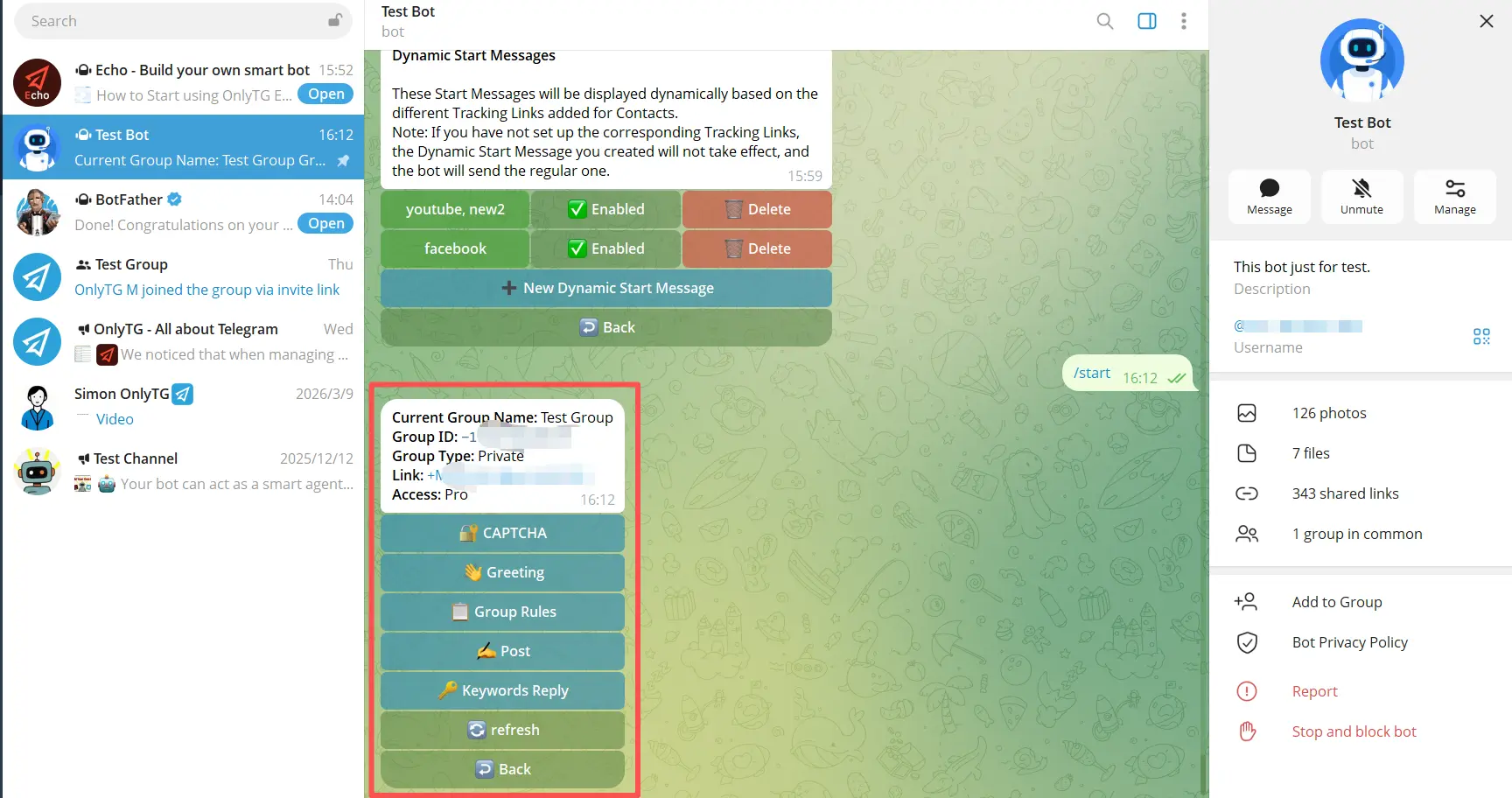
If you manage multiple communities or need better control over your Telegram operations, OnlyTG Echo(@EchoOnBot) is worth considering for group management. 

Its group management features include the following:

  • Send the CAPTCHA test to new members joining the group.
  • Send the Greeting Message to new members joining the group.
  • Set rules for group such as no spamming or advertising.
  • Keyword-based Auto-Replies.
  • Automatically loop posts in a group.

OnlyTG Echo can also be used for channel management and to set up a chatbot for customer support or lead generation. 

For creators, marketers, and admins, the main value is simple: fewer repetitive tasks and a more organized workflow. If your Telegram presence is growing, that can matter a lot.
OnlyTG Echo

FAQ: How to Create a Group in Telegram

1. How do I create a group in Telegram?

Open Telegram, tap the compose or new chat option, choose New Group, name the group and set a photo. Add at least one contact, and confirm.

2. Can I create a Telegram group without adding people?

Telegram’s creation flow requires you to add at least one contact to start the group. After that, you can invite more members later.

3. What is the difference between a Telegram group and a channel?

A group is designed for two-way conversation among members. A channel is mainly for broadcasting messages to subscribers.

4. Should I make my Telegram group public or private?

Use a private group if you want limited access and more control. Use a public group if you want visibility and easier discovery.

Conclusion

Creating a Telegram group in 2026 is quick, but managing it well takes a little planning. Start with a clear name, choose the right privacy setting, configure permissions, and use moderation tools that fit your goal. If your community grows, tools like topics, pinned messages, and supergroup features can help keep everything organized.

Post Tags: #Telegram

Post navigation

Previous Previous
Telegram Business Guide in 2026
NextContinue
Telegram Bot Builders Guide in 2026
Table of Contents
  • What You Will Know in This Guide
  • Step 1: Open Telegram and Start a New Group
    • On Android/iPhone/iPad
    • On Desktop
  • Step 2: Name the Group and Add a Photo
  • Step 3: Choose Between a Private and Public Group
  • Step 4: Set Permissions and Member Roles
  • Step 5: Use Topic and Pinned Messages
  • Where Telegram Groups Are Useful
  • Tool Recommendation: OnlyTG Echo for Group Management
  • FAQ: How to Create a Group in Telegram
    • 1. How do I create a group in Telegram?
    • 2. Can I create a Telegram group without adding people?
    • 3. What is the difference between a Telegram group and a channel?
    • 4. Should I make my Telegram group public or private?
  • Conclusion
Echo Sidebar
  • Latest Post
  • Echo
  • Recorder
  • Tips
Telegram Tips

How to Automatically Greet New Customers on Telegram in 2026

Learn how to automatically greet new customers on Telegram in 2026 using code or a no-code Telegram bot workflow. This guide covers BotFather setup, welcome-message logic, and a practical OnlyTG Echo walkthrough.

Telegram Tips

How to Track the Source of Telegram Bot Users in 2026

Learn how to track where Telegram bot users come from in 2026 using Telegram deep links, UTM-style parameters, and tracking tools like OnlyTG Echo. This guide covers setup, source attribution methods, use cases, FAQ, and practical steps to measure which channels actually drive bot starts.

Telegram Tips

Telegram Bot Builders Guide in 2026

Telegram Bot Builders in 2026: features, examples, and top no-code tools

Telegram Tips

Telegram Business Guide in 2026

A practical guide to Telegram Business, covering what it is, how businesses can use it, how to set it up, and common mistakes to avoid.

OnlyTG Echo

How to Get Unbanned from Telegram in 2026: A Practical Step-by-Step Guide

If your Telegram account or phone number has been restricted, this guide explains how to confirm the ban, appeal to Telegram support, reduce spam flags, and avoid getting blocked again in 2026.

Uncategorized

How to Create a Channel in Telegram in 2026: A Practical Step-by-Step Guide

Learn how to create a channel in Telegram in 2026 with a clear step-by-step guide for Android, iPhone, and desktop. This article also covers public vs. private channels, common mistakes, and best practices for managing a channel professionally.

OnlyTG Echo

How to create telegram bot in 2026?

Learn how to create a Telegram bot in 2026 using BotFather, with step-by-step coding and no-code methods, plus tips for security, deployment, and choosing the best setup.

Telegram Tips

How to buy a Telegram virtual number

A virtual phone number for Telegram is an internet-based number that allows you to register and verify Telegram accounts without…

How to Get Unbanned from Telegram in 2026: A Practical Step-by-Step Guide

If your Telegram account or phone number has been restricted, this guide explains how to confirm the ban, appeal to Telegram support, reduce spam flags, and avoid getting blocked again in 2026.

How to create telegram bot in 2026?

Learn how to create a Telegram bot in 2026 using BotFather, with step-by-step coding and no-code methods, plus tips for security, deployment, and choosing the best setup.

How to Loop Post in Channel via Telegram Bot

OnlyTG Echo provides the function to automatically loop posts in your channel. Firstly, you need to create a new bot via @botfather and…

How to Configure Multiple Media when Setting OnlyTG Echo Features

OnlyTG Echo provides the function to configure multiple media to a single message when setting Start Message/Auto Reply/Quick Reply/Broadcast and other features. Firstly, you need…

How to Upgrade Channel to Pro Channel in Telegram

OnlyTG Echo provides the function to upgrade your channel to Pro Channel. This will consume your Pro Communities slots and unlock more advanced features….

How to Edit a Published Post via Telegram Bot

OnlyTG Echo provides the function to Edit Channel Post via your bot. Firstly, you need to create a new bot via @botfather and…

How to Publish Channel Post via Telegram Bot

OnlyTG Echo provides the function to Publish Channel Post via your bot. Firstly, you need to create a new bot via @botfather and…

How to Manage Channel via Telegram Bot

OnlyTG Echo provides the function to Manage Channel via your bot. Firstly, you need to create a new bot via @botfather and send its…

How to Use OnlyTG Recorder?

Welcome to OnlyTG Recorder! Developed by our dedicated bot development team, OnlyTG Recorder is designed to serve as an assistant…

How to Automatically Greet New Customers on Telegram in 2026

Learn how to automatically greet new customers on Telegram in 2026 using code or a no-code Telegram bot workflow. This guide covers BotFather setup, welcome-message logic, and a practical OnlyTG Echo walkthrough.

How to Track the Source of Telegram Bot Users in 2026

Learn how to track where Telegram bot users come from in 2026 using Telegram deep links, UTM-style parameters, and tracking tools like OnlyTG Echo. This guide covers setup, source attribution methods, use cases, FAQ, and practical steps to measure which channels actually drive bot starts.

Telegram Bot Builders Guide in 2026

Telegram Bot Builders in 2026: features, examples, and top no-code tools

Telegram Business Guide in 2026

A practical guide to Telegram Business, covering what it is, how businesses can use it, how to set it up, and common mistakes to avoid.

How to buy a Telegram virtual number

A virtual phone number for Telegram is an internet-based number that allows you to register and verify Telegram accounts without…

How to purchase Telegram username?

A Telegram username is a unique public identifier that you can set for your Telegram account, channel or group. Others…

How to find similar Telegram groups and channels via related recommendations

There are many public channels and groups on Telegram. Each channel or group usually focuses on a specific topic, and…

How to Advertise on Telegram

There are mainly three ways to advertise on Telegram: official ad direct placement, third-party cooperative ads, and promotion within your…

  • OnlyTG
  • Echo
  • Recorder
  • Help
  • Blog
  • Echo Pricing
OnlyTG EchoTelegram VK YouTube Facebook X Email

© 2026 OnlyTG

Scroll to top
  • Products
    • Echo
    • Recorder
  • Resources
    • Help
    • Blog
  • Pricing
    • Echo Pricing
Contact us