
If you want to start a new Telegram group, the setup itself is quick. The part that matters is choosing the right privacy, invite, and admin settings before the chat starts growing.
This guide shows you how to create a Telegram group on mobile or desktop, how to choose public versus private, and how to keep the group organized from day one.
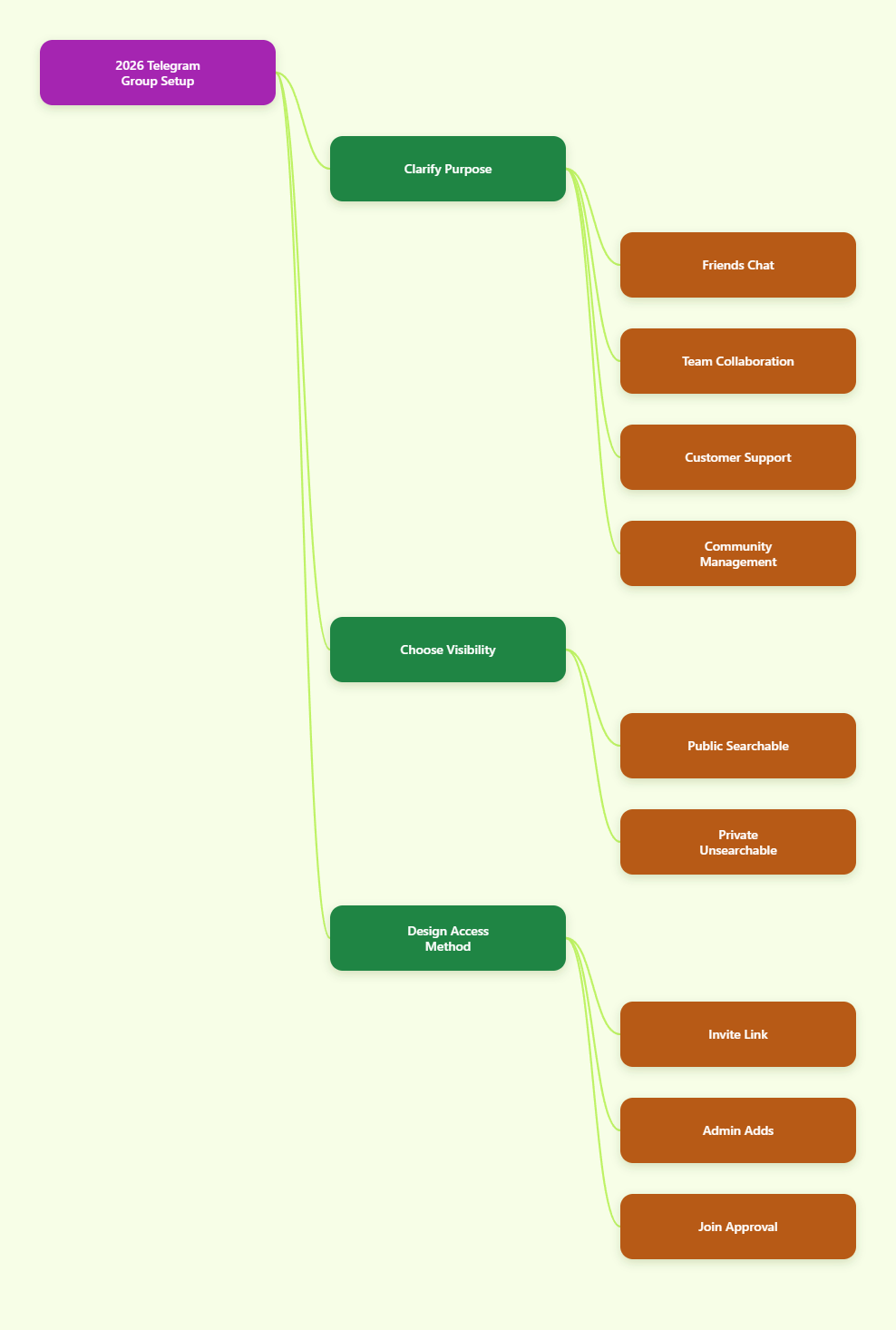
What to decide before you create the group
Telegram groups are built for conversation, collaboration, and communities. Telegram’s official docs note that groups can support very large communities, and that they can be public or private.
- Purpose: friends, team coordination, customer support, or a niche community.
- Visibility: decide whether strangers should find it through search.
- Access: decide whether anyone with a link can join, or whether you want approval first.
- Structure: think ahead about admins, rules, and whether you may need Topics later.
A small setup decision now can save you a lot of cleanup later. That is especially true if you plan to invite people from different places, like a website, a newsletter, or another social platform.
Public vs private: choose the right setup first
Before you hit Create, decide whether the group should be public or private. This affects how people find it and how much control you have over membership.
| Group type | Best for | How people join | What to expect |
|---|---|---|---|
| Private group | Teams, customer groups, closed communities, internal discussion | Invite link or direct add by an admin | Not searchable inside Telegram, so access stays tighter |
| Public group | Communities, audiences, support hubs, discoverability | Username link that people can open and search for | Easier to grow, but you need stronger moderation |
Telegram’s official help pages note that public groups are searchable through Telegram, while private groups are not. If you are building a small trusted space, start private. If growth matters more than control, public is usually the better choice.
How to start a new Telegram group
The exact button placement can vary a little by device, but the core flow is the same everywhere. You open Telegram, choose New Group, add at least one contact, name it, and create it.
1. Open Telegram and tap the new chat button
On Android and iPhone, this is usually the compose or new message icon. On desktop, it is typically inside the menu or the chat-creation controls. If the app looks slightly different from screenshots online, do not worry. The flow is still the same.
2. Choose New Group
This tells Telegram that you want a group chat, not a one-to-one conversation or a channel. If you are planning discussion, replies, and member interaction, this is the correct format.
3. Add at least one member
Telegram requires you to select at least one contact to create the group. You can add more people later, but you cannot skip this first step.
If you are making the group for a project, the safest move is to add a co-worker or another trusted contact first, then finish the setup.
4. Tap Next, then name the group
Pick a name that makes sense immediately. Good names are short, specific, and easy to remember. If the group is for customers or a community, include the brand, topic, or audience in the name.
A clear name also helps later when you create an invite link, pin a welcome message, or search for the group in the app.
5. Add a photo if the group needs one
A group photo is optional, but it helps people recognize the chat faster. For a project or brand, use a clean logo or a simple image that looks good in a small circle.
For informal chats, even a basic icon is better than leaving it blank. Visual consistency makes the group feel more intentional.
6. Create the group
Once you tap Create, the group exists. At this point, you are the owner and can start shaping the permissions, invite flow, and admin roles.
Do not stop here. A brand-new group is technically live, but it is rarely ready for outside members until you finish the next few settings.
7. Set privacy and invite rules right away
Open the group settings and decide whether you want a public username or a private invite link. Telegram also supports invite links with extra controls, including expiration dates, usage limits, and admin approval for join requests.
If the group is private, use the Invite to Group via Link option. If it is public, set a clean username that matches the group name as closely as possible.
Quick device notes: Android, iPhone, and desktop
The overall process is the same, but the interface changes slightly by device. That small detail is often what confuses first-time users.
- Android: open Telegram, tap the new message icon, then select New Group.
- iPhone or iPad: open Telegram, tap the compose icon, then choose New Group.
- Desktop or web: open Telegram Desktop or Telegram Web, then use the menu or chat creation control to start a new group.
If you are creating the group for work, desktop is usually easier because it is faster to type the name, adjust settings, and copy invite links without switching apps.
Make the group useful from day one
Once the group is created, spend five more minutes on the basics. That small investment makes the chat far easier to manage later.
Add a short welcome message
Write one pinned message that explains what the group is for, who it is for, and what people should do first. Keep it short and practical.
Example structure:
- What this group is about
- Who can post
- Where to ask questions
- What kind of messages are not allowed
Set member permissions before spam appears
Telegram gives group admins granular control over what members can do. Use those controls early if you expect a public audience or a large membership wave.
For example, you may want to limit who can send media, add links, or change group info. It is much easier to loosen permissions later than to clean up spam after the fact.
Add admins only when needed
If other people will help manage the chat, assign admins before the group gets active. Good admins reduce response time, answer questions faster, and keep the rules consistent.
Give each admin a clear role. One person can handle approvals, another can answer questions, and another can manage announcements or community tone.
Use Topics when the conversation gets busy
Telegram supports Topics in large groups, which lets you split one busy chat into separate discussion threads. This is especially useful when people ask different kinds of questions in the same place.
Use Topics if your group starts to feel noisy, repetitive, or hard to follow. It keeps the conversation organized without forcing you to create multiple separate groups.
Invite people without losing control
Invite links are the cleanest way to grow a Telegram group. They work well for sharing inside email newsletters, websites, support docs, QR codes, or social posts.
- Private groups: share the invite link directly or add people manually.
- Public groups: share the public username link so people can find it easily.
- Extra safety: create a link that requires admin approval if you want to screen members first.
If the group is meant to stay high quality, approval-based joining is a smart move. It slows growth a little, but it also reduces random spam and low-intent members.
Common mistakes to avoid
A lot of bad group experiences come from simple setup mistakes. Avoid these early and your group will feel more professional immediately.
- Making it public too soon: if you are still testing the idea, keep it private first.
- Using a vague name: people should understand the purpose in one glance.
- Skipping rules: a pinned welcome message prevents confusion.
- Leaving permissions wide open: spam tends to appear the moment a group becomes visible.
- Creating no structure: large groups get messy fast without admins or Topics.
Most of these issues are easy to fix, but they are much easier to prevent. A clean setup makes the chat feel trustworthy before the first big wave of members arrives.
Free and paid tools worth using
You do not need a complicated stack to start a new Telegram group. In most cases, Telegram’s own apps are enough.
| Tool | Price | Best for | Pros | Cons |
|---|---|---|---|---|
| Telegram mobile app | Free | Fast group creation and everyday management on the go | Official, simple, and always with you | Smaller screen can make admin work slower |
| Telegram Desktop | Free | Typing names, copying invite links, and managing settings on a computer | Comfortable for longer admin sessions | Interface can differ a little by platform |
| Telegram Web | Free | Quick access when you do not want to install anything | Browser-based and convenient | Not as comfortable for heavy daily management |
| LaunchPass | Paid | Paid access and membership workflows for Telegram communities | Useful if you plan to monetize the group | Not necessary for a simple free group |
If your goal is just to create a group and get it running, stick with Telegram’s built-in tools first. Add paid tools only when you need billing, paid access, or more advanced community workflows.
When a group is better than a channel
If you are still deciding between formats, use a group when you want discussion. Use a channel when you mainly want to broadcast updates.
Telegram channels are one-way by design, while groups are built for participation. That is why groups are the better choice for support chats, mastermind communities, team communication, and any place where people need to reply.
If your audience needs both announcements and discussion, a common setup is a channel for updates and a linked group for comments or conversation.
FAQ
How many members can a Telegram group have?
Telegram’s official group docs say groups can support up to 200,000 members. Smaller groups start with fewer members, and when the chat grows beyond the basic limit, Telegram moves it into the larger group format.
Do I need to add a contact to create a Telegram group?
Yes. Telegram requires at least one contact to create the group. You can always add more people later, but the initial group setup needs one member to proceed.
What is the difference between a private and public Telegram group?
A private group is joined through an invite link or direct admin action, and it is not searchable inside Telegram. A public group has a username and can be found through search, which makes it easier to grow but harder to control.
Can I change a Telegram group from private to public later?
Yes, you can adjust the group type later in the settings. That said, it is still better to decide early, because changing visibility after people join can affect how they discover and share the group.
How do I stop spam in a new Telegram group?
Start with tighter permissions, use invite links carefully, and assign admins before the group becomes active. If you expect a large audience, consider join-request approval and use Topics or moderation rules to keep conversations organized.
Final takeaway
To start a new Telegram group the right way, keep the setup simple but intentional. Choose public or private first, name the group clearly, add a clean welcome message, and lock in the invite flow before you invite a bigger audience.
If you want, open Telegram now and create the group in a few minutes. The faster you set the rules, the easier it is to grow the right community later.