
If your Telegram group feels like one endless stream of questions, memes, support requests, and announcements, topics can fix the mess fast. Telegram Topics turn one large group into a forum-style space where each discussion has its own thread, media, notifications, and flow.
This guide shows you how to make a topic-based Telegram group in 2026 from scratch, or convert an existing group safely. You will also learn how to plan topics, assign admin rights, avoid common mistakes, and choose tools that keep the community clean without overcomplicating the setup.
What Is a Topic-Based Telegram Group?
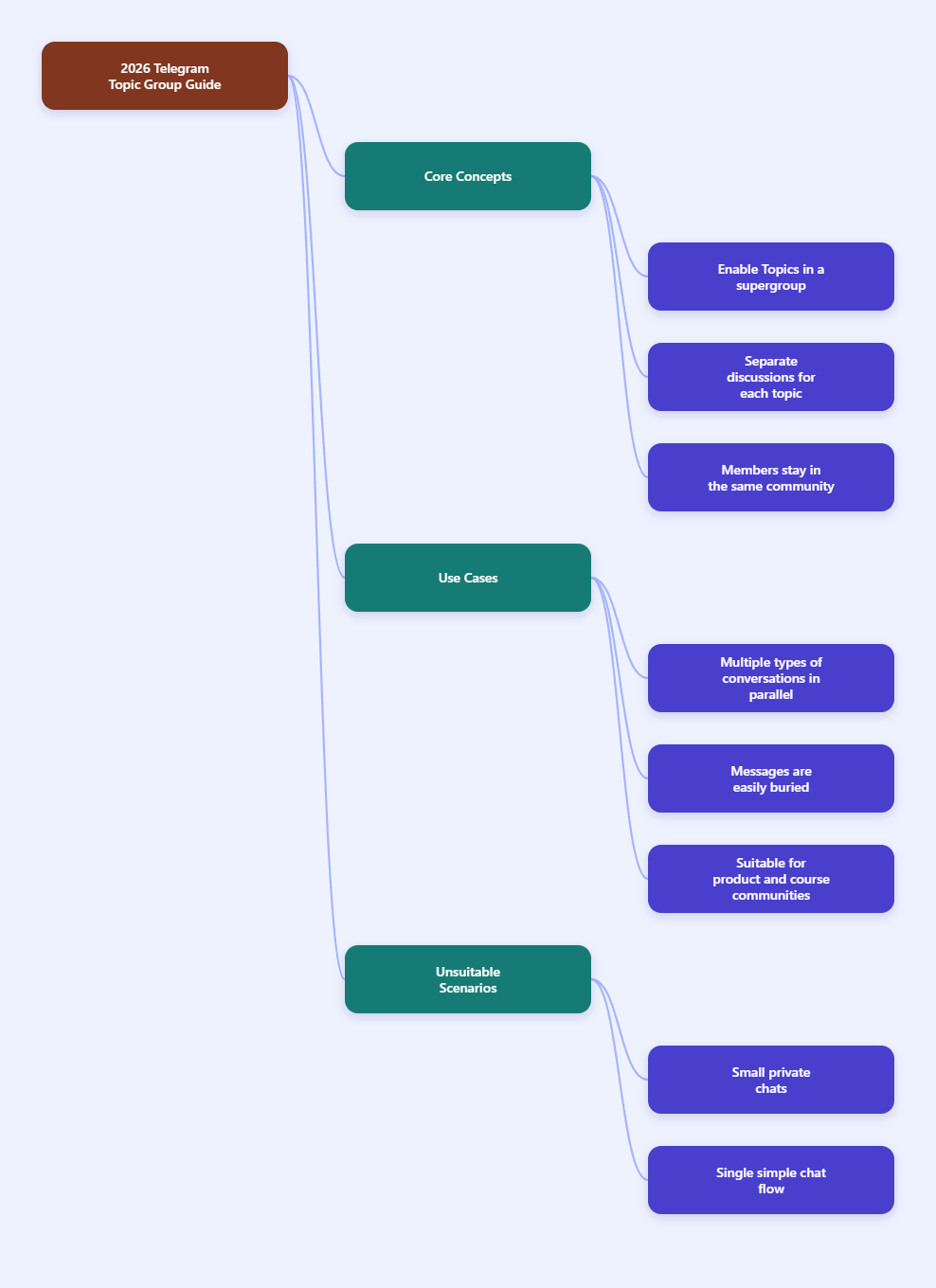
A topic-based Telegram group is a Telegram supergroup with Topics enabled. Instead of forcing every message into one chronological chat, the group is split into named discussion spaces such as Announcements, Support, General Chat, Events, or Bug Reports.
Telegram introduced Topics for groups to help large communities stay readable. Telegram’s official materials describe topics as separate spaces inside a group, and each topic behaves much like its own chat with shared media and notification settings.
That means members do not need to join multiple groups. They stay inside one community, while admins keep conversations organized by theme.
When Should You Use Topics Instead of a Normal Group?
Topics are useful when your group has more than one active conversation type. If members ask support questions, share resources, discuss off-topic ideas, and react to announcements in the same feed, a normal group becomes noisy quickly.
You should consider a topic-based setup when:
- Your community has recurring categories of discussion.
- Members complain that messages get buried.
- Admins spend too much time redirecting people.
- You run a product, course, crypto, SaaS, gaming, creator, or local community.
- You want one group instead of several separate invite links.
Do not enable topics just because the feature looks neat. For a tiny private group with one simple chat flow, topics may add friction instead of clarity.
Telegram Group Types: What You Need Before Enabling Topics
Before you start, understand the difference between a basic group and a supergroup. Telegram’s official FAQ says groups can support up to 200,000 members, and supergroups include advanced admin and moderation features.
Topics are designed for supergroups. In many Telegram clients, enabling Topics can automatically move the group into the supergroup-style experience, but the exact interface may vary by app version and platform.
| Feature | Basic Group | Supergroup with Topics |
|---|---|---|
| Best for | Small casual chats | Large or structured communities |
| Member scale | Small groups | Up to Telegram’s large group limits |
| Conversation style | One continuous feed | Separate topic threads |
| Admin permissions | Basic controls | Granular rights, including topic management |
| Moderation fit | Light moderation | Rules, slow mode, bots, anti-spam workflows |
Before You Start: Quick Setup Checklist
A little planning prevents a messy forum later. Use this checklist before touching the Topics toggle.
- Update Telegram on iOS, Android, Desktop, or Web.
- Confirm you are the owner or an admin with permission to change group settings.
- Write down 5–8 initial topics before creating them.
- Prepare group rules for spam, promotions, support, and off-topic posts.
- Choose at least two moderators if the group is active daily.
- Back up important pinned messages or repost them into the right topic after setup.
You do not need technical skills or Telegram Bot API knowledge for the basic setup. Everything below can be done from the normal Telegram app.
How to Make a Topic-Based Telegram Group in 2026
The exact labels can change slightly across Telegram versions, but the workflow is consistent: create or open a group, go to settings, enable Topics, then build your topic structure.
Step 1: Create a New Telegram Group or Open an Existing One
- Open Telegram on mobile or desktop.
- Tap or click New Group if you are starting fresh.
- Add at least one initial member, then choose a clear group name.
- If you already have a group, open that group instead.
For a business or creator community, use a name people can recognize in search and notifications. Avoid vague names like “Official Group” unless your brand name is already included.
Step 2: Open Group Settings
- Tap the group name or profile image at the top of the chat.
- Select Edit, Manage Group, or the pencil icon, depending on your device.
- Look for settings such as Permissions, Group Type, or Topics.
On Telegram Desktop, you may need to right-click the group in the sidebar and choose Manage Group. On mobile, the option is usually inside the group info screen.
Step 3: Enable the Topics Toggle
- Find the Topics option in group settings.
- Switch the toggle on.
- Save or confirm the change if Telegram asks you to.
Once enabled, your group layout changes into a forum-style view. Telegram may create or show a default General topic that contains regular group discussion or older service history, depending on the group’s state and app behavior.
If you cannot see the toggle, update Telegram first. If it is still missing, check whether you have the correct admin rights and whether you are using a supergroup-compatible setup.
Step 4: Create Your First Topic
- Go back to the group chat view.
- Tap or click Create Topic, the plus button, or the topic creation option.
- Add a short topic name.
- Choose an icon or emoji if Telegram offers that option.
- Save the topic.
Keep names short because members scan topic lists quickly. A topic called Support is better than “Please Ask All Customer Service Related Questions Here.”
Step 5: Build a Simple Topic Map
The biggest mistake is creating too many topics on day one. Start with fewer sections, watch member behavior, then expand only when a topic becomes consistently busy.
A clean starter structure looks like this:
- Announcements — admin-only updates, launches, and important notices.
- Start Here — rules, welcome message, links, and onboarding.
- General Chat — broad member discussion.
- Support — questions, troubleshooting, and help requests.
- Resources — useful links, guides, templates, and files.
- Feedback — product ideas, community suggestions, and bug reports.
- Off Topic — casual conversation that should not clutter serious threads.
If you run a paid community, replace generic names with member goals. For example, a fitness group could use Meal Plans, Form Checks, Progress Wins, and Weekly Challenges.
Step 6: Pin Rules Inside Key Topics
- Open a topic such as Start Here or Support.
- Write a short rule message.
- Pin it inside that topic if your admin rights allow pinning.
- Repeat for high-traffic topics.
Rules should be practical, not legalistic. Tell people what to post, where to post it, and what will be removed.
For example, your Support topic can say: “Use one message per issue. Include your device, app version, screenshots if relevant, and what you already tried. Do not post payment details or private account data.”
Step 7: Assign Admins with Manage Topics Permission
Telegram supports granular admin rights, including the ability to manage topics in forum-style supergroups. The technical Telegram API and bot documentation also reference topic management rights for administrators.
- Open Group Settings.
- Go to Administrators.
- Select an existing admin or add a new one.
- Enable only the permissions they need.
- Turn on Manage Topics for moderators who should create, rename, close, or reopen topics.
Do not give every moderator full owner-like permissions. A support moderator may need Delete Messages, Restrict Members, and Manage Topics, but not Add Admins.
Step 8: Set Posting Permissions and Anti-Spam Controls
Topics organize messages, but they do not replace moderation. You still need posting rules and spam controls.
Review these settings:
- Who can send messages — useful for announcement-only topics or quiet periods.
- Who can send media — restrict this if spam images or files become a problem.
- Who can add users — limit this in private or paid groups.
- Slow mode — reduce message floods in fast-moving communities.
- Join requests — screen new members before they enter.
For public groups, keep promotion rules strict. Spam usually spreads faster than useful conversation, especially when a group is searchable.
Step 9: Test the Member Experience
- Ask a non-admin member to open the group.
- Check whether they can see the topic list clearly.
- Ask them to post a test question in the correct topic.
- Verify notifications, pinned messages, and topic navigation.
- Adjust confusing topic names immediately.
This final test matters because admins see more controls than regular members. A structure that feels obvious to you may feel confusing to someone joining for the first time.
Best Practices for Organizing Telegram Topics
A topic-based Telegram group succeeds when the structure matches user intent. Members should know where to click within three seconds.
Use Clear Names, Not Clever Names
Creative names can work in fan communities, but support and business groups need clarity. Choose Support over “Help Cave,” and Announcements over “The Megaphone.”
Limit Your First Setup to 5–8 Topics
Too many empty topics make a group feel inactive. Start small, then split a topic only when it gets enough volume to justify its own space.
Close Topics That Are Seasonal or Finished
If a challenge, event, or beta test ends, close the topic instead of leaving it open forever. This keeps active spaces easy to find.
Keep Announcements Clean
If your community needs official updates, make the announcement topic admin-only or heavily moderated. Members should trust that anything posted there is important.
Free and Paid Tools for Managing Telegram Topic Groups
You can run a small topic-based group with Telegram’s built-in tools. For larger communities, bots and membership platforms can save time.
| Tool | Free or Paid | Best Use Case | Pros | Cons |
|---|---|---|---|---|
| Telegram Built-in Admin Tools | Free | Permissions, pins, topics, slow mode, bans | No setup cost, native, reliable | Manual work for busy groups |
| Combot | Free and paid plans | Analytics, moderation, anti-spam for communities | Good for activity tracking and moderation workflows | Advanced features may require a paid plan |
| Rose / MissRose Bot | Free | Rules, filters, warnings, automated moderation | Popular moderation bot with topic-related documentation | Requires careful configuration |
| InviteMember | Paid | Paid Telegram communities and subscriptions | Useful for monetized groups and access control | Not needed for free casual groups |
| Shieldy | Free | Basic anti-spam and new-member checks | Simple bot protection for public groups | Less complete than full moderation suites |
Use bots conservatively. Add one tool for a clear problem, test it, then add more only if needed. Too many bots can confuse members and clutter admin workflows.
Common Problems and Quick Fixes
The Topics Toggle Is Missing
Update Telegram and check again on mobile and desktop. Some users have reported platform-specific interface differences in the past, so testing another Telegram client can help.
Also confirm that you are the owner or have permission to edit group settings. If the group is not in a compatible supergroup-style state, some advanced settings may not appear.
Members Keep Posting in the Wrong Topic
Rename confusing topics and pin a short instruction in each one. If the issue continues, admins should move conversations by replying with a link to the correct topic and closing duplicate threads when appropriate.
The Group Feels Less Active After Enabling Topics
This usually happens when you create too many topics. Merge low-traffic discussions into General Chat or Resources, then keep only active topics visible.
Admins Cannot Create or Rename Topics
Check their admin rights. They need the relevant Manage Topics permission to create, rename, close, reopen, hide, or unhide forum topics, depending on Telegram client support.
FAQ
Can anyone make a topic-based Telegram group?
The group owner can enable topics if the feature is available in the group settings. Admins may also do it if they have the right permissions. If you do not see the option, update Telegram and check your admin role.
Do Telegram Topics create separate groups?
No. Topics are separate discussion spaces inside one Telegram group. Members remain in the same group, and admins manage the community from one place.
Can I enable topics in an existing Telegram group?
Yes, you can enable topics in an existing compatible group from group settings. Before switching, prepare topic names and repost important rules into the right topics so members are not lost.
What happens to old messages when I enable topics?
Telegram commonly keeps previous group history available through the general group area or default topic behavior, but the exact presentation can depend on the app version and group state. If old messages are important, save or pin key information before changing the structure.
Can I make private topics for selected members only?
Telegram Topics are not the same as private subgroups. Standard topic permissions do not work like private channels for selected members. For restricted access, use separate private groups, invite links, join requests, or a membership tool.
How many topics should a Telegram group have?
Most communities should start with 5–8 topics. Add more only when members repeatedly create a clear category of conversation that deserves its own space.
Can bots work inside Telegram Topics?
Yes, many bots can operate in topic-enabled supergroups, but support depends on the bot and how it handles forum topics or message thread IDs. Test each bot in a small topic before relying on it for moderation or support.
Conclusion
The easiest way to make a topic-based Telegram group is to start with a simple structure, enable Topics in group settings, create a few practical sections, and assign moderators with the right permissions. Do not overbuild the forum on day one.
Focus on clarity first: clean topic names, pinned instructions, strict spam rules, and a small number of useful sections. Once members understand where to post, your Telegram group becomes easier to read, easier to moderate, and much more valuable for everyone.