
If your Telegram bot still relies on users typing slash commands, you are leaving engagement and conversions on the table.
This guide explains how to configure the bot menu for Telegram using the official BotFather and Bot API workflow, where menu buttons fit into the user experience, and how tools like OnlyTG Echo (@EchoOnBot) can help you manage the setup more efficiently.
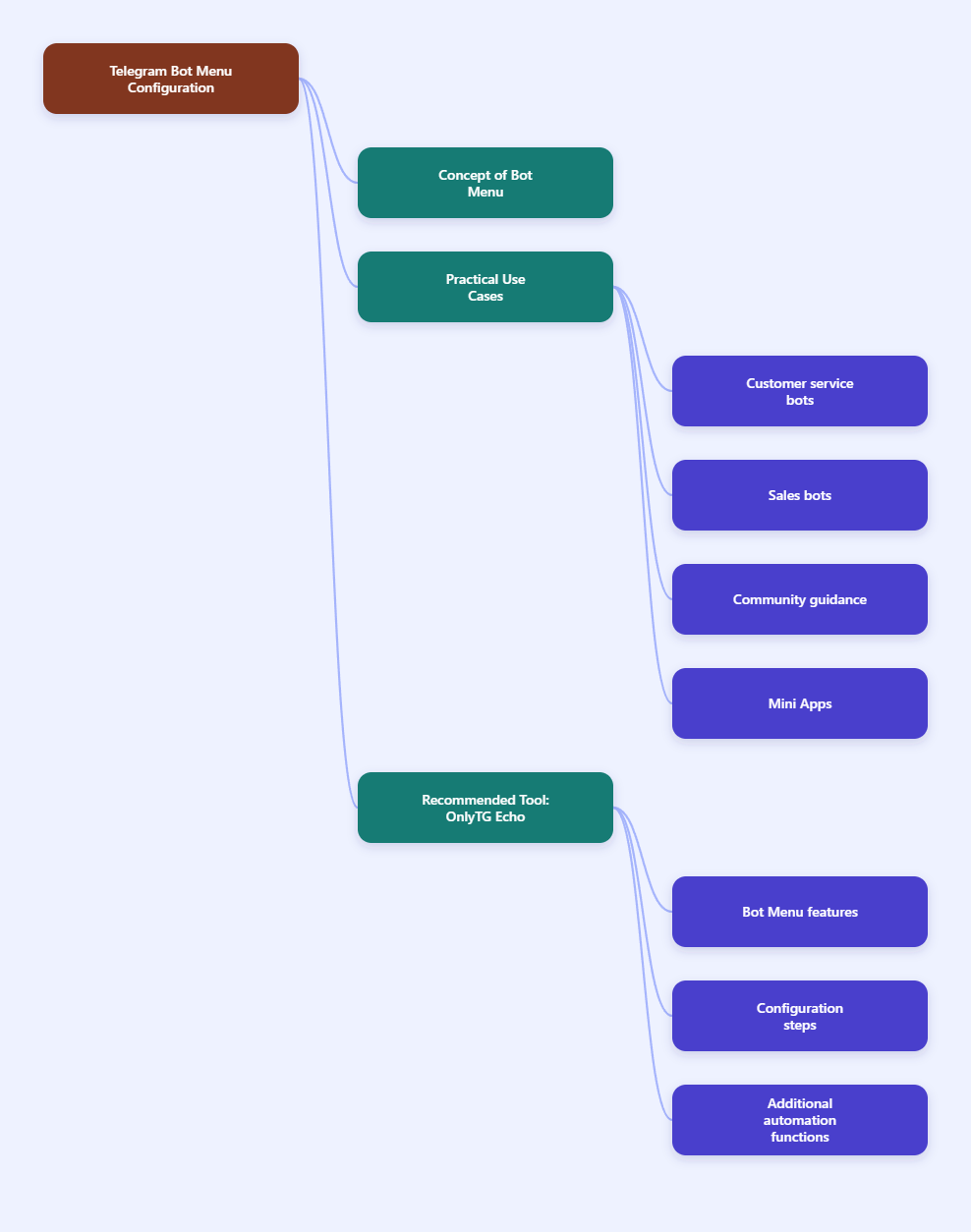
Step-by-Step Guide to Configure the Telegram Bot Menu
Telegram bots can present a menu near the message field so users can access commands quickly. Depending on your setup, the menu may open the command list by default or launch a Mini App through a customized menu button. The core approach in 2026 is still simple: define your bot commands, decide what the menu button should do, and test the result in a private chat or target context.
- Create or open your bot in BotFather. If you do not have a bot yet, create one with @BotFather and save the token. If the bot already exists, open BotFather and select the correct bot from your list.
- Set a clear command list with /setcommands. Keep the command set focused. Common examples include start, help, settings, pricing, or support. Telegram supports command descriptions, so users can understand each action before tapping it.
- Choose the menu button behavior with /setmenubutton. Telegram’s menu button can either show the command list or launch a Mini App, depending on how your bot is configured. If your use case needs a web-based flow, use the web app option. If your bot is command-driven, keep the menu on commands.
- Apply the menu configuration in the right scope. Telegram supports command and menu behavior at different scopes, so you can customize what appears for all users, specific users, or specific chat contexts. This is useful when you want one set of commands for customers and another for internal staff.
- Test in a private chat first. Open the bot in Telegram and verify that the menu appears near the input field. Tap it and confirm that the command list or Mini App launches as expected.
- Refine based on user behavior. If users keep missing certain commands, move them higher in the list or reduce the total number of options. A compact menu is usually more effective than a long one.
For developers using the Bot API directly, the official documentation shows that Telegram supports menu-related methods such as setMyCommands and setChatMenuButton, along with related scope controls. In practice, this means your bot’s menu can be tuned without changing the core bot logic. If you are building with a framework, confirm that your library supports current Telegram Bot API behavior before deploying changes.
Real-World Use Cases for a Telegram Bot Menu
A well-configured bot menu is not only a technical detail. It is a navigation layer that improves clarity, reduces friction, and helps users complete tasks faster.
- Customer support bots: A support bot can show commands like FAQ, Open Ticket, and Talk to Agent. This helps users avoid guessing what to type and shortens the path to resolution.
- Lead generation and sales bots: A business bot can use the menu to surface Pricing, Book a Demo, and Product Catalog. This is useful when you want to move prospects from curiosity to action quickly.
- Community and onboarding bots: A community bot can guide new members with Rules, Introduce Yourself, and Get Started. This reduces confusion in the first minutes after joining.
In 2026, Telegram Mini Apps are also an important scenario. If your bot needs forms, dashboards, checkout flows, or interactive tools, a customized menu button can launch the app directly, giving users faster access than typing commands or following separate links.
Practical Tool Recommendation: OnlyTG Echo (@EchoOnBot)
OnlyTG Echo (@EchoOnBot) is a practical option for managing Telegram bot workflows when you want a simpler interface around bot setup and message routing. Its Bot Menu feature is designed to help you configure the menu button below the input field, support command-style navigation, and improve how users access your bot’s functions. It is positioned as a secure and convenient intermediary for Telegram communication and bot management.
- Link your bot to OnlyTG Echo. First, create your bot in @BotFather, copy the token, and bind that token to OnlyTG Echo so the bot can be managed inside the platform.
- Open the Bot Menu settings. After the bot is connected, go to your bot and send /start. Click the Chat Setting then click the Bot Menu.
- Set the Button. Configure the button with name and corresponding React message.
OnlyTG Echo is also described as supporting message relay, start-message customization, and richer bot presentation features such as media and buttons in messages. It is intended to help users build a more organized Telegram bot experience without manually handling every interaction from scratch. For teams that want faster iteration on bot UX, this can be a useful layer on top of Telegram’s official bot controls.
Frequently Asked Questions
Q1: Do I need coding skills to configure the bot menu for Telegram?
A: Not always. You can set bot commands and some menu behavior through BotFather and supported third-party tools. More advanced menu behavior, such as Mini App launches or scoped configuration, may require development work.
Q2: What is the difference between bot commands and the menu button?
A: Commands are the actions users can type or select from the list. The menu button is the visible entry point near the input field that opens those commands or launches a Mini App, depending on configuration.
Q3: Can the same bot show different menus to different users?
A: Yes. Telegram supports scoped command and menu setups, so you can tailor what appears for specific users or chat contexts when needed.
Q4: Should I use a menu or a Mini App?
A: Use a menu for quick command access and a Mini App when you need a richer interface such as forms, product browsing, or interactive workflows.
Q5: How many commands should I put in the menu?
A: Keep it concise. A focused menu is easier to scan and more likely to be used. Put the highest-value actions first and remove rarely used options when possible.
Conclusion
Configuring the bot menu for Telegram in 2026 is one of the easiest ways to make a bot more usable and more effective. Start with a focused command list, decide whether the menu should open commands or a Mini App, and test the experience in Telegram before launching. If you want a more guided setup, OnlyTG Echo (@EchoOnBot) can help streamline menu configuration and bot presentation. The best bot menus are simple, intentional, and built around what users need most.