
Telegram has become a serious business channel for communities, creators, SaaS teams, agencies, crypto projects, education brands, ecommerce sellers, and service providers. As Telegram adoption grows, the problem is no longer simply opening a group or channel. The harder task is turning attention into structured action.
A button can guide users to pricing, support, onboarding, content, campaigns, booking pages, or community rules without forcing them to type the right command or search through old messages.
This article explains how businesses can use Telegram buttons and bot menus more effectively in 2026, with a practical workflow using OnlyTG Echo as a no-code operations tool. The focus is not on hype. It is on repeatable Telegram channel operations, customer support, and marketing execution.
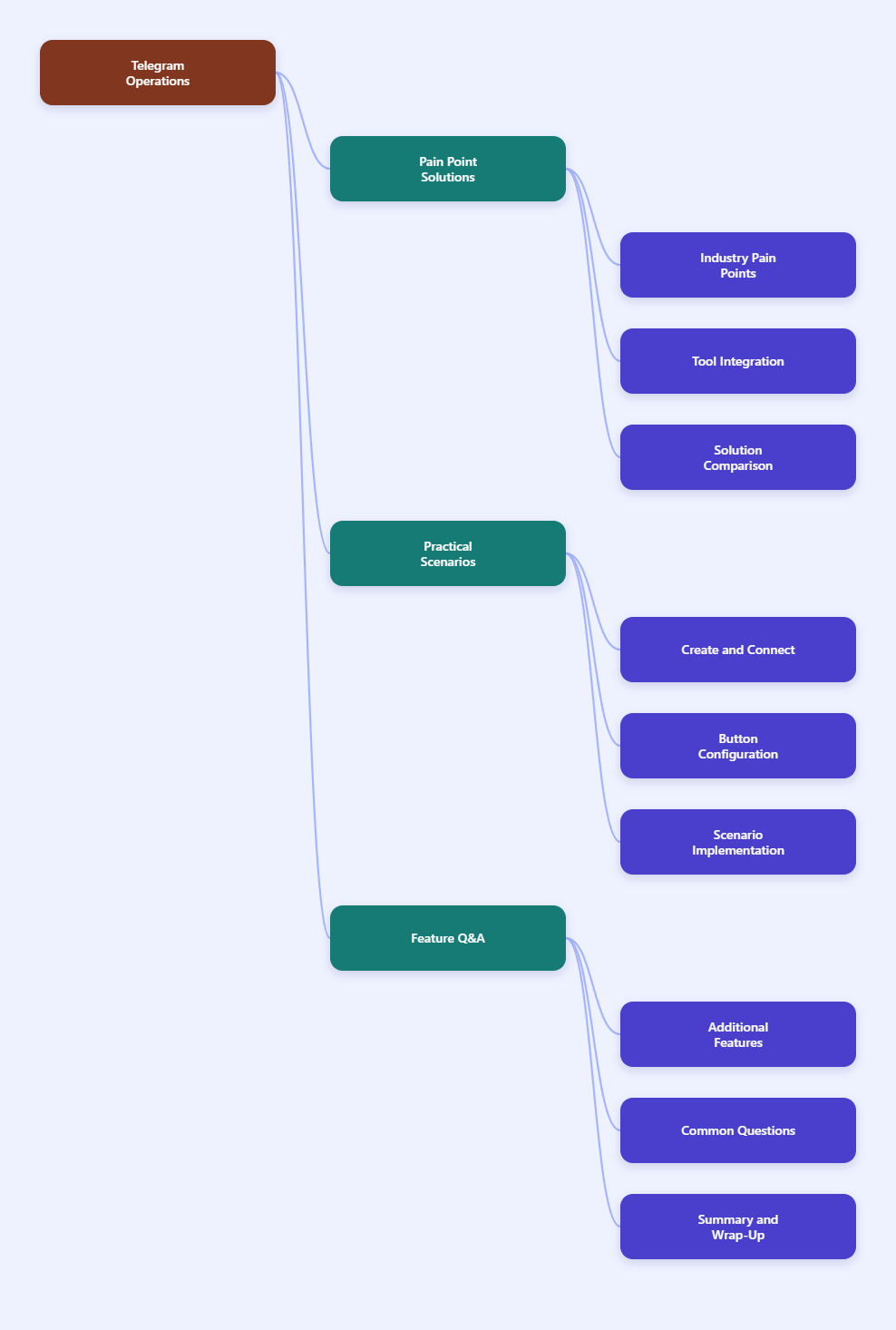
1. User Industry Pain Points
Most businesses start using Telegram because it is fast, direct, and community-friendly. But after a channel or group begins to grow, the same strengths can create operational friction.
Common pain points include:
- Unstructured customer questions: Users ask the same questions about pricing, delivery, support hours, registration, or product details.
- Low conversion from channel posts: A post may get views, but users do not always know what to do next.
- Manual support overload: Operators spend time copying the same answers instead of solving higher-value issues.
- Weak navigation: New users cannot easily find product categories, service menus, FAQs, or contact options.
- Privacy concerns: Business owners may not want to expose a personal Telegram account for customer communication.
- No-code limitations: Many teams want bot-like workflows but do not have time to build and maintain custom Telegram Bot API logic.
Telegram already supports bot commands, custom keyboards, inline keyboards, bot menu buttons, and business features. Official Telegram documentation describes how buttons and menus can simplify user interaction. However, implementing these features directly through code may not be practical for small teams, marketers, solo founders, or non-technical operators.
For a business team, the real question is not whether buttons are technically possible. The question is how to create a reliable Button in Telegram workflow that helps users choose the next step without adding engineering overhead.
2. Solving the Pain Point with OnlyTG Echo
OnlyTG Echo is positioned as a Telegram bot operations tool. Based on its public documentation, it lets users create and connect their own Telegram bot, then configure practical features such as Start Message, Auto-reply, Quick Reply, Bot Menu, Multi-form Messages Builder, content modules, broadcast, group management, and channel management.
For business marketing, this matters because buttons work best when they are connected to a workflow. A single button is only a label. A button connected to a start message, menu, reply flow, media block, or channel post becomes a conversion path.
OnlyTG Echo can help with:
- Creating a clearer first impression when users open the bot.
- Adding menu buttons below the bot input field.
- Connecting button names to configured response messages.
- Building messages that include text, media, and buttons.
- Saving reusable content as modules.
- Sending updates to contacts through broadcast features, where appropriate.
- Managing channels and channel posts through a bot-based workflow.
This is a soft-fit solution for teams that want no-code Telegram automation. It does not replace a complete CRM, a custom backend, or a full marketing automation stack. It is better understood as a practical operations layer for Telegram-first communication.
A realistic comparison looks like this:
| Approach | Best Fit | Main Cost Driver | Operational Risk | Button in Telegram Workflow |
|---|---|---|---|---|
| Manual replies | Very small accounts with low message volume | Operator time | Slow response and inconsistent answers | Limited; users must type or wait |
| Custom Telegram bot development | Teams with engineering resources and specific backend needs | Developer setup, hosting, maintenance | Requires technical ownership | Highly flexible if built correctly |
| OnlyTG Echo no-code setup | Marketing, support, and community teams that need quick setup | Tool configuration and subscription plan if advanced features are needed | Depends on supported product features | Practical for menus, replies, modules, broadcasts, and channel operations |
The table avoids exaggerated performance claims. In practice, the best option depends on message volume, team skill, compliance requirements, and whether the business needs deep backend integration.
3. Step-by-Step Tutorial: Building a Button in Telegram Workflow with OnlyTG Echo
The following tutorial follows the public OnlyTG Echo setup logic and official help materials. Interface names may change over time, so treat the steps as an operational map and verify the latest prompts inside the bot.
Step 1: Create a Telegram bot with BotFather
- Open Telegram and search for @BotFather.
- Start a chat with BotFather.
- Use the bot creation command shown by BotFather, commonly /newbot.
- Follow the prompts to name your bot and create a username.
- After creation, BotFather provides a bot token.
- Keep the token private. It controls access to your bot.
This is the foundation. OnlyTG Echo works with your own Telegram bot, so the BotFather step comes first.
Step 2: Bind your bot to OnlyTG Echo
- Open Telegram and go to @EchoOnBot.
- Start the bot.
- Send the bot token you received from BotFather when prompted.
- Wait for the confirmation that your bot is connected.
- Open your own bot and send /start to test whether the bot is active.
After binding, OnlyTG Echo can act as the management layer for your Telegram bot. This lets you configure practical features without writing Bot API code directly.
Step 3: Set the Start Message
The Start Message is the first controlled touchpoint. It appears when users start the bot, so it should answer three questions quickly:
- Who is this business?
- What can the user do here?
- Which button should the user click first?
In OnlyTG Echo, public materials describe the ability to configure text, media files, and buttons for Start Message content.
A practical Start Message for a marketing agency could be:
- Short welcome line.
- Three service categories.
- One support option.
- One link to a booking or consultation page, if relevant.
Example structure:
Welcome to GrowthLab Support.
Choose an option below to get the right information faster.
- Services
- Case Studies
- Pricing
- Talk to Support
Keep the first message short. A bot start page is not a landing page. Its job is routing.
Step 4: Configure the Bot Menu button
OnlyTG Echo documentation states that it provides a Bot Menu function below the bot input field. The general flow is:
- Open your connected bot through OnlyTG Echo.
- Click or select Bot Menu.
- Click +Button.
- Reply with the button name.
- Confirm that the button appears in the Bot Menu section and below the input field.
Important detail: the documentation notes that the button below the input field does not automatically perform a business action by itself. When users click it, it sends the button name. You then need to configure the corresponding response message for that button.
This is a critical point for anyone learning how to add a Button in Telegram. The visible button and the reply logic are two separate parts of the workflow.
Step 5: Connect the button to a response message
After creating a menu button, configure the response that should appear when users click it.
- Click the button you added in the Bot Menu area.
- Configure the corresponding response message, following OnlyTG Echo prompts.
- Add text that directly matches the user intent.
- If needed, add media or additional buttons using the message builder.
- Test the button from a user account or from your own Telegram app.
For example, if the button is Pricing, do not send a long company introduction. Send pricing logic:
- Plan categories.
- What is included.
- How to request a quote.
- Contact or booking button.
This keeps the interaction useful and reduces back-and-forth.
Step 6: Use the Multi-form Messages Builder
OnlyTG Echo documentation describes a Multi-form Messages Builder for setting message content when configuring Start Message, Auto-reply, Quick Reply, and related features. It supports combinations such as text, media, and buttons.
Use this when one plain-text reply is not enough.
A strong business message can include:
- A short headline.
- A product image, explainer graphic, or service screenshot.
- One clear paragraph.
- Two or three buttons with specific next steps.
Example button layout:
- View Services
- Book a Call
- Ask Support
Avoid adding too many buttons. If every option is important, no option is important. For most Telegram marketing flows, three to five choices are enough.
Step 7: Create reusable content modules
OnlyTG Echo documentation describes Modules as preset messages that can be reused when setting Start Message, Auto-reply, Quick Reply, and other content.
Use modules for repeated business content such as:
- Pricing explanation.
- Shipping policy.
- Refund policy.
- Course schedule.
- Community rules.
- Lead qualification questions.
A recommended workflow:
- Open your bot and access the Module function.
- Add a module.
- Name it clearly, such as pricing_basic or support_hours.
- Add text, media, and buttons as needed.
- Reuse the module in Start Message, Auto-reply, or Quick Reply flows.
This reduces inconsistency. Your team no longer has to rewrite the same answer in different parts of the bot.
Step 8: Add Auto-reply and Quick Reply for high-frequency questions
OnlyTG Echo public materials mention Auto Reply and Quick Reply features. Use them to answer predictable user intent.
Start with a simple keyword map:
- price or pricing → pricing module.
- support → support hours and contact path.
- demo → demo booking instructions.
- refund → refund policy module.
- course → course catalog or schedule.
Do not over-automate sensitive conversations. If the user asks about billing disputes, legal terms, account access, or personal data, route the conversation to a human operator or a clearly reviewed policy message.
Step 9: Test the full user path
Before publishing the bot link in a channel, test like a customer.
- Open the bot from a clean Telegram account if possible.
- Click Start.
- Check the Start Message.
- Click each Button in Telegram menu or message.
- Confirm every button returns the expected response.
- Check whether media loads correctly.
- Review wording on mobile, where most users will interact.
Testing is not optional. A broken button damages trust faster than no button at all.
Step 10: Deploy the bot into your Telegram marketing channel
Once tested, place the bot where users naturally need help:
- Channel description.
- Pinned post.
- Welcome post in a group.
- Campaign announcement.
- Website contact page.
- Email footer for Telegram-first support.
The goal is not to push everyone into a bot. The goal is to give users a faster path when they want structured answers.
4. Realistic Business Application Scenarios
Here are practical scenarios where Button in Telegram workflows can support real business operations.
Ecommerce product navigation
An ecommerce seller can create buttons for product categories, shipping policy, returns, and support. Instead of answering basic questions manually, the bot routes buyers to the right information.
Online course enrollment
An education brand can use buttons for course catalog, schedule, instructor introduction, trial lesson, and payment instructions. A Start Message can reduce confusion for new students.
SaaS onboarding
A SaaS company can guide users to documentation, demo booking, plan comparison, support, and status updates. Quick Reply modules can answer repeated onboarding questions.
Agency lead qualification
A marketing agency can use buttons to separate users by service need: SEO, paid ads, Telegram community growth, content marketing, or consultation. Each path can provide a different response.
Creator community operations
A creator can guide subscribers to rules, paid content instructions, announcements, collaboration requests, and support. This is especially useful when a channel has many new members.
Event and webinar registration
An event organizer can use buttons for agenda, speaker list, registration, reminder settings, and post-event resources. Telegram works well for time-sensitive communication, but users need clear next steps.
Crypto or Web3 community support
Web3 teams often run Telegram groups with high message volume. Buttons can route users to official links, security warnings, documentation, and support forms. This should be handled carefully to avoid misleading users or exposing them to unofficial links.
5. Additional Practical Features of OnlyTG Echo
Beyond setting a Button in Telegram, OnlyTG Echo includes several features that can support daily Telegram operations.
Start Message
The Start Message helps businesses create a consistent first touch. It can include text, media, and buttons, based on OnlyTG Echo public documentation.
Auto-reply
Auto-reply is useful for predictable questions. It can reduce manual workload when configured around clear triggers and reviewed messages.
Quick Reply
Quick Reply helps operators respond faster with prepared content. Public OnlyTG materials describe setting a trigger and message content, with support for text, media, and buttons.
Bot Menu
The Bot Menu places buttons below the bot input field. This is useful for persistent navigation, especially for support, pricing, services, FAQs, and contact actions.
Multi-form Messages Builder
This feature helps build richer messages with text, media, and buttons. It is useful for product introductions, campaign messages, service menus, and onboarding flows.
Content Modules
Modules let teams save preset messages and reuse them across Start Message, Auto-reply, Quick Reply, and other flows. This improves consistency.
Broadcast
OnlyTG public materials mention broadcast messaging to contacts through the bot. Use broadcast carefully. Keep messages relevant, avoid spam behavior, and respect user expectations.
Channel Management
OnlyTG Echo documentation describes channel management through a bot, including channel statistics and subscriber information in the console, as well as channel posting functions in its materials. This can help Telegram channel operators manage content workflows more systematically.
Group and Channel Administration
OnlyTG Echo materials describe the bot as an administrator for Telegram groups and channels. For communities, this can support more organized workflows, but admins should still monitor policy, moderation, and user safety manually.
6. FAQ
What is a Button in Telegram?
A Button in Telegram usually refers to a clickable option created through Telegram bot interfaces, custom keyboards, inline keyboards, or menu buttons. It helps users take action without typing commands manually.
Can I add Telegram buttons without coding?
Yes, no-code tools such as OnlyTG Echo can help configure bot menus, start messages, quick replies, and button-based message flows. For advanced custom logic, direct Telegram Bot API development may still be required.
Is OnlyTG Echo the same as Telegram Business?
No. Telegram Business is Telegram’s own business feature set for accounts, including features such as opening hours, location, quick replies, automated messages, custom start pages, and chatbot support. OnlyTG Echo is a separate tool focused on building and managing Telegram bot workflows.
Do buttons automatically increase conversions?
No. Buttons reduce friction, but conversion depends on offer quality, audience fit, copywriting, timing, trust, and follow-up. A button is a navigation tool, not a guaranteed sales mechanism.
How many buttons should a Telegram bot start message include?
For most business use cases, three to five buttons are enough. Too many choices can make the user path harder, especially on mobile screens.
Can I use buttons in Telegram channel marketing?
Yes, Telegram bot-based workflows and channel post buttons can support channel marketing. The exact setup depends on whether you are using native Telegram bot capabilities, a no-code tool, or a custom bot.
Is broadcast messaging safe for marketing?
Broadcast can be useful for updates, launches, and reminders, but it should be used responsibly. Send relevant messages, avoid excessive frequency, and respect user expectations to reduce complaints and unsubscribes.
Should I build a custom bot instead of using OnlyTG Echo?
Choose custom development if you need deep backend integration, complex permissions, custom databases, or advanced analytics. Choose a no-code tool if your priority is fast setup for menus, replies, modules, and basic Telegram operations.
7. Closing Summary
In 2026, Telegram marketing is becoming less about simply posting messages and more about designing clear interaction paths. A well-planned Button in Telegram workflow can help businesses route users to pricing, support, onboarding, content, and campaigns with less friction.
OnlyTG Echo is useful for teams that want to create these workflows without writing code. Its public materials support practical functions such as bot binding, Start Message, Bot Menu, Auto-reply, Quick Reply, Multi-form Messages Builder, content modules, broadcast, and channel management.