
Telegram remains one of the most widely used messaging apps, but convenience also makes it a target. In most real-world account takeovers, attackers do not break Telegram’s infrastructure. Instead, they go after the user through stolen login codes, SIM-swap attacks, fake support messages, phishing pages, malicious QR codes, or approval prompts that trick people into authorizing a new session.
This guide explains the specific settings and habits that matter most.
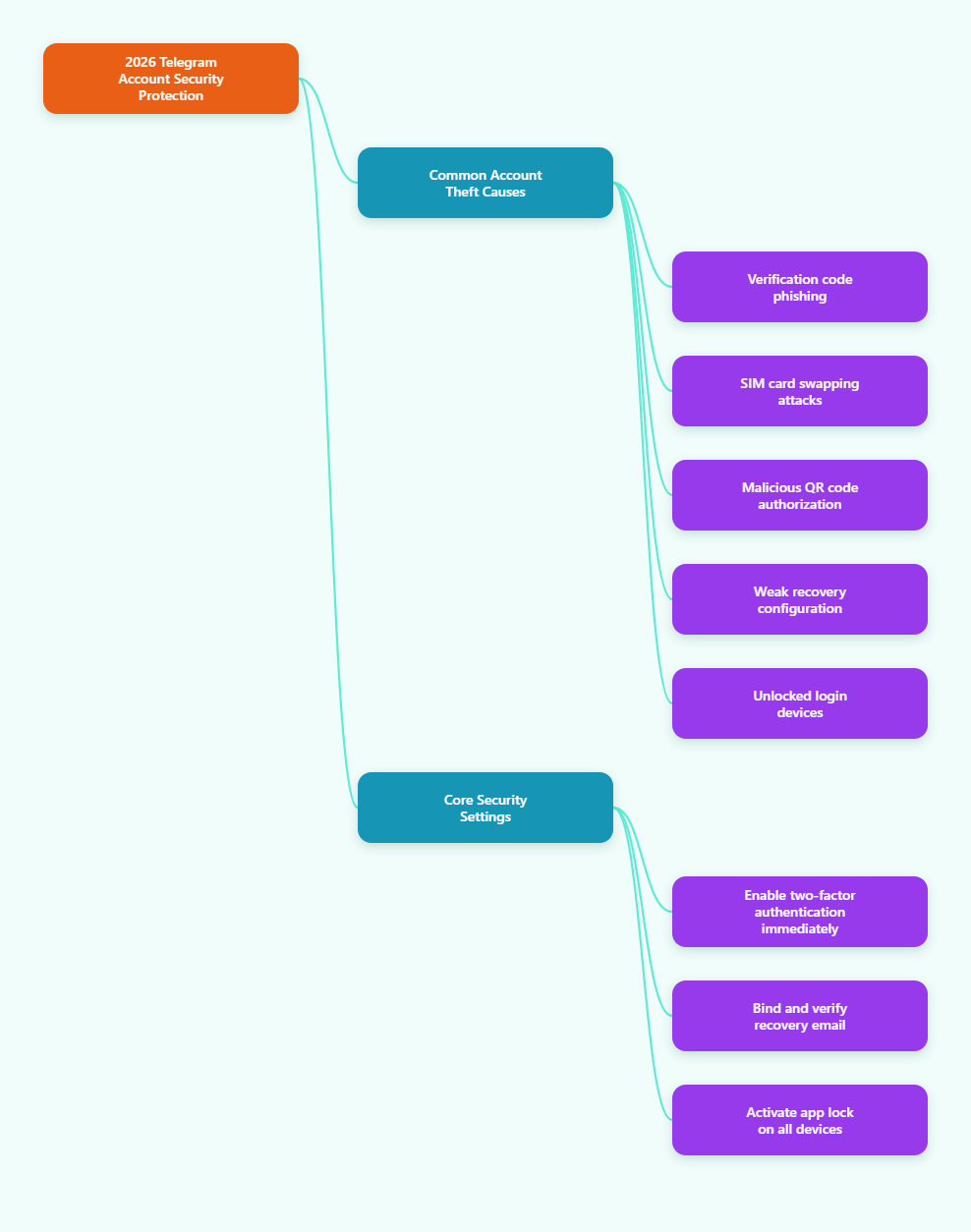
Why Telegram accounts get compromised
Telegram accounts are tied to phone numbers, and login can involve one-time codes, QR login, and other authorization flows. That creates several common attack paths.
- Phishing for login codes: attackers trick users into entering a Telegram verification code on a fake page or in a fake support chat.
- SIM swapping: a criminal convinces a mobile carrier to move your number to a new SIM card, letting them receive SMS-based login codes.
- Stolen or approved sessions: a user unknowingly confirms a login request or scans a malicious QR code that creates a valid session.
- Weak recovery setup: users enable extra protection but forget the password or fail to add a recovery email.
- Unsecured devices: someone with access to your unlocked phone or computer can open Telegram if the app itself is not protected.
Telegram itself recommends enabling 2-Step Verification and using a passcode lock in the app’s Privacy and Security settings. Those are the first two controls to turn on.
1. Enable Telegram 2-Step Verification immediately
Telegram’s 2-Step Verification adds a password on top of the login code. That means your phone number and one-time code alone are not enough to access your account.
This matters because login codes can be intercepted through phishing, social engineering, or SIM-related attacks. A second password makes those attacks much harder to complete.
How to enable it
- Open Settings
- Go to Privacy and Security
- Tap Two-Step Verification
- Choose Set Password
- Create a strong, unique password
- Add a recovery email and verify it
Telegram’s official FAQ and API documentation both indicate that recovery depends on a configured recovery email. If you skip that step and later forget the password, account recovery becomes much harder or impossible in some situations.
Best practices for the password
- Use a password you do not use anywhere else
- Make it long and random rather than clever and memorable
- Store it in a reputable password manager
- Do not share it in chat, even with someone claiming to be support
CISA’s password guidance also supports using long, unique passwords stored in a password manager rather than trying to memorize reused secrets.
2. Add and verify a recovery email
Many users focus on the 2-Step Verification password and forget the recovery email. That is a mistake.
Telegram’s documentation shows that password recovery requires a configured recovery email. In practice, this can be the difference between a quick recovery and losing access to your account after forgetting your password.
What to do
- Use an email account you actively control
- Make sure that email account is also protected with strong authentication
- Verify the email when Telegram prompts you
- Avoid using a mailbox you rarely check
If your recovery email account is weak, it becomes a new point of failure. Protect that mailbox with the same seriousness as your Telegram account.
3. Use an app passcode lock on every device
Telegram’s 2-Step Verification protects logins. It does not replace local device protection.
If your phone, tablet, or desktop is left unlocked, someone may be able to open Telegram directly. That is why Telegram also recommends setting a passcode lock in the app.
Why it helps
- Prevents casual access if someone picks up your phone
- Adds a layer beyond your device’s main screen lock
- Works well with auto-lock timers
Setup path
- Open Settings
- Go to Privacy and Security
- Enable Passcode Lock
- Choose a short auto-lock interval if available
Kaspersky’s privacy walkthrough for Telegram also highlights auto-lock as a useful protection step on Android.
4. Review active sessions often
Telegram supports multiple active sessions across phones, tablets, desktops, and web clients. That is convenient, but it also means an attacker may stay logged in on another device if they ever gain access.
Telegram provides an Active Sessions or Devices section where you can inspect currently logged-in devices.
What to check
- Device type
- Location or region shown
- Time of recent activity
- Any session you do not recognize
What to do if something looks wrong
- Terminate the suspicious session
- Change your 2-Step Verification password
- Check whether your recovery email is still correct
- Review linked devices and recent account notices
Telegram has also noted a limitation: on some newly logged-in devices, terminating older sessions may be temporarily restricted for security reasons, sometimes for up to 24 hours. If that happens, use an older trusted session if possible, or wait and try again.
5. Be extremely careful with Telegram login codes
A Telegram verification code is sensitive. Anyone who gets that code may be able to start logging in to your account.
Never share a login code with:
- Someone claiming to be Telegram support
- A bot asking you to “verify” your account
- A giveaway, job, investment, or crypto channel
- A website reached from a random link
Legitimate services do not need you to forward your Telegram login code to a stranger. If someone asks for it, assume it is an account takeover attempt.
Important rule
A login code is not proof of identity for another person. It is a key to your account.
6. Watch for phishing pages and fake support accounts
Recent reporting from Bitdefender, CYFIRMA, and Cybersecurity News shows that Telegram-related phishing has evolved. Some campaigns now abuse real authentication workflows and in-app authorization prompts, not just crude fake login screens.
That means users should look beyond obvious spelling mistakes. Even realistic-looking pages can be dangerous.
Common red flags
- Urgent messages saying your account will be banned or restricted
- Requests to confirm ownership through a bot or third-party page
- “Support” accounts asking for codes, passwords, or screenshots
- Links that do not lead to an official Telegram domain or official app
- Pressure to act immediately without checking details
Scam reporting from Kaspersky, Bitdefender, Aura, NordPass, and others consistently shows the same pattern: urgency, imitation, and requests for sensitive data.
Safe habit
If you receive a message about account security, do not use the link inside the message. Open Telegram directly and check your settings there.
7. Treat QR-code logins with caution
Telegram supports legitimate QR login for web and desktop sessions. According to Telegram’s QR login documentation, the QR token is short-lived and part of a real login process.
But attackers also exploit that familiarity. Security research has documented phishing pages that display Telegram-style QR codes or misuse real login flows to capture valid sessions.
Only scan a Telegram QR code when
- You started the login yourself
- You are inside the official Telegram app or official web login page
- You know exactly which device or browser you are authorizing
Do not scan QR codes from
- Random bots
- Channel posts promising rewards
- Web pages claiming “verification,” “age check,” or “security review”
- People posing as support staff
If you did not initiate the login, do not approve it.
8. Reduce SIM-swap risk
SIM swapping remains a serious account takeover method across many online services. Group-IB, Prove, Alloy, and other security sources describe it as an attack in which criminals move your number to a SIM they control, allowing them to receive calls and SMS codes.
Because phone numbers still play a role in account access, Telegram users should take this risk seriously.
Practical steps
- Enable Telegram 2-Step Verification so an SMS code alone is not enough
- Set a carrier PIN or port-out protection with your mobile provider if available
- Be alert if your phone suddenly loses service without explanation
- Contact your carrier quickly if calls and texts stop working unexpectedly
Telegram’s newer passkey support may also reduce dependence on SMS for some login scenarios, but users should still protect the phone number tied to the account.
9. Consider passkeys where available
Telegram announced passkeys in late 2025 as a way to log in using device-based authentication such as biometrics or a PIN instead of SMS codes.
This can improve both convenience and security, especially when compared with SMS-based verification, which is more exposed to interception and SIM-swap abuse.
Why passkeys help
- They reduce reliance on SMS delivery
- They are tied to your device’s secure authentication system
- They are more resistant to some common phishing and carrier-based attacks
If passkeys are available in your Telegram app and on your device, they are worth exploring as part of a broader account protection plan.
10. Secure the device, not just the app
Your Telegram security is only as strong as the phone or computer it runs on.
Basic device protections
- Use a strong device PIN, password, or biometric lock
- Keep your operating system updated
- Install Telegram only from official app stores or official sources
- Do not root or jailbreak devices you depend on for secure messaging unless you fully understand the security trade-offs
- Be careful with browser extensions and downloaded software on desktop systems
A secure Telegram configuration cannot fully protect you if your device is already compromised.
11. Know the difference between account security and chat privacy
Telegram’s account defenses and message privacy features are related, but they are not the same thing.
- 2-Step Verification protects account login
- Passcode Lock protects access to the app on your device
- Active Sessions helps you detect unauthorized device access
- Secret Chats are Telegram’s end-to-end encrypted chat mode for sensitive conversations
Telegram’s FAQ specifically recommends Secret Chats for sensitive information, along with 2-Step Verification and a strong app passcode.
If your concern is account takeover, focus first on login protection. If your concern is message confidentiality, review which conversations belong in Secret Chats.
12. What to do if you think your Telegram account was accessed
Act quickly. Minutes matter when a live session is involved.
Immediate response checklist
- Open Telegram from a trusted device
- Go to Settings > Devices or Active Sessions
- Terminate unknown sessions
- Change your 2-Step Verification password
- Confirm your recovery email is still yours
- Review recent messages, linked bots, and suspicious activity
- Check your mobile service for signs of SIM-swap issues
- Secure your email account and device if they may also be exposed
If you forgot your 2-Step Verification password, Telegram’s recovery options depend heavily on whether a verified recovery email was configured in advance.
Simple Telegram security checklist for 2026
- Enable 2-Step Verification
- Create a strong, unique password
- Add and verify a recovery email
- Turn on Passcode Lock and auto-lock
- Review Active Sessions regularly
- Never share login codes or your 2-Step Verification password
- Be skeptical of QR codes, support chats, and urgent warnings
- Reduce SIM-swap risk with your mobile carrier
- Use passkeys if available and supported
- Keep your phone, computer, and email account secure
Final thoughts
If you want to know how to protect your Telegram account in 2026, the answer is not one magic setting. It is a layered approach.
Start with Telegram 2-Step Verification, verify a recovery email, add a passcode lock, and monitor your active sessions. Then build safer habits around login codes, QR scans, and suspicious links. Most Telegram compromises happen because attackers trick users, not because they defeat strong protections.