
Running a Telegram group alone is fine when you have 30 members. It becomes stressful when your community grows, spam appears, members need help, and discussions happen across different time zones.
This guide shows you how to create multi-admin Telegram group structure the right way in 2026. You will learn how to set up the group, promote admins, assign safe permissions, add moderation tools, and avoid the common mistakes that make groups messy or insecure.
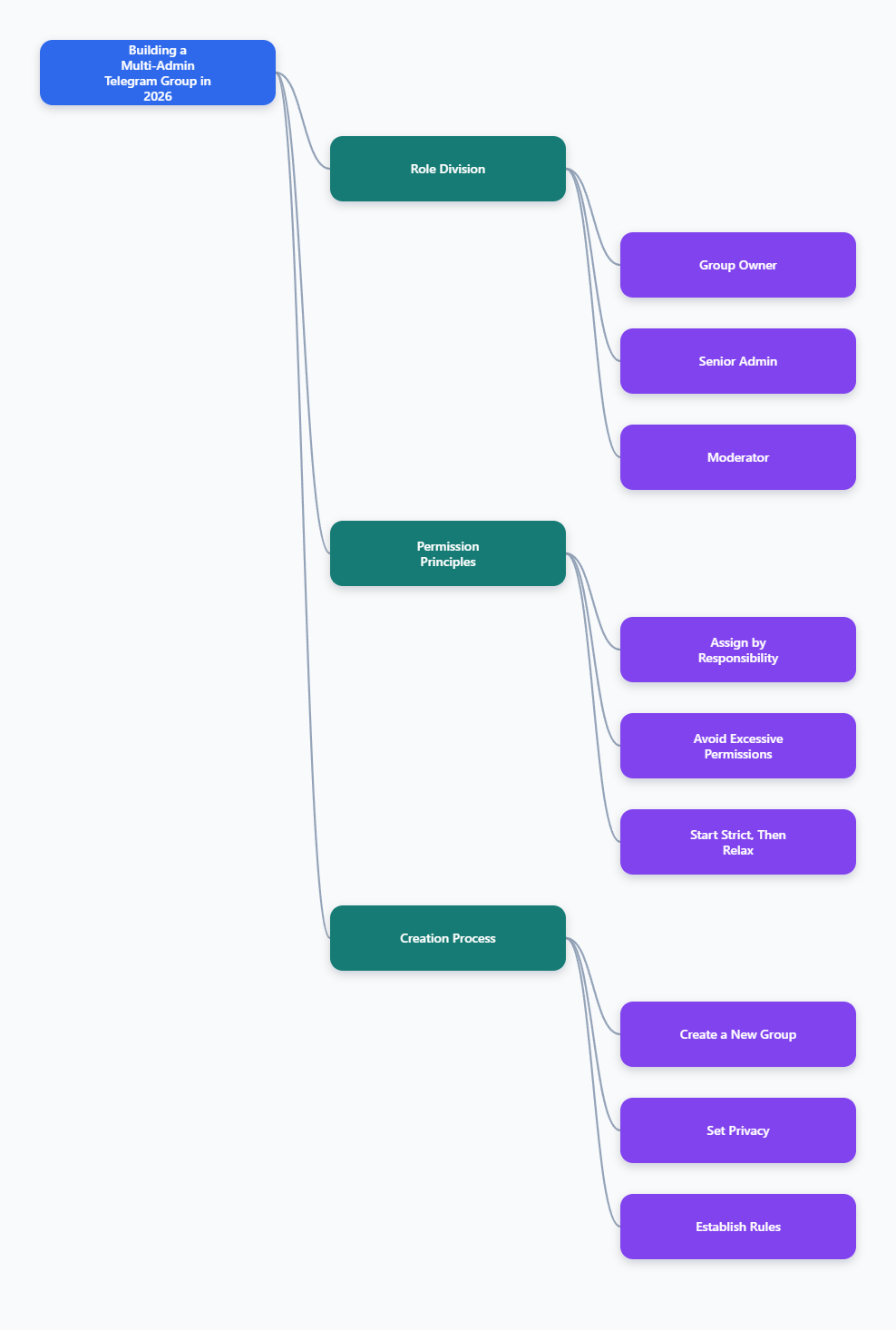
What a Multi-Admin Telegram Group Actually Means
A multi-admin Telegram group is a group where the owner shares management duties with selected administrators. Each admin can receive a custom set of rights, such as deleting messages, banning users, pinning posts, managing topics, or inviting members.
This is different from simply adding more members. Admins can change the behavior of the group, so every permission should match a real job.
- Owner: The creator or transferred owner with ultimate control.
- Senior admin: A trusted manager who handles daily operations.
- Moderator: A helper focused on spam, warnings, and member behavior.
- Content admin: A person who pins updates, manages discussions, or organizes topics.
- Bot admin: A moderation bot with only the rights it needs to work.
Telegram groups can scale far beyond a small private chat when they become supergroups. Telegram’s official group materials describe groups as community spaces with admin tools, member restrictions, and invite links, while the API documentation confirms that admin rights are granular rather than all-or-nothing.
Before You Start: Decide Your Admin Model
Do not promote people first and think about structure later. A clean admin model prevents confusion, abuse, and accidental changes to your group settings.
Use this simple planning table before you touch any Telegram settings.
| Role | Main Job | Recommended Permissions | Avoid Giving |
|---|---|---|---|
| Owner | Final decisions, strategy, ownership security | All rights | Do not share account access |
| Senior Admin | Daily management and escalation | Delete messages, ban users, pin messages, manage topics | Add admins unless fully trusted |
| Moderator | Spam removal and rule enforcement | Delete messages, restrict or ban users | Change group info, add admins |
| Content Admin | Announcements and discussion organization | Pin messages, manage topics, invite users if needed | Ban users unless moderation is part of the role |
| Bot | Automated moderation or verification | Delete messages, restrict members, invite users if required | Add admins, change group info |
The safest rule is simple: start restrictive and loosen permissions only when there is a clear need. It is easier to grant a right later than to clean up after an overpowered admin.
How to Create a Multi-Admin Telegram Group: Step-by-Step
The exact labels may vary slightly between iOS, Android, Desktop, and Telegram Web. The workflow is the same: create the group, open group settings, add administrators, and choose permissions.
1. Create a New Telegram Group
- Open Telegram on your phone or desktop.
- Tap the compose icon or menu button.
- Select New Group.
- Add at least one initial member.
- Choose a clear group name and upload a recognizable photo.
- Tap Create.
Use a name that makes the group’s purpose obvious. A vague name like “Community Chat” attracts confusion, while “Acme Product Support” or “Crypto Research Members” sets expectations immediately.
If the group is for a brand, creator, or paid community, create it from the account that should remain the long-term owner. Telegram ownership and trust are easier to manage when the creator account is stable and secured.
2. Set the Group Type and Privacy
Open the group profile by tapping the group name at the top. Then go to the edit or settings area and review the group type.
- Private group: Best for teams, paid communities, private support, or sensitive discussions.
- Public group: Best for open communities that need a searchable username and public link.
For most new communities, private is safer at the beginning. You can share invite links with selected users and reduce drive-by spam.
If you make the group public, choose a username that matches your brand and avoid changing it often. Public discovery is useful, but it also increases the need for active moderation.
3. Write Rules Before Adding Admins
A multi-admin setup works only when every admin enforces the same rules. Before you promote anyone, write a short rule post and pin it.
Your rules should cover practical behavior, not legal-sounding filler. Keep them short enough that members will actually read them.
- No spam, referral links, or repeated promotions.
- No harassment, hate speech, or personal attacks.
- Stay on topic and use the right topic thread if topics are enabled.
- Contact admins through the stated support path instead of tagging everyone.
- Breaking rules may lead to message deletion, mute, or ban.
Pin the rules using Pin Message. If your group uses topics, create a dedicated “Rules” or “Start Here” topic so new members can find it quickly.
4. Add Your First Admin
Now open the admin settings. On most Telegram apps, the path is similar to Group Profile > Edit > Administrators > Add Admin.
- Open your Telegram group.
- Tap the group name or photo.
- Choose Edit or the pencil icon.
- Tap Administrators.
- Select Add Admin.
- Search for the member you want to promote.
- Choose the permissions for that person.
- Save the changes.
Only promote people who are already members of the group. If the person is not in the group yet, invite them first and then assign admin rights.
For your first admin, choose someone you trust operationally and personally. Technical skill helps, but calm judgment matters more in live community situations.
5. Assign Permissions by Responsibility
Telegram admin rights are granular. Depending on the group type and app version, you may see rights such as changing group info, deleting messages, banning users, inviting users, pinning messages, managing voice chats or live streams, managing topics, remaining anonymous, and adding new admins.
Give each admin the smallest set of rights needed for their job. This is the most important security habit when you create multi-admin Telegram group workflows.
- Delete Messages: Essential for moderators who remove spam or abuse.
- Ban Users or Restrict Members: Needed for enforcing rules against repeat offenders.
- Invite Users: Useful for support teams or membership managers.
- Pin Messages: Useful for announcements, updates, and rule reminders.
- Manage Topics: Useful when your supergroup has topic-based discussions.
- Change Group Info: Give only to trusted senior admins.
- Add Admins: Reserve for the owner or a very small leadership team.
- Remain Anonymous: Useful when moderators need privacy, but it can reduce personal accountability.
A good default for a basic moderator is Delete Messages plus Ban Users. Do not enable Add Admins unless that person is allowed to expand the leadership team.
6. Add Custom Admin Titles
Telegram allows custom admin titles in groups. These titles help members understand who does what.
Use simple titles that describe responsibility. Avoid joke titles in serious communities because they make escalation unclear.
- Community Manager
- Support Admin
- Moderator
- Events Lead
- Security Team
Custom titles are also helpful internally. When a member reports a scammer, everyone knows whether to tag a moderator, a support admin, or the owner.
7. Test the Setup With a Real Scenario
After promoting admins, test the permissions. Do not wait for the first spam attack to discover that your moderator cannot delete messages.
- Ask a test member to send a harmless sample message.
- Have a moderator delete it.
- Ask the moderator to pin a test message only if that is part of their role.
- Check whether the admin can access settings they should not control.
- Review the admin list from the owner account.
- Adjust permissions immediately if anything is too broad.
This five-minute test prevents many future problems. It also teaches your admin team what they can and cannot do before a real incident happens.
Recommended Permission Templates
If you are not sure how to configure each admin, start with templates. You can always customize later.
Small Private Group
For a group under 200 members, you usually need one backup admin. Give them enough power to help, but not enough to restructure the group.
- Enable: Delete messages, ban users, pin messages.
- Disable: Add admins, change group info unless fully trusted.
Public Community Group
Public groups need stricter moderation because anyone can discover or join them if the link is public. Add admins across time zones if your community is active globally.
- Moderators: Delete messages, restrict members.
- Senior admins: Add pin messages, manage topics, invite users.
- Owner only: Add admins, change core group identity.
Announcement-Heavy Group
If your group functions like a discussion space around announcements, keep posting rights controlled. Use pinned messages and topics to prevent important updates from being buried.
- Content admins: Pin messages, manage topics.
- Moderators: Delete messages, restrict members.
- Owner: Group info, admin appointments, final policy decisions.
Free and Paid Tools for Managing Telegram Admin Teams
Telegram’s built-in admin tools are enough for small groups. Larger communities usually need bots for spam filtering, welcome messages, warnings, analytics, or CAPTCHA verification.
Only give bots the permissions they need. A moderation bot normally needs message deletion and member restriction rights, not ownership-level control.
| Tool | Free or Paid | Best For | Pros | Cons |
|---|---|---|---|---|
| Telegram Built-In Admin Tools | Free | Any group starting out | No setup cost, official permissions, easy to use | Limited automation and analytics |
| Rose Bot | Free core features | Rule-based moderation, notes, warns, filters | Popular, mature, good for basic moderation | Setup commands can take time to learn |
| Combot | Free and paid options | Analytics plus moderation | Useful dashboards and community statistics | Advanced setup may be more than small groups need |
| Shieldy | Free | New-member CAPTCHA protection | Simple anti-bot gate for join spam | Focused feature set, not a full admin suite |
| GroupHelpBot | Free with broad features | Anti-spam, timed rules, group automation | Wide feature set for active groups | Configuration can feel dense for beginners |
For a new group, start with Telegram’s built-in tools and one simple anti-spam bot. Add analytics only after the group is active enough that the data will change your decisions.
Security Checklist for Multi-Admin Telegram Groups
Admin permissions are powerful, so treat them like access control for a business system. A careless setup can lead to deleted messages, banned members, changed branding, or unauthorized admin promotions.
- Enable two-step verification on the owner account.
- Keep Add Admins disabled for most admins.
- Review the admin list once a month.
- Remove inactive admins who no longer help.
- Use private admin notes outside the main group for escalation decisions.
- Do not give bots more permissions than required.
- Document who owns invite links and when they should be revoked.
If an admin leaves your team, remove their admin rights immediately. Do not rely on goodwill or assume inactive people cannot cause problems later.
Common Mistakes to Avoid
Giving Everyone Full Admin Rights
This is the fastest way to lose control of a group. Full rights should be rare, especially the ability to add new admins or change group info.
Using Anonymous Admin Mode Without a Policy
Telegram’s anonymous admin feature can protect moderators from personal targeting. However, it can also confuse members if nobody knows who made a decision.
Use it for sensitive communities or high-risk moderation. For normal brand communities, visible admin titles often build more trust.
Ignoring Slow Mode
Telegram’s Slow Mode lets admins limit how often regular members can send messages in a group. It can make fast chats easier to follow, especially during launches, heated debates, or live events.
Do not keep Slow Mode too strict all the time. A long delay can make a friendly group feel cold and frustrating.
FAQ
Can I create a Telegram group with multiple admins?
Yes. Telegram lets group owners promote multiple members as admins and assign custom permissions to each one. Open the group profile, go to administrators, choose add admin, select a member, and save the rights you want to give.
Do all Telegram admins have the same permissions?
No. Telegram supports granular admin rights in groups and supergroups. One admin can delete messages only, while another can manage topics, pin messages, invite users, or restrict members.
Can an admin add another admin on Telegram?
Only if the owner gives that admin the Add Admins permission. For security, most groups should reserve this right for the owner or a very trusted senior admin.
Can I make a bot an admin in a Telegram group?
Yes. Many moderation bots need admin rights to delete spam, restrict users, or verify new members. Give the bot only the permissions required for its function.
Final Takeaway
To create multi-admin Telegram group systems safely in 2026, think like an operator, not just a group creator. Build the group, set rules, promote trusted people, assign permissions by role, test the setup, and review access regularly.
Start small: one owner, one senior admin, one moderator, and one simple anti-spam tool if needed. Once your community grows, expand the team with clear titles, narrow permissions, and a written moderation playbook.