
If you have been searching for how to edit settings after create Telegram Bot, this is the playbook I actually use. The hard part is not making the bot. The hard part is shaping it into something people trust, understand, and keep using.
In 2026, that matters even more. Telegram now sits at massive scale, and users expect a bot to look polished from the first tap. If your name, description, commands, and privacy settings feel messy, people bounce fast.
I have learned to treat bot settings like a launch checklist. Small edits can change discovery, trust, and how well the bot works in groups. And when I want faster reply handling without rebuilding everything, I keep a low-code layer in mind.
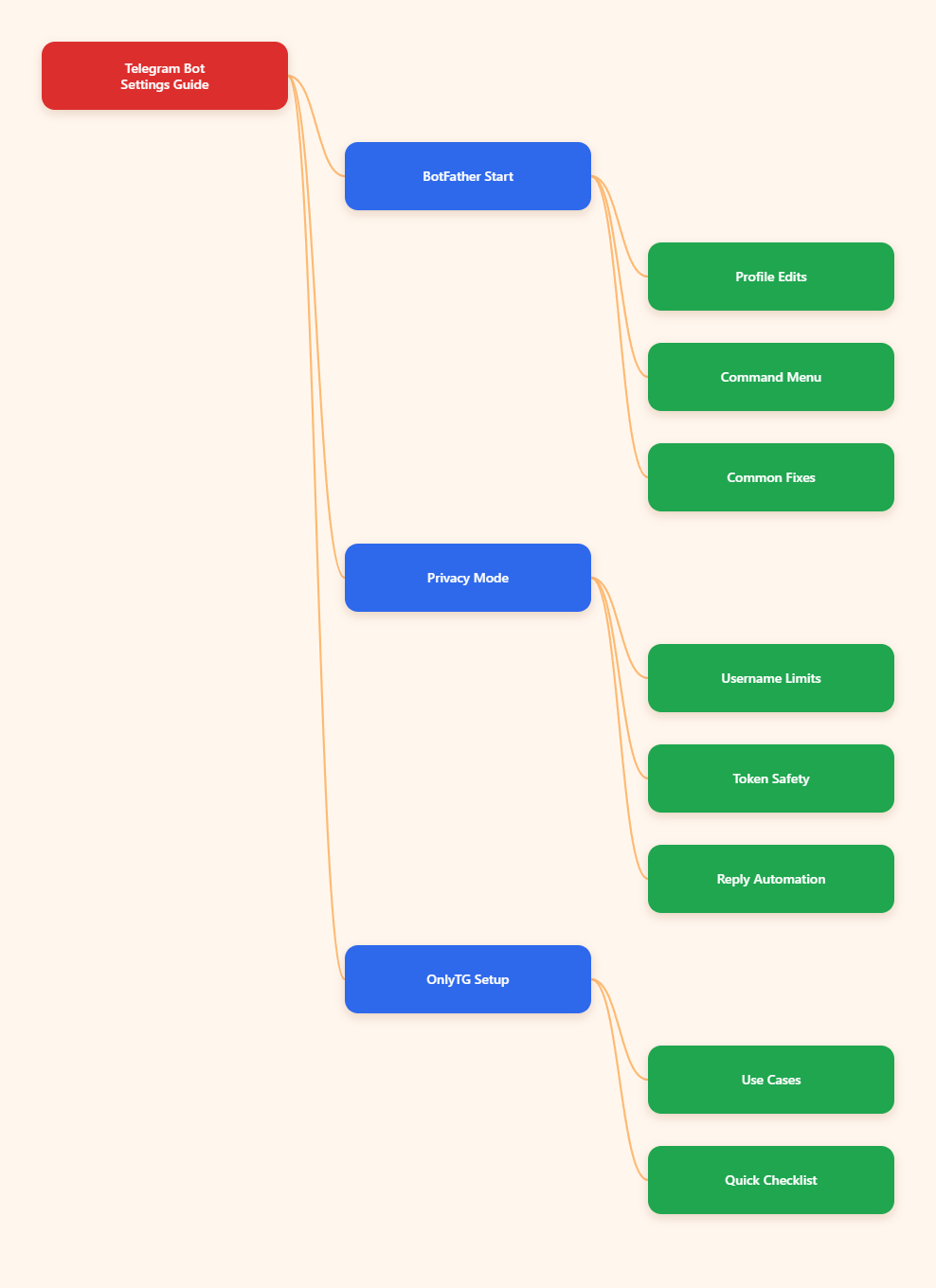
How to Edit Settings After Create Telegram Bot: My Workflow
I always start in BotFather. That is the control room. From there, I can change the name, description, avatar, commands, privacy mode, inline mode, and token.
I do not try to edit everything at once. I fix the public-facing stuff first, then the behavior settings, then security. That order saves me from confusing users and breaking the bot by accident.
One thing I tell every creator early: the bot username is not the same as the display name. In practice, I can update the visible name, but I should not expect easy username changes later. That is why I choose the username carefully at launch.
What I Change First After Bot Creation
When the bot is fresh, these are the settings I review first.
- Name: This is the visible brand label. I keep it short and recognizable.
- Description: This appears when users open the chat. It should explain the bot in one clean sentence.
- About text: This is the short profile bio. I use it to reinforce the bot’s role.
- Profile photo: A clean avatar makes the bot feel real and trustworthy.
- Commands: A useful menu reduces friction because users do not have to guess what to type.
- Privacy mode: This controls how the bot behaves in groups.
- Token: I treat it like a password. If it leaks, I rotate it immediately.
| Setting | BotFather command | What it changes | Why I care |
|---|---|---|---|
| Display name | /setname | Visible bot name | Brand clarity |
| Description | /setdescription | Intro text in chat | Sets expectations |
| About text | /setabouttext | Profile bio | Supports trust |
| Profile photo | /setuserpic | Bot avatar | Improves legitimacy |
| Commands | /setcommands | Command menu | Boosts usability |
| Privacy mode | /setprivacy | Group message intake | Controls group behavior |
| Inline mode | /setinline | Inline query support | Useful for search-like flows |
| Token rotation | /revoke or /token | New API token | Security response |
My Step-by-Step BotFather Routine
Here is the simple path I follow after I create a bot.
- Open BotFather in Telegram and go to
/mybots. - Select the bot I want to edit.
- Update the name with
/setname. - Write a clear description with
/setdescription. - Add a short bio with
/setabouttext. - Upload a clean avatar with
/setuserpic. - Define commands with
/setcommands. - Check privacy mode with
/setprivacy. - Enable inline mode only if I need it.
- Rotate the token with
/revokeif I ever feel exposed.
I like this flow because it keeps the bot stable. I am not guessing. I am checking each layer in the order users will feel it.
If the bot will live in private chat only, I keep the setup simple. If it will run in a group, I inspect privacy mode much more carefully. Telegram bots can behave very differently depending on that one switch.
Why These Settings Matter More Than Most People Think
Most bot creators focus on the first command or the first auto-reply. I think that is too narrow. Settings shape the entire user journey before the bot ever sends a useful message.
First, trust. A clear name, profile photo, and description make the bot feel legitimate. People do not want to talk to something that looks half-built.
Second, guidance. Commands help users know what to do next. That reduces abandoned chats and repeated questions.
Third, group behavior. Privacy mode can completely change how useful a bot is inside a community. If I get this wrong, I either miss messages or collect more than I wanted.
Fourth, safety. Tokens are the real keys to the bot. If one leaks, I do not debate it. I revoke it and regenerate a new one.
These are small toggles, but they affect support load, user confidence, and how easy the bot is to maintain.
Where OnlyTG Echo@EchoOnBot Fits In
There are times when I do not want to code every reply path by hand. That is where OnlyTG Echo@EchoOnBot becomes useful. I use it when the problem is not creating a bot from zero, but managing replies and structure faster.
The basic flow is straightforward. I create the bot in BotFather, copy the token, then connect it inside OnlyTG Echo@EchoOnBot. After that, I configure the reply logic and test the bot from a real Telegram account.
This lines up with the official onboarding pattern: create the bot first, then bind it, then edit the message flows. I like that because it keeps BotFather as the source of truth for the bot itself.
Practical setup I use
- Create the bot with BotFather and get the token.
- Bind the token in OnlyTG Echo@EchoOnBot.
- Set the start message, quick replies, or keyword replies.
- Test the flow from a real user perspective.
- Adjust commands and profile settings back in BotFather if the public face needs work.
Three real-world scenarios I would use it for
- Lead qualification: A small agency can greet new prospects, ask two qualifying questions, and send the right next-step reply without manual back-and-forth.
- After-hours support: An e-commerce team can answer common shipping or order questions when the human team is offline, then hand off harder issues later.
- Community onboarding: A course or membership community can welcome new members, show the rules, and route them to billing, support, or content links.
I do not see OnlyTG Echo@EchoOnBot as a replacement for strategy. I see it as a clean layer that handles repetitive Telegram replies so I can focus on the offer, the funnel, and the user experience.
Extra features I would note briefly
- Start messages can include text, media, and buttons.
- Keyword replies help match common user intents.
- Bot menu tools make the bot easier to explore.
- Multi-form message building helps when I need more than plain text.
That is enough for me to decide whether a manual setup is fine or whether a low-code helper will save time.
Mistakes I Keep Seeing in 2026
I keep running into the same problems over and over. They are easy to avoid once you know what to watch for.
- Leaving the description vague: If users cannot understand the bot in one glance, they leave.
- Ignoring the avatar: A blank or random image makes the bot look unfinished.
- Skipping commands: If users must guess actions, they will drop off.
- Forgetting privacy mode: Group bots often fail because this setting was never checked.
- Exposing the token: A leaked token is a security problem, not a minor inconvenience.
- Trying to rename the username late: That often leads to planning pain that could have been avoided.
My rule is simple. If the bot looks messy or behaves unpredictably, I fix settings before I blame the automation.
Quick Checklist I Use Before Launch
- Write a short, clear description.
- Match the avatar to the brand.
- Add only the commands people will actually use.
- Test private chat behavior before group rollout.
- Check privacy mode if the bot will join communities.
- Store the token safely and rotate it if needed.
- Revisit the profile after the first real user test.
If I do these seven things, the bot usually feels far more polished without much extra work.
FAQ
How do I edit settings after create Telegram Bot?
Open BotFather, go to /mybots, select your bot, and use the relevant commands like /setname, /setdescription, and /setcommands. I usually start with the public profile first.
Which setting should I change first?
I start with the name, description, and avatar. Those three shape first impressions. After that, I handle commands, privacy mode, and token security.
Can I change my Telegram bot username?
Not in the same easy way you can change the display name. I treat the username as a planning decision, not a casual edit.
Why is my bot not seeing all group messages?
Privacy mode is usually the reason. New bots often behave with privacy enabled by default. If the bot needs broader group access, check that setting in BotFather.
What does /setdescription do?
It changes the bot description users see when they open the chat. I use it to explain the bot in a short, useful sentence.
How often should I rotate the token?
Only when needed, unless my security policy says otherwise. If I suspect a leak, I revoke the token immediately and update the integration.
Can I manage replies without coding?
Yes, for many common flows. That is why I sometimes pair the bot with OnlyTG Echo@EchoOnBot when I want faster reply setup and less manual work.
Final Take
When I think about how to edit settings after create Telegram Bot, I do not think about one button. I think about the whole system: branding, clarity, group behavior, security, and reply flow.
If you get those pieces right, the bot feels easier to trust and easier to use. If you want a lighter way to manage message handling after the BotFather setup, OnlyTG Echo@EchoOnBot is worth a look.