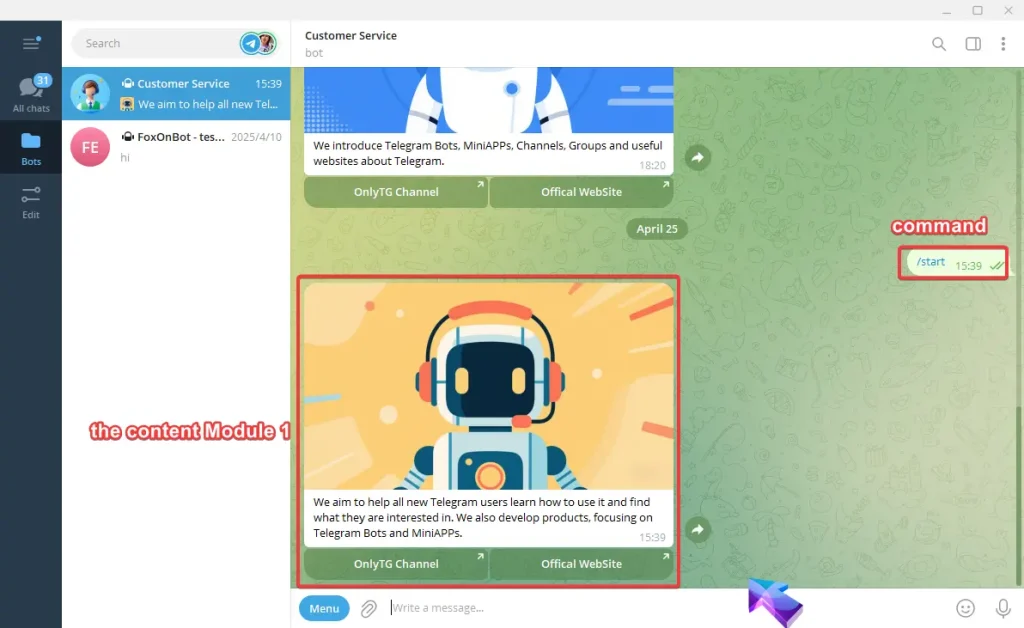
OnlyTG Echo provides the function to set Module. Modules are preset messages, you can use them when setting Start Message, Auto-reply, Quick reply, etc.
Video Tutorial
step 1
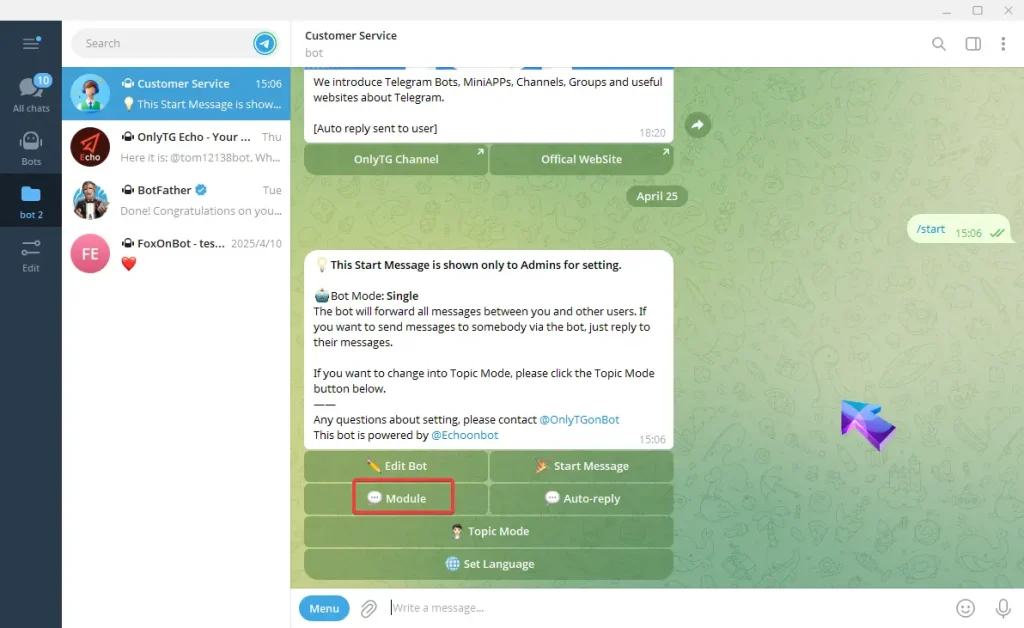
Send the command /start to your bot, and click the Module button.
step 2
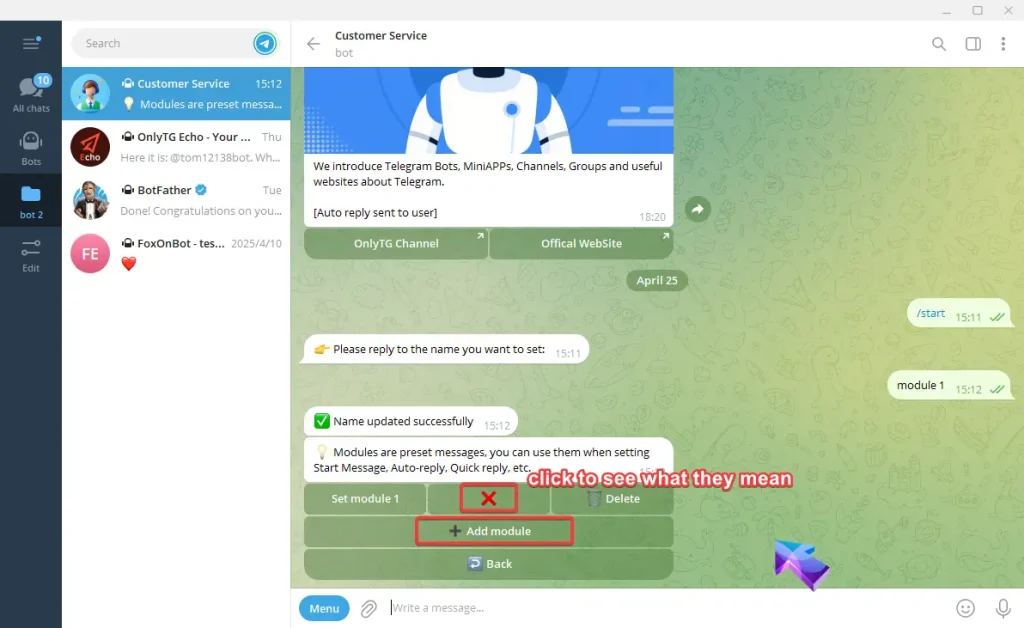
A. Click the Add module button.
The icons in the middle show what you’ve set up for each message (click to see what they mean).
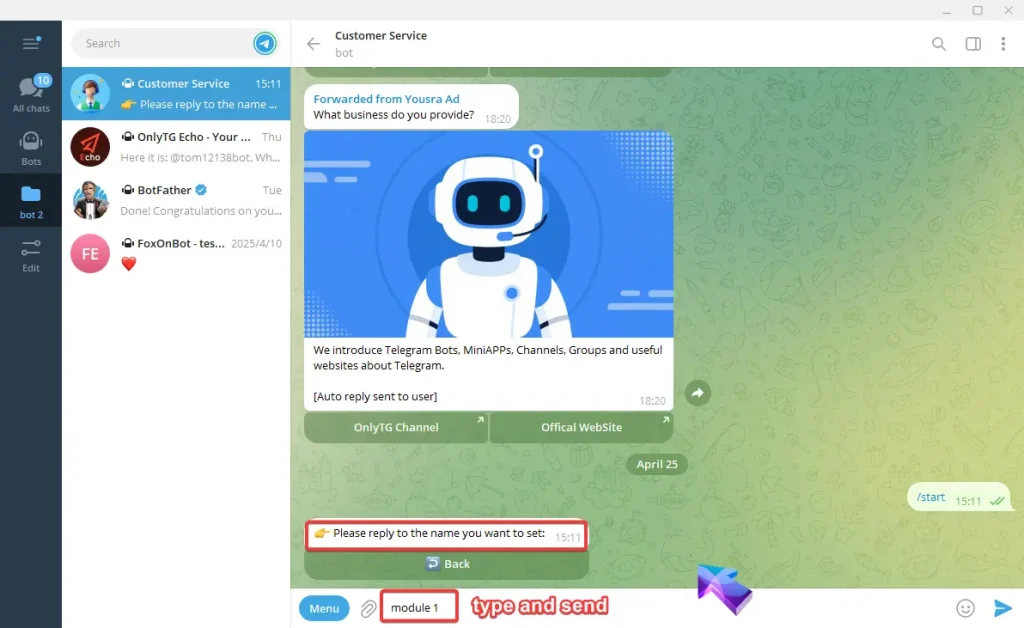
B. Reply to the name you want to set for the module.
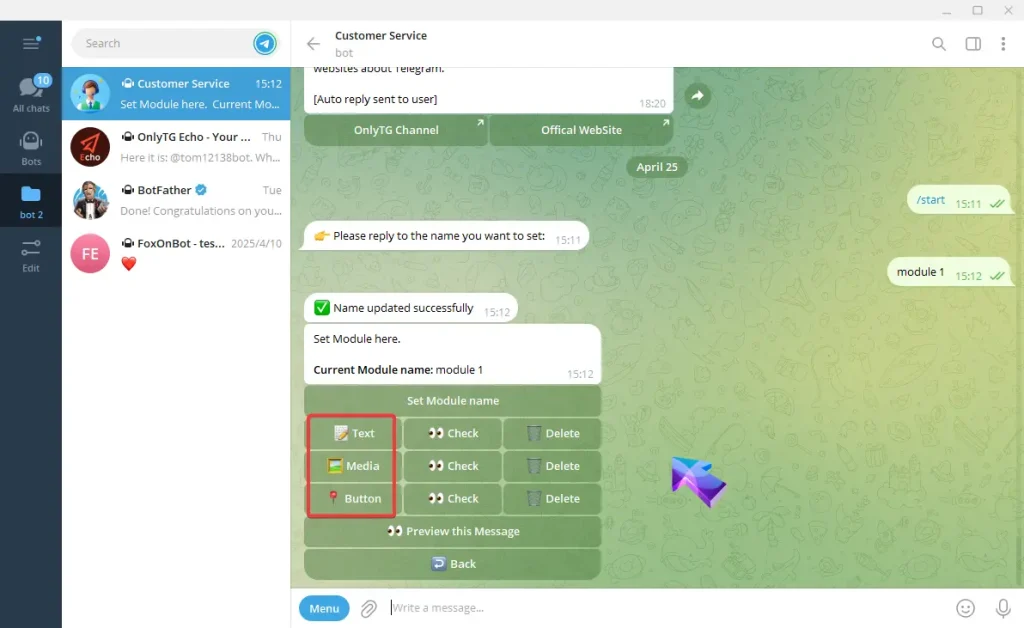
C. Here you can add Text, Media, Button.
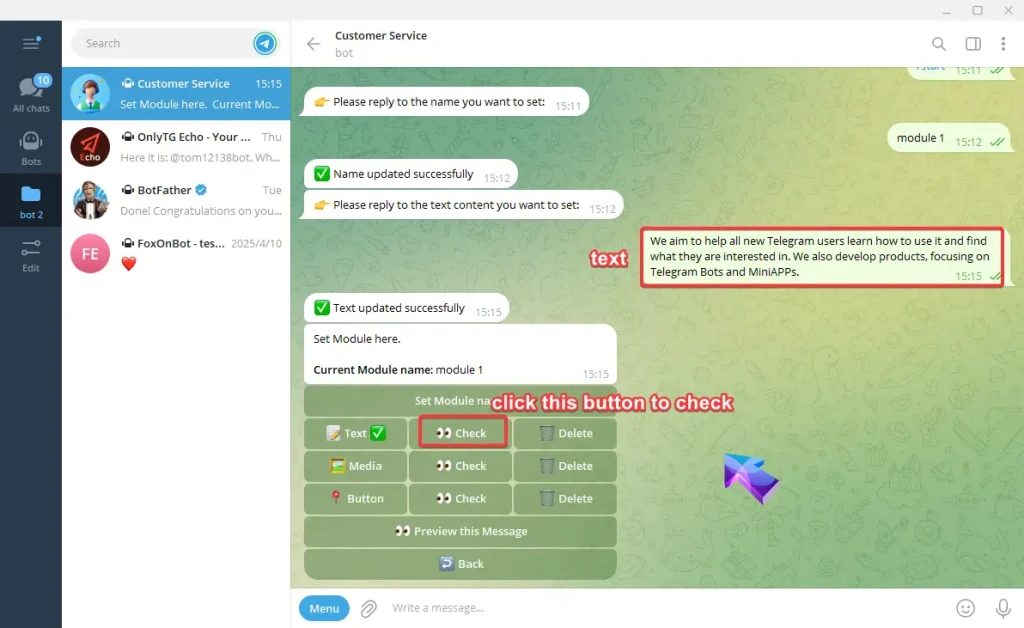
Add Text, type your text and send, Once the update success message pops up, it means the process is complete.
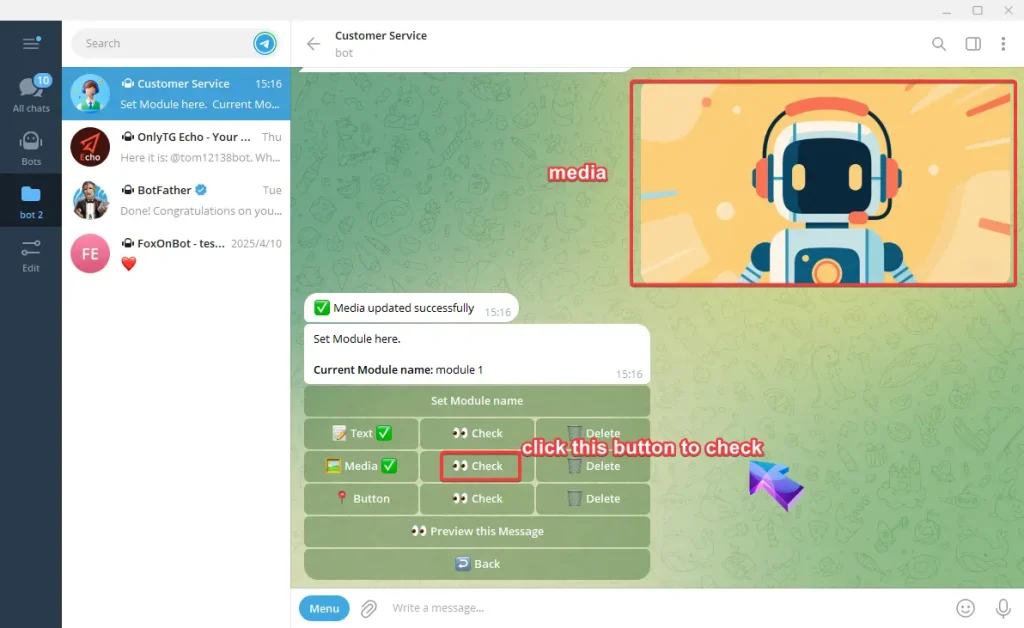
Add Media, select a media file to upload, can be pictures, videos or other media files. Once the update success message pops up, it means the process is complete.
Add Button, type button’s name and the content but only link or Module is accepted in Content.
Note:
One line of text is one row of buttons, multiple buttons in the same row are separated by ‘ | ’ .
Links must start with http, https.
Module must be in format like: msg:modulename.

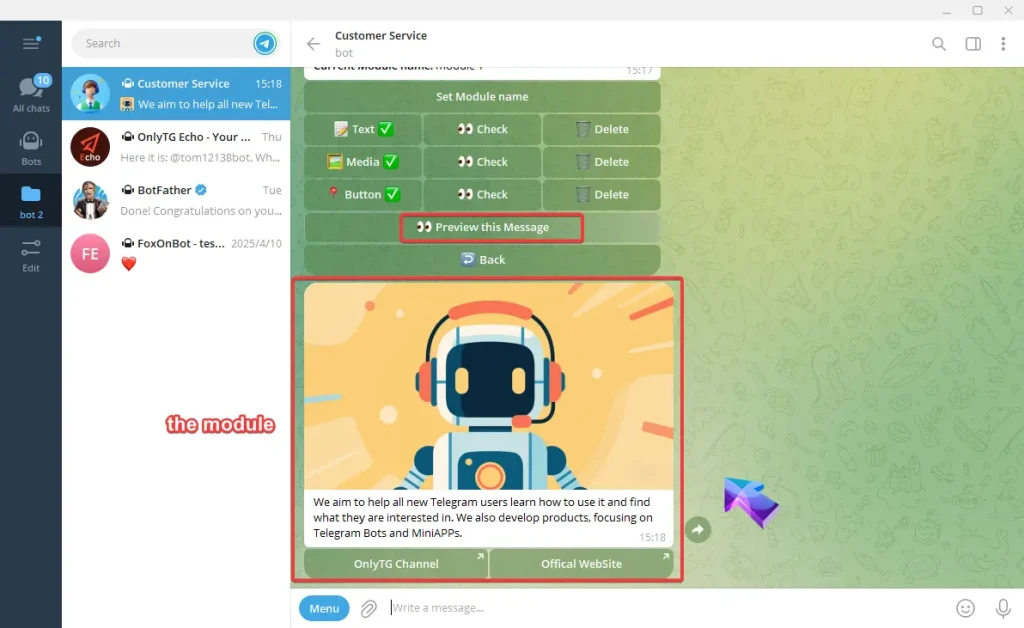
D. Click the Preview this message button can check this content module.
step 3
You can configure this module to serve as a Start Message, Auto-reply, Quick reply or other functions simultaneously. When you modify the content within this module, all features that utilize this module will be updated.
For example, configure this module to serve as the Start message.
A. When you setting the Start Message, click the Use Module button.

B. Select the module and you can edit the module here.


When user send “/start”, this content module will be sent as Start Messages.